
Regulator · REGULATORY_INSPECTOR
Regulatory Inspector
For inspectors of a regulatory body who review fleets, drivers, garages and invoices in read-only mode.
The screenshots in this guide come from the QA staging system. Every name, garage, phone number and figure in them (for example "QA Regulatory Body", "QA Alpha Motors – Kicukiro", "E2E-W0-637406 Garage") is fictional test data.
A. Introduction
As a Regulatory Inspector you have read-only access to your regulatory body's oversight tools. You can look at:
- the fleets registered under your body, their drivers and the compliance of their vehicles;
- the garages your fleets work with, and the certification status of every garage on Pickovo;
- customer complaints recorded by garages, with their follow-up history;
- garage invoices issued to your fleets;
- the marketplace of garages and spare-parts shops.
You do not certify garages, send enforcement warnings, register fleets or drivers, mark invoices paid or manage users. A Regulatory Officer in your body does that (see the Regulatory Officer guide).
In Pickovo's role description, Inspectors carry out inspections and submit findings. In the current build, though, an Inspector has the same read-only access as a Regulatory Member: certification audits are recorded by a Regulatory Officer, so you pass your inspection findings to an Officer.
How your access compares. The regulatory workspace has 13 pages. You can open 9 of them. The Regulatory Officer can open all 13.
| Page | Regulatory Officer | You |
|---|---|---|
| Dashboard, Fleets, Drivers, Garage Certification, Compliance, Complaints, Enforcement, Invoices, Marketplace | Yes (with actions) | Yes read-only |
| Commissions, Network Performance, Reports, Regulatory Users | Yes | - |
| Review Moderation, TIP pages | Yes | - |
Scope. Fleet, driver, vehicle-compliance and invoice data covers only the fleets registered under your own body. The Marketplace, Complaints and the All Garages tab list garages across the whole network. On the test system the body has no registered fleets yet, so the fleet pages in the screenshots are empty.
B. Getting started
Signing in
- Go to https://fleet.heptadev.com/en/login (
/fr/loginFrench,/rw/loginKinyarwanda, or the EN / FR / RW buttons). - Enter your Email or Phone and your Password, then select Log in.
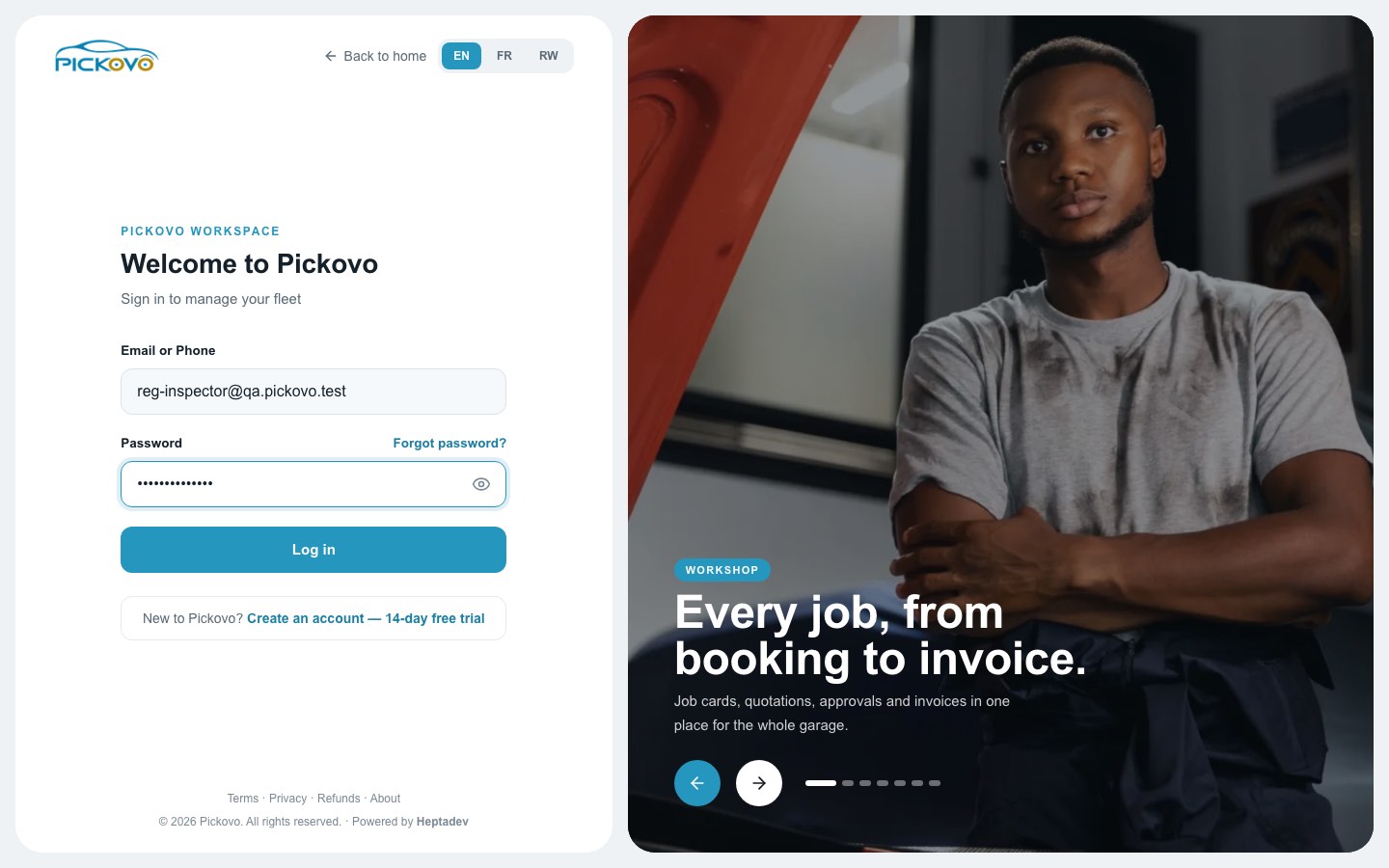
Figure 1: The Pickovo sign-in page with the Regulatory Inspector test account's email.
- Forgot password? resets a forgotten password.
- After 10 wrong passwords within 15 minutes, sign-in is paused for your account for a while.
Your dashboard
You land on the Regulatory Dashboard (/regulatory).
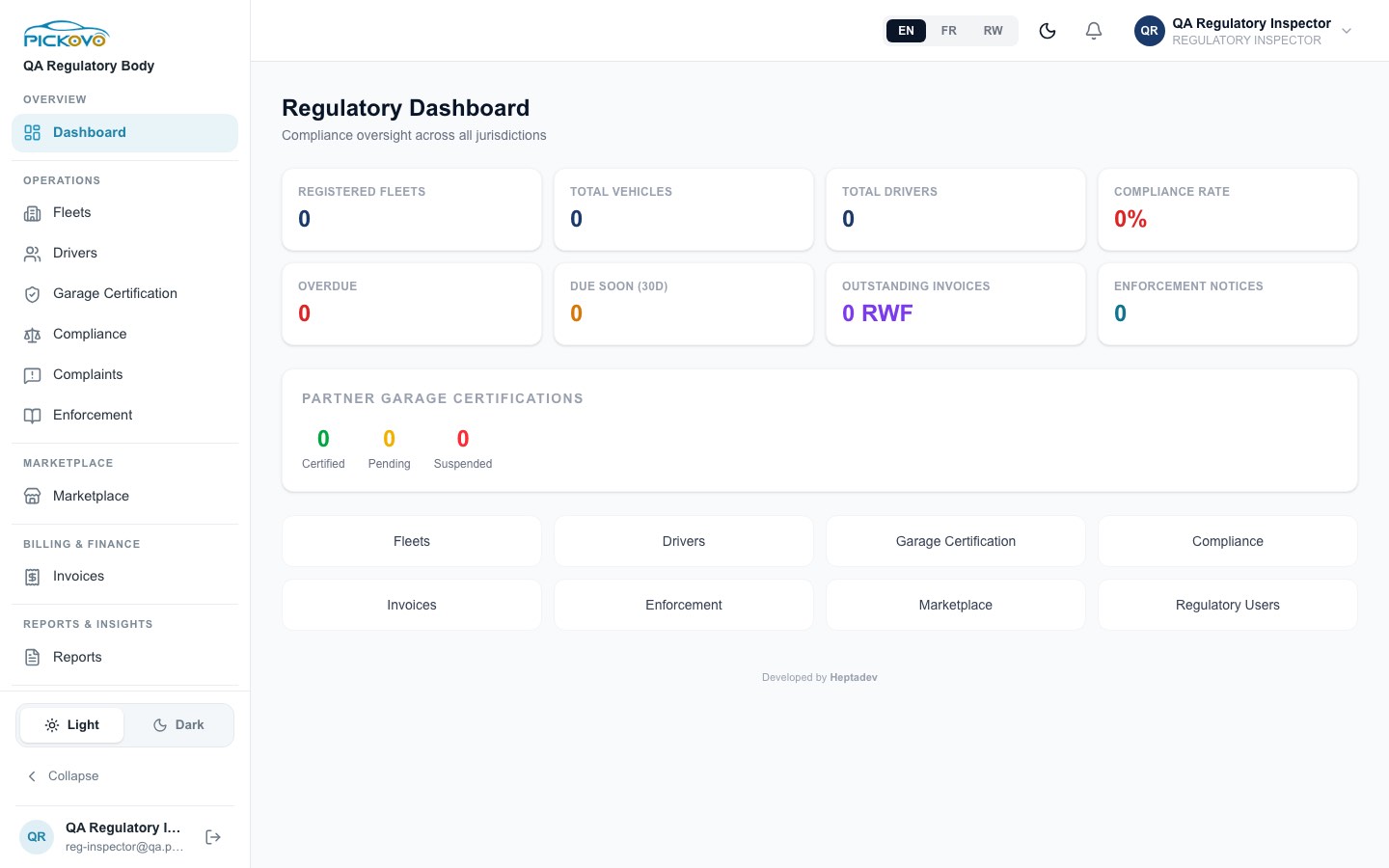
Figure 2: The Regulatory Dashboard for a body with no registered fleets yet: every figure is 0, Partner Garage Certifications shows 0 / 0 / 0, and the quick links sit below. The sidebar is your menu.
The dashboard summarises the fleets registered under your body. It is read-only:
- Registered Fleets, Total Vehicles, Total Drivers and Compliance Rate (share of vehicles whose next service date, or insurance expiry if no service is scheduled, has not passed; it reads 0% while there are no vehicles);
- Overdue and Due Soon (30d) vehicles;
- Outstanding Invoices (RWF): the total of your fleets' invoices that are still draft, sent or overdue;
- Enforcement Notices sent to your fleets;
- Partner Garage Certifications: how many of the garages your fleets work with are Certified, Pending or Suspended;
- Fleet Compliance Overview (appears once your body has at least one fleet): per fleet, Vehicles, Compliant, Overdue, Last Job and Status (Compliant, At Risk or Non Compliant);
- quick links to Fleets, Drivers, Garage Certification, Compliance, Invoices, Enforcement, Marketplace and Regulatory Users. Regulatory Users is for Regulatory Officers, so that link sends you back to your dashboard or the sign-in page.
The dashboard is part of the Regulatory module, which Pickovo switches on for each body. If yours is not switched on, you see "Regulatory Module Not Enabled" instead (see section F).
Navigation
Top bar: language (EN / FR / RW), dark mode, the bell (notifications), your name and role.
Sidebar:
| Section | Items |
|---|---|
| Overview | Dashboard |
| Operations | Fleets, Drivers, Garage Certification, Compliance, Complaints, Enforcement |
| Marketplace | Marketplace |
| Billing & Finance | Invoices |
| Reports & Insights | Reports: shown in the menu, but the page is for Regulatory Officers. Selecting it brings you back to the dashboard. |
| Account | Settings |
At the bottom: the Light / Dark switch, Collapse (shrinks the sidebar to icons; point at an icon to see its name), and your name and email with the log-out button.
C. Features
C1. Fleets (Fleet Compliance)
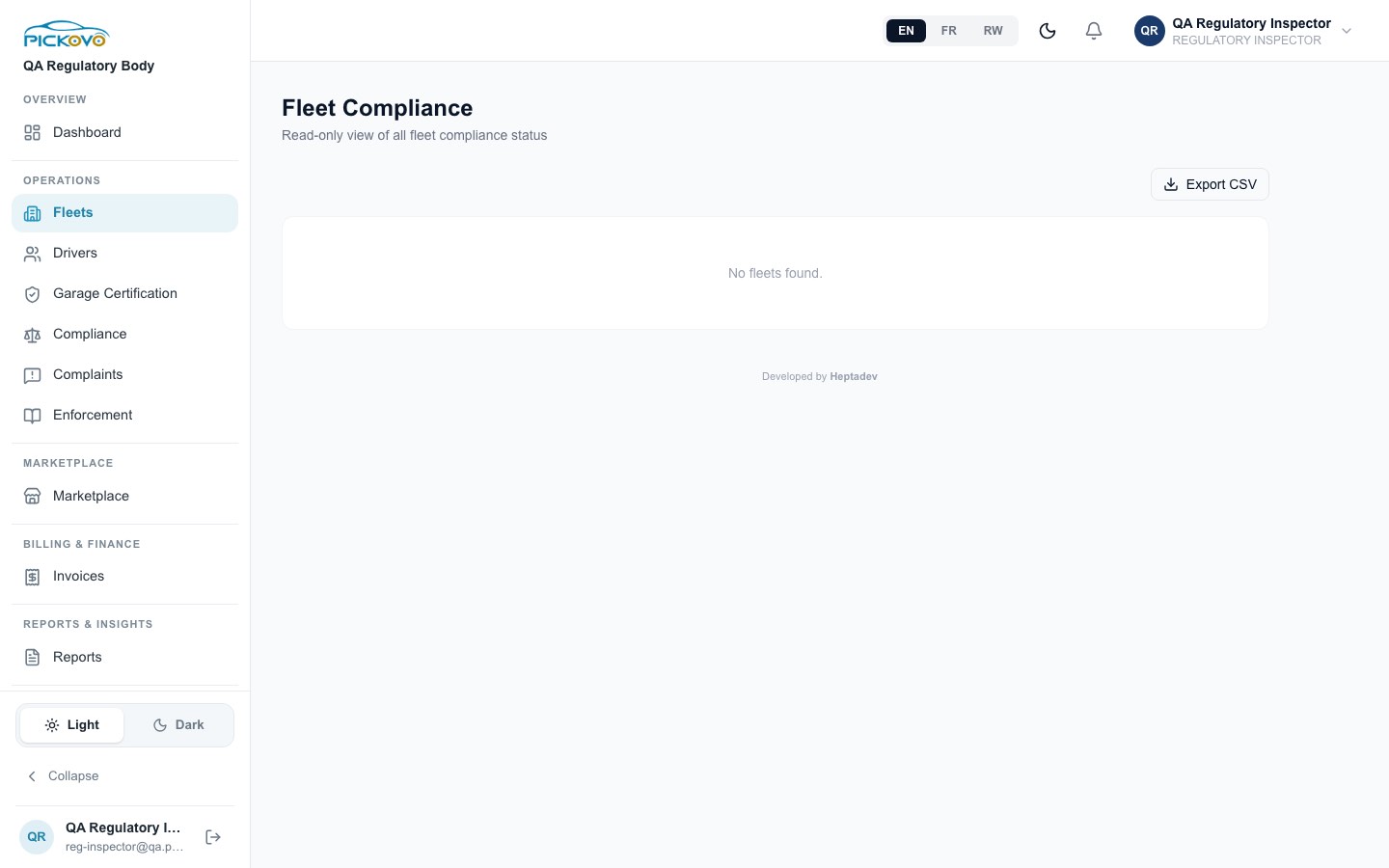
Figure 3: Fleet Compliance, read-only: only Export CSV is offered (no fleets on the test system).
Purpose: see each registered fleet's compliance.
- Each fleet shows its status (Compliant, At Risk, Non-Compliant), registration date, vehicles, active jobs and drivers.
- Select the arrow (›) to open it: Total Vehicles, Drivers, Insurance Compliance, Jobs (Total / Active), Pending Invoices, Revenue (Paid Invoices), Last Inspection, Recent Jobs and a vehicle table with insurance status.
- Export CSV downloads the list.
Restriction: Register Fleet and Rename are not shown to you.
C2. Drivers (Driver Registry)
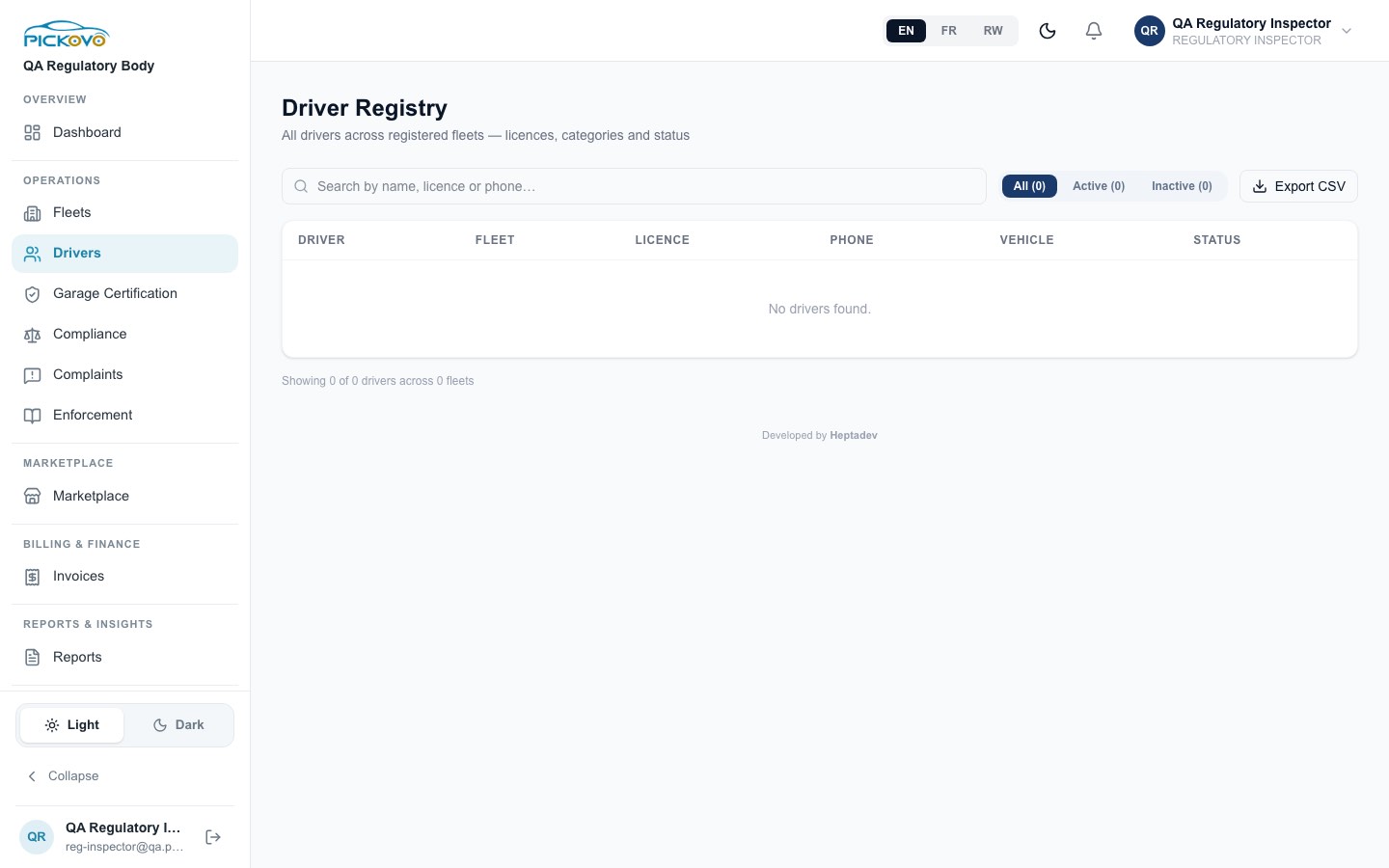
Figure 4: Driver Registry, read-only: search, All / Active / Inactive filter and Export CSV, with no Actions column.
Search by name, licence or phone, and filter by fleet and All / Active / Inactive. The table shows Driver, Fleet, Licence (with category), Phone, Vehicle, Status. Export CSV downloads it. Register Driver and Reassign are not available to you.
C3. Garage Certification
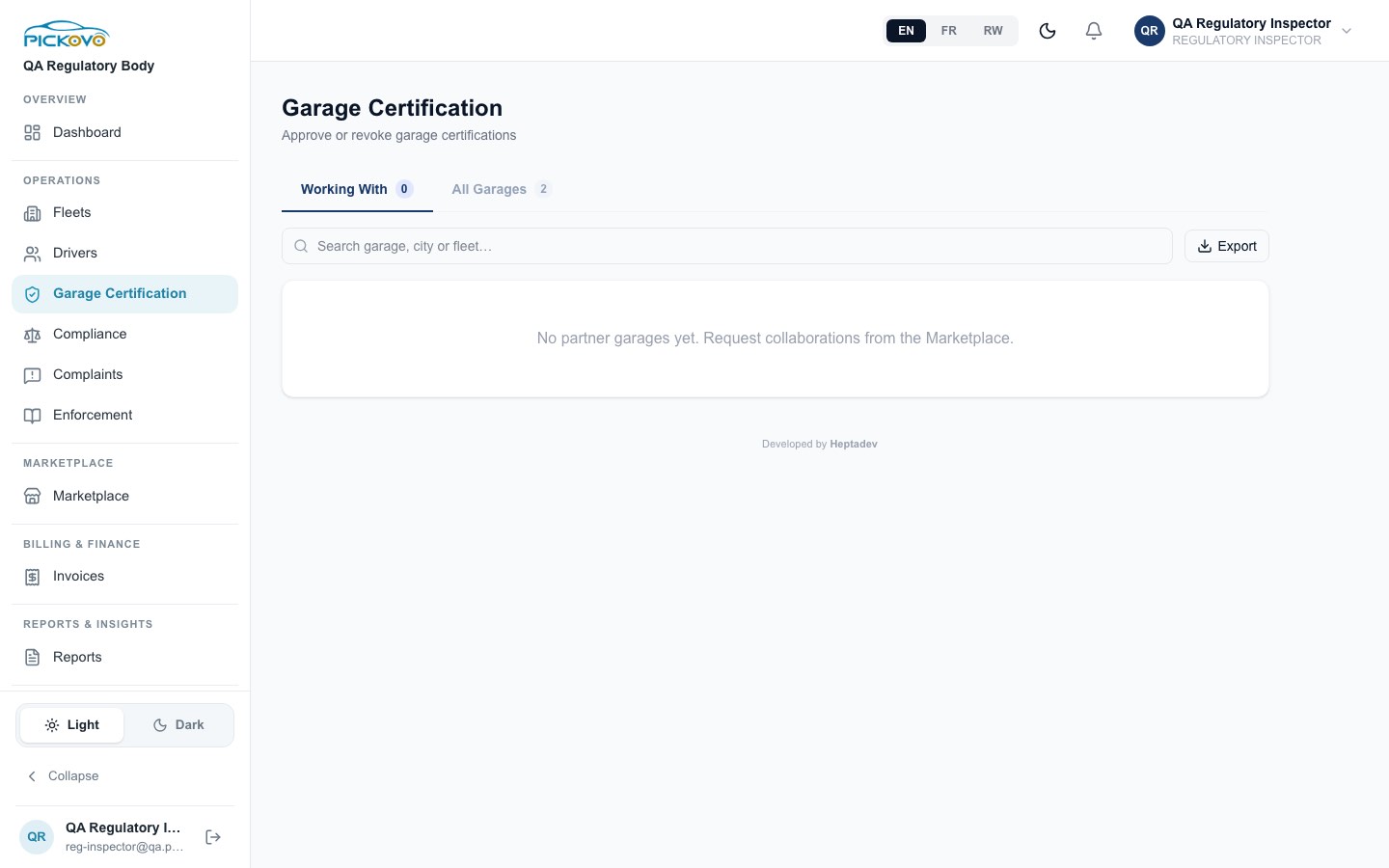
Figure 5: Garage Certification: "Working With" (0) and "All Garages" (2) tabs, search and Export.
- Working With: garages that work with your fleets, with certification status, location, specialisations and fleets served. View profile opens the garage's page.
- All Garages: every garage with a profile, showing Certification, Garage Family, Partner status, Specialisations and Last Audit.
- Search, then Export to download the list.
- On a garage's profile you can open its Compliance record (corrective actions, documents, staff qualifications, complaints) to read.
Restriction: the Actions column (Approve, Revoke, partner decisions, Feature, Audits) is not shown to you, and you cannot run certification audits.
C4. Compliance (Vehicle Compliance)
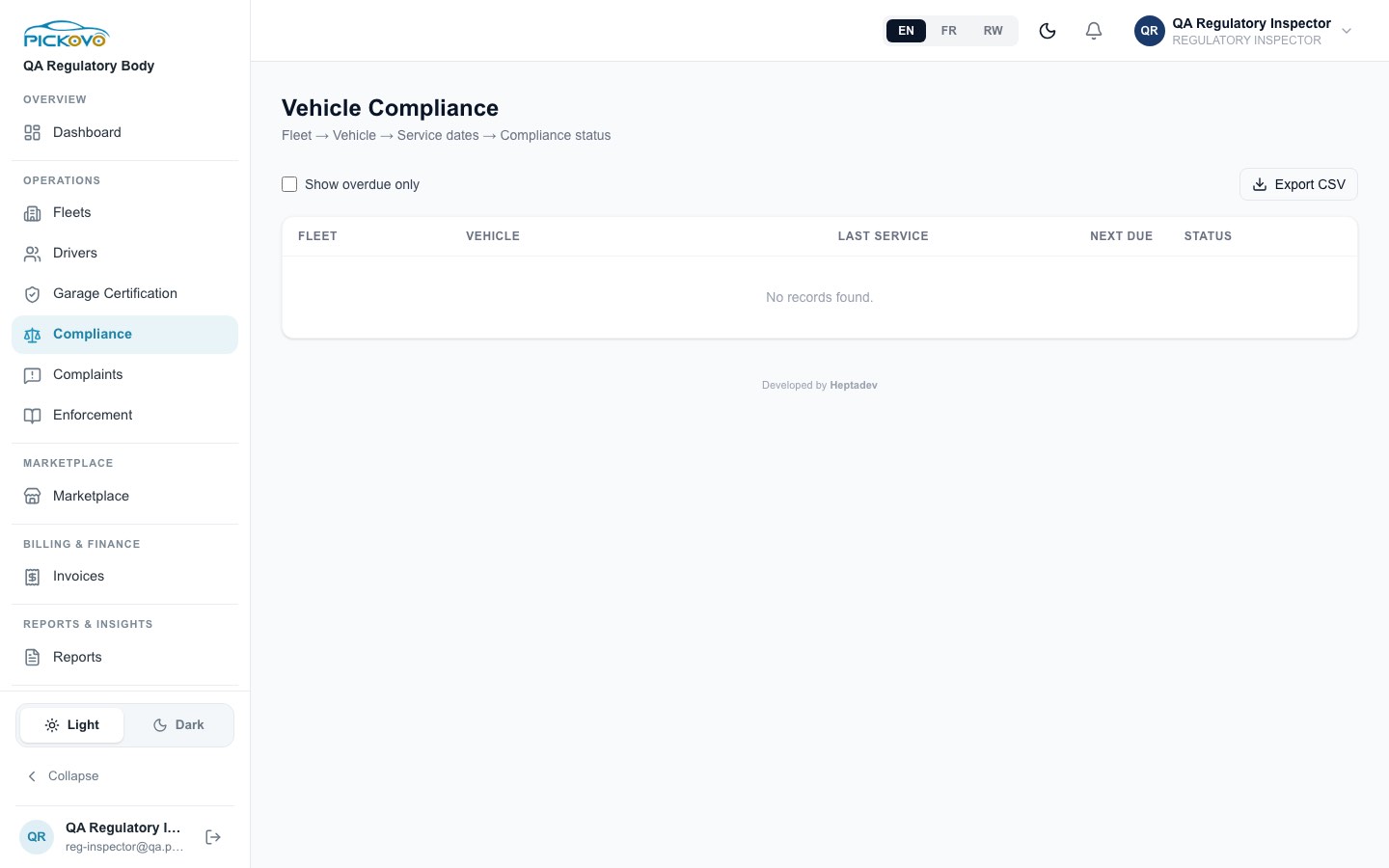
Figure 6: Vehicle Compliance: Fleet, Vehicle, Last Service, Next Due and Status, with "Show overdue only" and Export CSV.
Every vehicle in your fleets appears as Compliant, Due Soon or Overdue, based on its service dates. Tick Show overdue only to narrow the list. Export CSV downloads it.
C5. Complaints
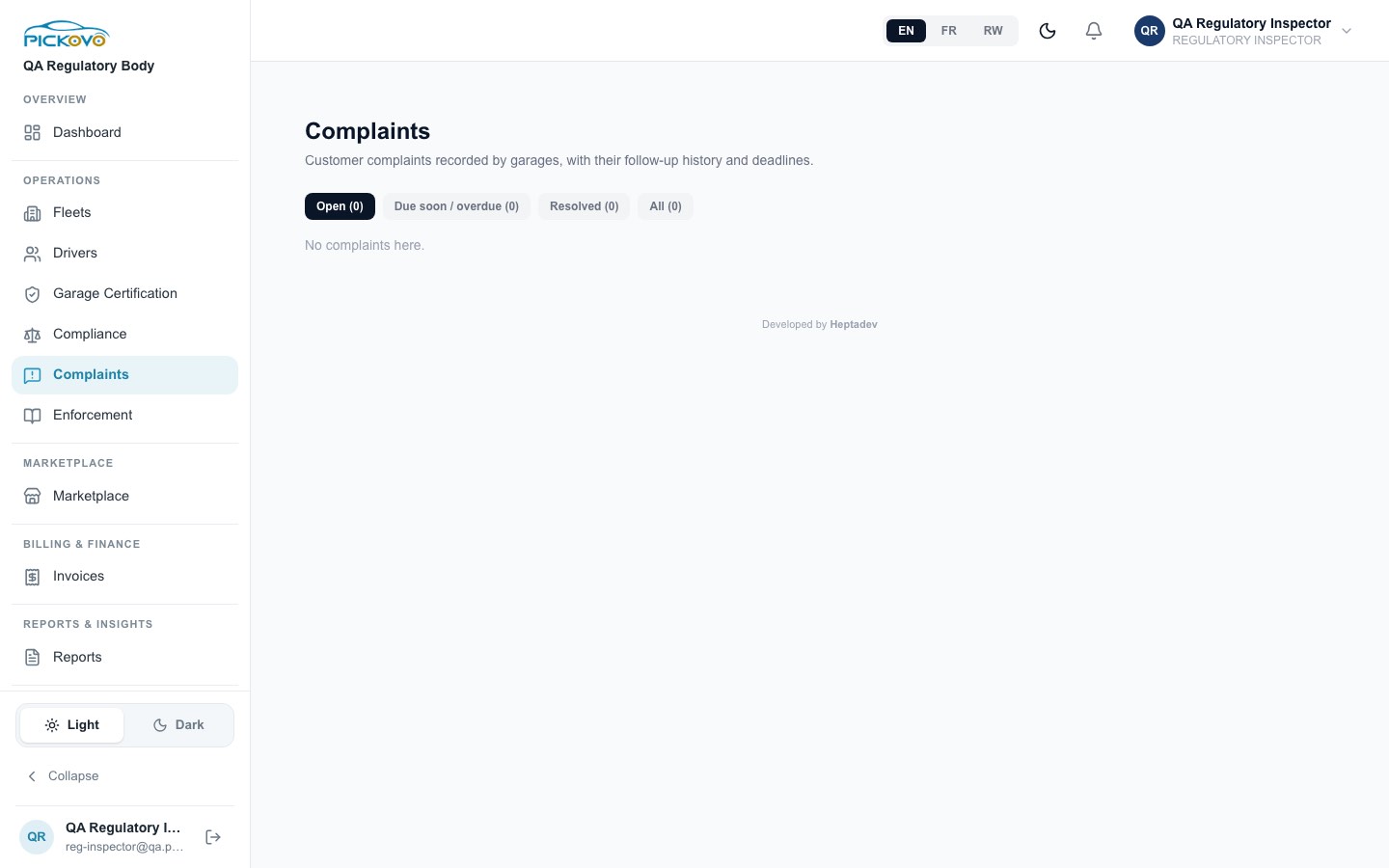
Figure 7: Complaints with the Open, Due soon / overdue, Resolved and All tabs.
Read customer complaints recorded by garages: reference, complainant and contact, description, linked job, follow-up log, deadline and resolution. Use the tabs to filter. You cannot add notes or reopen complaints.
C6. Enforcement
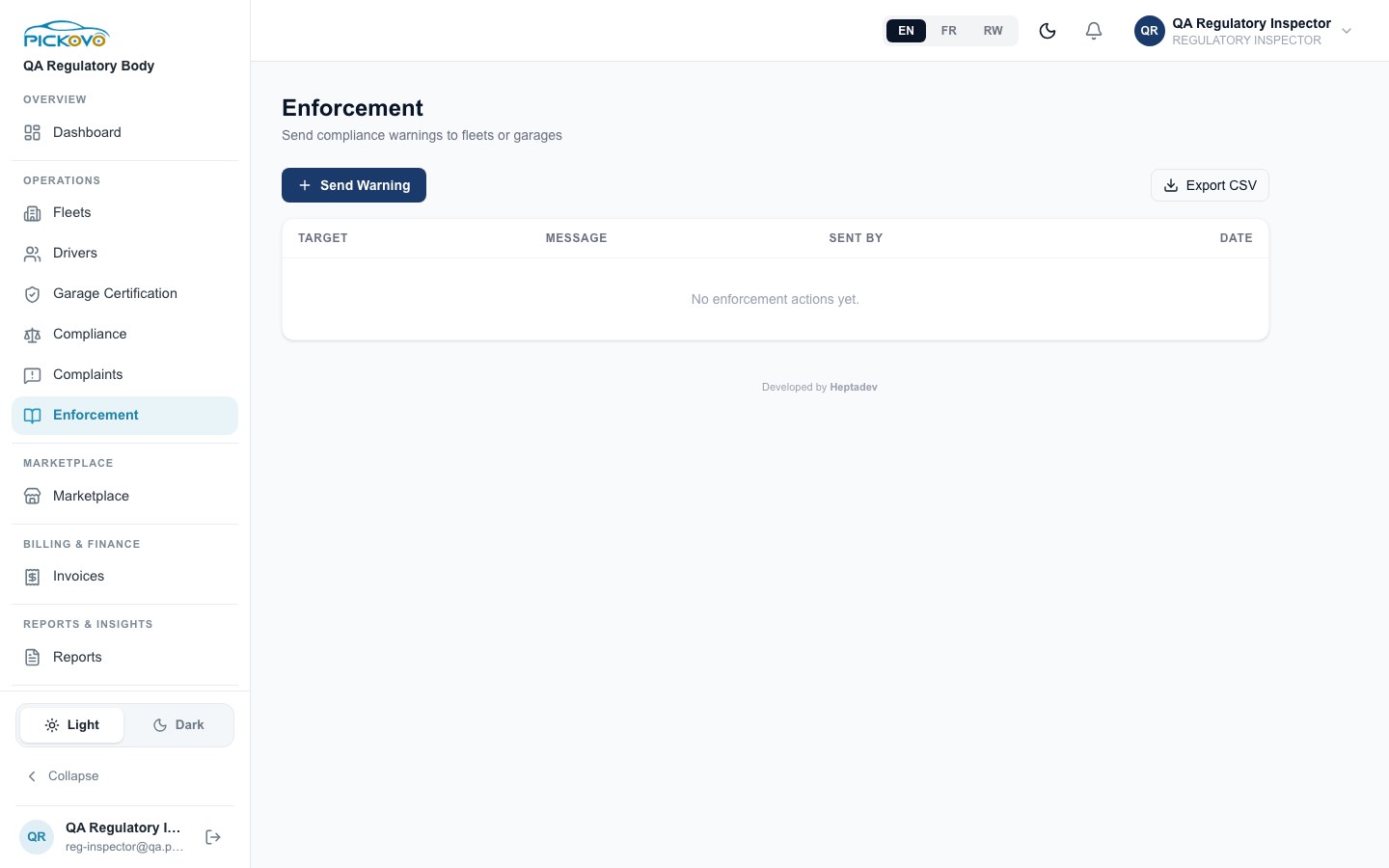
Figure 8: Enforcement as a Regulatory Inspector: the Send Warning and Export CSV buttons and an empty history table ("No enforcement actions yet").
Purpose: the page where Regulatory Officers send compliance warnings to fleets and garages.
- You can open the page, but the enforcement history (Target, Message, Sent By, Date) is only served to Regulatory Officers and TIP Administrators. For you the table is always empty, even when warnings have been sent. The Enforcement Notices figure on your dashboard shows how many have been sent to your fleets.
- Send Warning is shown, but sending is refused ("Forbidden"): only Regulatory Officers can send warnings.
Ask a Regulatory Officer if you need the detail of an enforcement notice, or if you think a warning should be sent.
C7. Invoices
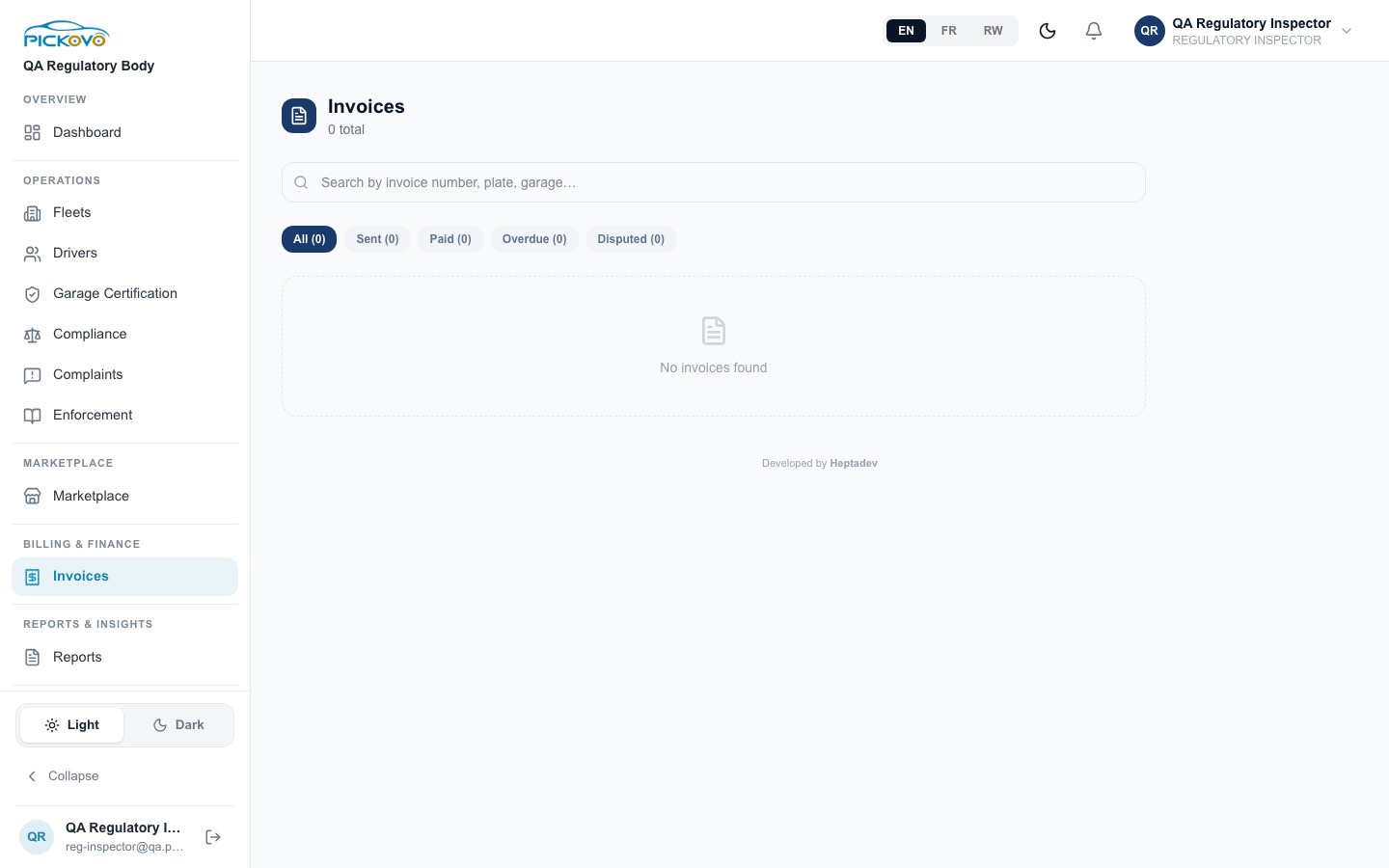
Figure 9: Invoices for your fleets with search and the All / Sent / Paid / Overdue / Disputed filters (none on the test system).
Search by invoice number, plate or garage, filter by status, and open an invoice to read it or Print / PDF it.
Restriction: a small warning triangle (flag) appears on invoices in the list, but only Regulatory Officers can flag invoices. Your attempt will be refused. Mark as Paid is not offered to you.
C8. Marketplace
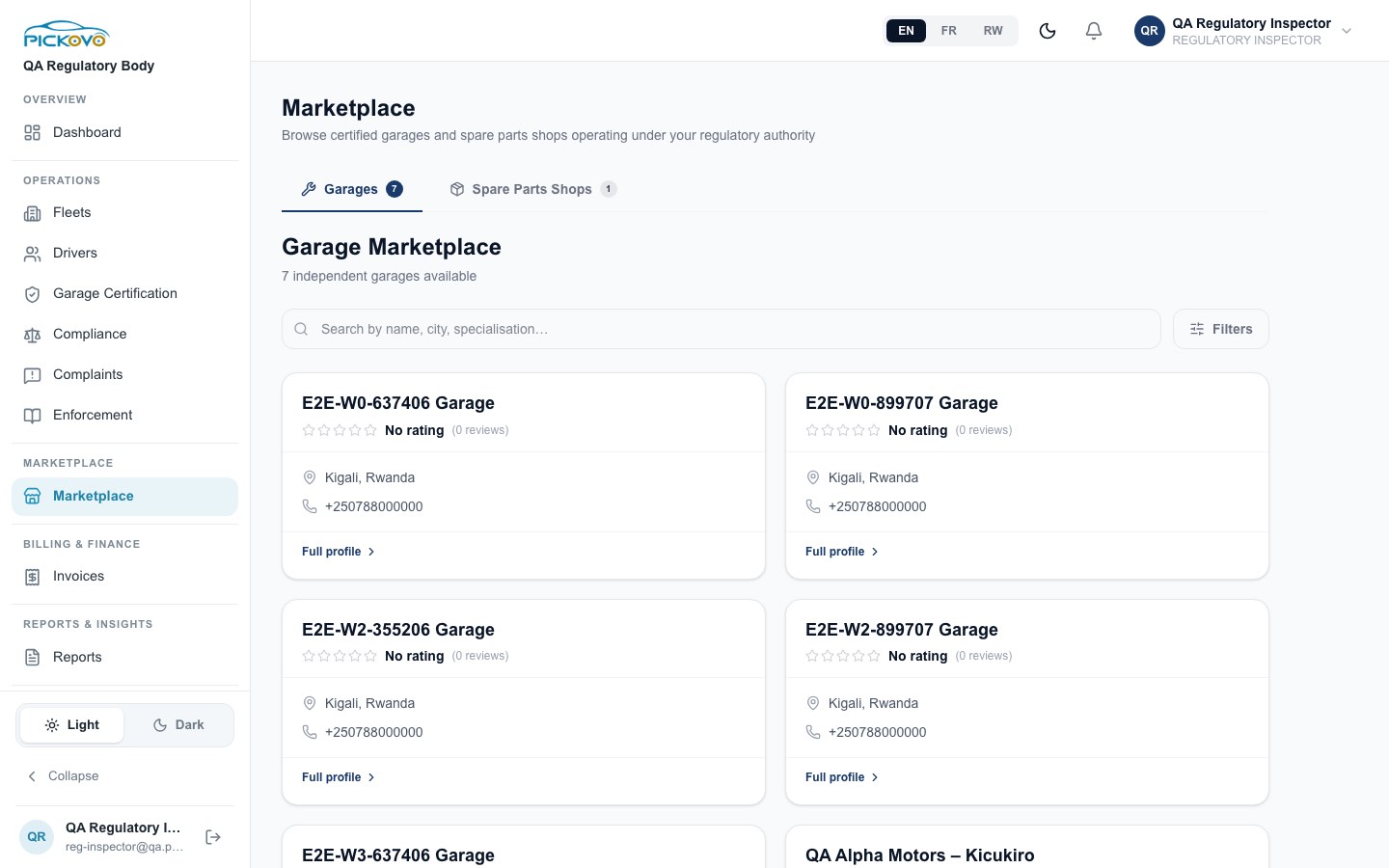
Figure 10: Marketplace, Garages tab: 7 independent garages with rating, location and phone, and a Full profile link (no Request Collab button); the Spare Parts Shops tab shows 1.
Browse Garages and Spare Parts Shops. Search by name, city or specialisation. Filters offers rating, specialisations and Certified only. Full profile opens a garage's page. Request Collab is not available to you.
C9. Notifications and Settings
- Bell / Notifications: your notifications.
- Settings: Full Name, Email, Phone Number, Change Password (leave blank to keep the current one), and account-deletion request. Settings → Notifications (
/settings/notifications) sets your notification preferences. Refer & Earn is at/settings/referral.
D. What you can and cannot do
| Area | View | Create | Edit | Delete | Approve / act |
|---|---|---|---|---|---|
| Regulatory dashboard | Yes | - | - | - | - |
| Fleets, Drivers, Compliance | Yes (export CSV) | - | - | - | - |
| Garage Certification and garage compliance records | Yes (export) | - | - | - | - |
| Complaints | Yes | - | - | - | - |
| Enforcement | page only (history list is empty for you) | - | - | - | , (sending is for Officers) |
| Invoices | Yes (print) | - | - | - | - |
| Marketplace | Yes | - | - | - | - |
| Notifications, own profile and password | Yes | - | Yes | - | - |
| Cannot access | Commissions, Network Performance, Regulatory Reports, Regulatory Users, Review Moderation, Activity Log, every /tip page, and the fleet, garage, driver, spare-parts, billing, documents and superadmin workspaces |
E. Common workflows
E1. Prepare a compliance review of a fleet
- Compliance → Show overdue only: list the vehicles that are overdue.
- Fleets: open the fleet for insurance compliance, recent jobs and pending invoices.
- Drivers: filter by that fleet and check licences and status.
- Export CSV from each page and pass your findings to a Regulatory Officer, who can send an enforcement warning.
E2. Follow a repair invoice (workflow W1)
Before you: a driver reports a fault, the fleet manager sends the vehicle to a garage, the garage repairs it and invoices the fleet, and the cashier records payment.
- Invoices: the invoice appears as Sent, then Paid.
- Open it to check the lines. If something looks wrong, tell a Regulatory Officer, who can flag it for audit.
E3. Check a garage before a fleet uses it
- Marketplace: search the garage, then look at its rating and Full profile.
- Garage Certification → All Garages: check its Certification and Last Audit.
- Complaints: look for open or overdue complaints against it.
F. Troubleshooting
| Problem | Cause and fix |
|---|---|
| Your dashboard says "Regulatory Module Not Enabled" | Your organisation's workspace has not been switched on. Only Pickovo (the platform superadmin) can enable it. Ask a Regulatory Officer to contact Pickovo support to have the Regulatory module enabled. |
| Reports brings you back to the dashboard | Regulatory Reports is for Regulatory Officers. |
| Enforcement list is empty | The enforcement history is shown only to Regulatory Officers and TIP Administrators. Ask an Officer for the detail. |
| Send Warning is refused ("Forbidden") | Only Regulatory Officers can send enforcement warnings. |
| The Regulatory Users quick link sends you to your dashboard or the sign-in page | User management is for Regulatory Officers. |
| Flagging an invoice is refused | Only Regulatory Officers can flag invoices. |
| Dashboard shows 0 everywhere, or fleet pages are empty | No fleets are registered under your body yet. The Compliance Rate reads 0% until there are vehicles. |
| You are sent to your dashboard or to sign-in | The page is outside your role. This is a permission rule. |
| Sign-in paused | 10 wrong passwords in 15 minutes. Wait, or use Forgot password?. |
G. Security and best practices
- Keep your password private. Change it under Settings if you think it has been seen. Two-factor authentication is not offered on the Settings page for this role at present.
- The pages you see contain drivers' personal data (phone, licence). Use it only for regulatory work, and store exported CSV files securely.
- Report findings through your body's procedures. A Regulatory Officer records formal actions under their own name.
- Logout on shared computers.