
Car owner · CAR_OWNER
Car Owner (Pickovo mobile app)
For private car owners who use the Pickovo app to look after their cars, book garages and get roadside help.
The screenshots in this guide come from a test system. All names, garages, plates, phone numbers and amounts in them (for example "Olivia Owner", "QA Alpha Motors – Kicukiro", "RAE 601 A") are fictional test data.
A. Introduction
As a car owner you use the Pickovo app on your phone (iOS or Android), or its web version in a browser. The app is your personal garage assistant. With it you can:
- keep a list of your cars, with their insurance and inspection dates;
- find garages near you, compare them and save your favourites;
- book a garage visit and follow the repair step by step;
- read your invoices and pay them with mobile money (MoMo) or a card, when online payment is available;
- ask for roadside help (jump start, flat tyre, fuel, towing and more) and follow the helper on a map;
- review a garage or a roadside helper after a finished job;
- receive notifications about quotes, repairs and payments.
You only ever see your own cars, bookings and invoices. Another owner cannot open your records, and you cannot open theirs.
The Pickovo web workspace at https://fleet.heptadev.com is built for garages, fleet companies and other businesses. As a car owner you can sign in there with the same account, but almost every workspace page is closed to you (see section D). Use the app.
B. Getting started
Creating an account
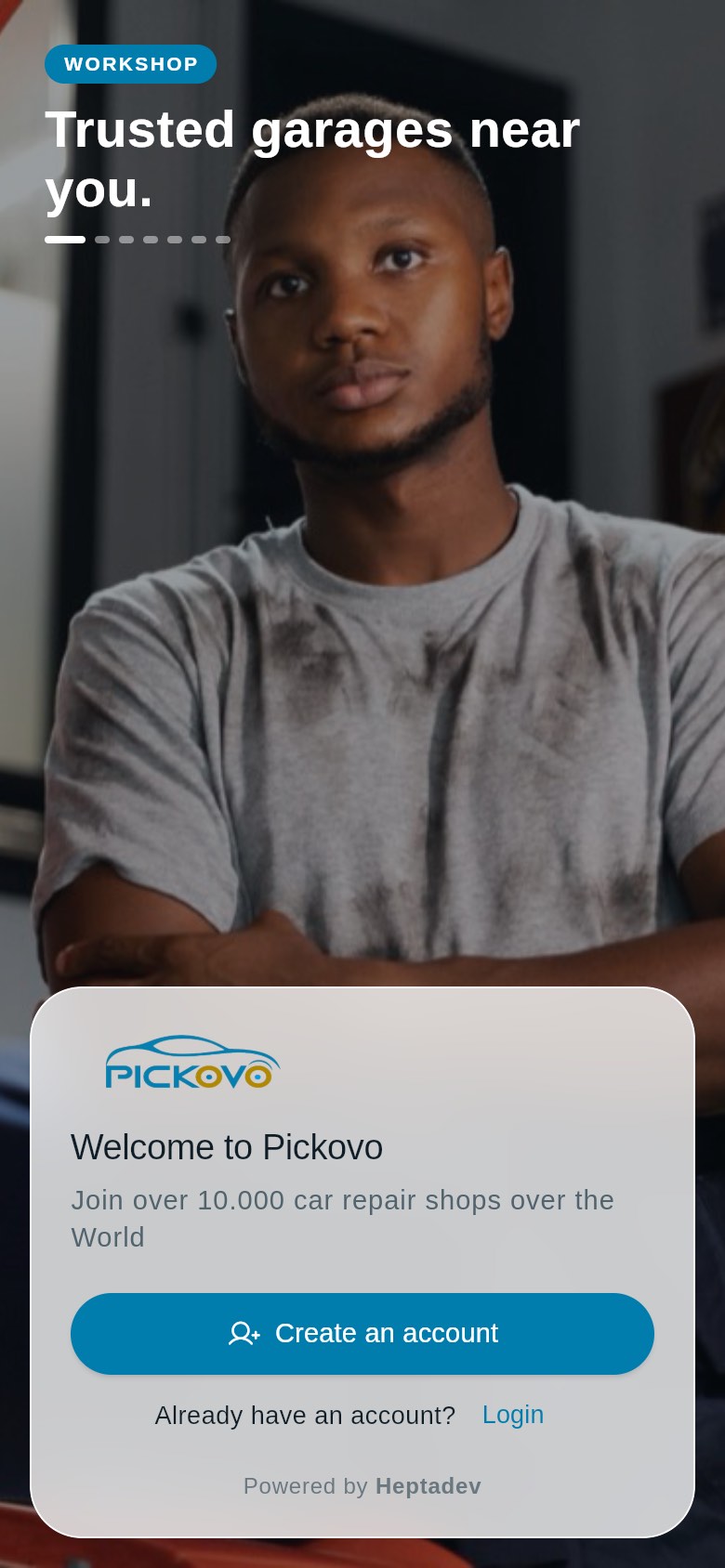
Figure 1: The welcome screen. Photos from real workshops change every few seconds, each with a line about what you can do in Pickovo. Below them are Create an account and Login.
- Open the Pickovo app. The first time, you see the welcome screen (Figure 1).
- Tap Create an account.
- Fill in:
- Full name
- Email address (required)
- Phone number (optional), for example 078 123 4567
- Password and Confirm password. The password must have at least 8 characters, with an upper-case letter, a lower-case letter, a number and a symbol.
- Tick the box to agree to the Terms of Service and Privacy Policy (you can tap each to read it).
- Tap Create account. You are signed in straight away.
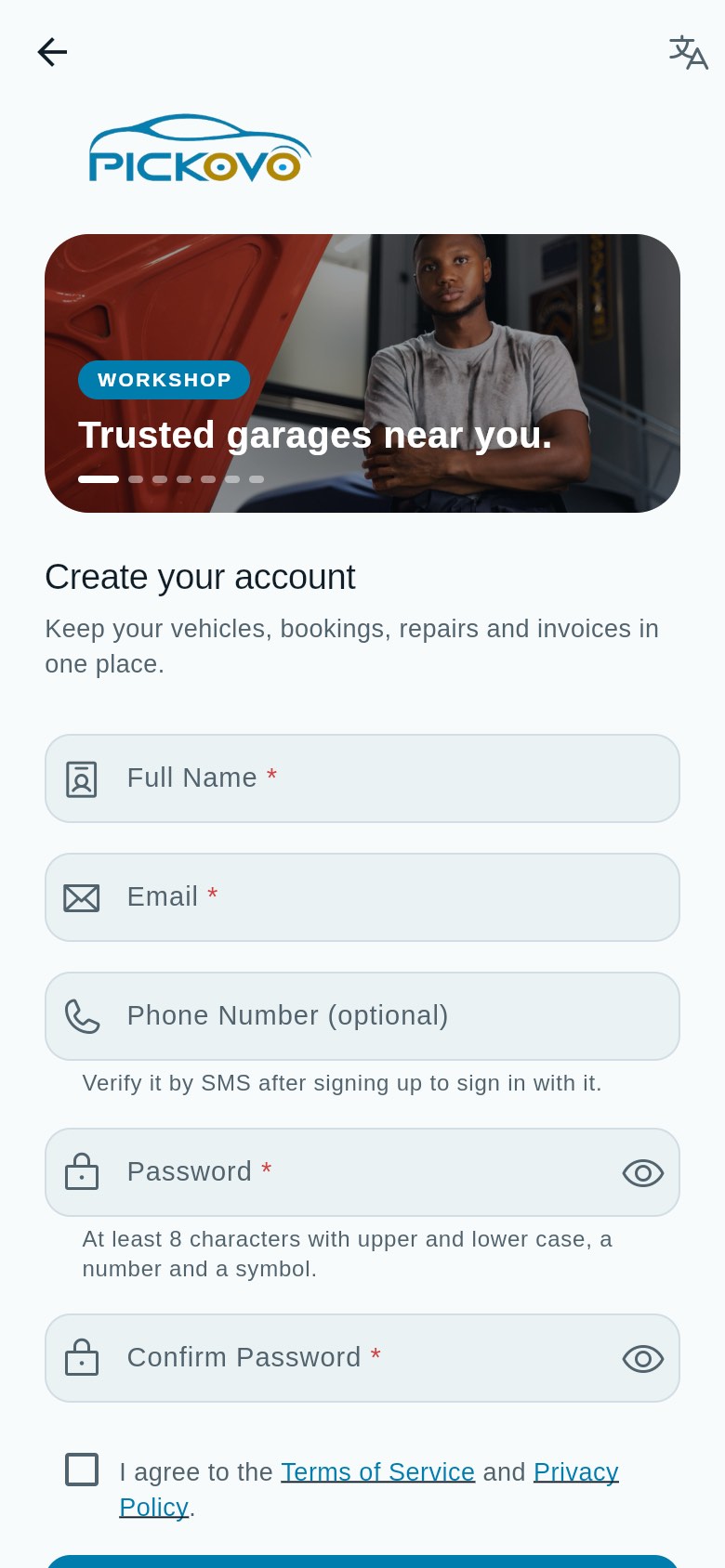
Figure 1b: The Create an account screen, with the same workshop photos at the top. 6. If you gave a phone number, the Verify your phone screen opens. Tap Send code, type the 6-digit code you receive by SMS (it expires in 10 minutes) and tap Verify. You can tap Not now and skip this, but you can only sign in with your phone number once it is verified.
Every account created in the app is a car-owner account.
Signing in
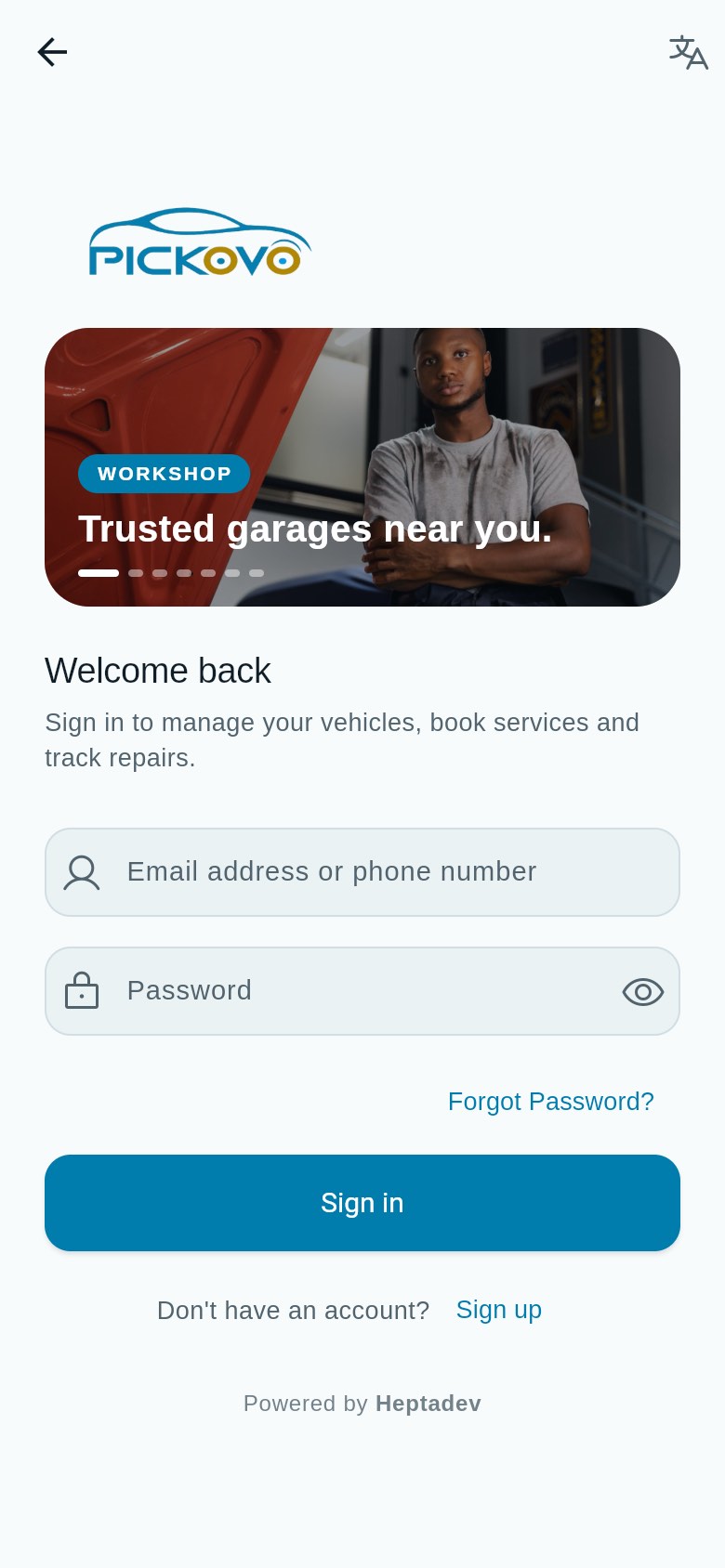
Figure 2: The sign-in screen. The workshop photos at the top change every few seconds; the icon at the top right changes the language.
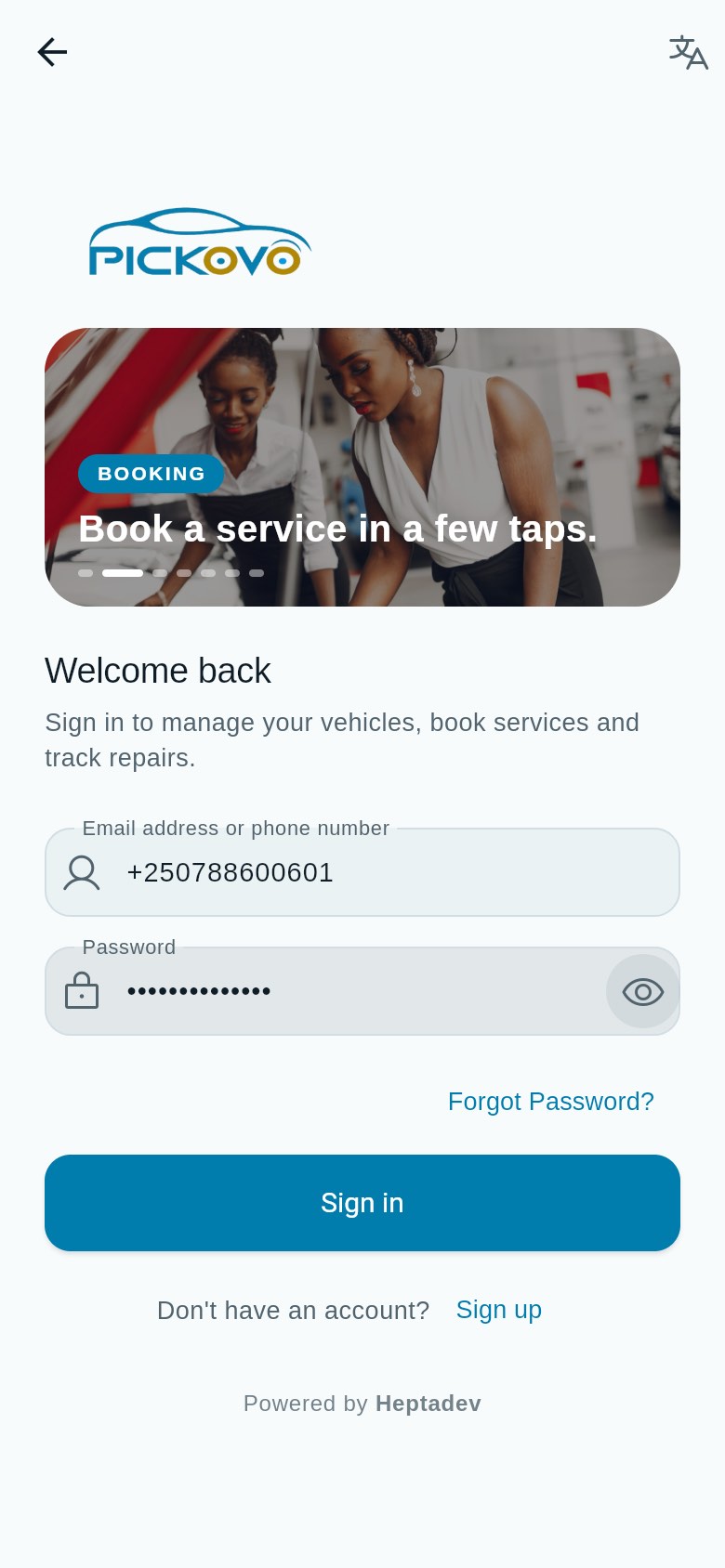
Figure 3: Signing in with a phone number. The eye icon shows or hides the password.
- On the welcome screen tap Login (or open the app if you have used it before).
- In Email address or phone number, type your email or your verified phone number (local numbers such as 078… are read as +250).
- Type your Password. Tap the eye icon to check what you typed.
- Tap Sign in.
Other options on this screen:
- Forgot Password?, see "Resetting your password" below.
- Sign up, opens Create an account.
- The language icon (top right) switches between English, French and Kinyarwanda.
For your protection, if there are too many sign-in attempts on your account (10 within 15 minutes), sign-in is paused and the app says "Too many sign-in attempts. Try again in a few minutes."
Resetting your password
- On the sign-in screen tap Forgot Password?.
- Enter the email address or phone number on your account and tap Send code.
- Enter the 6-digit code you receive (valid 10 minutes), then a New password and Confirm new password.
- Tap Reset password. For your security you are signed out on every device. Sign in again with the new password.
First look: the Home screen
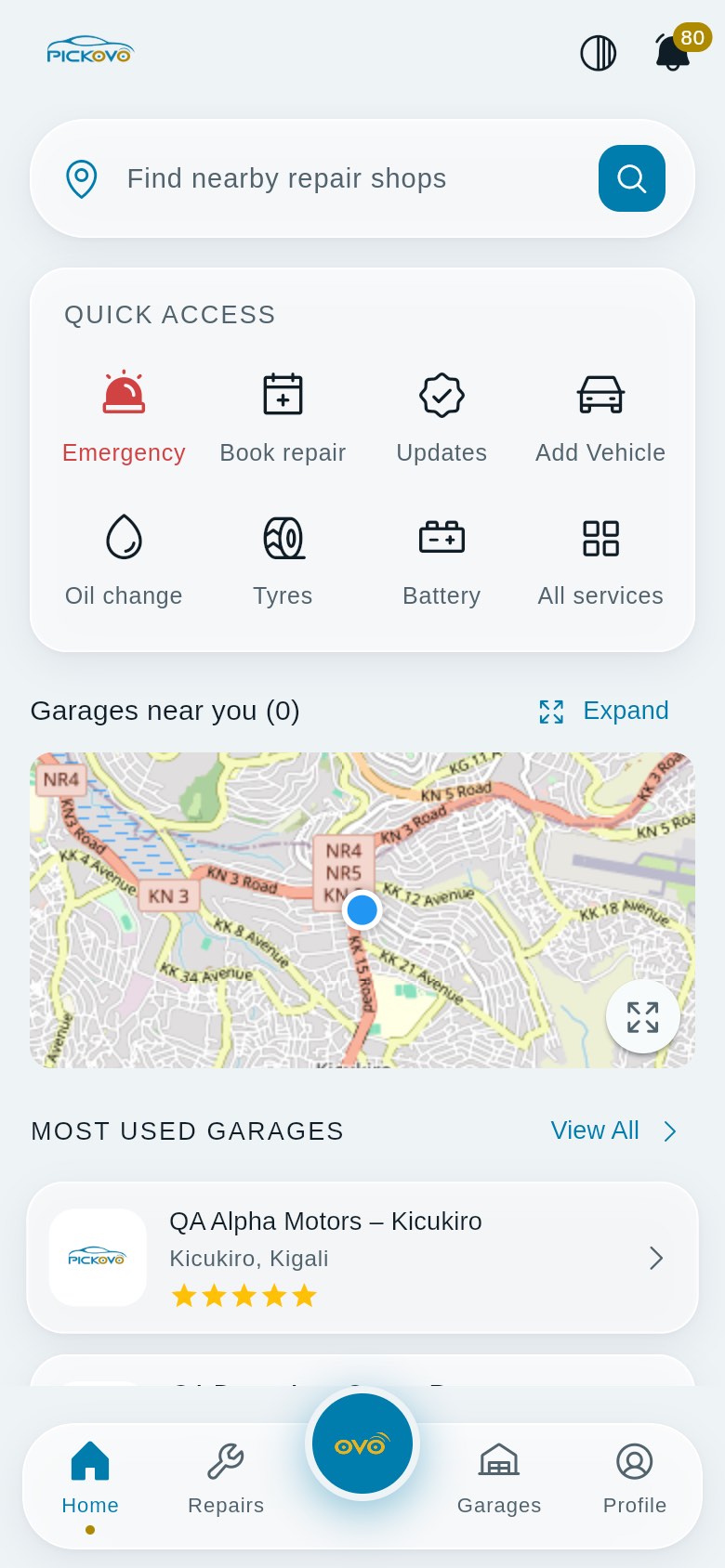
Figure 4: The Home screen: search bar, Quick access, nearby-garage map and Most used garages.
After signing in you land on Home (Figure 4):
- Find nearby repair shops, search garages by name, area, street or service.
- Quick access:
- Emergency, choose Roadside Assistance (battery, flat tyre, fuel, tow) or Accident report.
- Book repair, opens the Request Repair form.
- Updates, jumps to the Repairs tab.
- Add Vehicle, add a car.
- Three popular services (for example Oil change, Tyres, Battery), search garages offering that service.
- All services, opens garage search.
- Garages near you, a map of garages. Turn on location to centre it on you. Tap Expand to open the full map; tap a garage pin, then View garage.
- Most used garages, tap a garage to open it, or View All for the full list.
Navigation
At the bottom of every main screen:
| Tab | What it opens |
|---|---|
| Home | The Home screen |
| Repairs | Your appointments, repairs and emergency requests |
| Red button in the middle (the Pickovo mark) | Get help now, roadside assistance |
| Garages | The list of garages |
| Profile | Your account, cars, invoices, warranties, notifications and logout |
At the top right of each tab:
- the Appearance icon (half-filled circle), choose System, Light or Dark;
- the bell, your notifications, with the number of unread ones.
C. Features
C1. Profile and settings
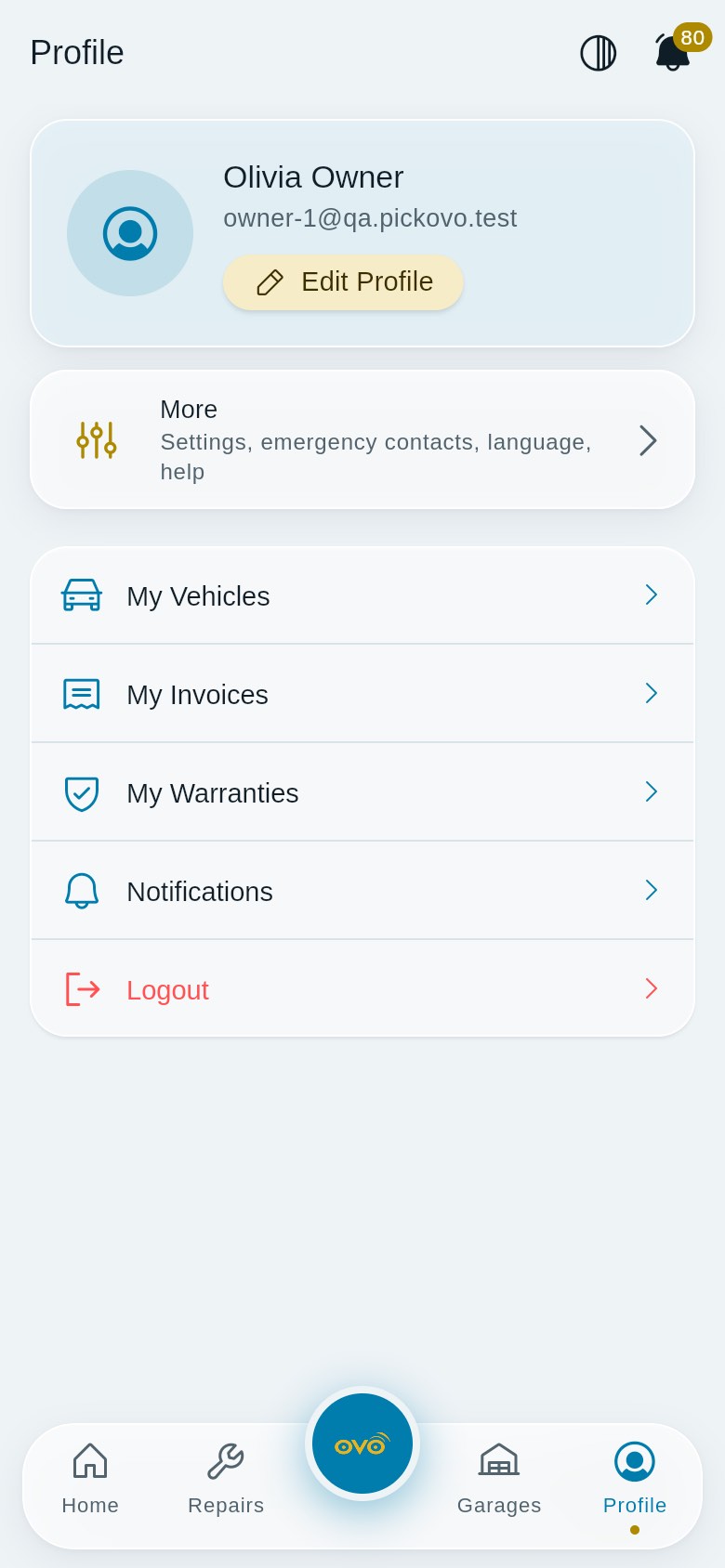
Figure 11: The Profile tab with Edit Profile, More, and your account menu.
Purpose: manage your personal details and reach your account screens.
Edit your profile
- Tap Profile, then Edit Profile.
- Change your Full Name, Email or Phone Number. You can also change your photo (from the gallery or the camera).
- Tap Save Profile.
Pickovo keeps your name, email, phone number and photo. The Nickname and Bio boxes are not kept by the server at present, so do not rely on them.
The Profile menu
- More, opens:
- Emergency contacts (see C9)
- Find a part, ask Pickovo to find a spare part; Pickovo sends a price and supplier, and you approve the quote in the app before it is ordered
- My Garages, the garages you saved with the heart
- Language, English, Français or Kinyarwanda
- Appearance, Light, Dark or Same as device
- Help & Support and About Pickovo
- My Vehicles (C2), My Invoices (C6), My Warranties (C8), Notifications (C10)
- Logout (C11)
C2. My vehicles
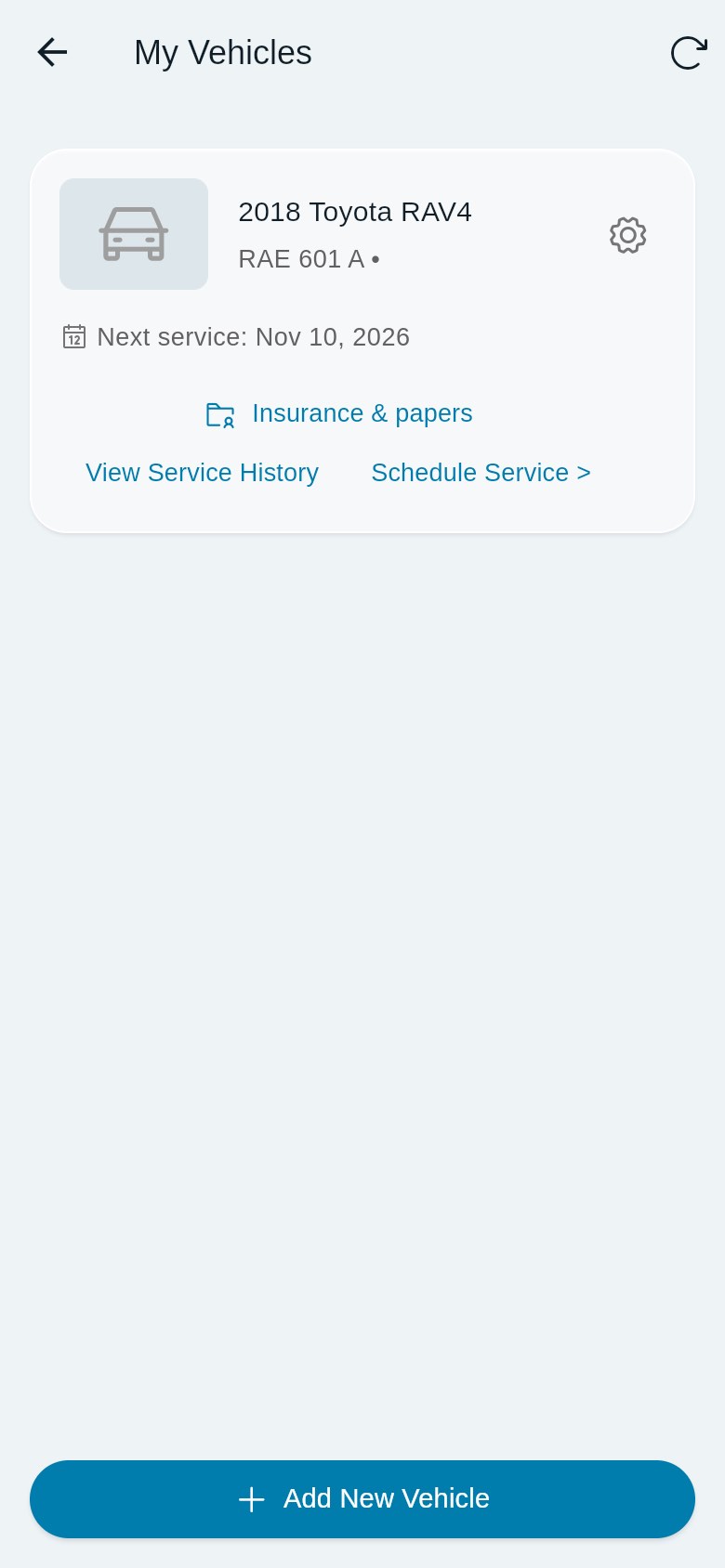
Figure 12: My Vehicles: one car with its next service date and links to papers, history and booking.
Purpose: keep your cars in the app so you can book services and track papers.
Add a car
- Tap Profile → My Vehicles → Add New Vehicle, or Add Vehicle on Home.
- Fill in Make, Model, Year, Color and License Plate Number (required where marked).
- Optionally add a VIN (17 letters and digits, no I, O or Q), Mileage (km) and a photo (Add Vehicle Image).
- Tap Add Vehicle.
On each car card (Figure 12)
- Next service, the date of your next planned service, or "none scheduled".
- Gear icon, edit the car (Update Vehicle) or Delete Vehicle (you are asked to confirm; this cannot be undone).
- Insurance & papers, see below.
- View Service History, every garage visit for this car, with its invoice number and whether it is paid, plus maintenance you recorded yourself.
- Schedule Service >, book an oil change for this car (standard or synthetic).
- The refresh icon (top right) reloads the list.
Insurance & papers
- Tap Insurance & papers on a car.
- Under Insurance, add the Insurer, an optional Policy number and the dates.
- Under Inspection & other papers, add your inspection (contrôle technique), registration and other papers with their expiry dates.
- Pickovo reminds you 30, 7 and 1 days before each expiry, and on the day. You can delete an entry if you no longer want it tracked.
C3. Finding garages
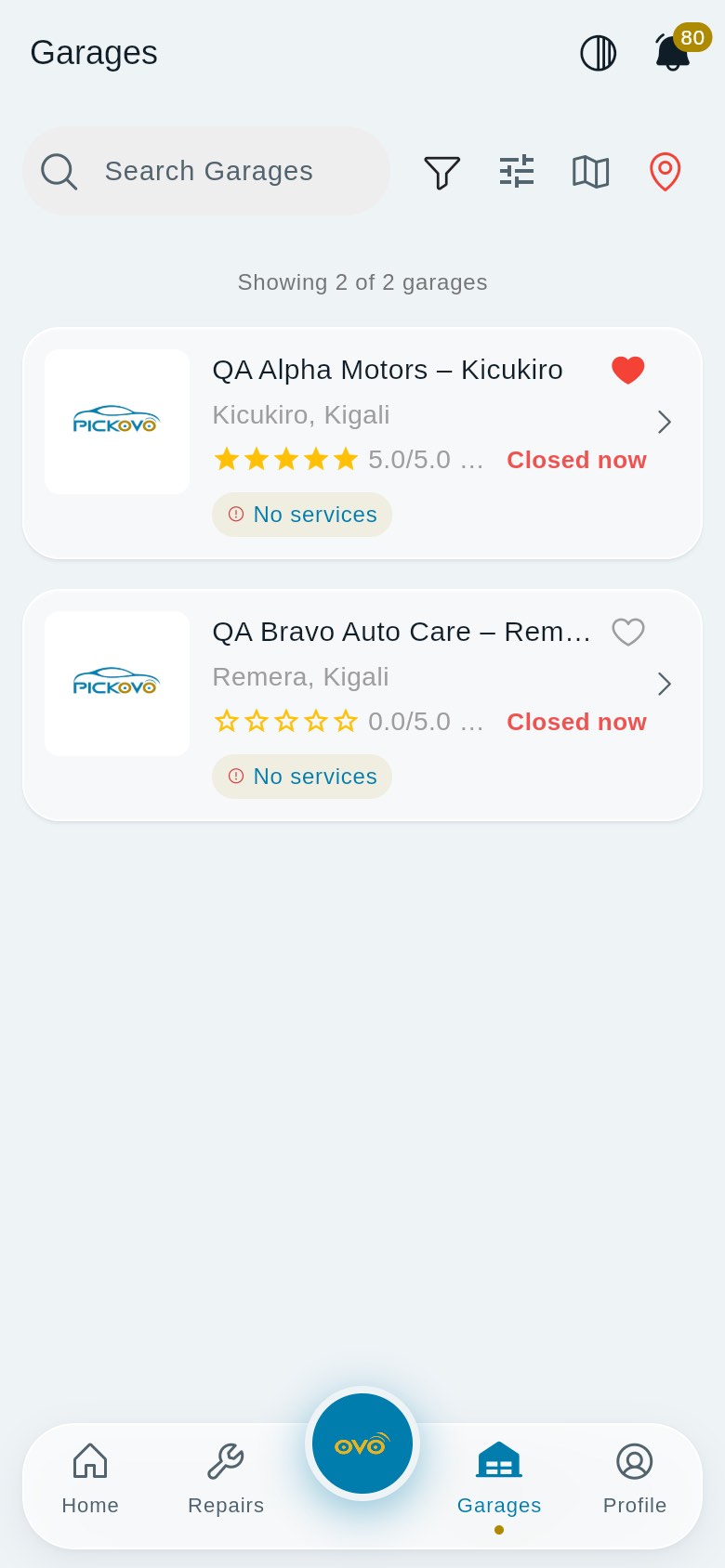
Figure 5: The Garages list: rating, number of reviews, opening status and services for each garage.
Purpose: find and choose a garage.
- Tap Garages. Each card shows the garage's name, area, star rating and number of reviews, Open now / Closed now, and its services ("No services" when it has listed none yet).
- Use the tools along the top:
- Search Garages, search by garage, area or service. Suggested Popular services and Areas chips help you start.
- Funnel icon, show only garages offering one service.
- Sliders icon (Filters), Open now, minimum Rating, Tier (Premium Partner, Pickovo Partner, Certified), Price level and Distance. Tap Show garages, or Clear to reset.
- Map icon, switch between list and map.
- Pin icon, sort by nearest (asks for your location); tap again to clear.
- If more garages exist, tap Load More Garages at the bottom.
Save a favourite
Tap the heart on a garage card, or the heart at the top right of a garage's page, to save it. Saved garages appear under Profile → More → My Garages. Tap the heart again to remove it.
Open a garage
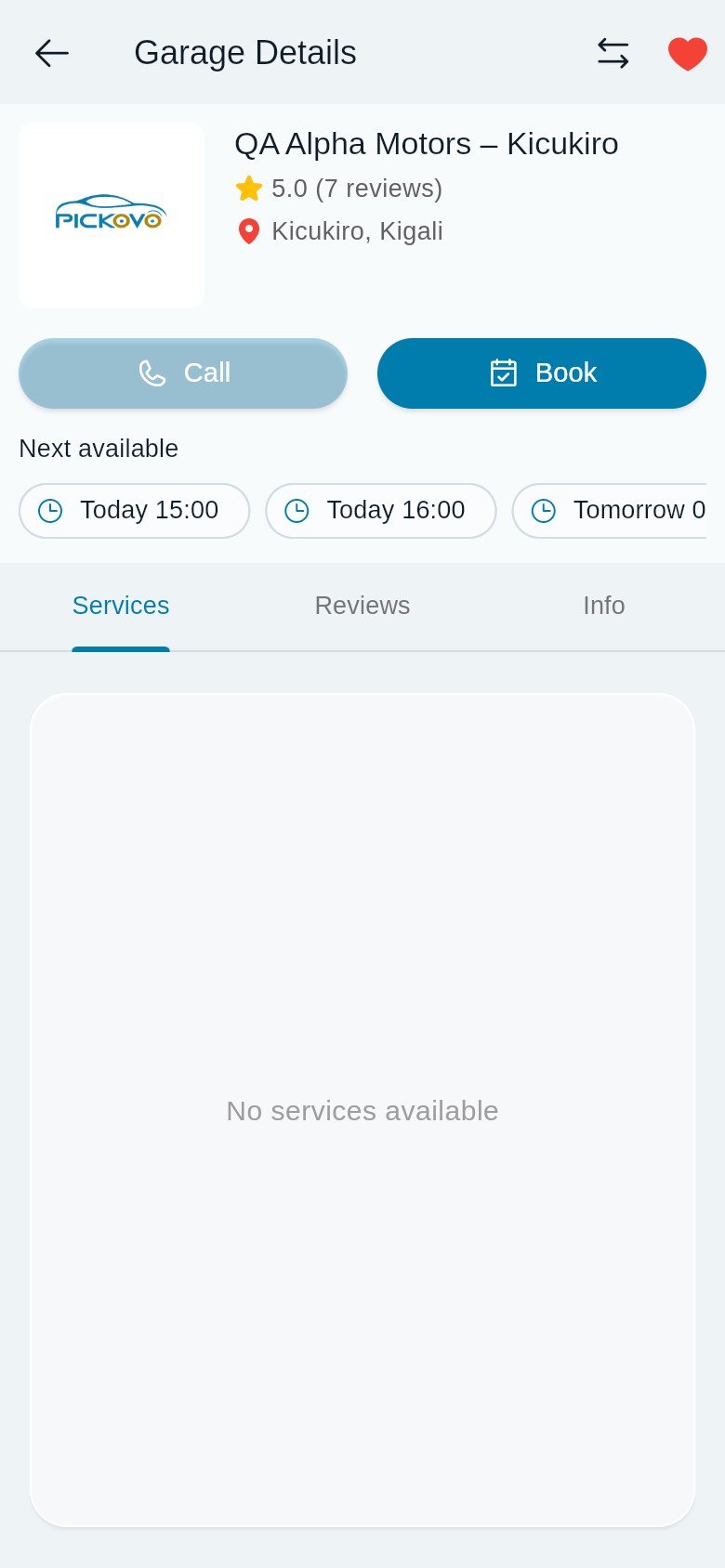
Tap a garage to open Garage Details (Figure 6). It shows the garage's rating and location, Call and Book buttons, and the Next available time slots, which you can tap to start a booking. Below are three tabs: Services, Reviews and Info. The red heart at the top shows that this garage is saved.
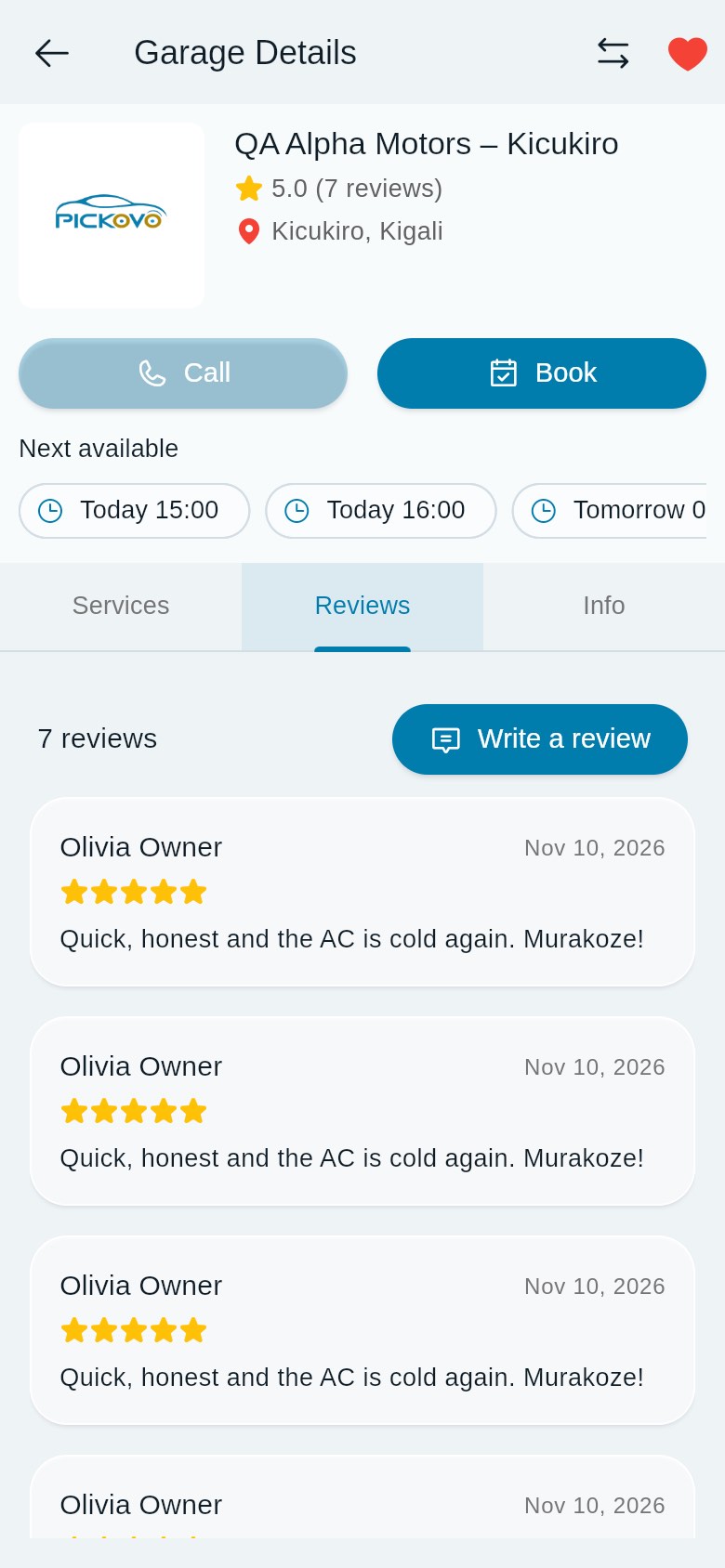
The Reviews tab (Figure 7) shows how many reviews the garage has, each review with its stars and date, and Write a review. You can review a garage after a visit; a second review of the same visit is refused.
On the Garage Details page you can also:
- Call the garage, or tap Book to book it (C4);
- read three tabs: Services (each with its category and how long it takes), Reviews and Info (about, working hours, contact and location, gallery, terms and conditions);
- see Next available times for the coming days and tap one to book it;
- tap Directions when the garage has pinned its location;
- Add to compare, compare up to three garages side by side (price for a shared service, rating, distance, next free time and badge). Tap Compare N garages when you have at least two.
C4. Booking a garage
There are two ways to book.
From a garage's page (recommended)
- Open the garage and tap Book (or a time under Next available).
- Under Book Appointment, choose the Service Type, Date, Time, Location and Vehicle.
- If the garage allows it, you can Ask for a mechanic (optional), or leave Any mechanic.
- Tap Book. A "Request sent successfully" message confirms it.
From Book repair
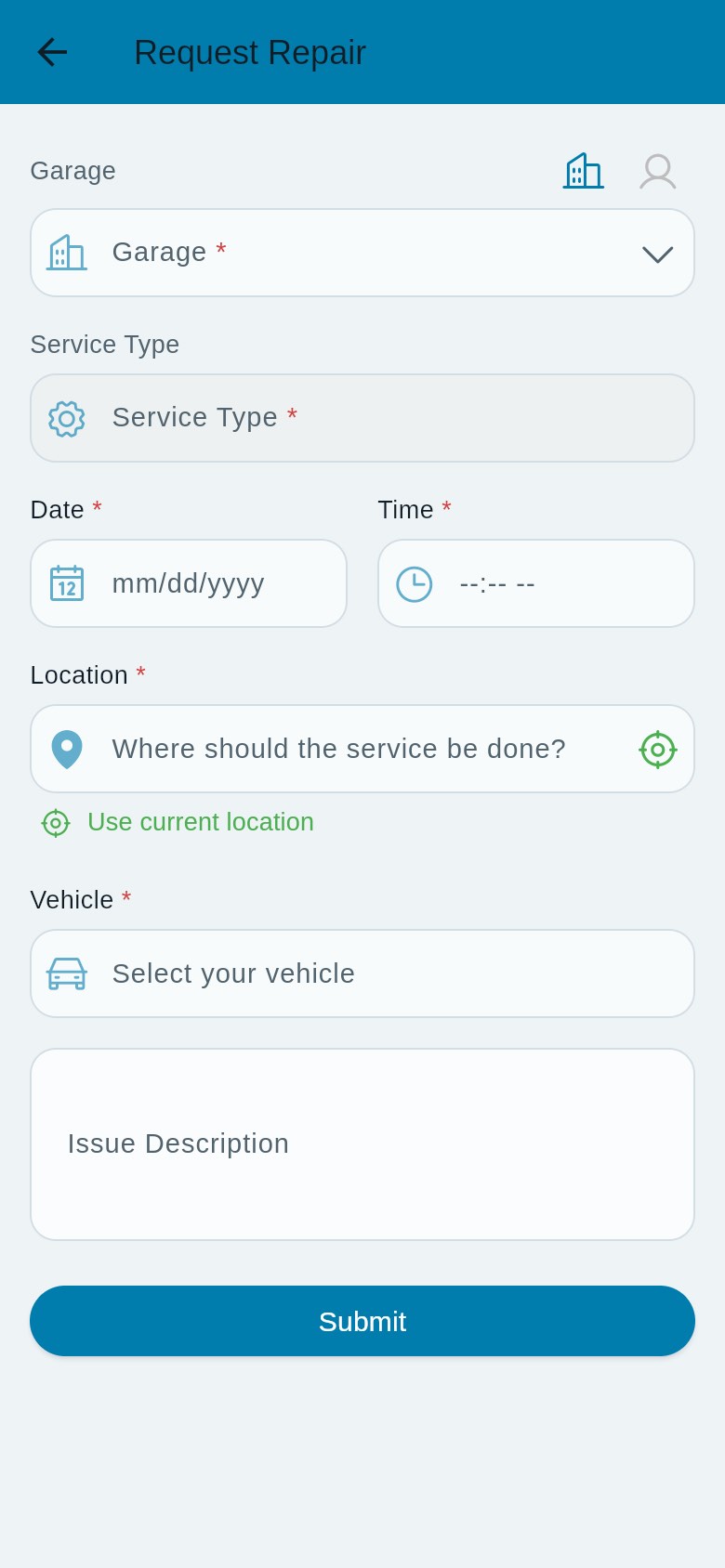
Figure 15: The Request Repair form (Home → Book repair, or the + button on the Repairs tab).
- On Home tap Book repair, or the yellow + button on the Repairs tab.
- Garage, choose a garage from the list (keep the building icon selected; booking a technician directly is not available yet, and the app will ask you to choose a garage).
- Service Type, choose one of that garage's services.
- Date and Time, when you want to come.
- Location, type where the service should be done, or tap Use current location.
- Vehicle, choose your car.
- Tap Submit.
What happens next
- The booking starts as Requested. The garage confirms it and opens a job card when your car arrives.
- If the time you chose is full or the garage is closed then, the app tells you and, where it can, suggests the next free times. Pick another time.
- You can cancel a booking with Cancel Request until the car is ready (C5).
Restrictions
- You need at least one car in My Vehicles.
- The garage must have at least one service listed. In the test system both garages show "No services", so booking from them fails until the garage adds services.
- The Issue Description box on the Request Repair form is not sent to the garage at present. Tell the garage about the problem when you arrive, or by message where the garage allows it.
C5. Tracking your repairs
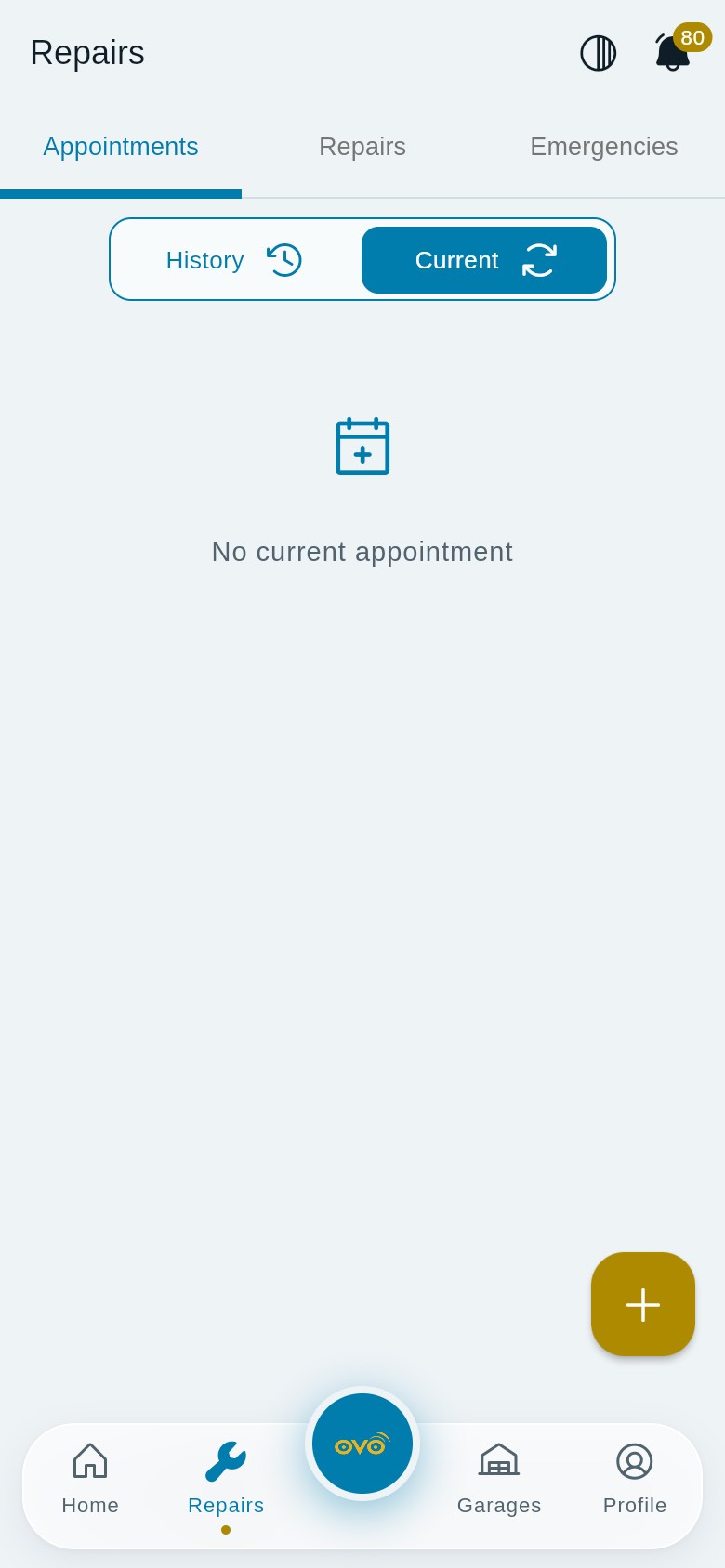
Figure 8: Repairs → Appointments, showing Current bookings (none yet).
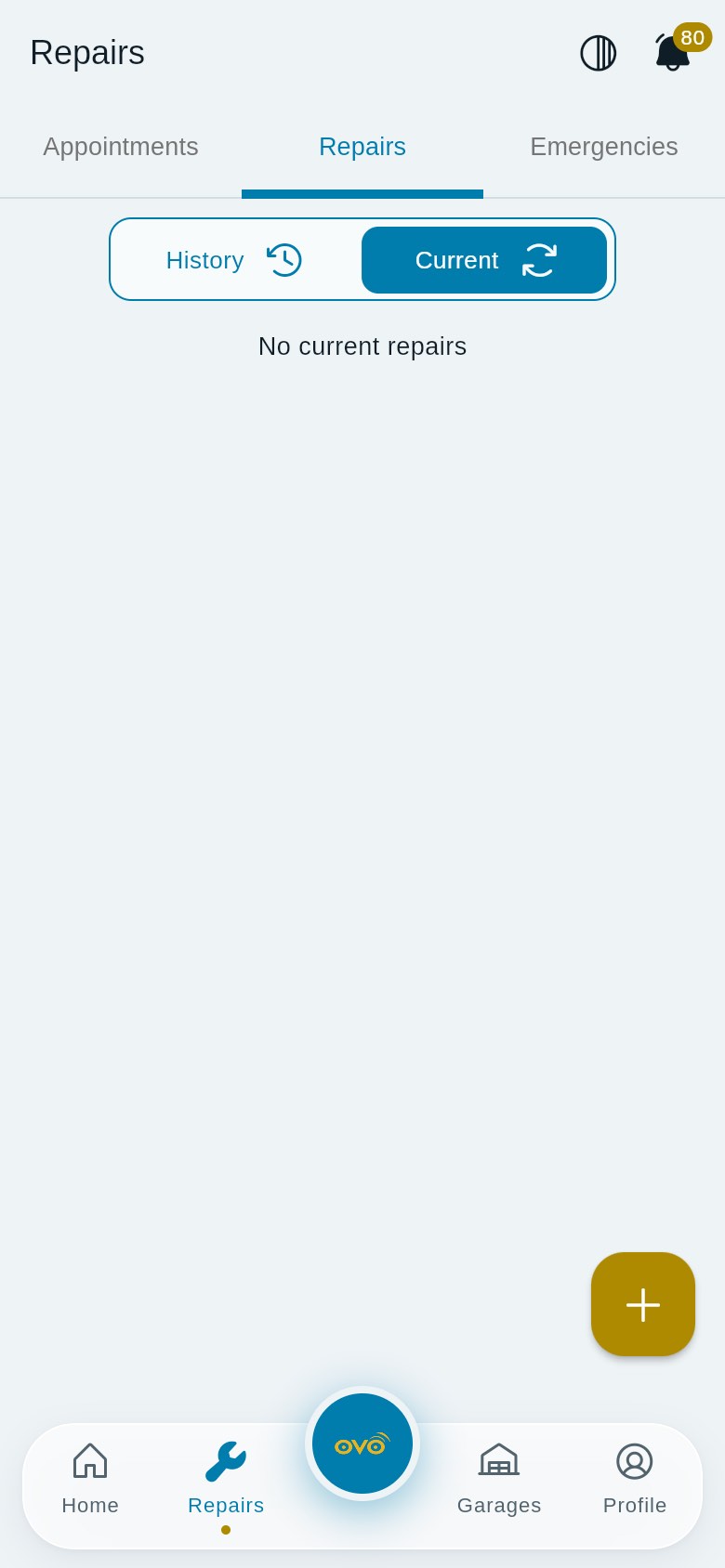
Figure 9: Repairs → Repairs. Switch between History and Current at the top.
Purpose: follow every booking and repair from request to collection.
- Tap Repairs (or Updates on Home).
- Choose a tab:
- Appointments, your bookings. Current groups them into At the garage now and Upcoming; History shows Past ones.
- Repairs, repairs in progress (Current) and finished ones (History).
- Emergencies, your garage pickup requests (see C7).
- Each appointment shows the service, car, date, time, garage and status. Tap View Details for more, or Cancel Request while it can still be cancelled.
Status you will see
| Status | Meaning |
|---|---|
| Requested | Sent; waiting for the garage |
| Vehicle received | The garage has your car |
| Being diagnosed | The garage is checking the problem |
| Waiting for your approval | The garage needs your answer (usually on a quote) |
| Under repair | Work is being done |
| Quality check | The garage is checking the work |
| Ready for collection | Collect your car |
| Completed / Cancelled | Finished, or cancelled |
Repair details
- Progress, live steps from the garage's job card, with the bay, mechanic, expected date and photos from the garage. If work is paused, the reason is shown (for example waiting for parts). It refreshes on its own while the screen is open.
- Message the garage, appears only where the garage allows messaging.
- Invoice & service record, once the garage invoices you, a link to the invoice and to the entry in your service history.
- Cancel Repair, give a reason and tap Confirm Cancel. A booking can no longer be cancelled once it is Ready, Completed or already Cancelled.
C6. Invoices and payment
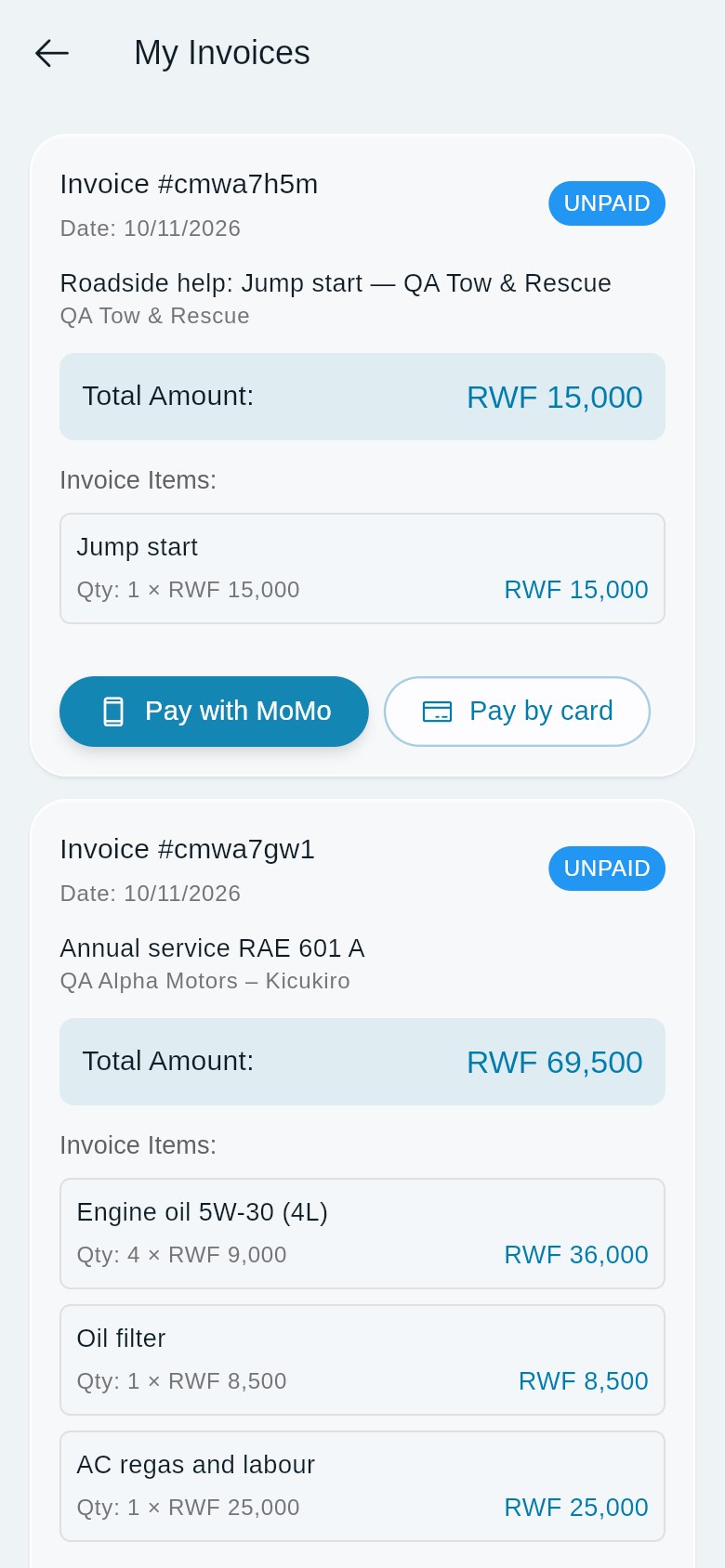
Figure 13: My Invoices: a roadside invoice and a garage invoice, both unpaid, with the payment buttons.
Purpose: see what you owe, pay it, or decline a garage quotation.
- Tap Profile → My Invoices (or tap the invoice link on a repair, or a "Quotation to review" notification).
- Each invoice shows its status (UNPAID, PAID, …), date, what it is for, the garage or helper, the Total Amount and the Invoice Items (quantity × unit price). Paid invoices also show the paid date, payment method and receipt.
- On an unpaid invoice:
- Pay with MoMo, enter your MTN or Airtel number and tap Continue. Approve the payment prompt on your phone.
- Pay by card, enter an email address for the receipt and tap Continue. A payment page opens in your browser; finish there, come back and tap Check payment status.
- Reject quotation, garage quotations only (not roadside help). Confirm with Reject; the garage sees that you declined it.
- While a payment is in progress the invoice shows Check payment status. Only Pickovo, after hearing from the payment provider, marks an invoice paid. You will see "Payment received. Thank you!" or, if it failed, a message saying you can try again.
Restrictions and known limitations
- Online payment (MoMo and card) works only when Pickovo's payment provider is set up. If it is not, you see "Mobile money is not available right now" or "Card payments are not available right now". You can still pay at the garage counter; the garage records the payment.
- Invoice titles currently show a short internal reference (for example "Invoice #cmwa7h5m") instead of the garage's invoice number. To match an invoice with the garage's paper invoice, use the date, the description and the amount, or the invoice number shown in View Service History.
C7. Roadside help
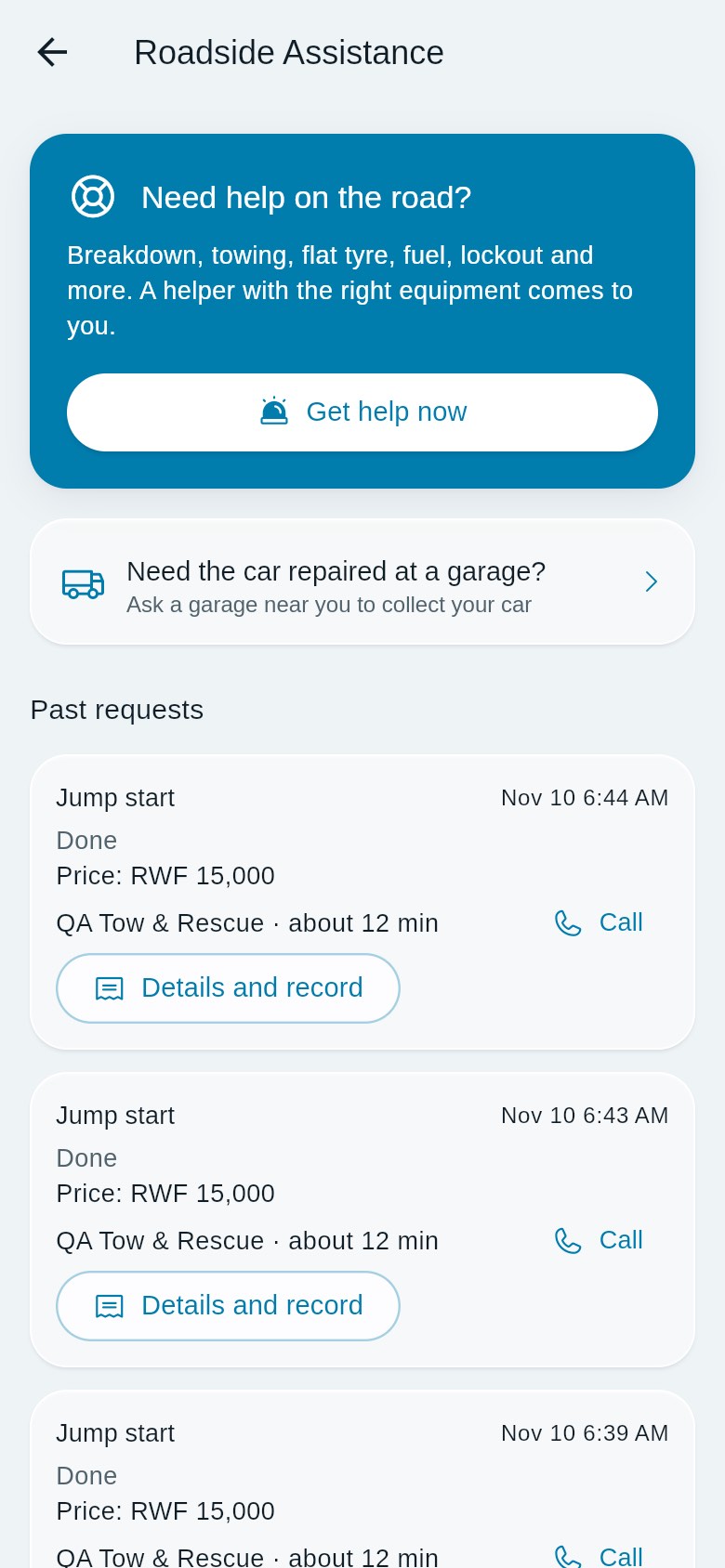
Figure 10: Roadside Assistance: Get help now, garage pickup, and past requests with price, helper and Call.
Purpose: get a helper to come to you when your car breaks down.
Ask for help
- Tap the red button with the Pickovo mark in the middle of the bottom bar (or Emergency → Roadside Assistance on Home), then Get help now.
- Issue selection, choose what you need: Breakdown, Towing, Jump start, Flat tyre, Fuel delivery, Lockout, Mobile mechanic, Emergency diagnostics or Vehicle recovery. Each shows what the helper brings and a "From" price, or says no helper with that skill is free nearby. There is also I've had an accident (see below).
- Your vehicle, choose your car, or Another car.
- Where are you?, allow location so help comes to where you are. You can add a note for your helper.
- For towing, Where should we take it?, pick a partner garage, the nearest one, or leave the car where it is.
- Review and request, check the details and estimated price. The final price is fixed when a helper accepts. Tap Request help.
Follow the help
- Your current request appears at the top of Roadside Assistance. Tap Track live to see your helper on the map, the expected arrival time, and Call or Message buttons. Your location is shared with the helper only until the job ends.
- You can Cancel while the request is still waiting or a helper is on the way.
- Past requests list each job with its price, helper and a Call button. Tap Details and record (or Pay and review when there is something to pay).
Pay and review
When the job is done, open it and check Payment: the agreed price and the amount to pay. If the two differ, contact Pickovo support before paying. Tap Pay to open the invoice in My Invoices (C6). Under Rate the help, choose stars, add an optional comment and tap Send review.
Accident
Choose I've had an accident at the first step. An urgent tow is sent ahead of other requests. If anyone is hurt, call 912 (ambulance) or 112 (police) first. When help is on the way, tap WhatsApp next to each emergency contact: WhatsApp opens with a message ready, and you tap Send. You can tick This is a test to try it without a real accident.
Garage pickup
Need the car repaired at a garage? asks a garage near you to collect your car. Describe the problem, give your location, optionally add photos, and either alert nearby garages or choose one. Only garages that offer pickups can accept. Follow your pickup requests under Repairs → Emergencies.
Accident reports
Emergency → Accident report on Home lets you record an accident: choose the Vehicle, add Where it happened, What happened, Witnesses or other driver, and photos (Camera or Gallery), then tap Save report. You can Share with a garage that accepts accident reports, and Stop sharing later.
C8. Warranties
Purpose: see warranties on your repairs.
Tap Profile → My Warranties. Each warranty shows who issued it, the car, its start and expiry dates, and whether it is Active, Claimed or Expired. Active ones come first, soonest to expire at the top. When a garage gives a warranty on a repair, it appears here automatically.
C9. Emergency contacts
Purpose: choose who is told if you report an accident.
- Tap Profile → More → Emergency contacts.
- Tap Add contact and enter Name, Phone and an optional Relation (for example Mother).
- To change or remove someone, open the contact and edit it or tap Remove.
There is a maximum number of contacts; the app tells you when you reach it.
C10. Notifications
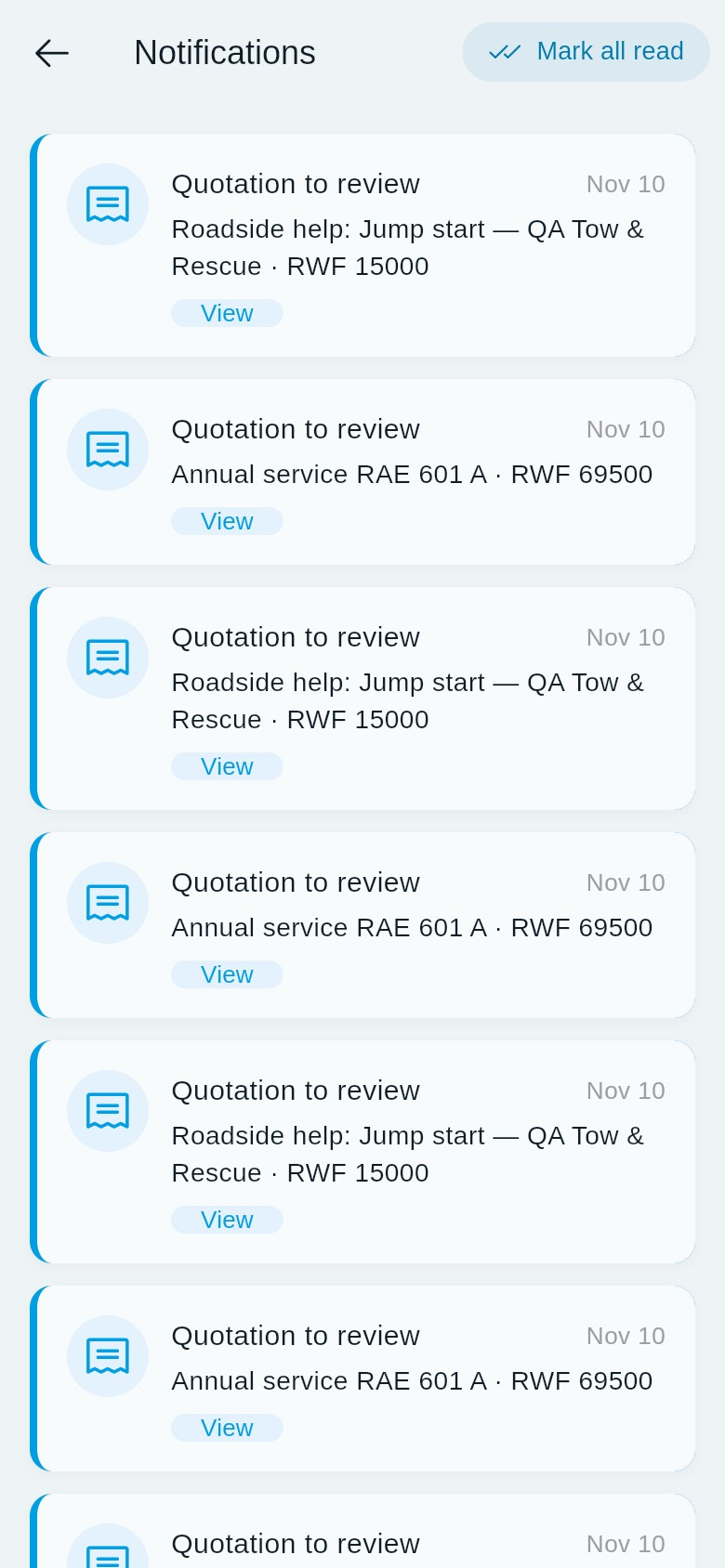
Figure 14: Notifications: quotations to review, each with a View button, and Mark all read.
Purpose: keep up with your bookings, quotes, payments and help requests.
- Tap the bell (top right) or Profile → Notifications.
- Tap View on a notification to open the right screen: a quotation or payment opens My Invoices; a repair update or "ready" opens the repair; a pickup opens Repairs → Emergencies; a warranty opens My Warranties; an expiring paper opens the car's Insurance & papers; a "How was the garage?" request opens the garage so you can review it.
- Tap Mark all read to clear the unread count.
C11. Reviews
Garages. Open the garage → Reviews tab → Write a review. Choose a Rating (tap the stars), add an optional Comment, and tap Submit Review. You can review a garage only after it has finished work on your car through Pickovo, and each finished job can be reviewed once. If you have no finished job there, the app explains this and offers Book this garage. Some garages do not take reviews in the app; then the button does not appear. You can tap Mark helpful on other people's reviews, and you may see a Reply from the garage.
Roadside helpers. See "Pay and review" in C7.
C12. Logging out
Tap Profile → Logout. The app ends your session on Pickovo's server and clears your data from the phone. If Pickovo cannot be reached at that moment, you are still signed out on the phone, and the sign-in screen tells you so. In that case change your password if the phone was lost or shared.
D. What you can and cannot do
| Area | View | Create | Edit | Delete / cancel | Approve / decline | Notes |
|---|---|---|---|---|---|---|
| Your profile | Yes | - | Yes name, email, phone, photo | - | - | To delete your account, use the form at https://fleet.heptadev.com/en/legal/delete-account (Pickovo confirms by email, normally within 30 days) |
| Your cars | Yes | Yes | Yes | Yes | - | |
| Insurance & papers | Yes | Yes | - | Yes | - | |
| Garages | Yes | - | - | - | - | Save favourites, compare up to 3 |
| Bookings | Yes own | Yes | - | Yes cancel until Ready | - | Booking a technician directly is not available |
| Repair progress | Yes own | - | - | Yes cancel with reason | - | Messaging only where the garage allows it |
| Invoices | Yes own | - | - | - | Yes pay / reject garage quotation | Online payment depends on the payment provider |
| Roadside help | Yes own | Yes | - | Yes cancel while waiting or on the way | - | Pay and review afterwards |
| Accident reports | Yes own | Yes | - | - | - | Share with a garage that accepts them |
| Warranties | Yes own | - | - | - | - | View only in the app |
| Reviews | Yes | Yes once per finished job | - | - | - | |
| Other owners' records | - | - | - | - | - | Cannot access (tested: refused) |
Web workspace (https://fleet.heptadev.com), measured access for a car-owner account:
| Web area | Access |
|---|---|
| Public pages (About, Pricing, FAQ, Contact, Terms, Privacy, Refund policy, Delete account, Book, Vehicle hub, Driver app, Register, Forgot password) | Yes |
/notifications |
Yes |
/settings and /settings/notifications |
Yes |
/settings/activity, /settings/ai, /settings/referral |
- |
| Garage, fleet, driver, mechanic, spare-parts, regulatory, transport-authority, roadside provider, billing, documents, moderation and superadmin workspaces | , (you are redirected away) |
Business data on the web (jobs, quotations, parts, company vehicles) is refused for car-owner accounts.
E. Common workflows
E1. Book a service, follow the repair and pay
Based on the tested car-owner journey (workflow W3).
- You sign in to the app (C1) and make sure your car is in My Vehicles (C2).
- You open Garages, find the garage and open it (C3).
- You tap Book, pick a free time, the service and your car, and tap Book (C4). The booking shows as Requested under Repairs → Appointments.
- The garage's receptionist confirms the booking and opens a job card. When you bring the car, they check it in. Your booking now shows Vehicle received.
- The garage's mechanics repair the car and a head mechanic or admin completes the job. You watch the steps on the repair's Progress (for example Under repair, then Ready for collection).
- The garage sends you an invoice. A notification arrives; tap View to open My Invoices.
- You pay with Pay with MoMo or Pay by card (C6), or pay at the counter, where the cashier records it.
- The garage closes the job. Your booking shows Completed, and the visit appears in View Service History with its invoice number.
- You open the garage → Reviews → Write a review and rate the visit (C11). You can review each finished job once.
E2. Get roadside help, pay and review
Based on the tested roadside journey (workflow W6).
- Pickovo sets which services each roadside provider offers, and the provider goes online in their app.
- You tap the red Get help now button, choose the problem (for example Jump start), your car and your location, and tap Request help (C7).
- A nearby provider receives the offer and accepts it. The price is fixed at that moment.
- The provider sets the job to on the way, arrived, then completed. You follow them with Track live and can Call or Message them.
- When the job is done, you open it under Past requests → Pay and review. Check the price, tap Pay to pay the invoice (C6), then rate the help.
E3. Respond to a garage quotation
- The garage prepares a quotation for your repair. You get a "Quotation to review" notification, and the repair may show Waiting for your approval.
- You tap View on the notification to open My Invoices and read the items and total.
- You either pay it (Pay with MoMo / Pay by card) or tap Reject quotation → Reject. The garage sees your decision and continues from there.
E4. Keep your papers up to date
- You open My Vehicles → Insurance & papers on your car.
- You add your insurance and inspection with their expiry dates.
- Pickovo sends you reminders 30, 7 and 1 days before each expiry and on the day. Tapping the reminder opens the car's papers so you can update them.
F. Troubleshooting
| Problem | Likely cause and fix |
|---|---|
| "Invalid email/phone or password" | Check the details. If you use your phone number, it must be verified first (you verify it after sign-up). Otherwise sign in with your email. |
| "Too many sign-in attempts. Try again in a few minutes." | Sign-in is paused after 10 attempts in 15 minutes. Wait, then try again, or use Forgot Password?. |
| The verification or reset code does not work | Codes have 6 digits and expire after 10 minutes. Tap Resend code (after the countdown) and use the newest code. |
| "The garage is not taking bookings at that time. Choose another slot." or a slot-full message | That time is closed or fully booked. Choose one of the suggested next free times, or another date. |
| Booking fails right after Submit with a message that the garage has no services | The garage has not listed any services yet. Choose another garage, or call them. |
| "Booking a technician directly is not available yet. Please choose a garage." | On Request Repair, switch to the building (garage) icon and choose a garage. |
| "Booking can no longer be cancelled" | The car is already Ready for collection, or the booking is Completed or Cancelled. Contact the garage. |
| "Mobile money is not available right now" / "Card payments are not available right now" | Online payment is not set up at the moment. Pay at the garage counter, or try later. |
| "Still waiting for confirmation from the payment provider." | Approve the prompt on your phone (MoMo) or finish the card page, then tap Check payment status again. |
| No Write a review button, or a "Reviews come from real jobs" message | The garage does not take reviews in the app, or it has not finished a job on your car yet. |
| No Message the garage button | The garage has not switched on messaging. Use Call instead. |
| "No helper with this skill is free nearby right now" | No roadside provider offering that service is online near you. Try another service (for example Towing), or try again shortly. |
| The map or "Garages near you" does not centre on you | Turn on location for Pickovo in your phone's settings ("While Using the App"). |
| Invoice titled with a code such as "#cmwa7h5m" | Known limitation. Match invoices by date, description and amount. |
| A pop-up title appears in French after a booking | Some confirmation messages are not yet translated. The booking was still sent; check Repairs → Appointments. |
| You are sent away from a page on the web workspace | Those pages are for businesses. Use the app. |
G. Security and best practices
- Use a strong, private password (at least 8 characters with upper and lower case, a number and a symbol). Do not reuse it elsewhere and never share it, Pickovo and garages will not ask for it.
- Verify your phone number so you can sign in and reset your password by SMS.
- Log out on shared phones with Profile → Logout. If you see the message that Pickovo could not be reached to end the session, change your password.
- Lost phone? Reset your password from another device with Forgot Password?. A reset signs you out everywhere.
- Only pay invoices you recognise. Check the garage or helper, the items and the total. For roadside help, check that the amount matches the price agreed when the helper accepted; if not, contact Pickovo support before paying.
- Approve MoMo prompts only when you started the payment in the app.
- Location sharing with a roadside helper stops when the job ends. Allow location only when you need help or nearby garages.
- Keep your emergency contacts current, and use This is a test if you want to try the accident flow.
- Photos and reports you share with a garage (accident reports) can be withdrawn with Stop sharing.