
Transport authority · TIP_MEMBER
TIP Member
For staff of a transport authority (Technical Inspection Program, "TIP") who follow the authority's registered fleets in read-only mode.
The screenshots in this guide come from the QA staging system. Every name, fleet and figure in them (for example "QA Transport Authority", "QA Kigali Logistics Fleet") is fictional test data.
A. Introduction
As a TIP Member you work alongside your authority's TIP Administrator. Your role is to observe:
- the fleet companies registered under your authority, with the condition of their vehicles;
- the compliance alerts raised for those vehicles (expired insurance, overdue maintenance and similar).
You do not create, change or delete anything. Registering fleets, resolving alerts, reports, webhooks and every regulatory tool belong to the TIP Administrator (see the TIP Administrator guide).
Your scope: you only see fleets registered under your own authority. Fleets belonging to other authorities never appear.
B. Getting started
Signing in
- Open https://fleet.heptadev.com/en/login (
/fr/loginfor French,/rw/loginfor Kinyarwanda, or use the EN / FR / RW buttons). - Enter your Email or Phone and your Password, then select Log in.
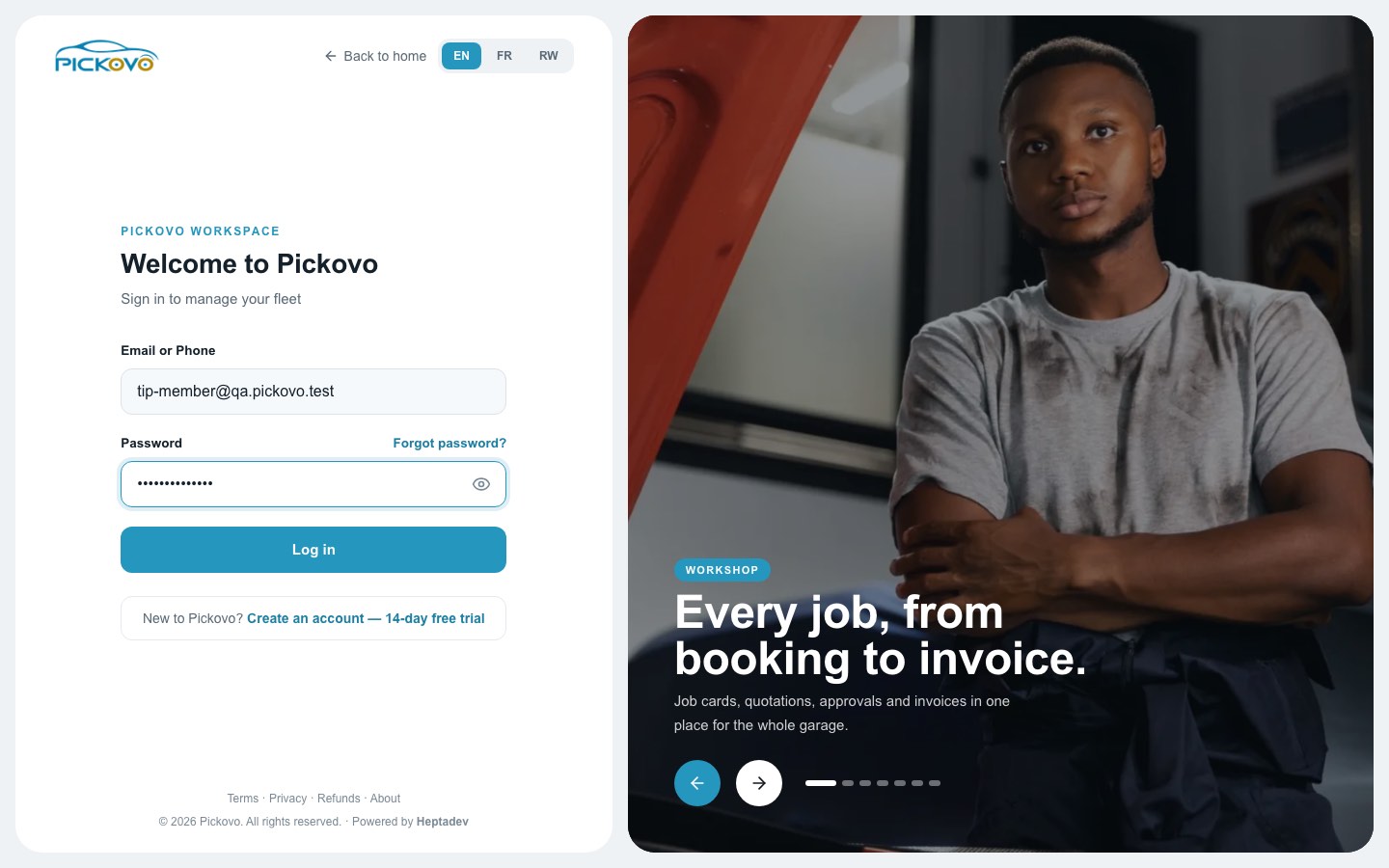
Figure 1: The Pickovo sign-in page with the TIP Member test account's email filled in.
- Forgot password? lets you reset a forgotten password.
- After 10 wrong passwords within 15 minutes, sign-in is paused for your account for a while. Wait, or reset your password.
Your dashboard
You land on the TIP Dashboard (/tip).
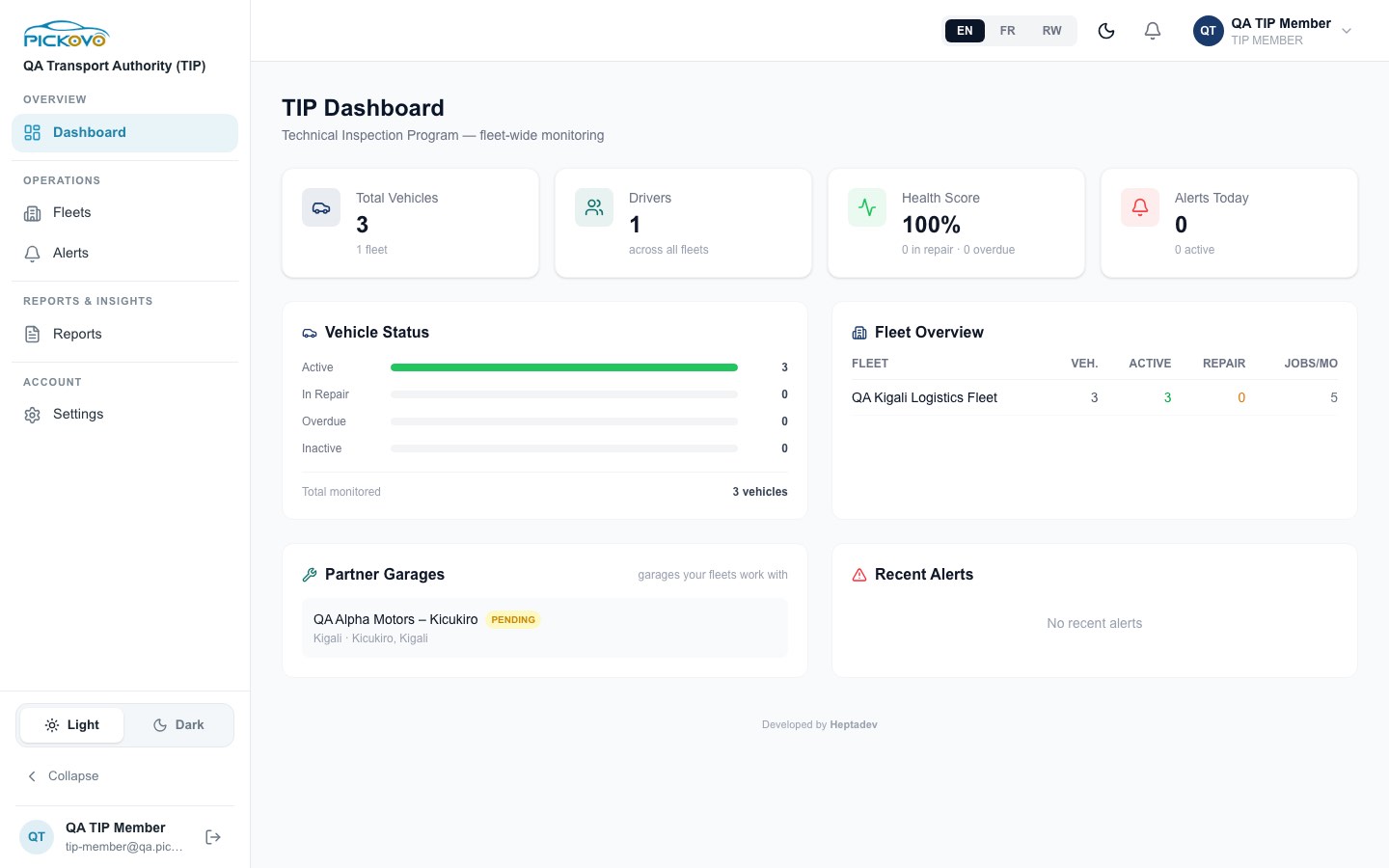
Figure 2: The TIP Dashboard with the TIP Member sidebar: 3 vehicles in 1 fleet, 1 driver, a 100% health score, no alerts today, the Fleet Overview table and one partner garage (QA Alpha Motors – Kicukiro, PENDING).
The dashboard summarises every fleet registered under your authority. It is read-only:
| Area | What it shows |
|---|---|
| Total Vehicles | Number of vehicles, with the number of fleets underneath. |
| Drivers | Driver accounts across all your fleets. |
| Health Score | Share of your vehicles that are active, with the number in repair and overdue underneath. |
| Alerts Today | Compliance alerts raised today, with the number still active underneath. |
| Vehicle Status | Bars for Active, In Repair, Overdue and Inactive, and the total monitored. |
| Fleet Overview | One row per fleet: vehicles (Veh.), Active, Repair and Jobs/mo (repair jobs created this month). |
| Partner Garages | Garages your fleets work with, with their certification badge. |
| Recent Alerts | The latest compliance alerts, or "No recent alerts". |
The dashboard is part of the TIP module, which Pickovo switches on for each authority. If yours is not switched on, you see "TIP Module Not Enabled" instead (see section F).
Navigation
Top bar: language (EN / FR / RW), dark mode, the bell (notifications), your name and role.
Sidebar:
| Section | Item | Notes |
|---|---|---|
| Overview | Dashboard | TIP Dashboard |
| Operations | Fleets, Alerts | Read-only for you |
| Reports & Insights | Reports | Opens TIP Reports, which is reserved for TIP Administrators. You are sent back to the dashboard. |
| Account | Settings | Your profile and password |
At the bottom: the Light / Dark switch, Collapse (shrinks the sidebar to icons; point at an icon to see its name), and your name and email with the log-out button.
C. Features
C1. Fleets
Purpose: see each registered fleet and the state of its vehicles.
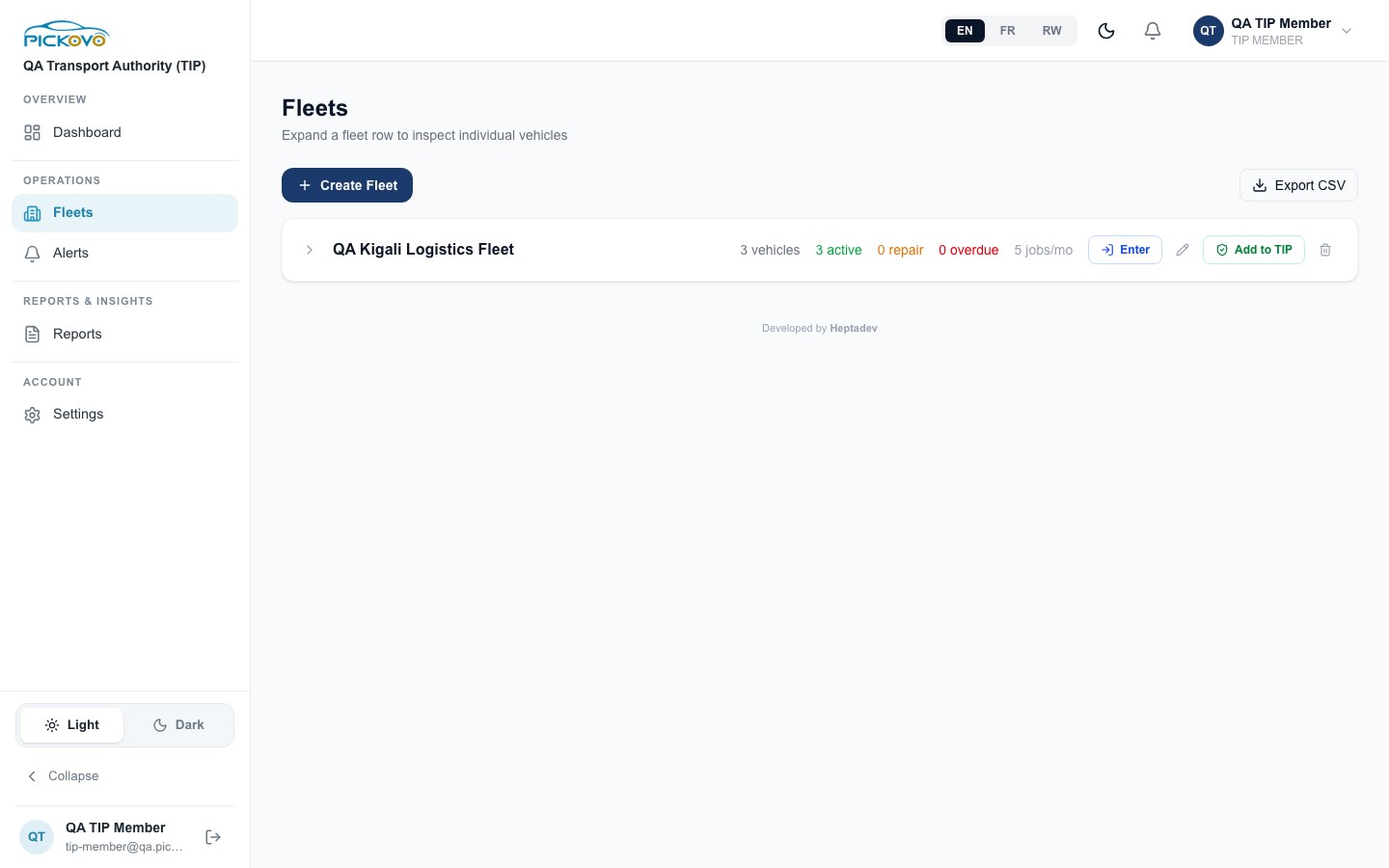
Figure 3: The Fleets page with QA Kigali Logistics Fleet: 3 vehicles, 3 active, 0 in repair, 0 overdue, 5 jobs this month.
- Each row shows the fleet name, number of vehicles, active, in repair, overdue, and jobs/mo (repair jobs created this month).
- Select the arrow (›) at the left to open the vehicle table: Plate, Vehicle, Status, Mileage, Last Service, Next Due, Alerts.
- Export CSV downloads the fleet list.
Restrictions: the page also shows Create Fleet, Enter, the pencil, Add to TIP and the bin. These actions are for TIP Administrators and the server refuses them for your role:
- Create Fleet and the pencil show an error ("Forbidden").
- Add to TIP and the bin may look as if they worked. The change is not saved and disappears when you reload the page.
Do not use these buttons. Ask your TIP Administrator.
C2. Alerts (Compliance Alerts)
Purpose: follow compliance alerts on your authority's vehicles.
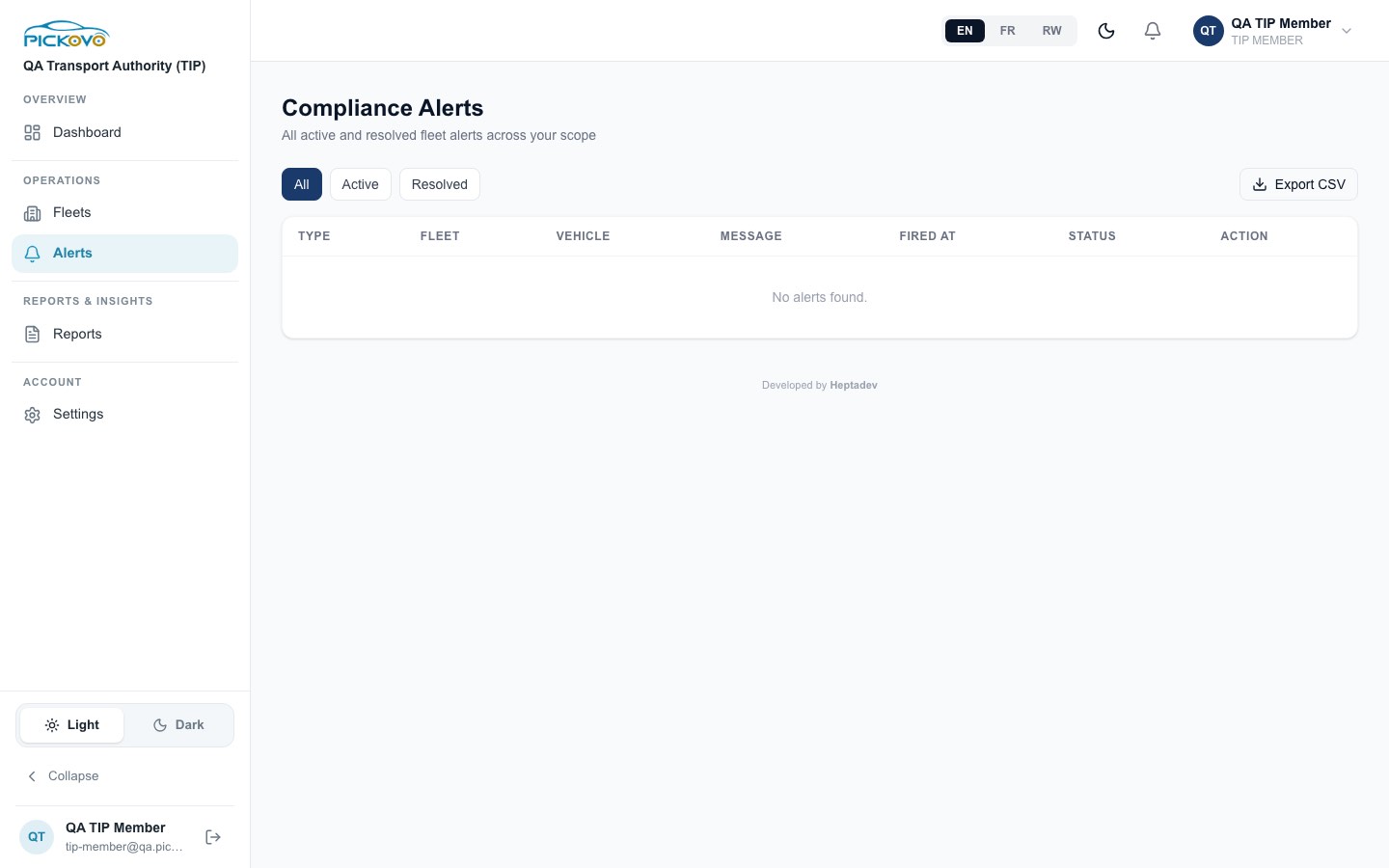
Figure 4: Compliance Alerts with the All, Active and Resolved filters (no alerts on the test system).
- Filter with All, Active or Resolved.
- Read Type (for example insurance expired, maintenance overdue, vehicle overdue, certification expired), Fleet, Vehicle, Message, Fired At and Status.
- Export CSV downloads the alerts shown.
Restriction: a Resolve button appears on active alerts, but only a TIP Administrator can resolve them. For you, nothing changes when you select it.
C3. Notifications and Settings
- Bell / Notifications: your in-app notifications.
- Settings: update Full Name, Email, Phone Number and Change Password (leave blank to keep the current one). You can also request account deletion. Settings → Notifications sets which notifications you receive. Refer & Earn (
/settings/referral) is the referral programme.
D. What you can and cannot do
| Area | View | Create | Edit | Delete | Approve / act |
|---|---|---|---|---|---|
| TIP Dashboard | Yes | - | - | - | - |
| Fleets and vehicle details | Yes (export CSV) | - | - | - | - |
| Compliance alerts | Yes (export CSV) | - | - | - | , (resolve is admin-only) |
| Notifications, own profile and password | Yes | - | Yes | - | - |
| Cannot access | TIP Reports, Webhooks, every /regulatory page, Review Moderation, Activity Log, and the fleet, garage, driver, spare-parts and superadmin workspaces |
E. Common workflows
E1. Daily check of your authority's fleets
- On the Dashboard, check Health Score, Alerts Today and the Vehicle Status bars for anything in repair or overdue.
- Open Fleets. Look for fleets with a non-zero overdue or repair count.
- Open the fleet (›) and look at Next Due and Alerts per vehicle.
- Open Alerts → Active for the detail of each alert.
- Report what needs action to your TIP Administrator, who can resolve alerts or send an enforcement warning.
E2. Follow a vehicle through a repair (workflow W1)
Before you: a driver reports a fault, the fleet manager sends the vehicle to a garage, and the garage repairs it and invoices the fleet.
- In Fleets, the vehicle's status shows in repair while the job is in progress.
- After quality check the vehicle is back to active and the fleet's jobs/mo count includes the job.
- Your TIP Administrator can see the invoice and the reports.
E3. Share a list with a colleague
- Open Fleets or Alerts (filtered if needed).
- Select Export CSV and share the file through your organisation's approved channels.
F. Troubleshooting
| Problem | Cause and fix |
|---|---|
| Your dashboard says "TIP Module Not Enabled" | Your organisation's workspace has not been switched on. Only Pickovo (the platform superadmin) can enable it. Ask your TIP Administrator to contact Pickovo support to have the TIP module enabled. |
| Selecting Reports brings you back to the dashboard | TIP Reports is for TIP Administrators only. |
| Opening another page sends you to your dashboard or to sign-in | Your role cannot open it. This is a permission rule. |
| "Forbidden" after Create Fleet or rename | These actions are for TIP Administrators. |
| A fleet you removed, or a monitoring mark you changed, comes back after reload | The change was refused. Your role is read-only. |
| Resolve does nothing | Only a TIP Administrator can resolve alerts. |
| Sign-in paused | 10 wrong passwords in 15 minutes. Wait, or use Forgot password?. |
G. Security and best practices
- Keep your password private and change it under Settings if you think it has been seen. Two-factor authentication is not offered on the Settings page for this role at present.
- Exported CSV files contain operator and vehicle data. Keep them on approved devices and delete them when finished.
- Do not try admin-only buttons on behalf of someone else. Ask your TIP Administrator to act under their own account, so the activity record stays accurate.
- Logout when you leave a shared computer.