
Spare-parts supplier · SPARE_PARTS_STOCK_KEEPER
Spare Parts Stock Keeper
For staff who look after the shelves and stock of a spare-parts shop on Pickovo.
All names, shops, garages, references and amounts in the screenshots (for example "Kevin Stock-Keeper", "QA Nyabugogo Spares", "QA Alpha Motors Ltd") are fictional test data.
A. Introduction
As a stock keeper you help run a spare-parts shop's stock on Pickovo. Your account is created by your shop admin (role SPARE_PARTS_ADMIN), who also decides whether you stay active.
With this role you can:
- see every part the shop holds, its price, quantity, location and history
- find parts quickly by searching or scanning a barcode
- follow every stock movement of the last 30 days
- see which items are slow-moving or deadstock, and set a clearance price on them
- see the parts requests that garages have sent to the shop
- read the shop's profile
You cannot add or edit items, record stock in or out from the screens, price or send quotations, issue invoices, record payments, answer collaboration requests, see expenses, or change the shop's settings or subscription. Those belong to the shop admin. If something needs doing in those areas, tell your admin.
B. Getting started
Signing in
- Open https://fleet.heptadev.com/en/login (
/fr/loginfor French,/rw/loginfor Kinyarwanda, or use EN / FR / RW on the page). - Enter your Email or Phone and your Password, then select Log in.
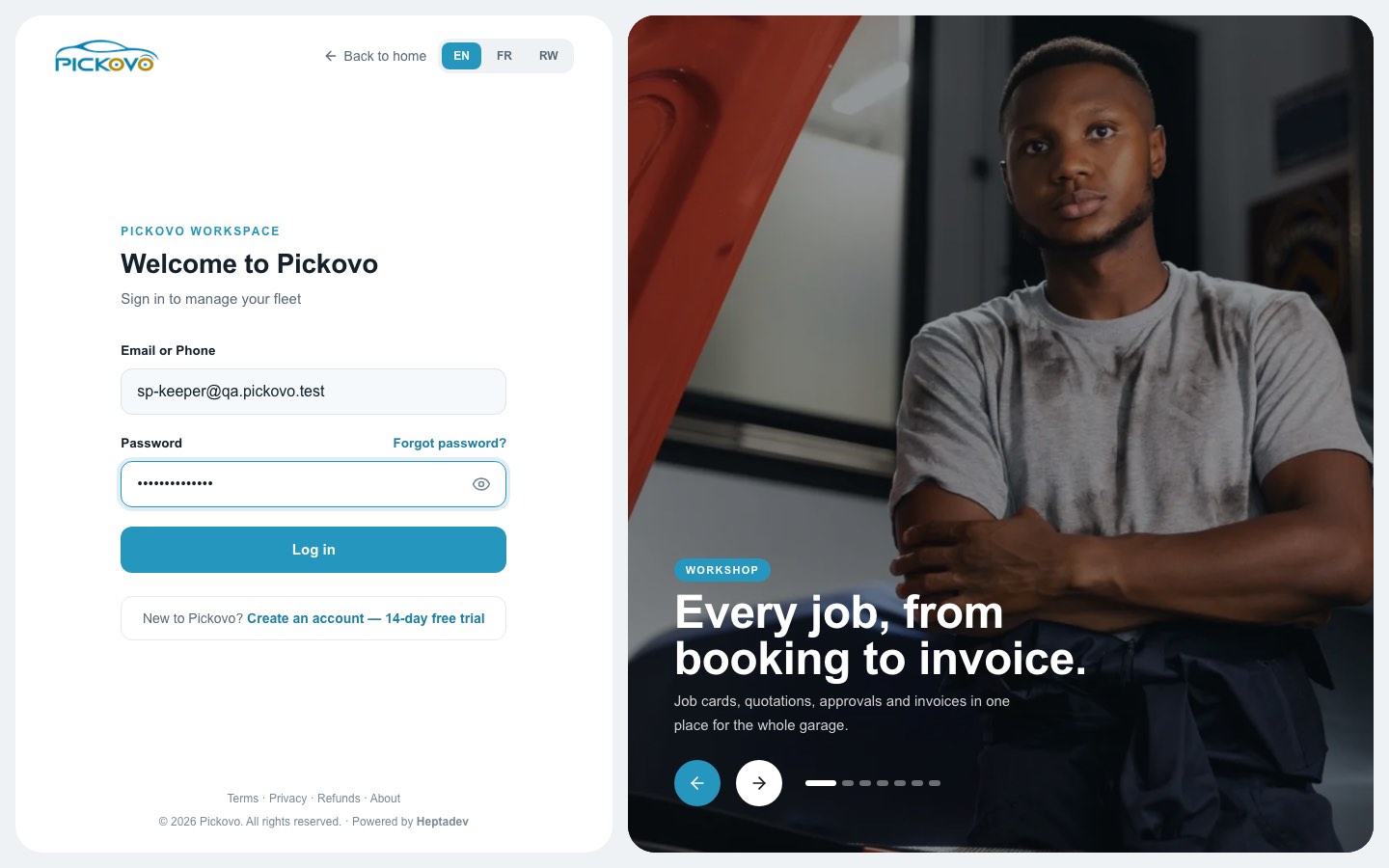
Figure 1: The sign-in page, with the stock keeper's email entered.
- Forgot password? lets you set a new password by email.
- If two-factor authentication is already switched on for your account, you are asked for the 6-digit code from your authenticator app.
- After 10 wrong passwords within 15 minutes, sign-in is paused for that account. Wait 15 minutes or reset your password.
- On your first sign-in, change the temporary password your admin gave you (see C.6).
Your dashboard
You land on the Spare Parts Dashboard.
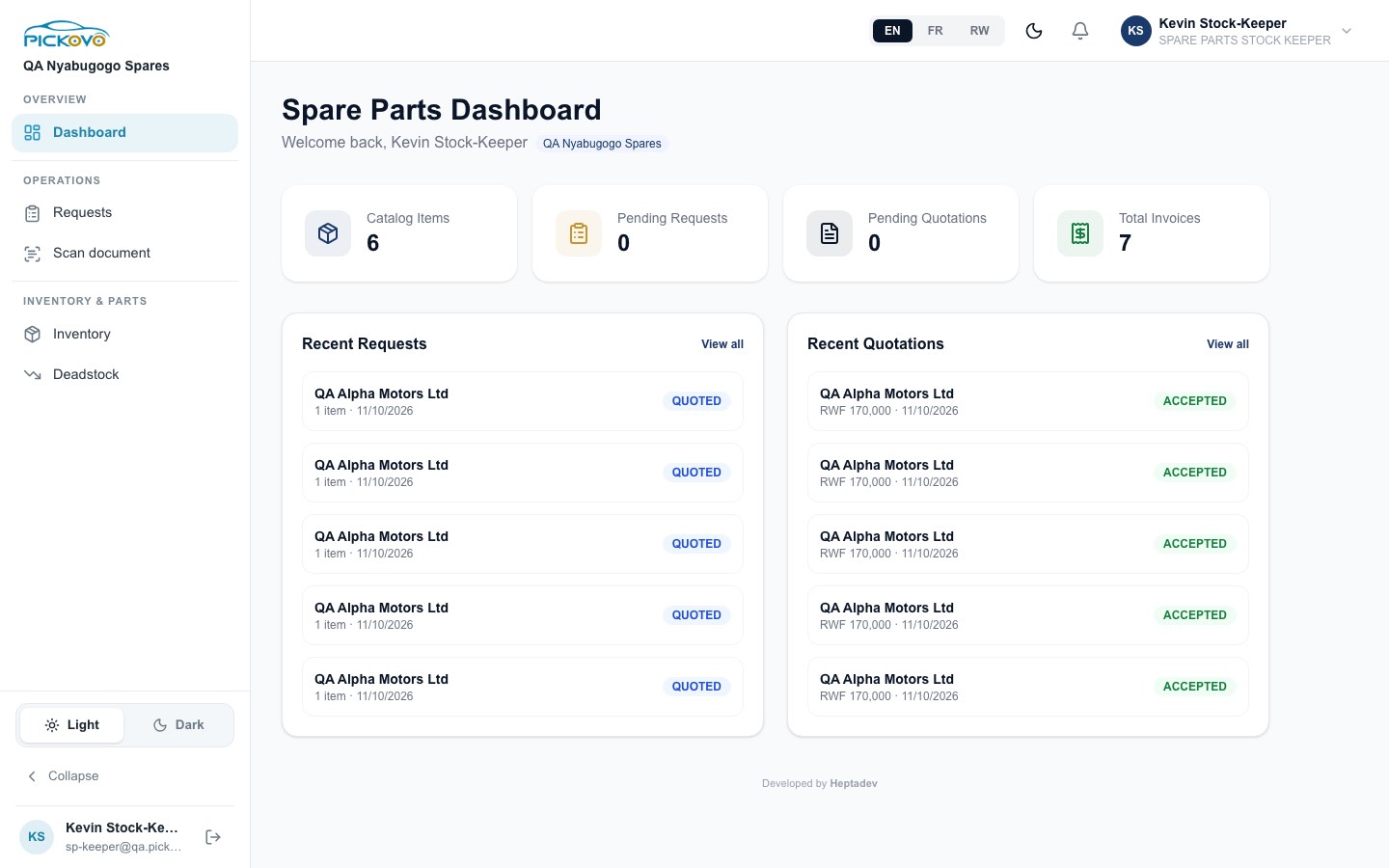
Figure 2: The Spare Parts Dashboard: counters, recent requests and recent quotations, with the stock keeper's shorter sidebar.
The four cards count Catalog Items (active items), Pending Requests (not yet quoted), Pending Quotations (draft or sent) and Total Invoices. Below them are the five most recent requests and quotations. You can open the requests. Quotations are for the shop admin only, so clicking a quotation or its View all link takes you back to your dashboard.
The top bar and sidebar
- Top bar: language switch (EN / FR / RW), dark-mode moon icon, the bell for notifications, and your name. Click your name for Log out.
- Sidebar: Dashboard; under Operations Requests and Scan document; under Inventory & Parts Inventory and Deadstock. At the bottom: the Light / Dark switch, Collapse (shrinks the sidebar to icons; point at an icon to see its name), and your name and email with the log-out button.
Scan document opens the AI document scanner, which works only if your shop's plan includes AI features.
C. Features
C.1 Inventory
Purpose: see what the shop holds and where.
Open Inventory.
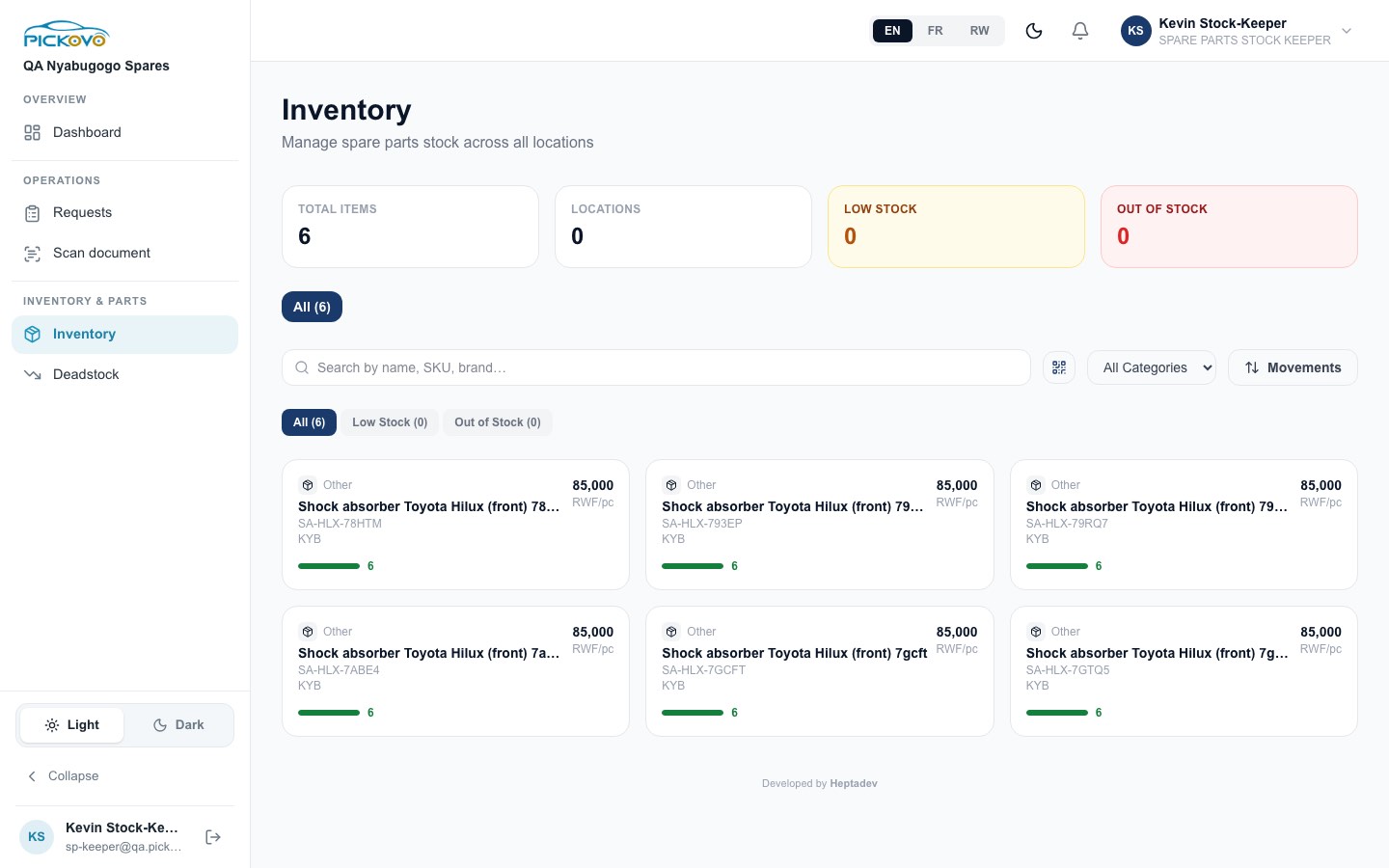
Figure 3: Inventory as a stock keeper sees it: counters, search, barcode scan, category filter and item cards, without the editing buttons.
- Read the counters: Total Items, Locations, Low Stock, Out of Stock.
- Use the location tabs (All, then one per warehouse or branch) to see one location's stock.
- Type in Search by name, SKU, brand…, or select the QR icon to scan a barcode or QR code with your camera. The scanned code goes into the search box.
- Narrow the list with All Categories and the All / Low Stock / Out of Stock buttons.
- Click an item's name to open its page: category, unit, unit price, brand, supplier, location, quantity, last restock date, the same item in other locations, and its Movement History.
Restrictions: + Add Item, + Add Location, the In / Out / Return buttons and Edit are shown only to the shop admin. When stock arrives, leaves or comes back, tell your admin so they can record it, or ask them whether your shop wants to give you the Admin role.
C.2 Stock movements
Purpose: check what moved, when, and who recorded it.
Open Inventory → Movements.
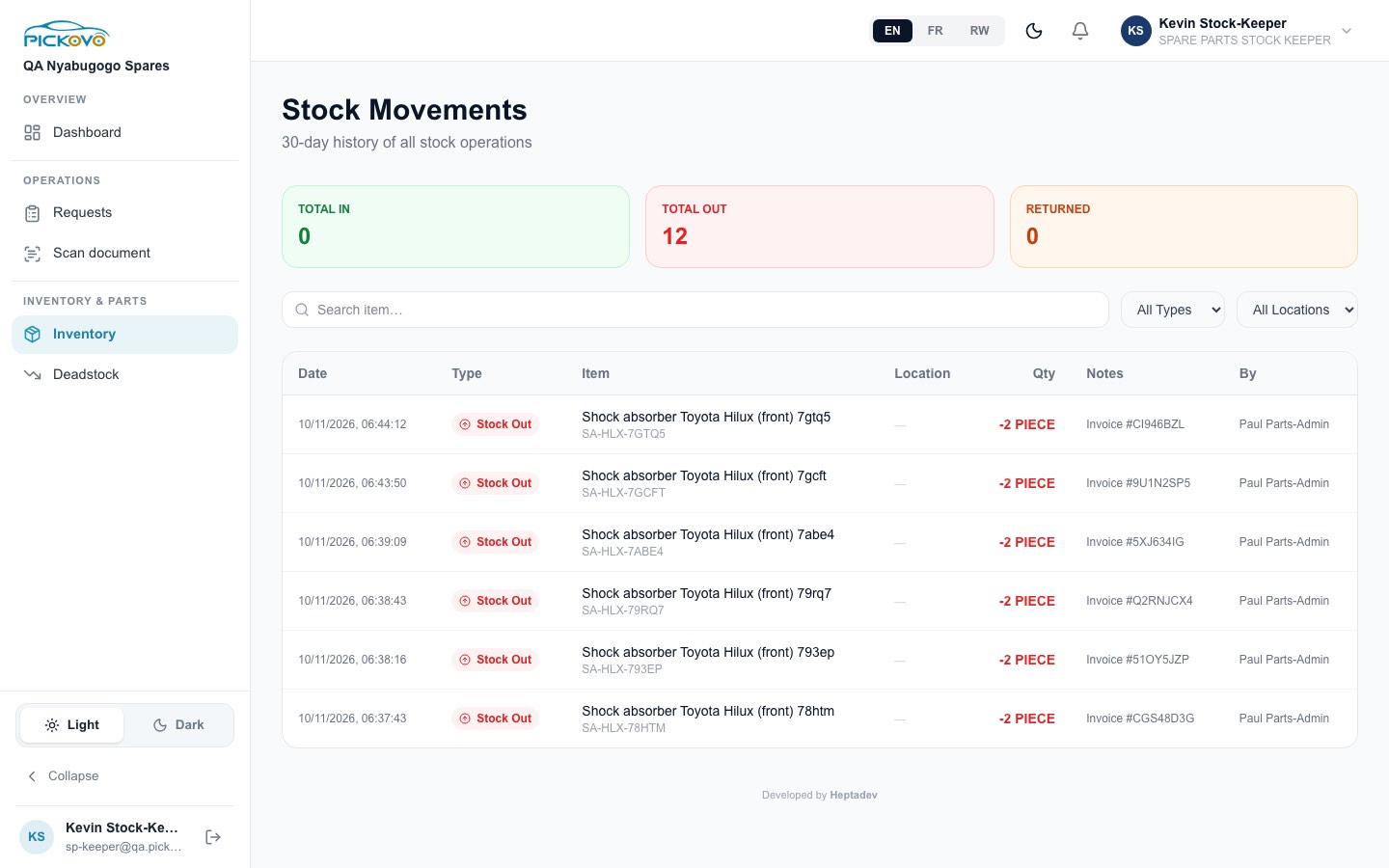
Figure 4: Stock Movements: 30-day totals and the movement table. These Stock Out rows were created automatically when the shop issued invoices.
- Total In, Total Out and Returned add up the last 30 days.
- Filter with Search item…, All Types (Stock In, Stock Out, Returned) and All Locations.
- Each row shows the date and time, type, item and SKU, location, quantity, notes and By (who recorded it). "Invoice #…" in the notes means the stock was taken off by an invoice.
Use this page to check the shelves against the system. If a count does not match, report it to your admin with the item, the location and the difference.
The Stock In / Stock Out / Returned recording buttons and Export XLSX are shown only to the shop admin.
C.3 Deadstock analysis
Purpose: spot parts that are not selling.
Open Deadstock.
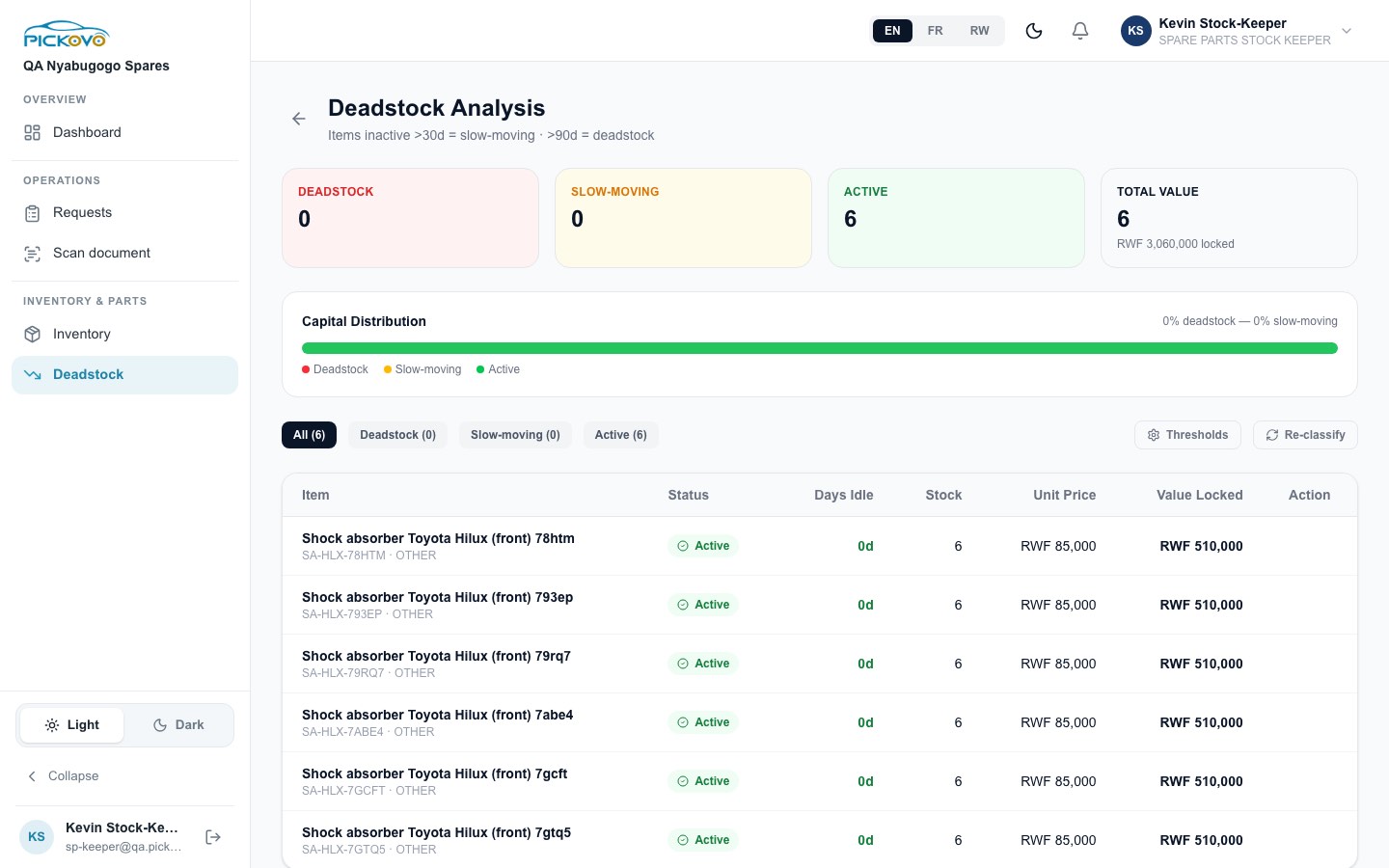
Figure 5: Deadstock Analysis: counts by class, value tied up in stock, and each item's idle days.
- Items are classed Active, Slow-moving (no movement for more than 30 days by default) or Deadstock (more than 90 days). The page heading shows your shop's current limits.
- Total Value shows the money tied up in stock. The Capital Distribution bar shows how much of it is deadstock or slow-moving.
- Filter with All, Deadstock, Slow-moving and Active.
- Clearance (in the Action column of slow-moving and deadstock items) suggests a price 30% lower. Adjust it and select Apply to lower the item's unit price. Agree clearance prices with your admin first, because the new price is used for all future quotations and invoices.
- Thresholds opens the classification settings, but only the shop admin can save changes there.
- Re-classify may do nothing on the current build. Classes are updated automatically every day.
C.4 Requests from garages
Purpose: see what buyers are asking for, so you can check and prepare stock.
Open Requests.
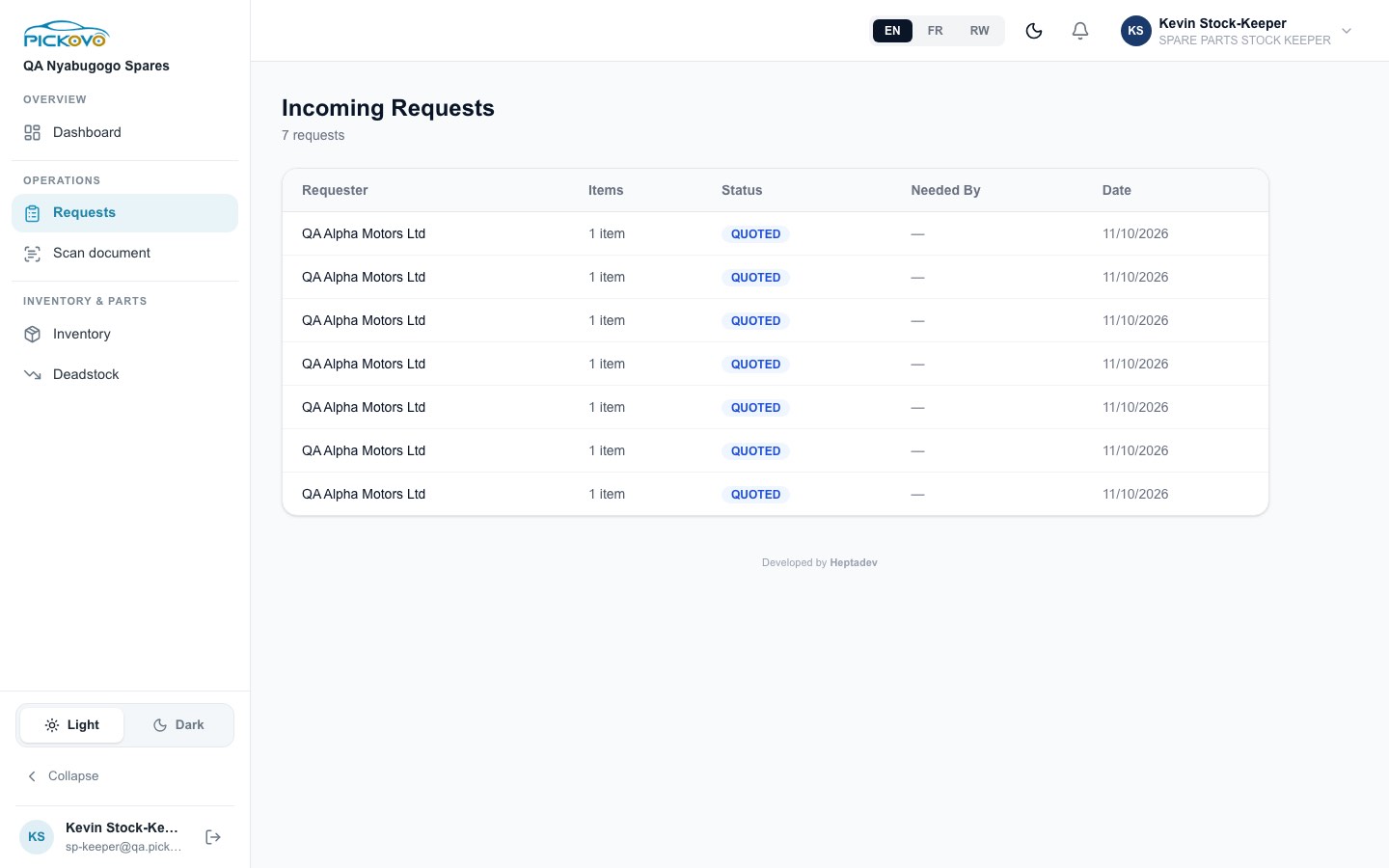
Figure 6: Incoming Requests: requester, number of items, status, needed-by date and date.
- Each row shows the Requester (for example a garage), the number of Items, the Status (PENDING until the shop quotes, then QUOTED), Needed By and Date.
- Click a row to see the request: who it is from, the date, the buyer's notes and the Requested Items with quantities.
- Check the parts are on the shelf (C.1) and set them aside if your shop works that way.
Only the shop admin can create the quotation. If the request already has a quotation, its status and total are shown. The View Quotation button leads to an admin-only page, so it takes you back to your dashboard.
C.5 Shop Settings (read-only)
Purpose: look up the shop's official details: name, address, phone and so on.
There is no sidebar link for you. Open https://fleet.heptadev.com/en/spare-parts/settings.
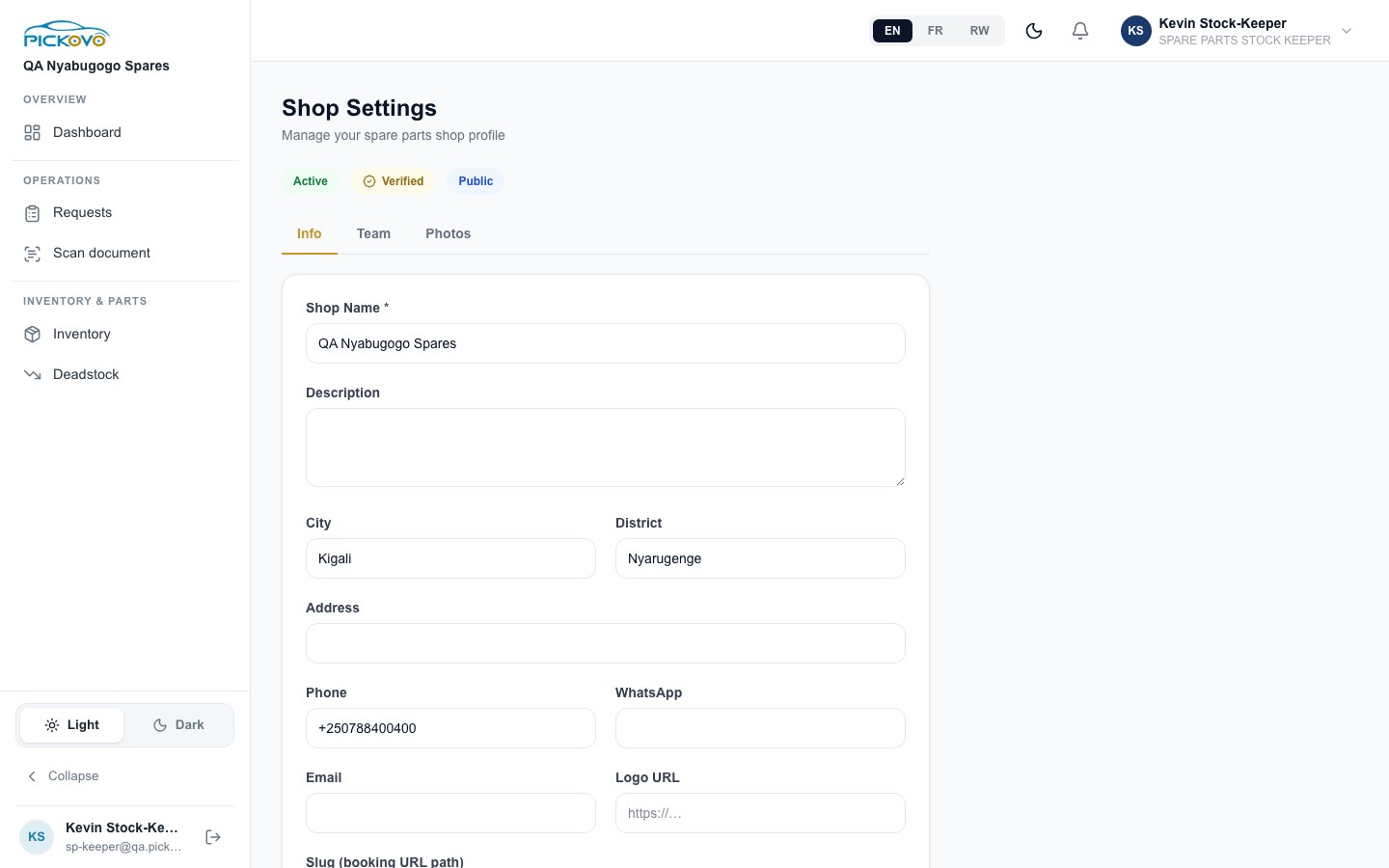
Figure 7: Shop Settings: status badges and the Info tab. For a stock keeper the fields cannot be changed.
You can read the Info fields (Shop Name, Description, City, District, Address, Phone, WhatsApp, Email, Logo URL, Slug) and the Active / Verified / Public badges. The fields are greyed out and there is no save button. The Team tab does not list staff for you, and you cannot add photos. Ask your admin for any change.
At the bottom, Request account deletion opens Pickovo's page for asking to delete your own account. Talk to your admin before using it.
C.6 Your personal settings, notifications and referral
These pages have no sidebar link for your role. Open them by address:
/en/settings, change your Full Name, Email, Phone Number and your password. Enter your Current Password, then the new one twice, and select Save Changes. A new password needs at least 8 characters, with an upper-case letter, a lower-case letter, a number and a symbol. The on-screen hint "Min. 6 characters" is out of date./en/settings/notifications, choose In-App, Email or WhatsApp for each type of event, then Save Preferences./en/settings/referral, your shop's referral code and sign-up link.- The bell in the top bar opens your notifications.
D. What you can and cannot do
Based on the measured access matrix (sections 5.2 and 5.6 of the audit, column SPK) and the code.
| Area | View | Create | Edit | Delete | Approve |
|---|---|---|---|---|---|
| Dashboard | Yes | - | - | - | - |
| Inventory items, locations, item history | Yes | - | - | - | - |
| Stock movements | Yes | , (admin records them) | - | - | - |
| Deadstock analysis | Yes | - | Yes clearance price only | - | - |
| Requests from buyers | Yes | - | - | - | - |
| Shop Settings | Yes read-only | - | - | - | - |
| Personal settings, notification preferences, referral page | Yes | - | Yes | - | - |
| Scan document | Yes if the plan includes AI | Yes | - | - | - |
| Cannot access | Quotations, Invoices, Marketplace (collaborations), Garages, Expenses, Add Item, Billing, Activity Log, AI settings, and the garage, fleet, driver, regulatory and superadmin workspaces |
If you open a page you cannot use, Pickovo sends you back to your dashboard or to the sign-in page. That is a permission rule, not an error.
E. Common workflows
Workflow 1: Help fulfil a garage's request (part of W4)
- The garage sends a request to your shop from its Spare Parts marketplace.
- You: open Requests, open the new PENDING request and read the items and notes.
- You: check each part in Inventory (search or scan it), confirm the quantity at the right location, and tell your admin if anything is short.
- The shop admin creates and sends the quotation. Once the garage accepts it, the admin issues the invoice.
- You: after the invoice is issued, check Movements. You should see a Stock Out with the invoice number. Hand over or dispatch the parts.
- The shop admin records the payment when it arrives.
Workflow 2: Weekly shelf check
- Open Inventory, choose a location tab, and filter Low Stock and then Out of Stock.
- Count the shelves for those items and compare them with the quantities shown.
- Open Movements, filtered to that location, to see recent changes.
- Send your admin a short list: items to reorder, and any differences between the shelf and the system.
Workflow 3: Clear old stock
- Open Deadstock and filter Deadstock.
- With your admin's agreement, select Clearance on each item, set the agreed price and select Apply.
- Put the items where customers will see them.
F. Troubleshooting
| Problem | Cause and fix |
|---|---|
| Sign-in paused after several failed attempts | 10 wrong passwords in 15 minutes pauses sign-in for that account. Wait 15 minutes or use Forgot password?. |
| Sign-in is refused with the right password | Your admin may have switched your account to inactive. Ask them. |
| Clicking a quotation, View all next to Recent Quotations, or View Quotation takes you back to the dashboard | Quotations are for the shop admin only. |
| There are no In / Out / Return, + Add Item or Export XLSX buttons | These are admin-only in the screens. Ask your admin to record the movement or export the list. |
| Thresholds won't save on the Deadstock page | Only the shop admin can change the thresholds. |
| Re-classify does nothing | Known issue. The automatic daily classification still runs. |
| Shop Settings fields are greyed out | Stock keepers can only read the shop profile. |
| Your new password is refused | It needs at least 8 characters, with upper- and lower-case letters, a number and a symbol. |
| Scan document says your plan does not include AI | The scanner is a paid plan feature. Ask your admin. |
G. Security and best practices
- Use your own account. Never share your password or sign in as your admin. The shop's Activity Log records who did what.
- Change the temporary password your admin gave you at your first sign-in, and choose one you do not use anywhere else.
- Report differences, don't hide them. If shelf counts and Pickovo disagree, tell your admin so they can record a correction.
- Agree prices first. A clearance price changes what every future buyer is quoted.
- Log out on shared or shop-counter computers, and keep your phone locked if you use it to scan barcodes.
- Tell your admin straight away if your phone or password may have been seen by someone else, so they can deactivate your account.