
Roadside provider · PROVIDER
Roadside Provider
For independent roadside responders (towing, jump starts, flat tyres, fuel, lockouts, mobile mechanics) who take Pickovo help requests from their phone.
All names, phone numbers, amounts and jobs in the screenshots (for example "QA Tow & Rescue", provider@qa.pickovo.test) are fictional test data.
A. Introduction
What this role is for
When a car owner or a company driver breaks down, they press Help Now (roadside help) in the Pickovo mobile app. Pickovo sends that request to the nearest suitable helper. As a roadside provider, you are one of those helpers.
You work on your own account. You are not part of a garage. If you also work for a garage, your roadside work still uses a separate provider sign-in.
Your responsibilities
- Go online when you are ready to take work and offline when you are not.
- Answer each job offer (Accept or Decline) before its timer runs out.
- Keep the customer informed by moving the job through its steps: On the way → Arrived → Job done.
- Tick the service's completion checklist before you finish.
- Keep your identity and vehicle documents up to date so that your account stays verified.
What you can accomplish
- Receive roadside job offers near your base, with the price shown before you accept.
- See the customer's location and phone number once you accept, and navigate to them.
- Hand a job back if you cannot do it (before you arrive).
- Review every job you have taken and your earnings, and download an earnings statement.
- Upload your documents, contact Pickovo support and manage alerts.
What Pickovo controls, not you
Pickovo operations create your account. They also set:
- the services you offer
- your base and service radius
- your prices (call-out fee, price per km, price per service)
- your verification status
You can see these settings but you cannot change them. To ask for a change, use Request a change (see C.6).
B. Getting started
Signing in
- Open https://fleet.heptadev.com/en/login in your phone's browser. Use
/fr/loginfor French or/rw/loginfor Kinyarwanda, or switch with the EN / FR / RW buttons. - Enter your email or phone number and your password, then tap Log in.
- You go straight to the provider app (
/en/provider).
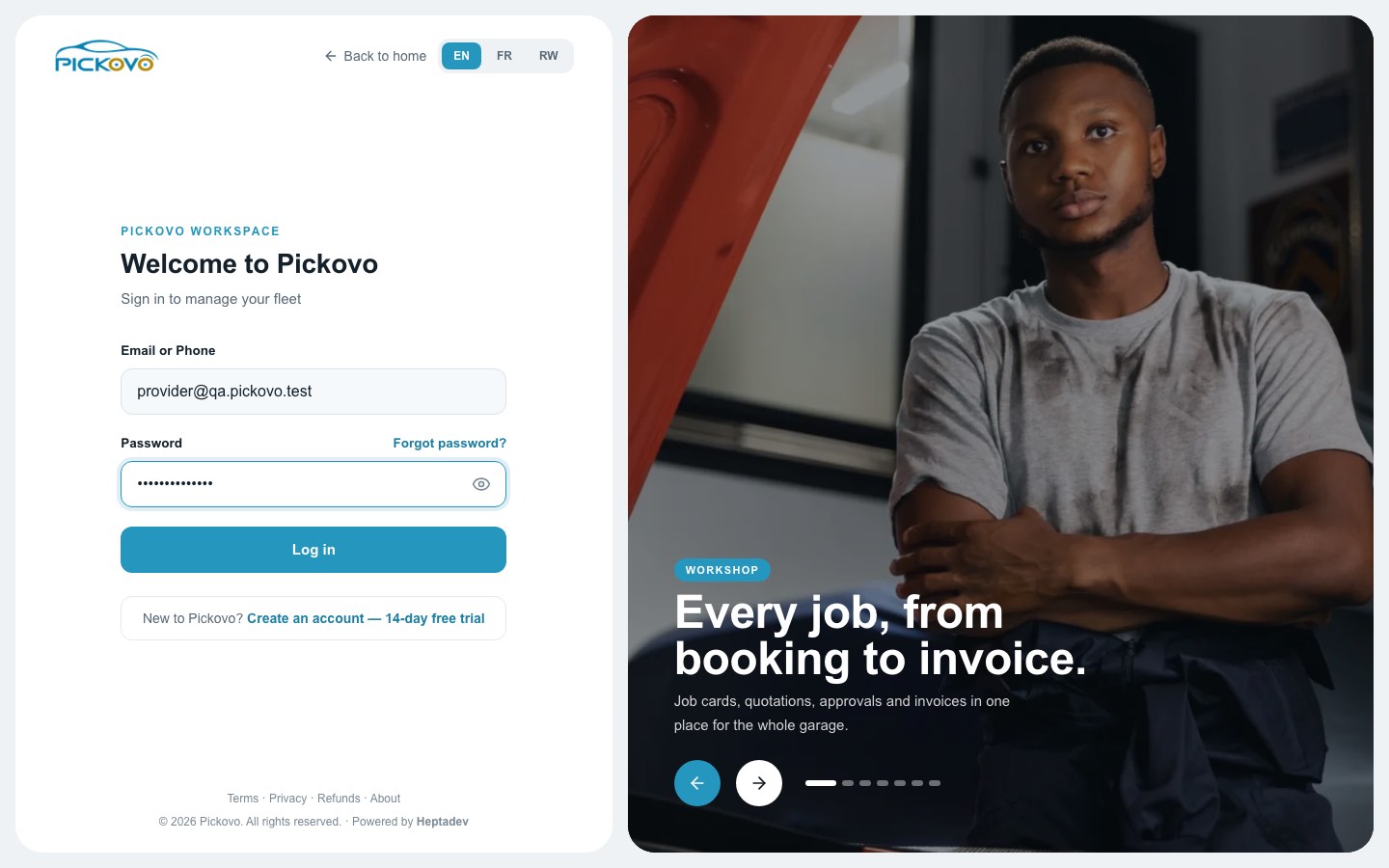
Figure 1: The Pickovo sign-in page.
- Forgot password? (above the password field) lets you reset your password.
- After 10 wrong passwords within 15 minutes, sign-in is paused for your account for a while. This protects you from someone guessing your password.
- Create an account, 14-day free trial is for companies. Providers do not register themselves. Pickovo operations create your provider login.
You can also use the Pickovo mobile app (iOS/Android, or its web version). When you sign in there with your provider account, it opens in provider mode automatically (see C.8).
Install the provider web app
The web provider app can be installed on your phone as Pickovo Provider:
- Go to Profile → Install Pickovo Provider, or
- in your browser menu, choose Add to Home Screen.
On an iPhone, alerts (push notifications) only work after you add the app to your home screen (iOS 16.4 or later).
First look: the Home screen
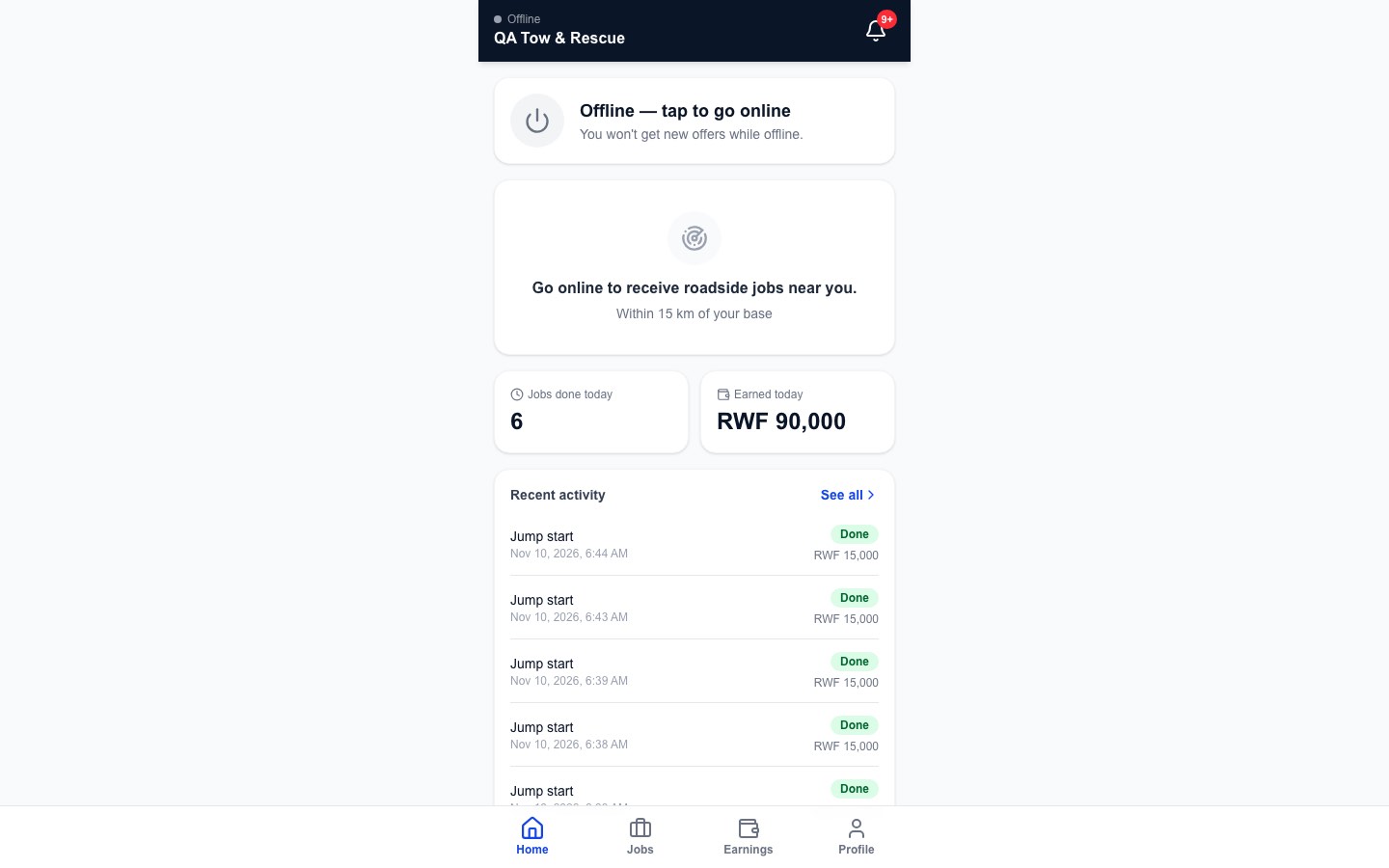
Figure 2: The provider app Home tab while offline, with today's figures and recent activity.
From top to bottom:
- Header: your status dot and word (Online, Offline, or Connection problem), your business name, and a bell with your unread notification count.
- Availability button: "Offline, tap to go online" or "Online, receiving jobs".
- Idle card: for example "Go online to receive roadside jobs near you. Within 15 km of your base".
- Jobs done today and Earned today: tap either one to open Jobs or Earnings.
- Recent activity: your last five jobs, each with its status and price. See all opens the Jobs tab.
Navigation
The bottom bar has four tabs: Home, Jobs, Earnings and Profile. The bell in the header opens Notifications. There is no side menu.
The open tab is part of the web address, so refreshing the page or tapping a notification opens the right screen.
C. Features
C.1 Account verification (before you can go online)
Purpose: Pickovo checks who you are before you can take jobs.
You can only go online when Pickovo has set your account to Verified. Until then:
- the availability button is greyed out and says "You can go online once Pickovo verifies your account."
- an amber card shows your account status.
| Status | What it means |
|---|---|
| Waiting for verification (Pending) | Pickovo is checking your documents. The card lists what is still needed. |
| Verified | You can go online and take jobs. |
| Account suspended | You cannot go online or take jobs. Contact Pickovo support. |
| Registration not approved (Rejected) | Pickovo did not approve you. Contact support if you think this is a mistake. |
What Pickovo needs before verifying you:
- an approved national ID or driving licence, and
- if you offer towing, an approved vehicle registration.
Steps:
- On the amber card, tap Upload documents. This opens Profile → Documents (see C.6).
- Upload each document that is still needed.
- Wait for Pickovo to approve it. You are notified when a document is approved or rejected, and when your account status changes.
If Pickovo has left a note, it is shown as "Pickovo's note: …". Contact support opens a support request.
Restriction: if Pickovo suspends or rejects your account, you are taken offline straight away.
C.2 Going online and offline
Purpose: tells Pickovo that you are ready to receive offers.
Steps:
- On Home, tap the availability button ("Offline, tap to go online").
- If your phone asks, allow location for the app.
- The button turns green: "Online, receiving jobs". It also shows the area you cover, for example "Offers within 15 km of your base appear here".
- To stop taking offers, tap the button again.
While you are online, Home shows your location status:
- "Location on · ±N m · just now" when your location is working.
- An error such as "Location is blocked", with a Try again button.
Expected outcome: you start receiving offers for the services you are set up for, from customers inside your service radius.
Things to know:
- Keep the app open while you are online. Phones stop sharing location when the app is closed. If your position is not shared, offers are measured from your base.
- Offers are only sent while your app is checking in with Pickovo.
- If alerts are on (C.6), offers can still reach you as notifications.
- Going offline stops new offers at once and passes any offer on your screen to someone else. A job you have already accepted carries on.
- In the mobile app, you must allow location to go online. Otherwise you see "Turn on location to go online".
C.3 Answering a job offer (accept or decline)
Purpose: decide whether to take a request.
Requests go to one provider at a time, starting with the nearest. When one comes to you, an offer card appears on Home. If you are on another tab, a blue banner appears ("New … offer, tap to answer").
The offer card shows:
- New job offer, with a countdown (normally 45 seconds). The countdown turns red in the last 10 seconds.
- The service (for example Jump start or Towing).
- Distance to the customer.
- You earn: the price, with how it is worked out (for example "RWF 10,000 call-out + 3 km × RWF 500"), or "Price fixed by Pickovo for this distance."
- The customer's vehicle, their note, and for towing the garage to tow to ("Tow to: …").
- A reminder that the customer's exact location and phone number are only shown after you accept.
Steps:
- Read the offer.
- Tap Accept to take the job, or Decline to pass it on.
Expected outcome:
- Accept: the offer becomes your active job (C.4). The price is now fixed.
- Decline: the request goes to the next-nearest provider, and you will not be offered that request again.
- Timer runs out: you see "Time is up, the offer went to another provider." You may be offered it again later, if nobody else takes it.
Restrictions:
- You can hold only one offer or one job at a time. While you have a job, Home says "New offers wait until this job is done."
- If someone else has already taken the request, or the customer cancelled it, you see "This offer is no longer available."
- Accident requests are marked as urgent and are given priority.
C.4 Working the job: status updates
Purpose: take the job from accepted to done, keeping the customer informed at each step.
Once you accept, Home shows Your job. It includes:
- the service, job reference (Job #…) and price
- a progress bar: Accepted → On the way → Arrived → Done
- a "Next:" hint
- a map of the customer's position and yours. It is labelled "Customer's live position", "Customer's position, N min ago", or "Where the customer asked for help".
- the customer's name, vehicle and note
- Call (phones the customer) and Navigate (opens Google Maps directions)
- for towing, the destination garage with its own Navigate link
Steps:
- Accepted: enter Arrive in (min) (15 by default), then tap I'm on my way. The customer is told and starts seeing your position and arrival time on their map.
- On the way: when you reach the customer, tap I've arrived.
- Arrived: work through Before you finish, the checklist for that service. Tick every required item. Items marked "optional" can be left. The Job done button stays disabled until all required items are ticked ("N required items left").
- Tap Job done. Confirm in the box "Mark the job done?". It tells you the price that will be recorded.
- The job's details (receipt) open. The job then appears in Jobs and Earnings.
Expected outcome: each step is checked by Pickovo before your screen moves on, and the customer is notified. When you finish, the customer's live location stops being shared.
Giving a job back (I can't do this job):
- On the job card, tap I can't do this job.
- Enter a reason (for example "my truck broke down") and tap Give it back.
- Pickovo offers the job to another provider straight away and tells the customer. You will not be offered that job again. Your history shows it as Handed back.
You can only give a job back while it is Accepted or On the way. Once you have arrived, report a problem from the job's details instead (C.5).
If the customer cancels, you are notified, and the job shows as Cancelled by customer.
C.5 Jobs (history and job details)
Purpose: see every job you have accepted.
Steps:
- Tap Jobs.
- Choose a filter: All, In progress, Completed or Cancelled.
- Search by job reference, or tap the filter icon to choose a Service and a From / To date. Clear filters resets them.
- Jobs load 20 at a time. Tap Load more for older ones.
- Tap a job to open Job details.
Each job shows: service, reference, date, distance, status (Done, On the way, Handed back, Cancelled by customer…), price, and any cancellation reason.
Job details shows:
- when the job was requested, accepted, on the way, arrived, and completed or cancelled
- the distance when offered
- the call-out fee and distance charge
- the Job price and You earned
- a note that Pickovo does not record roadside payments yet: only completed jobs count as earned
Report a problem with this job opens a support request already linked to that job.
Customer details (phone, position, vehicle) are only shown while you hold the job. After that, your history keeps what happened, not who the customer was or where they were.
C.6 Profile
Purpose: your details, documents, alerts, language and help.
Sections:
- Your card: photo (tap it to change; JPEG, PNG or WebP), name, verification badge, phone, email and vehicle.
- Services, area and prices (read-only): your services, call-out fee, price per km and service radius. "Pickovo operations set your services, area and prices." Request a change opens a support request that is already filled in.
- Documents: each document's state is shown: Being checked, Approved, Rejected, Expired or Expires soon. Expiry dates and Pickovo's notes are shown too.
- Upload adds a new document. Choose the type (National ID, Driving licence, Vehicle registration, Insurance, Other), enter the number and expiry date if any, add a photo or PDF up to 10 MB, then tap Send for review.
- Upload a new one replaces a rejected, expired or soon-to-expire document. Earlier versions are kept.
- Every upload starts as "Being checked". Only Pickovo can approve it.
- Alerts:
- Turn on alerts / Turn off alerts on this phone.
- Job offers always alert you. You choose whether to also get alerts for Job updates, Account and verification, Document reminders and Replies from support.
- Sound for new offers (on/off).
- If Pickovo's server is not set up for alerts, you see "Alerts aren't set up on Pickovo's server yet. Keep the app open to hear offers."
- Language: English, Français or Kinyarwanda.
- Help and support, Questions and answers, Install Pickovo Provider, and Sign out.
C.7 Notifications and support
Notifications (the bell in the header):
- Lists offers, job updates, account and document notices, and support replies.
- Unread items have a blue dot. Mark all read clears them.
- Tapping a notice opens the related job or screen.
Help and support (Profile → Help and support):
- Tap New request.
- Choose what it is about:
- Problem with a job
- Customer didn't show up
- Wrong location or job details
- Payment problem
- Help with verification
- Safety concern
- Change my services, area or prices
- Something else
- Enter a Subject and Message, then tap Send.
- Pickovo operations' reply appears under Your requests, and you are notified. Each request shows as Open, In progress or Resolved.
If anyone is in immediate danger, call the emergency services first.
C.8 Earnings
Purpose: see what your completed jobs are worth.
Steps:
- Tap Earnings (or the Earned today tile on Home).
- Choose Today, This week, This month or All time. All periods use Kigali time.
- The large figure shows the Job value and the number of completed jobs.
- Below it you see:
- Completed jobs and Average per job
- the All-time summary: job value (gross), Platform fees ("None recorded") and Net earnings
- Payouts
- Under Earnings statement, choose From and To dates, then tap Download statement (CSV) to get a spreadsheet.
- Completed jobs lists each job with its amount. Tap one to see its details.
Important: Pickovo does not process or track roadside payments or payouts yet. Earnings are the prices of your completed jobs, fixed when you accepted them. They are not money Pickovo has paid you, and nothing is estimated. The customer pays through their own app.
C.9 The Pickovo mobile app (provider mode)
When you sign in to the Pickovo mobile app with a provider account, it opens in provider mode. It has four tabs: Home, Jobs, Earnings and Account.
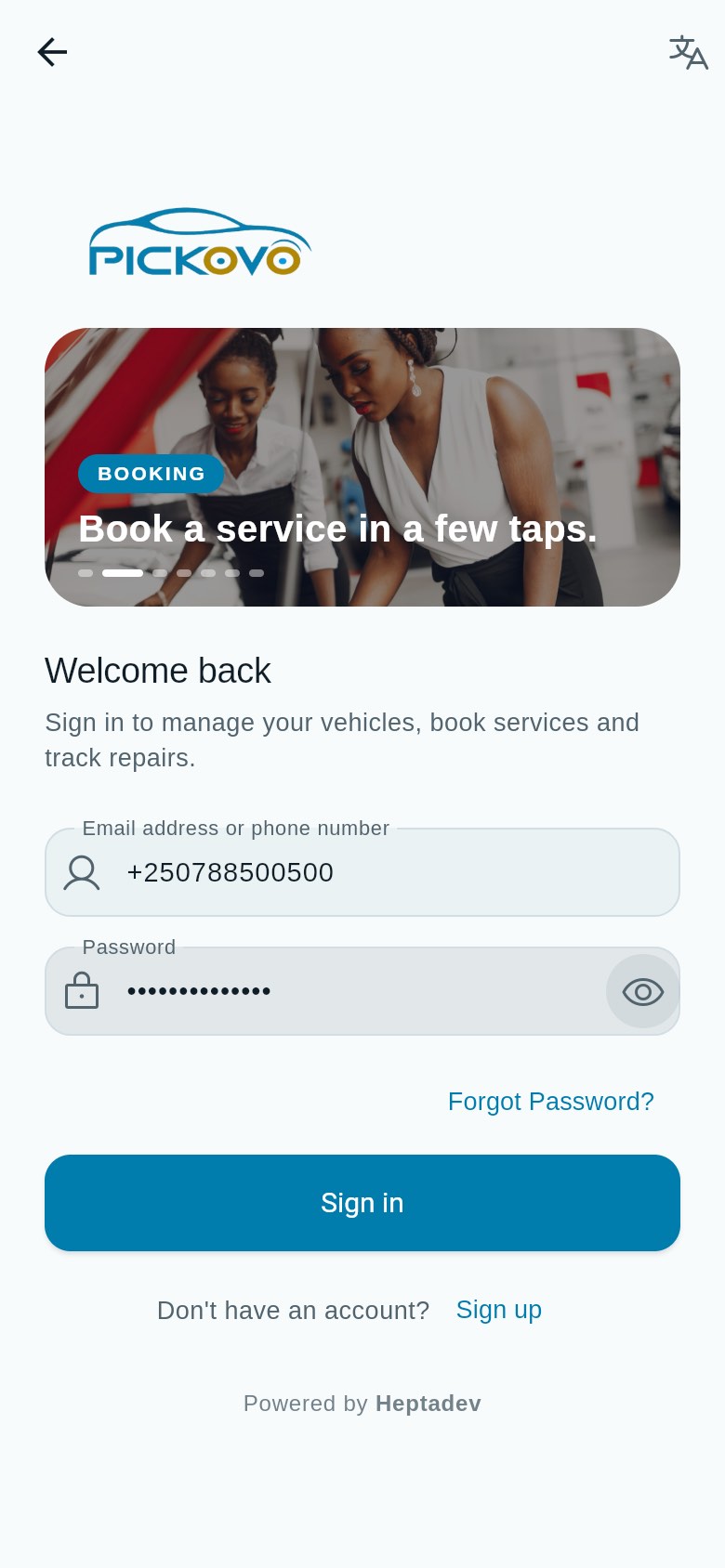
Figure 2a: The app's sign-in screen. Enter your email or verified phone number and password, then tap Sign in; the app opens in provider mode by itself. The workshop photos at the top change every few seconds.
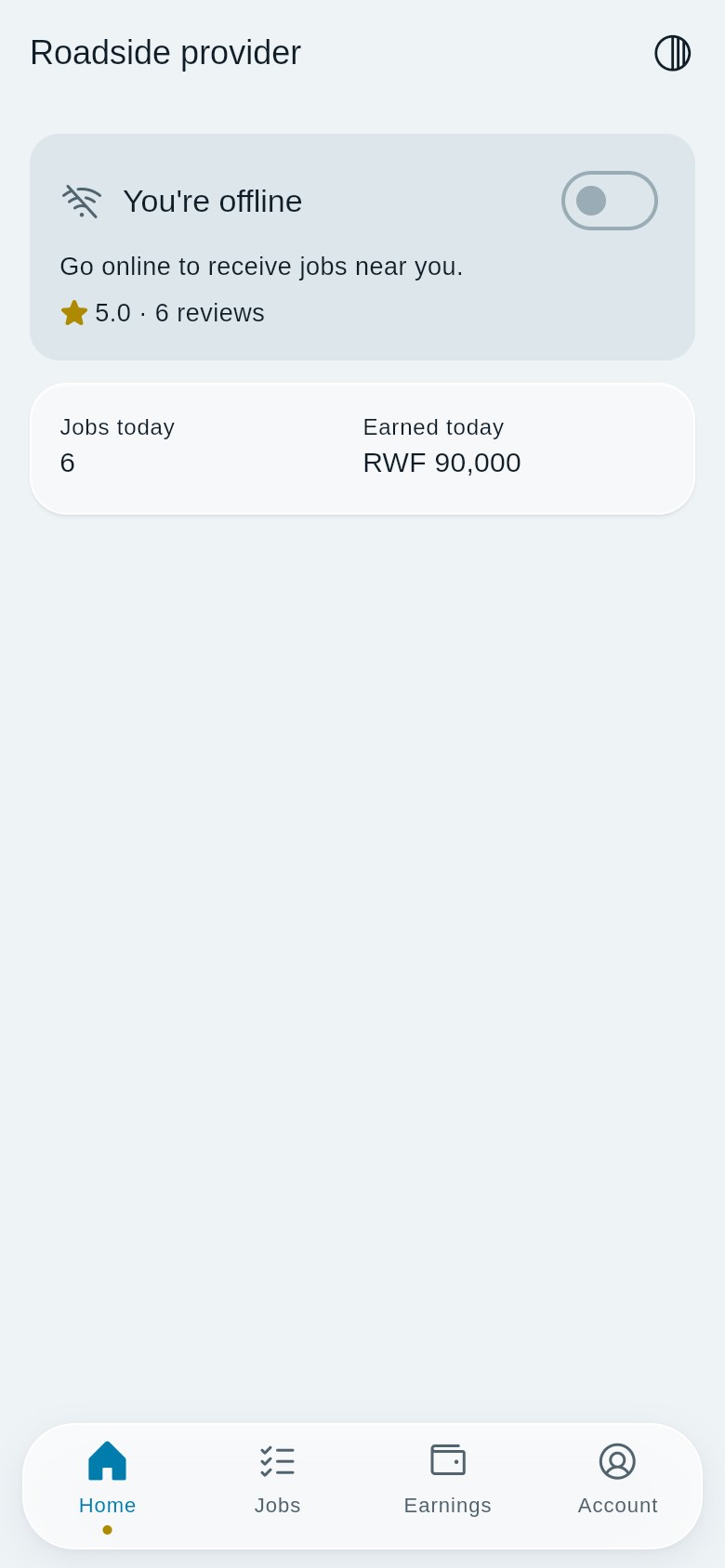
Figure 3: Mobile app provider mode, Home tab: "You're offline" with the switch to go online, your rating (5.0 from 6 reviews), and today's figures (6 jobs, RWF 90,000).
Home:
- If you are not verified, Home shows a verification card listing what is still needed, and there is no online switch.
- Once you are verified, Home shows a You're online / You're offline switch, your rating (if you have reviews), and any offer with Accept and Decline.
- During a job it shows the steps (On my way, I've arrived, the Before you finish checklist, Job done), Navigate to the customer, Navigate to the garage (towing), Call, and Give back.
- At the bottom: Jobs today and Earned today.
The app shares your position while you are online or on a job. During a job it sends your position about every 3 seconds.
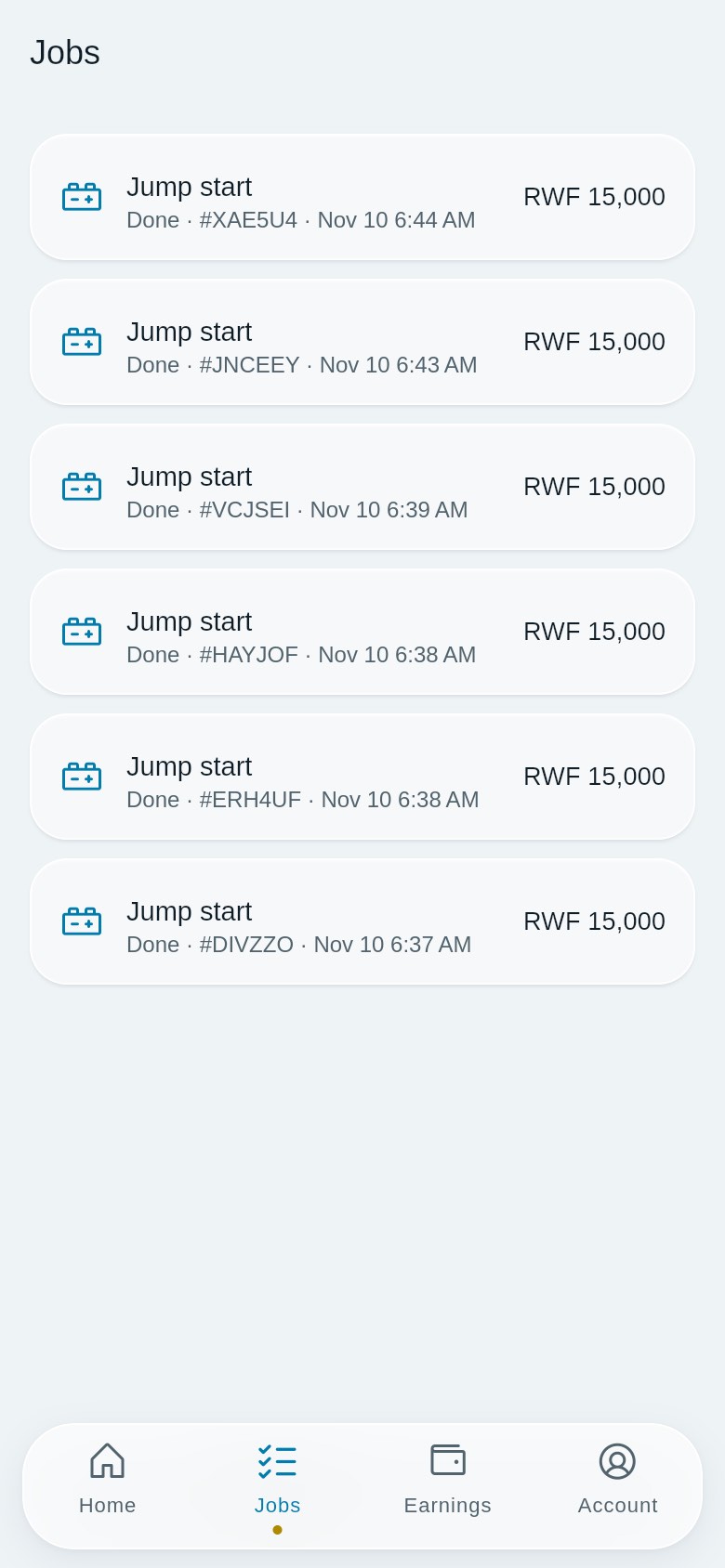
Figure 4: Mobile app Jobs tab: six completed Jump start jobs, each with its reference, time and amount (RWF 15,000). With no jobs it says "No jobs yet."
Jobs: past jobs with service, status, reference, date and time, and the amount for completed jobs. Pull down to refresh. Unlike the web app, the mobile Jobs tab has no filters, search or job details.
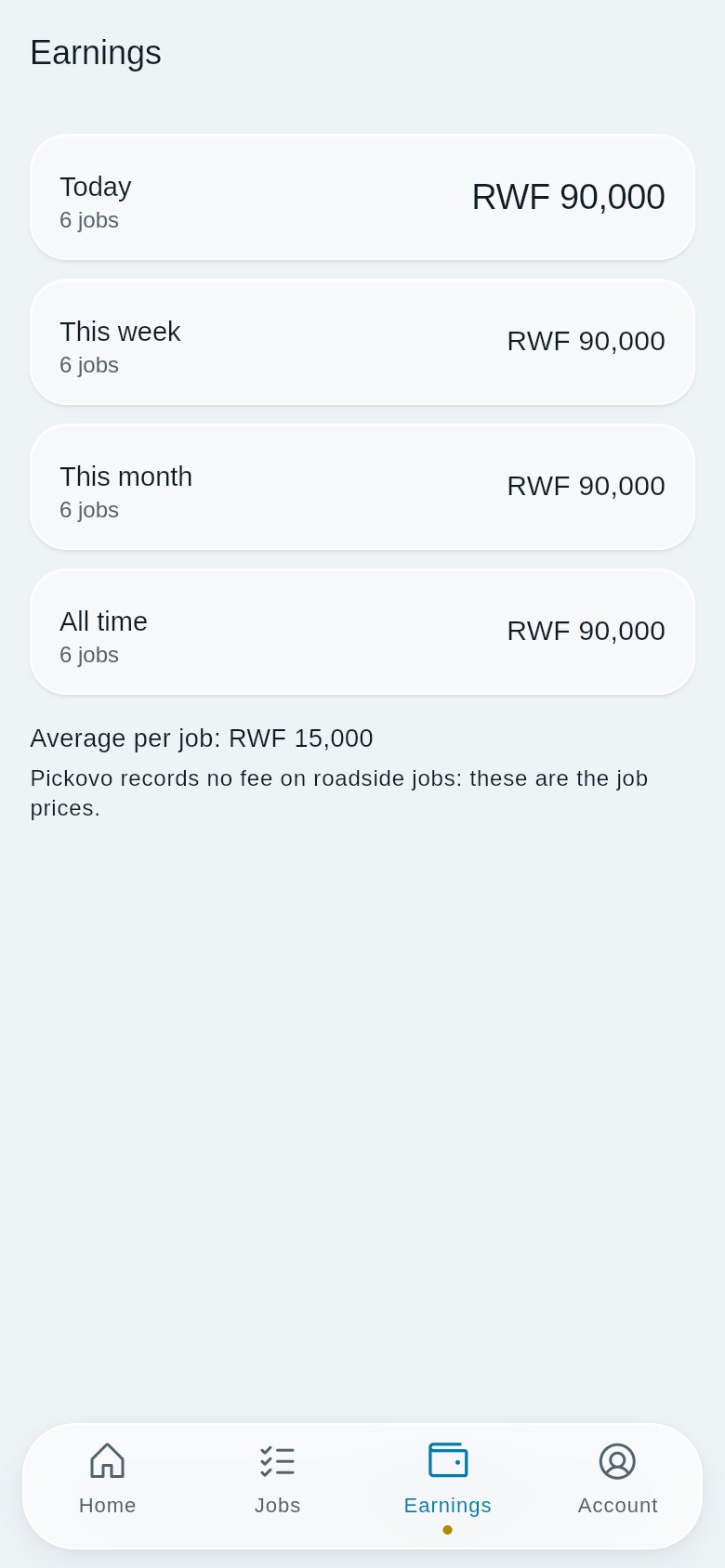
Figure 5: Mobile app Earnings tab: today, this week, this month and all time, with the number of jobs and the average per job. Pickovo records no fee on roadside jobs, so these are the job prices.
Earnings: Today, This week, This month and All time, each with its job count and amount, plus your average per job. It also notes that Pickovo records no fee on roadside jobs. The CSV statement is only in the web app.
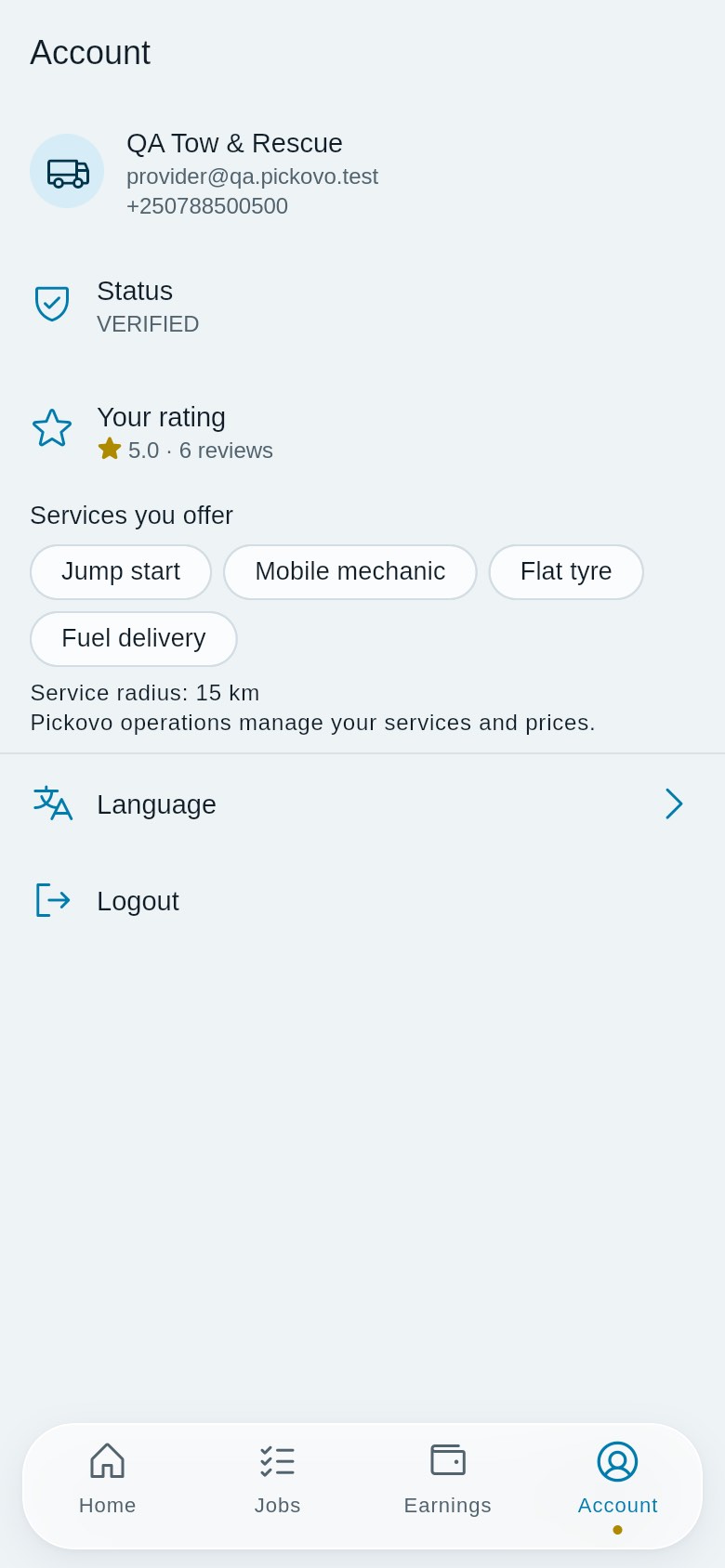
Figure 6: Mobile app Account tab: your name, email and phone, Language, and Logout.
Account: your name, email and phone. Once your status has loaded, it also shows your status, your rating, the services you offer and your service radius (managed by Pickovo operations). It also has Language and Logout.
Document uploads, alerts settings and support requests are only in the web provider app.
C.10 Settings (web): your personal details and password
Purpose: update your name, email, phone and password.
The provider app has no link to this page. Open it directly at https://fleet.heptadev.com/en/settings.
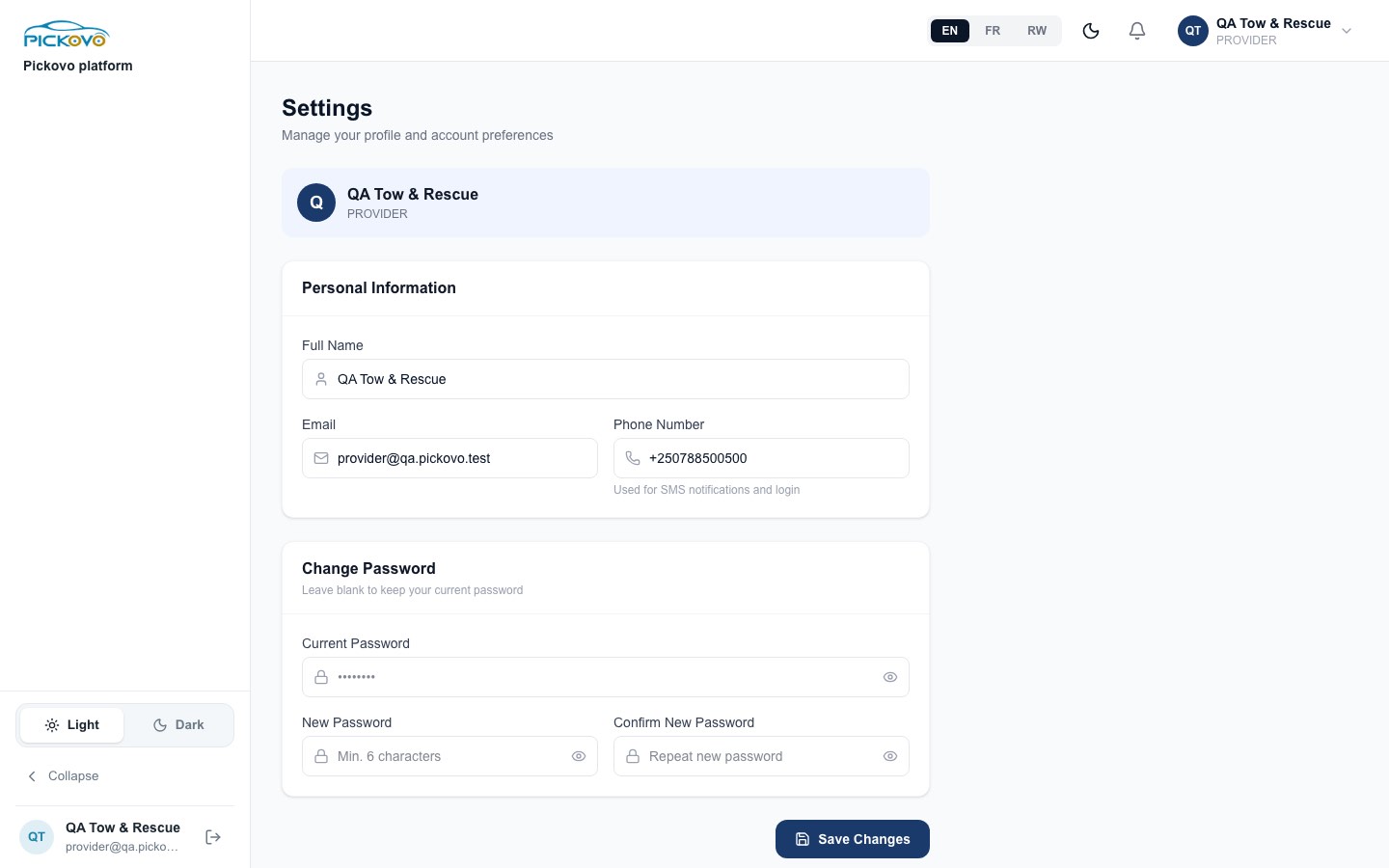
Figure 7: Settings: personal information and password.
Steps:
- Edit Full Name, Email or Phone Number. Your phone number is used for SMS notifications and sign-in.
- To change your password, enter your Current Password, then a New Password (at least 6 characters) and Confirm New Password. Leave these fields blank to keep your current password.
- Tap Save Changes.
Further down the page, Request account deletion asks Pickovo to delete your account and personal data. Pickovo confirms your identity by email first.
The page frame has the Light / Dark switch, Collapse (shrinks the sidebar to icons; point at an icon to see its name), and your name and email with the log-out button at the bottom left. The top bar has the language switch, the theme button, the bell and your name menu (with Logout).
Two-factor sign-in (TOTP) is not offered on this page for provider accounts.
C.11 Settings (web): notification preferences
Purpose: choose the channels (In-App, Email, WhatsApp) for Pickovo's general notification events.
Open it at https://fleet.heptadev.com/en/settings/notifications.
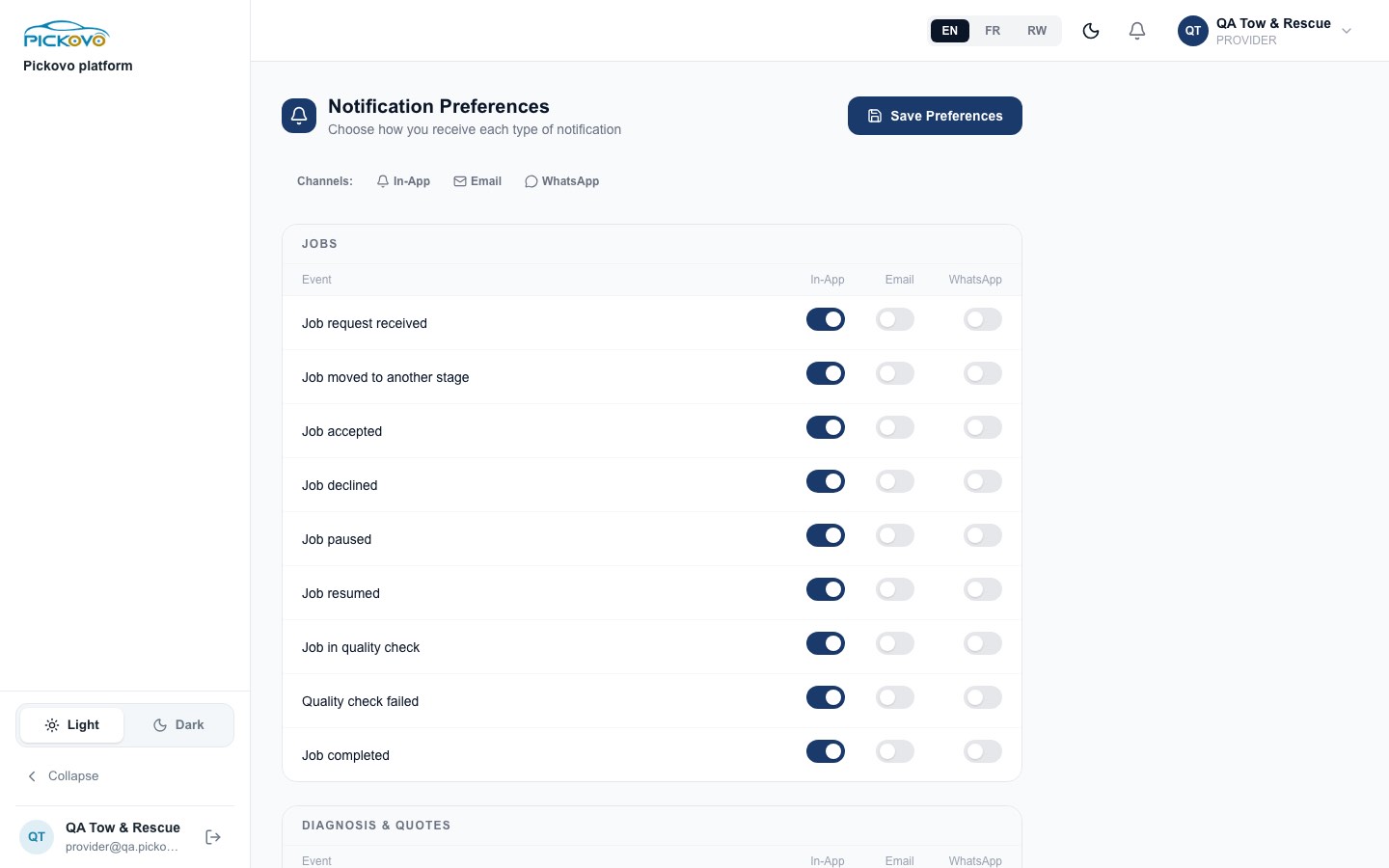
Figure 8: Notification Preferences, showing the Jobs section with In-App switched on.
Steps:
- Turn each event on or off for each channel.
- Tap Save Preferences.
Restriction: this page lists Pickovo's general events, such as workshop jobs, quotes, invoices, maintenance, inventory and marketplace. These are mainly used by garages and fleets. Your roadside offer and job alerts are not set here. Set them in the provider app under Profile → Alerts (C.6).
D. What you can and cannot do
Based on the measured access matrix (role column PRV) and the provider app code.
| Area | View | Create | Edit | Delete | Approve | Notes |
|---|---|---|---|---|---|---|
Provider app (/provider) |
Yes | - | - | - | - | Your own offers, jobs, earnings and profile only |
| Online / offline | Yes | - | Yes | - | - | Only when your account is Verified |
| Job offers | Yes | - | - | - | Yes Accept / Decline | One offer at a time |
| Job status | Yes | - | Yes On the way → Arrived → Done | - | - | Hand back only before arrival |
| Jobs history and job details | Yes | - | - | - | - | Customer details only while you hold the job |
| Earnings and CSV statement | Yes | - | - | - | - | Job values; no payouts recorded |
| Documents | Yes | Yes Upload | Yes Resubmit | - | - | Only Pickovo approves documents |
| Services, area, prices, verification | Yes | - | - | - | - | Set by Pickovo; use Request a change |
| Support requests | Yes | Yes | - | - | - | |
Notifications (/notifications and in-app) |
Yes | - | Yes Mark read | - | - | |
/settings (profile and password) |
Yes | - | Yes | - | - | Also lets you request account deletion |
/settings/notifications |
Yes | - | Yes | - | - | General events only |
Cannot access:
/settings/activity,/settings/aiand/settings/referral- every garage, fleet, driver, spare-parts, transport-authority, regulator, billing, documents and superadmin page
If you open one of these, you are sent back to the provider app.
On the web you can also only use the provider and shared account functions of Pickovo's API (sign-in, profile, notifications, uploads). All other company data is refused.
E. Common workflows
Workflow 1: From registration to your first shift
Before you: Pickovo operations register you, create your login, and set your services, base, radius and prices.
- Sign in at
/en/login. The provider app opens. - Home shows Waiting for verification and what is still needed.
- Tap Upload documents. Upload your national ID or driving licence (and your vehicle registration if you tow), then tap Send for review.
- Go to Profile → Alerts → Turn on alerts, and install the app to your home screen.
- Wait for the notification that your documents are approved and your account is verified.
- On Home, tap Offline, tap to go online and allow location.
After you: Pickovo can now send you offers.
Workflow 2: A roadside help job, end to end (W6)
This follows the tested roadside help flow (W6). In the test, a Jump start for RWF 15,000 ran through every step.
- Pickovo operations: set your services (for example jump start, mobile mechanic, flat tyre, fuel delivery).
- You: go online (C.2).
- Car owner or driver: asks for roadside help in the Pickovo mobile app. Pickovo offers it to the nearest available provider.
- You: the offer appears with its price and countdown. Tap Accept. The job becomes Accepted.
- You: enter your arrival time and tap I'm on my way. The customer sees you on their map.
- You: tap I've arrived, tick the checklist, then tap Job done and confirm.
- Car owner: sees the job completed and gets an invoice for exactly the agreed price. They pay in their app. Paying by MoMo or card depends on Pickovo's payment provider being set up. They can then rate you (1–5 stars).
- You: the job appears as Done in Jobs and is counted in Earnings. Your rating shows in the mobile app's Account tab.
Workflow 3: You can't complete a job
- Before you arrive: on the job card, tap I can't do this job, enter a reason and tap Give it back. Pickovo offers it to the next provider and tells the customer.
- After you arrive: open the job from Jobs, tap Report a problem with this job, choose a category (for example "Customer didn't show up"), describe what happened, and tap Send.
- Pickovo operations: reply. You are notified, and the reply shows under Help and support → Your requests.
Workflow 4: Weekly earnings check
- Tap Earnings, then This week.
- Check the job value, the number of jobs and the average per job.
- Under Earnings statement, set the dates and tap Download statement (CSV) for your records.
F. Troubleshooting
| Problem | Likely cause | What to do |
|---|---|---|
| The online button is greyed out: "You can go online once Pickovo verifies your account." | Your account is Pending, Suspended or Rejected | Read the amber card. Upload the missing documents or tap Contact support. |
| I was online, now I'm offline | Pickovo suspended or rejected your account, or you tapped the button | Check Home and your notifications. Contact support. |
| "Location is blocked" / "Can't find your position" | Location permission is off, or GPS is weak | Allow location for the app or browser in your phone settings, then tap Try again. Offers are still measured from your base, but the mobile app needs location to go online. |
| No offers arrive | You are offline; the app is closed or has not checked in for 2 minutes; you have a job or offer already; requests are outside your radius or for services you don't offer | Stay online with the app open. Turn on alerts. Ask Pickovo (via Request a change) to add services or widen your area. |
| "This offer is no longer available." | Another provider or a garage took it, the customer cancelled, or it expired | Nothing to do. Wait for the next offer. |
| "Time is up, the offer went to another provider." | The countdown ended | Answer offers quickly. Turn on Sound for new offers. |
| Job done is disabled | Required checklist items are not ticked | Tick every item not marked "optional". |
| "I can't do this job" is missing | You have already arrived | Use Report a problem with this job from the job's details. |
| Amber bar: "You are offline." / "Can't reach Pickovo right now." | No internet, or Pickovo can't be reached | Check your data connection. The app keeps retrying and shows the time of the last update. |
| "Alerts aren't set up on Pickovo's server yet" / "Alerts work in the installed app" | Push is not configured, or the app isn't installed | Keep the app open while online. Install it to your home screen (iPhone: iOS 16.4+). |
| Opening a page sends me back to the provider app | That page is not available to providers | This is expected (see section D). |
| Sign-in paused | 10 wrong passwords within 15 minutes | Wait, then try again, or use Forgot password?. |
| Earnings don't match money received | Pickovo doesn't record roadside payments or payouts | Earnings are job prices only. Raise a Payment problem support request if a customer did not pay. |
G. Security and best practices
- Keep your login to yourself. Never share your password or let someone else take jobs on your account. Your verification is personal.
- Use a strong password and change it under Settings if you think someone knows it. Use Forgot password? if you are locked out.
- Sign out on shared phones: Profile → Sign out (web) or Account → Logout (mobile).
- Respect customer privacy. You only see the customer's phone number and position while you hold the job. Use them only for that job.
- Share your location only while working. Your position is used only while you are online or on a job. Go offline when you finish your shift.
- Keep documents valid. Watch for Expires soon and upload a new document before it expires, so that your account stays verified.
- Safety first. If anyone is in danger, call the emergency services before contacting Pickovo. Use the Safety concern support category to report incidents.
- Use official channels. Change requests, payment problems and disputes go through Help and support, so there is a record.