
Garage · CASHIER
Cashier
For garage cashiers who raise invoices, collect money and record payments in Pickovo.
The screenshots in this guide come from a test system. Every name, number plate, amount and company in them (for example "QA Alpha Motors", "Carl Cashier (Alpha)", "RAD 101 Q") is fictional test data.
A. Introduction
What the cashier does
As cashier you look after the money side of your garage. When the workshop finishes a repair, you make sure the customer is invoiced, you collect payment, and you record it in Pickovo. Pickovo then marks the invoice as paid and tells both the garage and the customer.
Your responsibilities
- Create invoices for finished jobs, either from the approved quotation or by entering the lines yourself.
- Record payments made in cash, MTN Mobile Money, Airtel Money, bank transfer or company credit.
- Confirm money received when an invoice has been marked paid from outside the garage.
- Give walk-in customers a payment link.
- Sign invoices and hand customers a PDF copy.
- Keep an eye on outstanding and overdue invoices.
- Read the garage's revenue and workshop reports.
- Record customer complaints and follow them up.
What you do not do
By default the following stay with your garage admin, who holds the invoices.adjust permission:
- editing an invoice after it has been created
- sending a draft invoice to a fleet customer
- voids, refunds and credit notes.
Moving a job through the workshop (accepting it, diagnosing it, passing quality check or closing it) belongs to the workshop staff. A cashier can follow jobs but cannot change their status.
About permissions
Your garage admin decides what each staff role can do, under Settings → Roles. This guide describes the default cashier permissions:
| Permission | What it lets you do |
|---|---|
jobs.viewAll |
See the garage's job board |
bookings.view |
See appointments, and open the car-owner app pages |
invoices.view |
Open the invoice list and invoices |
invoices.create |
Create (generate) an invoice from a job |
payments.record |
Record payments, sign invoices, create payment links |
reports.operational |
Open Garage Reports and Workshop Reports |
reports.financial |
See revenue figures in those reports |
complaints.view |
See and handle customer complaints |
If your admin has changed these for your garage, some pages or buttons may differ from what is described here.
B. Getting started
Signing in
- Open https://fleet.heptadev.com/en/login in your browser. For French use
/fr/login, and for Kinyarwanda use/rw/login. You can also switch language with the EN / FR / RW buttons at the top right. - In Email or Phone, type the email address or phone number your garage registered for you.
- Type your Password. Click the eye icon if you want to check what you typed.
- Click Log in.
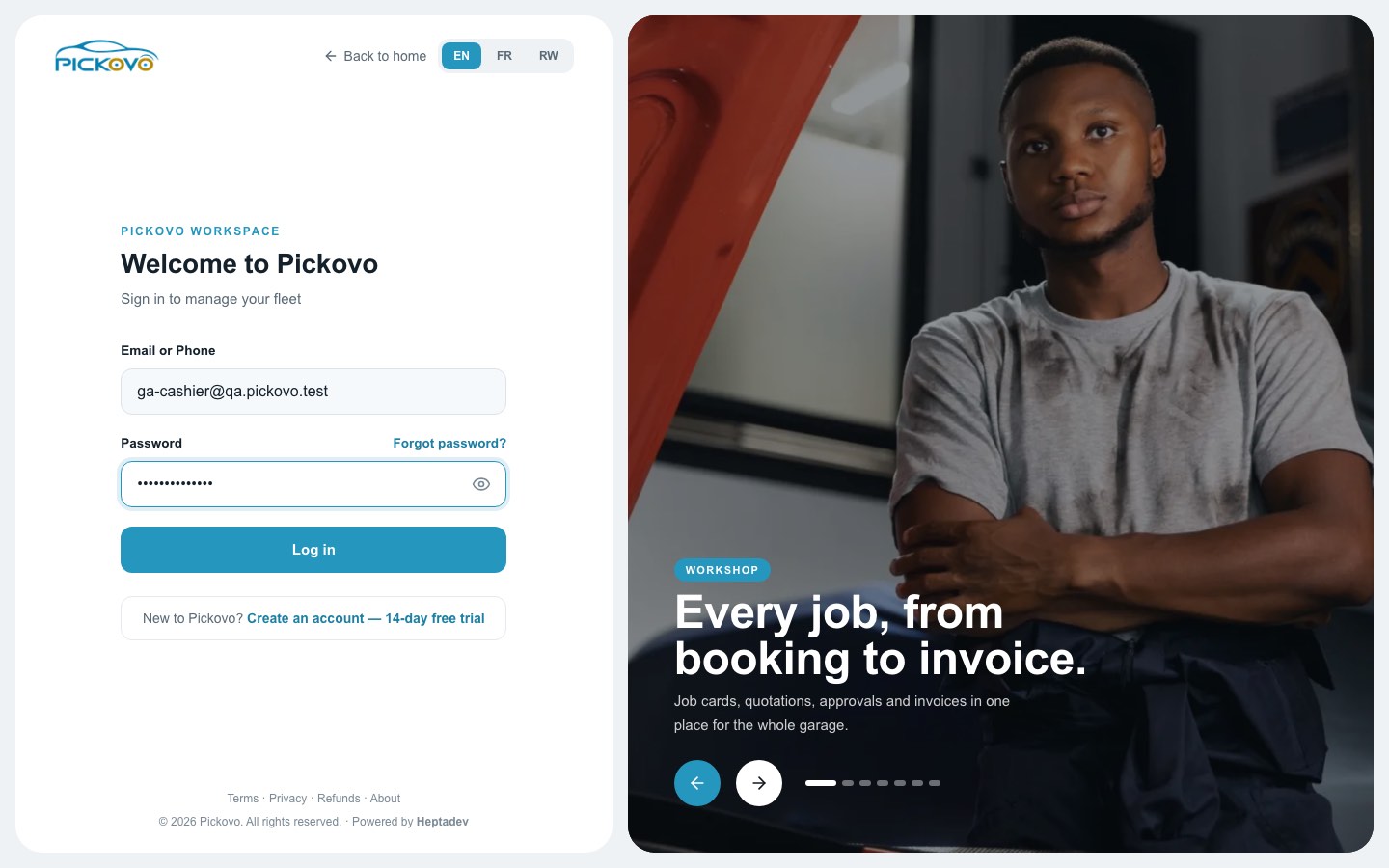
- Forgot password? (above the password box) lets you reset your password.
- If your account has two-factor authentication turned on, Pickovo also asks for the six-digit code from your authenticator app.
- After 10 wrong passwords within 15 minutes, sign-in to that account is paused for a while. Wait, then try again, or use Forgot password?.
Your dashboard
After signing in you land on the Cashier Dashboard. It shows your name, your garage branch and your company.
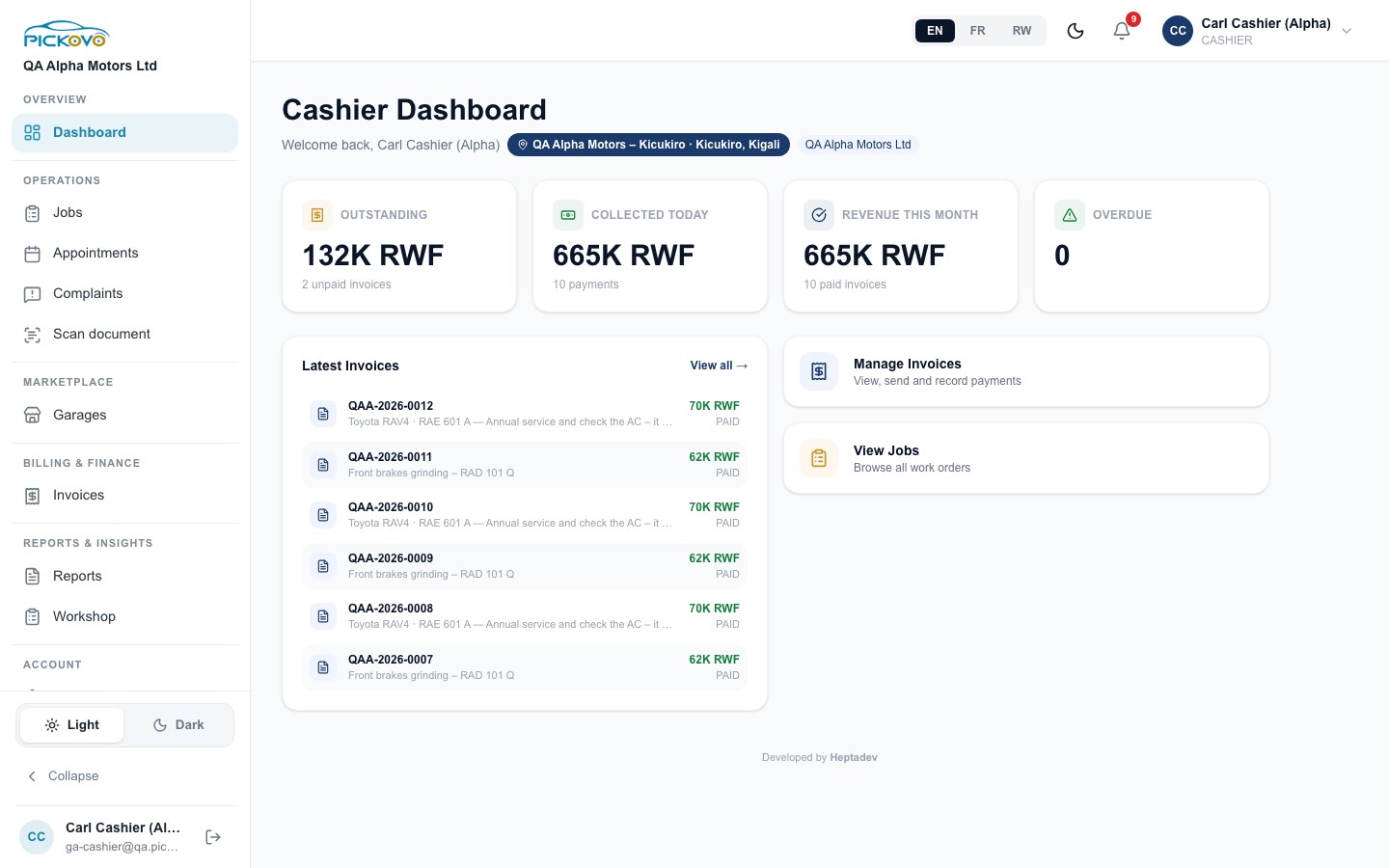
| Card | What it shows |
|---|---|
| Outstanding | The total of invoices that are not yet paid (draft, sent or overdue) and how many there are |
| Collected Today | The total of invoices that became fully paid today, and how many |
| Revenue This Month | The total of invoices paid this month, and how many |
| Overdue | How many invoices are past their due date |
| Latest Invoices | Your garage's six most recent invoices, with amount and status. View all → opens the invoice list |
| Manage Invoices | Shortcut to the invoice list |
| View Jobs | Shortcut to the job board |
These cards count whole invoices. An invoice that is only partly paid is not included in Outstanding or Collected Today.
Finding your way around
The dark sidebar on the left contains:
| Section | Item | Opens |
|---|---|---|
| Overview | Dashboard | Cashier Dashboard |
| Operations | Jobs | The garage job board (view only) |
| Appointments | Bookings and scheduled jobs | |
| Complaints | Customer complaints register | |
| Scan document | AI document scanner | |
| Marketplace | Garages | Marketplace inbox (requests from fleets and spare-parts shops) |
| Billing & Finance | Invoices | Invoice list and invoices |
| Reports & Insights | Reports | Garage Reports |
| Workshop | Workshop Reports | |
| Account | Settings | Your profile, notifications and referral (scroll down the sidebar to see it) |
| Light / Dark switch, Collapse, your name with the log-out button | Change the display, narrow the sidebar, or sign out |
Along the top bar are the EN / FR / RW language buttons, the dark-mode moon icon, the bell (notifications, with a red count of unread items) and your name and role.
C. Features
C1. Invoices: the list
Purpose: find any invoice your garage has issued, see what is still unpaid, and start a new invoice.
To open it: click Invoices in the sidebar.
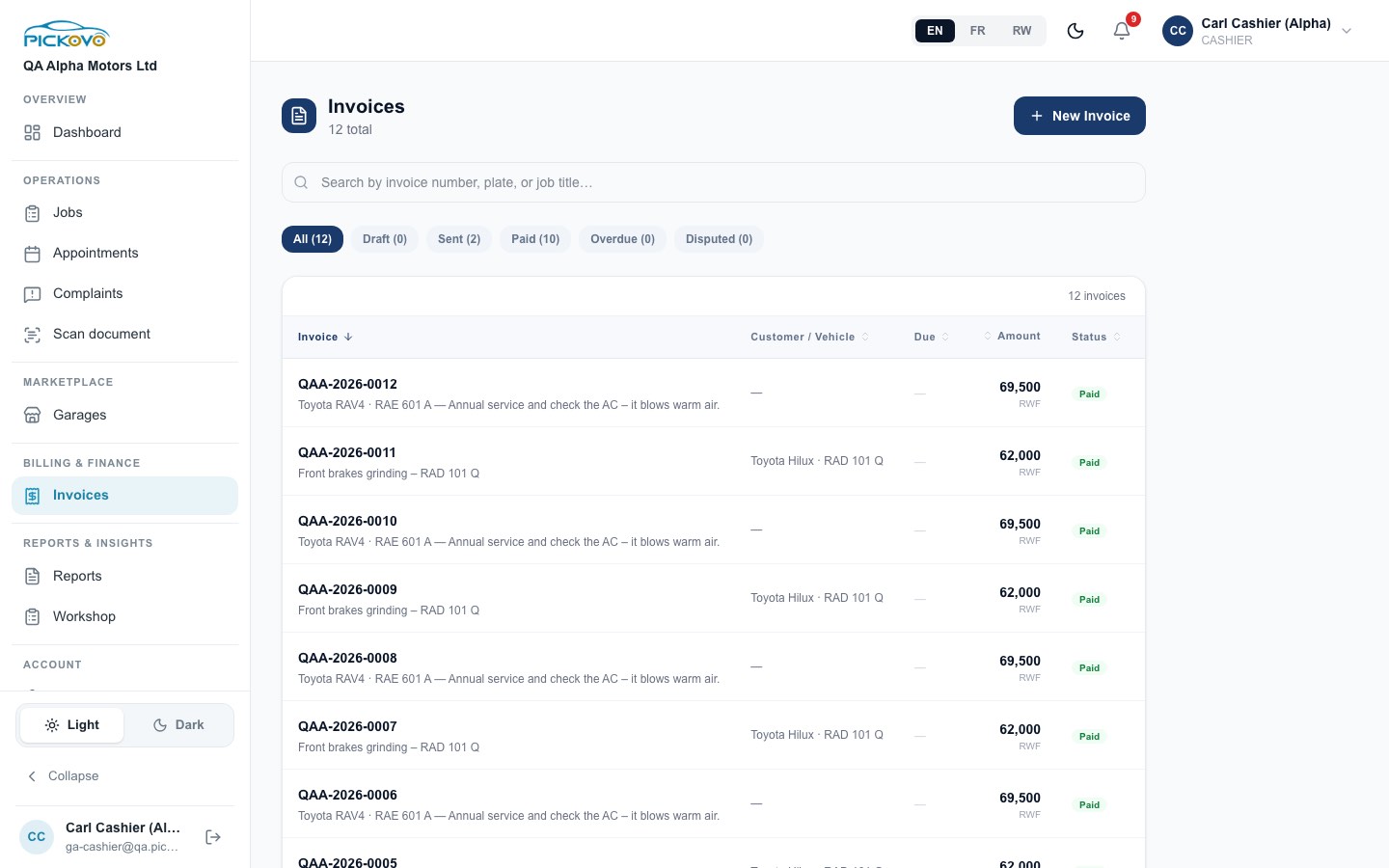
What is on the page:
| Element | What it does |
|---|---|
| New Invoice | Opens the form for creating an invoice from a job (see C2) |
| Search box | Finds invoices by invoice number, number plate or job title |
| Status filters | All, Draft, Sent, Paid, Overdue, Disputed. Each shows a count |
| Invoice column | Invoice number, with vehicle and job title underneath |
| Customer / Vehicle | The vehicle, or the walk-in customer's name |
| Due | The due date, shown in red when overdue |
| Amount | Grand total in RWF |
| Status | Coloured status badge |
Click a column heading to sort by it. Click any row to open the invoice.
On unpaid invoices there is also a small pencil (edit) icon. Editing an invoice requires invoices.adjust, which cashiers do not have by default, so saving an edit will fail. Ask your garage admin for corrections.
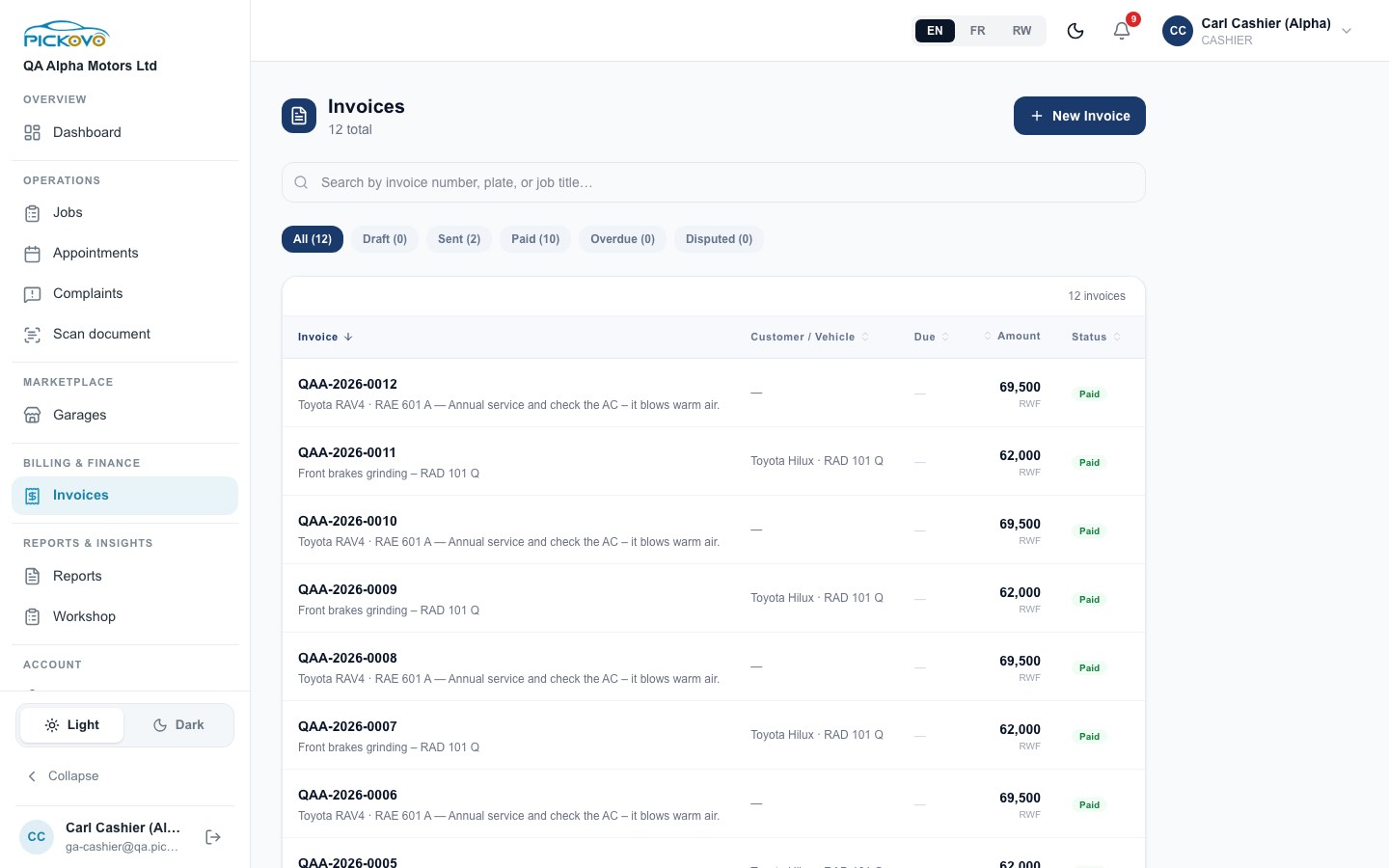
Invoice statuses you will see:
| Status | Meaning |
|---|---|
| Draft | Created but not yet issued to the customer |
| Sent | Issued, waiting for payment |
| Partially paid | Some money recorded, balance still due |
| Paid | Fully settled |
| Overdue | Past its due date and not paid |
| Disputed | The customer has disputed it |
| Credited / Refunded | Adjusted by the garage admin with a credit note or refund |
C2. Creating an invoice
Purpose: bill a job. Each job can have only one invoice.
Steps:
- On the Invoices page, click New Invoice.
- Choose how to build the invoice:
- From Quotation: the labour lines come from the job's approved (or sent) quotation, and the parts lines come from the parts issued to the job from stock. Only jobs with such a quotation are listed.
- New from Repair: you add the lines yourself. Use Add Labor or Add Part to add a line, then fill in description, unit, quantity and unit cost. Pickovo shows labour, parts, discount, VAT and the grand total as you type.
- Select a job. Use the search box to find it by title, number plate or customer name. Only jobs that do not already have an invoice appear.
- Set VAT Rate (%) (18 by default) and switch Apply VAT on or off.
- Optionally set a Due Date.
- Optionally give a Discount: No discount, Percent off (up to 100%) or Fixed amount off (in RWF). The discount comes off the subtotal before VAT and cannot be more than the subtotal.
- Optionally add Notes.
- Click Create Invoice.
Expected outcome: Pickovo gives the invoice the garage's next sequential number (for example QAA-2026-0011), saves it as Draft, and opens it. If the job already had an invoice, Pickovo opens that invoice instead of creating a second one.
Restrictions:
- You need
invoices.create(on by default for cashiers). - Invoicing stops if your garage's Pickovo subscription has lapsed. On the Starter plan there is also a monthly limit on the number of invoices. If you reach either, the form shows an error. Tell your garage admin.
- A new invoice is a Draft. Before you can record a payment it must be Sent:
- For a fleet customer, the garage admin sends it (the Send Invoice button needs
invoices.adjust). - For a walk-in customer, you can send it yourself with Get payment link (see C4).
C3. Reading an invoice
Purpose: check what was billed and paid, and print or sign the invoice.
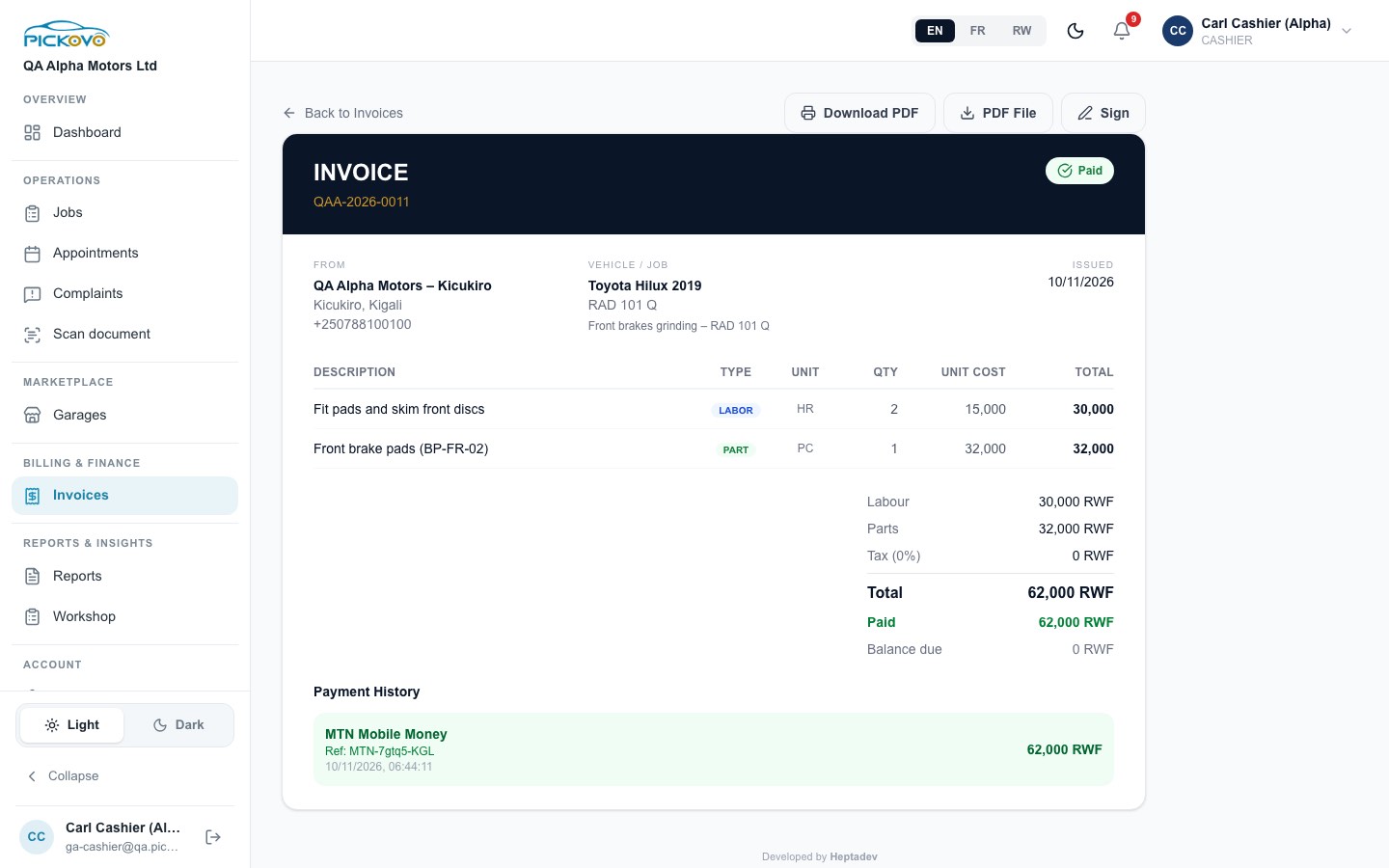
What the invoice shows:
- Header: the invoice number and status badge.
- From: your garage's name, location and phone.
- Vehicle / Job: the vehicle, number plate and job title.
- Issued: the date it was issued.
- Lines: description, type (LABOR or PART), unit, quantity, unit cost and total.
- Totals: Labour, Parts, Tax, Total, Paid (on paid invoices) and Balance due, which is the amount still to collect.
- Payment History: each payment with its method, reference, date and time, and amount.
- Audit flags, if anyone has flagged the invoice, and Edit History if it has been changed.
Buttons along the top:
| Button | What it does |
|---|---|
| Back to Invoices | Returns to the list |
| Download PDF | Opens a print preview. Use Print / Save PDF to print it or save it as a PDF |
| PDF File | Downloads a ready-made PDF file directly, without the print dialog |
| Sign / Signed | Adds an authorised signature (see C6) |
| Record Payment | Appears on Sent and Overdue invoices (see C4) |
| Confirm Payment Received | Appears on an invoice that was marked paid from outside the garage but has no payment recorded yet (see C5) |
| Get payment link | Appears on unpaid invoices for walk-in customers (see C4) |
About receipts: Pickovo has no separate receipt document. Once an invoice is fully paid, its PDF shows the PAID status, and that is what you give the customer as proof of payment. The payment history is only shown on screen and is not printed.
C4. Recording a payment
Purpose: record money you have received so that the invoice balance and status update.
Steps:
- Open the invoice. It must be Sent or Overdue.
- Click Record Payment (the green button).
- The Record Payment window shows Total, Already paid (if any) and Remaining.
- Amount (RWF): this is filled with the remaining balance. Change it for a part-payment. Full puts the remaining balance back.
- Payment Method: choose one of:
- Cash
- MTN Mobile Money
- Airtel Money
- Bank Transfer
- Company Credit
- Reference (optional): the mobile money transaction ID, bank reference or cheque number. Always fill this in for non-cash payments.
- Notes (optional).
- Click Record Payment.
Expected outcome:
- The payment is saved with your name, and the page reloads.
- If the payments now cover the balance, the invoice becomes Paid. Pickovo records when and how it was paid, and notifies the garage and the customer that the invoice was paid. You will see an Invoice Paid notification in your bell.
- If money is still owed, the invoice becomes Partially paid.
- Every payment is written to the garage's activity log.
Things to check:
- The amount must be greater than 0.
- Pickovo does not stop you from entering more than the balance. Check the amount before you save.
- An invoice that is already paid, with payments recorded, cannot take another payment ("Invoice already paid").
- Pickovo also recognises Card as a method, and card payments made by other means appear as "Card" in the payment history. The cashier's form does not offer Card.
Walk-in customers: Get payment link
For an invoice whose job belongs to a walk-in customer:
- Click Get payment link. If the invoice was a draft, it becomes Sent.
- Pickovo creates a link the customer can open without an account to view and pay the invoice. It also tries to text the link to the customer's phone by SMS.
- Use Copy payment link to paste the link anywhere, or Send via WhatsApp to open a WhatsApp chat with the link ready to send.
- If you see "Payment link ready, SMS isn't set up yet", the SMS was not delivered. Use WhatsApp or the copied link instead.
Whether the customer can pay online with mobile money or card depends on Pickovo's payment provider being set up for your garage. If online payment is not available, collect the money at the counter and record it as above.
C5. Confirming payment received
Purpose: sometimes an invoice is marked Paid from outside the garage (for example by a regulatory officer) before the garage has recorded any money. You confirm that the money actually arrived.
- Open the invoice. It shows Paid but has no payment history.
- Click Confirm Payment Received.
- A green panel shows the Amount to confirm, which is the invoice total.
- Choose the Payment Method (same five choices as above) and optionally a Reference.
- Click Confirm Received.
Outcome: a payment for the full amount is added to the payment history, with the note "Payment confirmed by garage".
C6. Signing an invoice
Purpose: add an authorised signature, which prints on the invoice.
- Open the invoice and click Sign.
- In Sign Invoice, enter the Authorized signatory full name. Your garage's default signatory may already be filled in.
- Either draw the signature in the box (use the eraser to clear it) or upload an image of it.
- Click Apply signature.
Outcome: the button changes to Signed, and the signature, name and date appear at the bottom of the invoice and in its PDF. Signing uses the payments.record permission.
C7. Jobs (view only)
Purpose: follow the work in the garage, so you know which cars are close to being ready to bill.
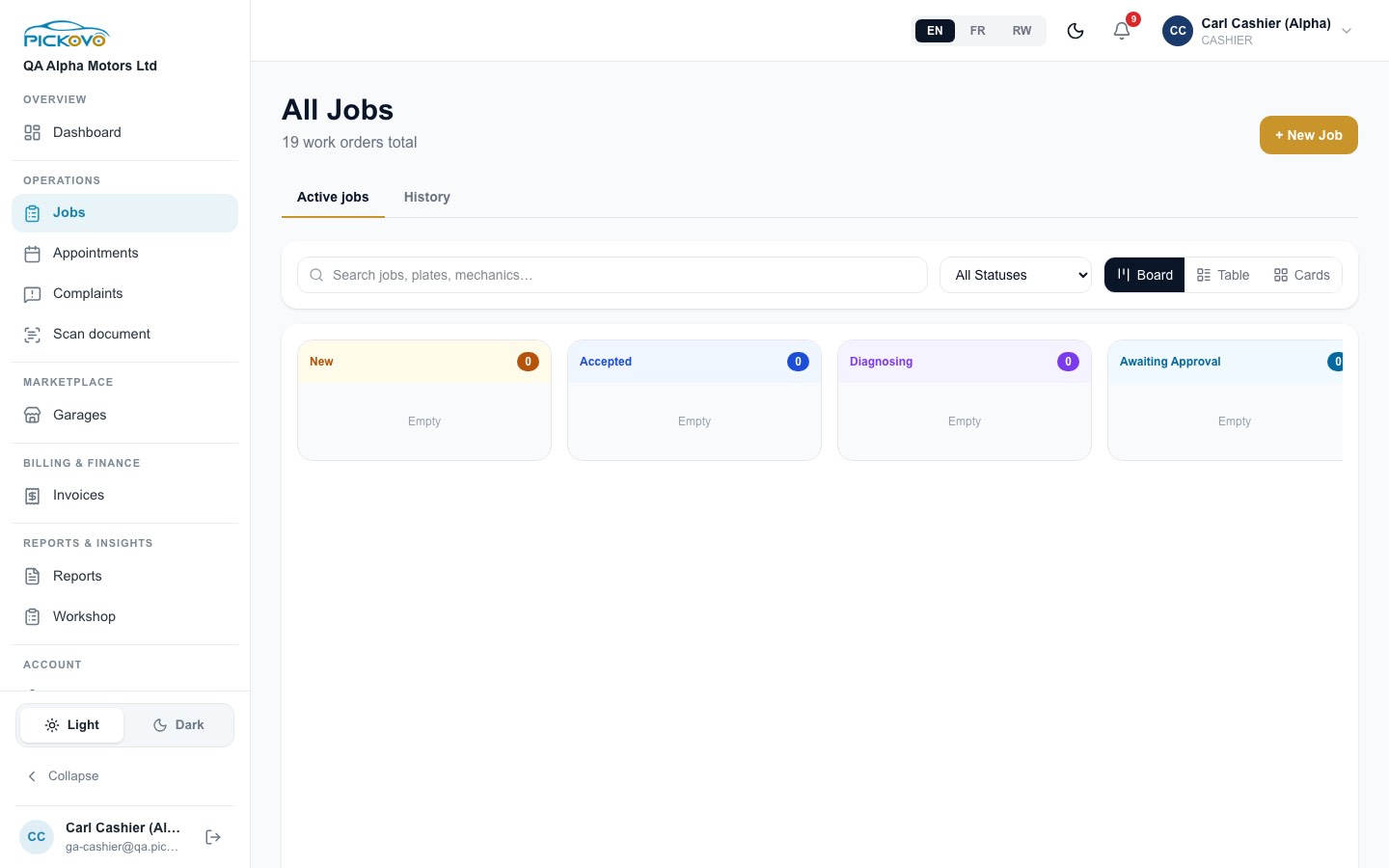
- Active jobs shows the live board. History shows past jobs.
- Search by job, plate or mechanic, filter with All Statuses, and switch between Board, Table and Cards views.
- Click a job to open it.
Restrictions: cashiers cannot change a job's status. Pickovo's workshop rules give the cashier no status moves, so the workshop owns every step. The + New Job button is visible, but creating jobs needs jobs.create. Without it, the button returns you to your dashboard.
C8. Appointments (view)
Purpose: see bookings made by car owners in the Pickovo mobile app, and scheduled jobs, so you know who is coming in.
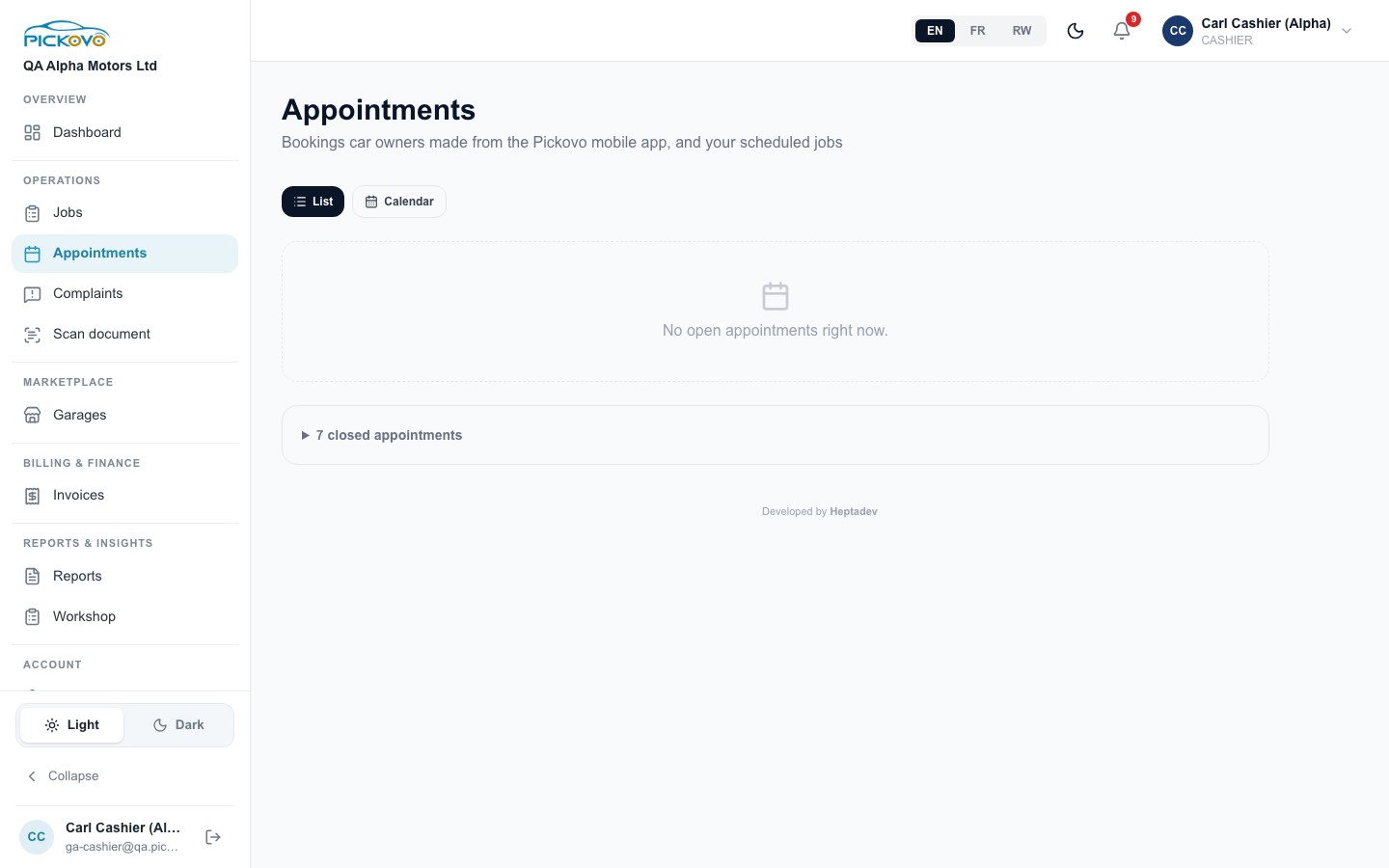
- Switch between List and Calendar.
- Open appointments are listed at the top. Click closed appointments to expand the finished or cancelled ones.
Restrictions: booking a new appointment (/garage/bookings/new) is not open to cashiers, so you will not see a booking button.
C9. Complaints
Purpose: keep a record of every customer complaint, who is handling it, what was done and the deadline. The regulator can see this record.
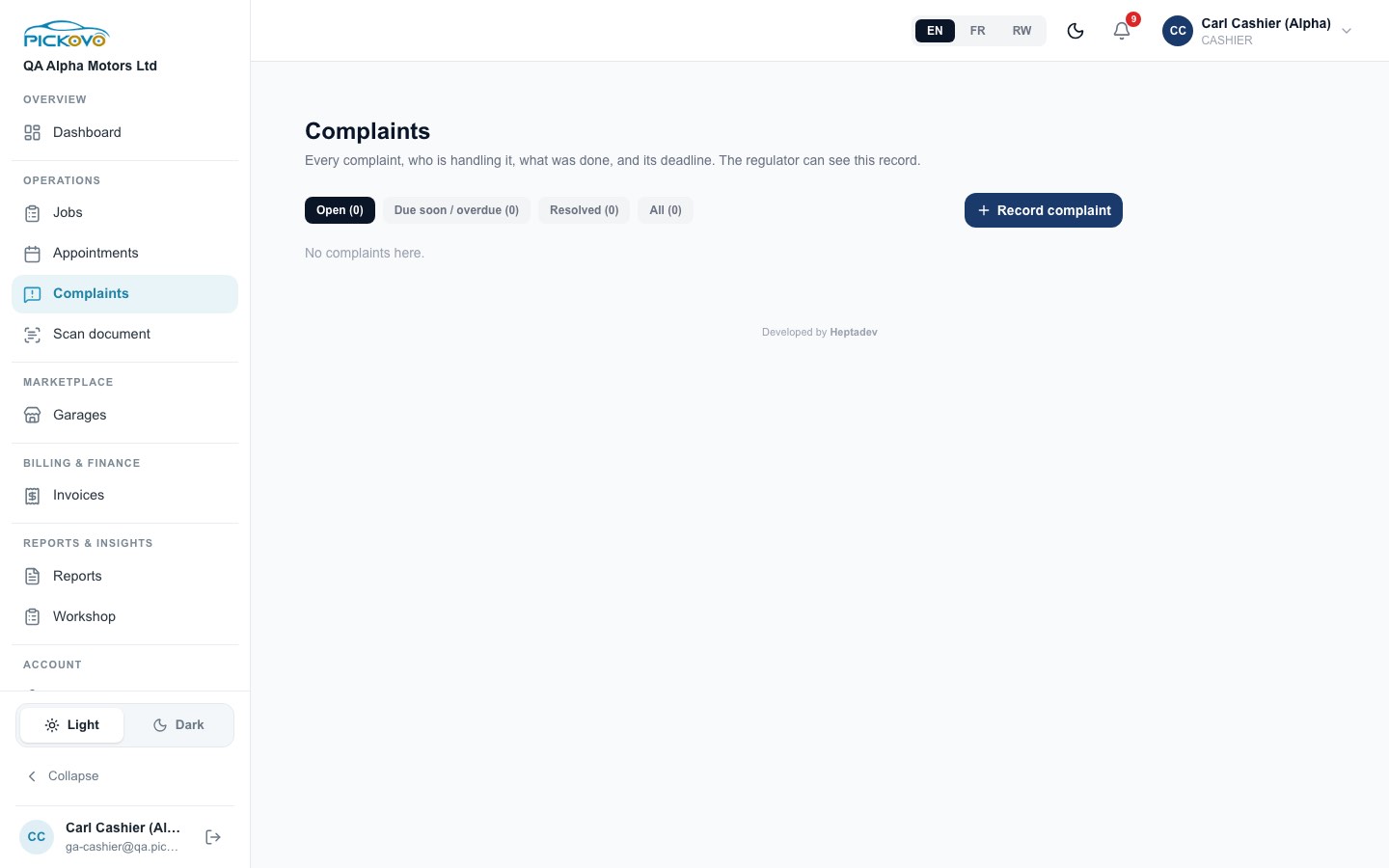
To record a complaint:
- Click Record complaint.
- Fill in Customer name (required), and optionally Phone and Email.
- Choose a Category and, if it relates to a job, the Related job card.
- Optionally Assign to a staff member and set Respond by. If you leave this blank, it defaults to 14 days.
- Describe it in What is the complaint? (required).
- Click Record complaint.
To follow one up: open the complaint and:
- Add a follow-up note. A note moves an Open complaint to In progress.
- Assign it to someone.
- Change the due date.
- Resolve it by describing the resolution.
- Reopen a resolved complaint, giving a reason.
The filters Open, Due soon / overdue, Resolved and All show counts.
C10. Garage Reports
Purpose: see revenue and performance over a period.
To open it: click Reports in the sidebar.
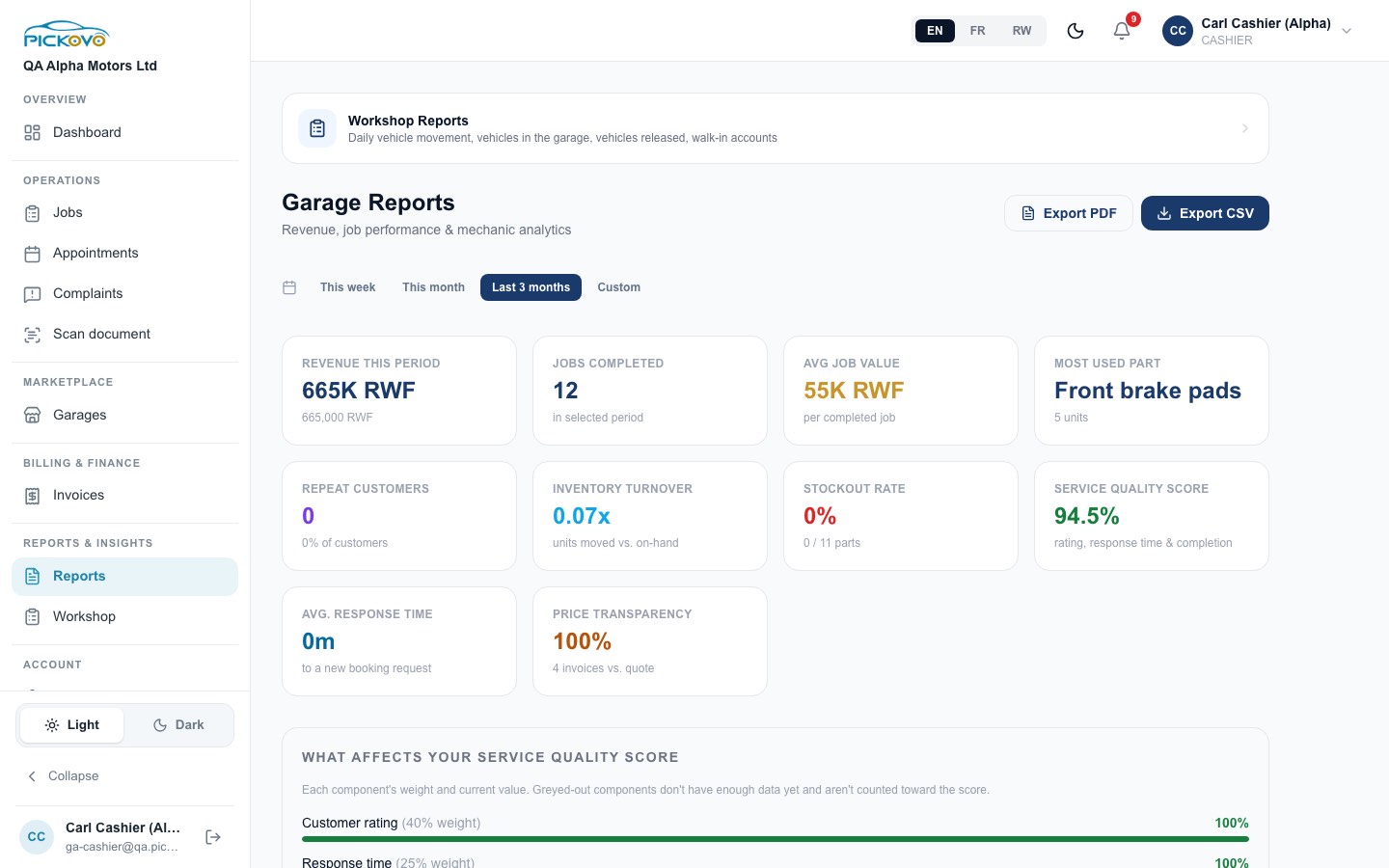
- Choose a period: This week, This month, Last 3 months or Custom.
- Read the cards:
- Revenue this period and Avg job value. You see these because cashiers hold
reports.financial. - Jobs completed, Most used part, Repeat customers, Inventory turnover, Stockout rate, Service quality score, Avg. response time and Price transparency.
- Scroll down for:
- what affects your service quality score
- the revenue trend
- jobs by status
- top repair types
- mechanic performance
- top customers, with revenue.
- Export PDF prints the page or saves it as a PDF. Export CSV downloads the figures as a spreadsheet file.
The Workshop Reports banner at the top opens the workshop report.
C11. Workshop Reports
Purpose: see daily vehicle movement: what came in, what is on the yard, and what went out.
To open it: click Workshop in the sidebar.
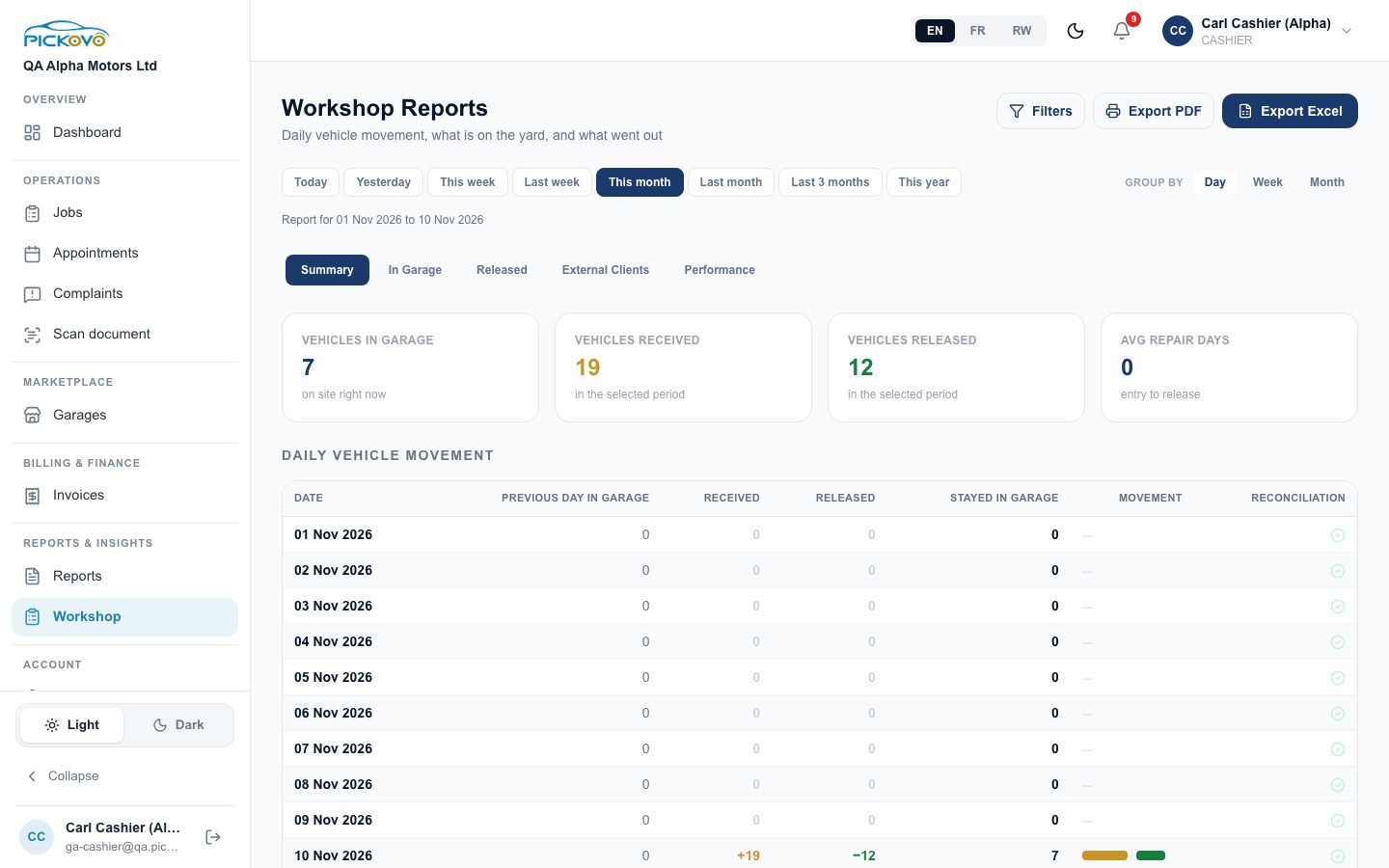
- Pick a period: Today, Yesterday, This week, Last week, This month, Last month, Last 3 months or This year. Choose Group by Day, Week or Month.
- Filters lets you set exact dates, a branch, a number plate or a client.
- Use the tabs:
- Summary: vehicles in the garage, received, released, average repair days, and the daily movement table.
- In Garage.
- Released.
- External Clients: walk-in accounts, shown because you hold
reports.financial. - Performance.
- Export PDF prints the page. Export Excel downloads a spreadsheet for the selected period.
The end-of-day Daily Report download needs reports.daily, which cashiers do not have by default.
C12. Reviews (view)
Purpose: read what car owners say about your garage after a finished job.
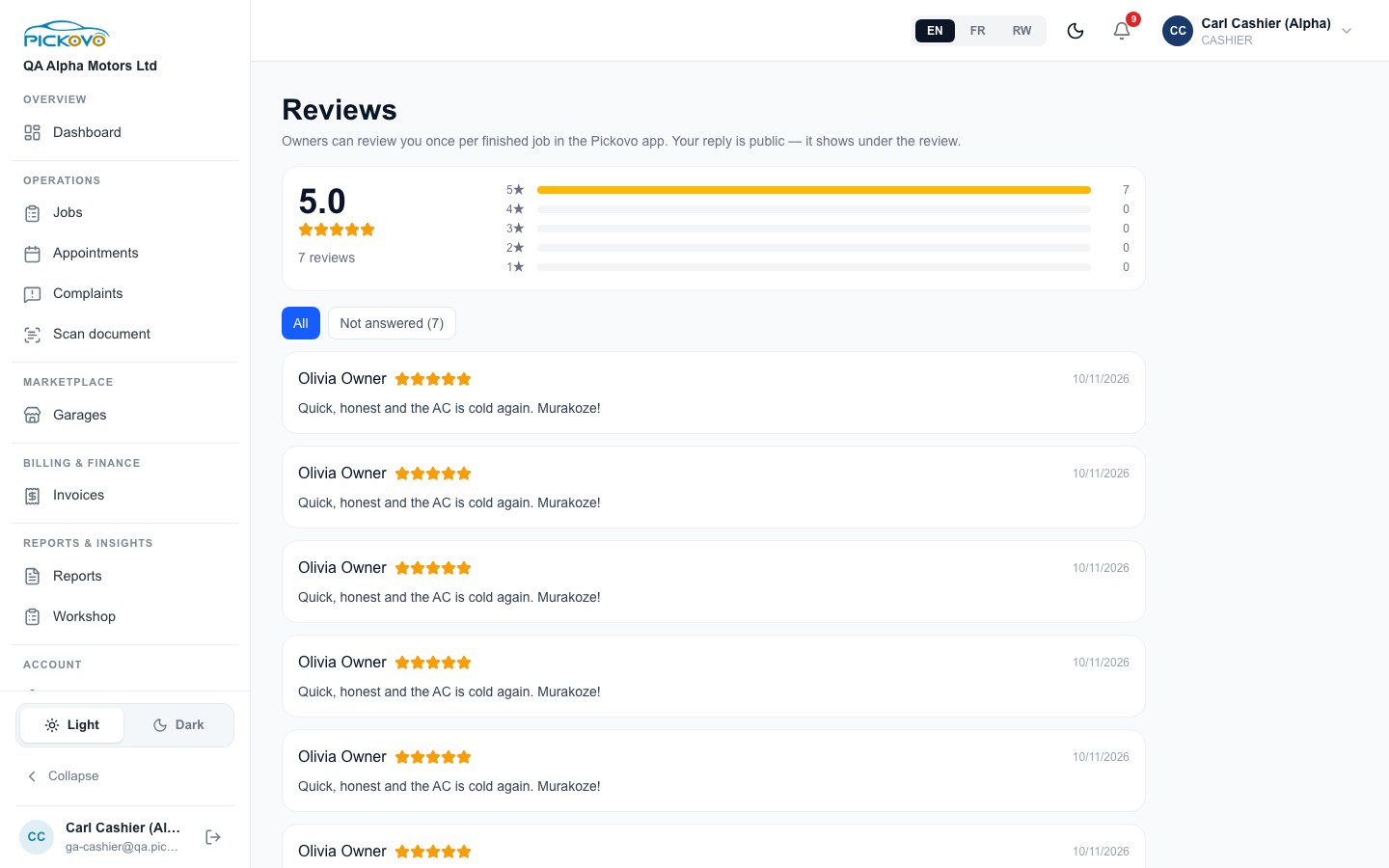
You can read the reviews and filter by All or Not answered. Only the garage admin and receptionist can reply, and replies are public.
This page is not in your sidebar. Open it at /en/garage/reviews.
C13. Marketplace inbox
Purpose: see collaboration requests from fleet companies and invitations from spare-parts shops.
To open it: click Garages in the sidebar.
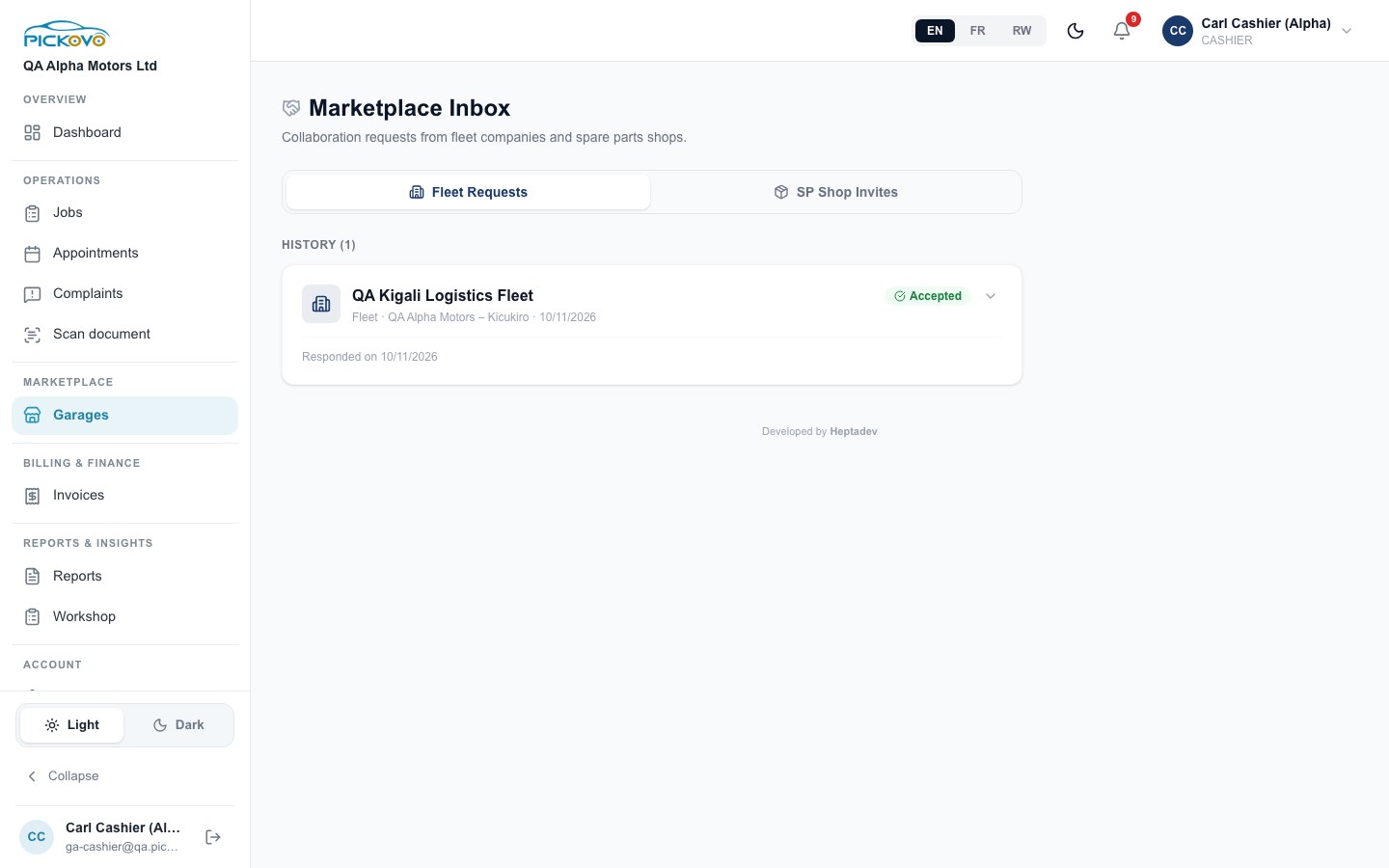
- Fleet Requests and SP Shop Invites tabs.
- Expand an item to see its details and history.
Accepting or declining a request is for the garage admin.
C14. Notifications
Purpose: see what has happened that concerns you, for example invoices being paid.
To open it: click the bell in the top bar.
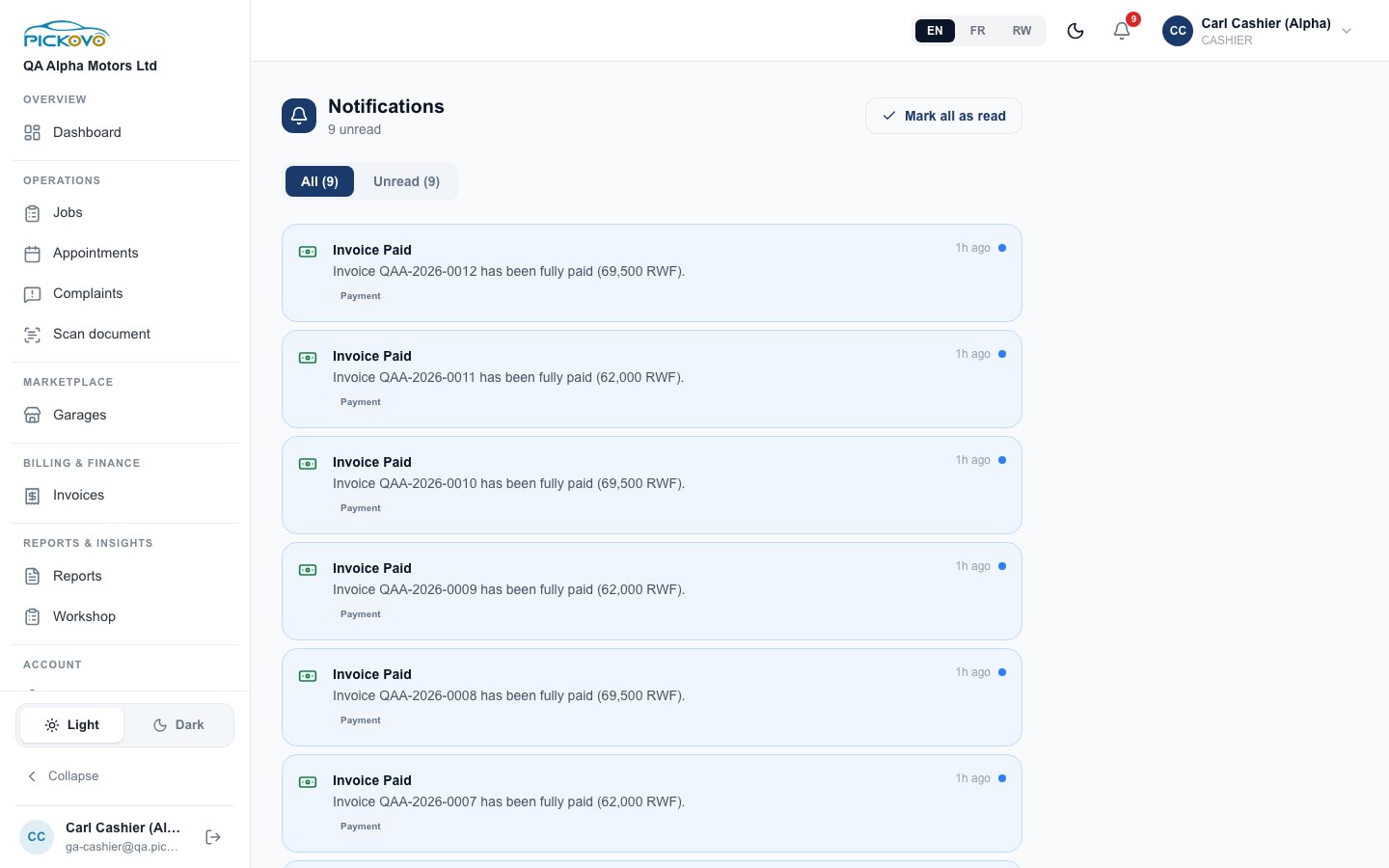
- All and Unread tabs show counts.
- Mark all as read clears the unread markers.
C15. Scan document
Purpose: turn a paper document (for example a supplier's handwritten bill) into editable text.
Steps:
- Click Scan document in the sidebar.
- Take a photo or upload an image (JPEG, PNG or WebP, up to 10 pages).
- Click Extract text.
- Review and correct the text, then Save it and/or Download PDF.
Pictures are read by Pickovo's AI service and are not stored. Only text you choose to save is kept.
C16. Settings
To open it: click Settings at the bottom of the sidebar.
- Profile: under Personal Information, update your Full Name, Email and Phone Number (used for SMS notifications and sign-in). Under Change Password, enter your current password and the new one twice. Leave these fields blank to keep your current password.
- Notifications: choose which notifications you receive.
- Referral Program: your referral details.
The activity log and AI settings pages are not open to cashiers.
C17. Car-owner app pages that may be switched off
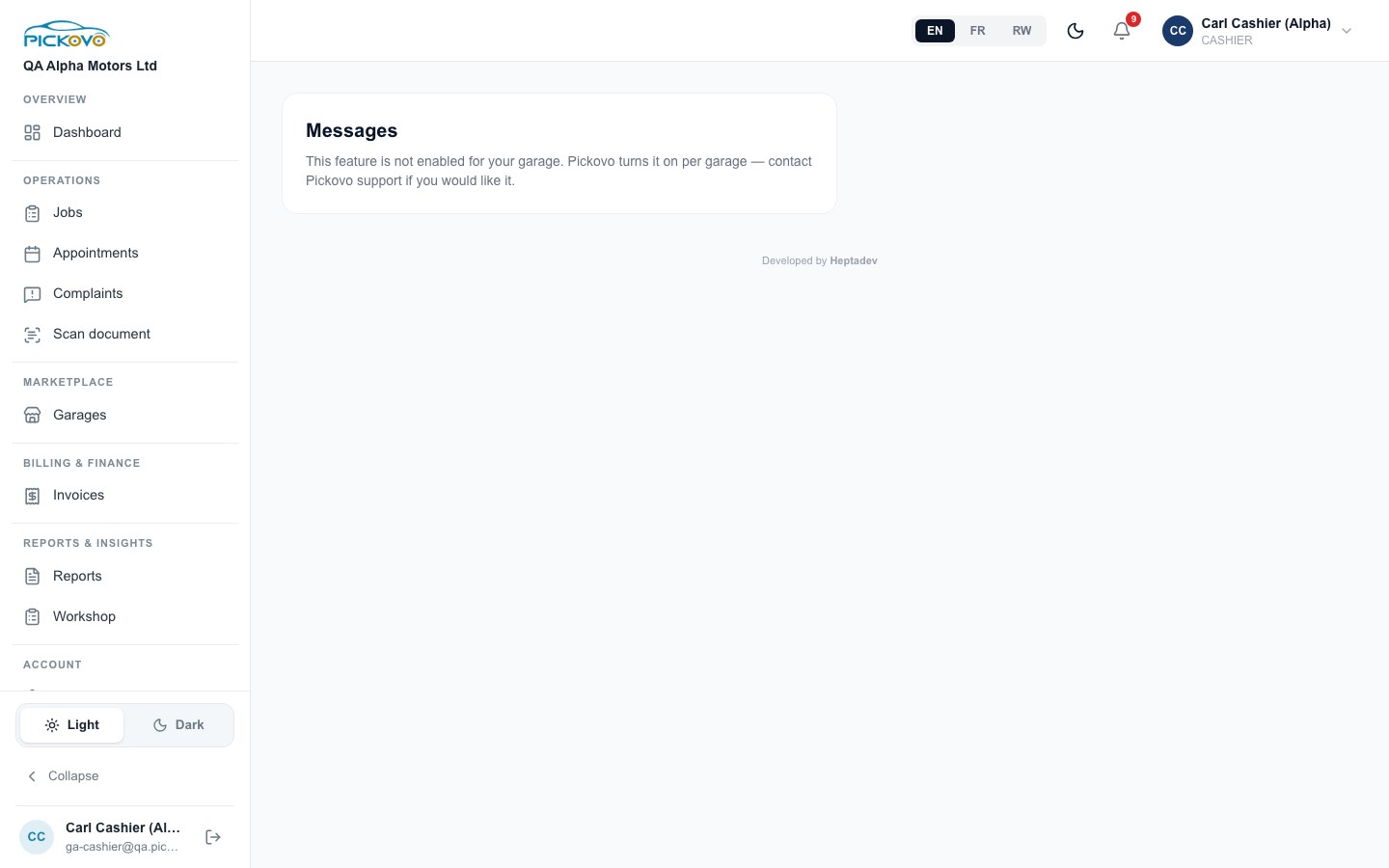
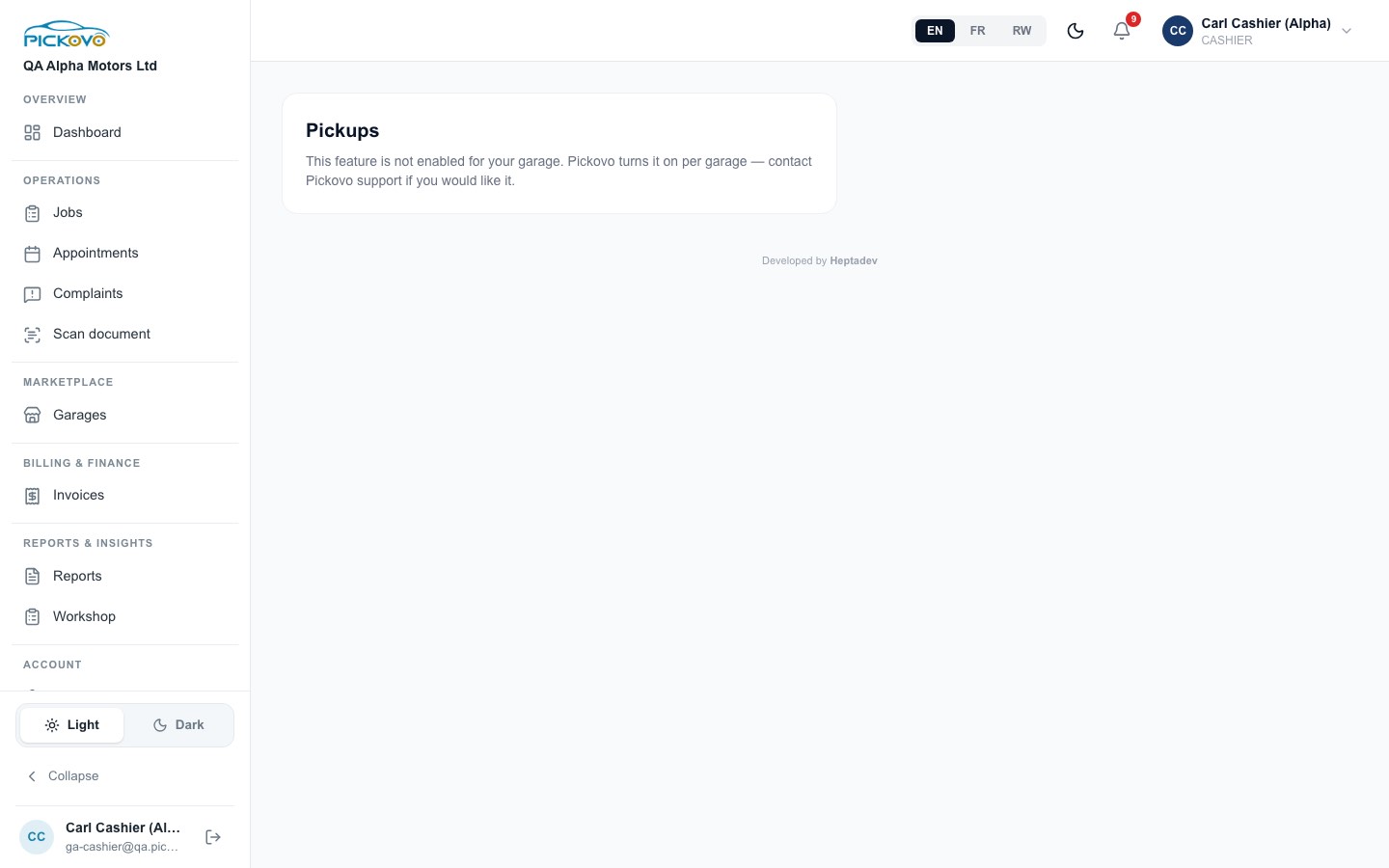
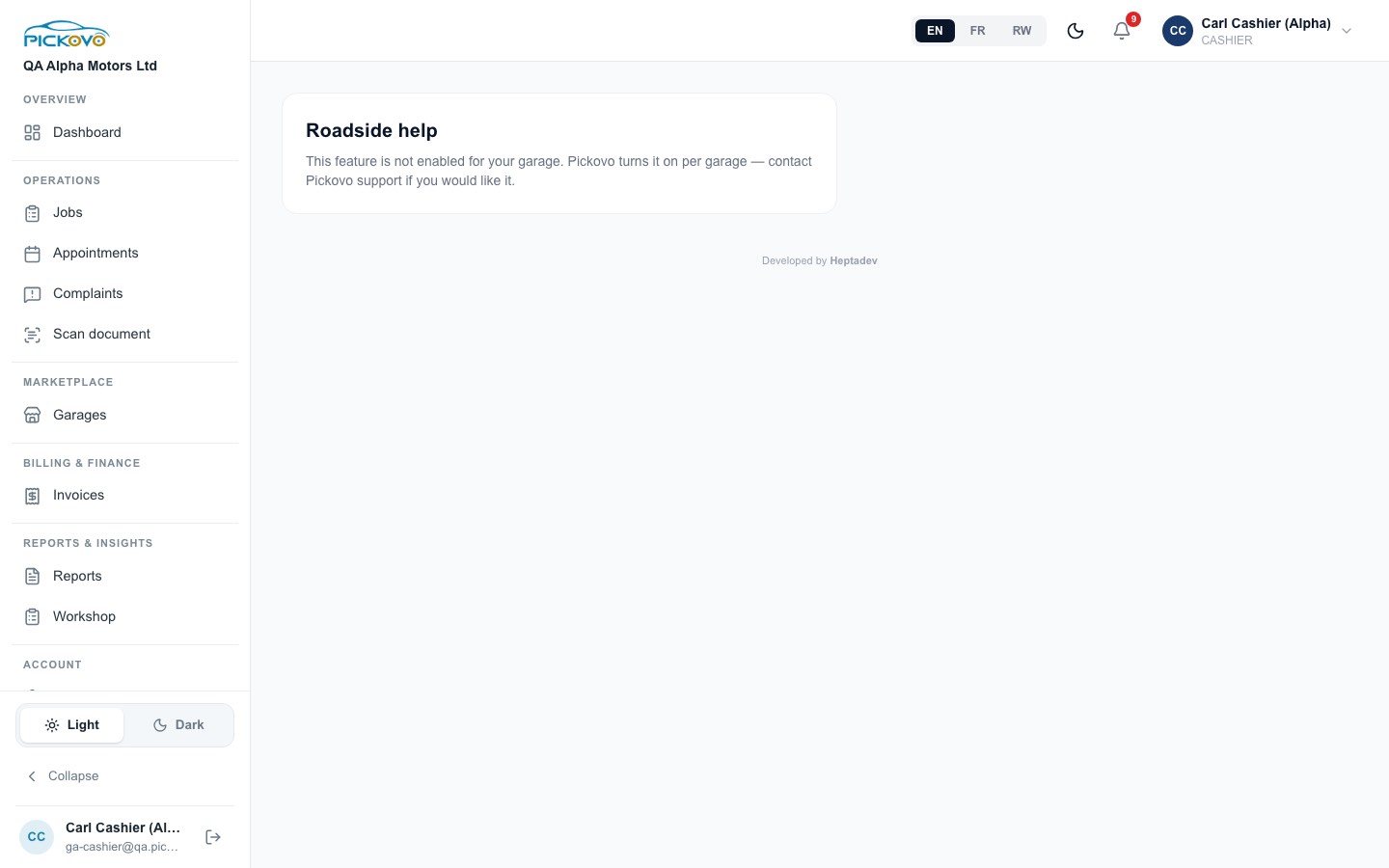
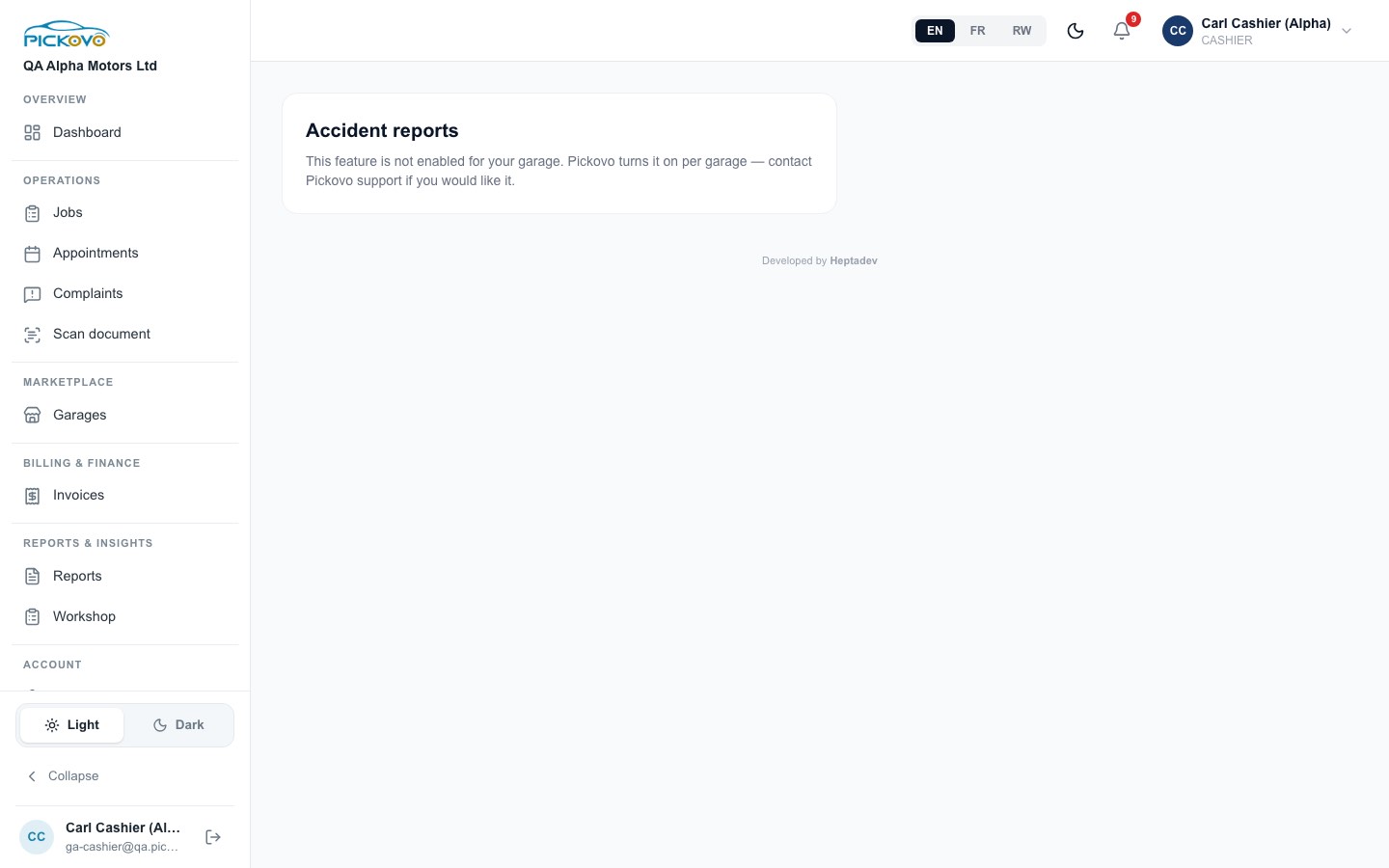
Pickovo switches some car-owner app features on separately for each garage. They are off by default. When a feature is off, you see "This feature is not enabled for your garage. Pickovo turns it on per garage, contact Pickovo support if you would like it." These pages are not in your sidebar.
D. What you can and cannot do
Based on the default permissions and on access measured on the QA build.
| Area | View | Create | Edit | Delete | Approve / settle |
|---|---|---|---|---|---|
| Invoices | Yes | Yes (generate from a job) | , (admin: invoices.adjust) |
- | - |
| Payments | Yes (payment history) | Yes Record payment, confirm payment received | - | - | Yes (a payment that covers the balance marks the invoice Paid) |
| Payment links (walk-in) | Yes | Yes | - | - | - |
| Invoice signature | Yes | Yes Sign | - | - | - |
| Voids, refunds, credit notes | - | - | - | - | , (garage admin) |
| Send a draft invoice to a fleet | - | - | - | - | , (garage admin) |
| Jobs | Yes board and job pages | - | , (no status changes) | - | - |
| Appointments | Yes | - | - | - | - |
| Complaints | Yes | Yes | Yes (notes, assign, due date, resolve, reopen) | - | - |
| Garage Reports / Workshop Reports | Yes including revenue | - | - | - | - |
| Reviews | Yes | , (no replies) | - | - | - |
| Marketplace inbox | Yes | - | - | - | , (garage admin) |
| Notifications, Scan document, Settings (profile, notifications, referral) | Yes | Yes | Yes | - | - |
Pages you cannot open (you are sent back to your dashboard): New job, Walk-ins, Mechanics, Gate passes, Inventory (all pages, including part requests, purchase orders, stock movements and change requests), Deadstock, Suppliers, Spare parts, Expenses, Incentives, Supplier report, Compliance, Certification, Garage family, Garage settings and Roles, New appointment, Billing, Settings → Activity and Settings → AI.
E. Common workflows
E1. Fleet repair: from finished job to paid invoice (workflow W1)
Before you:
- A fleet driver reports a problem.
- The fleet manager approves it and sends the job to your garage.
- The receptionist accepts the job.
- The head mechanic assigns a mechanic.
- The mechanic diagnoses the fault.
- The garage sends a quotation, and the fleet manager approves it.
- The mechanic repairs the car and issues parts from stock.
- The head mechanic passes quality check, and the job becomes Completed.
Your steps:
- Open Invoices → New Invoice.
- Keep From Quotation, select the job (for example "Front brakes grinding – RAD 101 Q"), check VAT and the due date, then click Create Invoice. In the test run this made QAA-2026-0011: labour 30,000 plus parts 32,000, total 62,000 RWF.
- The invoice is a Draft. Ask your garage admin to Send it to the fleet. The fleet manager is notified.
- When the fleet pays, open the invoice and click Record Payment. Choose MTN Mobile Money, enter the transaction reference, and click Record Payment.
- The invoice turns Paid, the payment appears under Payment History (Figure 5), and an Invoice Paid notification arrives.
After you: the garage closes the job. The fleet manager sees the paid invoice and the vehicle's service history.
E2. Car owner pays at the counter (workflow W3)
Before you:
- A car owner books a slot in the Pickovo app.
- The receptionist confirms the booking and checks the vehicle in.
- The workshop repairs the car and completes the job.
- The garage issues the owner's invoice.
Your steps:
- Open the invoice for the job. In the test run this was QAA-2026-0012, for 69,500 RWF.
- Make sure it is Sent. A draft must be sent first.
- The owner pays cash at the counter. Click Record Payment, keep the full amount, choose Cash, and click Record Payment.
- Click PDF File (or Download PDF) and give the owner the paid invoice.
After you: the garage closes the job, and the owner's booking shows Completed. The owner can then leave a review, which you can read under Reviews (Figure 11).
Paying by mobile money from inside the car-owner app only works when Pickovo's payment provider is configured. In the test run it was not, so the owner paid at the counter.
E3. Walk-in customer, part-payment
- The receptionist or workshop opens a walk-in job, and the job is completed.
- You create the invoice with New Invoice. Use New from Repair if there is no quotation.
- On the invoice, click Get payment link. The invoice becomes Sent. Send the link with Send via WhatsApp or Copy payment link.
- If the customer pays part now, click Record Payment, enter the amount received, the method and the reference, and save. The invoice becomes Partially paid.
- For the remaining balance, see "The Record Payment button has disappeared" in section F.
F. Troubleshooting
| Problem | Why it happens | What to do |
|---|---|---|
| You click a menu link or button and land back on your dashboard | Your role does not have the permission for that page (for example + New Job, Inventory, Expenses) | Ask your garage admin. They can change role permissions under Settings → Roles |
| "This feature is not enabled for your garage" | Pickups, Messages, Roadside help and Accident reports are switched on per garage by Pickovo | Contact Pickovo support through your garage admin |
| Sign-in refused after several attempts | After 10 wrong passwords in 15 minutes, sign-in for that account is paused | Wait and try again, or use Forgot password? |
| No Record Payment button on a new invoice | New invoices are Draft. The button only appears on Sent or Overdue invoices | For a fleet customer, ask your garage admin to send it. For a walk-in customer, use Get payment link |
| The Record Payment button has disappeared after a part-payment | On the web, the button only appears for Sent and Overdue invoices, not Partially paid | Ask your garage admin to record the balance. If they cannot, report it to Pickovo support |
| Saving an edited invoice fails | Editing needs invoices.adjust (garage admin) |
Ask your garage admin to correct the invoice, or to issue a credit note |
| "Invoice already paid" | The invoice is settled and has payments recorded | No action. Check Payment History |
| "Amount must be greater than 0" | The amount box is empty or zero | Enter the amount received |
| "Unknown payment method…" | The request carried a method Pickovo does not know | Choose a method from the list and try again |
| Creating an invoice fails with a plan or limit message | The garage's subscription has lapsed, or the monthly invoice limit of the Starter plan is reached | Tell your garage admin. Billing is theirs |
| A job does not appear in New Invoice | It already has an invoice, or (with From Quotation) it has no approved or sent quotation | Search the invoice list for the job, or use New from Repair |
| A job will not move on the board | Cashiers have no job status moves. The workshop owns job status | Ask the head mechanic or receptionist |
| "Payment link ready, SMS isn't set up yet" | The link was created but the SMS was not delivered | Use Send via WhatsApp or Copy payment link |
| You were signed out suddenly | Your account was deactivated or your role changed. Access ends within seconds | Speak to your garage admin |
G. Security and best practices
- Never share your sign-in. Every payment is saved with your name and written to the activity log. If someone else uses your account, their mistakes are recorded as yours.
- Use a strong, unique password and change it under Settings → Change Password if you think someone has seen it. Pickovo staff will never ask for your password.
- Two-factor authentication: if your garage uses it, keep your authenticator app on a phone only you use.
- Record payments only when the money is really in. For mobile money and bank transfers, check that the money has arrived and type the transaction ID in Reference. Never mark something paid on a promise.
- Check the amount before saving. Pickovo accepts an amount larger than the balance, and corrections need the garage admin (credit notes and refunds).
- Send payment links only to the customer's own number. Anyone with the link can view the invoice.
- Sign out with Logout when you leave a shared counter computer.
- Downloaded PDFs and CSV or Excel exports contain customer and revenue data. Keep them on garage devices and delete copies you no longer need.
- When you leave the garage, ask your admin to deactivate your account. Pickovo ends your access within seconds.
- Report anything unusual, such as an invoice you did not create or a payment you did not record, to your garage admin straight away.