
Garage · STOCK_MANAGER
Stock Manager
For the person who runs a garage's store room: parts, stock movements, purchasing and suppliers.
All names, plates, amounts and companies in the screenshots (for example QA Alpha Motors, Sam Stock-Manager (Alpha), Moses Mechanic (Alpha), Nyabugogo Auto Spares) are fictional test data created for quality assurance.
A. Introduction
As the Stock Manager you look after the garage's spare-parts store. You keep the shelf accurate, hand out parts that mechanics ask for, buy what is missing and keep the supplier records up to date.
Your day-to-day responsibilities usually include:
- keeping the inventory up to date: adding parts, setting prices and low-stock thresholds, organising stock locations;
- recording every stock movement: stock in, stock out, and parts returned;
- reviewing parts requests from mechanics: approving and issuing the parts to the job, or declining with a reason;
- raising, sending and receiving purchase orders;
- keeping the supplier list current;
- asking for a correction when a posted movement is wrong. An administrator approves it, not you;
- watching deadstock, meaning parts that have not moved for a long time;
- buying from spare-parts shops on Pickovo;
- downloading stock and supplier reports.
About permissions. Your garage admin decides what each staff role may do, under Settings → Roles. This guide describes the default access of a Stock Manager. If your garage has changed it, you may see more or fewer pages than are described here.
B. Getting started
Signing in
- Open https://fleet.heptadev.com/en/login. For French use
/fr/login, and for Kinyarwanda use/rw/login. You can also switch language with EN / FR / RW at the top right. - In Email or Phone, type the email address or phone number your garage registered for you.
- Type your Password. Click the eye icon if you want to check what you typed.
- Click Log in.
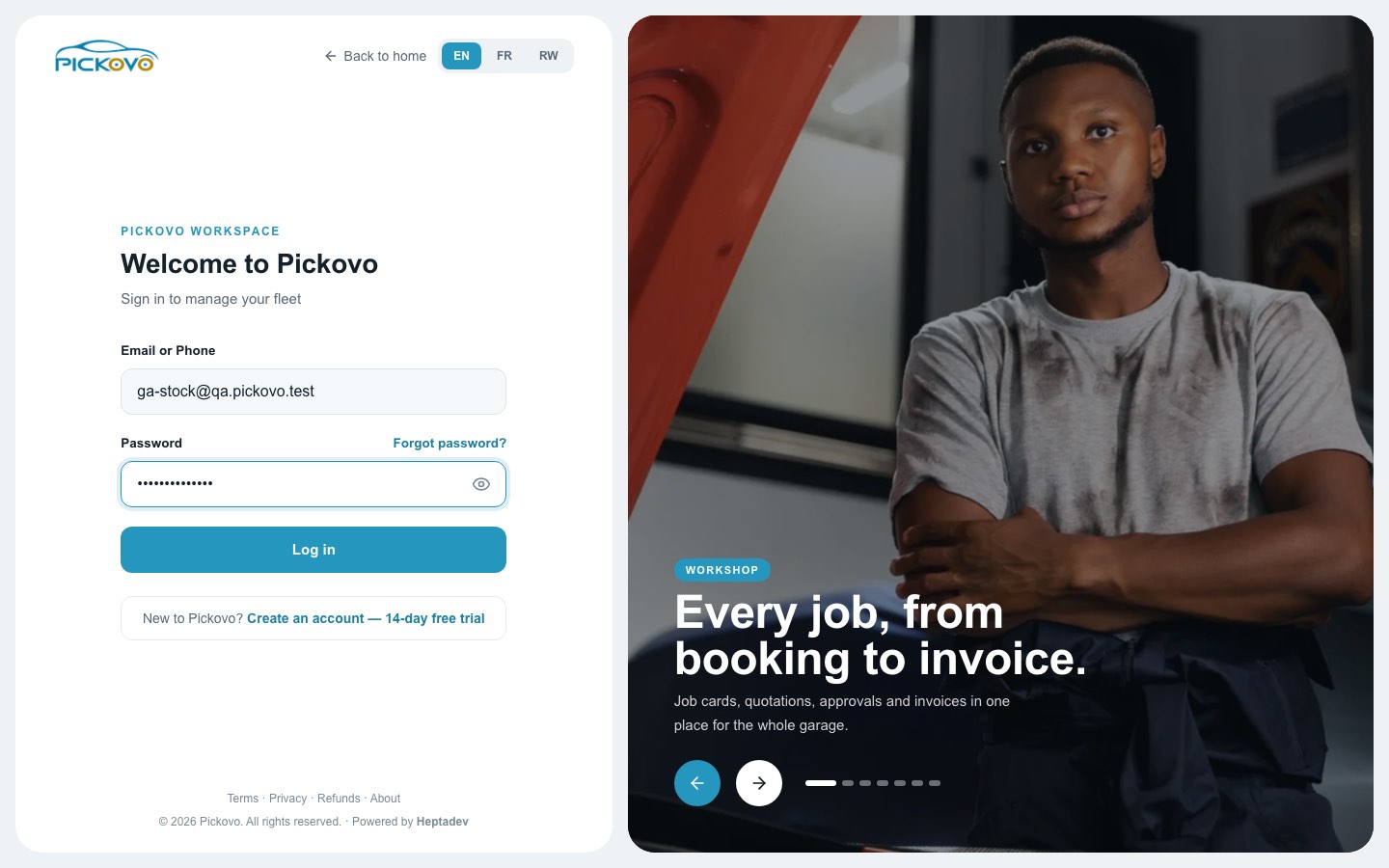
- Forgot password? (above the password box) lets you reset your password.
- If your account uses two-factor authentication, you will also be asked for the 6-digit code from your authenticator app.
- After 10 wrong passwords within 15 minutes, sign-in is paused for that account. Wait, then try again, or use Forgot password?.
Your dashboard
After you sign in you arrive at the Inventory Dashboard. It shows your branch (for example "QA Alpha Motors – Kicukiro") and the company name.
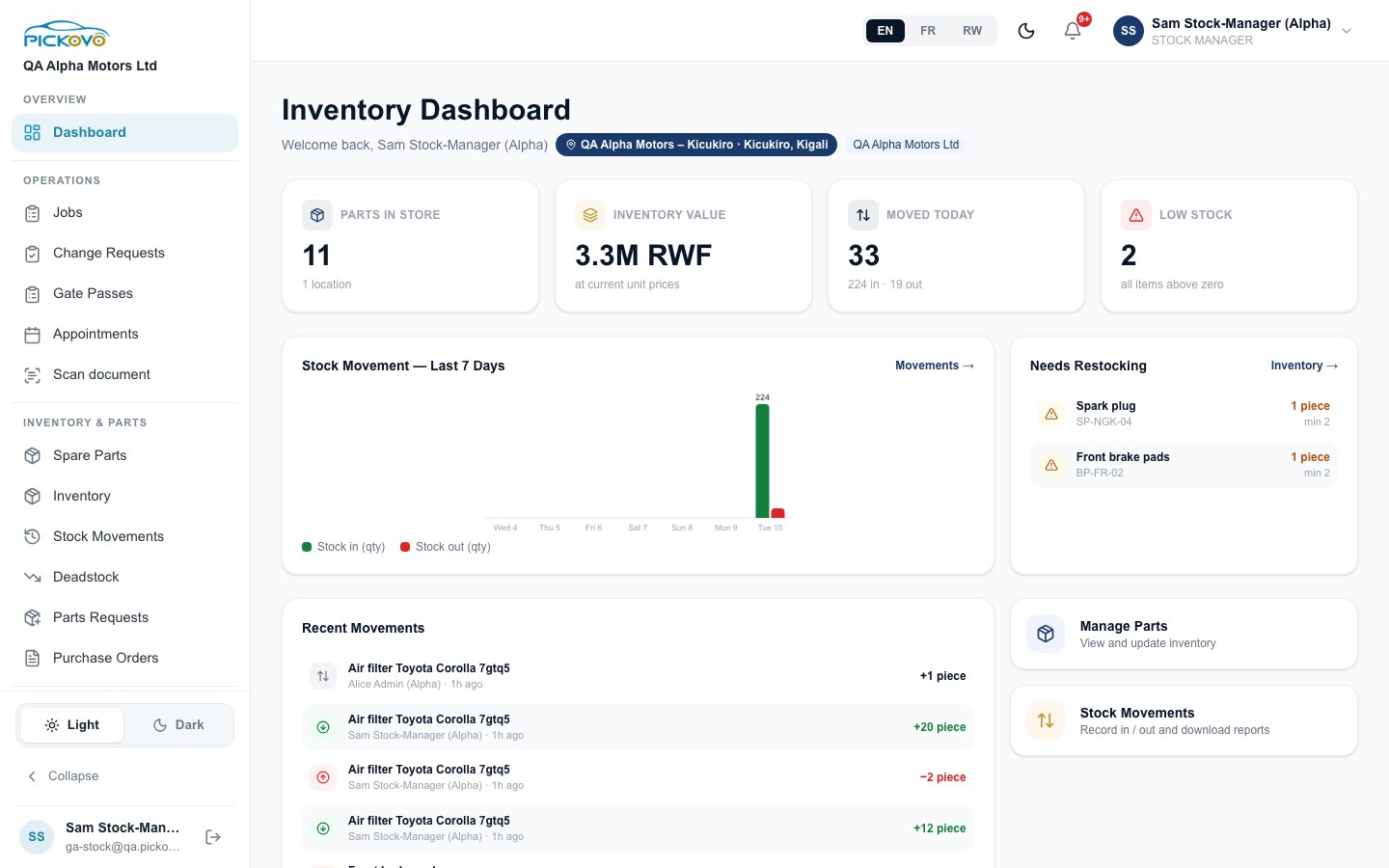
| Area | What it tells you |
|---|---|
| Parts in store | How many parts you hold, and in how many locations |
| Inventory value | Value of the stock on hand, at current unit prices (RWF) |
| Moved today | Number of movements today, split into units in and units out |
| Low stock | Number of items at or below their low-stock threshold |
| Stock Movement, Last 7 Days | Daily bars for stock in (green) and stock out (red). Movements → opens the ledger |
| Needs Restocking | The parts that are low, with their quantity and minimum. Inventory → opens the inventory |
| Recent Movements | The latest movements, with who made them and when |
| Manage Parts / Stock Movements | Shortcuts to the inventory and the movement ledger |
Navigation overview
The left sidebar is grouped as follows:
- Overview: Dashboard
- Operations: Jobs, Change Requests, Gate Passes, Appointments, Scan document
- Inventory & Parts: Spare Parts, Inventory, Stock Movements, Deadstock, Parts Requests, Purchase Orders. Scroll the menu to see the rest, including Reports.
- At the bottom: the Light / Dark switch, Collapse (shrinks the sidebar to icons; point at an icon to see its name), and your name and email with the log-out button.
The top bar has the EN / FR / RW language switch, a light/dark theme button, the notification bell and your name. Click your name to see your email address and Logout.
Notifications
Click the bell to open Notifications. You can switch between All and Unread, filter by type, and use Mark all as read.
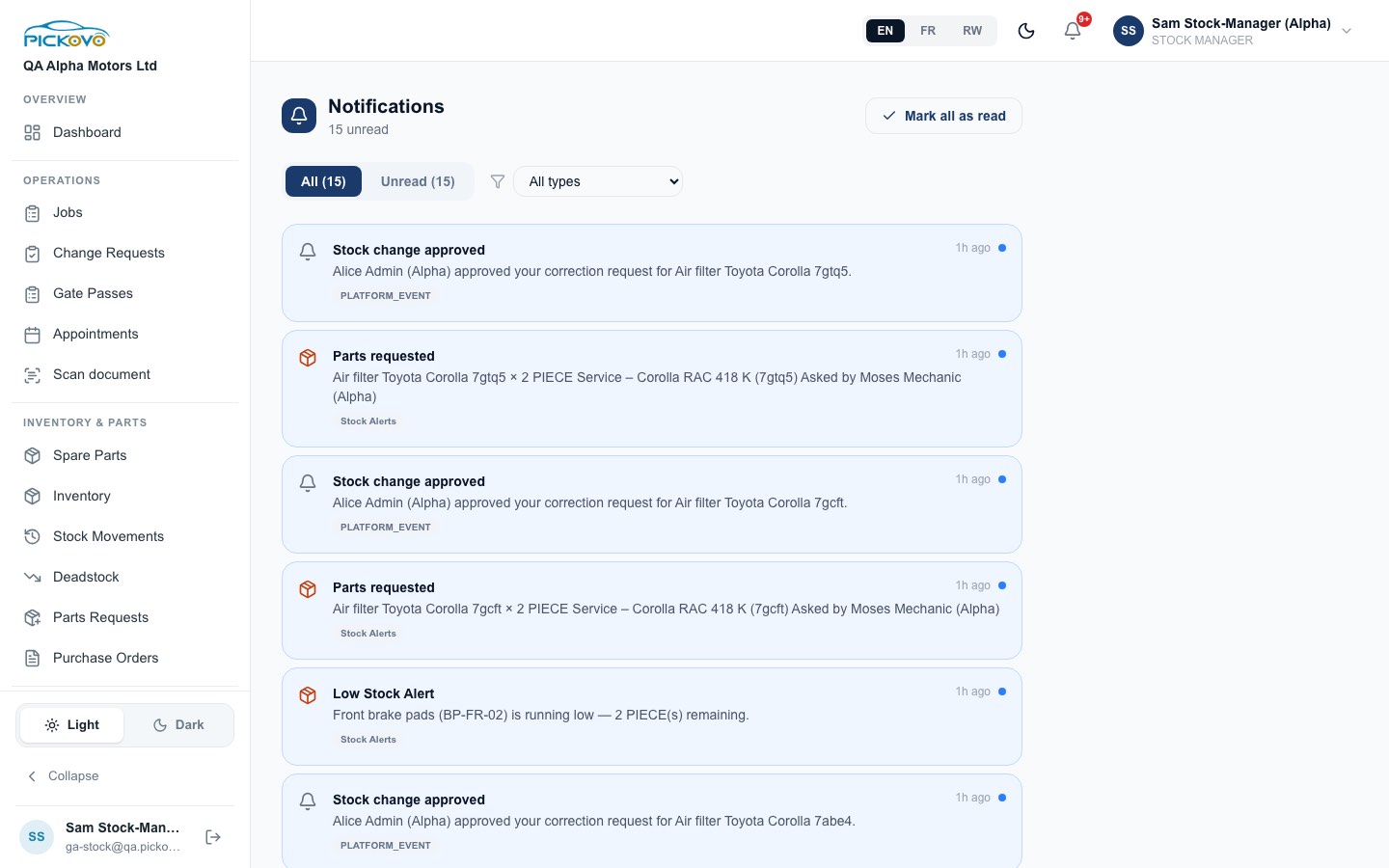
You are notified when:
- a mechanic requests parts for a job ("Parts requested … Asked by …");
- a stock-out leaves a part running low ("Low Stock Alert");
- an administrator approves or rejects one of your stock correction requests ("Stock change approved").
C. Features
C1. Inventory
Purpose: see every part you hold, where it is kept, and how much is left.
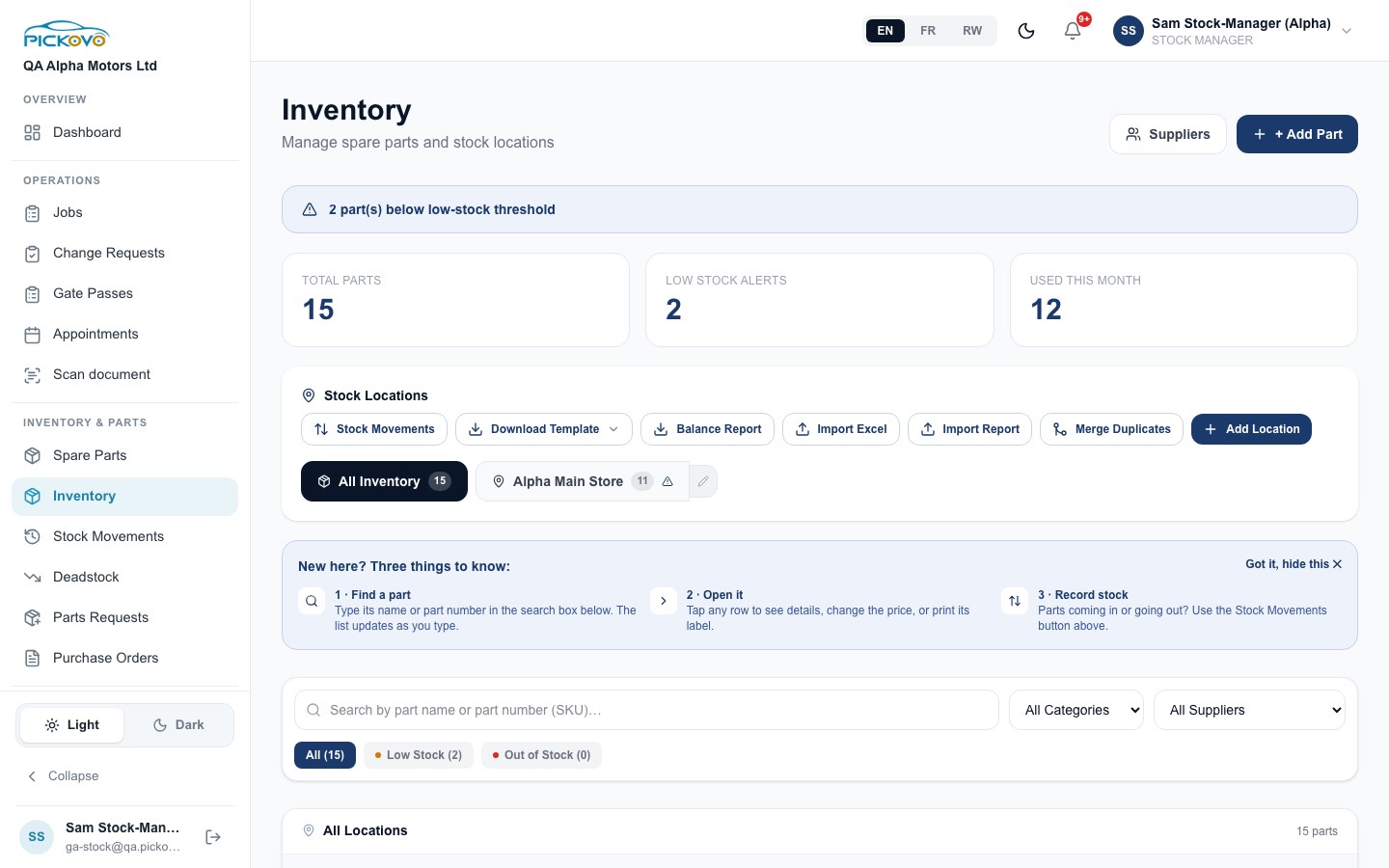
Steps, find a part
- Click Inventory in the sidebar.
- Type a part name or part number (SKU) in the search box. The list updates as you type.
- To narrow the list, use All Categories, All Suppliers, or the tabs All, Low Stock and Out of Stock.
- To see one location only, choose a location tab (for example Alpha Main Store). All Inventory shows every location.
- Click a row to open the part.
Buttons and fields
| Control | What it does |
|---|---|
| Suppliers | Opens the Suppliers page (C7) |
| + Add Part | Opens a form for a new part: part name, SKU/part number (created for you if left empty, or filled from a scanned barcode/QR code), category, unit, unit price, initial quantity, low-stock threshold, supplier name and contact, and stock location |
| Stock Movements | Opens the movement ledger (C3) |
| Download Template | Downloads an empty Excel or CSV sheet to fill in for a bulk import |
| Balance Report | Downloads the current balance of every item in the selected location |
| Import Excel | Uploads a filled template to add many parts at once. You choose the location first |
| Import Report | Uploads a stock report sheet (part number, name, quantity). Quantities are added as Stock In |
| Merge Duplicates | Combines parts that were added twice under the same name or SKU. Their quantities are added together. You are asked to confirm first |
| Add Location | Creates a new store, shelf or vehicle to keep parts in. The pencil next to a location tab lets you rename it |
| Got it, hide this | Hides the "New here?" tip panel |
Restrictions: the tools that change stock need an internet connection. When you are offline their buttons are greyed out.
C2. Part details
Purpose: see one part's stock, price, supplier, locations and full movement history, and act on it.
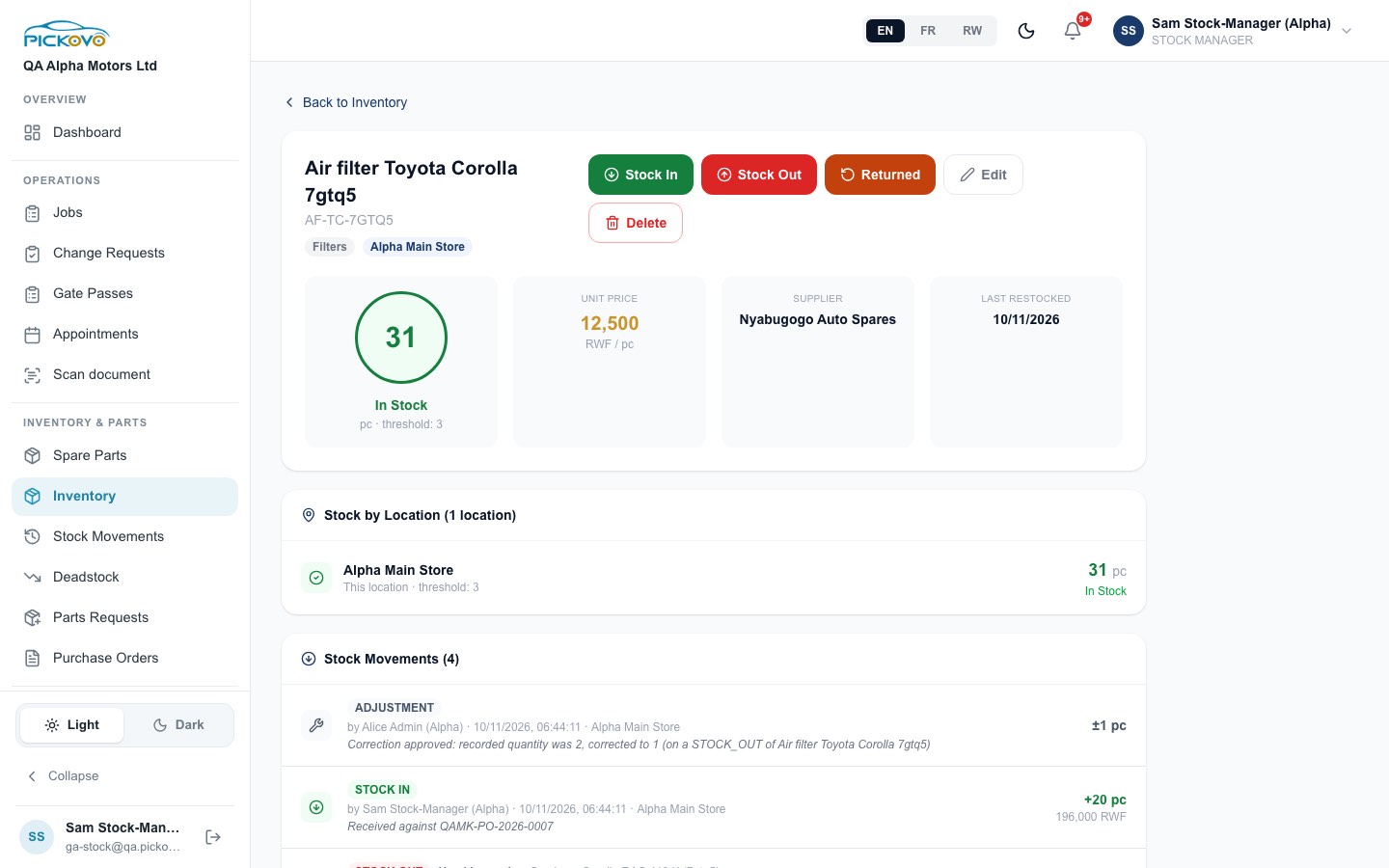
| Control | What it does |
|---|---|
| Stock In / Stock Out / Returned | Records a movement for this part only. The fields are the same as in C3 |
| Edit | Change the name, SKU, category, unit, unit price, low-stock threshold, supplier name and contact. If you change the Quantity in stock here, the difference is recorded as a stock adjustment (the form shows you the amount first) |
| Delete | Asks "Delete Part?". If you confirm, the part leaves the active list. Its movement history is kept |
The page also shows the stock status ring ("In Stock", "Low Stock" or "Out of Stock", with the threshold), the unit price, the supplier, last restocked, Stock by Location, and Stock Movements. Each movement shows its type, who made it, when, where, and a note such as "Received against QAMK-PO-2026-0007" or "Correction approved: recorded quantity was 2, corrected to 1".
C3. Stock movements (the ledger)
Purpose: record stock coming in, going out or coming back, and look through or export the history.
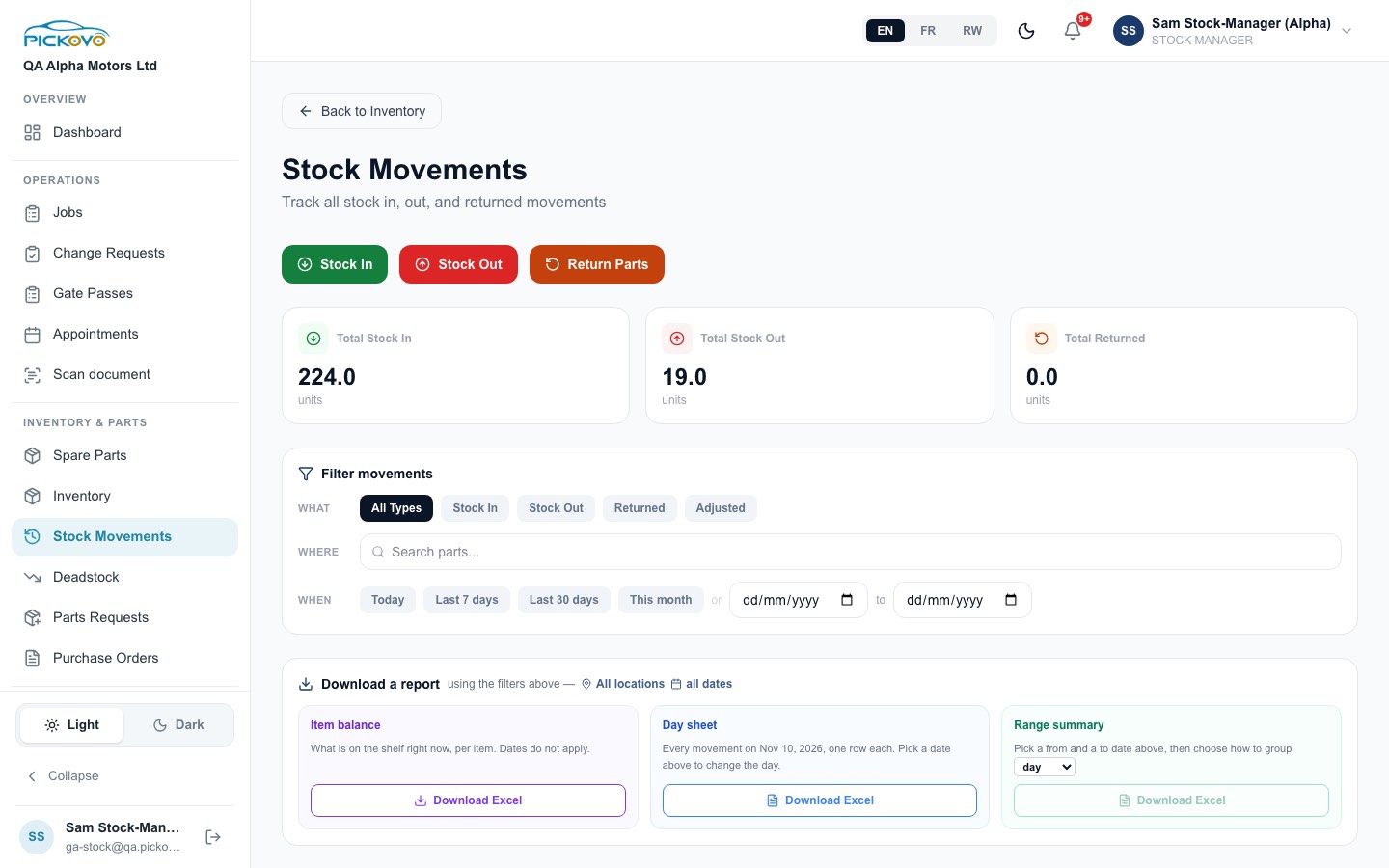
Steps, record a movement
- Click Stock Movements in the sidebar.
- Click Stock In, Stock Out or Return Parts.
- Pick the part. You can filter by location, scan or type the SKU, or search by name.
- Enter the quantity.
- Fill in the extra fields:
- Stock In: an optional Unit Cost (RWF). If you leave it empty, the part's unit price is used.
- Stock Out: a Reason, which is required. Choose Used in repair, Sold, Internal use or Written off. A write-off also needs a note saying what happened. You can add an optional Plate Number.
- All types: optional Notes.
- Save the movement.
Expected outcome: the balance changes straight away and the movement appears in the ledger, showing the balance after it.
- A direct Stock In also creates a purchase order automatically, already marked Received. This keeps the buying history complete (see C6).
- If a Stock Out leaves a part at or below its threshold, you and the admins get a Low Stock Alert.
Restrictions:
- You cannot take out more than is on the shelf. The form warns "Exceeds current stock", and the server refuses with "Insufficient stock. Available: …".
- The movement buttons need an internet connection.
Filtering and downloads
- What: All Types, Stock In, Stock Out, Returned, Adjusted.
- Where: search by part.
- When: Today, Last 7 days, Last 30 days, This month, or a from/to date range.
- Download a report:
- Item balance shows what is on the shelf now. Dates do not apply.
- Day sheet lists every movement on one day.
- Range summary covers a from/to period, grouped by day, week or month.
- Each one has a Download Excel button.
- Above the movements table, Export this list downloads exactly the rows shown.
Correcting a posted movement. A posted movement is part of the garage's record, so you cannot change or delete it yourself. You ask for a change instead (see C4). In each ledger row:
- the small pencil next to the quantity opens Request Quantity Correction;
- Request correction next to the plate opens a plate correction;
- the bin icon at the end of the row opens Request void?. To submit it, click Submit for Approval.
Each request needs a reason of at least 5 characters. While a request is open, the row shows "Correction pending", "Quantity correction pending" or "Void pending", and you cannot raise another request on that movement. You cannot correct the product or the stock location. To fix those, request a void and post a correct movement.
C4. Stock change requests
Purpose: follow your correction and void requests.
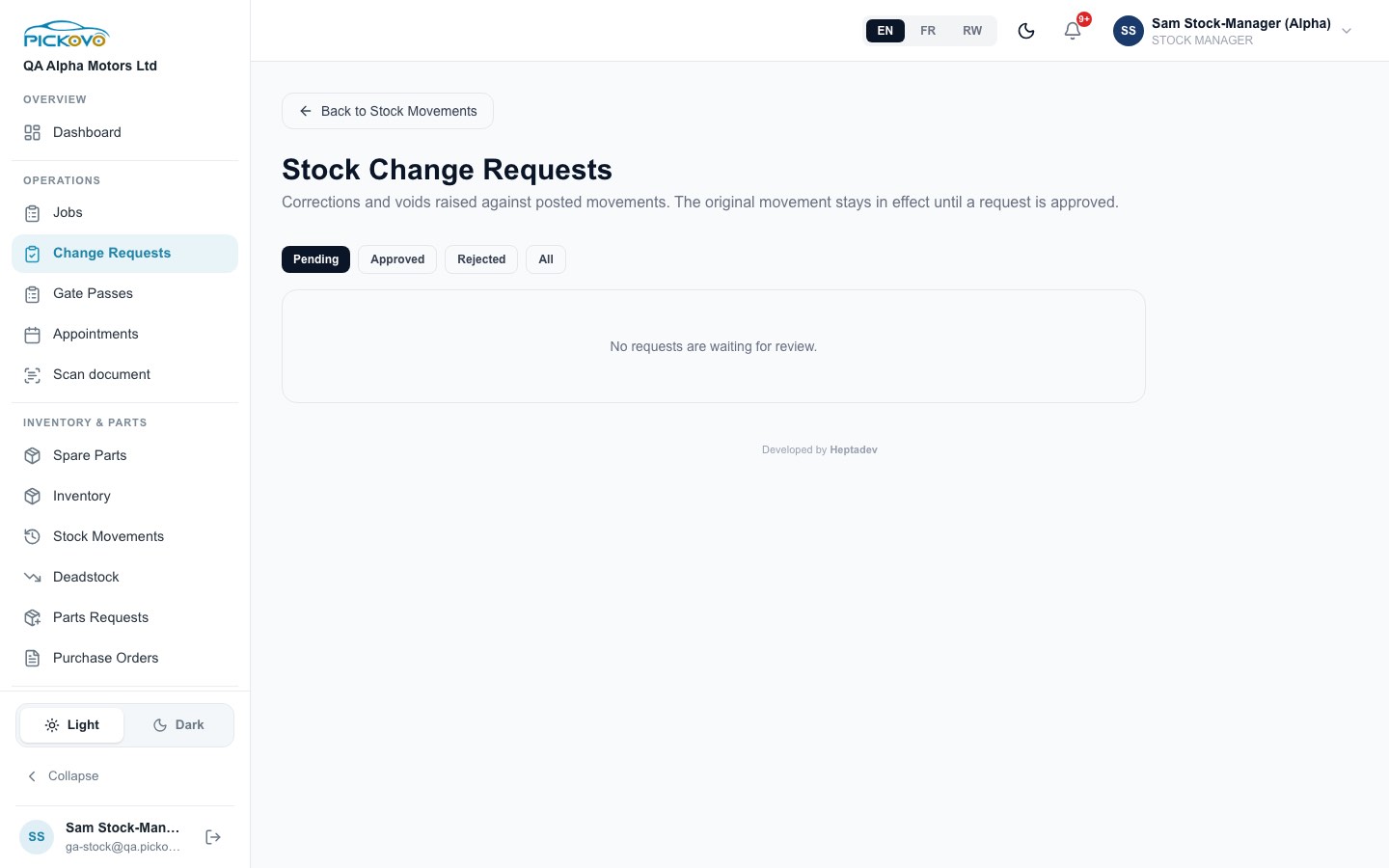
- Click Change Requests in the sidebar, or Back to Stock Movements to return.
- Use the tabs Pending, Approved, Rejected and All.
- Each request shows the old and new values, the reason, who asked and when, who reviewed it, and any review note.
What happens next: the original movement stays in effect until an administrator approves the request.
- Approved quantity correction: a new Adjustment movement is posted for the difference.
- Approved void: the movement is reversed and kept in the ledger, marked Voided.
- Rejected request: a review note always explains why.
- In every case you get a notification.
Restrictions:
- You request; you do not approve. Approve and Reject buttons do not appear for you. If you try to approve some other way, the server refuses with "Only an administrator can approve or reject stock change requests."
- Nobody may approve their own request, not even an admin. Another administrator must review it.
C5. Parts requests
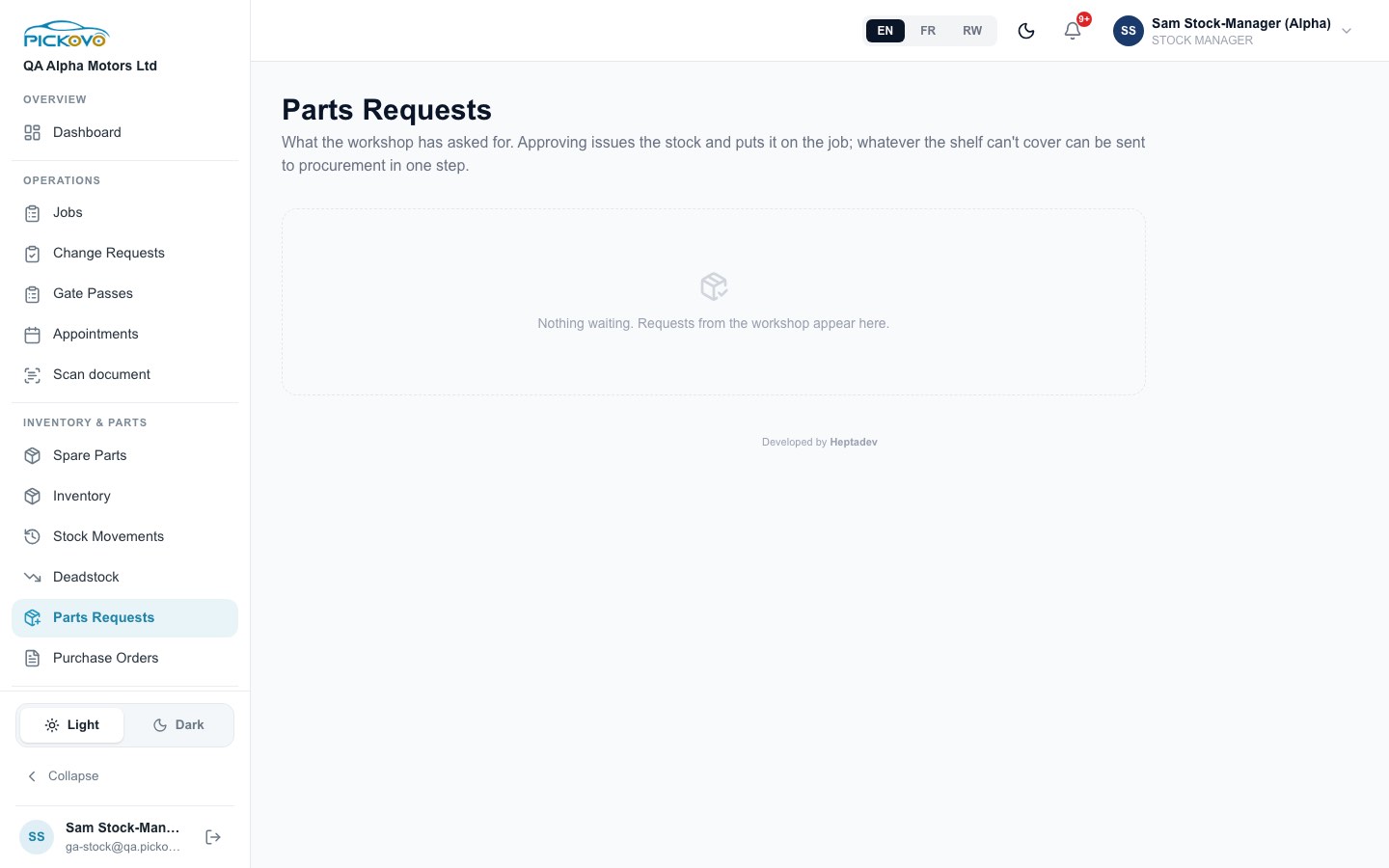
Purpose: answer what the workshop asks for. When you approve a request, the stock is issued and put on the job.
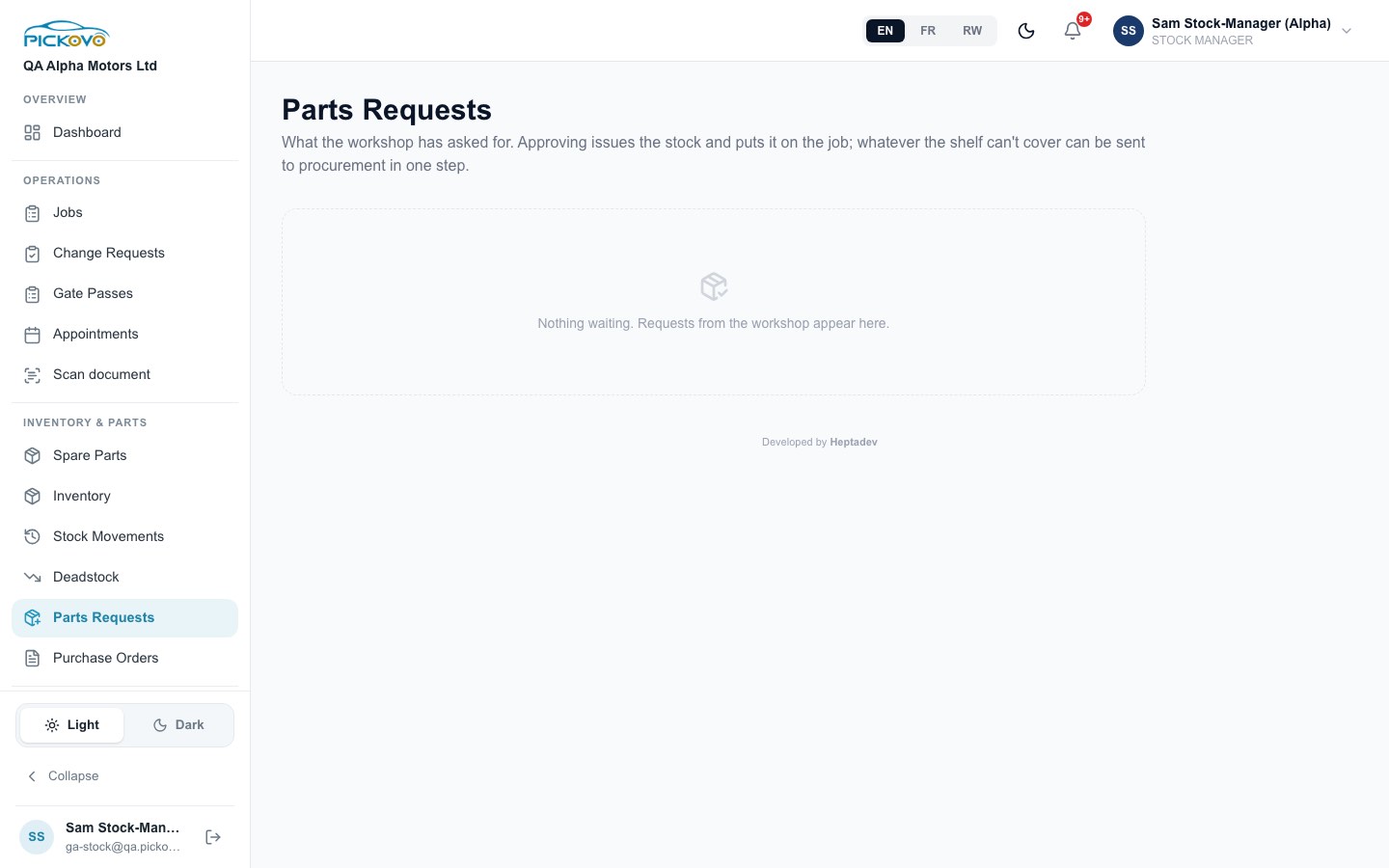
Mechanics raise requests from their job. You do not raise parts requests yourself. You review them. Requests are grouped by job. Each line shows the part, the SKU, who asked, any note, and three figures: Requested, Available and Missing.
Steps
- Click Parts Requests in the sidebar.
- For each line, choose one of these:
- Approve & issue takes the stock off the shelf in one step and records it on the job as a Stock Out ("Used in repair").
- Decline asks you to type a reason ("Why? The mechanic will read this."). Then click Send. Cancel closes the box without declining.
- You can reply to the mechanic in the message thread under each line.
- Print requisition prints the current queue as a requisition sheet. Use it to keep a paper copy before the queue empties.
- If the shelf cannot cover a job, its footer says how many item types need buying. Click Send to procurement, check the list (only the missing quantities are sent), and confirm. The mechanics' requests stay pending. Approve them once the stock arrives.
Messages you may see
- "None on the shelf / Only N on the shelf, approving will fail until it is restocked."
- "This part has been deactivated…": decline the request, or reactivate the part.
- "Another reviewer just handled this request": someone else answered it first.
C6. Purchase orders
Purpose: order parts from a supplier, then add them to stock when they arrive.
Steps, create, send and receive
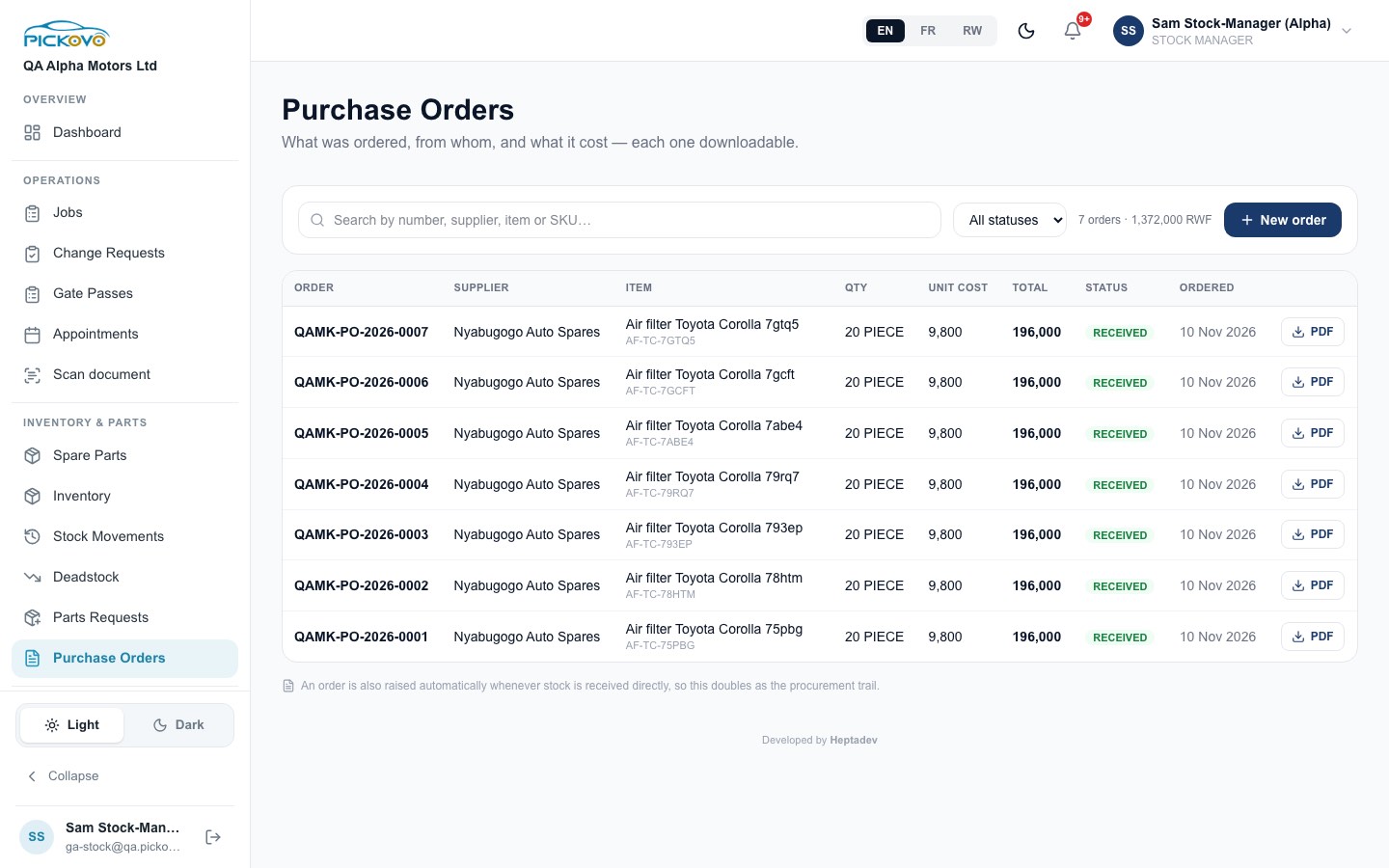
- Click Purchase Orders in the sidebar.
- Click + New order.
- Choose the Part, the Supplier (or "Not specified"), the Quantity, the Unit cost and optional Notes, then save. The order is created with status Pending. Stock does not change yet.
- When you have placed the order with the supplier, click Send on its row. The status becomes Ordered.
- When the goods arrive, click Receive. The quantity is added to stock, a Stock In movement ("Received against QAMK-PO-…") is posted, and the status becomes Received.
- PDF downloads any order as a document.
Restrictions:
- An order can be received only once. Receiving it again is refused ("Cannot receive an order that is RECEIVED").
- Send works only on a Pending order.
Procurement requests. When there are shortages you sent from Parts Requests, a "Procurement requests from the stock room" panel appears above the list. From it you can:
- raise purchase orders for what is left to buy;
- mark a request in progress;
- share it or download its PDF;
- revoke shared links;
- cancel it.
Receiving those orders fills the shortage.
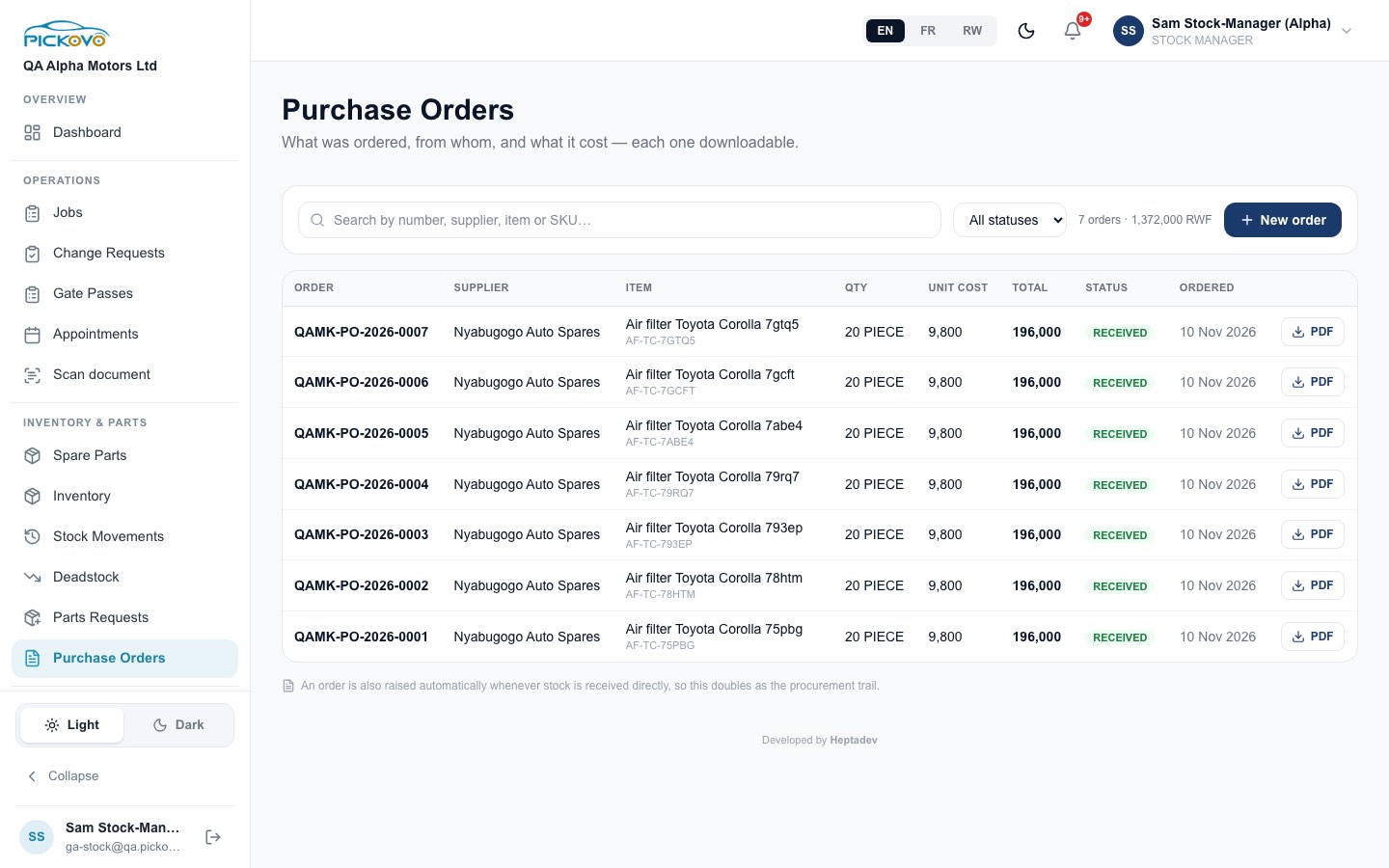
The note under the list ("An order is also raised automatically whenever stock is received directly…") is a reminder that direct Stock In entries appear here too.
C7. Suppliers
Purpose: keep supplier contacts and lead times, and see which parts come from whom.
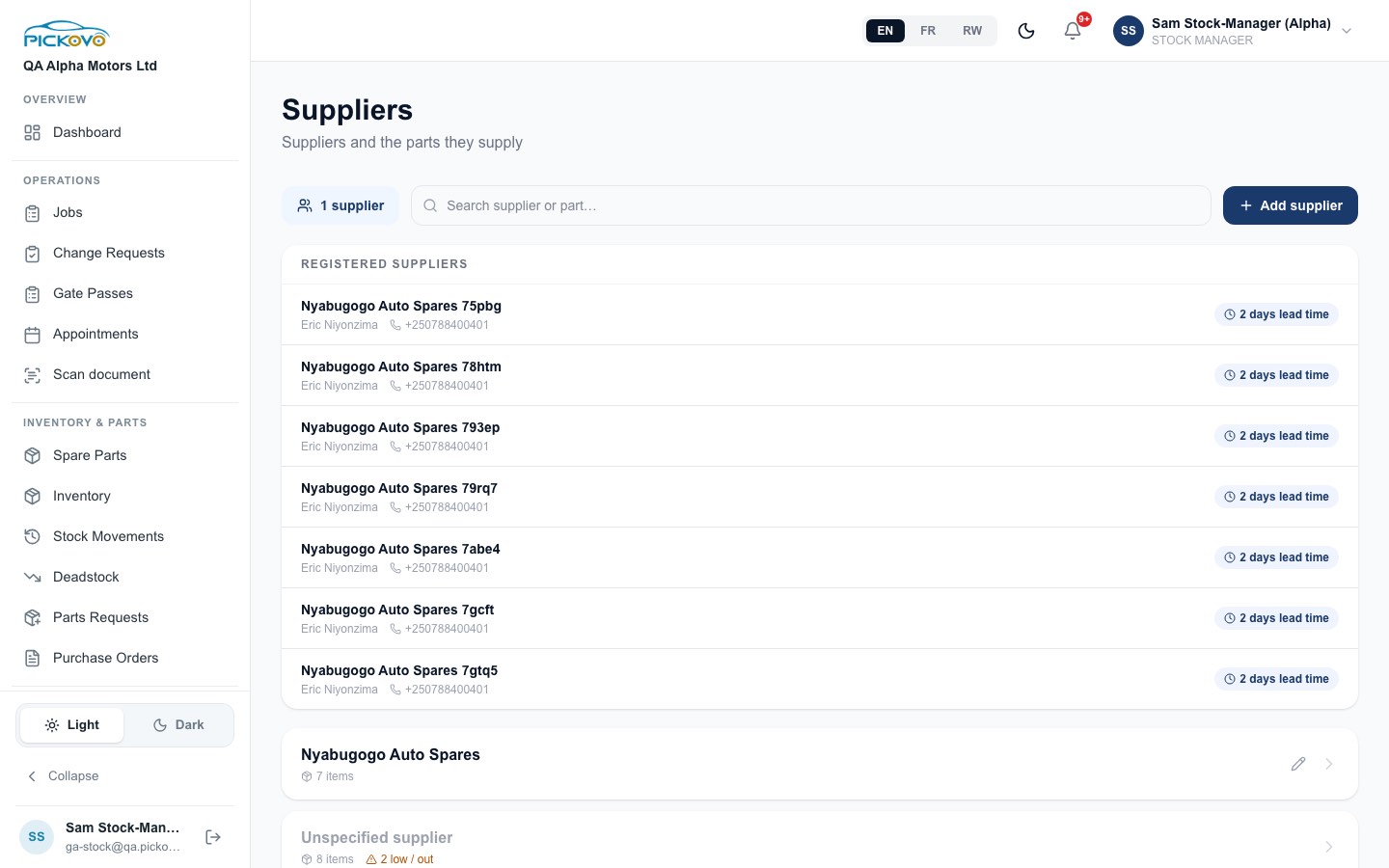
- Click Suppliers in the sidebar, or the Suppliers button on the Inventory page.
- Add supplier asks for the branch (when there is more than one), Name, Contact person, Phone, Email and Lead time (days).
- Below the registered suppliers, parts are grouped under their supplier name. Click a group to list its parts and open any of them. A warning shows how many are low or out of stock.
- The pencil on a group opens Edit Supplier (name and contact). Saving it updates every part listed under that supplier name at once.
- Use the search box to find a supplier or a part.
C8. Deadstock
Purpose: find parts that are not moving, and the money tied up in them.
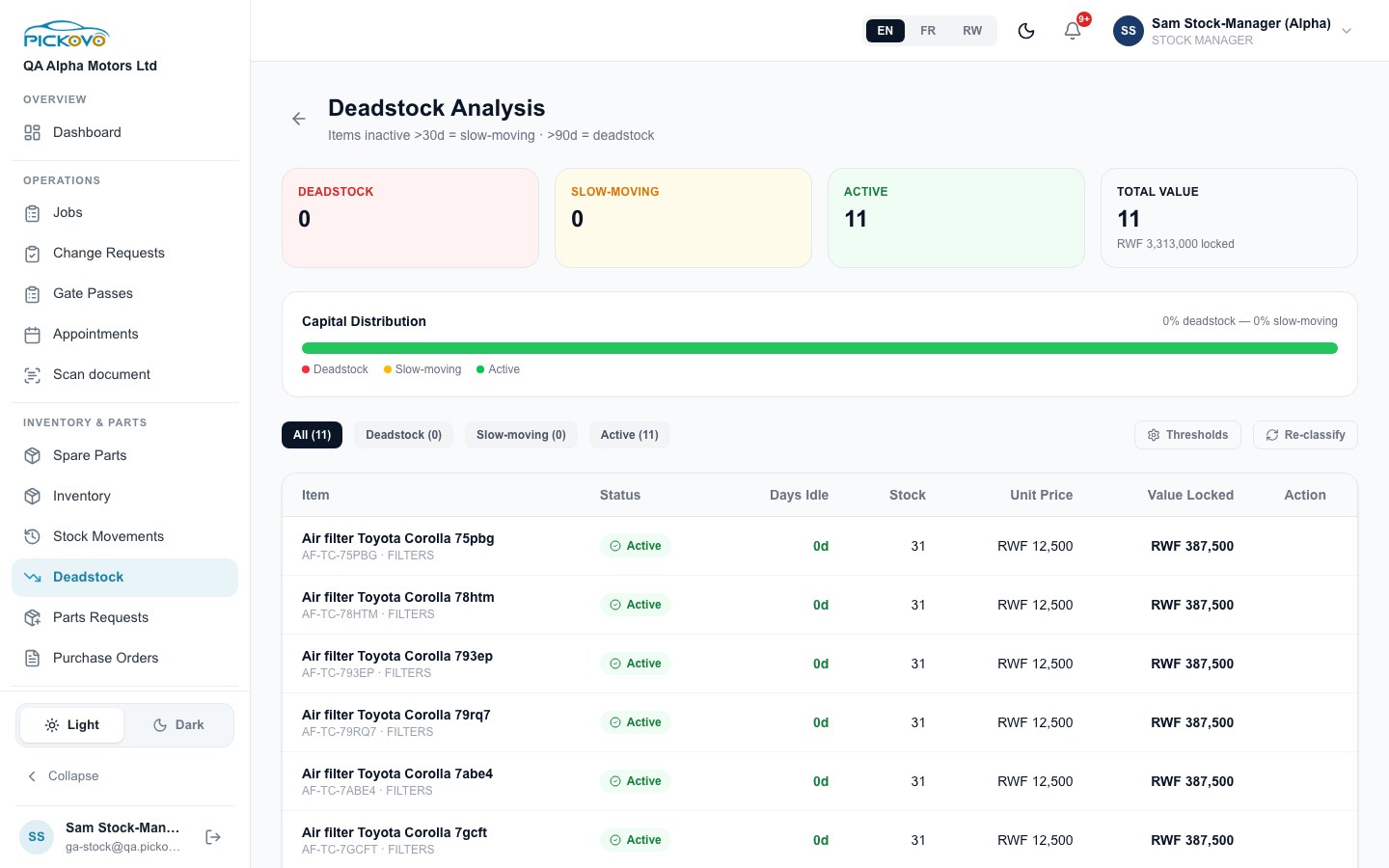
- The top cards count Deadstock, Slow-moving and Active items, plus the Total value locked in stock.
- The rule shows under the title. By default, an item idle for more than 30 days is slow-moving, and one idle for more than 90 days is deadstock.
- Filters: All, Deadstock, Slow-moving, Active.
- The table shows days idle, stock, unit price and value locked for each item.
- Thresholds lets you change the two day limits and switch the automatic daily classification on or off. Click Save to keep your changes.
- Re-classify runs the classification now and reloads the page. If nothing reloads, the next automatic daily run will update the list.
- Clearance appears on slow-moving and deadstock items. It suggests a reduced unit price (70% of the current one). Edit the price if needed and click Apply.
Restrictions: Deadstock is part of certain Pickovo plans. If your garage's plan does not include it, opening the page takes you to the billing page instead.
C9. Spare Parts (buying from parts shops)
Purpose: find spare-parts shops on Pickovo and order from them.
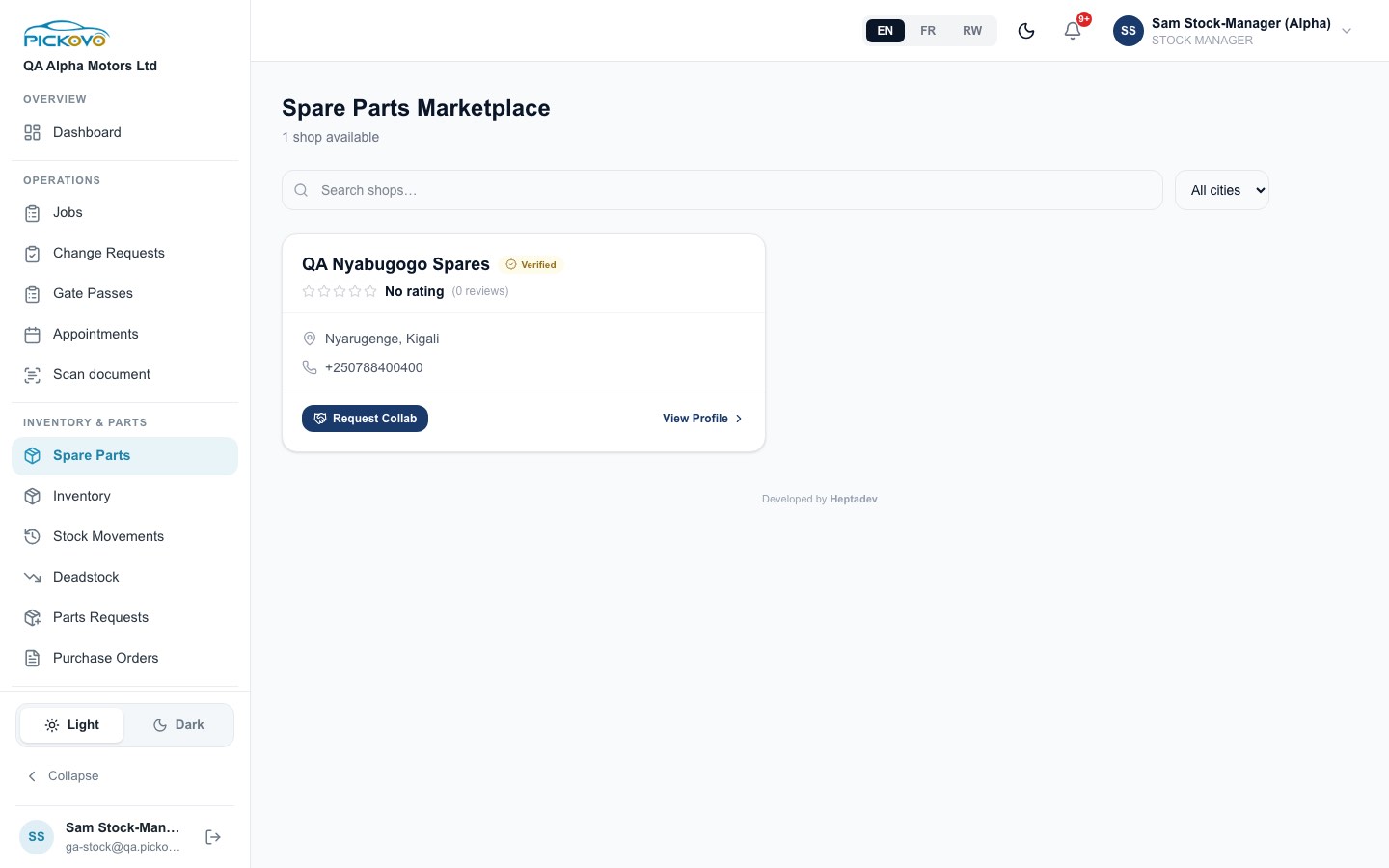
- Click Spare Parts in the sidebar. Search shops by name, or filter by city.
- Click Request Collab to ask a shop to work with your garage. The button changes to show the request is pending until the shop answers. If the shop declined, you can Re-request.
- View Profile opens the shop: its catalogue preview and reviews.
- Once the collaboration is accepted, the profile shows a Request Parts form. Add items (from the shop's catalogue, or a custom item with quantity and unit), set Needed By and optional Notes, then click Send Request. The shop then prepares a quote for you.
Restrictions: this page depends on your garage's plan. Without the right plan you are taken to the billing page.
C10. Reports
Purpose: download stock figures and follow workshop activity.
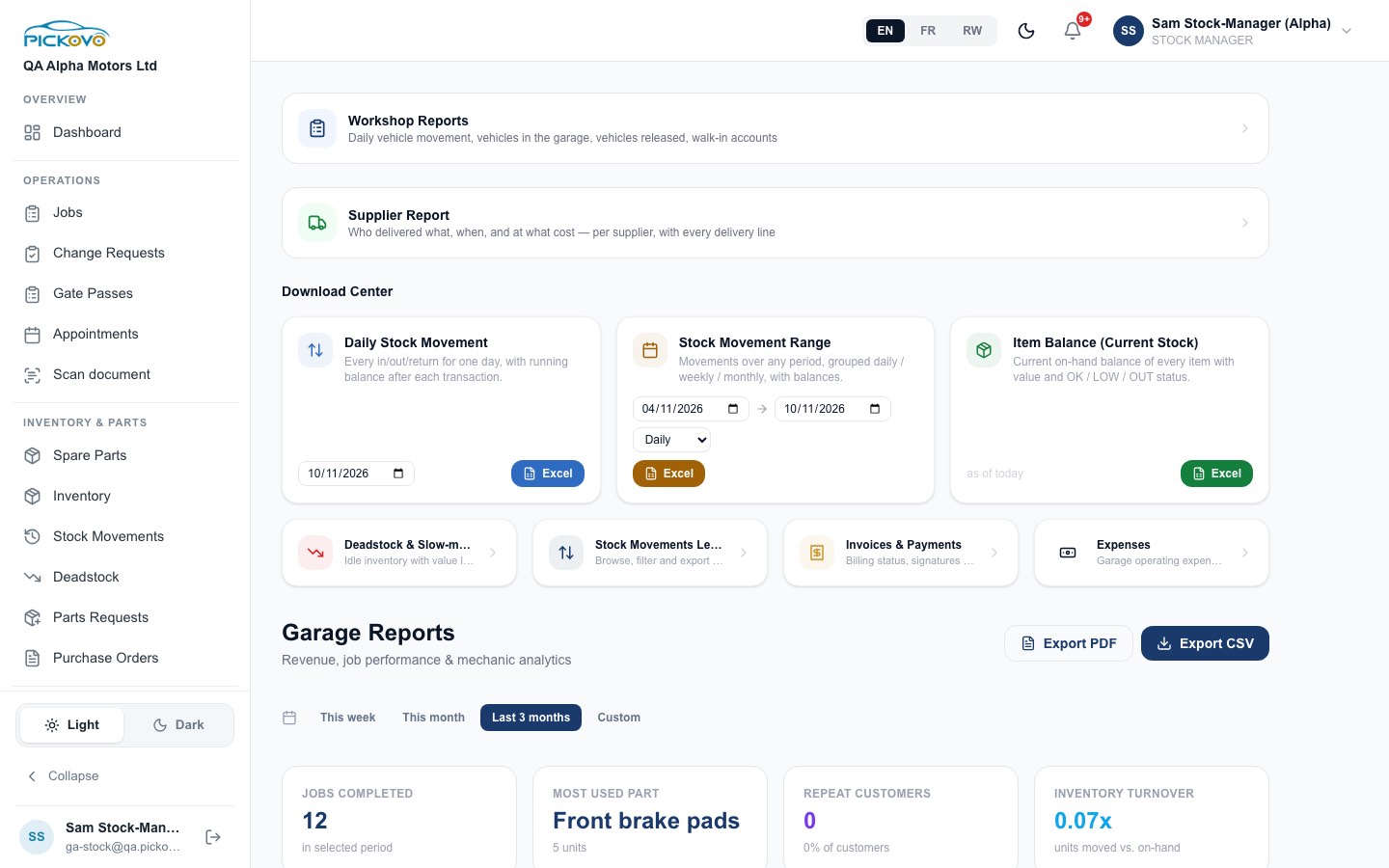
- Download Center:
- Daily Stock Movement (one day, with running balance);
- Stock Movement Range (from/to dates, grouped daily, weekly or monthly);
- Item Balance (Current Stock).
- Each one has an Excel button.
- Shortcuts:
- Deadstock & Slow-moving opens C8.
- Stock Movements Ledger opens C3.
- Invoices & Payments and Expenses also appear, but they are not open to Stock Managers by default. Clicking them brings you back to your dashboard.
- Garage Reports:
- The period is This week, This month, Last 3 months or Custom.
- Figures include jobs completed, most used part, repeat customers and inventory turnover.
- Export them with Export PDF or Export CSV.
- Money figures are hidden unless your admin has given you financial reports.
Supplier Report shows who delivered what, when, and at what cost.
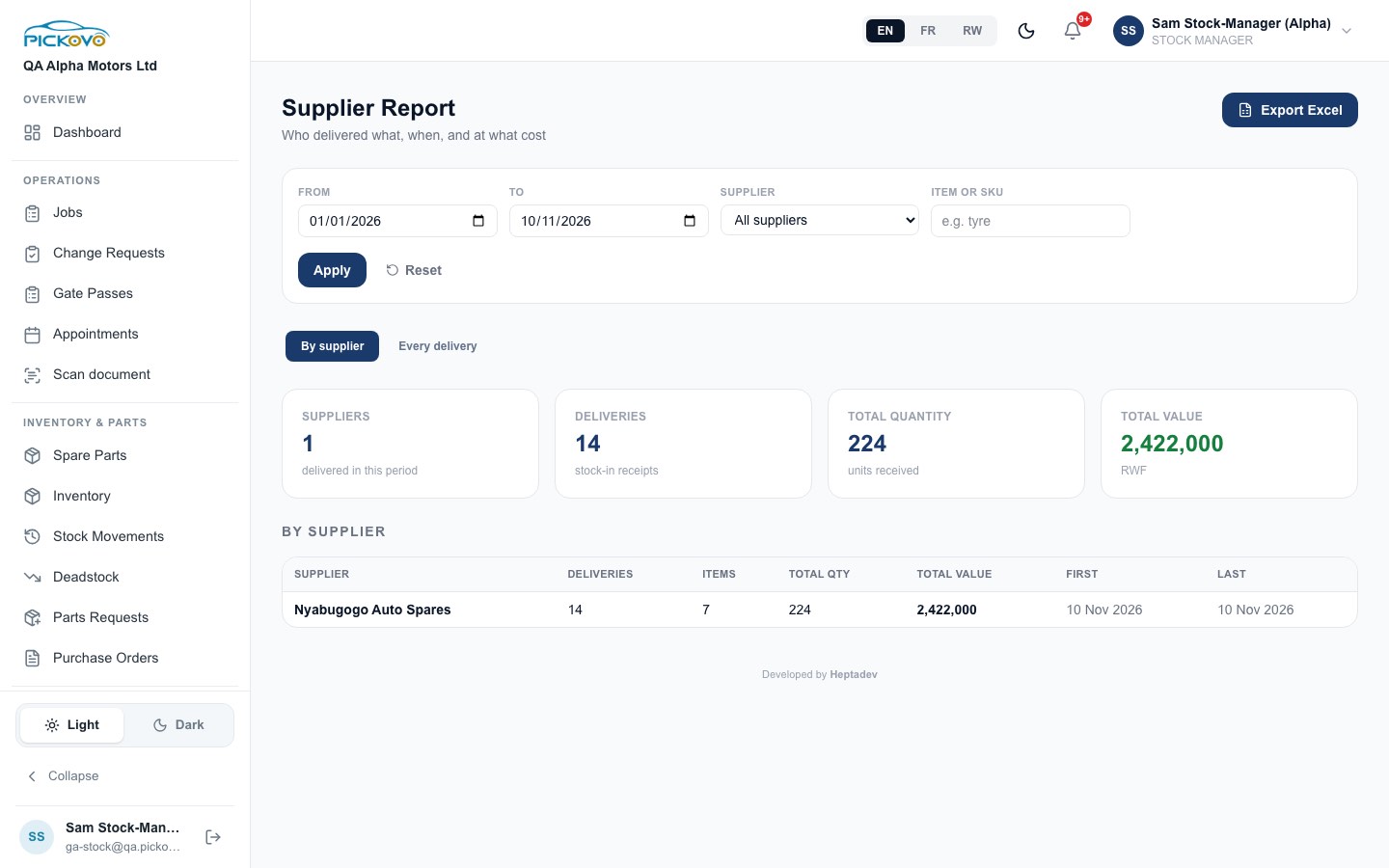
- Set From, To, Supplier and Item or SKU, then click Apply. Reset clears the filters.
- Switch between By supplier and Every delivery.
- Export Excel downloads the result.
Workshop Reports cover daily vehicle movement: what came in, what is in the yard and what went out.
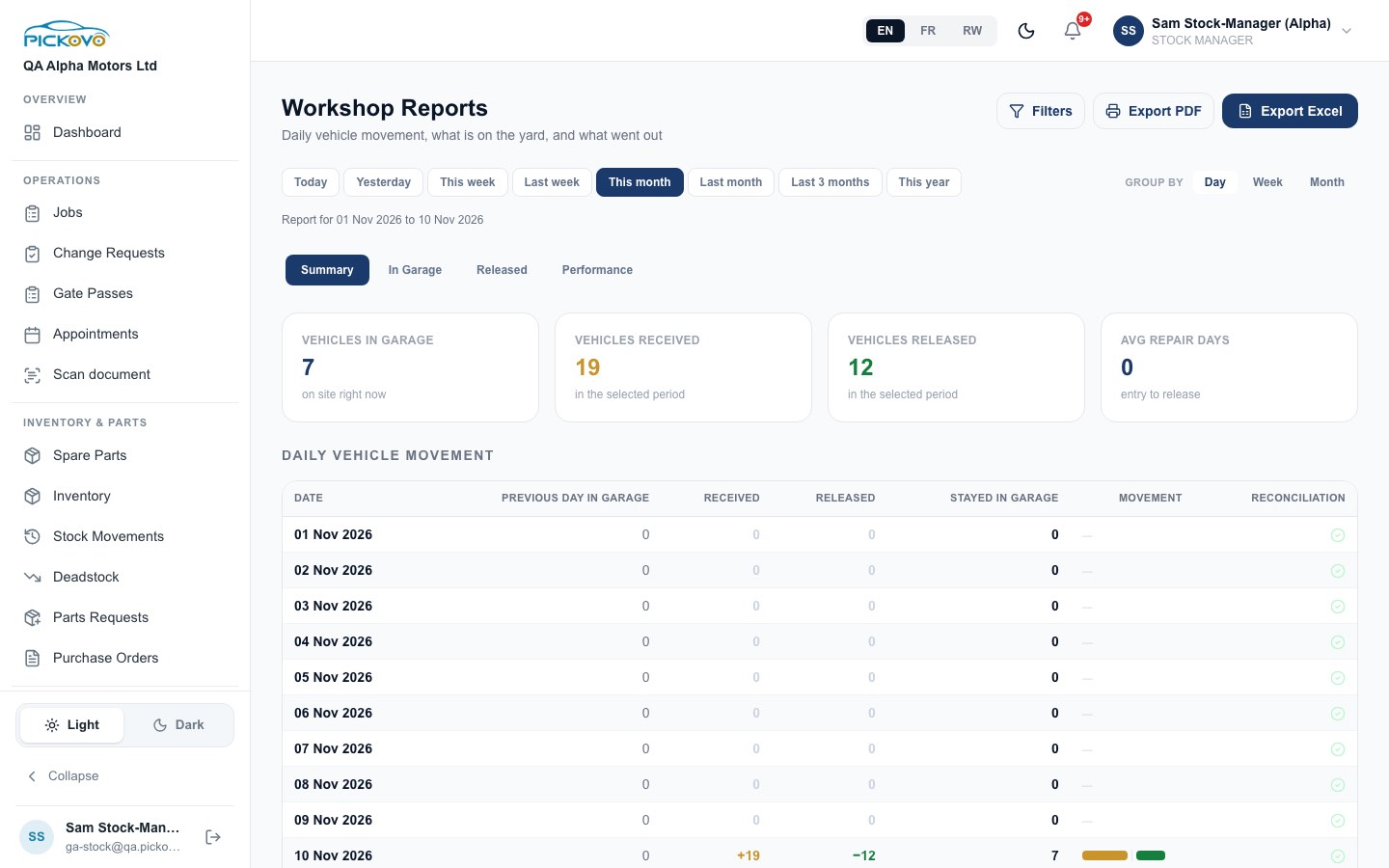
- Pick a period: Today, Yesterday, This week, Last week, This month, Last month, Last 3 months or This year.
- Choose Group by Day, Week or Month.
- Use the tabs Summary, In Garage, Released and Performance.
- Use Filters, Export PDF or Export Excel as needed.
C11. Jobs
Purpose: see the garage's jobs, for example to check what a parts request is for.
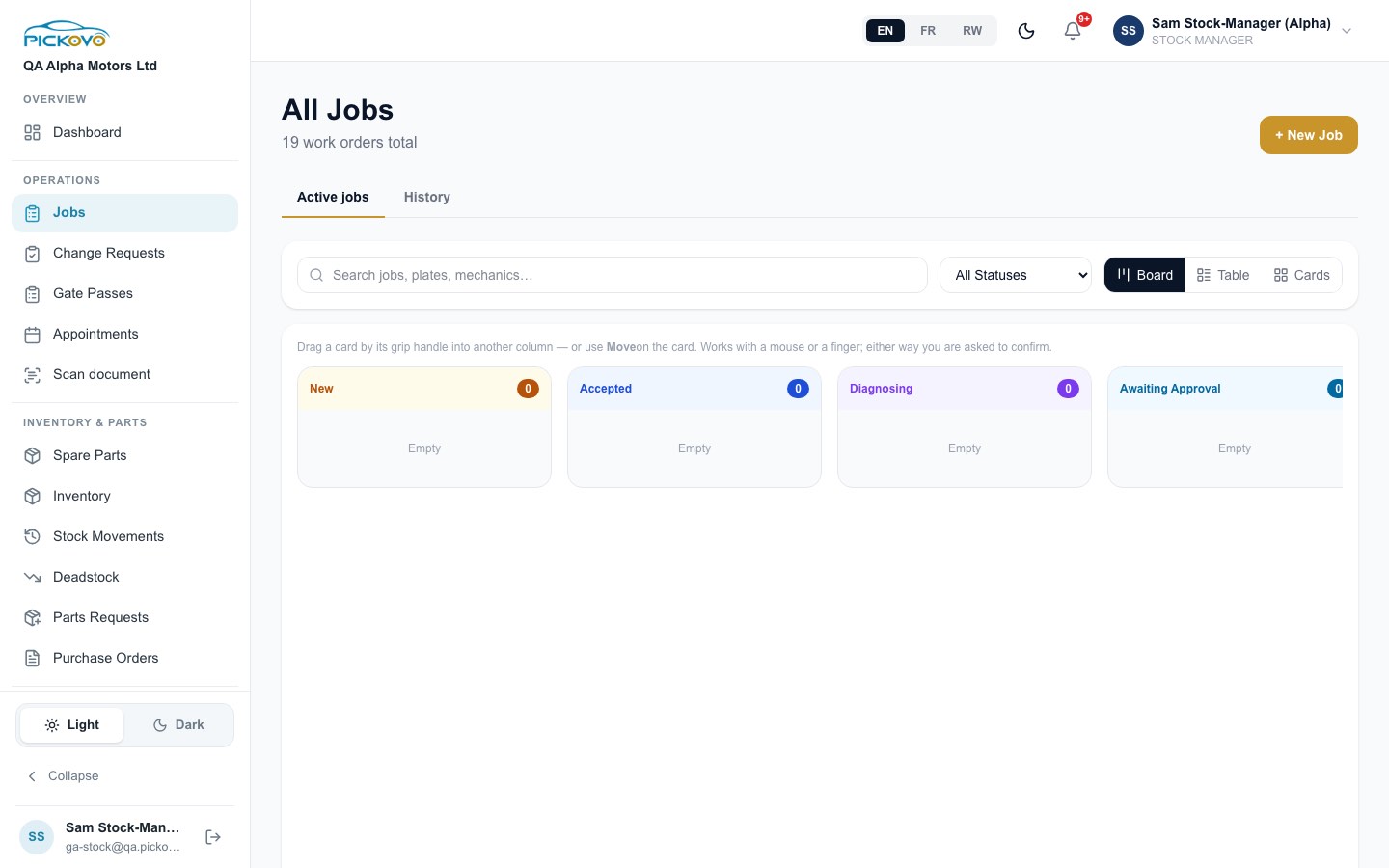
- Active jobs and History tabs.
- Search by job, plate or mechanic, and filter by status.
- Views: Board, Table or Cards.
- + New Job opens a new job.
- On the Board you can move a card to another column by its grip handle or with Move. You are always asked to confirm, and only the moves allowed for your role are offered.
You cannot assign mechanics, open the Mechanics page, or register walk-ins.
C12. Appointments
Purpose: see bookings car owners made in the Pickovo app, and scheduled jobs.
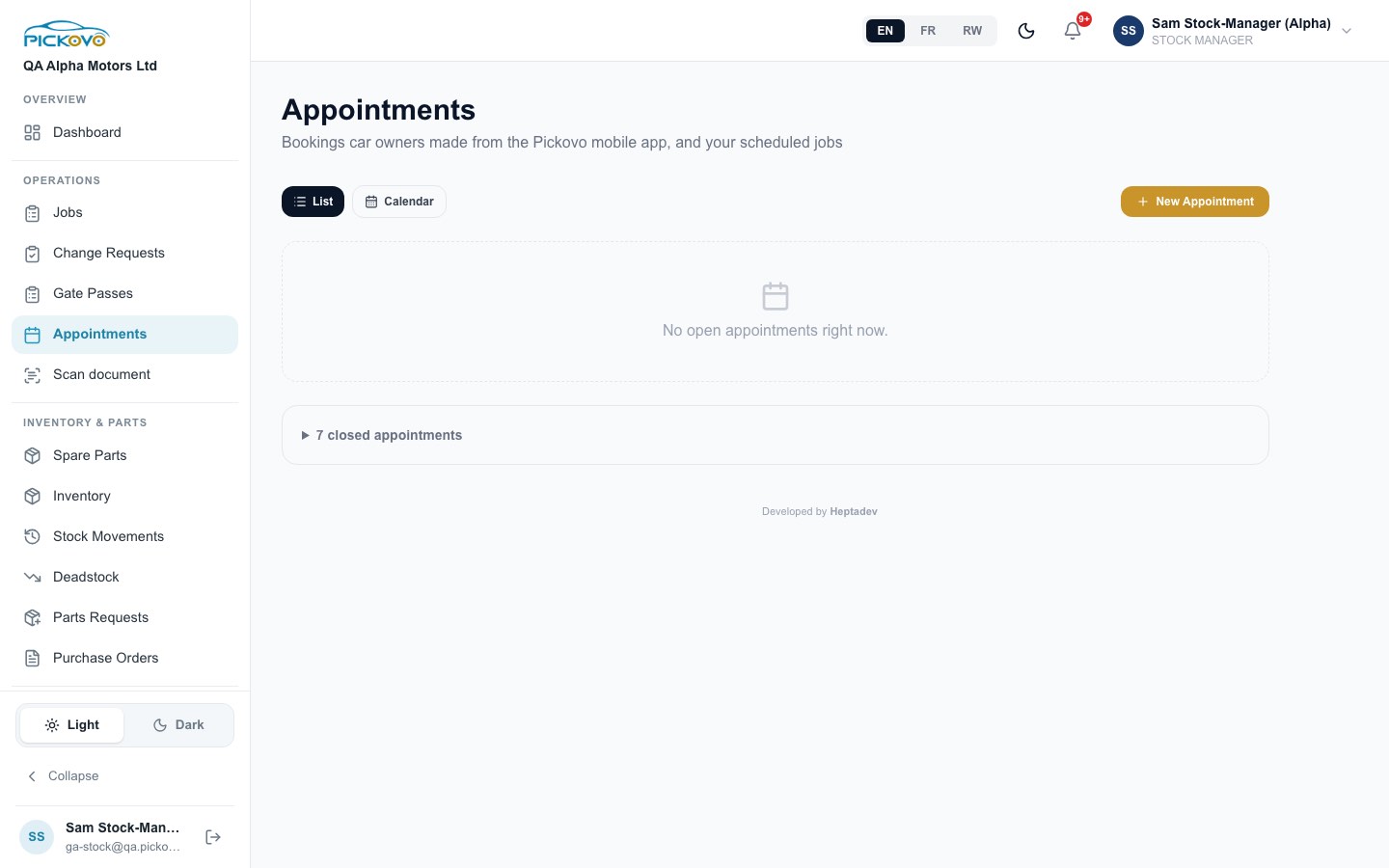
- Switch between List and Calendar.
- + New Appointment creates a booking.
- Expand closed appointments to see past bookings.
C13. Gate passes
Purpose: issue the slip that lets a vehicle or items leave the premises.
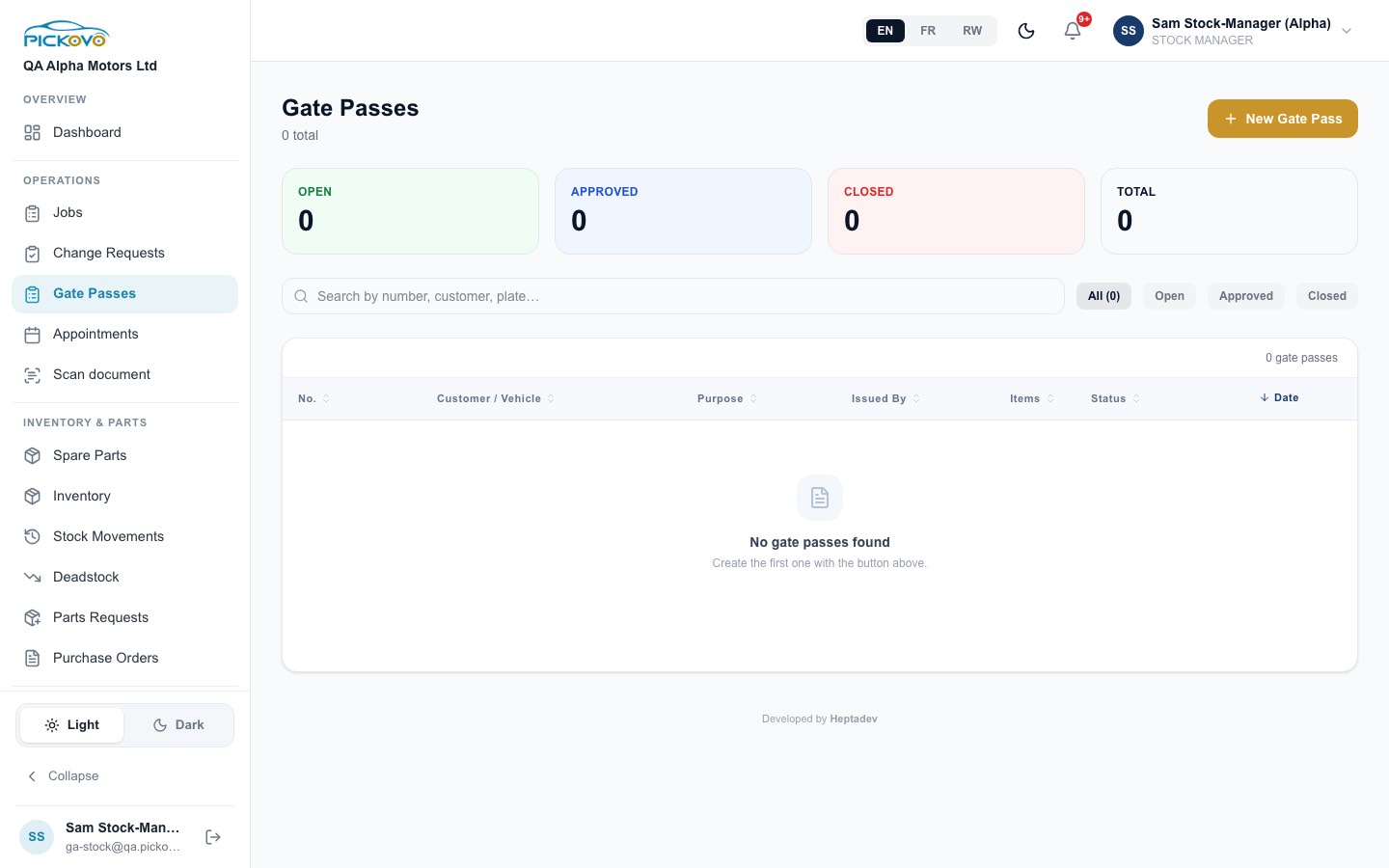
- + New Gate Pass creates a pass with a purpose, the customer, vehicle and items.
- Search by number, customer or plate, and filter by Open, Approved or Closed.
Restrictions: only a garage administrator can approve or close a gate pass.
C14. Reviews (view only)
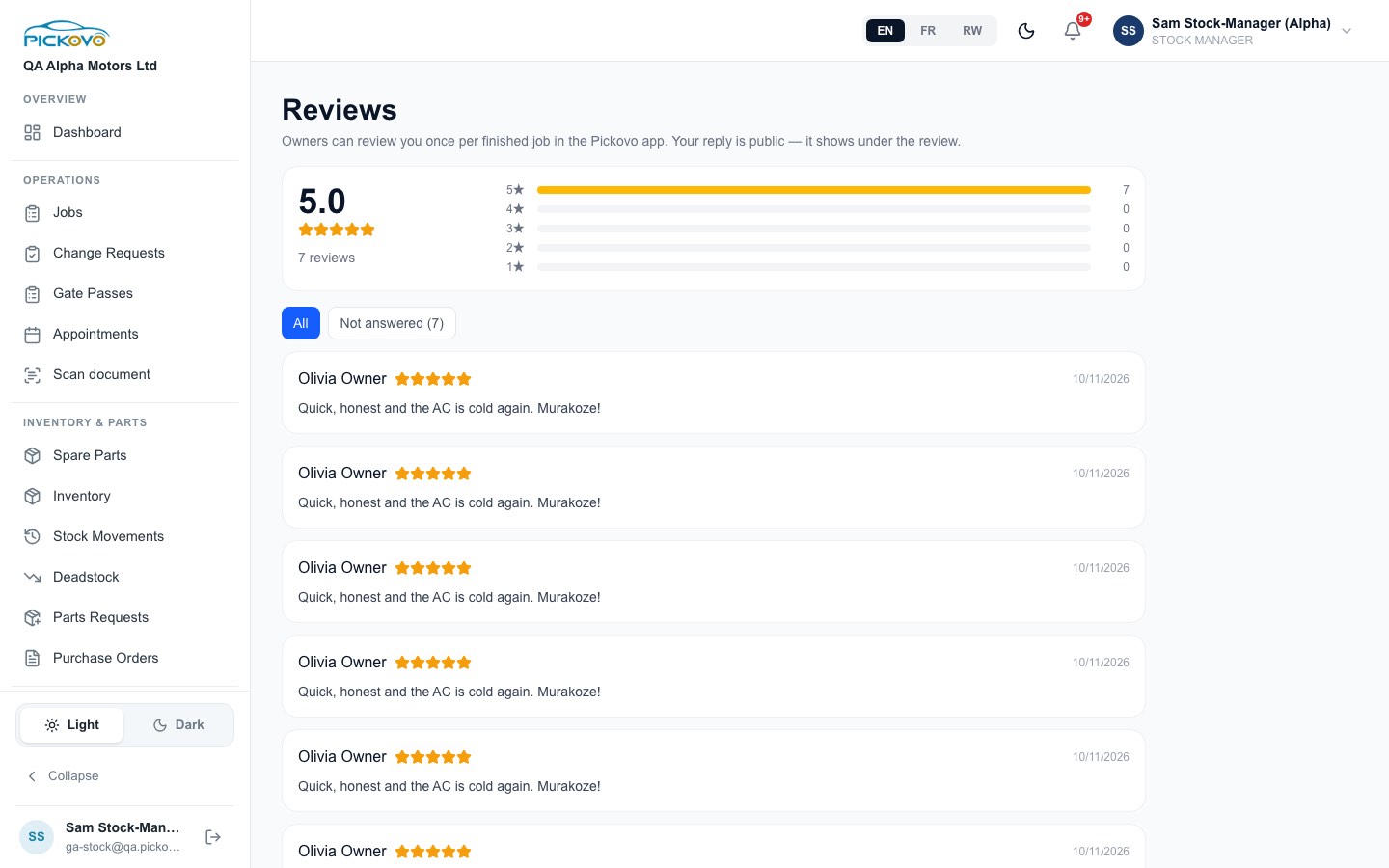
You can read the reviews car owners leave after a finished job, and filter by Not answered. Replying is done by the admin or reception.
C15. Pages turned on per garage
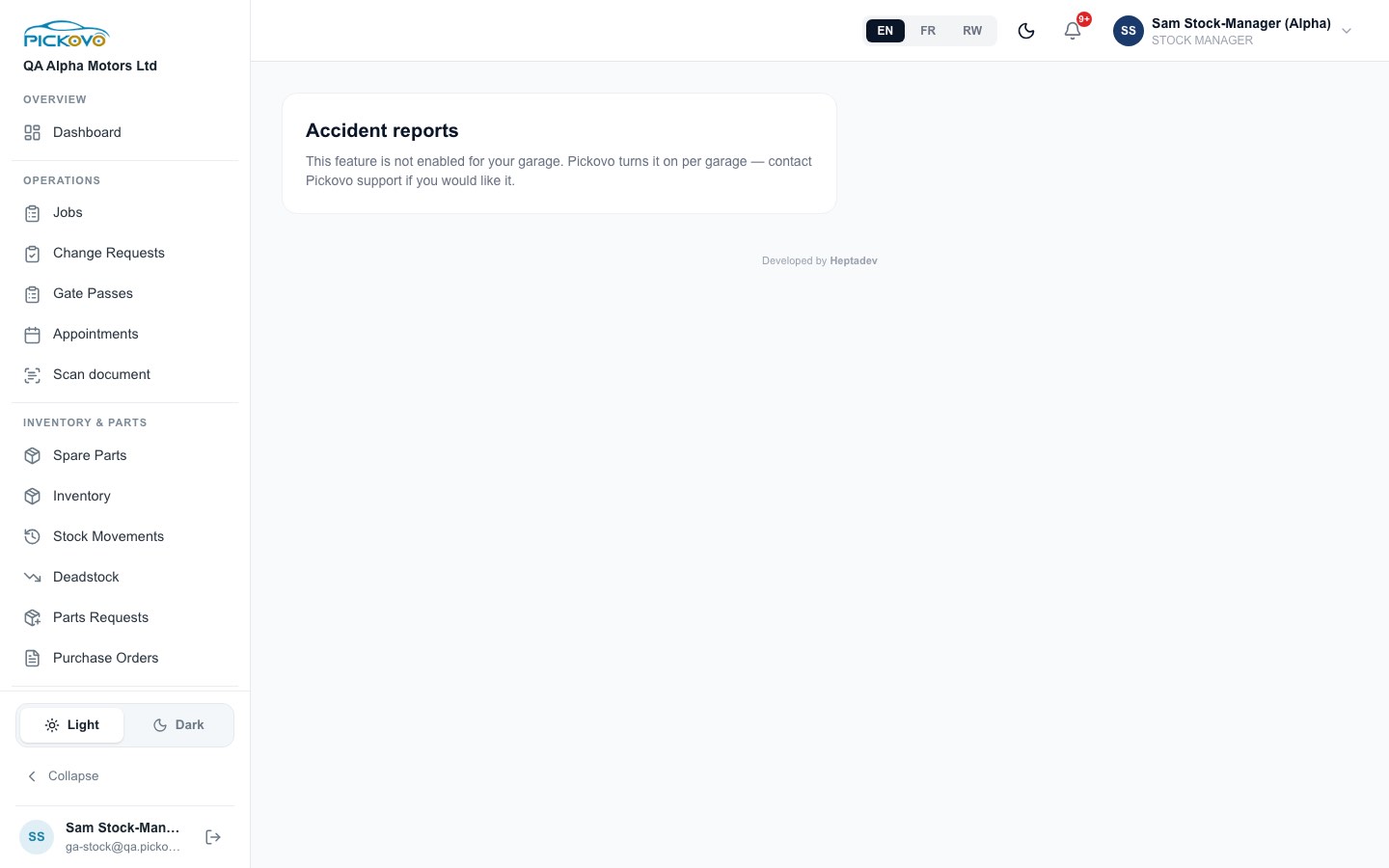
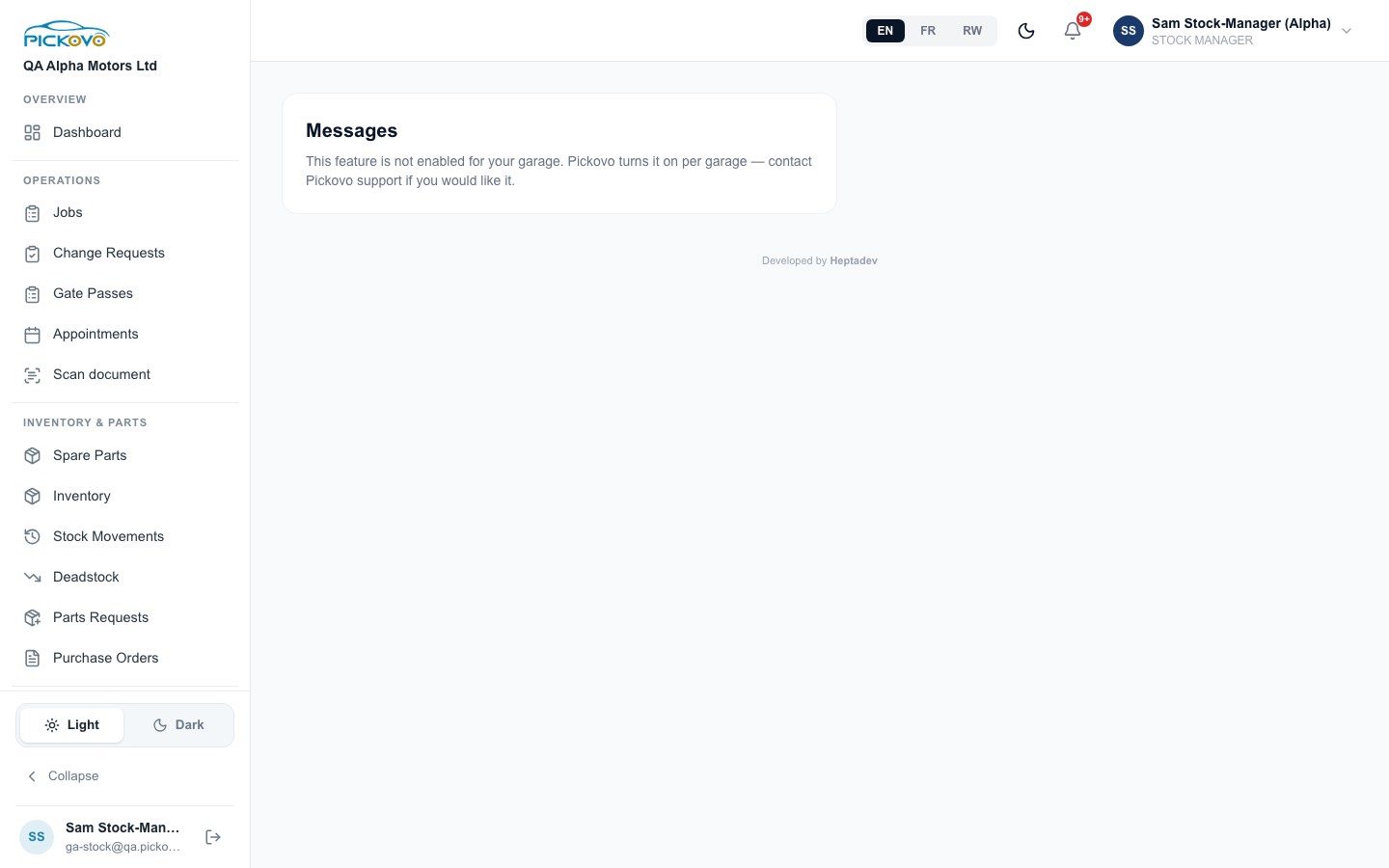
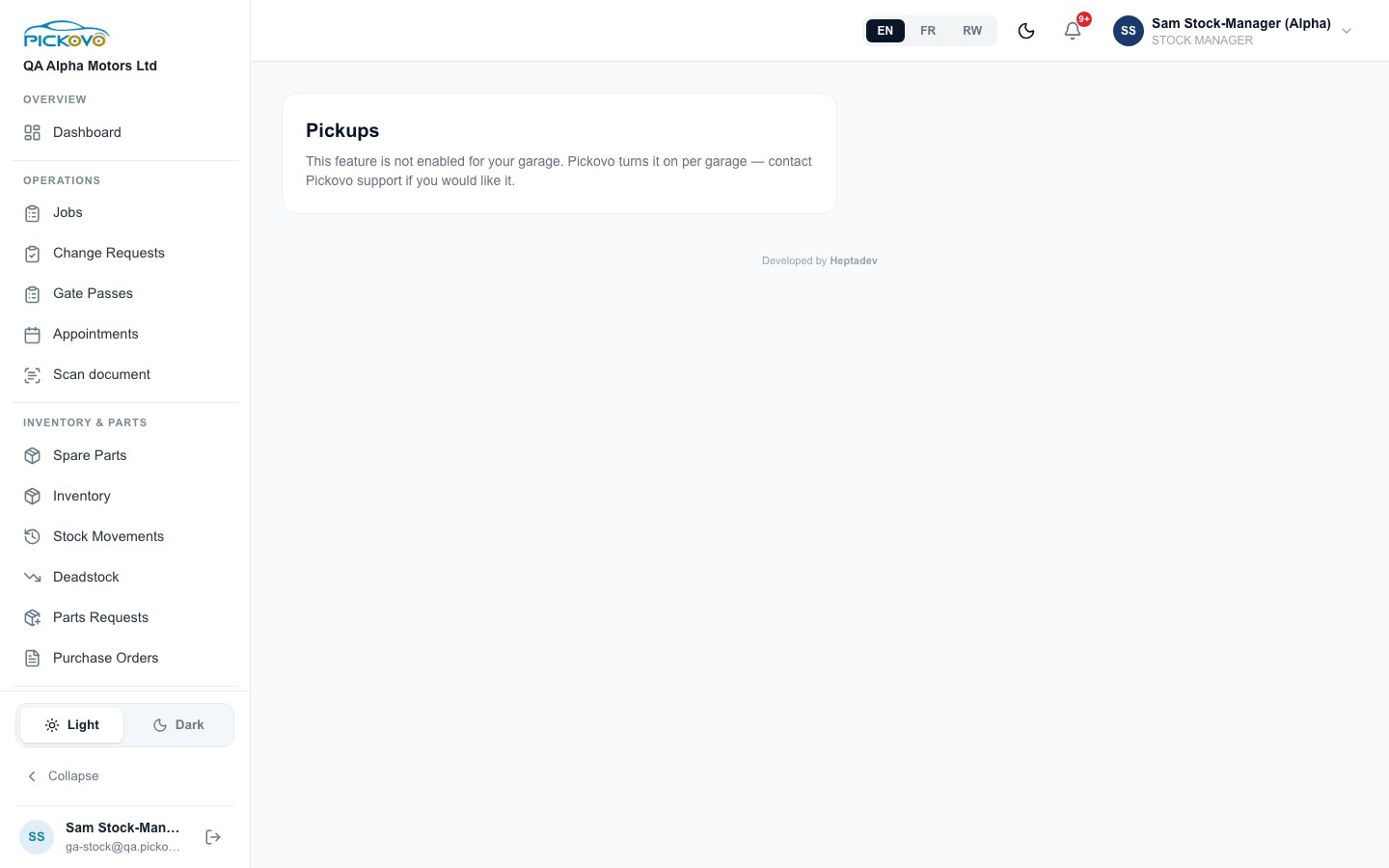
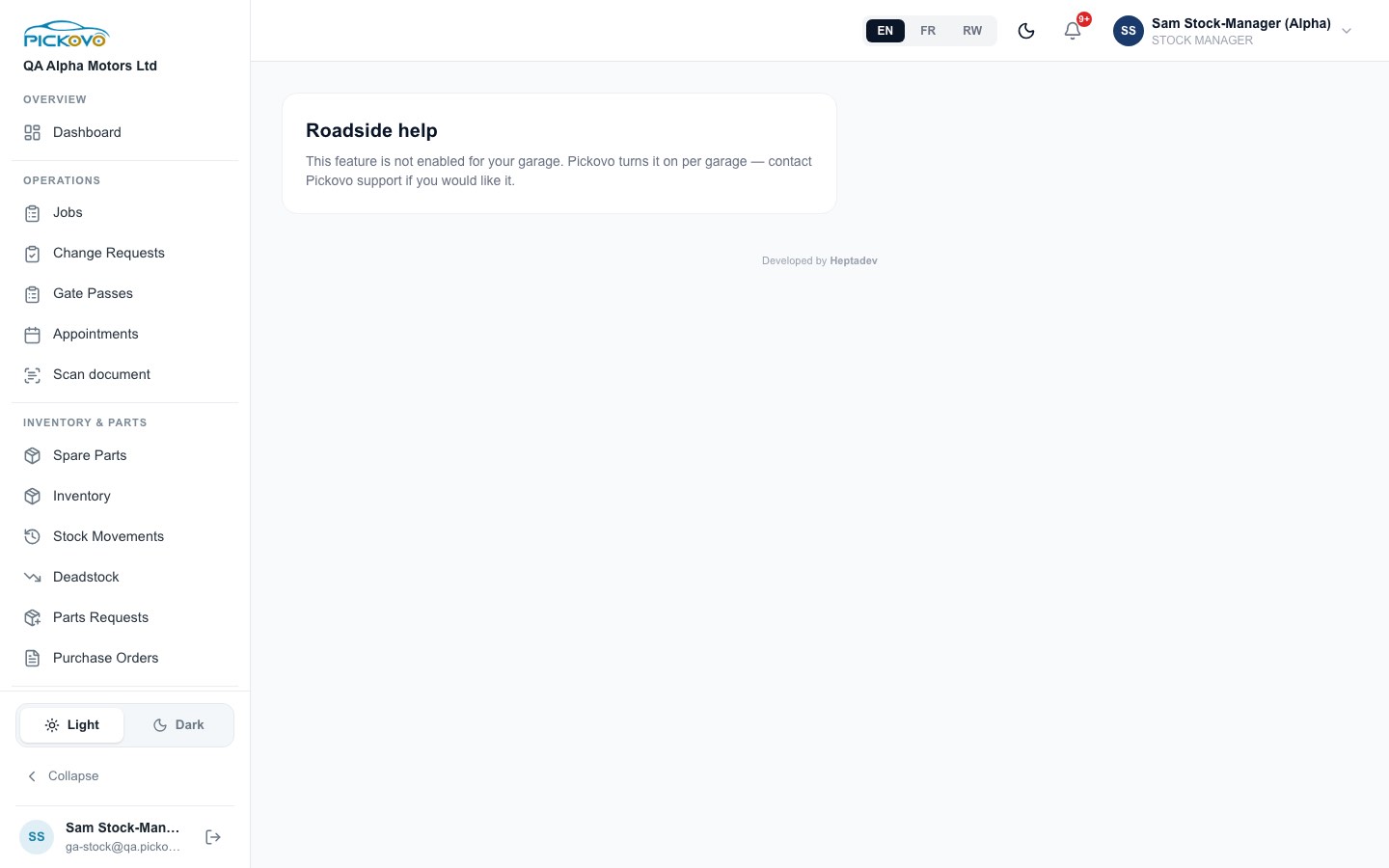
Some car-owner features are switched off for each garage until Pickovo enables them. If yours are off, these pages show "This feature is not enabled for your garage… contact Pickovo support if you would like it."
C16. Your account
Your profile and password are at https://fleet.heptadev.com/en/settings, along with notification preferences under /en/settings/notifications. There is no Settings item in your sidebar, so type the address.
D. What you can and cannot do
This table shows the defaults. Your garage admin may have changed them under Settings → Roles.
| Area | View | Create | Edit | Delete | Approve |
|---|---|---|---|---|---|
| Inventory and parts | Yes | Yes | Yes | Yes (removes from the active list) | - |
| Stock locations, import, merge duplicates | Yes | Yes | Yes | Yes | - |
| Stock movements (in / out / return) | Yes | Yes | , (request a correction) | , (request a void) | - |
| Stock correction / void requests | Yes | Yes | - | - | , (admin only; nobody approves their own) |
| Parts requests from mechanics | Yes | , (mechanics raise them) | - | - | Yes approve & issue / decline |
| Purchase orders | Yes | Yes | Yes send / receive | - | - |
| Suppliers | Yes | Yes | Yes | - | - |
| Deadstock | Yes | - | Yes thresholds, clearance price | - | - |
| Spare-parts marketplace | Yes | Yes collaboration and parts requests | - | - | - |
| Reports (operational, stock, supplier, workshop) | Yes | - | - | - | - |
| Jobs | Yes | Yes | Yes status moves allowed for your role | - | - |
| Appointments | Yes | Yes | - | - | - |
| Gate passes | Yes | Yes | - | - | , (admin only) |
| Reviews | Yes | - | - | - | - |
| Notifications | Yes | - | Yes mark as read | - | - |
Cannot access (by default): Invoices, Expenses, Incentives, Walk-ins, Mechanics, Complaints, Compliance, Certification, the Garage Marketplace page, Garage Settings and Roles, Garage Family, and financial or daily reports. If you open one of these, you are taken back to your dashboard.
E. Common workflows
E1. A mechanic needs a part (workflow W2)
- Mechanic: raises a parts request on the job, for example 2 air filters for "Service – Corolla RAC 418 K".
- You: get a "Parts requested" notification. Open Parts Requests.
- You: check that Missing is zero, then click Approve & issue. The stock drops (for example from 12 to 10), and a Stock Out for 2 is recorded on the job.
- If the shelf is short, you click Send to procurement instead, and approve the request once the stock arrives (E2).
- Mechanic: is told the parts are ready and carries on with the job.
E2. Restocking with a purchase order (workflow W2)
- You: in Purchase Orders, click + New order. Choose the part and supplier, enter quantity 20 and the unit cost, and save. The order is Pending and stock is unchanged.
- You: place the order with the supplier and click Send. The order is now Ordered.
- You: when the delivery arrives, click Receive. Stock rises by 20, and the ledger shows "Received against QAMK-PO-…". A second Receive is refused.
- You: check the movement in Stock Movements, and later in the Supplier Report.
E3. Fixing a wrongly recorded quantity (workflow W2)
- You: in Stock Movements, find the movement (for example a Stock Out recorded as 2 that should have been 1). Click the pencil next to the quantity.
- You: enter the corrected quantity and a reason of at least 5 characters, then submit. The row shows "Quantity correction pending".
- Garage admin: reviews it under Change Requests and approves it. An admin who raised a request themselves must leave it to another administrator.
- You: get "Stock change approved". An Adjustment movement for the difference appears (in the test, 30 became 31).
E4. Clearing slow stock
- You: open Deadstock and filter Slow-moving or Deadstock.
- You: click Clearance on an item, adjust the suggested price, and click Apply.
- You: if parts are surplus, consider not reordering them, using the Supplier Report to see what was bought.
F. Troubleshooting
| What you see | Why | What to do |
|---|---|---|
| You click a page and land back on your dashboard | Your role does not have that permission (for example Invoices or Expenses) | Ask your garage admin. They can grant it under Settings → Roles |
| Deadstock or Spare Parts opens the billing page | The garage's Pickovo plan does not include that feature | Ask your garage admin about the plan |
| "This feature is not enabled for your garage" | Pickovo switches some features on per garage | Contact Pickovo support through your admin |
| "Insufficient stock. Available: …" on a Stock Out, or approving a parts request fails | The shelf has less than you are issuing, or stock is already promised to earlier requests | Restock first (Stock In or a purchase order), or send the shortage to procurement |
| "Choose why the stock is leaving" / "A write-off needs a note…" | A Stock Out needs a reason, and a write-off needs a note | Fill in the Reason (and Notes) |
| There are no Approve or Reject buttons on Change Requests | By design, Stock Managers request corrections and administrators approve them | Ask an administrator to review |
| "A reason of at least 5 characters is required." | Correction and void requests need a reason | Write a clearer reason |
| You cannot edit or void a movement; the button is greyed out | A request is already pending on it, or the movement was voided | Wait for the admin's decision |
| "Cannot receive an order that is RECEIVED" | The order was already received | Nothing to do. The stock was added the first time |
| "Another reviewer just handled this request" | A colleague acted on the same parts request first | Refresh. The queue shows the current state |
| Buttons are greyed out with "Connect to the internet…" | You are offline | Reconnect, then try again |
| Sign-in is paused | 10 wrong passwords within 15 minutes | Wait, then try again, or use Forgot password? |
G. Security and best practices
- Keep your own login. Never share it. Every movement, approval and order is recorded under your name, and your name appears in the ledger.
- Sign out on shared computers using the log-out button next to your name at the bottom of the sidebar or the menu under your name.
- Two-factor sign-in. If your account has it, keep your authenticator app safe. The setup panel is on the garage settings page, which Stock Managers cannot open by default, so ask your garage admin if you need it.
- Never fix stock by hand outside Pickovo. Use Stock In, Stock Out, Return, or a correction request so that there is an audit trail.
- Give clear reasons and notes on stock-outs, write-offs, declines and corrections. Mechanics and admins read them.
- Receive only what physically arrived. Count the delivery before you click Receive.
- Print the requisition before you work through a long parts queue, so you have a paper copy.
- Handle downloaded reports with care. Exported Excel and PDF files contain stock values and supplier prices.