
Fleet company · DRIVER
Fleet Driver
For company drivers who drive vehicles belonging to a fleet company on Pickovo.
All names, companies, plates and amounts in the screenshots (for example "Daniel Driver", "QA Kigali Logistics Fleet", "RAD 101 Q") are fictional test data.
A. Introduction
As a driver, you work for a fleet company (a transport or logistics business) that manages its vehicles on Pickovo. Your fleet manager assigns vehicles to you. Your job on Pickovo is to:
- keep an eye on the vehicles assigned to you
- report problems with a vehicle as soon as you notice them, with photos if you have them
- follow a repair while a garage works on your vehicle
- ask your company for a vehicle when you need one
- call for roadside help when you break down or have an accident
Your fleet manager makes the decisions. They approve or decline your reports, send vehicles to a garage, approve the garage's quotation and pay the invoice. You see each repair's stage and progress, but you never see quotation, invoice or repair amounts in the app.
Where you do this. The main tool for drivers is driver mode in the Pickovo app (iOS and Android, or its web version). There is also an older driver web portal at https://fleet.heptadev.com. Pickovo is retiring the web portal in favour of the app (see Section C.8), so learn the app first.
B. Getting started
Signing in to the Pickovo app
- Install the Pickovo app on your phone, or open its web version. If you don't have the download link, ask your fleet manager.
- On the sign-in screen, enter your email address or phone number and your password.
- Tap Sign in. The app recognises that your account is a driver account and opens driver mode straight away. The car-owner screens (bookings, garages, payments) are not shown to drivers.
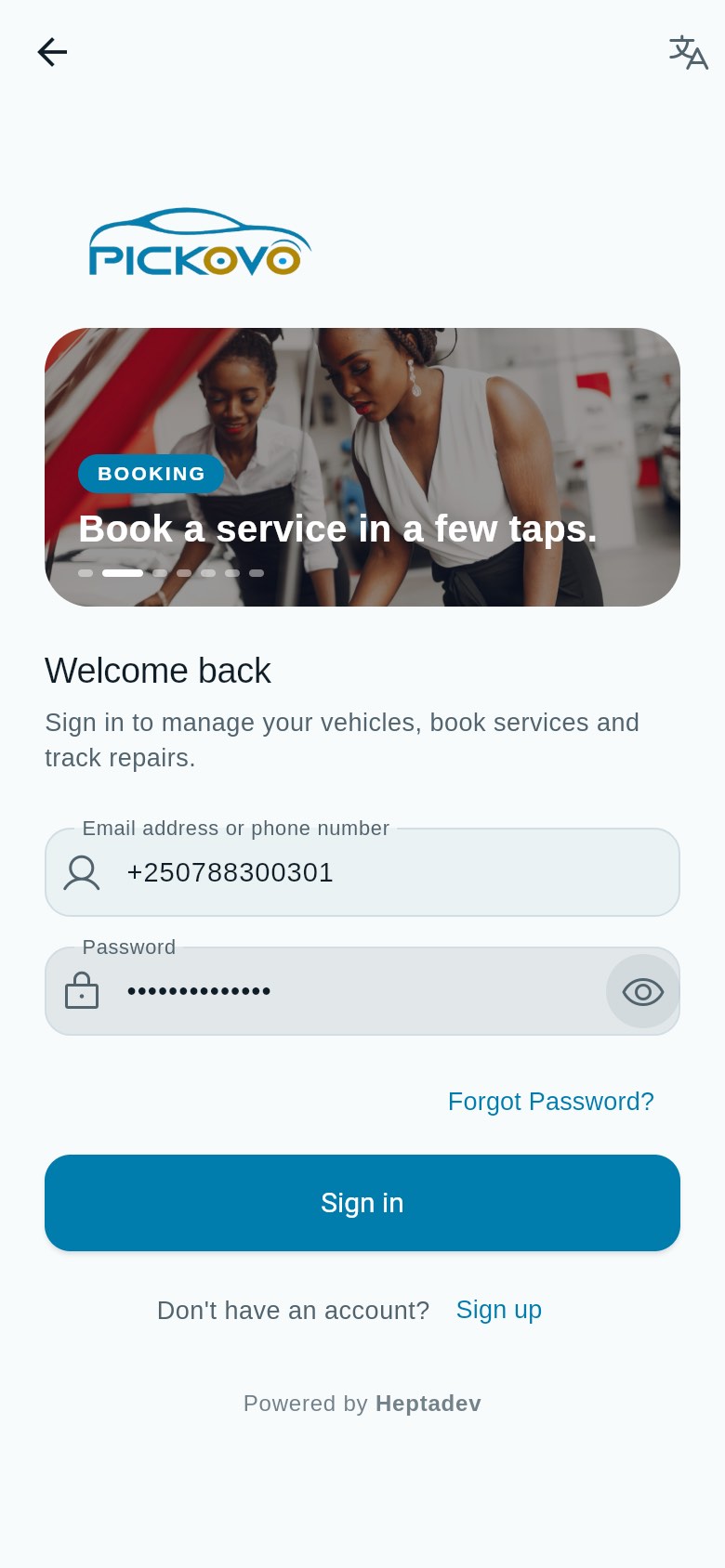
Figure 1a: The app's sign-in screen. Workshop photos at the top change every few seconds; the icon at the top right changes the language.
Good to know:
- Use the same email or phone number and password as on the web.
- Never set a password? Your fleet manager can send you an invite on WhatsApp from Fleet → Users. Open the link, set your password, and then sign in to the app.
- Signing in with your phone number only works once your phone is verified. If it isn't, the Account tab shows Verify phone. Until you verify it, sign in with your email.
- Forgot your password? Tap Forgot password? on the sign-in screen.
- After 10 wrong passwords in 15 minutes, sign-in is paused for that account. Wait and try again, or use Forgot password?.
Signing in on the web
The web sign-in page is at https://fleet.heptadev.com/en/login (use /fr/login for French or /rw/login for Kinyarwanda, or switch with the EN / FR / RW buttons at the top right).
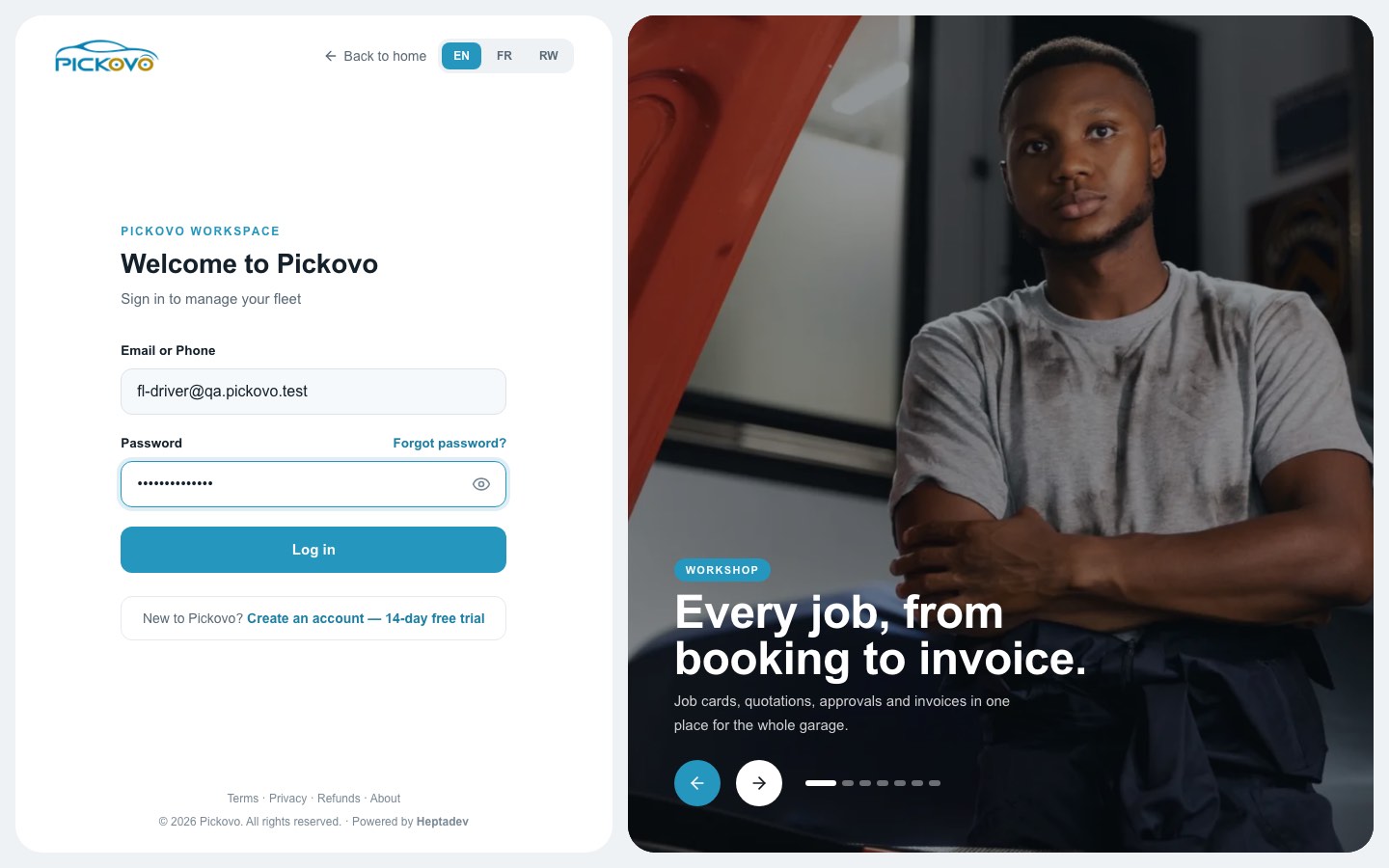
Enter your Email or Phone and Password, then click Log in. Click the eye icon to show the password as you type it. Web sign-in takes a driver to the driver web portal, or to the "use the app" page once the portal has been switched off (see C.8).
First look: driver mode in the app
The Home tab opens first. At the top it shows "Hello,
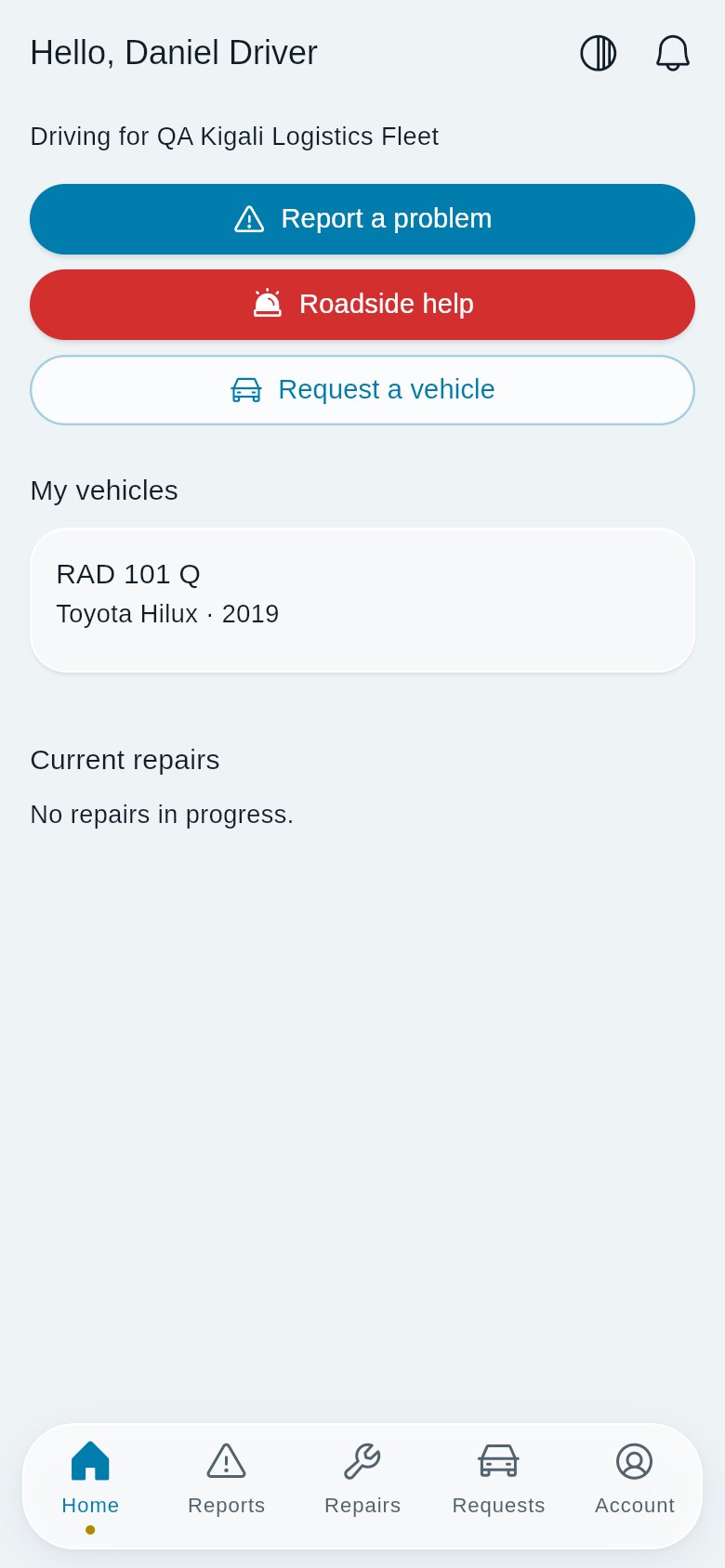
Navigation. The bar at the bottom has five tabs:
| Tab | What it is for |
|---|---|
| Home | Quick actions, your vehicles and repairs in progress |
| Reports | Problems you have reported, and open problems on your current vehicle |
| Repairs | Repair jobs on your vehicles |
| Requests | Your requests for a vehicle |
| Account | Your details, licence, emergency contacts, notifications, language, logout |
At the top of Home there are two icons: the light/dark theme switch and the notification bell, which shows a count of unread notices.
C. Features
C.1 Home
Purpose: see your vehicles and repairs in progress, and reach the most important actions in one tap.
Buttons and sections (Figure 2):
- Report a problem (blue). Opens the report form (C.2). If no vehicle is assigned to you, the app says "You need an assigned vehicle to report a problem."
- Roadside help (red). Opens roadside help (C.5).
- Request a vehicle (outlined). Opens your vehicle requests (C.4).
- My vehicles. One card per vehicle assigned to you, with its plate, model and year. A card can also show:
- In repair, when the vehicle is with a garage
- Service overdue, Service due soon or Service up to date
- Insurance ends
, when the insurance is ending soon - Next service
and/or Next service at km , when your company has set them If nothing is assigned, the app says: "No vehicle is assigned to you yet. Ask your fleet manager, or request one." - Current repairs. Repairs in progress, each with its stage and a progress bar. Tap one to open it (C.3). With none, it says "No repairs in progress."
Pull down on the screen to refresh. If the details cannot load, you see "We couldn't load your details." with a Retry button.
C.2 Reports: report a problem and follow it
Purpose: tell your fleet manager about a problem with a vehicle, then follow what happens to your report.
To report a problem:
- Tap Report a problem on Home, or the + Report a problem button on the Reports tab.
- Vehicle: choose the vehicle. If you have only one, it is already chosen.
- What's wrong? Describe what you noticed: noises, warning lights, when it happens. This field is required, up to 1,000 characters.
- How urgent is it? Choose Low, Medium, High or Critical: not safe to drive. The default is Low.
- Photos (optional): tap Add photo, then Take a photo or Choose from gallery. You can add up to 5 photos, and tap the × on a photo to remove it. On the web version of the app only Choose from gallery is offered.
- Tap Send report. While the photos upload, the button shows "Uploading photos 1/3…" and then "Sending…".
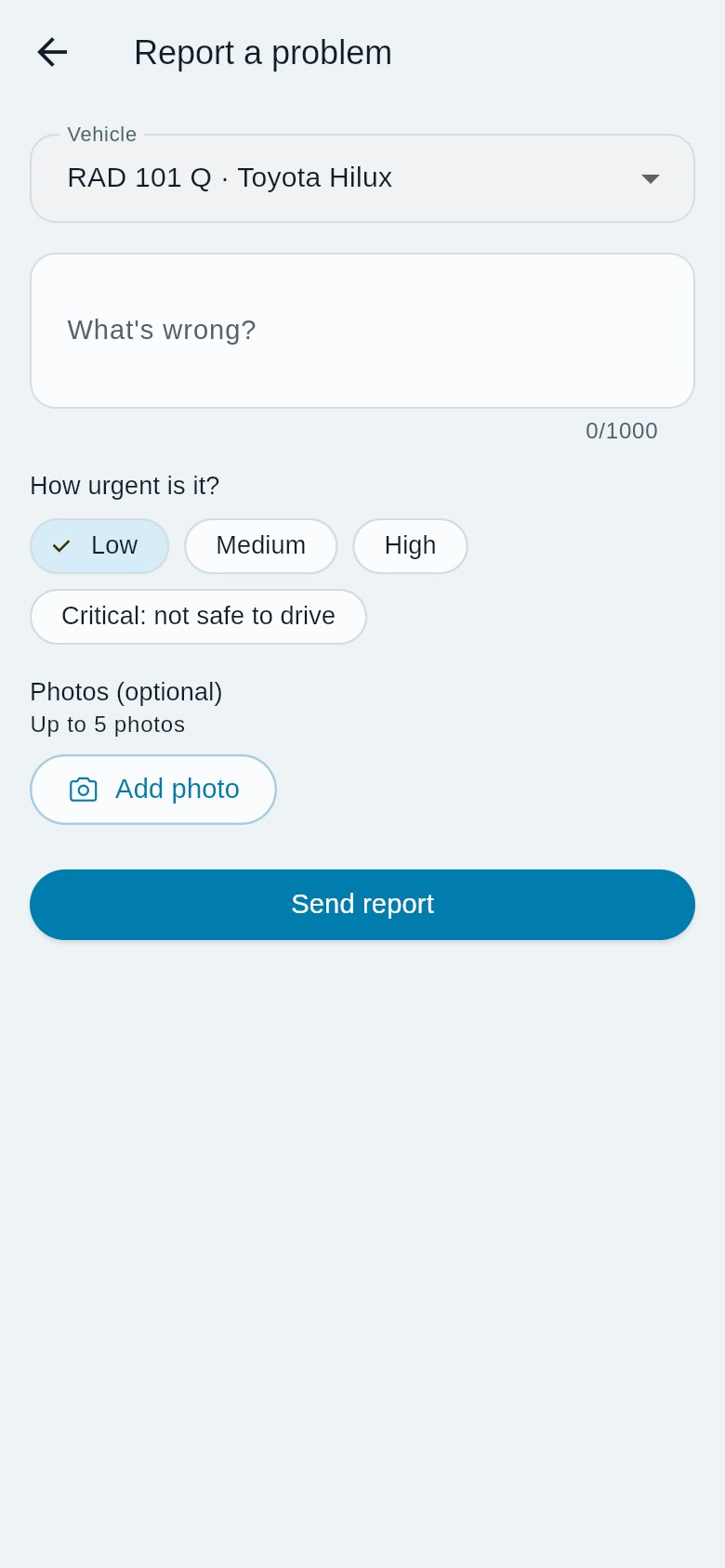
Figure 2a: The Report a problem form, with your assigned vehicle (RAD 101 Q) already chosen and urgency set to Low.
Expected outcome: "Report sent. Your fleet manager will review it." Your fleet managers are notified. Reporting does not send the vehicle to a garage by itself. Your fleet manager decides that.
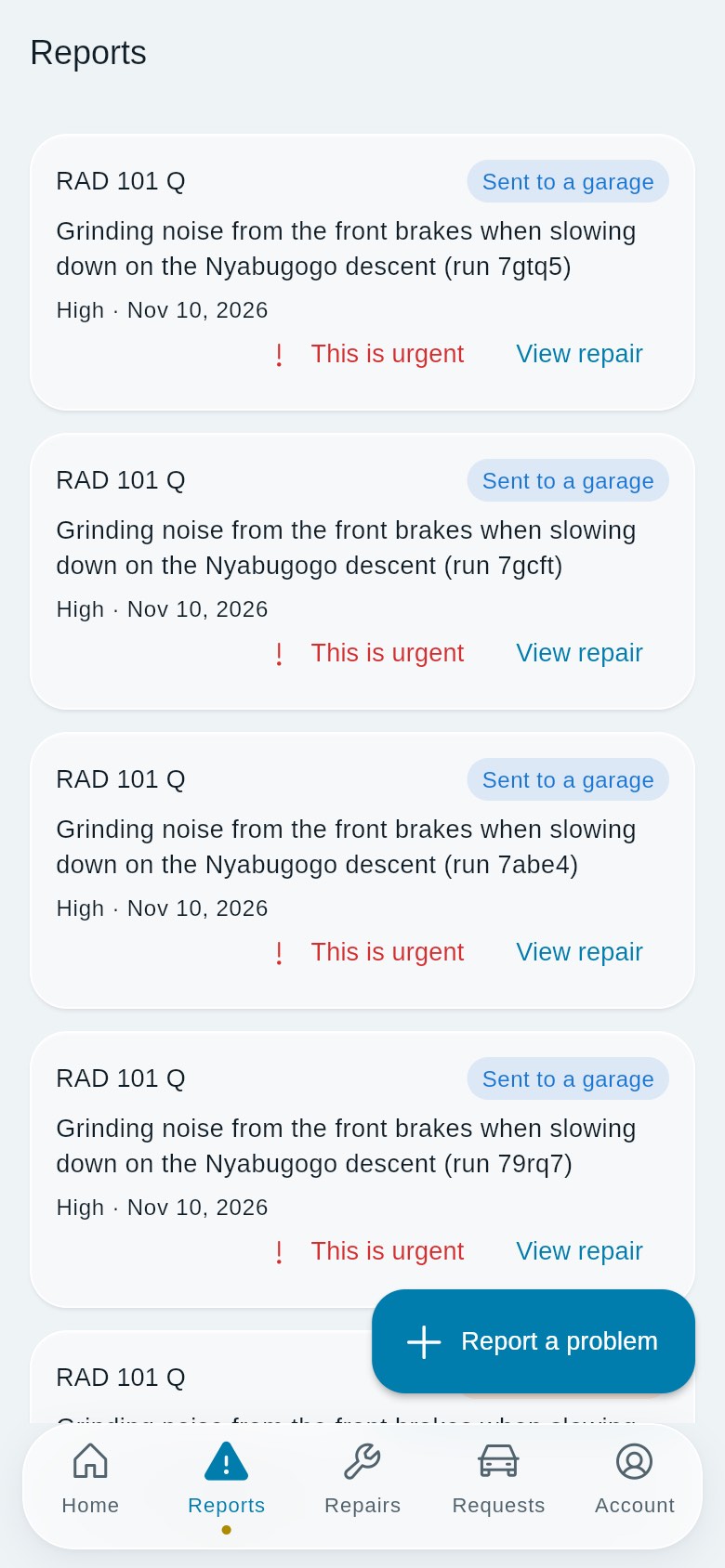
Reading the Reports list. Each card shows the plate, your description, the urgency and the date, plus a status label:
| Status | Meaning |
|---|---|
| Waiting for review | Your fleet manager has not decided yet |
| Approved | Your manager accepted the report |
| Declined | Your manager declined it. The reason is shown as "Declined: …" |
| Sent to a garage | Your manager created a repair job for it. Tap View repair to follow it |
The list also shows open problems on the vehicle you drive now that someone else reported. These are marked Reported by your company.
This is urgent. If something gets worse, tap This is urgent on your report and confirm "Mark this report as urgent?". The report's urgency becomes Critical, and your fleet managers are told straight away. The button appears only on your own reports that are not already Critical and have not been declined.
C.3 Repairs: follow a repair
Purpose: see where a repair on your vehicle stands, without needing to call the garage.
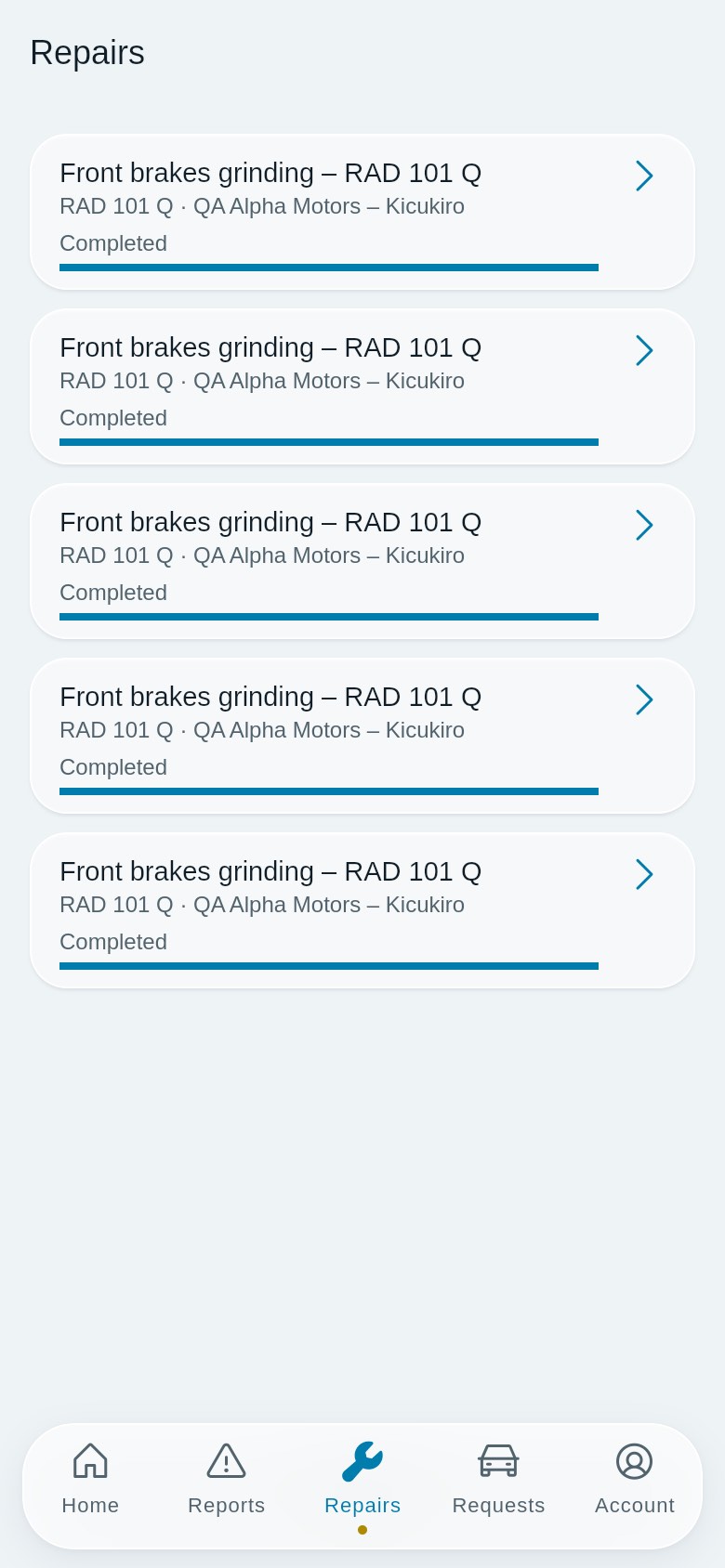
Steps:
- Open the Repairs tab. It lists repair jobs on your vehicles and jobs raised from your reports, most recently updated first. You can also open one from Current repairs on Home or View repair on a report.
- Tap a job to open the Repair screen.
What you see on the Repair screen: the job title, plate, garage and last update date, then the garage's live tracker: the current stage and job reference, a progress bar, and (when the garage provides them) the bay, the mechanic, a timeline and photos. Tap a photo to view it full screen. While the work is under way, the screen refreshes by itself. If the job is paused, the reason is shown, for example "Paused: waiting for parts". When the garage has sent a quotation, the stage reads Waiting for company approval.
Restrictions:
- No prices. The app gets no quotation, invoice, payment or amount for your repairs. The QA workflow test confirmed this: while the quotation was waiting for approval, the driver saw the stage "Waiting for company approval" and no money fields.
- Nothing to approve. The screen notes "Your fleet manager approves the work." Quotations are approved by your fleet manager on Fleet web.
C.4 Requests: ask for a vehicle
Purpose: ask your company to assign you a vehicle.
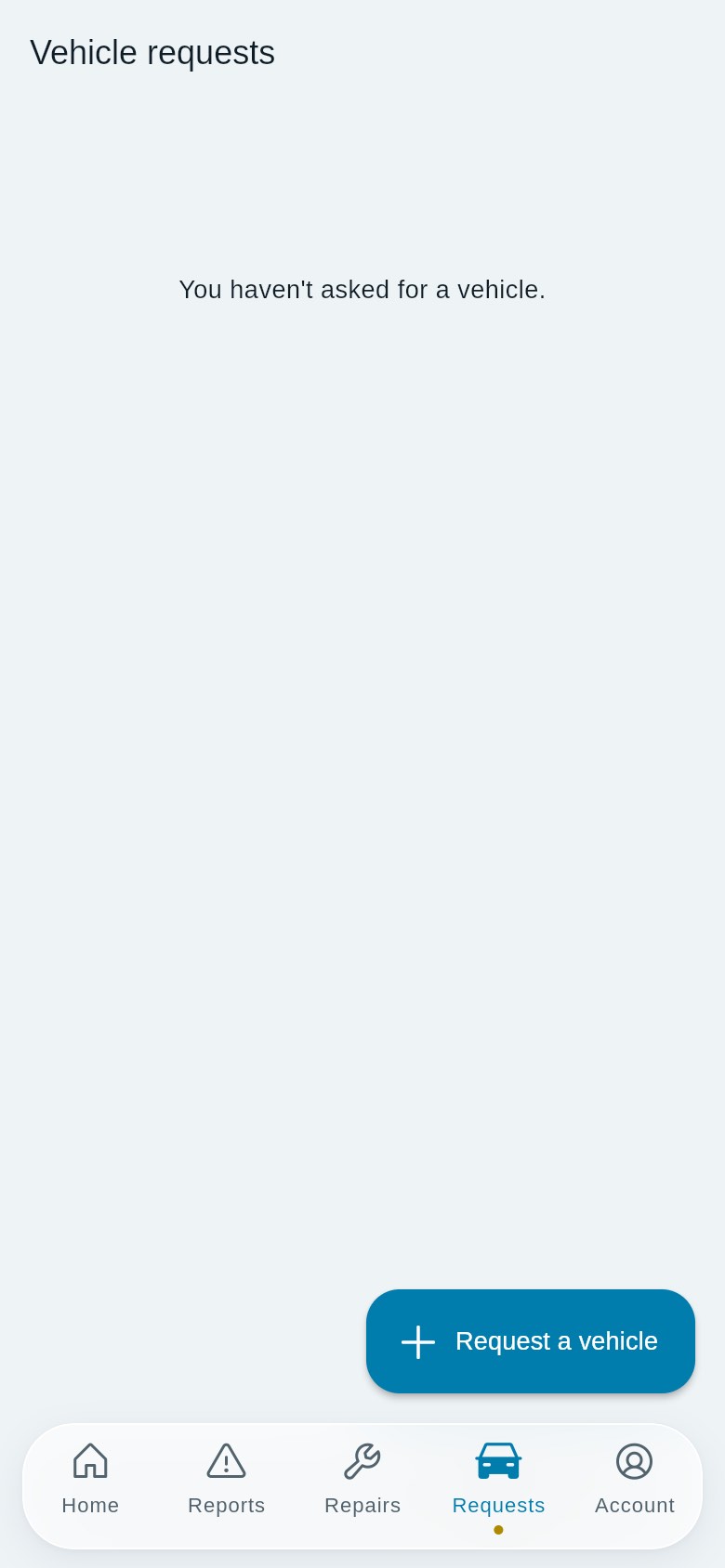
Steps:
- Open the Requests tab, or tap Request a vehicle on Home.
- Tap + Request a vehicle.
- Vehicle: leave Any available vehicle, or choose one of your company's vehicles from the list.
- Message for your manager (optional): up to 1,000 characters.
- Tap Send request.
Expected outcome: "Request sent." The request appears in the list as Pending. When your manager answers, it changes to Approved or Declined, and any reply appears as "Manager's note: …".
Restriction: you can have only one pending request at a time. If you already have one, the app shows "You already have a pending request". Wait for your manager to answer it first.
C.5 Roadside help
Purpose: get a verified roadside helper to come to you when a company vehicle breaks down or after an accident. Pickovo dispatches it the same way as for car owners, starting with the nearest verified helper.
Steps:
- On Home, tap Roadside help, then Get help now on the "Need help on the road?" card.
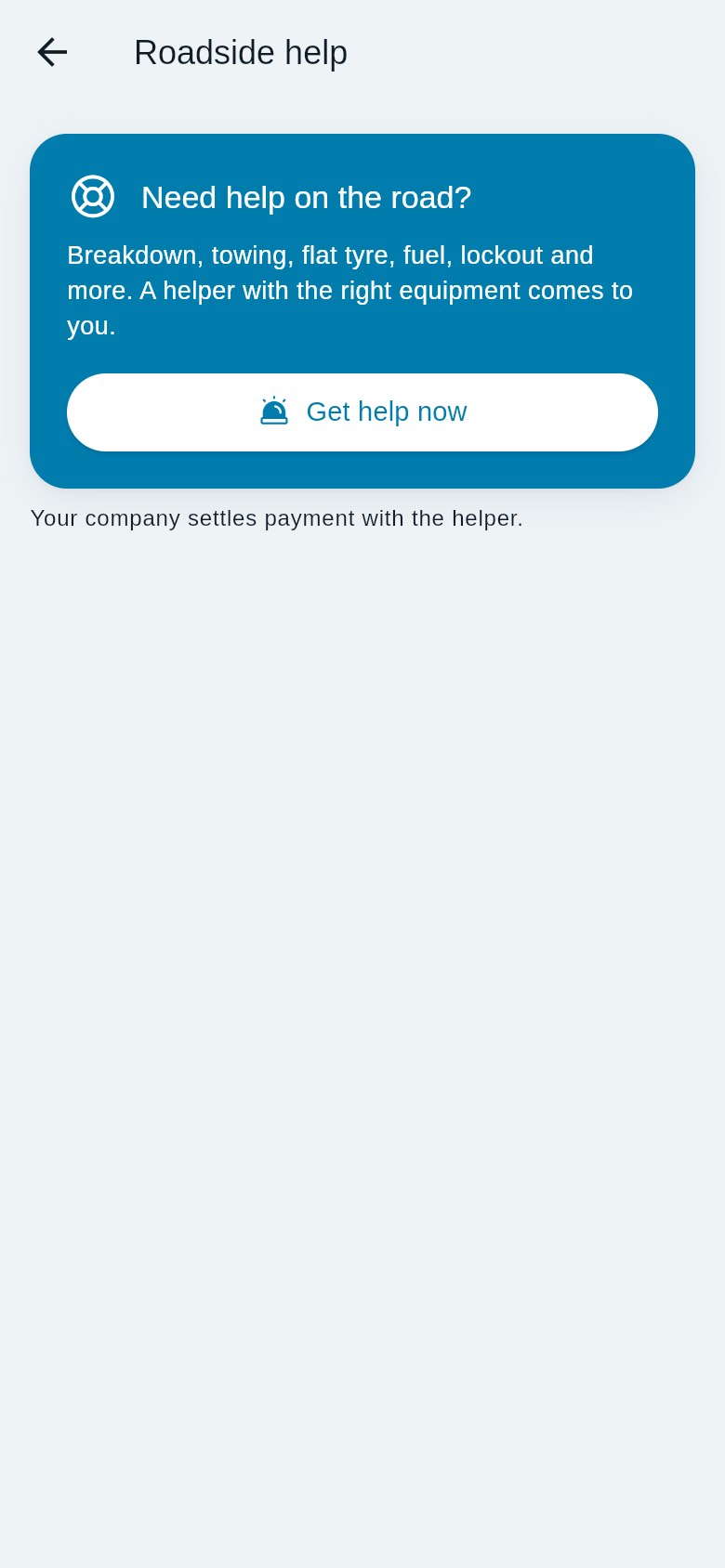
Figure 5a: Roadside help in driver mode. The line under the card says who pays the helper; here, "Your company settles payment with the helper." 2. What's wrong: choose a service: Breakdown, Towing, Jump start, Flat tyre, Fuel delivery, Lockout, Mobile mechanic, Emergency diagnostics or Vehicle recovery. After an accident, choose I've had an accident: an urgent tow is sent ahead of other requests. If anyone is hurt, call 912 (ambulance) or 112 (police) first. 3. Your vehicle: choose the company vehicle that needs help. 4. Where are you? The app uses your phone's current location. If location is off, it asks you to turn it on or allow it. You can add a note for the helper. For a tow, choose which garage to take the vehicle to, or Leave it here once it's out. 5. Review and request: check the details and tap Request help. 6. The live tracker opens. It shows the status: Looking for help nearby → Help accepted → Help is on the way → Help has arrived → Done.
Who pays the helper depends on your company's setting, and the Roadside help screen tells you which applies:
- Company pays: "Your company settles payment with the helper." You don't see the price.
- Driver pays: "You pay the helper directly; you'll see the price when they accept."
- Your choice: on the review step you pick Company pays or I pay under "Who pays the helper?". You see the price only if you choose to pay.
In every case your fleet managers are told about the request, with the price.
Accidents and emergency contacts. If you report an accident, the review step lists your emergency contacts, and after sending you can message them on WhatsApp. Add contacts in advance under Account → Emergency contacts. To practise, tick This is a test (no real accident). The helper and your contacts then see that it is a test.
Your requests. The Roadside help screen lists Your current request (with Track and an × to cancel it) and Past requests. Tap a request to open its tracker.
C.6 Account
Purpose: check your details, keep your licence details up to date, and manage notifications and language.
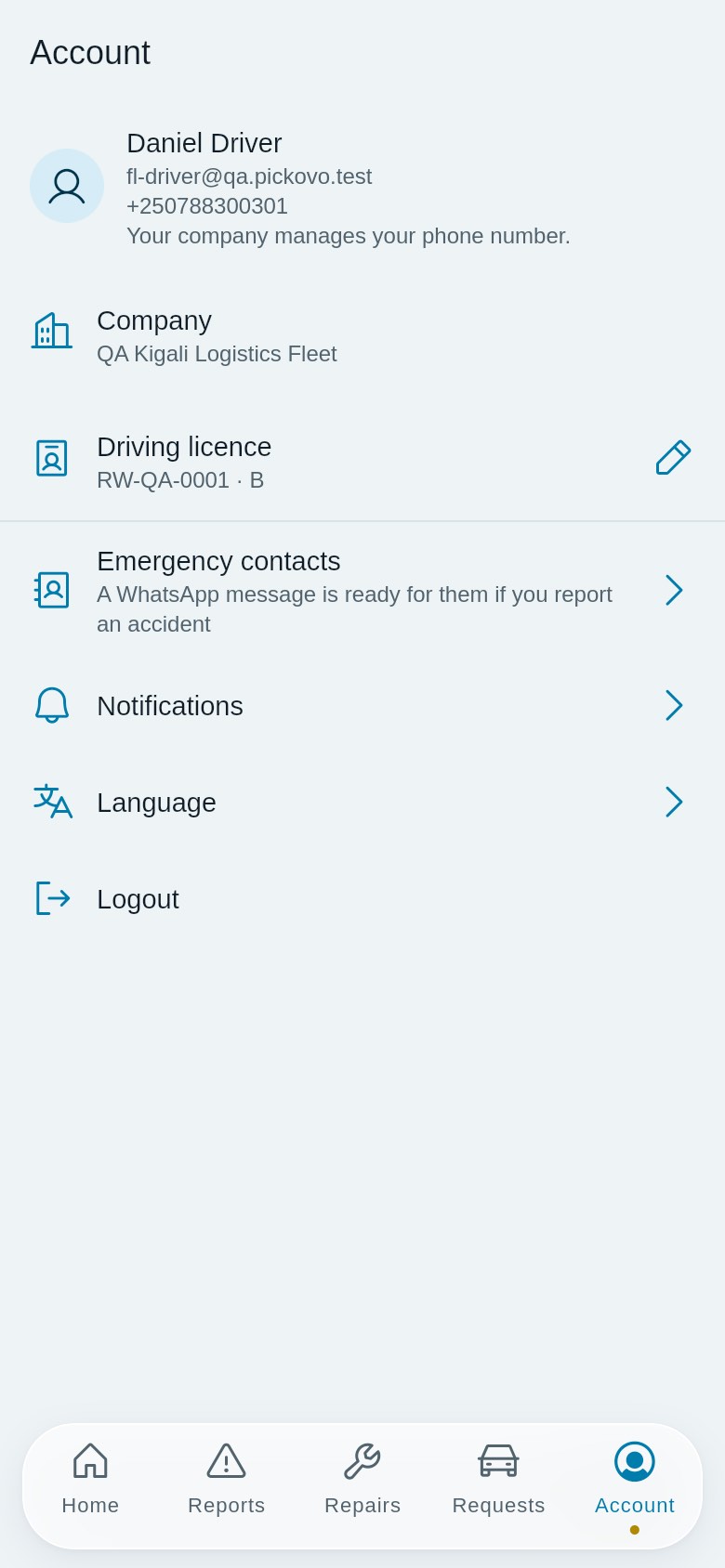
| Item | What it does |
|---|---|
| Your name, email and phone | Shown, not editable. "Your company manages your phone number." Ask your fleet manager to change these |
| Company | The fleet company you drive for |
| Driving licence (pencil icon) | Opens a form with Licence number and Category (for example B), up to 40 characters each. Tap Save to see "Licence details saved." |
| Verify phone | Shown only while your phone is not verified. Verify it to sign in with your phone number |
| Emergency contacts | People who get a ready-made WhatsApp message if you report an accident |
| Notifications | Fleet notices about your reports and repairs. Opening the list marks them as read |
| Language | Change the app language |
| Logout | Sign out of the app |
C.7 Notifications
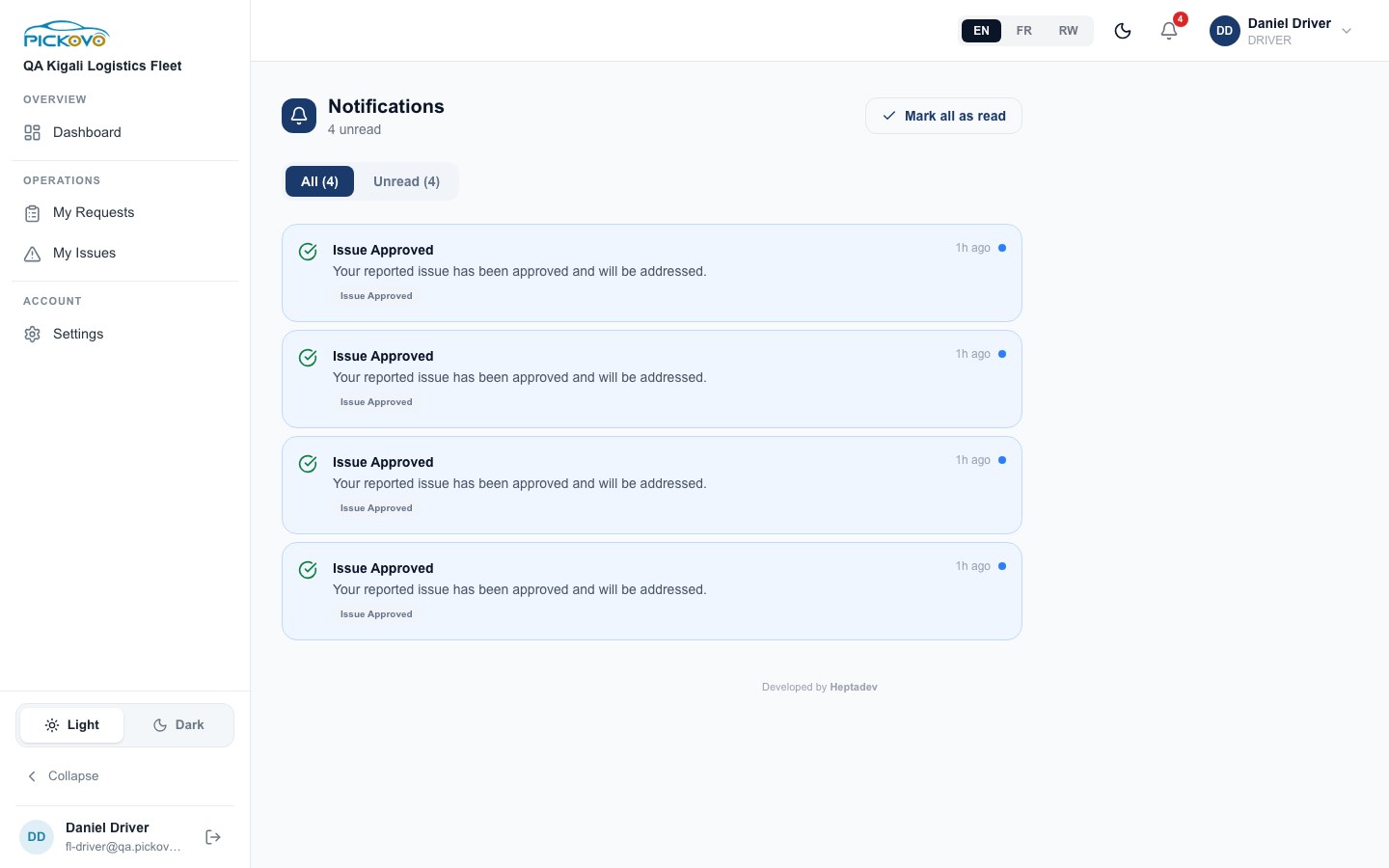
In the app, open notifications from the bell on Home or from Account → Notifications. You get notices about decisions on your reports and progress on repairs.
On the web, click the bell at the top right. The Notifications page has All and Unread tabs and a Mark all as read button.
C.8 The driver web portal (being retired)
Status of the portal. Pickovo is retiring the driver web portal in favour of the app's driver mode. According to the retirement plan (docs/DRIVER_PORTAL_RETIREMENT.md, status 24 October 2026):
- Everything needed for retirement is built, but the portal is still switched on, and nothing has been removed.
- There is no fixed date. The portal is switched off only once the app with driver mode has been released to drivers. When this guide was verified, driver mode was not yet in a store build.
- Announcement: once the store links are configured, every portal page shows a banner, "The Pickovo app is here for drivers", with App Store / Google Play buttons. It is planned to stay up for at least two weeks.
- Redirect: when a Pickovo administrator switches the Driver web portal off, opening any driver page (including the page you land on after web sign-in) takes you to a "Drivers now use the Pickovo app" page instead. That page has the store links, or "Ask your fleet manager for the link to download the Pickovo app." It also has the sign-in hints and a Sign out button. The switch can be turned back on at once.
- Your data stays. Retiring the portal removes web pages only. Your account, vehicle assignments, reports, requests and repair history are kept, and you sign in to the app with the same email or phone and password.
Until then, the portal works as described below.
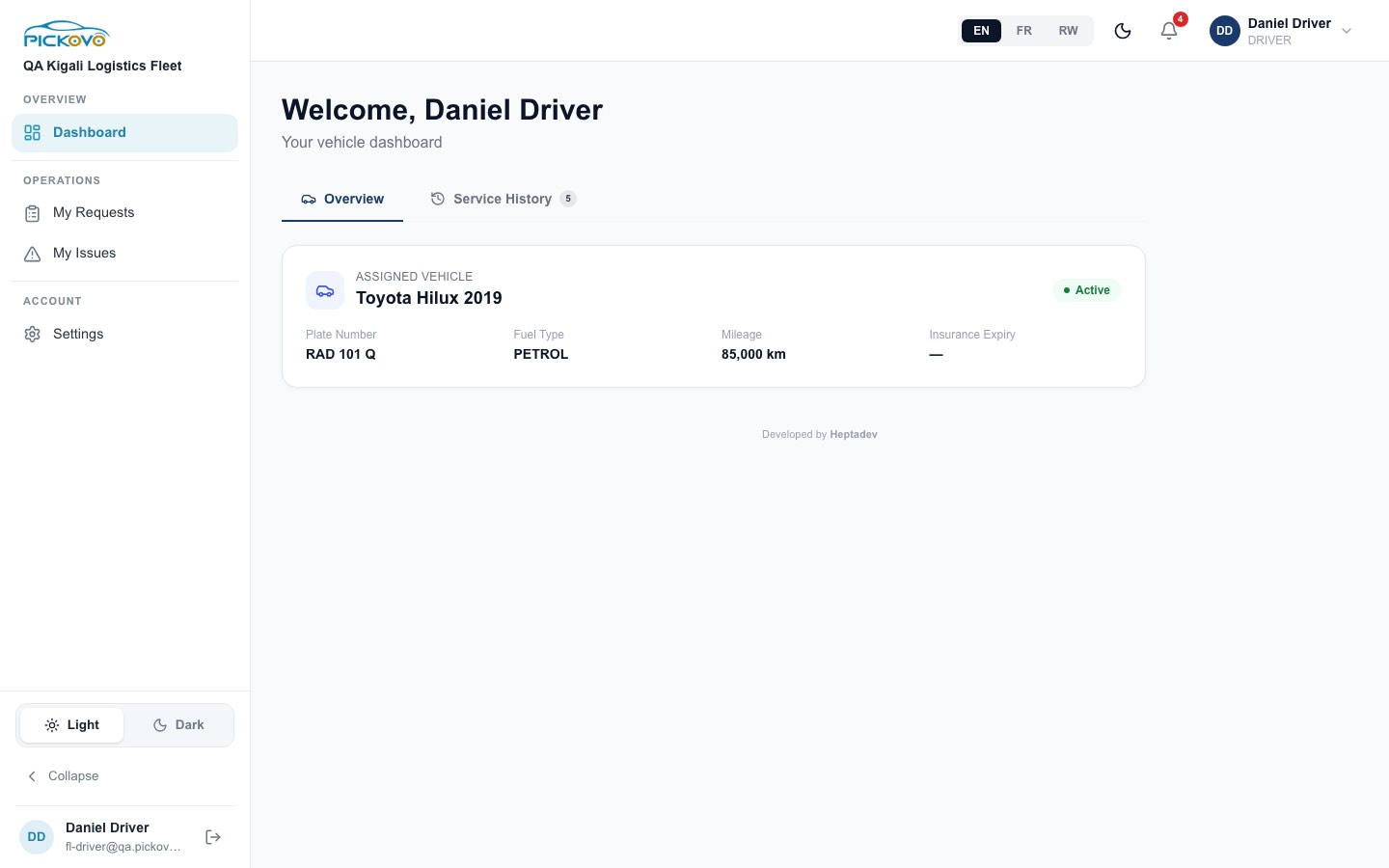
Layout. The left sidebar has Dashboard, My Requests, My Issues and Settings, plus the Light / Dark switch, Collapse (shrinks the sidebar to icons; point at an icon to see its name), and your name and email with the log-out button at the bottom. The top bar has the EN / FR / RW language switch, a theme toggle, the notification bell and your name.
Dashboard
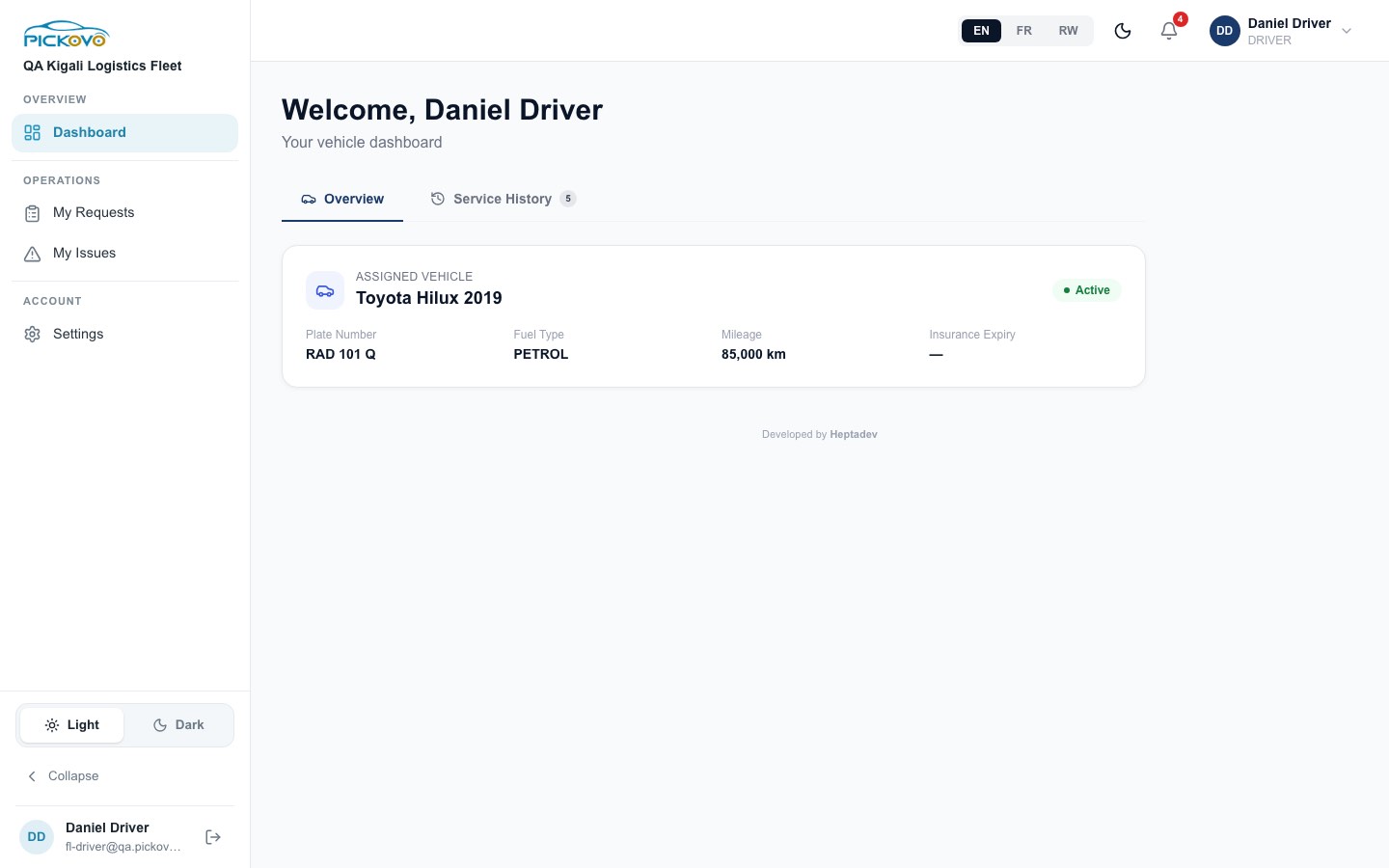
- Overview tab: your Assigned vehicle with its status (for example Active), Plate Number, Fuel Type, Mileage and Insurance Expiry. If no vehicle is assigned, it shows Request Vehicle Assignment instead, or a note if you already have a pending request. Your Request History appears here when you have made requests.
- Service History tab (the number shows how many jobs): repair jobs on your vehicles, with the title, plate, garage, date and status.
- Note: unlike the app, this web tab also shows the invoice total and invoice status when a job has an invoice.
My Issues
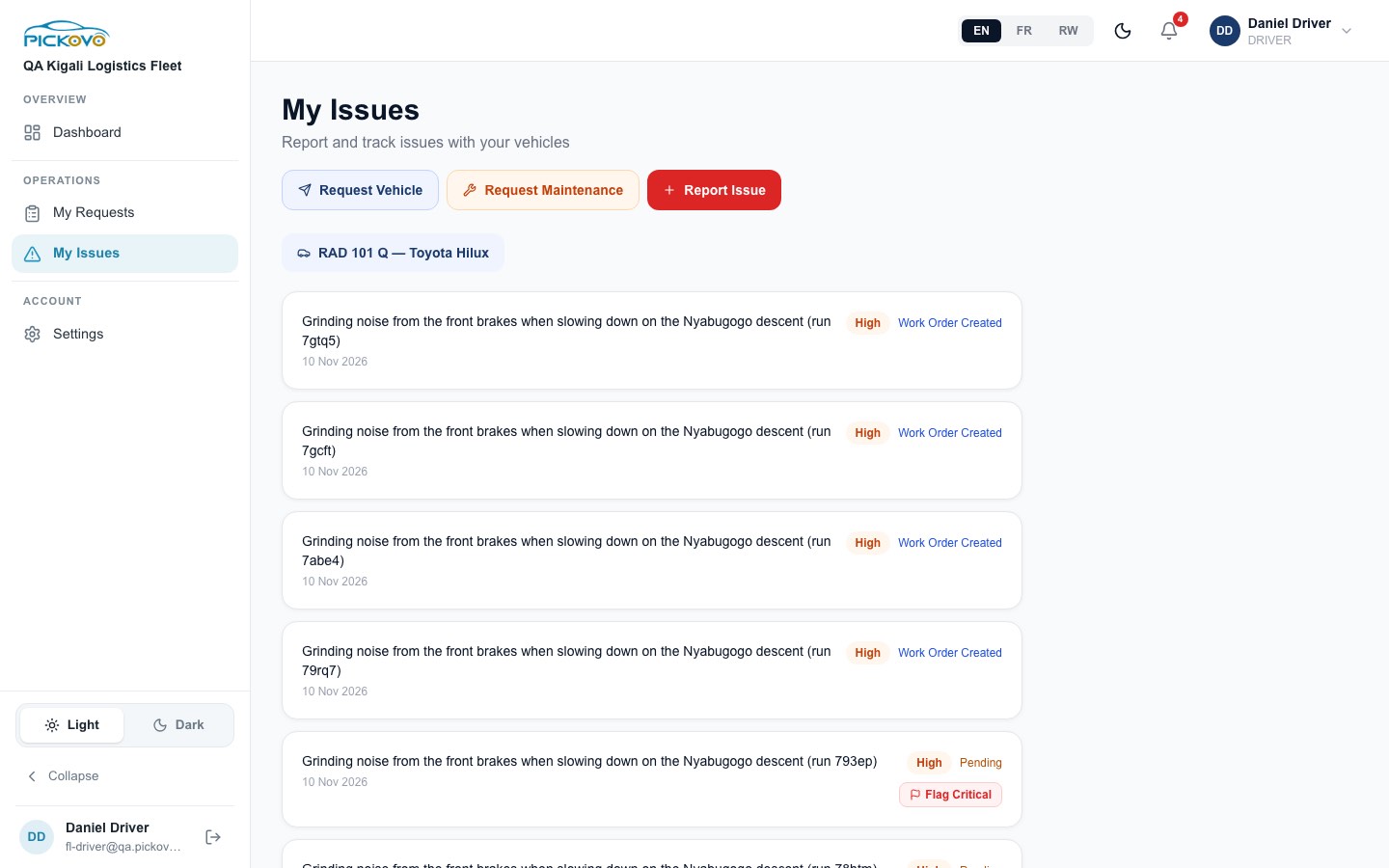
- Report Issue: choose an Urgency (Low, minor, non-urgent; Medium; High; Critical, vehicle unsafe to drive), write a Description, then submit. You cannot attach photos on the web. Use the app for that.
- Request Maintenance: sends a Medium-urgency issue with a pre-filled description that you can edit under Details / Notes. "Your fleet manager will be notified and can schedule maintenance."
- Request Vehicle: the same vehicle request as on My Requests.
- Each issue shows its urgency and a status: Pending, Approved, Declined or Work Order Created ("Sent to a garage" in the app).
- Flag Critical: shown on your Pending issues that are not already Critical. It raises the issue to Critical, and the issue then shows Flagged Critical.
- If you have more than one vehicle, choose the vehicle at the top first.
My Requests
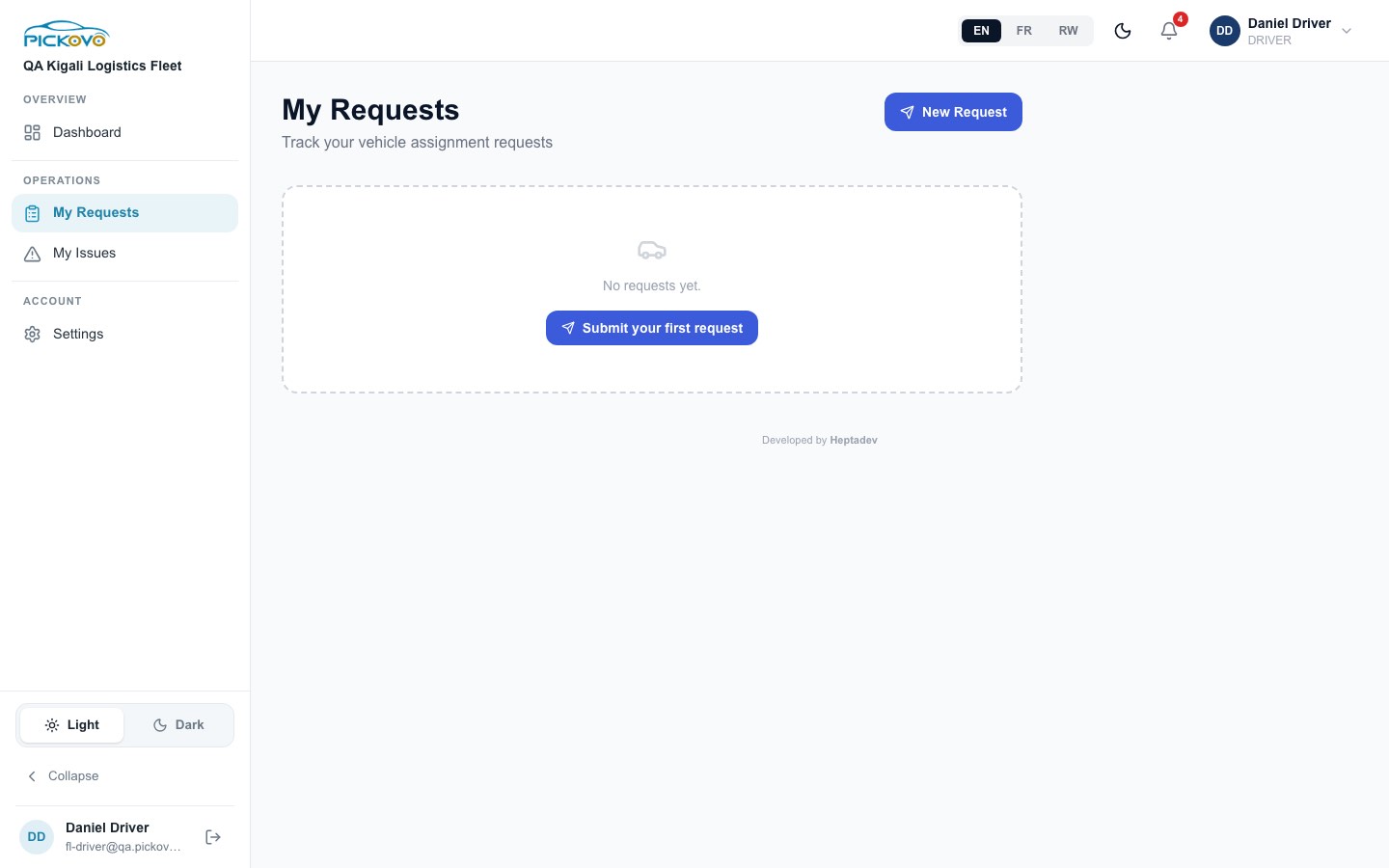
Click New Request (or Submit your first request). Choose a Preferred Vehicle or leave "No preference, any available vehicle", add an optional message, and click Submit Request. Each request shows its status, the manager's note, who responded and when. While a request is pending, the button is hidden and a notice explains that you must wait for it to be resolved.
Settings
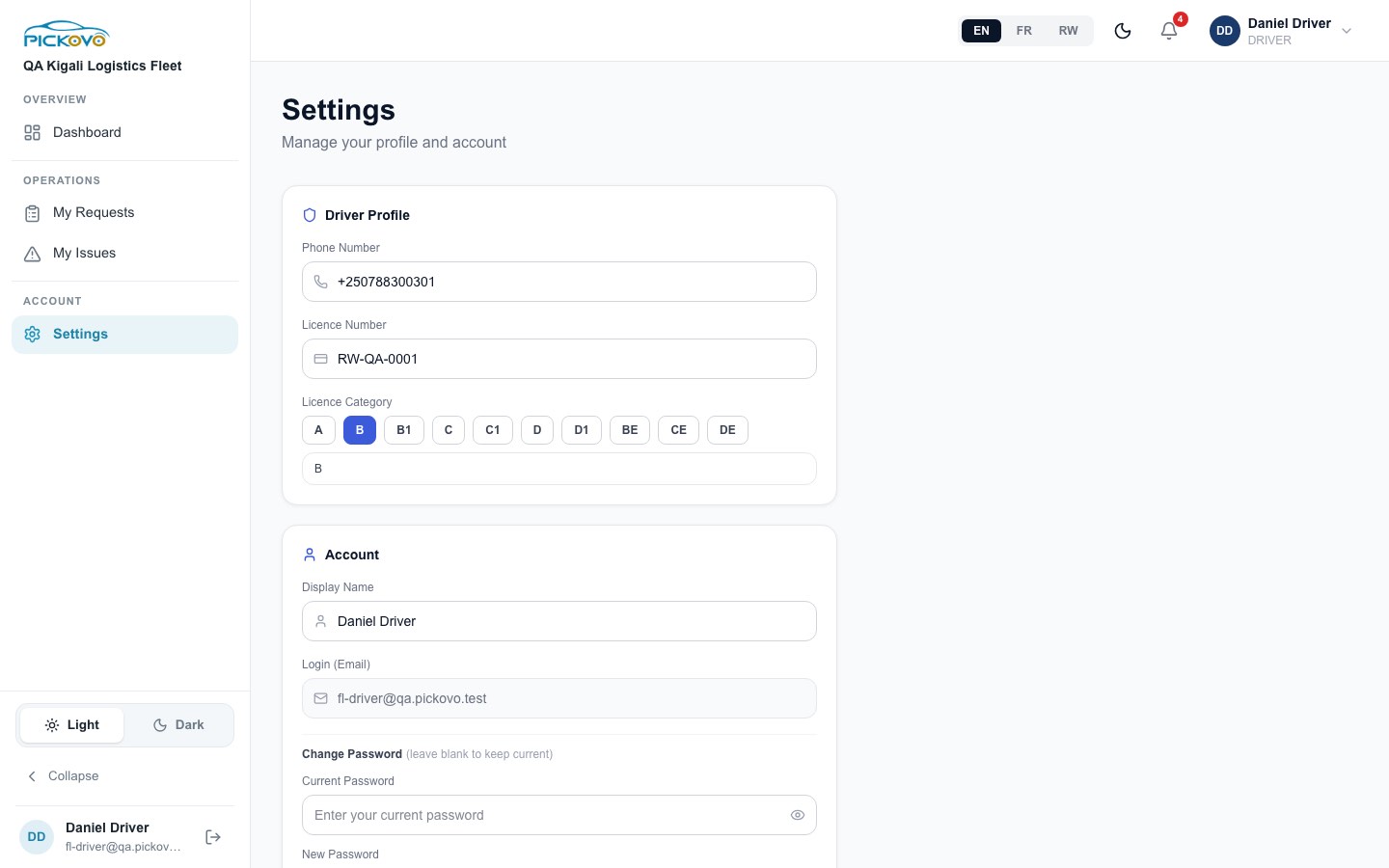
- Driver Profile: Phone Number, Licence Number and Licence Category. Pick a category button (A, B, B1, C, C1, D, D1, BE, CE, DE) or type a custom one.
- Account: Display Name, your Login (Email) (read-only) and Change Password. Leave the password fields blank to keep your current password. To change it, enter your Current Password and a New Password.
- Click Save Changes. You see "Saved successfully".
In the app, your phone number is managed by your company and cannot be edited there.
D. What you can and cannot do
| Area | View | Create | Edit | Delete | Approve | Notes |
|---|---|---|---|---|---|---|
| Your assigned vehicles | Yes | - | - | - | - | Assigned by your fleet manager |
| Problem reports (issues) | Yes own + open ones on your current vehicle | Yes | Raise your own to Critical only | - | - | Managers approve or decline |
| Repairs on your vehicles | Yes stage, timeline, photos | - | - | - | - | No prices in the app |
| Quotations and invoices | , (app) | - | - | - | - | Approved and paid by your fleet manager |
| Vehicle requests | Yes own | Yes one pending at a time | - | - | - | Managers approve or decline |
| Roadside help | Yes own | Yes | - | Cancel while open | - | Price shown only if you pay |
| Licence details | Yes | - | Yes | - | - | App and web |
| Name, email, phone (app) | Yes | - | - | - | - | Company's records |
| Notifications | Yes | - | Mark read | - | - |
Pages you can open on the web (measured in the QA permission matrix): the four driver pages (/driver, /driver/issues, /driver/requests, /driver/settings), /notifications, /settings, /settings/notifications, /settings/referral and the public /driver-app page.
Cannot access: the fleet manager workspace (/fleet/...), garage, billing, documents, spare-parts, regulatory, TIP and superadmin pages. Opening one sends you back to your own home page.
E. Common workflows
E.1 A breakdown becomes a garage repair (workflow W1, your part)
This is the flow the QA team tested from start to finish on 10 November 2026.
- You: sign in to the app (driver mode).
- You: Report a problem on RAD 101 Q, for example "Grinding noise from the front brakes", urgency High, and add photos. The report shows Waiting for review.
- Fleet manager: gets a notification, approves your report (you get an "Issue Approved" notice) and sends the vehicle to a garage. Your report now shows Sent to a garage.
- Garage: accepts the job, a mechanic diagnoses it, and the garage sends a quotation. Under Repairs, your job shows Waiting for company approval, with no amounts.
- Fleet manager: approves the quotation. The job moves to in progress, and your vehicle card shows In repair.
- Garage: does the work, passes the quality check, and invoices your company. The fleet manager's company pays. You follow the stages under Repairs until it reads Completed.
- You: collect the vehicle as arranged with your manager. On the web, the job also appears under Service History.
E.2 Getting worse on the road: escalate
- You reported a Medium problem, but it is getting worse.
- Open Reports, tap This is urgent on that report and confirm.
- The report becomes Critical, and your fleet managers are notified at once. If you can't drive safely, stop and use Roadside help.
E.3 Breakdown on the road
- Pull over safely. If anyone is hurt, call 912 or 112 first.
- Home → Roadside help → Get help now.
- Choose the service (or I've had an accident), the vehicle and your location. For a tow, choose the garage.
- Request help, then follow the tracker until Help has arrived and Done.
- Your fleet managers are told automatically. If your company pays, you don't handle money.
E.4 Asking for a vehicle
- Requests → + Request a vehicle.
- Choose a vehicle or Any available vehicle, add a message (for example, why and for how long), and tap Send request.
- Wait for Approved or Declined and the manager's note. Once a vehicle is assigned to you, it appears under My vehicles on Home.
F. Troubleshooting
| Problem | Likely cause and fix |
|---|---|
| "You need an assigned vehicle to report a problem." | No vehicle is assigned to you. Ask your fleet manager, or send a vehicle request |
| "You already have a pending request" | Only one pending vehicle request is allowed. Wait for your manager's answer |
| No This is urgent button on a report | It only appears on your own reports that are not already Critical and not declined. A declined report cannot be escalated ("Your company declined this report, so it can't be escalated.") |
| I can't see the price of a repair | By design: drivers are not shown quotation or invoice amounts in the app. Ask your fleet manager |
| A repair says "Waiting for company approval" for a long time | The garage's quotation is waiting for your fleet manager. Contact them |
| Repair screen says "The garage hasn't opened a job card for this request yet." | The garage has not started the job yet. Check back later |
| Phone sign-in fails | Verify your phone first (Account → Verify phone), or sign in with your email |
| Sign-in paused | After 10 wrong passwords in 15 minutes, sign-in is paused for the account. Wait, or use Forgot password? |
| Never had a password | Ask your fleet manager to send a WhatsApp invite from Fleet → Users |
| "We couldn't load your details." / a list shows an error | Check your connection and tap Retry, or pull down to refresh |
| Roadside: "Location is off on this phone." | Turn on location (or allow it for Pickovo) so nearby help can find you |
| Opening a web page sends you back to your dashboard | That page is not available to drivers. See Section D |
| Web sign-in lands on "Drivers now use the Pickovo app" | The driver web portal has been switched off. Install the app and sign in with the same details |
| I can't change my phone number in the app | Your company manages it. Ask your fleet manager |
G. Security and best practices
- Keep your password private. Don't share your account with other drivers. Each report and request is recorded under your name.
- Lost or shared phone: sign out (Account → Logout), and change your password from another device as soon as you can (web Settings → Change Password). If the app could not reach Pickovo when you signed out, it warns you to change your password.
- Report honestly and promptly. Use Critical: not safe to drive only when the vehicle really is unsafe. Escalation notifies every manager.
- Photos: take photos of the problem only, not of people or documents that don't need to be shared.
- Emergency contacts: keep them up to date, and use This is a test when practising so that nobody is alarmed.
- Safety first: stop the vehicle somewhere safe before using the app, and call 912 / 112 in an emergency before requesting roadside help.
- Keep the app updated. An outdated version may be refused at sign-in until you update it.