
Fleet company · FLEET_MEMBER
Fleet Member
For company staff who need to see the fleet's vehicles, repairs, invoices and costs without managing them.
All names, companies, plates and amounts in the screenshots (for example "Fiona Fleet-Member", "QA Kigali Logistics Fleet", "QA Alpha Motors – Kicukiro", "RAD 101 Q") are fictional test data.
A. Introduction
Your company uses Pickovo to look after its vehicles. A fleet member is a mostly read-only account: you can follow what is happening across the fleet, but the decisions are made by others.
With this role you can:
- see every vehicle in the company, its driver, status, service schedule and repair history
- follow repair jobs at garages, stage by stage
- read and print garage invoices
- read maintenance-cost analysis and fleet reports, and export them
- browse the garage and spare-parts marketplaces
- report a problem on a vehicle
You cannot add or change vehicles or drivers, approve driver reports or garage quotations, send vehicles to a garage, dispute invoices or manage users. Those belong to your company's fleet managers and company admin. Your account is created by one of them.
B. Getting started
Signing in
- Open https://fleet.heptadev.com/en/login in your browser (
/fr/loginfor French,/rw/loginfor Kinyarwanda, or tap EN / FR / RW on the page). - Enter your email address or phone number and your Password.
- Select Log in.
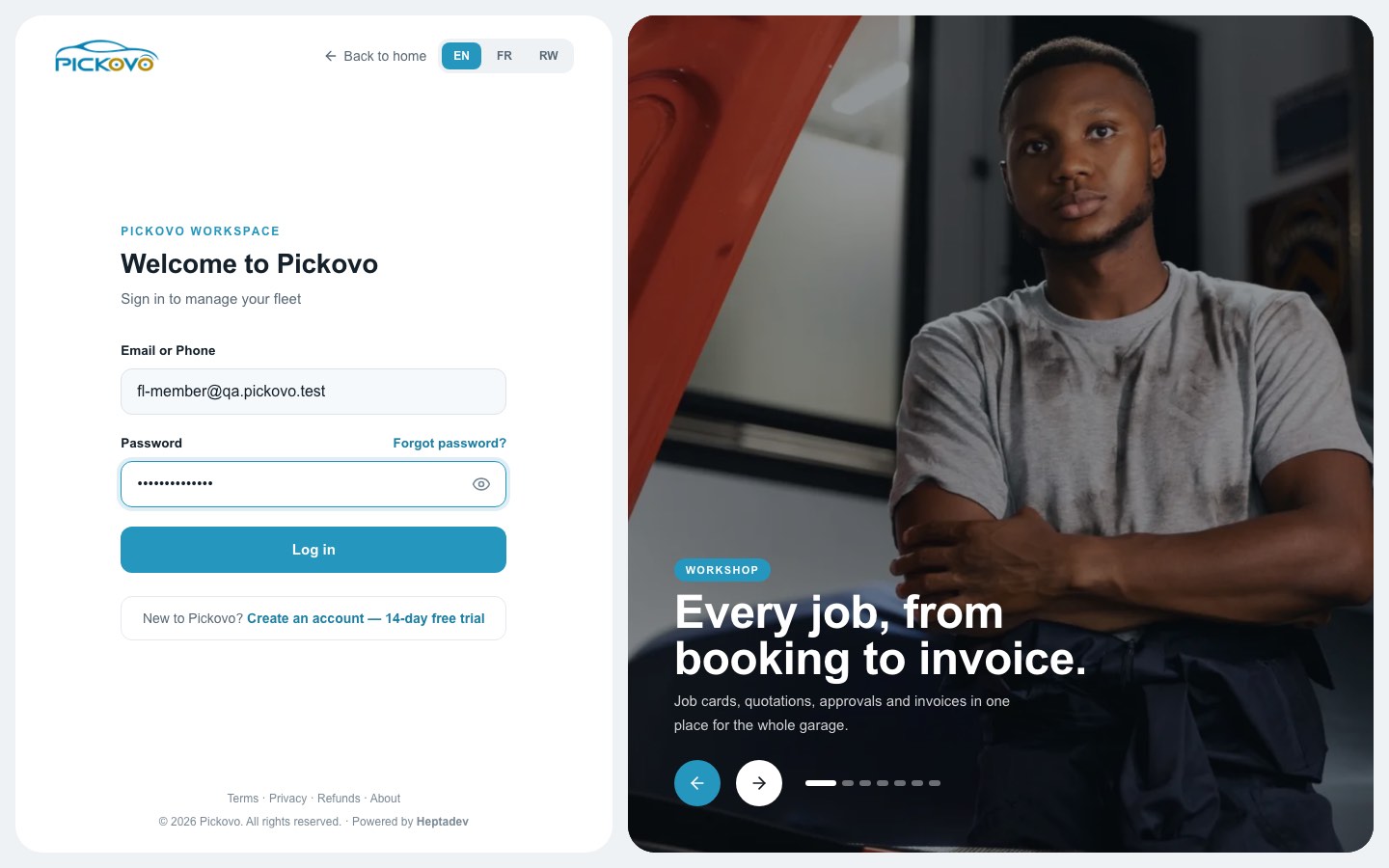
Figure 1: The Pickovo sign-in page.
- Forgot password? lets you reset your password.
- If two-factor authentication is switched on for your account, you are then asked for the 6-digit Authenticator code from your authenticator app.
- After 10 wrong passwords within 15 minutes, sign-in is paused for that account. Wait 15 minutes or reset your password.
Your dashboard
You land on the Fleet Dashboard.
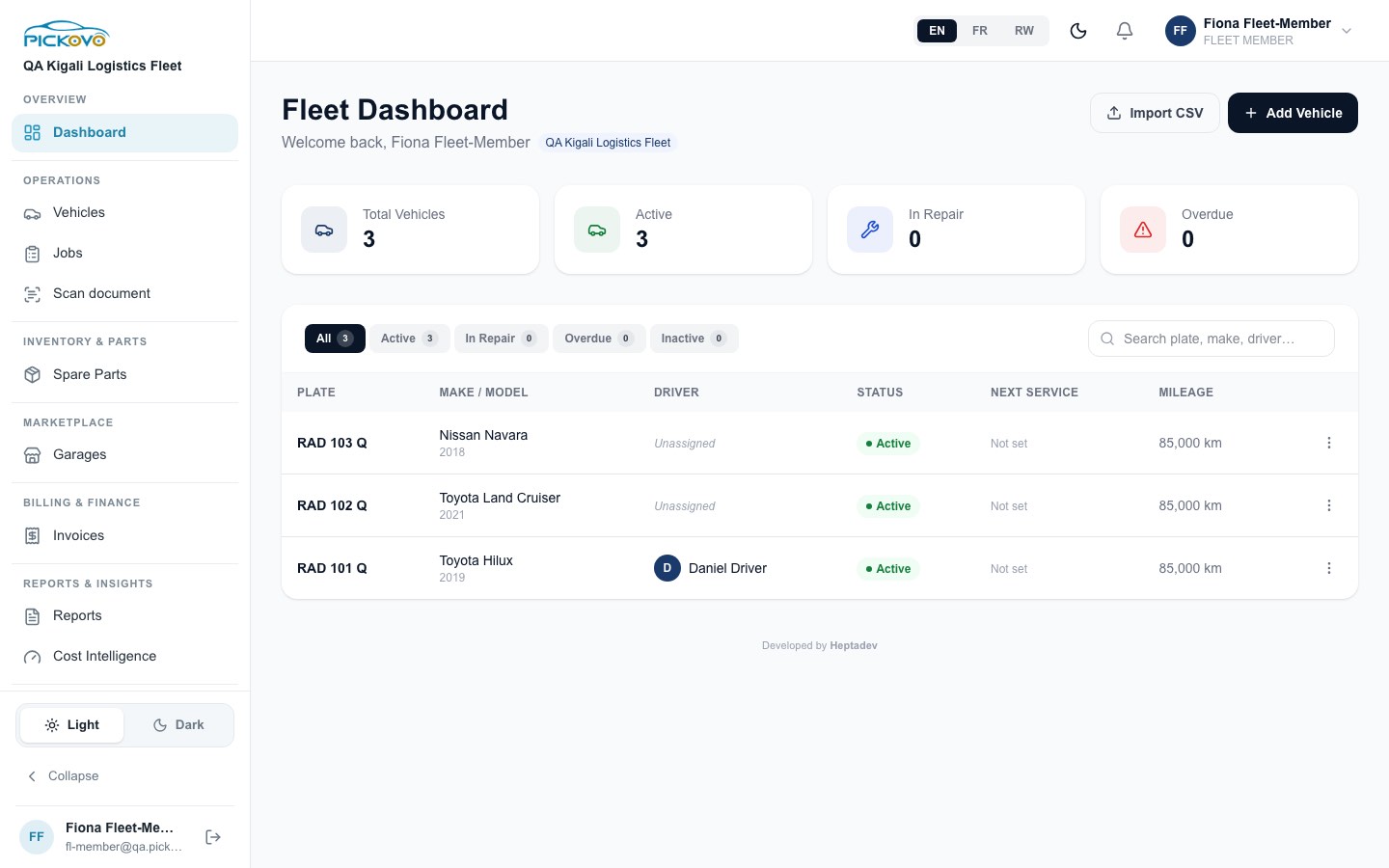
Figure 2: The Fleet Dashboard: vehicle summary cards and the vehicle table.
- Summary cards: Total Vehicles, Active, In Repair, Overdue.
- Tabs (All, Active, In Repair, Overdue, Inactive) and Search plate, make, driver… filter the table.
- In the ⋮ menu on a row, use View details to open the vehicle.
Note: the dashboard also shows Import CSV, Add Vehicle, and Edit / Delete in the ⋮ menu. These are manager actions and do not work for your role. Pickovo refuses them, even if a deleted row seems to disappear until you reload the page. Ask a fleet manager to make vehicle changes.
The top bar and sidebar
- Top bar: EN / FR / RW (language), the moon icon (dark mode), the bell (notifications) and your name (menu with your email and Logout).
- Sidebar (scroll to see all):
| Heading | Items |
|---|---|
| Overview | Dashboard |
| Operations | Vehicles, Jobs, Scan document |
| Inventory & Parts | Spare Parts |
| Marketplace | Garages |
| Billing & Finance | Invoices |
| Reports & Insights | Reports, Cost Intelligence |
| (bottom) | Settings |
At the bottom: the Light / Dark switch, Collapse (shrinks the sidebar to icons; point at an icon to see its name), and your name and email with the log-out button. Scan document turns a photo or upload of a paper document into editable text that you can save or download as a PDF.
C. Features
C.1 Vehicles
Purpose: look up any company vehicle.
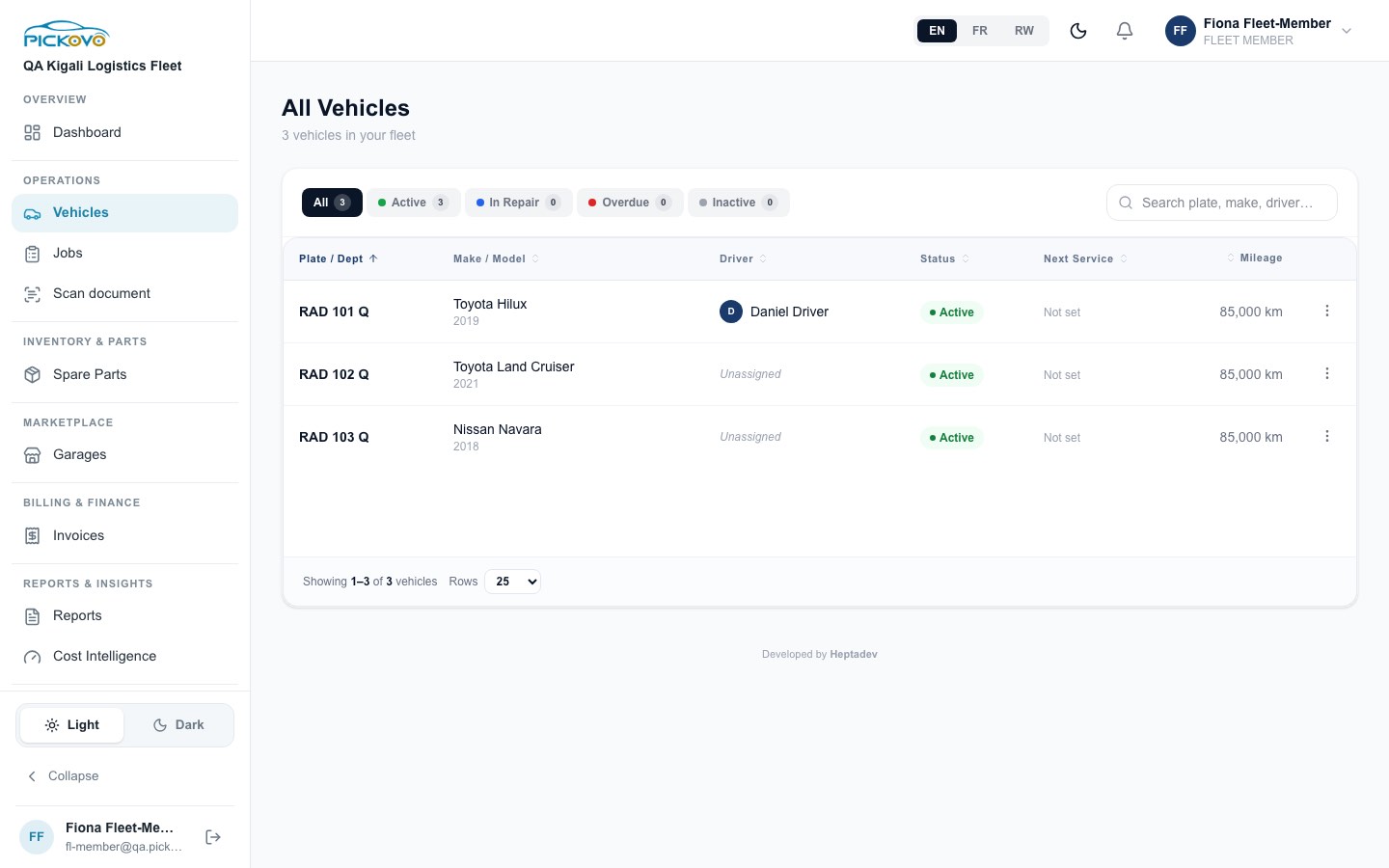
Figure 3: All Vehicles. There is no Import CSV or Add Vehicle button for your role.
- Select Vehicles.
- Filter with All, Active, In Repair, Overdue, Inactive, or search by plate, make or driver.
- Sort by any column (Plate / Dept, Make / Model, Driver, Status, Next Service, Mileage). Use Rows to show more per page.
- Select a plate, or ⋮ → View details, to open the vehicle.
On a vehicle's page you see the summary (mileage, next service, insurance expiry, active jobs) and the tabs Overview, Issues, Service, Schedule and History:
- Overview: vehicle details and the assigned driver.
- Issues: problems reported on the vehicle, with urgency, status and who reviewed them.
- Service: repair jobs in progress.
- Schedule: the maintenance schedule and when the next service is due.
- History: every past repair, with total repairs, completed, total spent (RWF) and parts used.
To report a problem on a vehicle
- Open the vehicle and its Issues tab.
- Select Report Issue.
- Describe the problem (Description, required) and choose the Urgency (Low, Medium, High, Critical).
- Submit. The report appears as Pending for a fleet manager to approve or decline.
On the vehicle page you do not get the manager's Send for Service, Edit, driver change or approve/decline buttons, and the AI health score is not shown.
C.2 Jobs
Purpose: follow the company's repairs at garages.
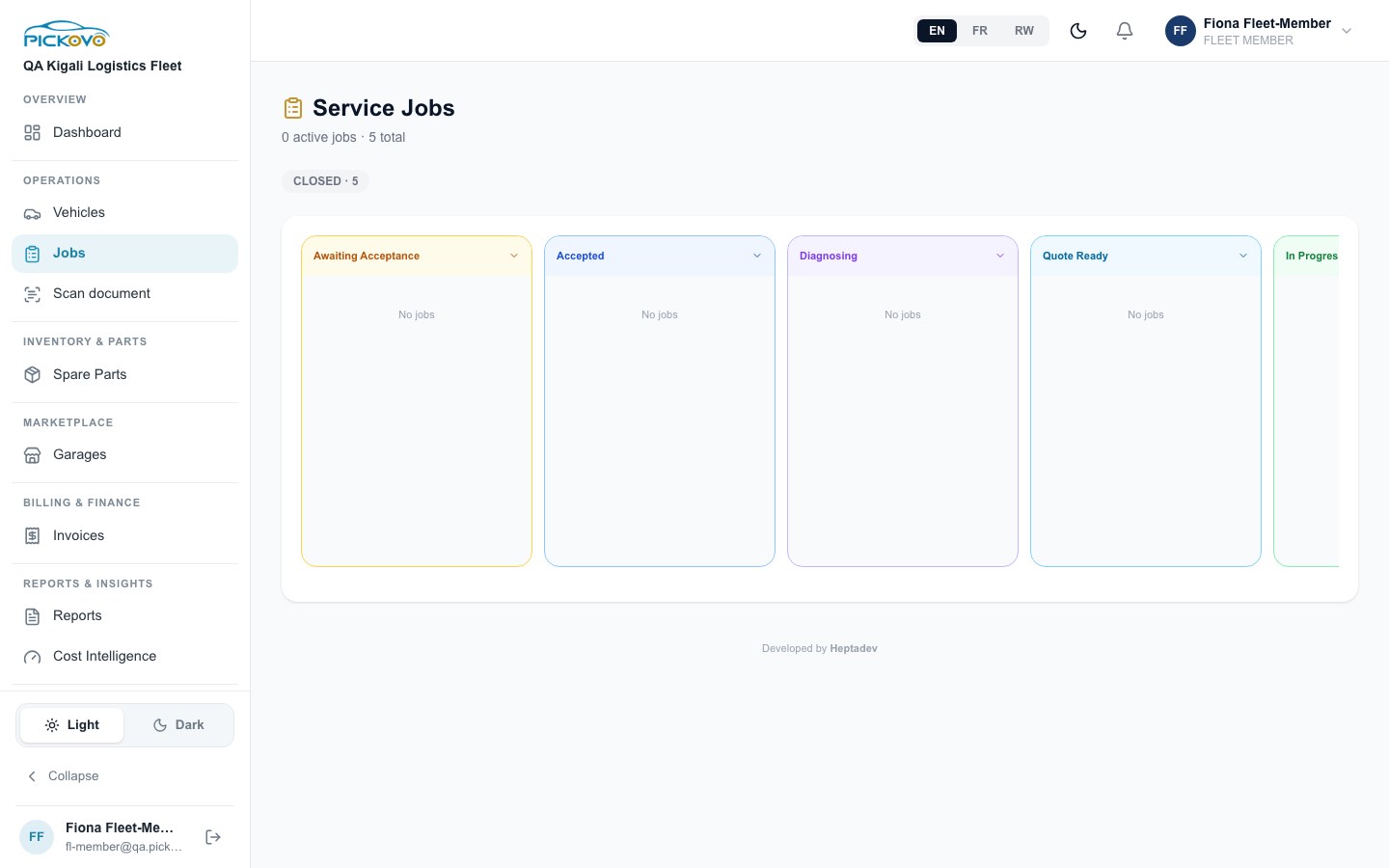
Figure 4: The Service Jobs board: no active jobs, five closed. There is no Request a Job button for your role.
- The header shows the number of active jobs and the total, with a count per status (for example CLOSED · 5).
- The board has a column per stage: Awaiting Acceptance, Accepted, Diagnosing, Quote Ready, In Progress, Completed (scroll sideways). Select a column's arrow to fold it.
- Select a job card to open it. The job page shows the stage progress, vehicle, garage, assigned mechanic, priority, the original issue report, the latest quotation and its total, diagnosis reports and parts used.
You cannot approve or cancel jobs, and you cannot open the quotation approval page. Quotations are decided by fleet managers and the company admin.
C.3 Invoices
Purpose: see what garages have billed the company.
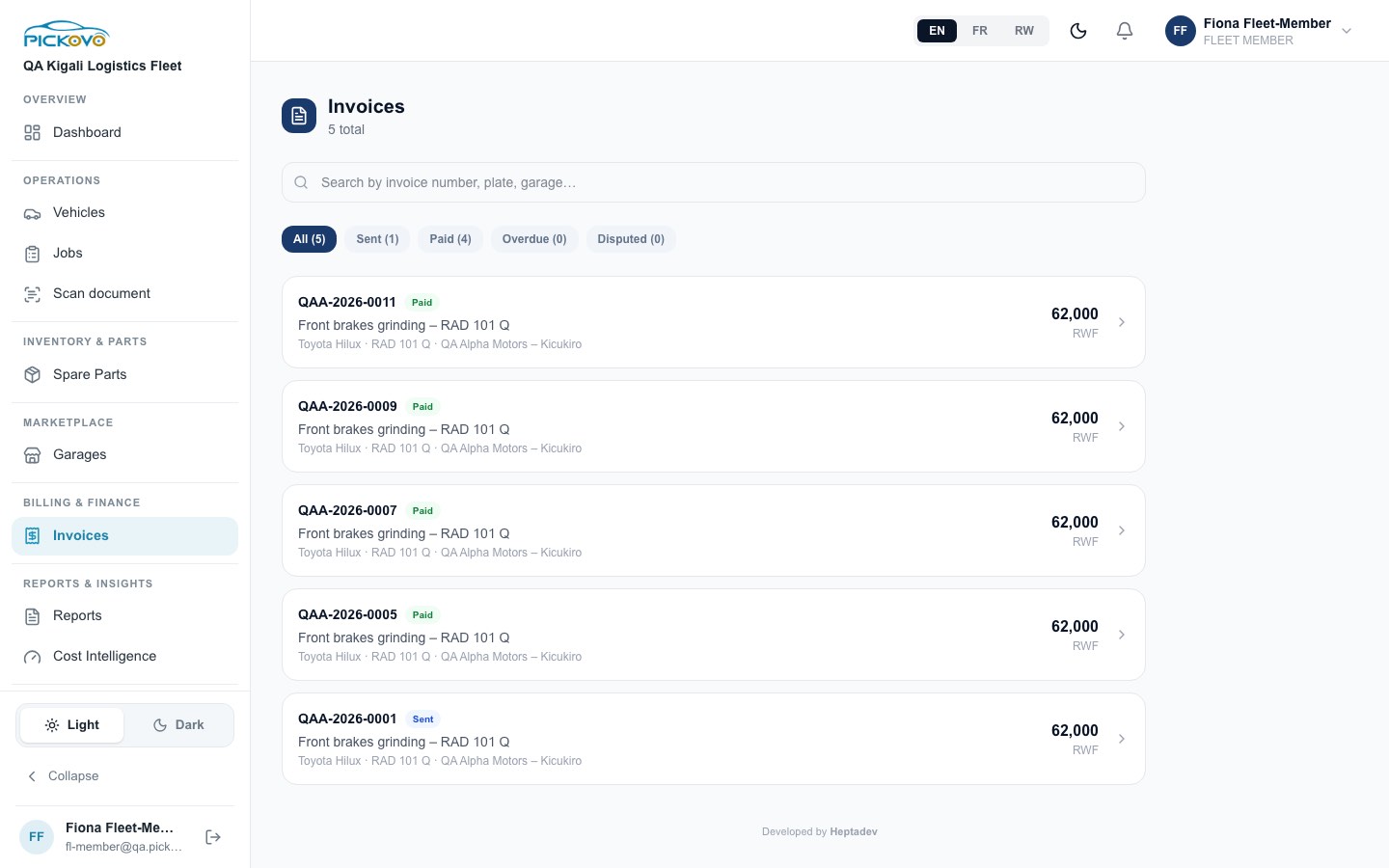
Figure 5: The Invoices list: four paid invoices and one sent.
- Select Invoices.
- Filter with All, Sent, Paid, Overdue, Disputed, or search by invoice number, plate or garage.
- Select an invoice to open it: who it is from, the vehicle and job, issue and due dates, the line items with labour and parts totals, and notes.
- Select Print / PDF to print it or save a PDF. Back to Invoices returns to the list.
You cannot dispute an invoice. If an invoice looks wrong, tell a fleet manager, who can dispute it.
C.4 Garages (marketplace)
Purpose: browse the garages on Pickovo.
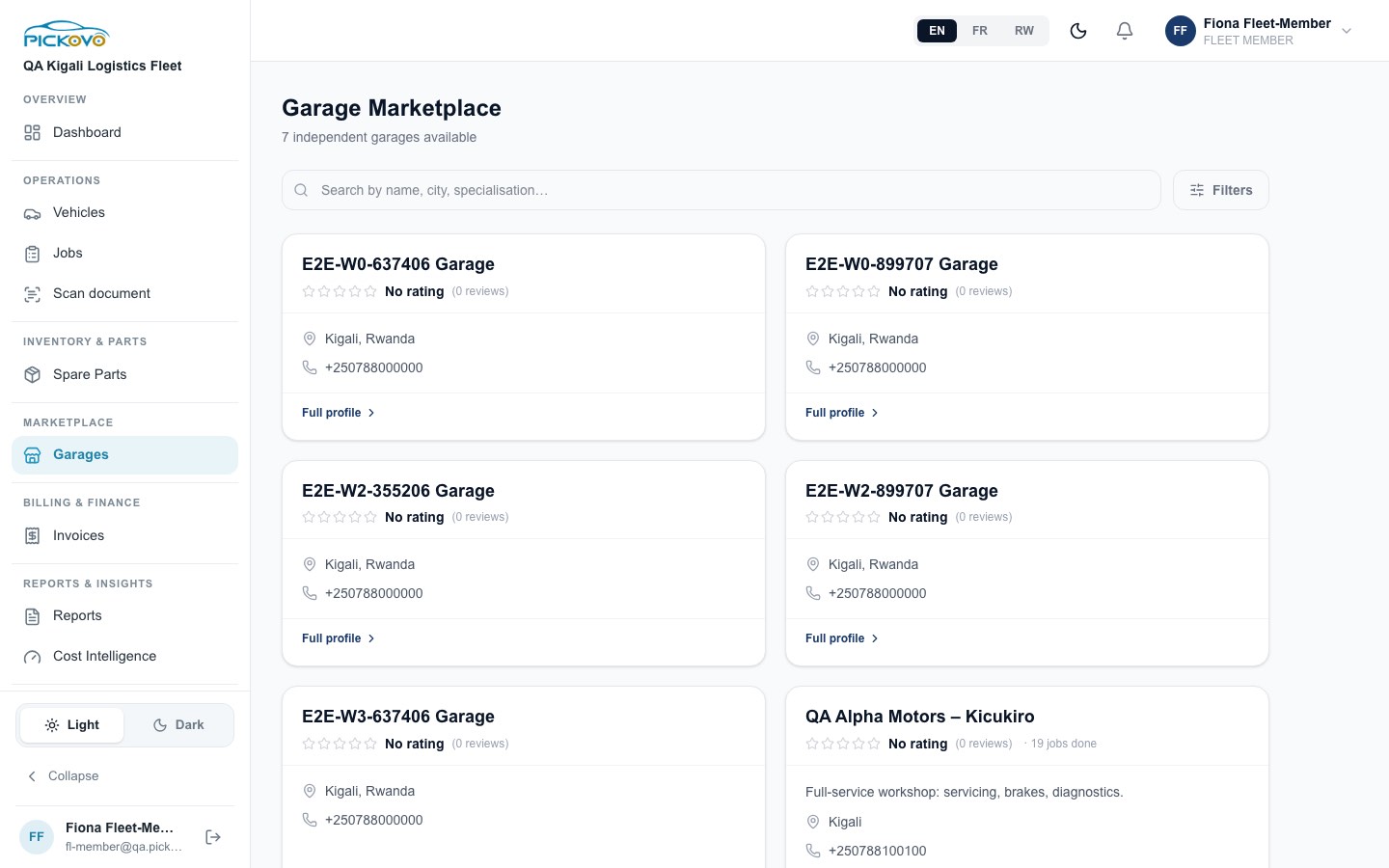
Figure 6: The Garage Marketplace. For your role there is no Request Collab button, only Full profile.
- Select Garages.
- Search by name, city or specialisation, or use Filters (specialisations, Certified only).
- Each card shows the garage's rating, number of reviews and jobs done, location and phone number.
Known limitation: Full profile is shown on each card, but your role cannot open garage profiles. Selecting it takes you back to your dashboard. Asking a garage to work with your company is done by a fleet manager.
C.5 Spare parts
Purpose: browse spare-parts shops.
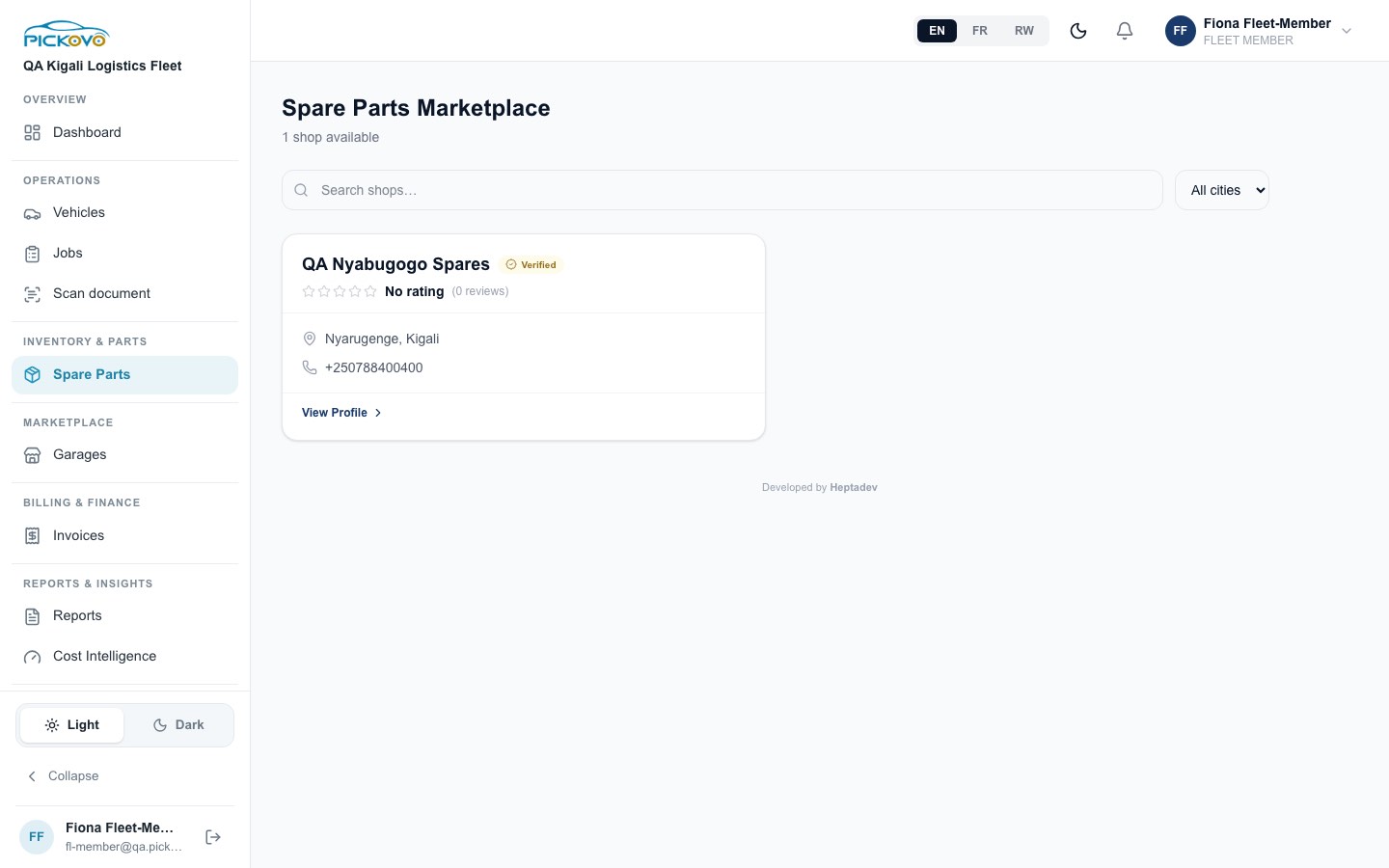
Figure 7: The Spare Parts Marketplace with one verified shop. There is no Request Collab button for your role.
- Select Spare Parts. Search shops or filter by city (All cities).
- Select View Profile to see the shop's address and phone, its catalogue preview (prices in RWF) and reviews.
- If your company already has an accepted collaboration with the shop, the profile shows a Request Parts form (items and quantities, Needed By, Notes). Otherwise it says a collaboration is needed. Agree with your fleet manager before you send a parts request, because the shop answers with a quotation to your company.
C.6 Reports
Purpose: a printable analysis of maintenance cost and vehicle performance.
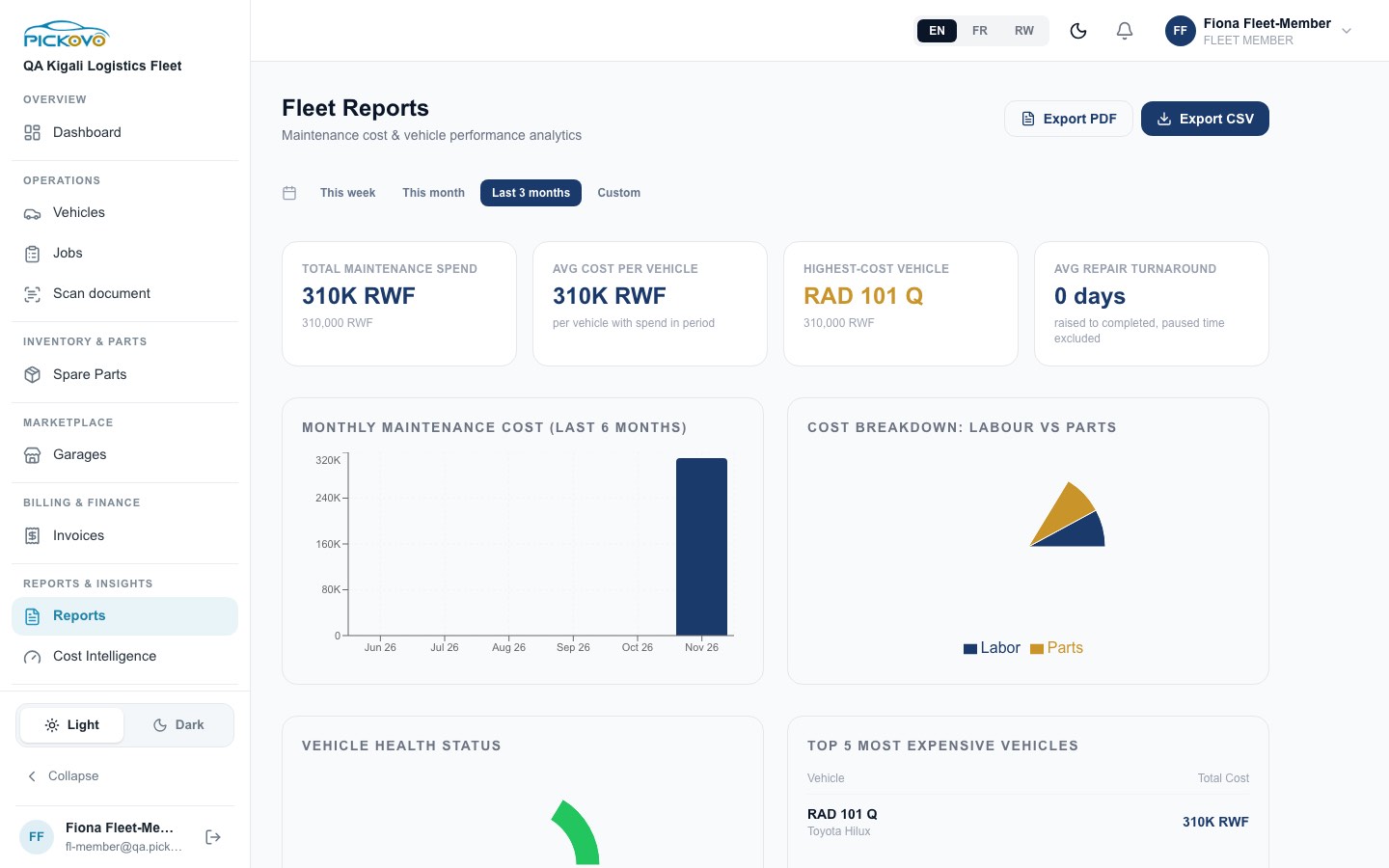
Figure 8: Fleet Reports for the last 3 months.
- Select Reports.
- Choose This week, This month, Last 3 months or Custom.
- Read the figures: total spend, average cost per vehicle, highest-cost vehicle, average repair turnaround, monthly cost, labour vs parts, vehicle health status, top 5 most expensive vehicles, and further down downtime, service due, vehicles at a garage now, cost per vehicle, repeat repairs, invoices in the period and service quality. About these figures explains how they are calculated.
- Export PDF opens your browser's print window. Export CSV downloads the data.
C.7 Cost Intelligence
Purpose: see which vehicles cost the most and where downtime comes from.
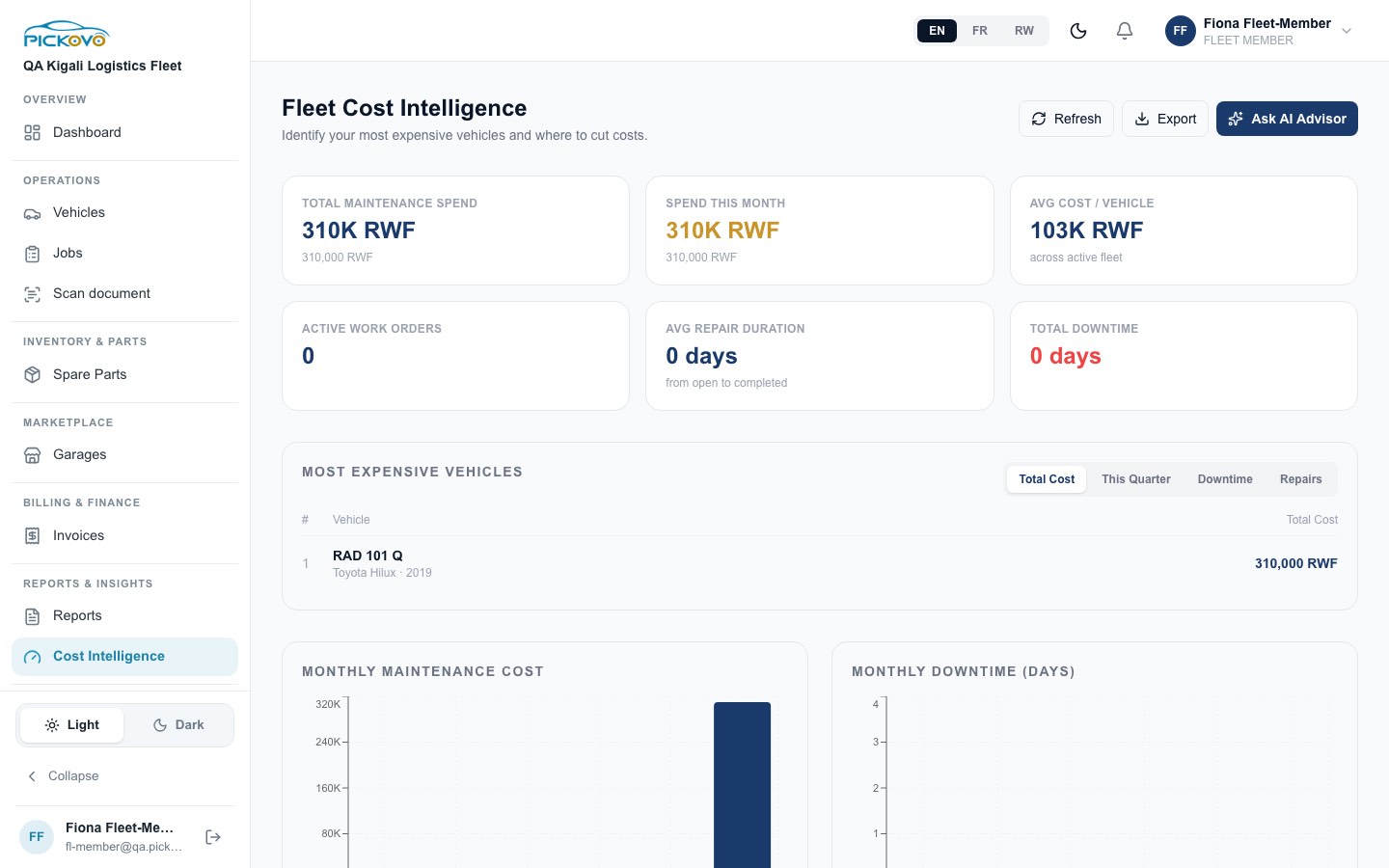
Figure 9: Fleet Cost Intelligence: spend, work orders, repair duration, downtime and the most expensive vehicles.
- Cards: total maintenance spend, spend this month, average cost per vehicle, active work orders, average repair duration, total downtime.
- Most Expensive Vehicles, ranked by Total Cost, This Quarter, Downtime or Repairs, plus monthly cost and downtime charts, repairs by category, parts vs labour and vehicle health scores.
- Refresh reloads the figures. Export downloads them.
Ask AI Advisor is shown but is for managers. For your role it ends with an error. You cannot change the cost thresholds.
C.8 Settings (your profile)
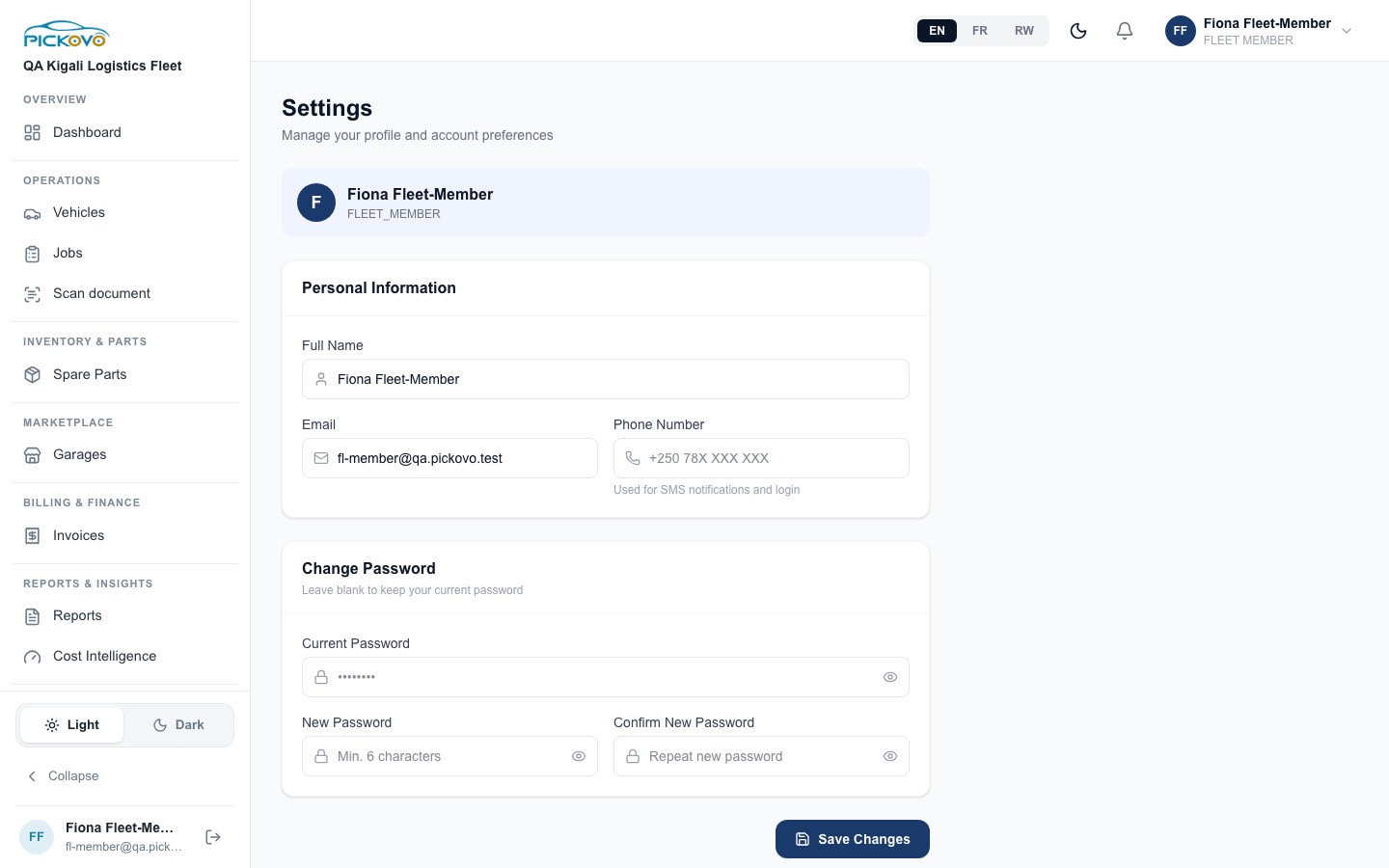
Figure 10: Settings: personal information and password.
- Select Settings.
- Change your Full Name, Email or Phone Number (used for SMS notifications and sign-in).
- To change your password, fill in Current Password, New Password and Confirm New Password. The new password needs at least 8 characters with an upper-case letter, a lower-case letter, a number and a special character (the "Min. 6 characters" hint is out of date).
- Select Save Changes.
Further down, Request account deletion starts a request to delete your account (Pickovo confirms your identity by email first). Notification preferences (in-app, email, SMS per event) are at https://fleet.heptadev.com/en/settings/notifications.
C.9 Notifications
Select the bell in the top bar to see your latest notifications, then View all notifications for the full list. Filter by All / Unread and by type. Selecting a notification opens the related item and marks it as read. Mark all as read clears the count.
D. What you can and cannot do
| Area | View | Create | Edit | Delete | Approve |
|---|---|---|---|---|---|
| Dashboard and vehicles | Yes | - | - | - | - |
| Vehicle issues | Yes | Yes report an issue | - | - | - |
| Jobs | Yes | - | - | - | - |
| Invoices | Yes (print / PDF) | - | - | - | , (no dispute) |
| Garage marketplace | Yes list only | - | - | - | - |
| Spare-parts shops | Yes | parts request only where a collaboration already exists | - | - | - |
| Reports, Cost Intelligence | Yes (and export) | - | - | - | - |
| Your own profile and password | Yes | - | Yes | - | - |
Cannot access (you are sent back to your dashboard): Drivers, Issues (the review list), Approvals and quotations, Vehicle Requests, the Team page, Add Vehicle, Request a Job, garage profiles, Billing, and all garage, spare-parts shop, regulatory and Pickovo admin pages.
E. Common workflows
Workflow 1: Follow a repair from start to finish (W1)
Before you: a driver reports a problem, a fleet manager approves it and sends the vehicle to a garage.
- Open Jobs. The job appears under Awaiting Acceptance, then moves through Accepted, Diagnosing and Quote Ready as the garage works.
- Open the job to see the diagnosis and the quotation total.
Then: a fleet manager approves the quotation, the garage repairs the vehicle, issues the invoice and records the payment.
- Open Invoices. The invoice shows Paid once the garage recorded the payment. Print / PDF it if you need a copy.
- Open the vehicle's History tab to see the repair and the total spent.
Workflow 2: Prepare a monthly cost report
- Open Reports, choose This month (or Custom for exact dates).
- Check the highest-cost vehicle, repeat repairs and downtime.
- Export PDF for a printable report, or Export CSV for a spreadsheet.
- For a ranking of the most expensive vehicles over all time or this quarter, use Cost Intelligence and its Export.
Workflow 3: Flag a problem you noticed on a vehicle
- Open Vehicles, select the plate, open Issues → Report Issue.
- Describe the problem, set the urgency and submit.
- A fleet manager reviews it. Its status on the vehicle's Issues tab changes when they approve or decline it.
F. Troubleshooting
| Problem | What it means | What to do |
|---|---|---|
| You select something and land back on your dashboard | Your role cannot open that page (for example a garage profile, Add Vehicle, Approvals) | Ask a fleet manager to do it. |
| Edit or Delete on the dashboard seems to work, but the vehicle is back after reloading | Vehicle changes are for managers; Pickovo refused the change | Ask a fleet manager. |
| Ask AI Advisor shows an error | The advisor is for managers | Ask a fleet manager to run it. |
| "Invalid email or password" even with the right password | After 10 wrong attempts in 15 minutes, sign-in is paused | Wait 15 minutes, or use Forgot password? |
| Password change refused | The password policy was not met | Use 8+ characters with upper case, lower case, a number and a special character. |
| A message about the plan or a payment being required | Your company's trial or subscription has ended | Tell your company admin. |
| You need more access (approving, managing vehicles) | That needs a different role | Ask your company admin. |
G. Security and best practices
- Keep your password private and change it in Settings if you think it has been seen.
- Company data stays in the company. Exported reports and printed invoices contain costs and plate numbers. Store and share them as your company's rules require.
- Sign out with Logout on shared computers.
- Report, don't fix. If you spot a problem with a vehicle or an invoice, report the issue or tell a fleet manager. Don't try to work around the manager actions you see on screen.
- Tell your company admin when you change role or leave, so your access can be updated.