
Transport authority · TIP_ADMIN
TIP Administrator
For the administrator of a transport authority (Technical Inspection Program, "TIP") that oversees fleet companies on Pickovo.
The screenshots in this guide come from the QA staging system. Every name, plate number, invoice and figure in them (for example "QA Transport Authority", "QA Kigali Logistics Fleet", "RAD 101 Q", "QAA-2026-0011") is fictional test data.
A. Introduction
As a TIP Administrator you supervise the fleet companies (transport operators) that are registered under your authority. Pickovo gives you one place to:
- register fleet companies under your authority and keep their details up to date;
- watch the condition and compliance of every vehicle in those fleets;
- follow compliance alerts (expired insurance, overdue maintenance and similar) and mark them resolved;
- look at cross-fleet reports (faults reported by drivers, repair spend, vehicle health);
- send outbound webhooks so your own systems receive Pickovo events in real time;
- use the regulatory tools: driver registry, garage certification, commissions and incentives, network performance, review moderation, complaints, enforcement warnings, invoices, the marketplace and user management.
Your scope. TIP data, fleets, vehicles, drivers, alerts, invoices, reports, is limited to the fleets registered under your own authority (a fleet is "yours" when it was created under your organisation). You never see fleets that belong to another authority. Some regulatory pages are network-wide instead: Commissions, Network Performance, Review Moderation, Complaints, the Marketplace and the "All Garages" tab of Garage Certification list every garage on Pickovo.
B. Getting started
Signing in
- Open https://fleet.heptadev.com/en/login (use
/fr/loginfor French or/rw/loginfor Kinyarwanda, or switch with the EN / FR / RW buttons at the top right). - In Email or Phone, type the email address or phone number your account was created with.
- Type your Password. The eye icon shows what you typed.
- Select Log in.
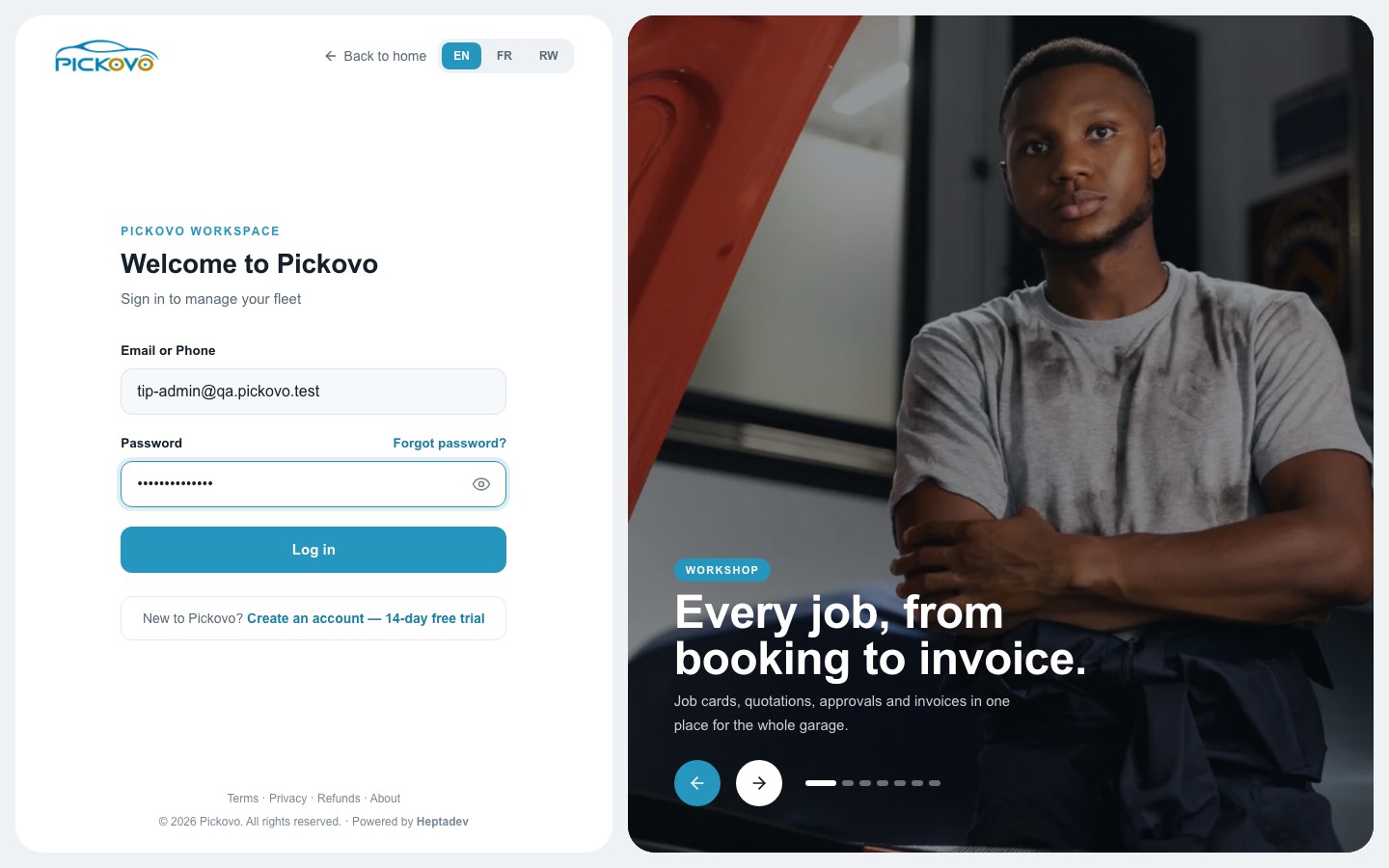
Figure 1: The Pickovo sign-in page, with the email of the TIP Administrator test account filled in.
- Forgot password? (next to the Password label) lets you reset a forgotten password.
- After 10 wrong passwords within 15 minutes, sign-in is paused for your account for a while. Wait, then try again, or use Forgot password?.
After signing in you land on the TIP Dashboard (/tip).
Your dashboard
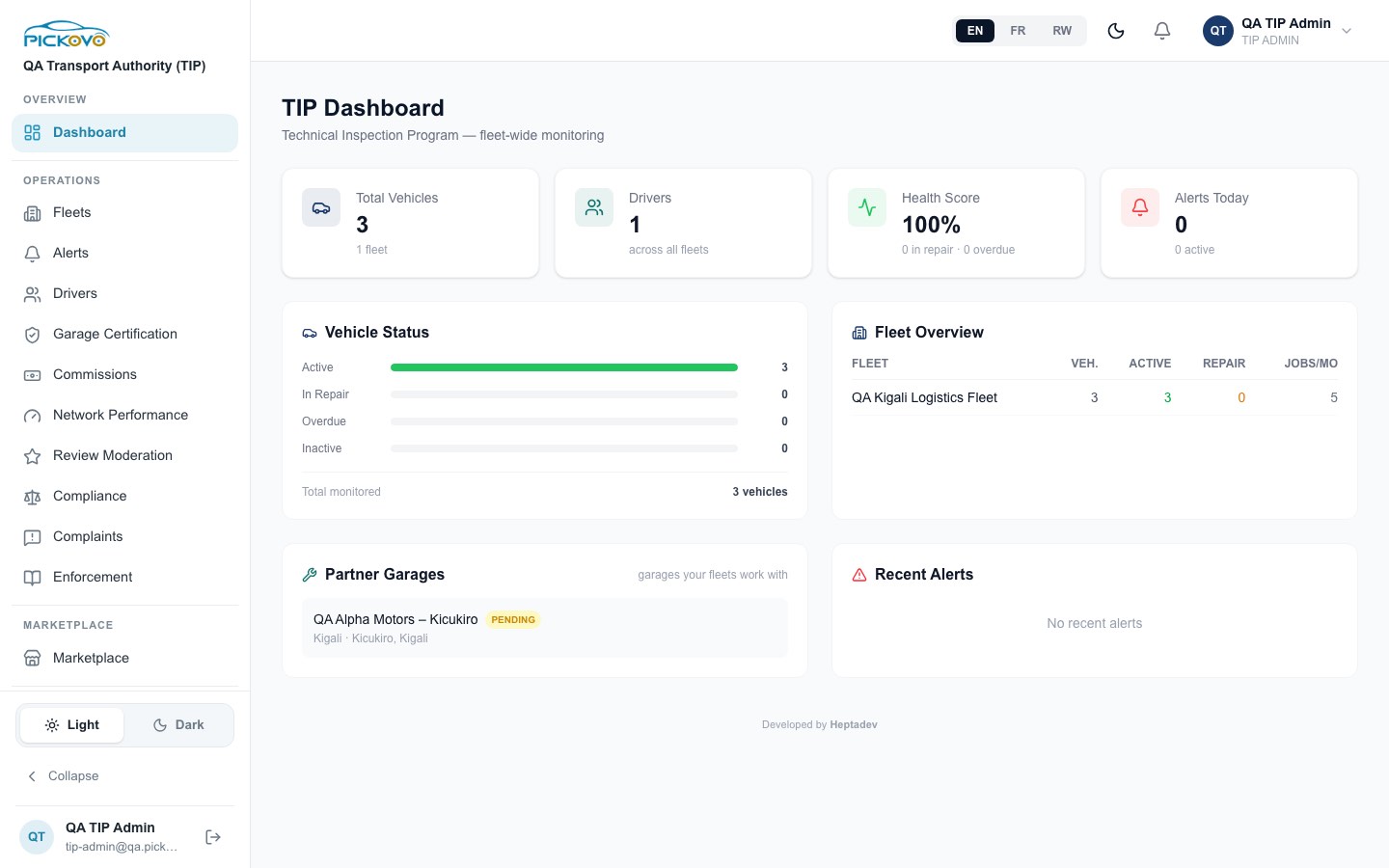
Figure 2: The TIP Dashboard: 3 vehicles in 1 fleet, 1 driver, a 100% health score, no alerts today, the vehicle status bars, the Fleet Overview table, Partner Garages and Recent Alerts.
The TIP Dashboard summarises every fleet registered under your authority:
| Area | What it shows |
|---|---|
| Total Vehicles | Number of vehicles, with the number of fleets underneath. |
| Drivers | Driver accounts across all your fleets. |
| Health Score | Share of your vehicles that are active, with the number in repair and overdue underneath. |
| Alerts Today | Compliance alerts raised today, with the number still active underneath. |
| Vehicle Status | Bars for Active, In Repair, Overdue and Inactive, and the total monitored. |
| Fleet Overview | One row per fleet: vehicles (Veh.), Active, Repair and Jobs/mo (repair jobs created this month). |
| Partner Garages | Garages your fleets work with (accepted collaborations), with their certification badge, for example PENDING. |
| Recent Alerts | The latest compliance alerts, or "No recent alerts". |
The dashboard is part of the TIP module, which Pickovo switches on for each authority. If yours is not switched on, you see "TIP Module Not Enabled" instead (see section F).
Finding your way around
Top bar (right): language switch (EN / FR / RW), dark-mode toggle (moon), the bell for your notifications, and your name and role.
Sidebar (scroll it to see every item):
| Section | Items |
|---|---|
| Overview | Dashboard (TIP Dashboard) |
| Operations | Fleets, Alerts, Drivers, Garage Certification, Commissions, Network Performance, Review Moderation, Compliance, Complaints, Enforcement |
| Marketplace | Marketplace |
| Billing & Finance | Invoices |
| Reports & Insights | Reports (TIP Reports) |
| Administration | Regulatory Users, Webhooks, Activity Log |
| Account | Settings, Refer & Earn |
At the bottom: the Light / Dark switch, Collapse (shrinks the sidebar to icons; point at an icon to see its name), and your name and email with the log-out button.
Three pages are not in the sidebar but you can open them by typing their address: the Regulatory Dashboard (/en/regulatory), Fleet Compliance (/en/regulatory/fleets) and Regulatory Reports (/en/regulatory/reports).
C. Features
C1. Fleets (TIP)
Purpose: register and manage the fleet companies under your authority.
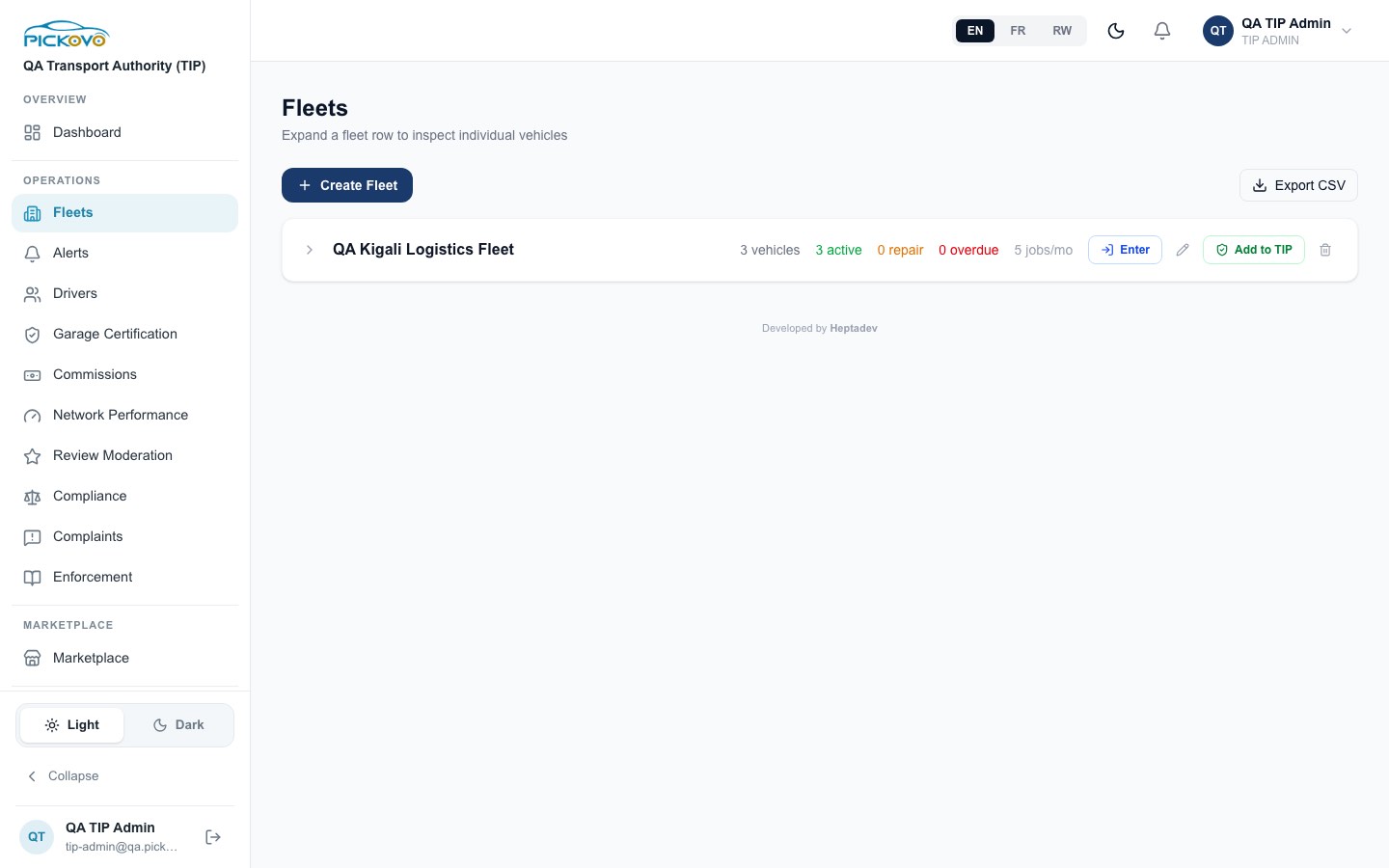
Figure 3: The Fleets page with one registered fleet, its vehicle counts and the row buttons.
Each row shows the fleet name and, for that fleet: number of vehicles, active, in repair, overdue, and jobs/mo (repair jobs created this month).
To see a fleet's vehicles: select the arrow (›) at the left of the row. A table opens with Plate, Vehicle, Status, Mileage, Last Service, Next Due and Alerts (active alerts on that vehicle).
To register a new fleet:
- Select Create Fleet.
- Enter the Fleet / Organisation Name (required).
- Under Fleet Admin Account, enter the admin's Admin Full Name, and an Email or Phone (at least one is required).
- Select the create button. The fleet appears in your list and a fleet administrator account (role Fleet Admin) is created for it.
The new administrator's account gets a random temporary password that is not shown to you. (The form's note about a default password is out of date.) Ask the new admin to open the sign-in page and use Forgot password? to set their own password.
Other row buttons:
| Button | What it does |
|---|---|
| Export CSV (top right) | Downloads the fleet list as a spreadsheet file. |
| Pencil | Rename the fleet. |
| Add to TIP / Remove | Marks the fleet as Monitored (a green badge) or removes that mark. |
| Bin | Removes the fleet from your authority after a confirmation. The fleet company is deactivated, not erased. Use with care. |
| Enter | Meant to open the fleet's own workspace as its administrator. See the limitation below. |
Limitation, Enter: on the build checked for this guide, Enter does not open the fleet's workspace: you are returned to your own pages, and a yellow "Impersonating" bar may stay at the top for up to an hour. Its exit button does not work for TIP administrators. Do not use Enter; ask the fleet's own administrator to make changes inside their workspace.
Errors you may see: "Fleet name is required", "Admin email or phone required", "Email already in use".
C2. Alerts (Compliance Alerts)
Purpose: follow every compliance alert raised for vehicles in your fleets.
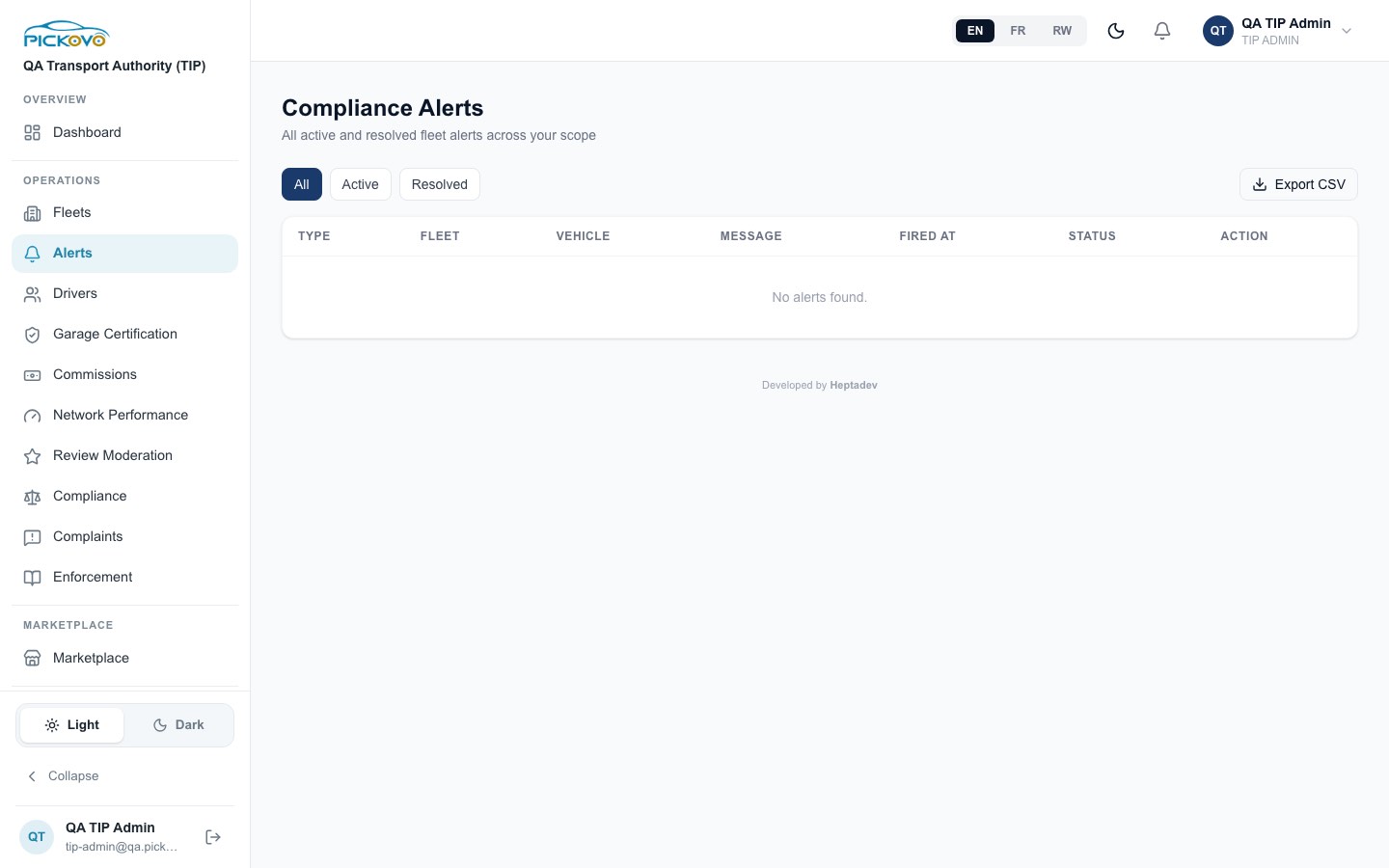
Figure 4: The Compliance Alerts page with the All / Active / Resolved filters (no alerts on the test system).
Alert types include expired insurance, overdue maintenance, overdue vehicle and expired certification. The table shows Type, Fleet, Vehicle, Message, Fired At, Status and Action. The page lists the 100 most recent alerts.
- Use All, Active or Resolved to filter.
- On an active alert, select Resolve once the issue is dealt with. The status changes to Resolved.
- Export CSV downloads the alerts currently shown.
C3. TIP Reports
Purpose: compare your fleets and see how driver-reported faults are being handled.
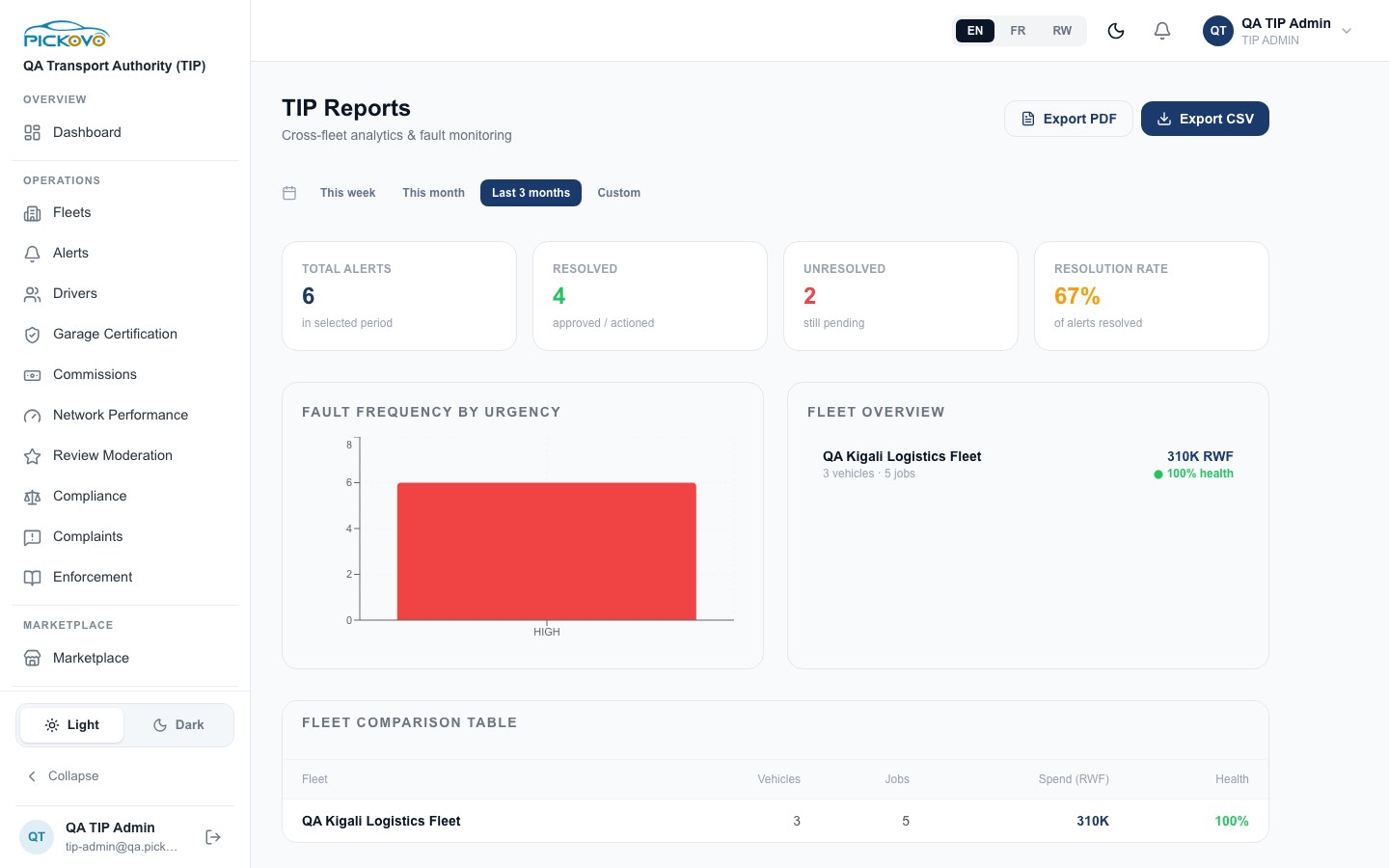
Figure 5: TIP Reports for the last 3 months: 6 reported faults, 4 resolved, 2 unresolved (67% resolution rate), all of high urgency, and QA Kigali Logistics Fleet with 5 jobs and 310K RWF spend in the comparison table.
- Pick a period: This week, This month, Last 3 months or Custom.
- Read the cards:
- Total alerts, Resolved, Unresolved, Resolution rate. These count the issue reports drivers raise in your fleets. An issue counts as resolved once the fleet approved it or turned it into a repair job. These figures are not the same as the Compliance Alerts page, so the two pages can show different numbers.
- Fault frequency by urgency: a bar chart of reported faults by urgency.
- Fleet overview and Fleet comparison table: per fleet, vehicles, jobs, Spend (RWF) (invoice totals for the period) and Health (share of the fleet's vehicles that are active).
- Export PDF opens your browser's print dialogue (choose "Save as PDF"). Export CSV downloads the figures.
This page is for TIP Administrators only.
C4. Webhooks
Purpose: send Pickovo events to your own system automatically.
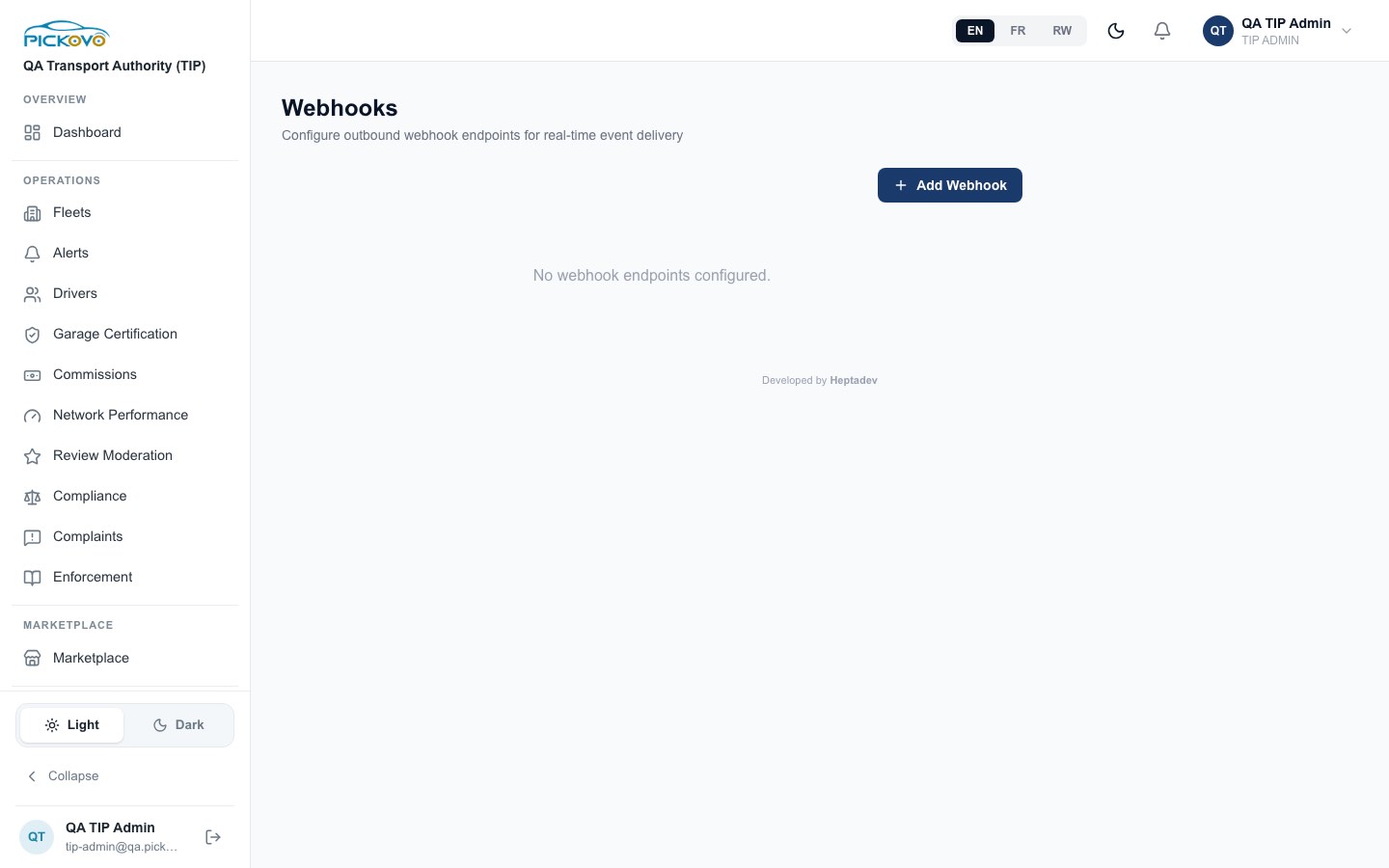
Figure 6: The Webhooks page before any endpoint is set up.
- Select Add Webhook.
- Enter the URL of your receiving server (for example
https://your-server.com/webhook). - Tick the Events to send:
compliance_alert,vehicle_overdue,maintenance_due,insurance_expiring,fleet_report_ready. - Save. The endpoint appears in the list.
For each endpoint you can:
- show or hide its Secret (eye icon). Your system uses it to check that a message really came from Pickovo. Keep it private.
- select Test to send a test message. The result shows the response code and how long it took.
- open the Delivery Log (last 20): event, status, duration and time sent.
- delete the endpoint.
Test and the delivery log need an internet connection. Only TIP Administrators can manage webhooks.
C5. Regulatory Dashboard
Purpose: a summary of compliance across your registered fleets.
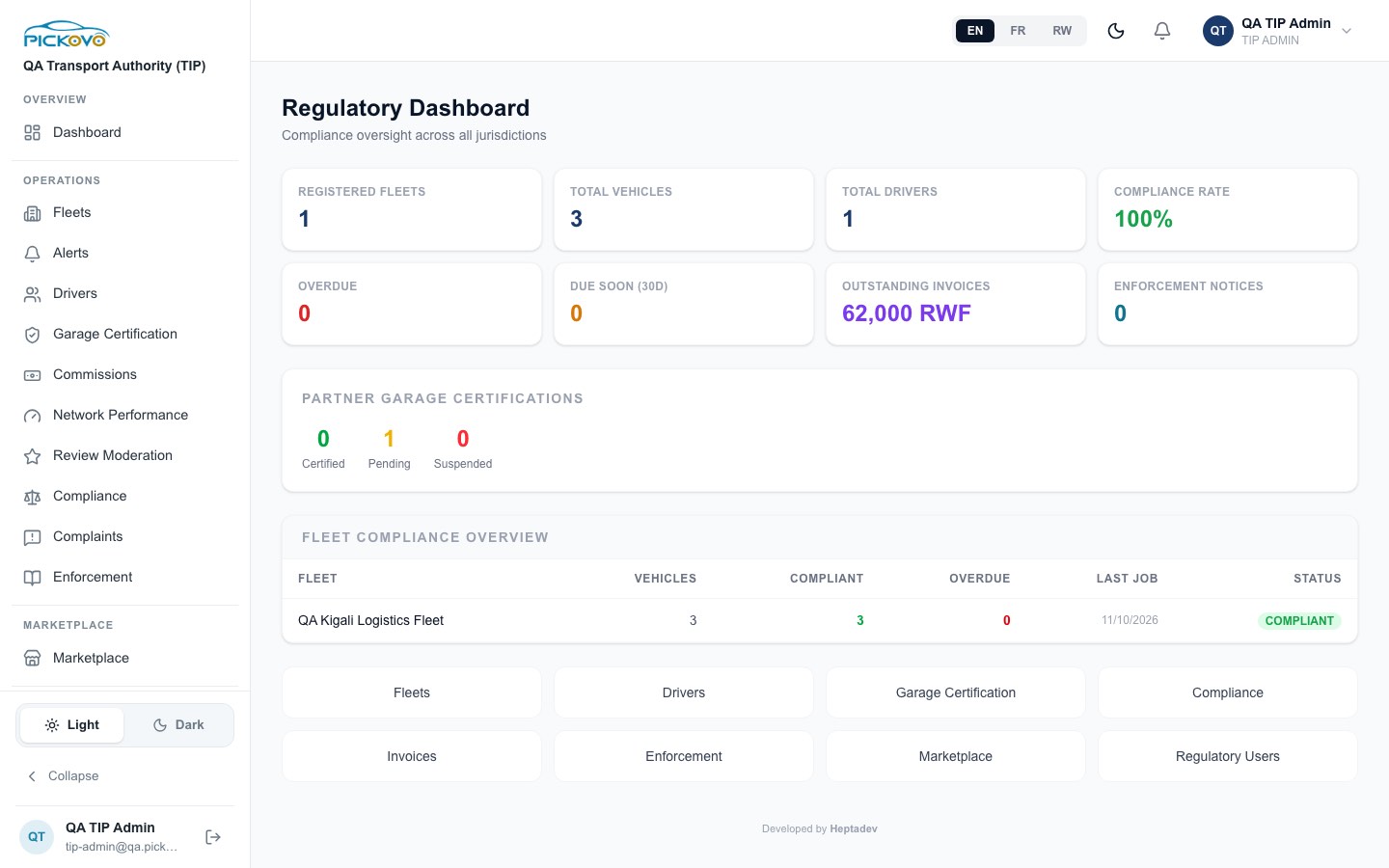
Figure 7: The Regulatory Dashboard: 1 registered fleet, 3 vehicles, 1 driver, 100% compliance, 62,000 RWF outstanding, one partner garage pending certification, and the Fleet Compliance Overview table.
Open it at /en/regulatory. It shows:
- Registered Fleets, Total Vehicles, Total Drivers and Compliance Rate (share of vehicles whose next service date, or insurance expiry if no service is scheduled, has not passed);
- Overdue and Due Soon (30d) vehicles;
- Outstanding Invoices (RWF): the total of your fleets' invoices that are still draft, sent or overdue;
- Enforcement Notices sent to your fleets;
- Partner Garage Certifications: how many of the garages your fleets work with are Certified, Pending or Suspended;
- Fleet Compliance Overview: per fleet, Vehicles, Compliant, Overdue, Last Job (date of the most recent completed job) and Status (Compliant when at least 80% of vehicles are compliant, At Risk from 50%, Non Compliant below that);
- quick links to Fleets, Drivers, Garage Certification, Compliance, Invoices, Enforcement, Marketplace and Regulatory Users.
This dashboard is part of the Regulatory module, which Pickovo switches on for each organisation. If yours is not switched on, you see "Regulatory Module Not Enabled" instead (see section F).
C6. Fleet Compliance (regulatory fleets)
Purpose: a compliance view of each registered fleet.
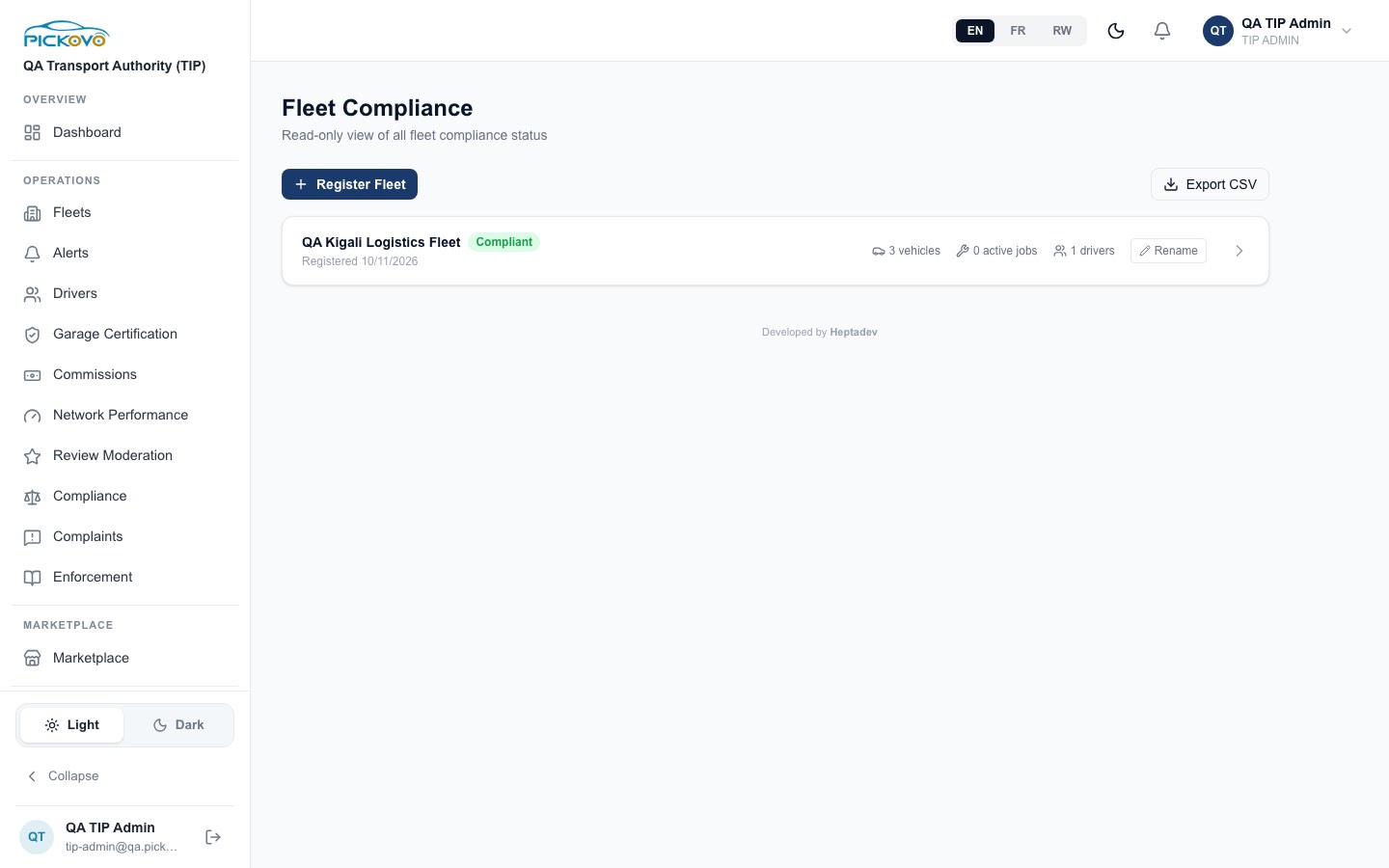
Figure 8: Fleet Compliance: QA Kigali Logistics Fleet marked Compliant, with vehicles, active jobs, drivers and the Rename button.
Open it at /en/regulatory/fleets. Each fleet shows a status (Compliant, At Risk or Non-Compliant), its registration date, vehicles, active jobs and drivers.
- Select the arrow (›) to open the fleet. You see Total Vehicles, Drivers, Insurance Compliance, Jobs (Total / Active), Pending Invoices, Revenue (Paid Invoices), Last Inspection, the Insurance Compliance Rate, Recent Jobs and a vehicle table (Vehicle, Plate, Status, Insurance).
- Rename changes the fleet's name.
- Register Fleet creates a new fleet under your authority: enter Fleet / Company Name (required), Admin Full Name, Admin Email, Admin Phone. A temporary password is generated for the admin, who should change it at first sign-in.
- Export CSV downloads the list.
C7. Drivers (Driver Registry)
Purpose: see and register drivers across your fleets.
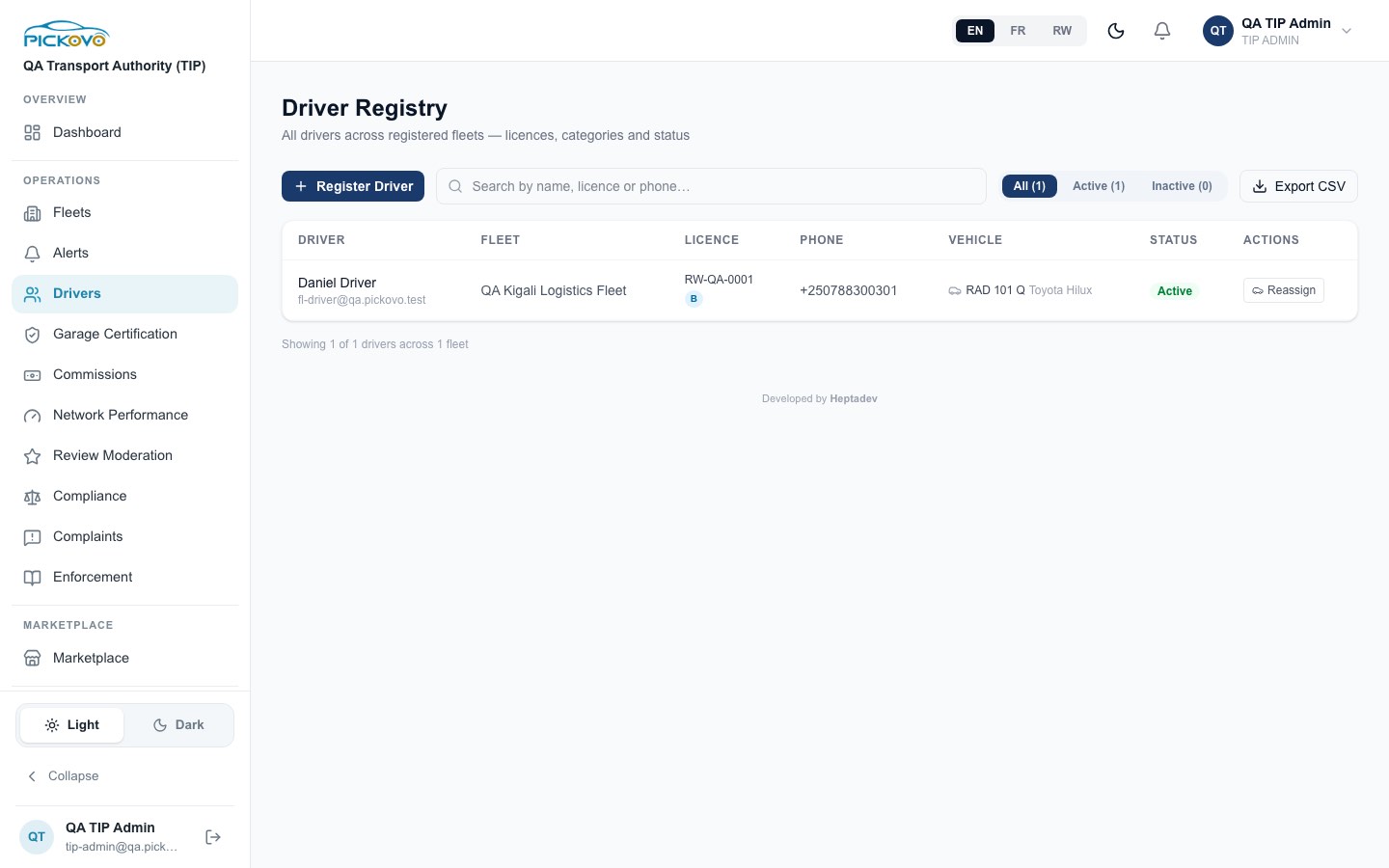
Figure 9: Driver Registry with one active driver, licence RW-QA-0001 (category B), assigned to RAD 101 Q.
- Search by name, licence or phone. Filter by fleet and by All / Active / Inactive.
- Register Driver creates a driver account in one of your fleets. Fill in Fleet, Full Name (required), Driver Phone, Login Email and/or Login Phone (one is required), Licence Number, Category, and optionally Assign to Vehicle. A Temporary Password is generated. Copy it and give it to the driver, who should change it at first sign-in.
- Reassign (in Actions) changes or removes the vehicle assigned to a driver.
- Export CSV downloads the registry.
C8. Garage Certification
Purpose: follow the garages your fleets work with and their certification status.
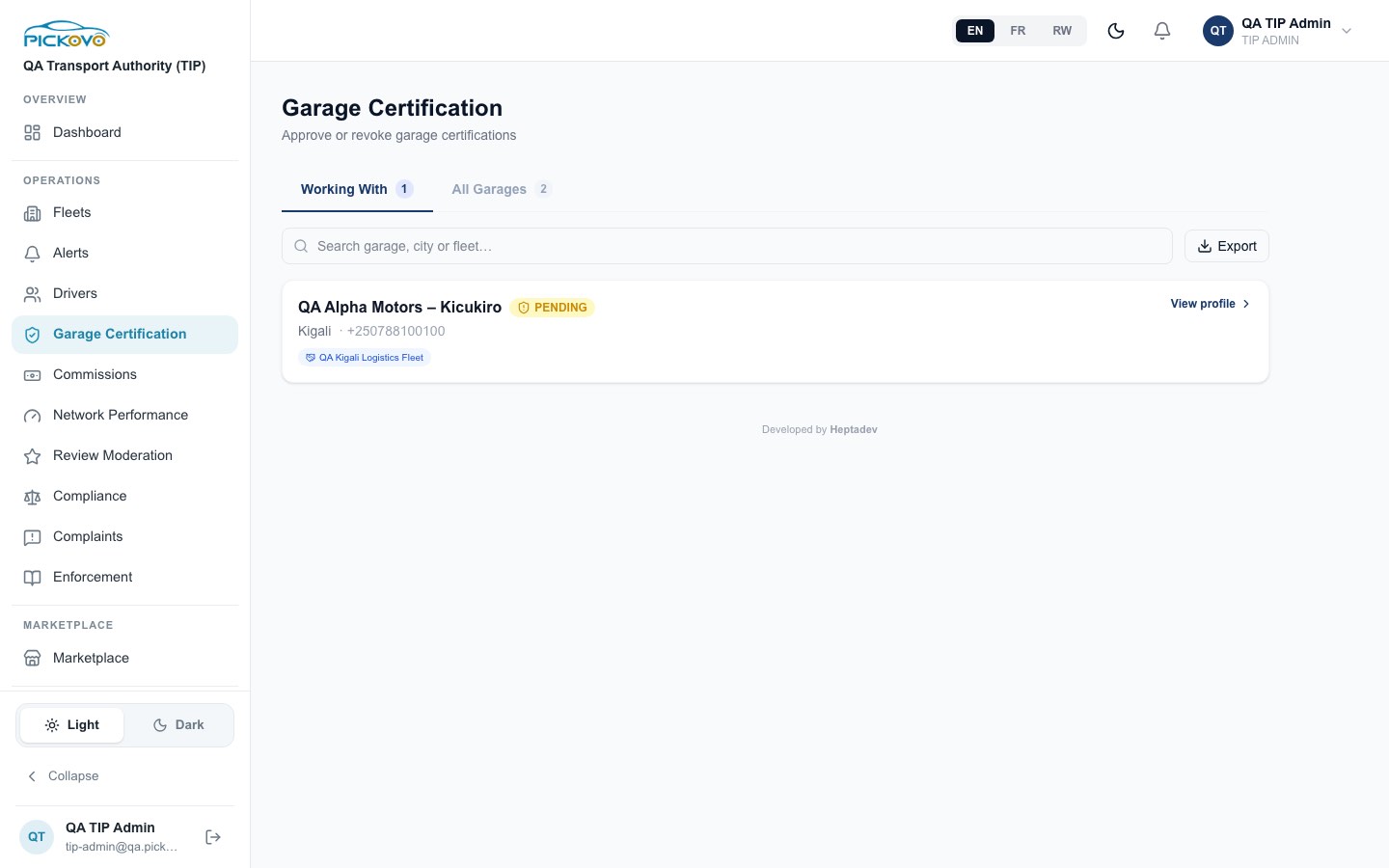
Figure 10: Garage Certification, "Working With" tab: QA Alpha Motors – Kicukiro, PENDING certification, working with QA Kigali Logistics Fleet.
- Working With lists the garages that have an accepted collaboration with one of your fleets, with certification status, address, phone, specialisations and the fleets they serve. View profile opens the garage's profile.
- All Garages lists every garage on Pickovo with Certification, Partner status and Last Audit.
- Search, then Export to download either list.
- On a garage profile you can open its Compliance record (corrective actions, documents, staff qualifications, complaints) and Certification audits. On the audit page you can Start new audit, mark each checklist item passed or failed (a failed item needs a note), attach a photo or document, Save progress and complete the audit. The profile also shows the Partner Ledger: you can choose a Success manager and add a New entry (Incentive or Commission, amount in RWF, description).
Approving or revoking a garage's certification from the list is done by Regulatory Officers. Those buttons do not appear for you.
C9. Commissions & Incentives
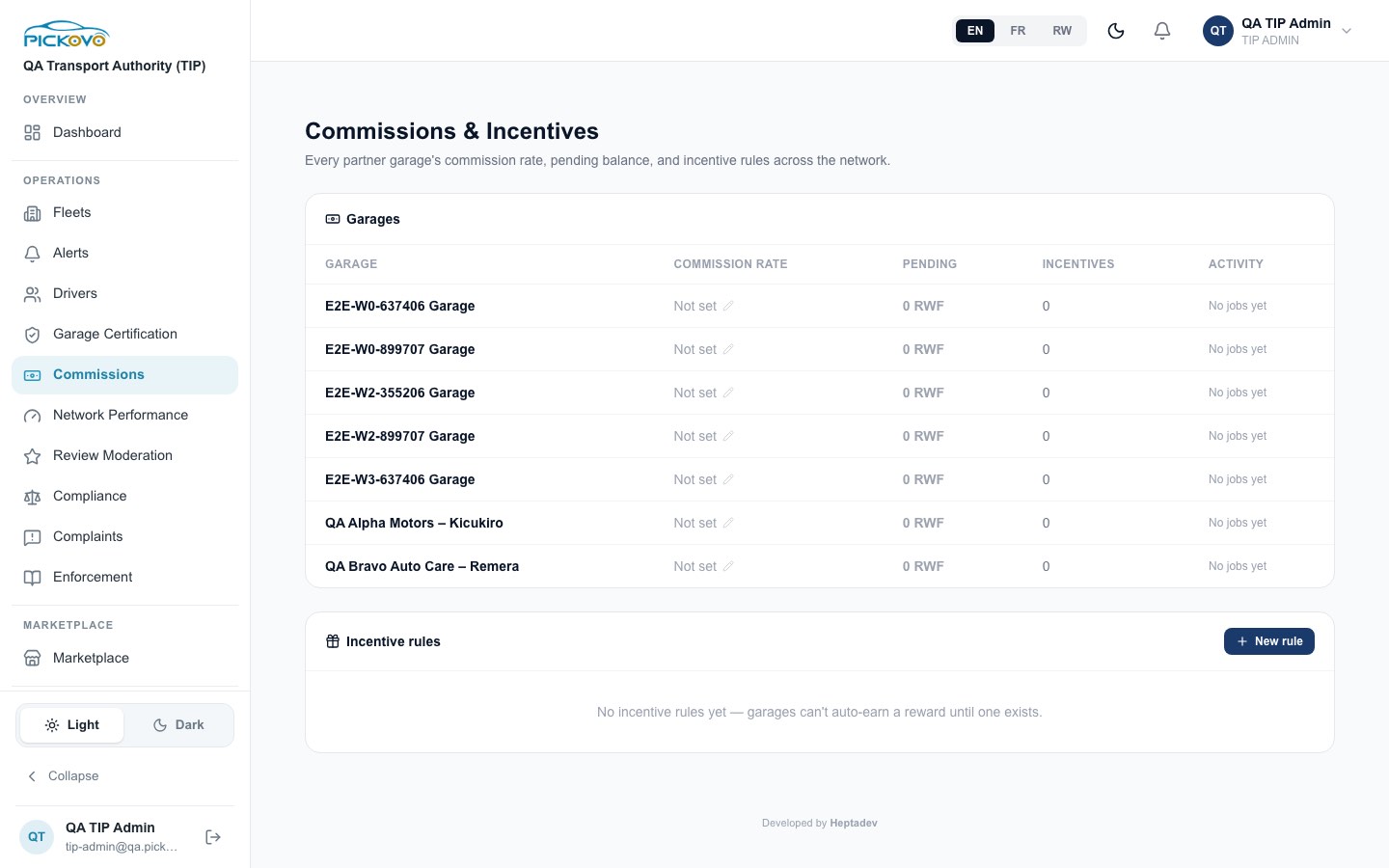
Figure 11: Commissions & Incentives: each garage's commission rate (Not set), pending balance, incentives and activity, and the Incentive rules panel.
- Garages table: Commission rate (select the pencil to set a percentage, or clear it), Pending balance (RWF), Incentives and Activity.
- Incentive rules → New rule: enter Name, Metric (Average rating or Closed job count), Threshold, Period (Weekly or Monthly) and Reward (for example "Featured placement for 2 weeks"). Use the toggle on a rule to activate or deactivate it. Until a rule exists, garages cannot earn a reward automatically.
C10. Network Performance
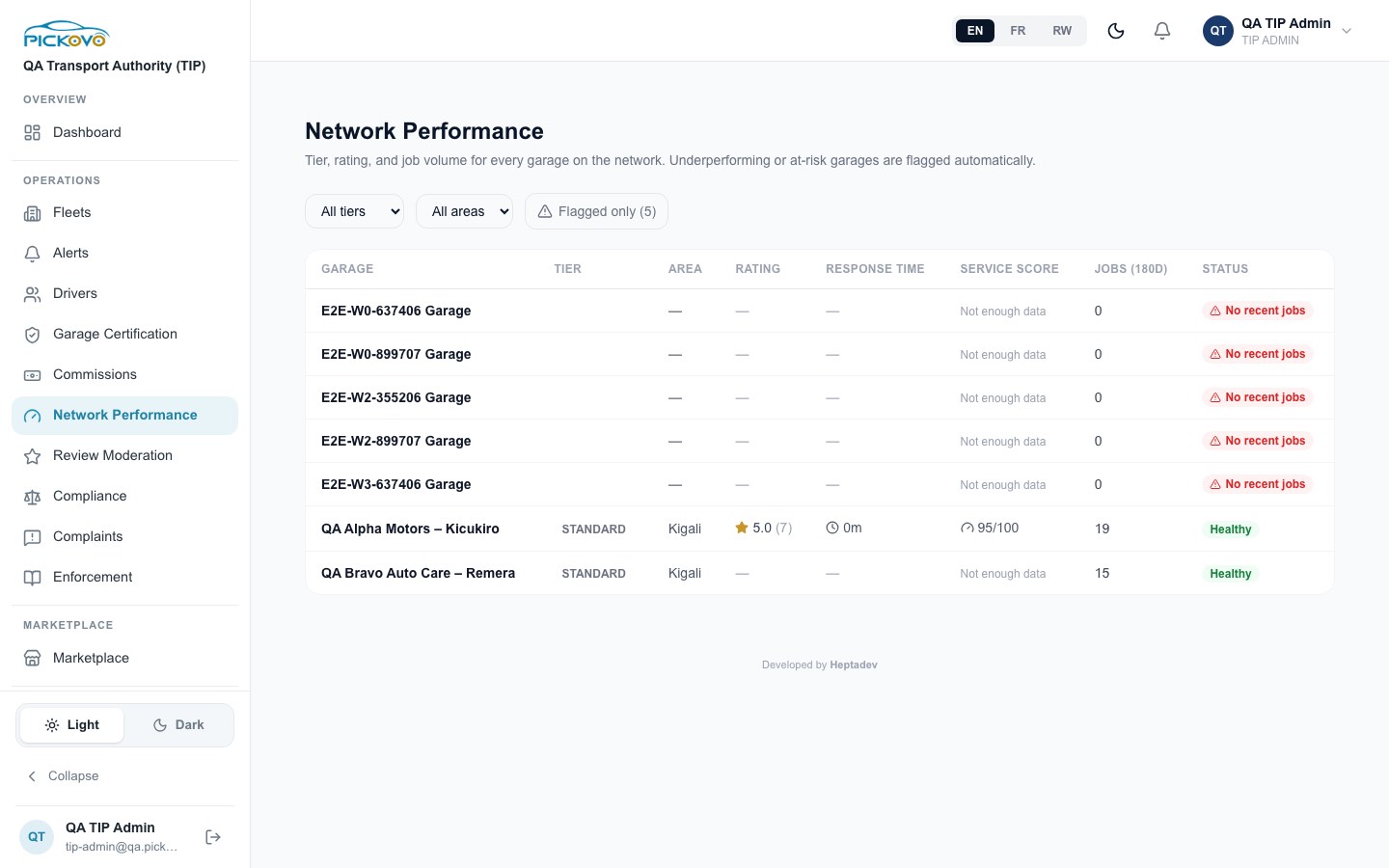
Figure 12: Network Performance: six garages flagged "No recent jobs" (Flagged only (6)) and two marked Healthy, including QA Alpha Motors – Kicukiro with a 5.0 rating and a 95/100 service score.
Shows every garage's Tier, Area, Rating, Response time, Service score, Jobs (180 days) and Status. Filter with All tiers, All areas and Flagged only. A garage is flagged automatically for No recent jobs (none in 180 days), Low rating (average below 3), Slow response (over 4 hours on average) or Low service quality (score below 60). Rating and response flags only apply once a garage has at least 3 rated or answered jobs.
C11. Review Moderation
Lists customer reviews waiting to be published, with flagged reviews first. For each review you see the garage, the customer, the stars, the comment and any automatic flag reason. Select Publish to make it public, or Reject and enter a reason (required, not shown to the customer). The Regulatory Officer guide shows this page.
C12. Vehicle Compliance
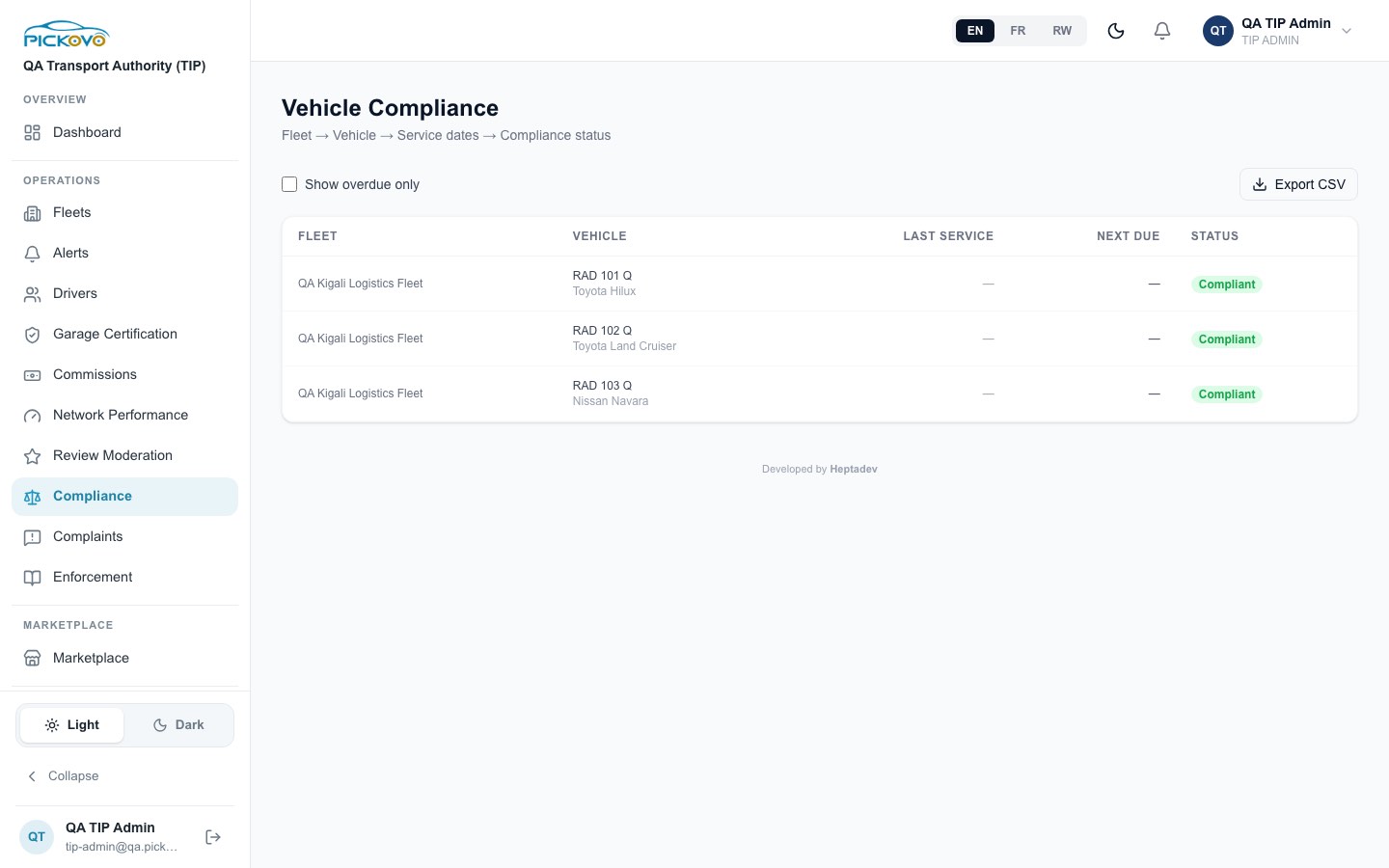
Figure 13: Vehicle Compliance: three vehicles of QA Kigali Logistics Fleet, all Compliant.
Lists every vehicle in your fleets with Fleet, Vehicle, Last Service, Next Due and Status (Compliant, Due Soon, Overdue). Tick Show overdue only to narrow the list. Export CSV downloads it.
C13. Complaints
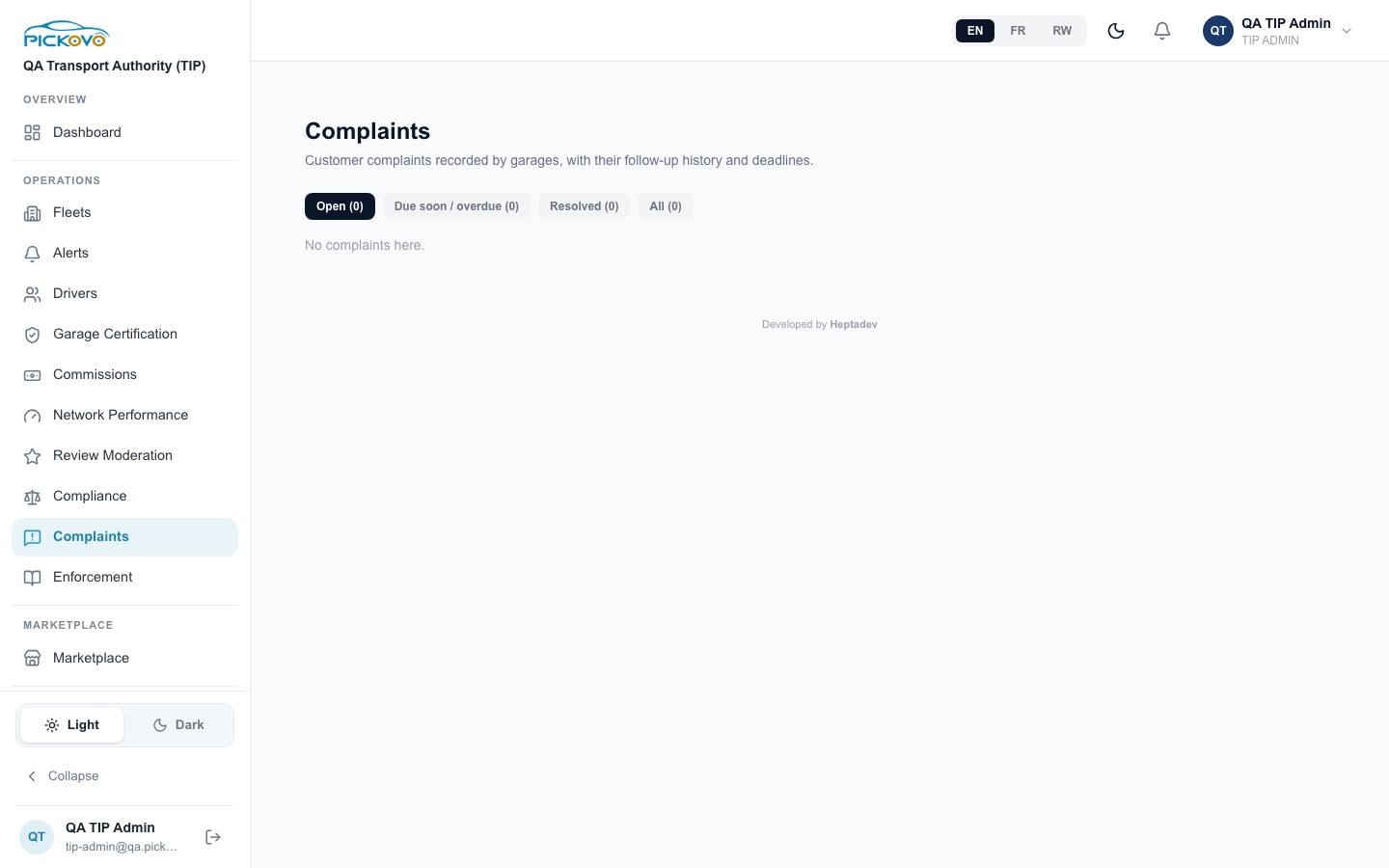
Figure 14: Complaints with the Open, Due soon / overdue, Resolved and All tabs.
Customer complaints recorded by garages, with their follow-up history and deadlines. On an open complaint you can Add a follow-up note. On a resolved complaint you can Reopen it with a reason. Garages, not you, assign, schedule and resolve complaints.
C14. Enforcement
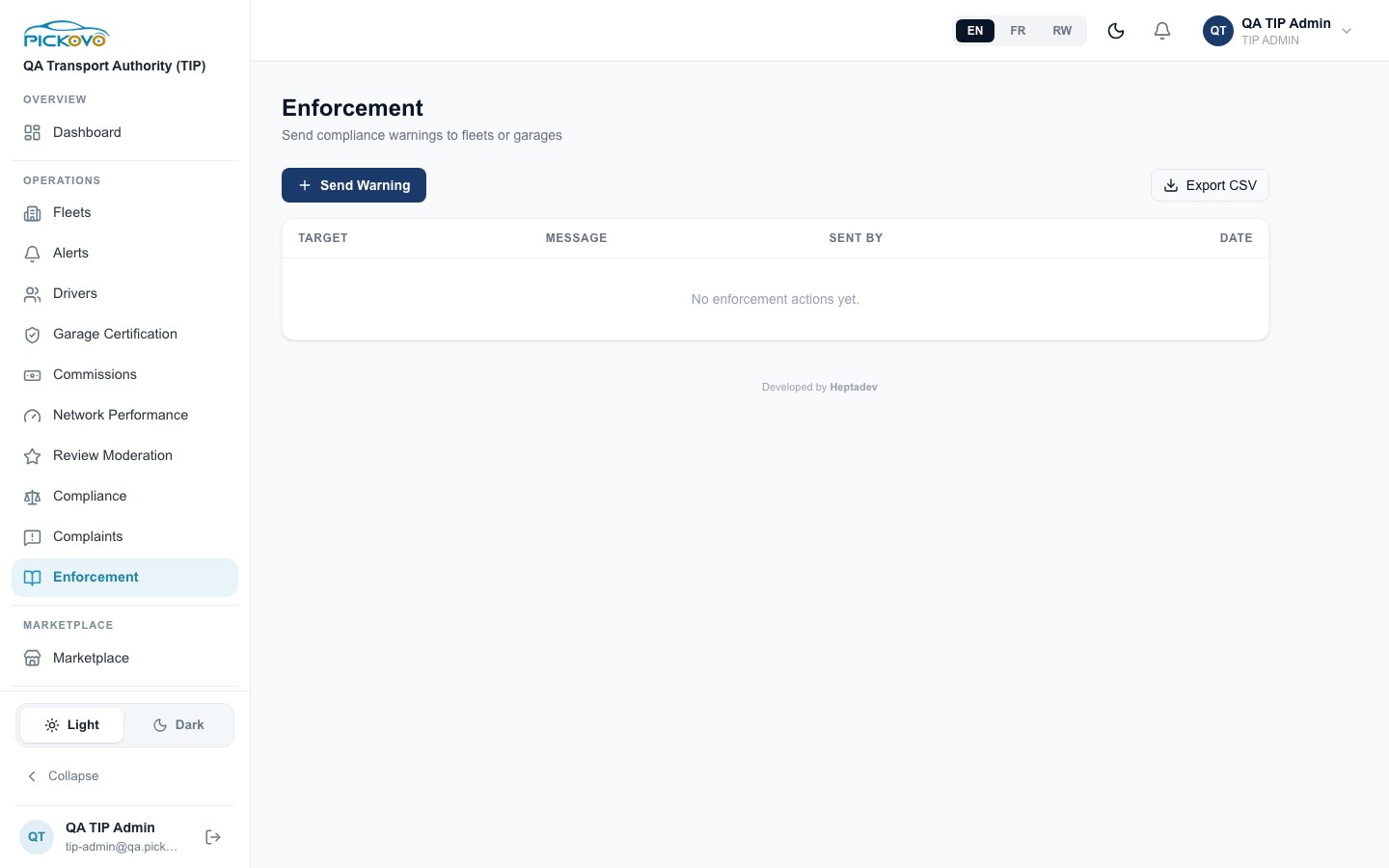
Figure 15: Enforcement, with the Send Warning button and an empty history.
- Select Send Warning.
- Select Target: a fleet or a garage.
- Write the Warning Message: describe the violation and the action required.
- Send. The target's administrators and fleet managers receive an in-app notification and an email "Enforcement Notice". The email is always sent, whatever their notification settings.
The table keeps a history: Target, Message, Sent By, Date. Export CSV downloads it.
C15. Invoices
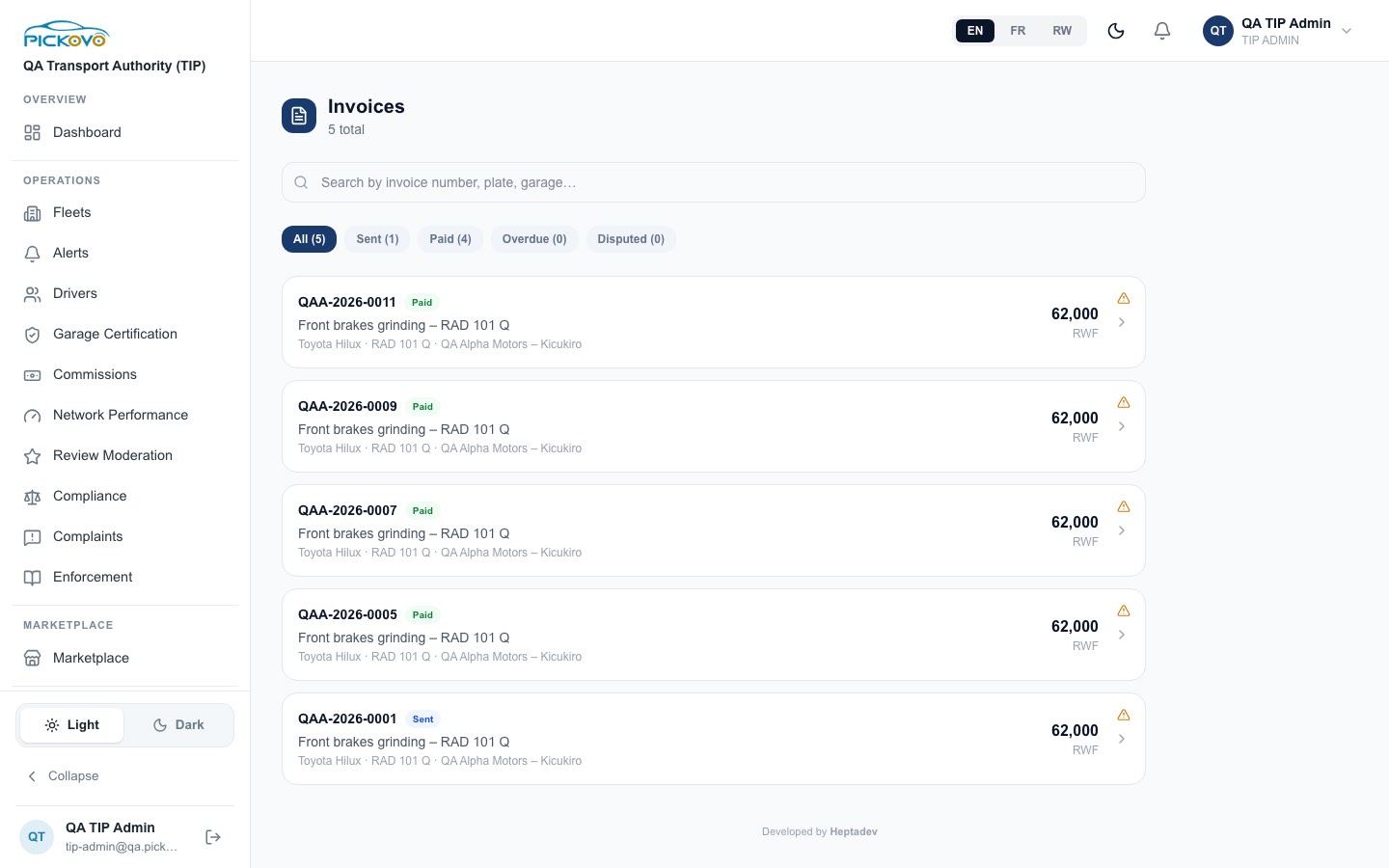
Figure 16: Invoices for your fleets: five invoices of RWF 62,000 from QA Alpha Motors, four Paid and one Sent.
Lists garage invoices issued to your fleets. Search by invoice number, plate or garage, and filter All / Sent / Paid / Overdue / Disputed. Open an invoice to see its detail and Print / PDF. If an invoice is Sent, Overdue or Disputed, Mark as Paid records that payment was received. Add an optional note (for example "verified via bank statement"). This cannot be undone.
The small warning triangle on each invoice opens Flag Invoice for Audit, but only Regulatory Officers can save a flag. Your attempt will be refused.
C16. Marketplace
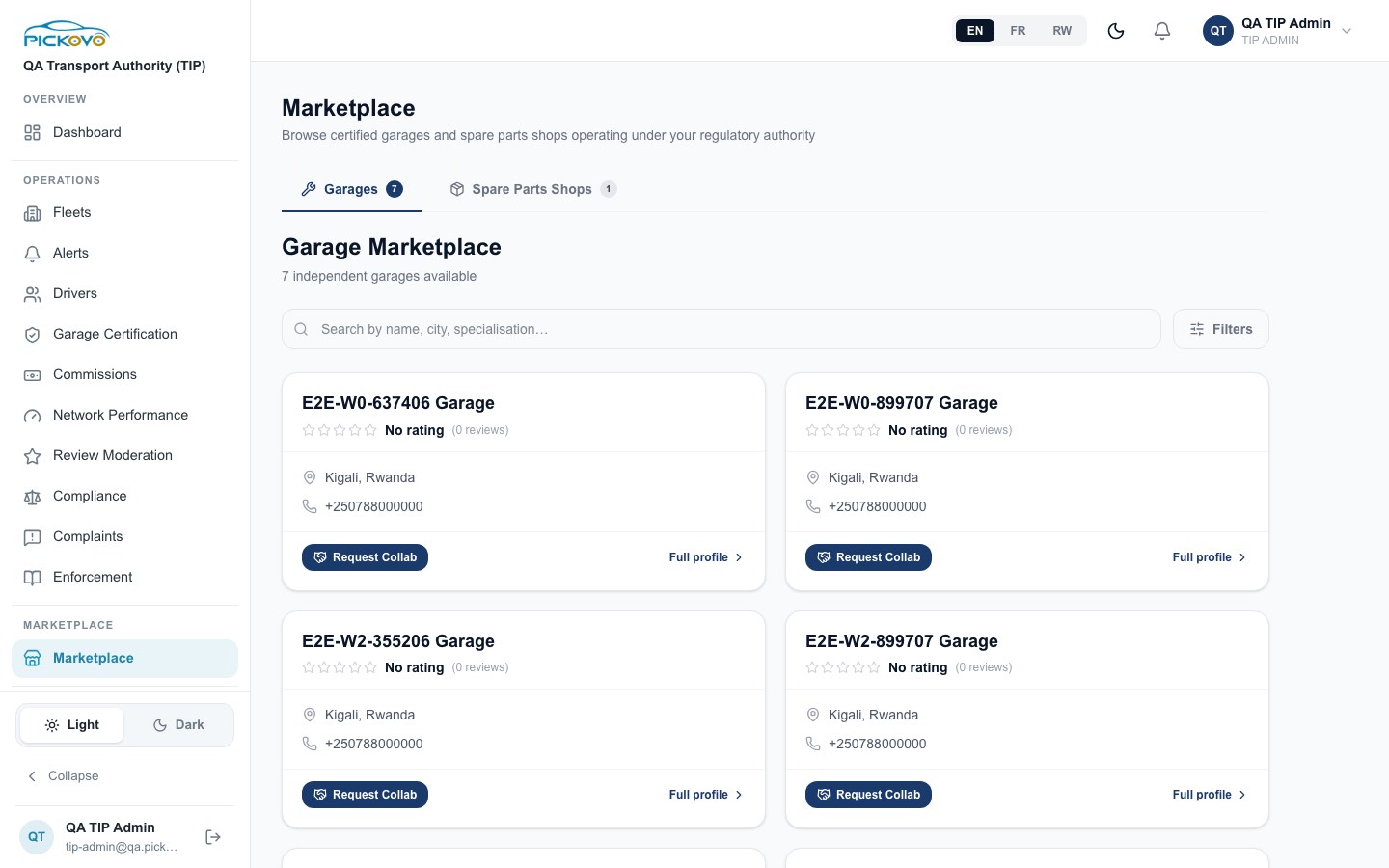
Figure 17: The Marketplace, Garages tab: 7 independent garages, each with rating, location, phone, Request Collab and Full profile; the Spare Parts Shops tab shows 1.
Browse garages and, on the second tab, Spare Parts Shops. Search by name, city or specialisation. Filters offers rating, specialisations and Certified only. Request Collab sends a collaboration request (the card then shows Pending, later Partner). Full profile opens the garage's page.
C17. Regulatory Reports
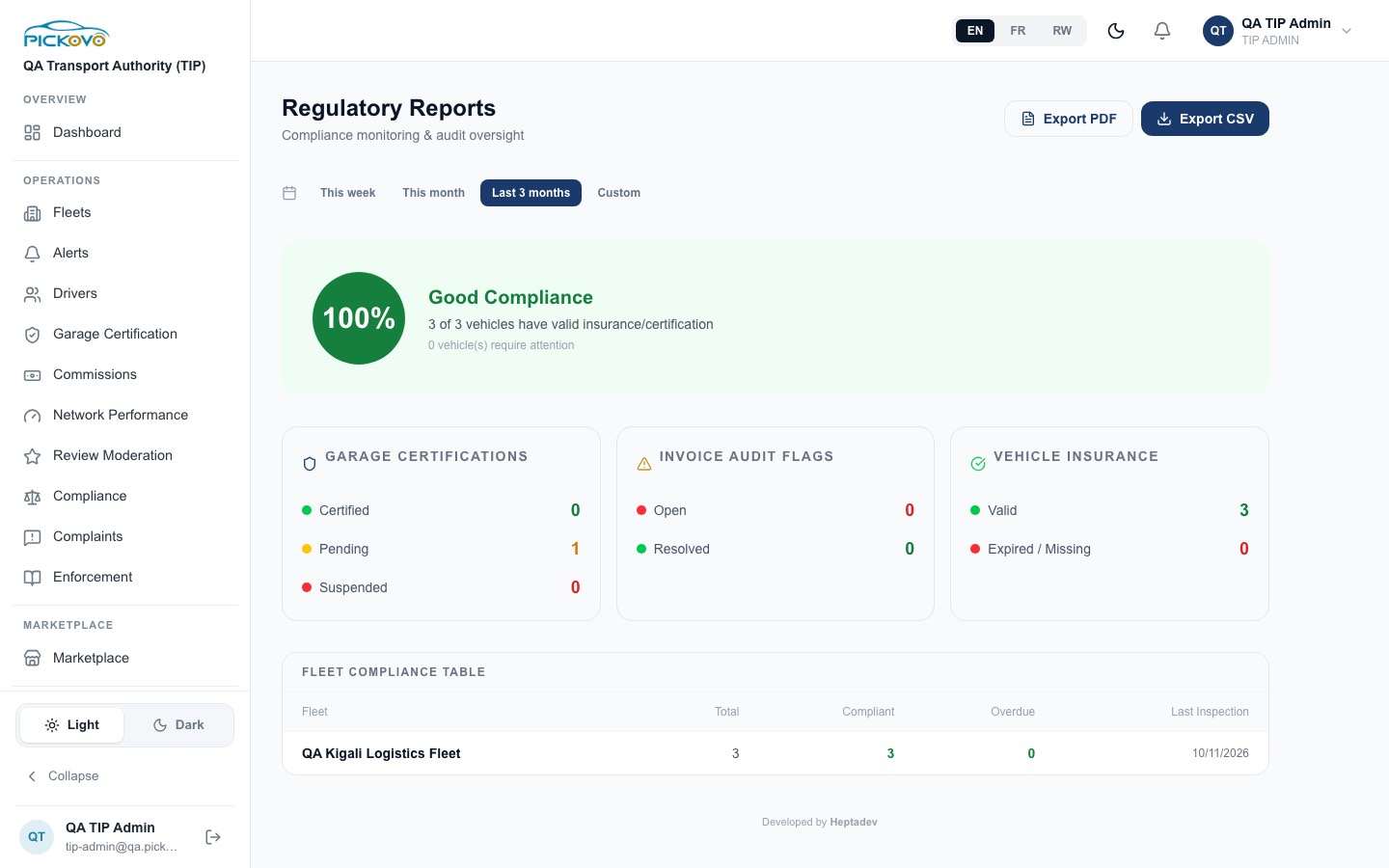
Figure 18: Regulatory Reports: 100% compliance (3 of 3 vehicles), garage certifications, invoice audit flags, vehicle insurance and the fleet compliance table.
Open at /en/regulatory/reports. Pick a period, then read the overall compliance score, Garage Certifications (Certified / Pending / Suspended), Invoice Audit Flags (Open / Resolved), Vehicle Insurance (Valid / Expired or missing) and the Fleet Compliance Table. Export PDF prints and Export CSV downloads.
C18. Regulatory Users
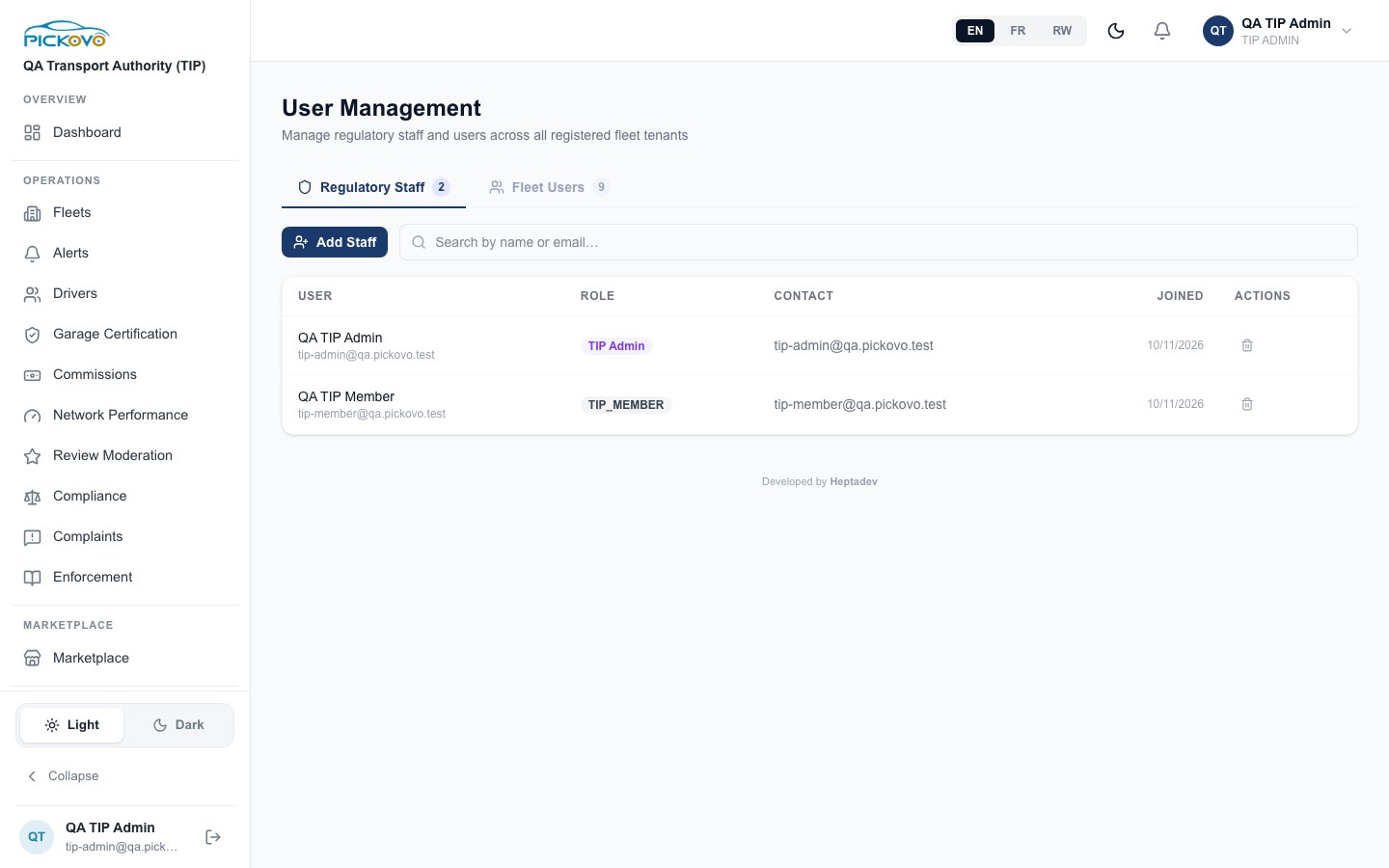
Figure 19: User Management: the Regulatory Staff tab with the TIP Admin and TIP Member accounts, and the Fleet Users tab (9).
- Regulatory Staff lists your own organisation's accounts. Add Staff creates one: name, Email, Phone, role (Officer, Inspector, Member or TIP Admin) and a generated password that you copy and hand over. TIP Member accounts cannot be created here. Ask Pickovo to create them.
- Fleet Users lists the users of your registered fleets. Add Fleet User creates a Fleet Admin, Fleet Manager, Fleet Member or Driver in one of your fleets. Licence number and category are asked for drivers.
- The bin icon removes an account after a Delete? confirmation. You cannot delete your own account.
C19. Notifications, Activity Log and Settings
- Bell / Notifications: your in-app notifications.
- Activity Log: everything that happened in your organisation: who did it, from where, and what changed.
- Settings: your Full Name, Email, Phone Number and Change Password. Leave the password fields blank to keep your current password. You can also request account deletion here. Settings → Notifications sets which notifications you receive. Refer & Earn is the referral programme.
D. What you can and cannot do
| Area | View | Create | Edit | Delete | Approve / act | Notes |
|---|---|---|---|---|---|---|
| TIP Dashboard, Fleets, Alerts | Yes | Yes fleets | Yes rename, monitored mark | Yes remove fleet | Yes resolve alerts | Your own fleets only |
| TIP Reports | Yes | - | - | - | - | TIP Admin only |
| Webhooks | Yes | Yes | - | Yes | Yes test | |
| Regulatory dashboard, fleets, drivers | Yes | Yes fleets, drivers | Yes rename, reassign vehicle | - | - | |
| Garage Certification | Yes | Yes audits, ledger entries | - | - | - | Approve or revoke certification is for Regulatory Officers |
| Commissions & incentive rules | Yes | Yes rules | Yes rates, rule on/off | - | - | Network-wide |
| Network Performance, Compliance, Reports | Yes | - | - | - | - | |
| Review Moderation | Yes | - | - | - | Yes publish / reject | |
| Complaints | Yes | Yes notes | - | - | Yes reopen | Garages resolve |
| Enforcement | Yes | Yes warnings | - | - | - | |
| Invoices | Yes | - | - | - | Yes mark as paid | Flagging is for Regulatory Officers |
| Marketplace | Yes | Yes collaboration requests | - | - | - | |
| Regulatory Users | Yes | Yes staff and fleet users | - | Yes (not yourself) | - | |
| Activity Log, Settings, Notifications | Yes | - | Yes own profile | - | - | |
| Cannot access | - | - | - | - | - | Fleet, garage, spare-parts, driver, superadmin and billing workspaces; /documents; /settings/ai |
E. Common workflows
E1. Bring a new transport operator under your authority
- Fleets → Create Fleet: enter the company name and the admin's name and email or phone.
- Tell the new fleet admin to sign in with Forgot password? to set a password.
- Optionally select Add to TIP to mark the fleet as monitored.
- Drivers → Register Driver for each driver, or let the fleet admin add drivers in their own workspace.
- From then on the fleet's vehicles, alerts, invoices and reports appear in your pages.
E2. Follow a fleet repair through to payment (workflow W1)
Before you: a driver reports a fault (for example "Front brakes grinding" on RAD 101 Q), the fleet manager approves it and sends it to a garage, the garage diagnoses, quotes RWF 62,000, gets approval, repairs, passes quality check and invoices, and the cashier records payment.
What you do:
- Reports: the driver's issue report is counted in Total alerts. Once approved, it moves to Resolved.
- Invoices: the garage's invoice (for example QAA-2026-0011, RWF 62,000) appears as Sent, then Paid once the garage records payment. If the fleet paid outside Pickovo and the invoice is still Sent or Overdue, open it and select Mark as Paid.
- Garage Certification → Working With: the garage now appears because it works with your fleet.
E3. Act on a compliance problem
- Alerts → Active, or Compliance → Show overdue only, to find the vehicle.
- Contact the fleet. If action is needed, go to Enforcement → Send Warning and choose the fleet.
- When the fleet has fixed the problem, return to Alerts and select Resolve.
E4. Connect your own system
- Webhooks → Add Webhook: enter the URL and tick the events.
- Give the Secret to your technical team.
- Select Test and check the response code in the result. Use the Delivery Log to follow deliveries.
F. Troubleshooting
| Problem | Likely cause and fix |
|---|---|
| Your dashboard says "TIP Module Not Enabled" or "Regulatory Module Not Enabled" | Your organisation's workspace has not been switched on. Only Pickovo (the platform superadmin) can enable it: contact Pickovo support and ask for the TIP or Regulatory module to be switched on for your organisation. |
| You open a page and land on your dashboard or on the sign-in page | Your role cannot open that page (for example a fleet or garage page). This is a permission rule, not an error. |
| Sign-in refused repeatedly, then paused | 10 wrong passwords in 15 minutes pause sign-in for the account. Wait, then use Forgot password?. |
| A fleet you created has no working admin login | The admin's temporary password is random and not shown. Ask them to use Forgot password?. |
| Enter on a fleet does nothing useful, or a yellow "Impersonating" bar appears | Known limitation (see C1). The bar clears by itself within an hour. Sign out and in again if it gets in the way. |
| Numbers differ between Alerts and Reports | Alerts are compliance alerts. Reports count driver issue reports. They measure different things. |
| "Forbidden" when flagging an invoice | Only Regulatory Officers can flag invoices. |
| Cannot find a fleet you expect | Only fleets registered under your authority appear. A fleet registered by another authority is not visible to you. |
| Webhook Test button greyed out | You are offline. Reconnect and try again. |
G. Security and best practices
- Never share your password. Change it under Settings → Change Password if you think someone else knows it. Two-factor authentication is not offered on the Settings page for this role at present.
- Hand temporary passwords for new drivers and staff to the person directly. Ask them to change it at first sign-in.
- Treat each webhook Secret like a password. Use only
https://addresses that your organisation controls, and delete endpoints you no longer use. - Removing a fleet deactivates the whole company's access. Confirm with the operator first.
- Remove staff accounts as soon as someone leaves. Review the Activity Log regularly.
- Exported CSV and PDF files contain personal data (names, phone numbers, licence numbers). Store them securely and delete them when no longer needed.
- Always Logout on shared computers.