
Garage · GARAGE_ADMIN
Garage Admin (Organisation Admin / Garage Manager)
For the owner or manager who runs a garage company on Pickovo.
All names, plates, amounts and companies in the screenshots (for example QA Alpha Motors, Alice Admin (Alpha), RAD 101 Q) are fictional test data created for quality assurance.
A. Introduction
As the Garage Admin you are the organisation administrator of your garage company. You hold every garage permission, and some of them can only ever belong to you:
- Staff, adding, deactivating and removing team members, and changing their roles (
staff.manage). - Garage settings, profile, branches, bays, rate card, availability, booking page (
settings.manage). - Roles & access, deciding what each staff role may do (
permissions.manage).
These three cannot be handed to anyone else. Everything else (jobs, stock, invoices, reports and so on) you can do yourself and also delegate to staff roles.
Your day-to-day responsibilities usually include:
- watching the workshop: incoming jobs, progress, quality checks and closing jobs;
- approving gate passes and stock corrections, which only an administrator can do;
- invoicing and collecting payment, and tracking expenses;
- managing stock, suppliers and purchasing;
- keeping compliance documents and staff qualifications up to date;
- paying your Pickovo subscription.
B. Getting started
Signing in
- Open https://fleet.heptadev.com/en/login (use
/fr/loginor/rw/loginfor French or Kinyarwanda, or the EN / FR / RW switch at the top right). - Enter your email or phone number and your password, then select Log in.
- If you have switched on two-factor authentication, enter the six-digit code from your authenticator app.
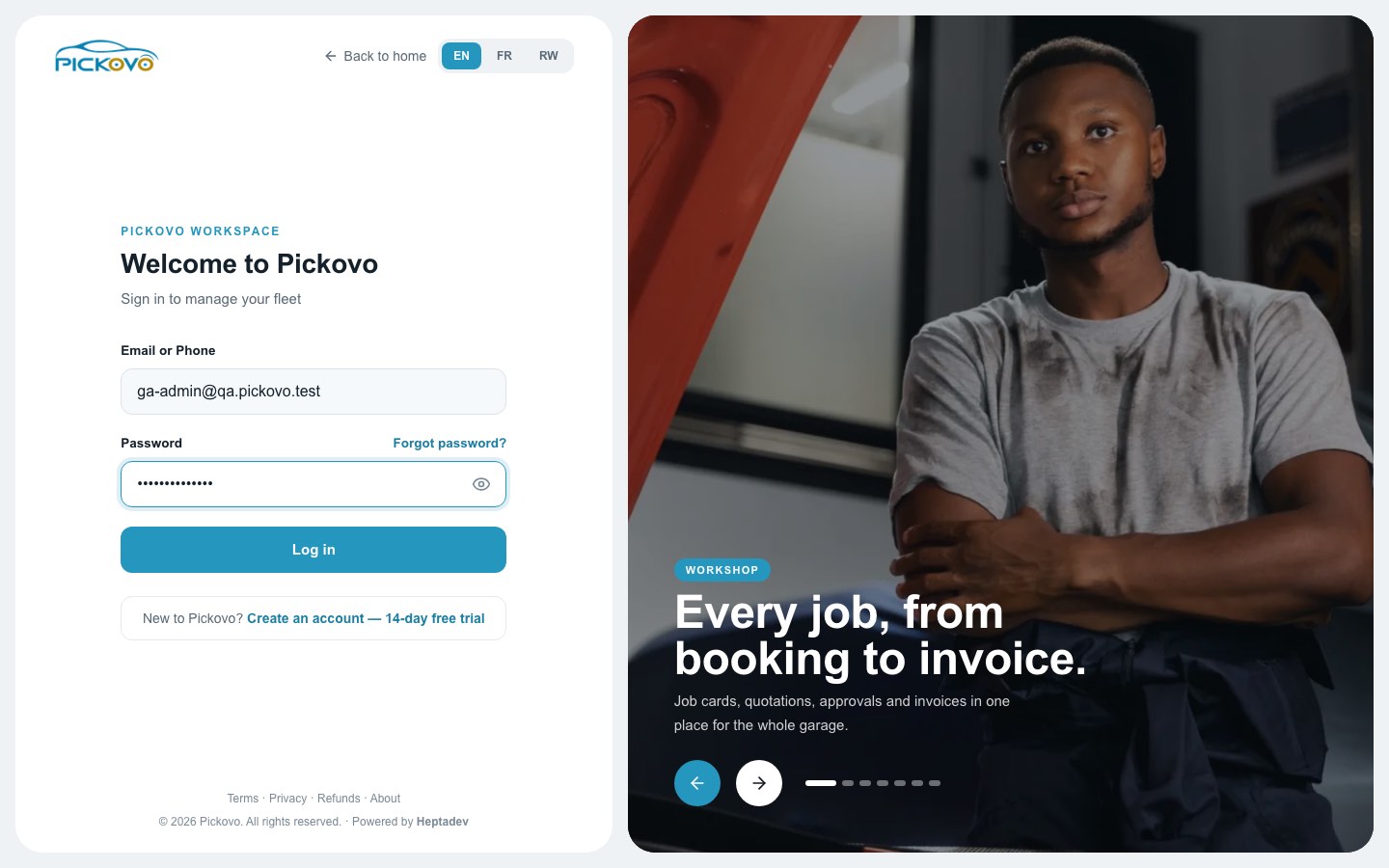
- Forgot password? sends you a reset link.
- After 10 wrong passwords within 15 minutes, sign-in is paused for your account. Wait, then try again or reset your password.
- Create an account, 14-day free trial is for new organisations, not for adding staff. You add staff yourself (see Team members).
Your dashboard
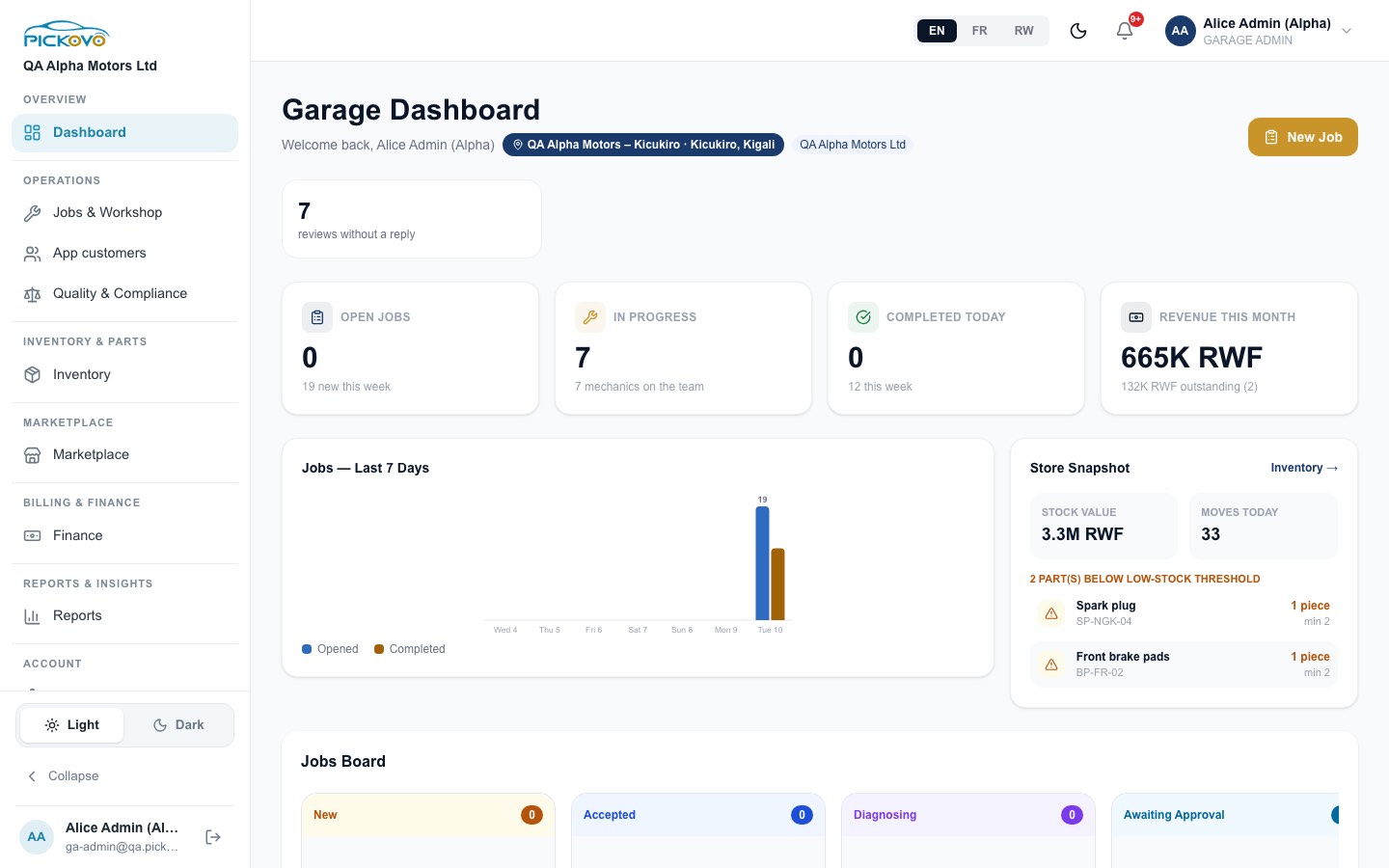
After signing in you land on the Garage Dashboard. It shows:
- the branch and company you are working in;
- how many customer reviews are still waiting for a reply;
- tiles for Open jobs, In progress, Completed today and Revenue this month (with the amount still outstanding);
- a Jobs, Last 7 days chart (opened against completed);
- a Store snapshot: stock value, stock movements today and parts below their low-stock threshold;
- a Jobs Board preview, and a New Job button at the top right.
Finding your way around
The left sidebar is grouped. Each item opens a page with tabs along the top:
| Sidebar item | Tabs |
|---|---|
| Dashboard | - |
| Jobs & Workshop | Jobs · Appointments · Walk-ins · Mechanics · Gate Passes · Scan document |
| App customers | Pickups · Messages · Reviews · Roadside · Accident reports (each tab appears only if Pickovo has switched that feature on for your garage) |
| Quality & Compliance | Certification Audits · Compliance · Complaints |
| Inventory | Inventory · Stock Movements · Change Requests · Parts Requests · Purchase Orders · Spare Parts · Deadstock |
| Marketplace | Garages · Vehicle Hub (when available) |
| Finance | Invoices · Expenses · Incentives · Billing |
| Reports | Reports · Workshop |
| Account (settings) | Garage Family · Settings · Roles & access · Activity Log · Refer & Earn |
At the bottom of the sidebar are the Light / Dark switch, Collapse (shrinks the sidebar to icons; point at an icon to see its name), and your name and email with the log-out button. Along the top bar are the language switch, a dark-mode button, the notification bell and your name menu.
Notifications
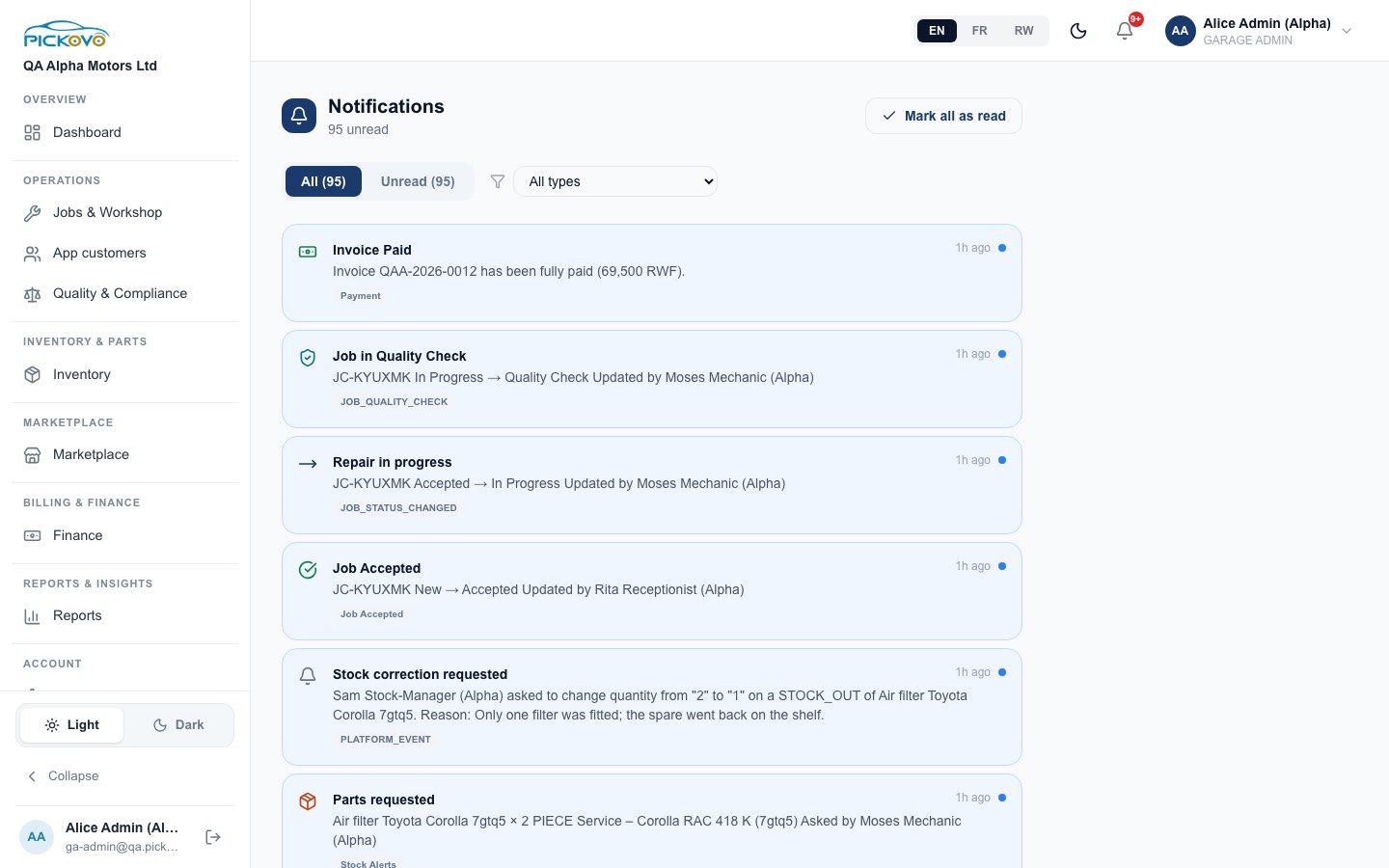
The bell opens Notifications. Here you see events such as invoices paid, jobs moving between stages, part requests and stock corrections. Filter by All / Unread or by type, and use Mark all as read. Choose which events reach you, and by which channel, under Notification preferences (section C).
C. Features
C1. Jobs board
Purpose: see every active job in your garage and move jobs through the workshop.
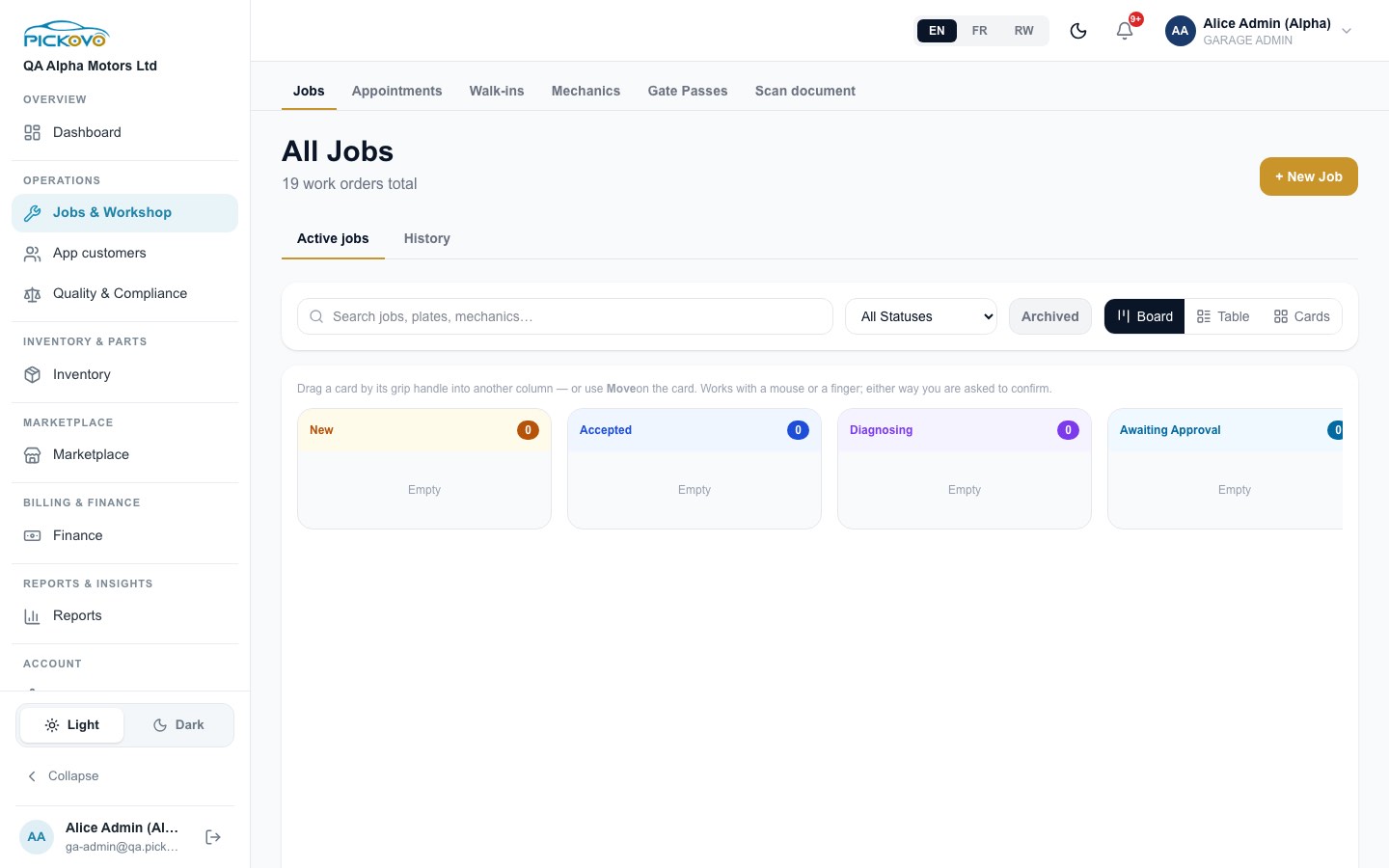
- Go to Jobs & Workshop → Jobs.
- Use Active jobs for current work and History for finished jobs.
- Search by job, plate or mechanic, or filter by status.
- Switch the view between Board, Table and Cards.
- To move a job, drag its card by the grip handle into another column, or use Move on the card. You are always asked to confirm.
The board columns are New, Accepted, Diagnosing, Awaiting Approval, In Progress, Paused, Quality Check, Completed. Archived shows jobs you have archived. + New Job opens a new job card.
Creating a job (New Job). Choose the customer type, Fleet Vehicle or Walk-in Customer, then pick the vehicle or the walk-in customer (add the customer first under Walk-ins if needed). Next enter a Job Title and Description, set Priority (Normal or Urgent) and an optional Deadline, then select Create Job.
C2. The job lifecycle
Every job follows the same path. The server enforces it, so the board only offers moves your role is allowed to make.
Pending (New) → Accepted → Diagnosing → Awaiting approval → In progress → Quality check → Completed → Closed
As Garage Admin you may make these moves:
| From | To |
|---|---|
| Pending | Accepted, or Declined |
| Accepted | Diagnosing, or straight to In progress |
| Diagnosing | Awaiting approval, or In progress |
| Awaiting approval | In progress, or back to Diagnosing |
| In progress | Quality check |
| Quality check | Completed (Pass Quality Check) or back to In progress (Fail, Send Back) |
| Completed | Closed |
Rules worth knowing:
- Work cannot start without a mechanic. Moving to In progress is refused until someone is assigned.
- Pickovo warns you, but does not block you, when you start work with no diagnosis or with a quotation that is not approved. This is fine for a simple agreed job such as an oil change. Start Work Now is there for this case.
- A mechanic cannot pass their own quality check. Only you or a head mechanic can sign off QC.
- Pausing is separate from these moves. Use Pause Job (with a reason) on an Accepted, Diagnosing, Awaiting approval, In progress or Quality check job, then Resume Job to carry on from where it stopped.
- A closed job is read-only. You can Archive Job to tidy the board.
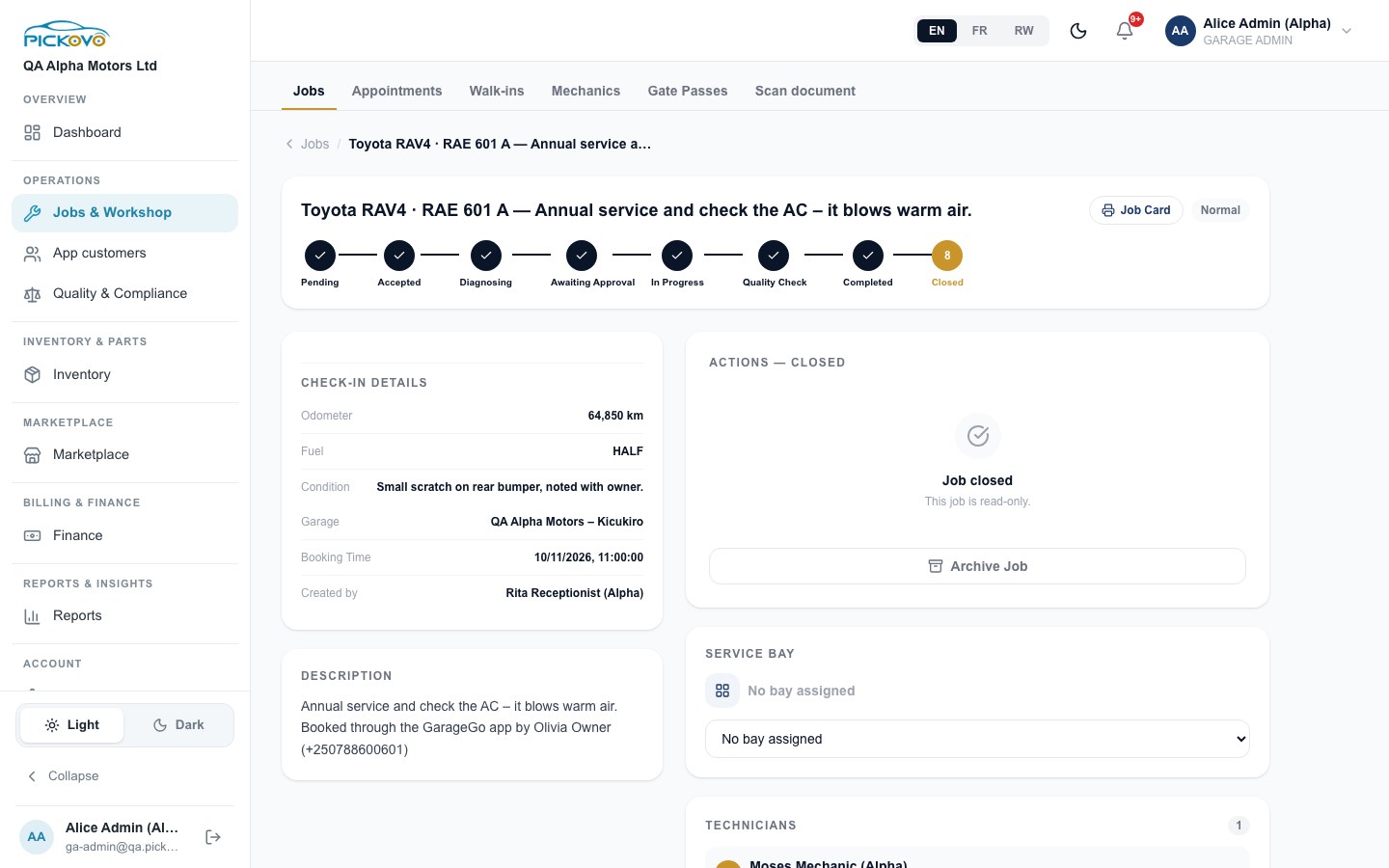
C3. The job card
Purpose: everything about one job on one page.
Open a job from the board. At the top you see the title, a progress tracker through the eight stages, and buttons: Call (phone the customer or contact), Job Card (a printable job card) and the priority.
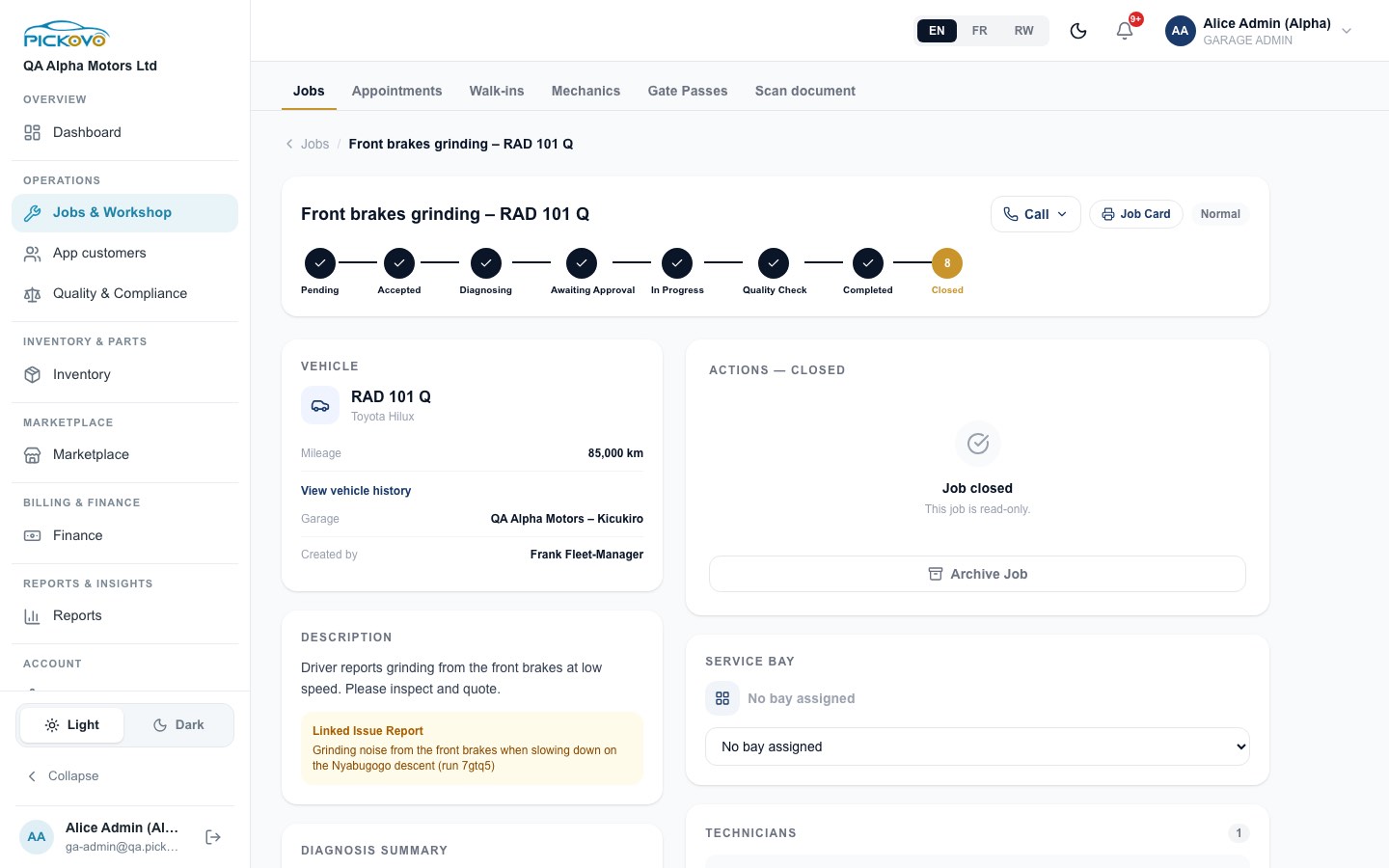
The page is made of panels:
- Vehicle, plate, model, mileage, View vehicle history, garage and who created the job.
- Description, including a linked issue report when the job came from a fleet driver.
- Diagnosis summary, findings, estimated hours and the estimate.
- Actions, the buttons for the next step: Accept Job / Decline Job, Start Diagnosis, Open Diagnosis Form, Create / Edit Quotation, Approve & Start Work, Reassign Mechanic, Work Log, Send to Quality Check, Pass Quality Check / Fail, Send Back, Generate Invoice, Close Job.
- Service bay, assign a bay.
- Technicians, who is working on the job.
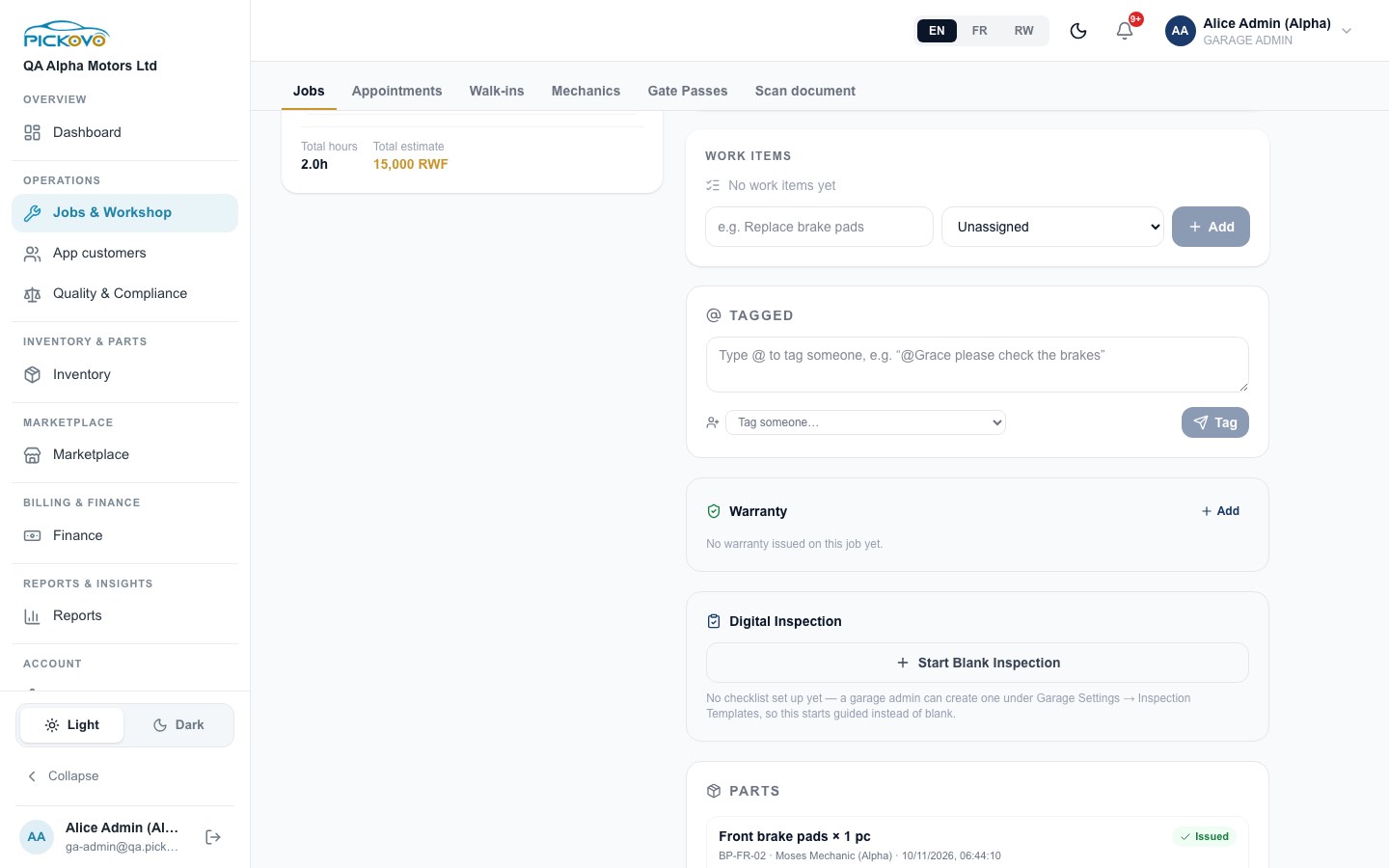
- Work items, break the job into tasks and assign each to a mechanic.
- Tagged, type
@to tag a colleague with a note. They are notified. - Warranty, Add a warranty for the work.
- Digital Inspection, Start Blank Inspection, or use a checklist you set up under Garage Settings → Inspection Templates.
- Parts, parts issued to this job from stock.
Jobs booked by car owners show Check-in details (odometer, fuel, condition and booking time) recorded when the vehicle arrived.
C4. Quotations
Purpose: price the work so the customer (a fleet company or car owner) can approve it.
- On the job card, select Create / Edit Quotation.
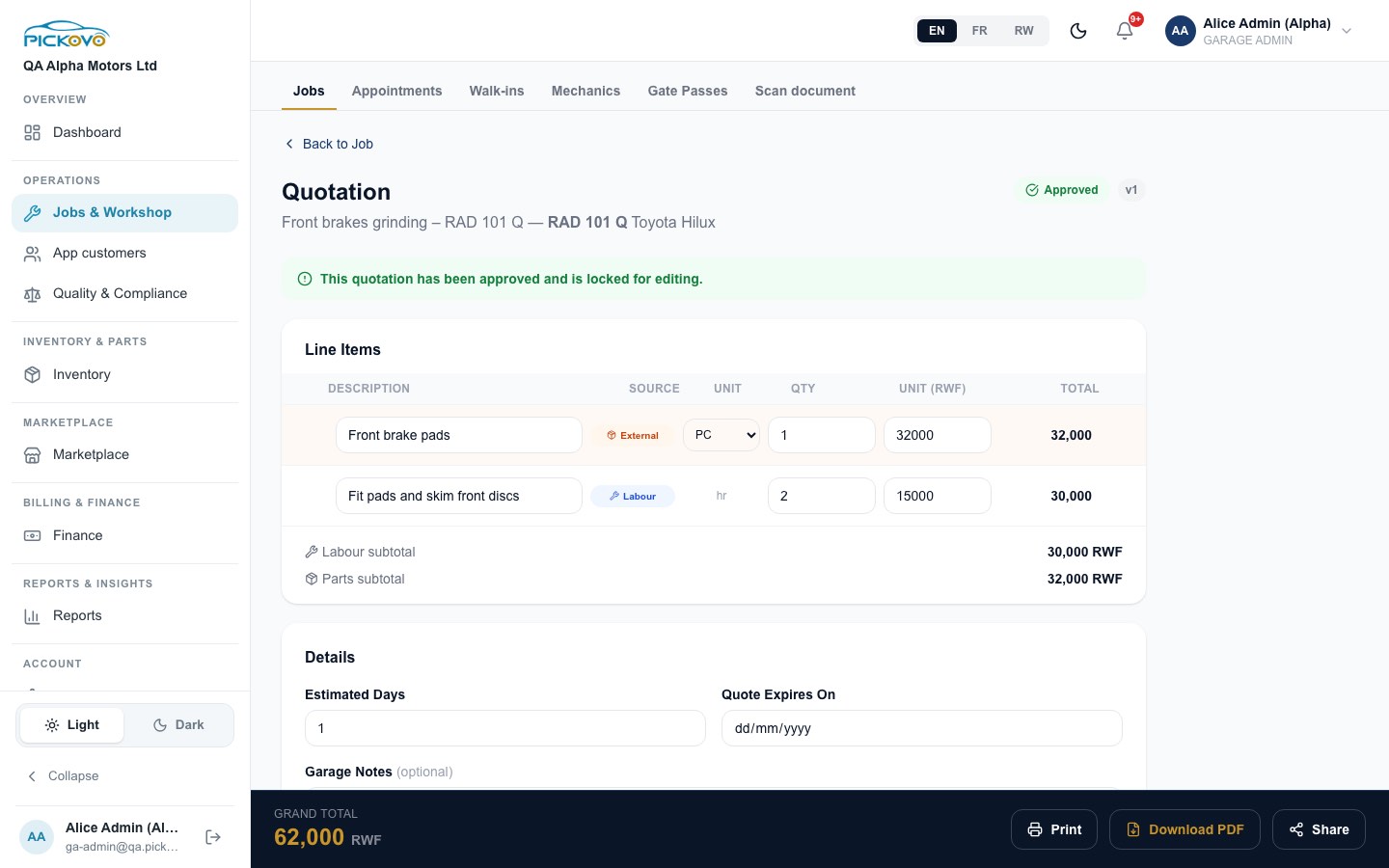
- Add line items. Each line has a description, a source (Labour, Stock or External part), unit, quantity and unit price in RWF. Labour and parts subtotals and the Grand Total update as you type.
- Fill in Details: estimated days, the quote expiry date and optional garage notes.
- For a fleet job, select Send to Fleet (or Re-send to Fleet for a revision). For a walk-in customer who agrees the price at the counter, select Customer Approved, Start Work. Share sends the quotation by email, WhatsApp or a customer link. Print and Download PDF give you a paper copy.
Once the customer approves, the quotation shows Approved and is locked for editing. The job moves on to In progress. Each revision gets a version number (v1, v2…), and the job card shows the quotation history.
C5. Appointments (bookings)
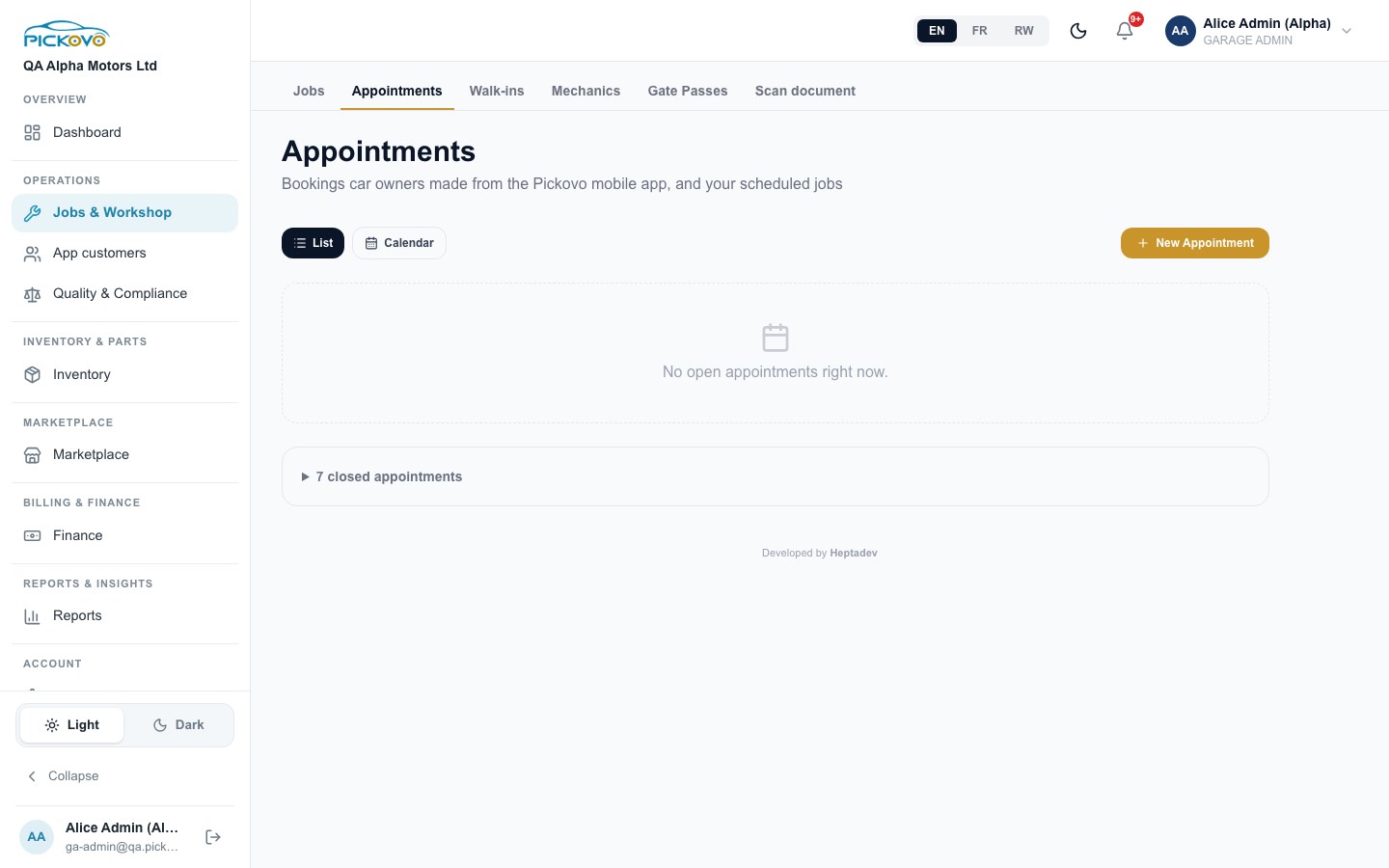
Purpose: bookings that car owners made in the Pickovo app, and your own scheduled jobs.
- Switch between List and Calendar. Closed appointments are folded away at the bottom.
- New Appointment schedules a job yourself.
- For each booking you can confirm it, move it to a new date and time, edit or cancel it. When a booking is received, it becomes a job card. Bookings show when an accident report was shared, and a Message owner option appears when messaging is switched on.
C6. Walk-in customers
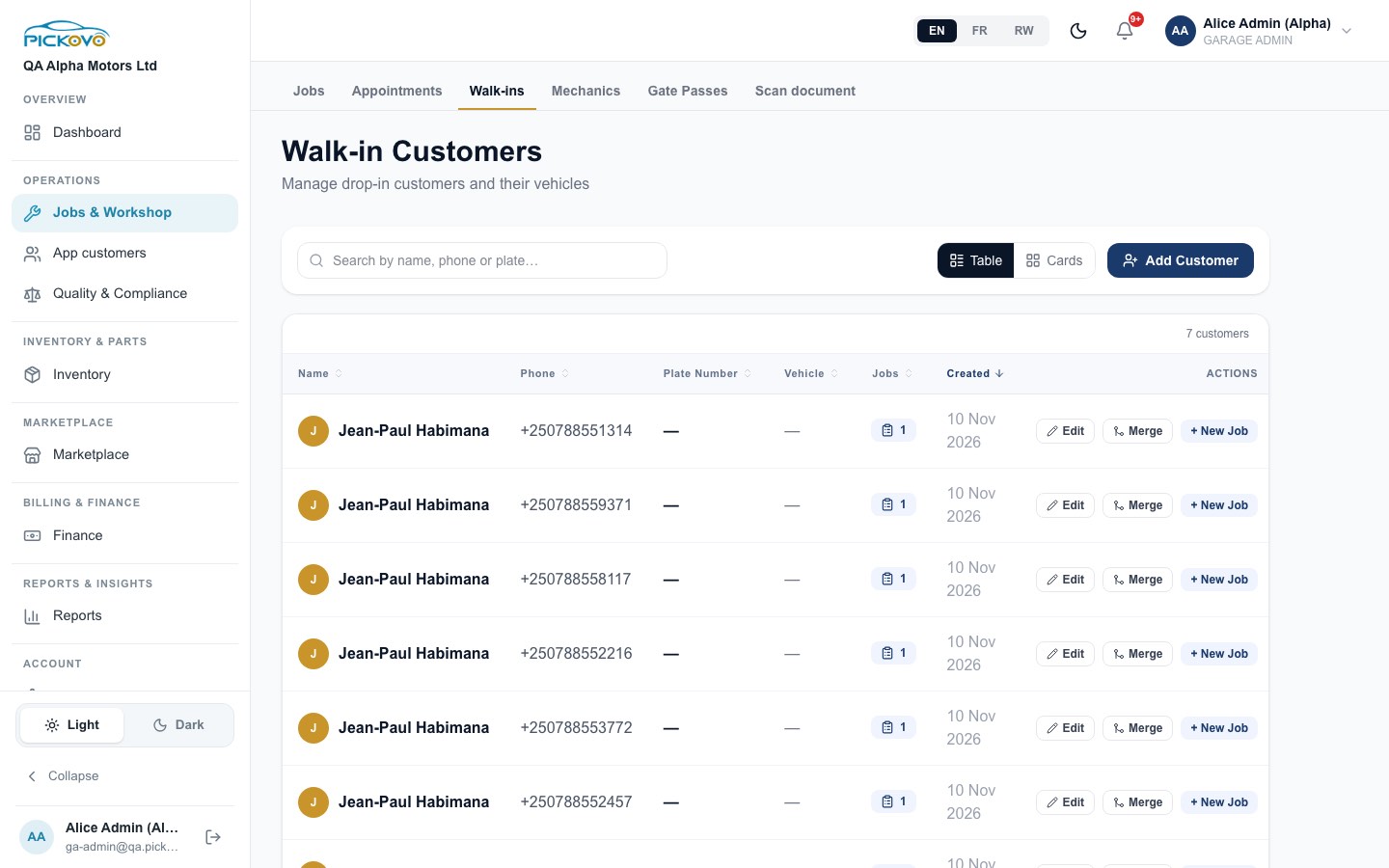
Purpose: customers who come in off the street, and their vehicles.
- Add Customer, full name, phone, email, then the vehicle (plate, make, model, year).
- On each row: Edit, Merge (combine duplicate customers) and + New Job.
- Search by name, phone or plate. Switch between Table and Cards.
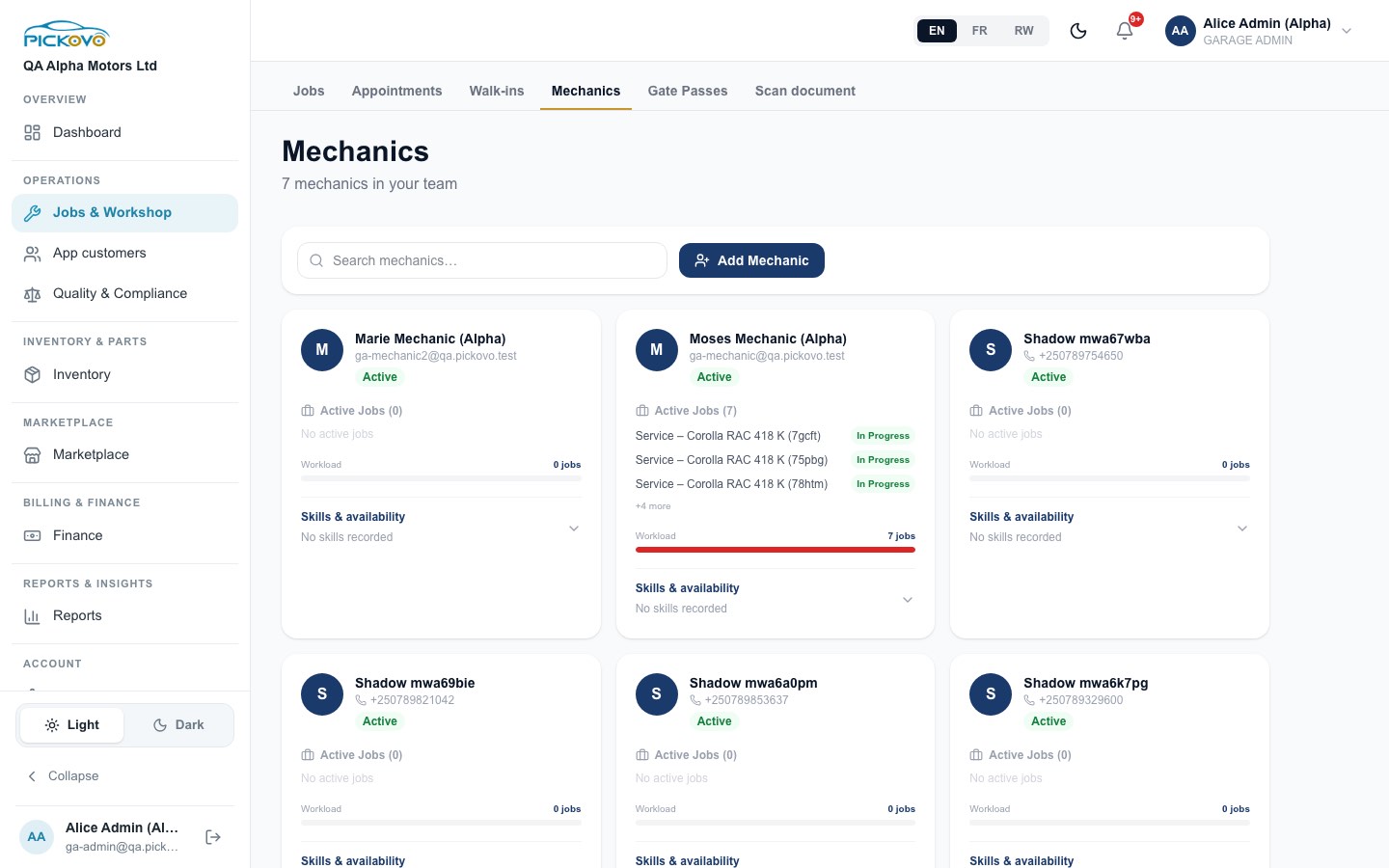
C7. Mechanics
Purpose: see who is working on what, and how loaded each mechanic is.
Each card shows the mechanic, their active jobs, a workload bar, and Skills & availability, where you can record skills, years of experience and notes. Add Mechanic adds a mechanic. To give a mechanic their own login, an email is required, and the login uses one of your plan's user seats.
C8. Gate passes
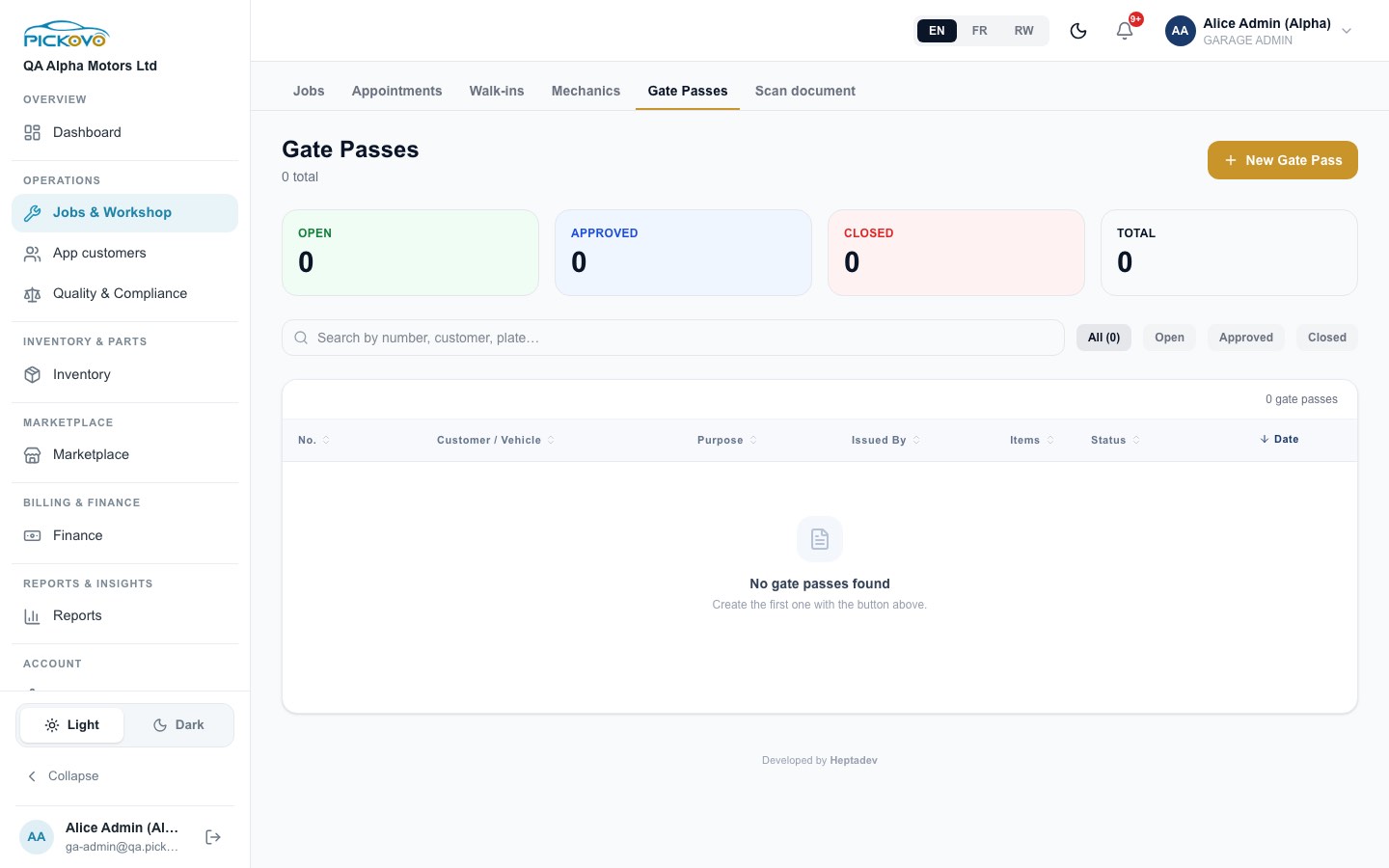
Purpose: control what leaves your yard (vehicles, parts, customer belongings).
- New Gate Pass, choose the type (Customer Pickup, After Service, Test Drive, External Repair, Spare Part, Customer Belonging, Other). Then enter the customer name or vehicle plate, the purpose, the items and quantities, and who authorised and received them.
- A pass starts Open. Open it and select Approve, and later Close once the vehicle or items have left.
Only a Garage Admin can approve or close a gate pass. Staff can create them. The tiles count Open, Approved, Closed and Total passes. Search by number, customer or plate.
C9. Scan document
Jobs & Workshop → Scan document turns a photo of a paper document (a job card, delivery note or supplier invoice) into editable text. Take or upload up to 10 pages, select Extract text, and check the text before you save it. Pictures are read by Pickovo's AI service and are not stored.
C10. App customers (features Pickovo switches on)
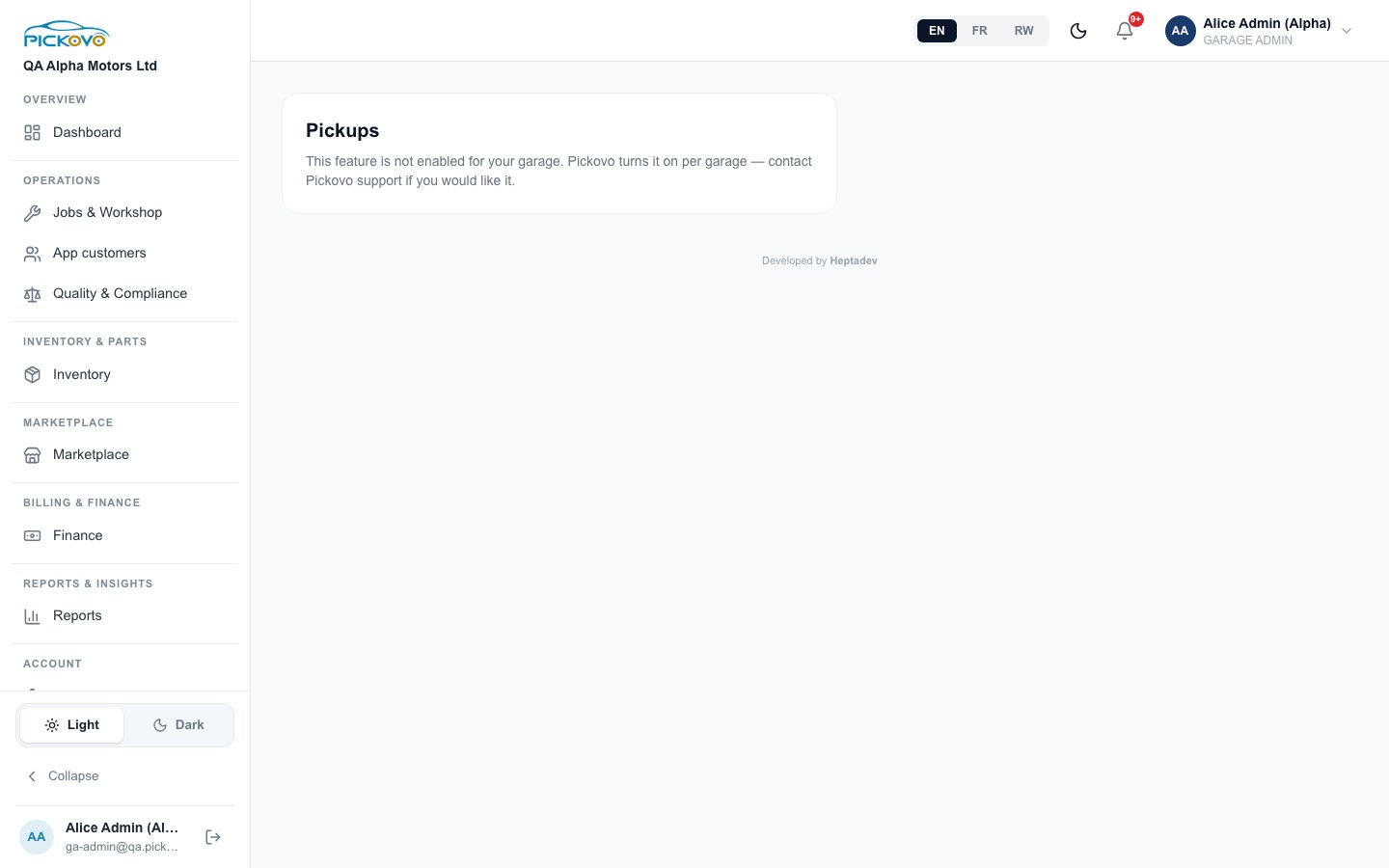
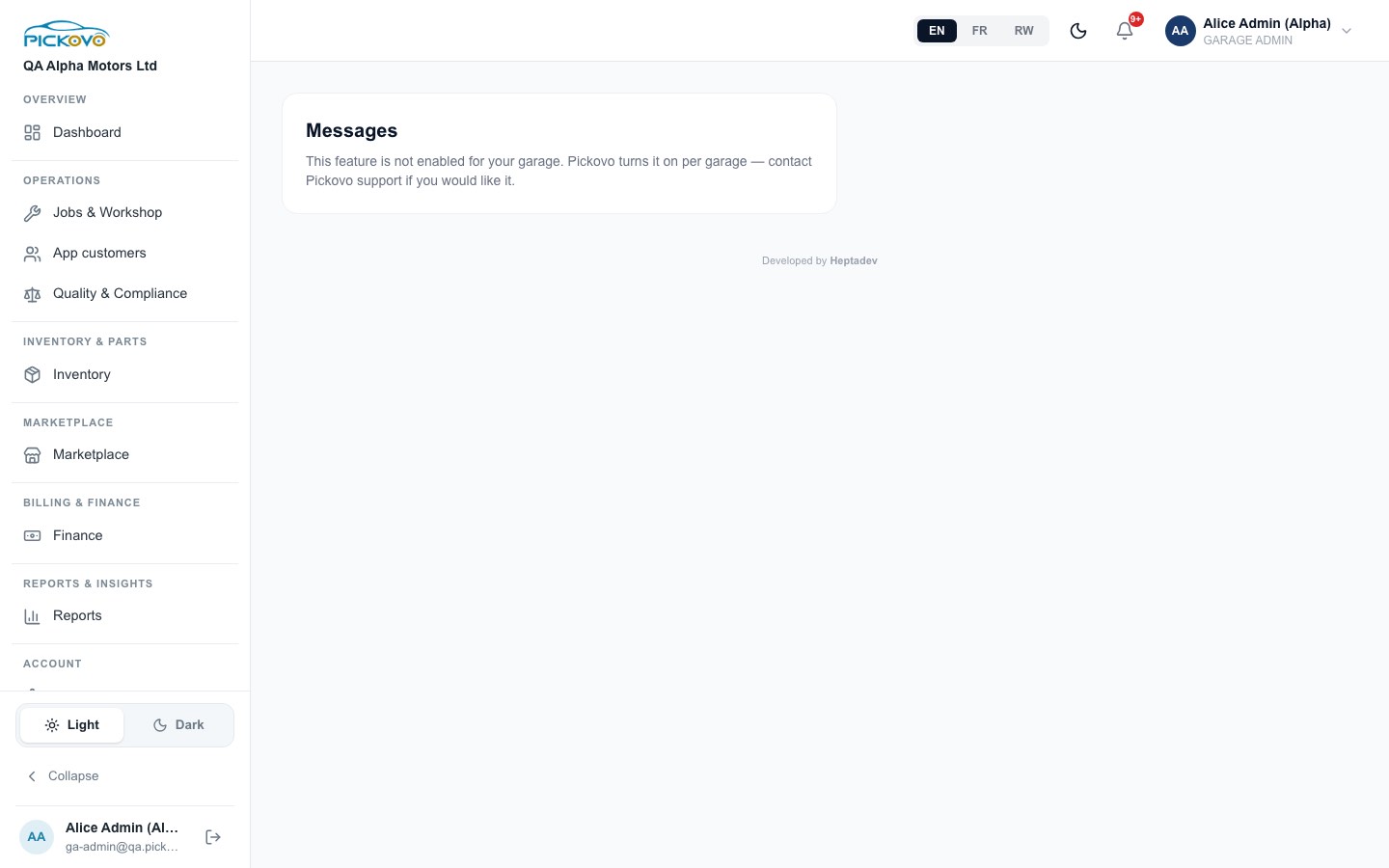
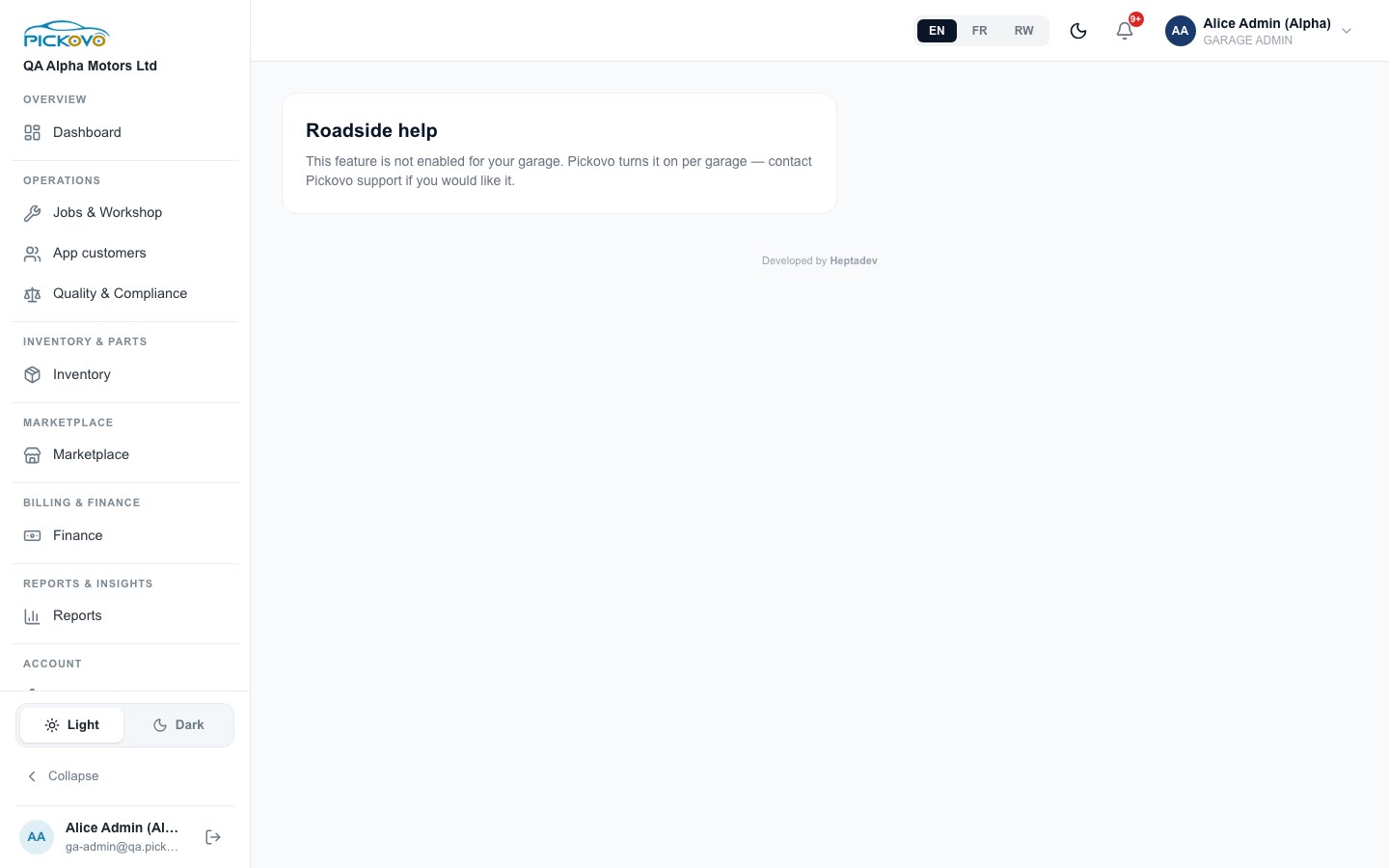
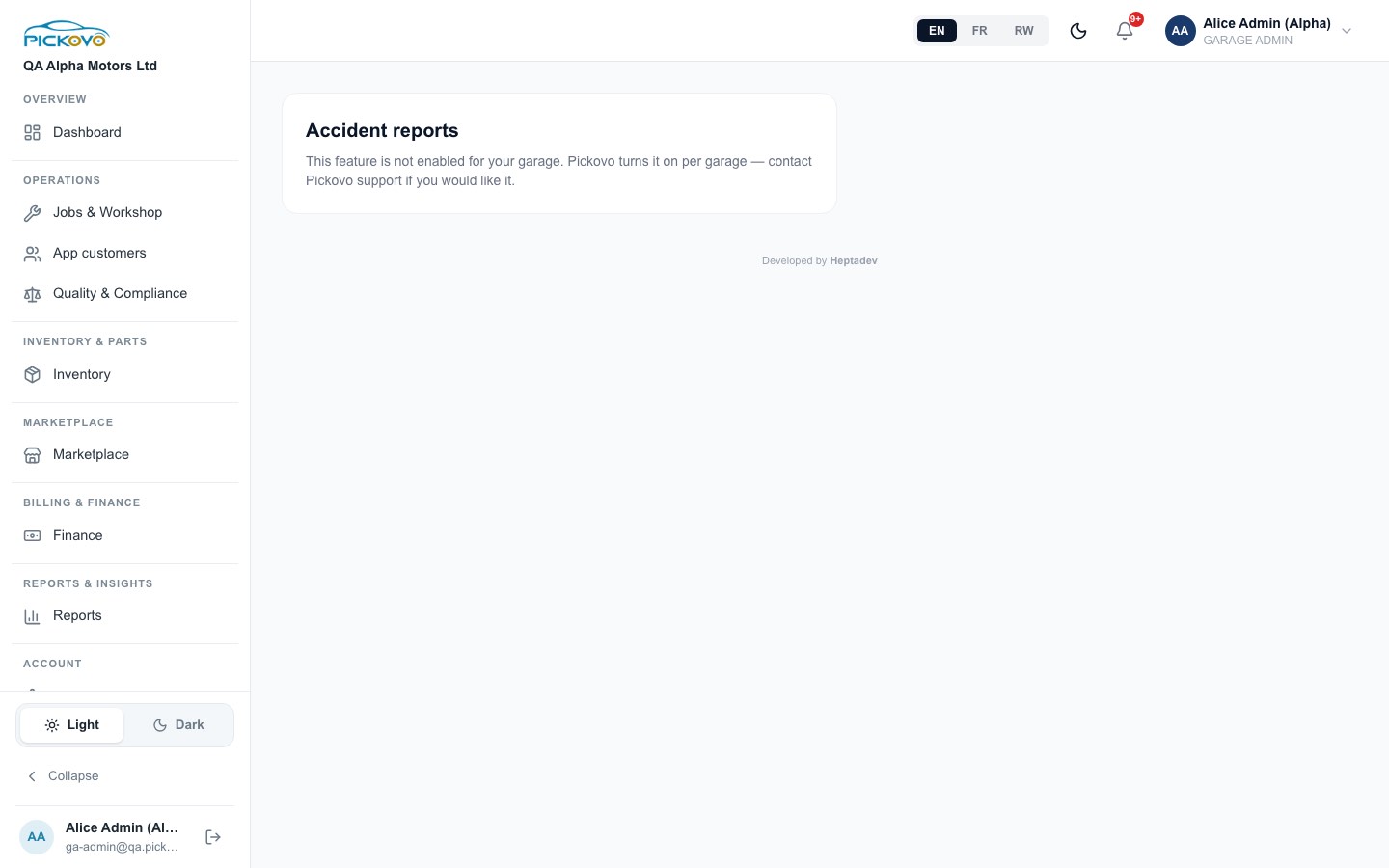
These pages handle work that comes from car owners using the Pickovo app. Every one of them is off by default. Pickovo switches them on garage by garage. When a feature is off, its tab is hidden, and opening the page shows "This feature is not enabled for your garage. Pickovo turns it on per garage, contact Pickovo support if you would like it."
| Feature | What it does when switched on |
|---|---|
| Pickups | Owners ask you to collect their car, and you dispatch a driver. |
| Messages | You and the owner message each other about a booking. |
| Reviews | Owners review you after a finished job, and you reply publicly. |
| Roadside | You receive nearby roadside-help requests (tow, battery, tyre, fuel) and can take them. |
| Accident reports | Owners share an accident report (photos, location) before bringing the car. |
Other switches Pickovo controls for your garage are SMS updates to owners, SMS alerts to staff, linking walk-in jobs to an owner's app account, letting owners ask for a particular mechanic, and a follower count. Ask Pickovo support to have any of these turned on.
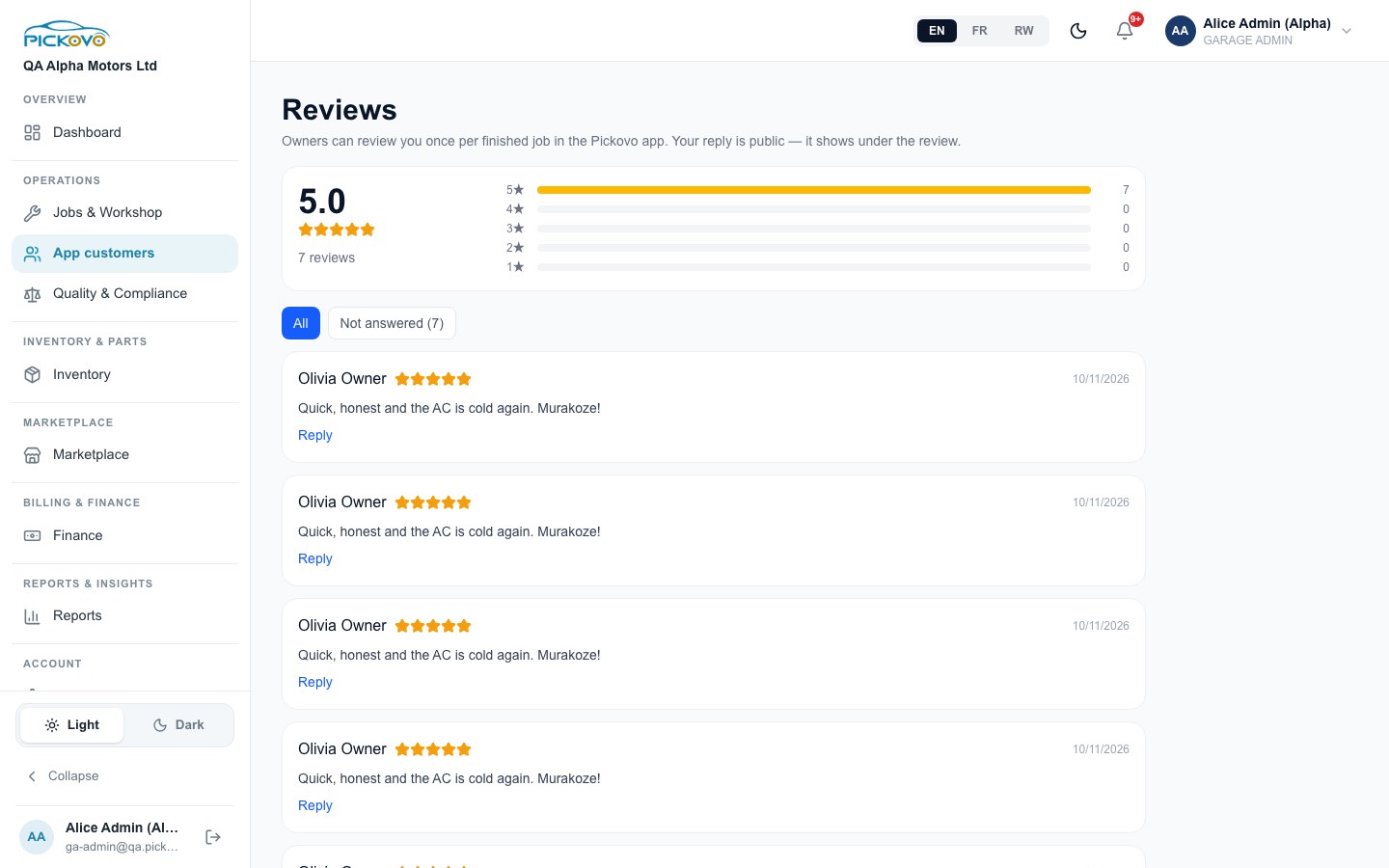
Reviews was switched on for the test garage. You see your average rating, a breakdown by stars, and each review. Filter Not answered and select Reply. Your reply is public and shows under the review. Owners can review once per finished job.
C11. Inventory
Purpose: your parts, stock levels and store locations.
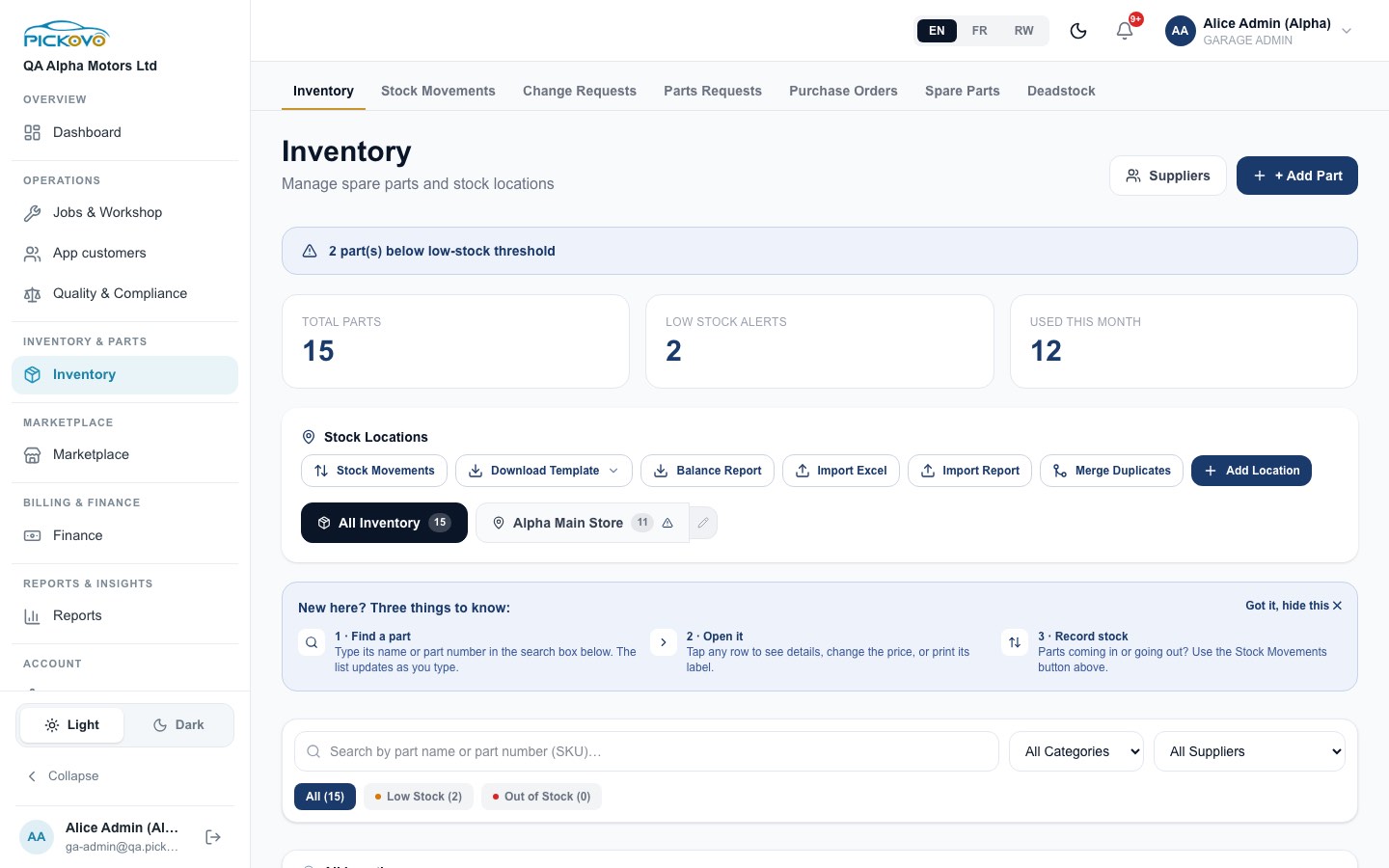
- The top shows a low-stock warning and tiles for Total parts, Low stock alerts and Used this month.
- + Add Part adds a part. Suppliers opens your supplier list.
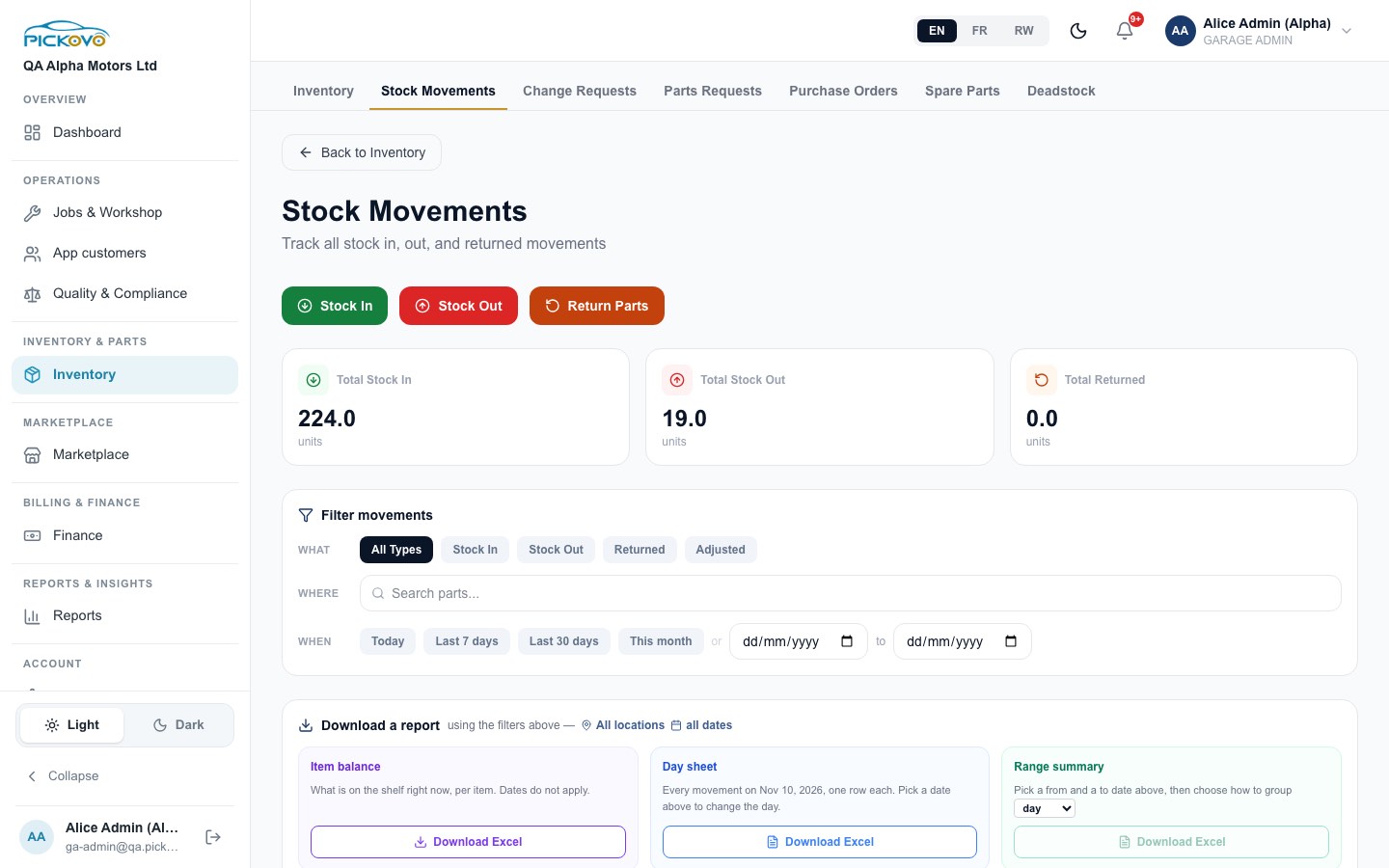
- Stock Locations: Stock Movements, Download Template, Balance Report, Import Excel, Import Report, Merge Duplicates, Add Location. Select a location (for example Alpha Main Store) to see only its stock, or the pencil to rename it.
- Search by name or part number (SKU), filter by category, supplier, Low Stock or Out of Stock. Open a row to see details, change the price or print a label.
Stock movements
Stock In, Stock Out and Return Parts record stock coming in, going out and coming back. Filter by type (Stock In, Stock Out, Returned, Adjusted), part and date. Then download a report: Item balance (current stock), Day sheet (one day's movements) or Range summary (grouped by day, week or month).
Change requests (stock corrections)
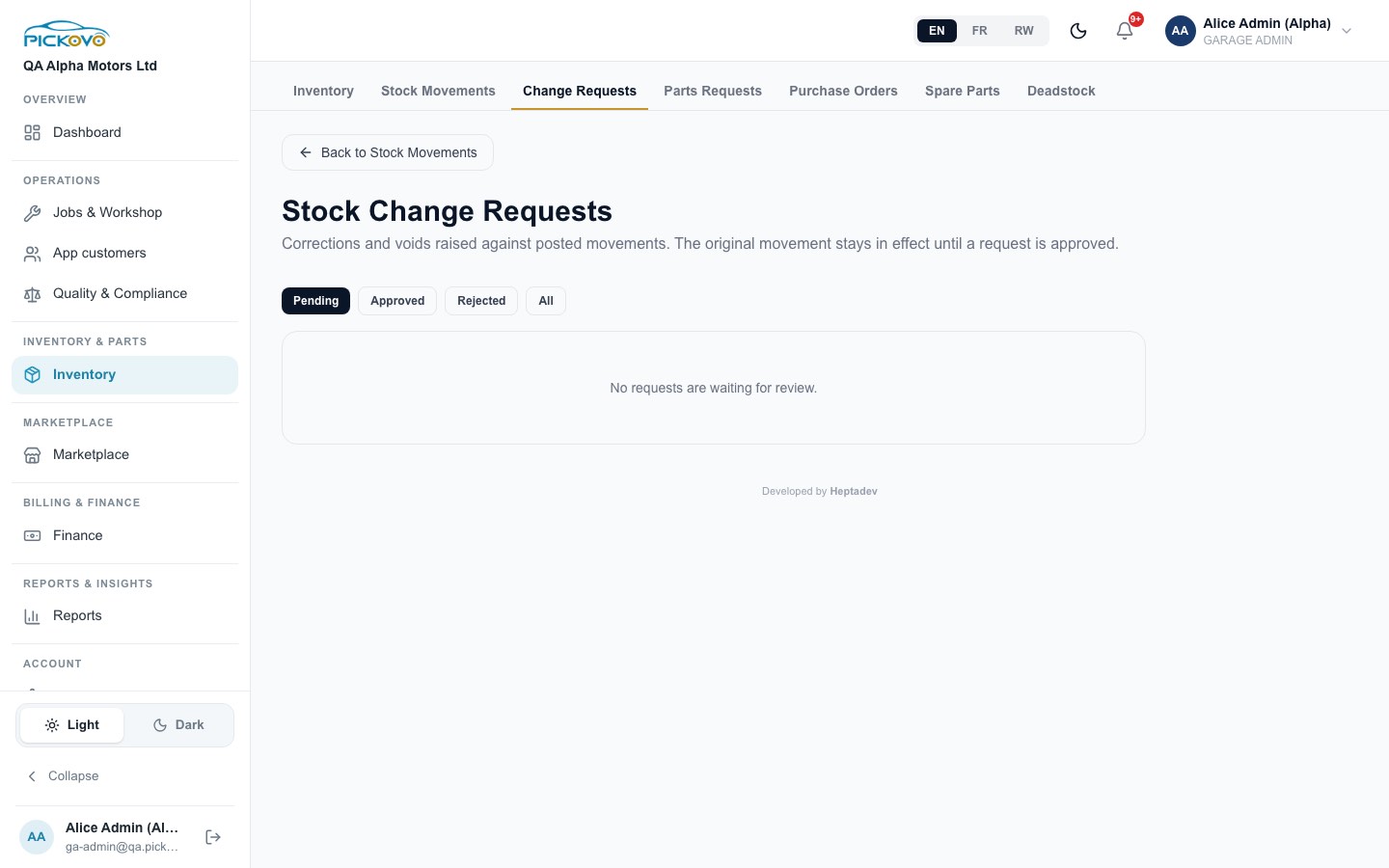
A posted stock movement is never edited directly. Staff raise a correction or void, and the original movement stays in effect until the request is approved. Filter Pending / Approved / Rejected / All, then approve or reject.
Only an administrator can approve a stock change request, and nobody can approve their own. If you raised the request yourself, another administrator must review it.
Parts requests
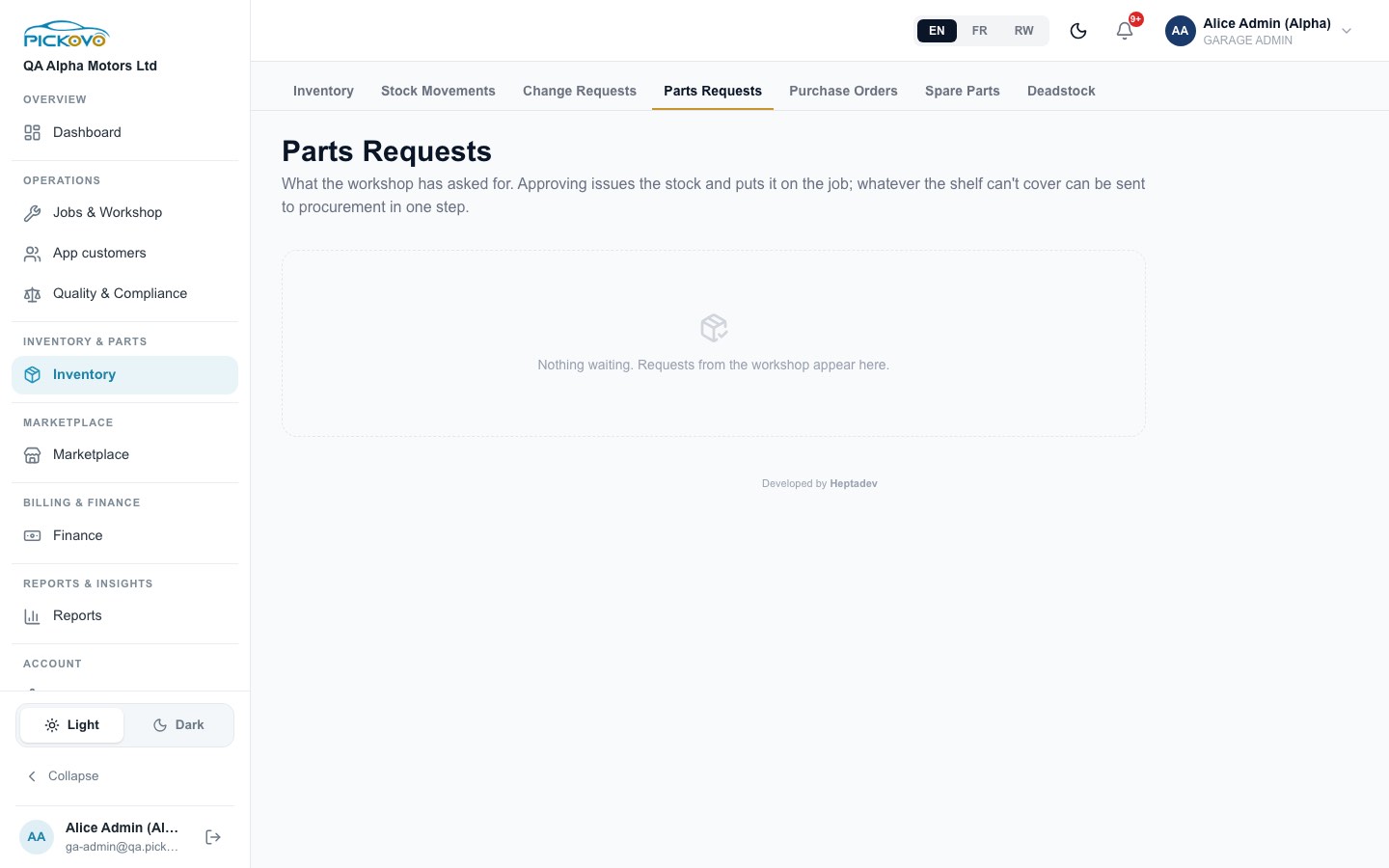
Mechanics request parts for their jobs. Approving a request issues the stock and puts it on the job. Whatever the shelf cannot cover can be sent to procurement in one step with Send to procurement. You can also print the queue as a requisition sheet.
Purchase orders
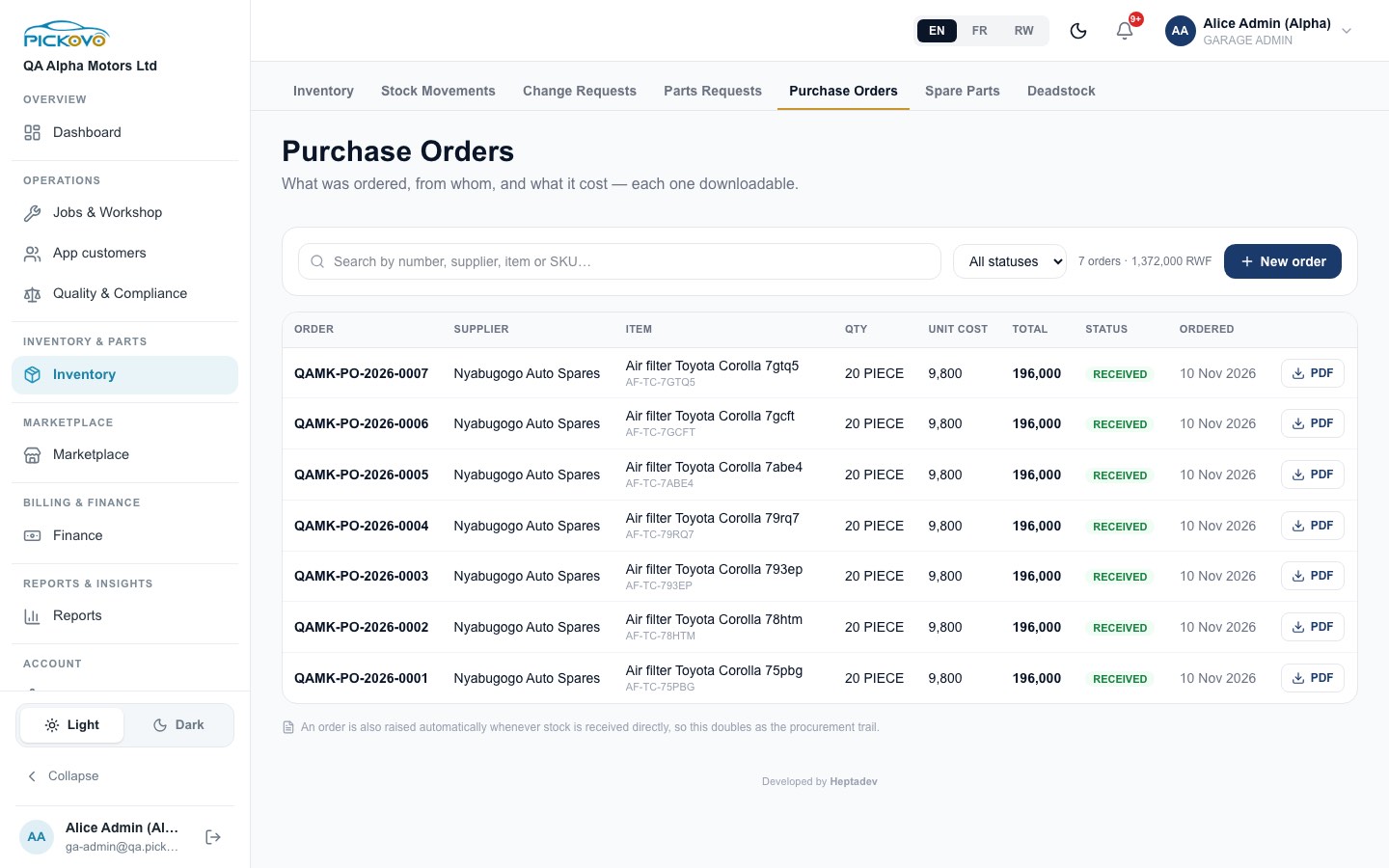
New order raises an order to a supplier (part, quantity, unit cost, notes). Mark it as sent to the supplier, then as received, which adds the stock. Each order downloads as a PDF. An order is also raised automatically whenever stock is received directly, so this list doubles as your procurement trail.
Suppliers
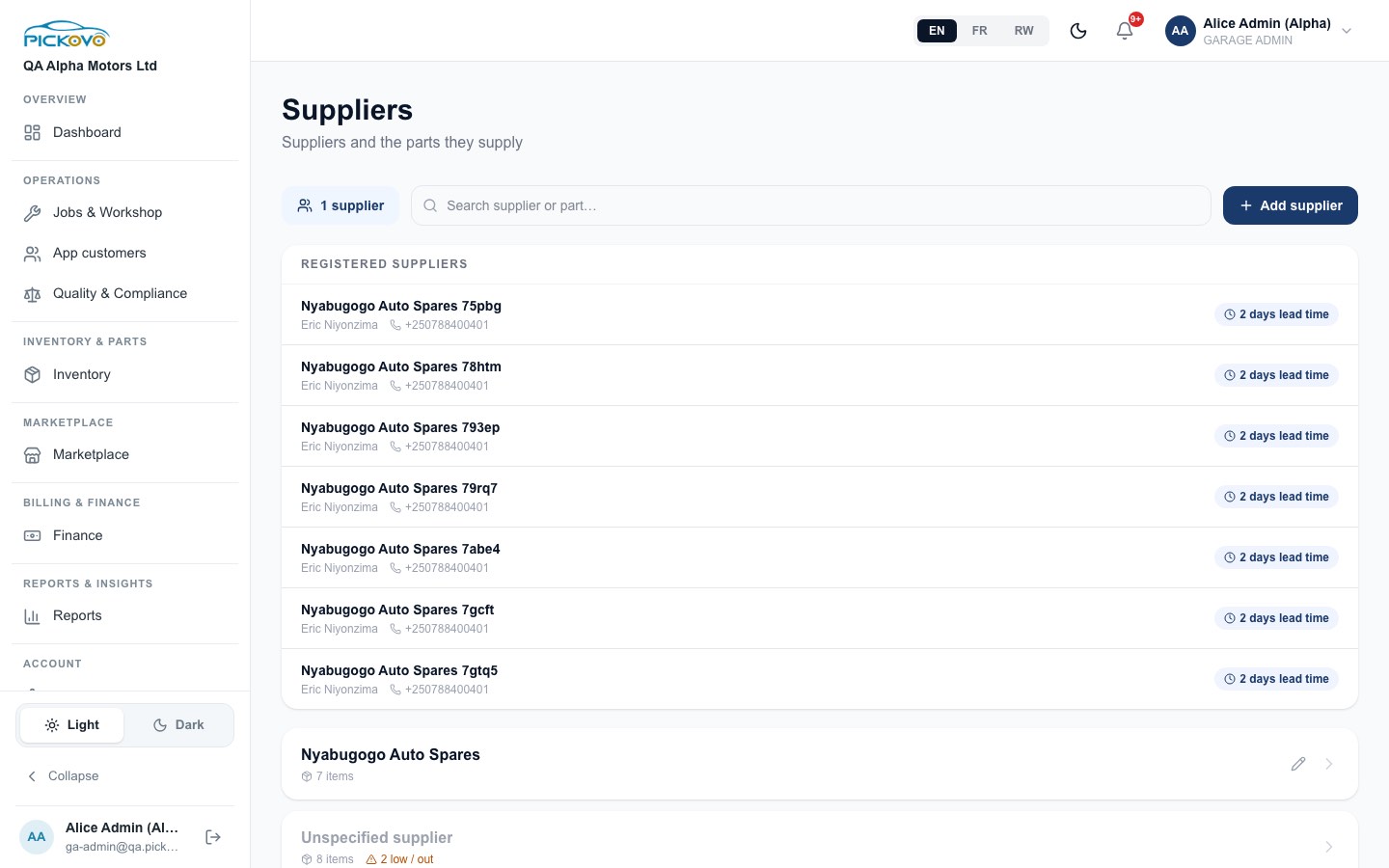
Open from the Suppliers button on Inventory. You see each supplier, their contact, lead time and how many of your items they supply. Add supplier adds a new one, and the pencil edits one.
Spare parts marketplace (buying)
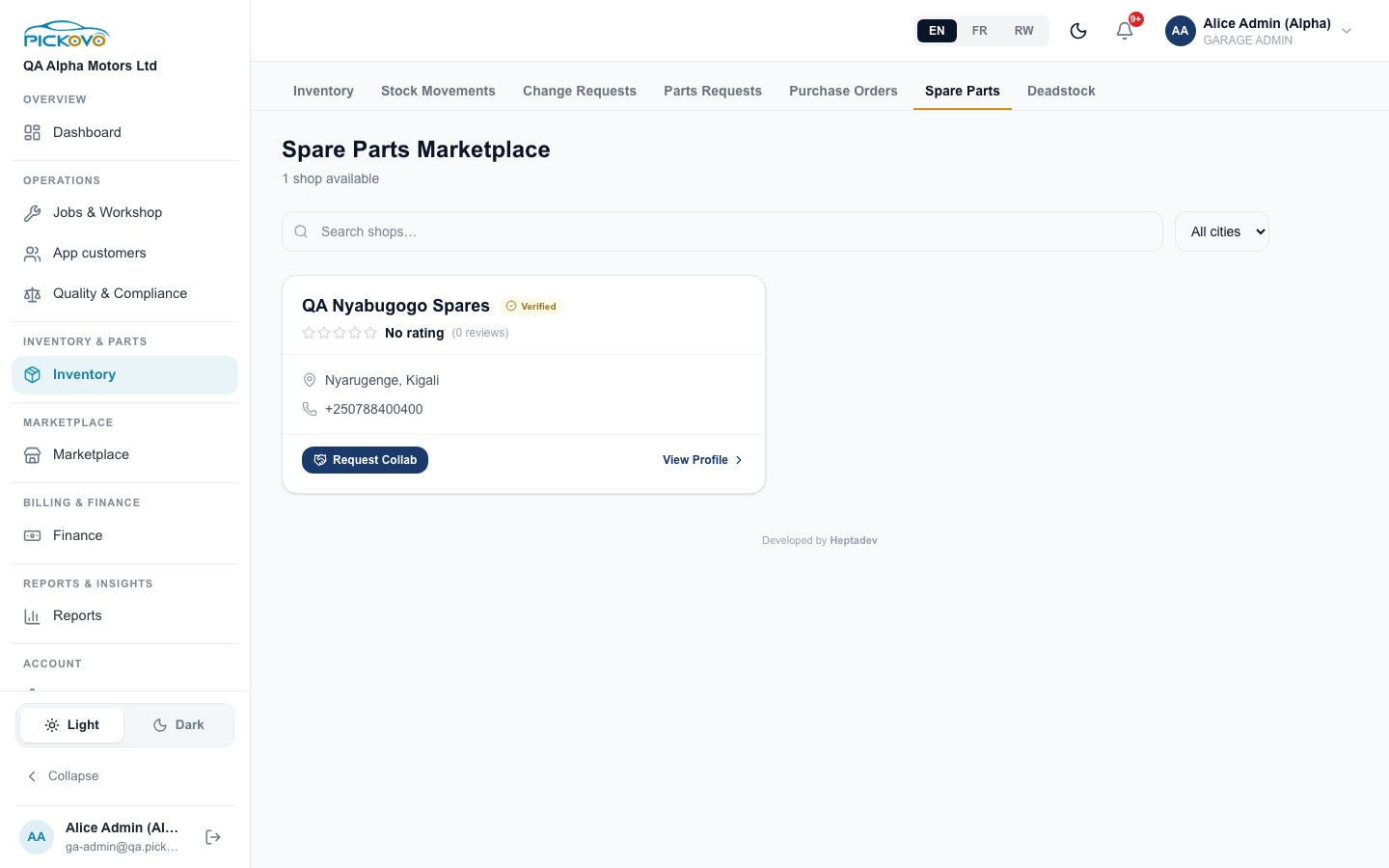
Inventory → Spare Parts lists spare-parts shops on Pickovo. Search or filter by city, View Profile, and Request Collab to start working with a shop.
Deadstock
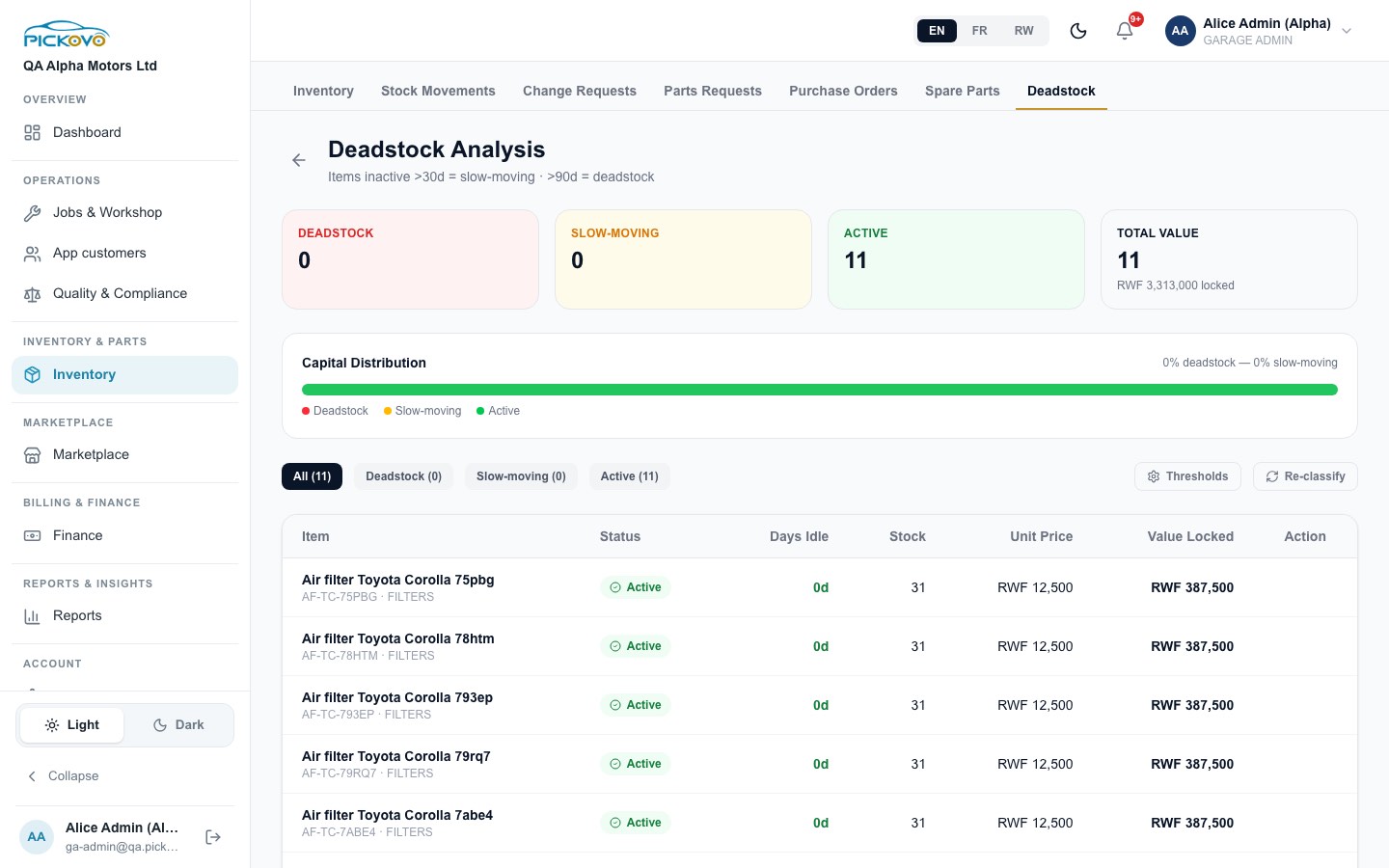
Items idle for over 30 days count as slow-moving, and over 90 days as deadstock. The page shows how much money is locked in each group. Thresholds changes those limits, and Re-classify recalculates the groups.
C12. Marketplace inbox
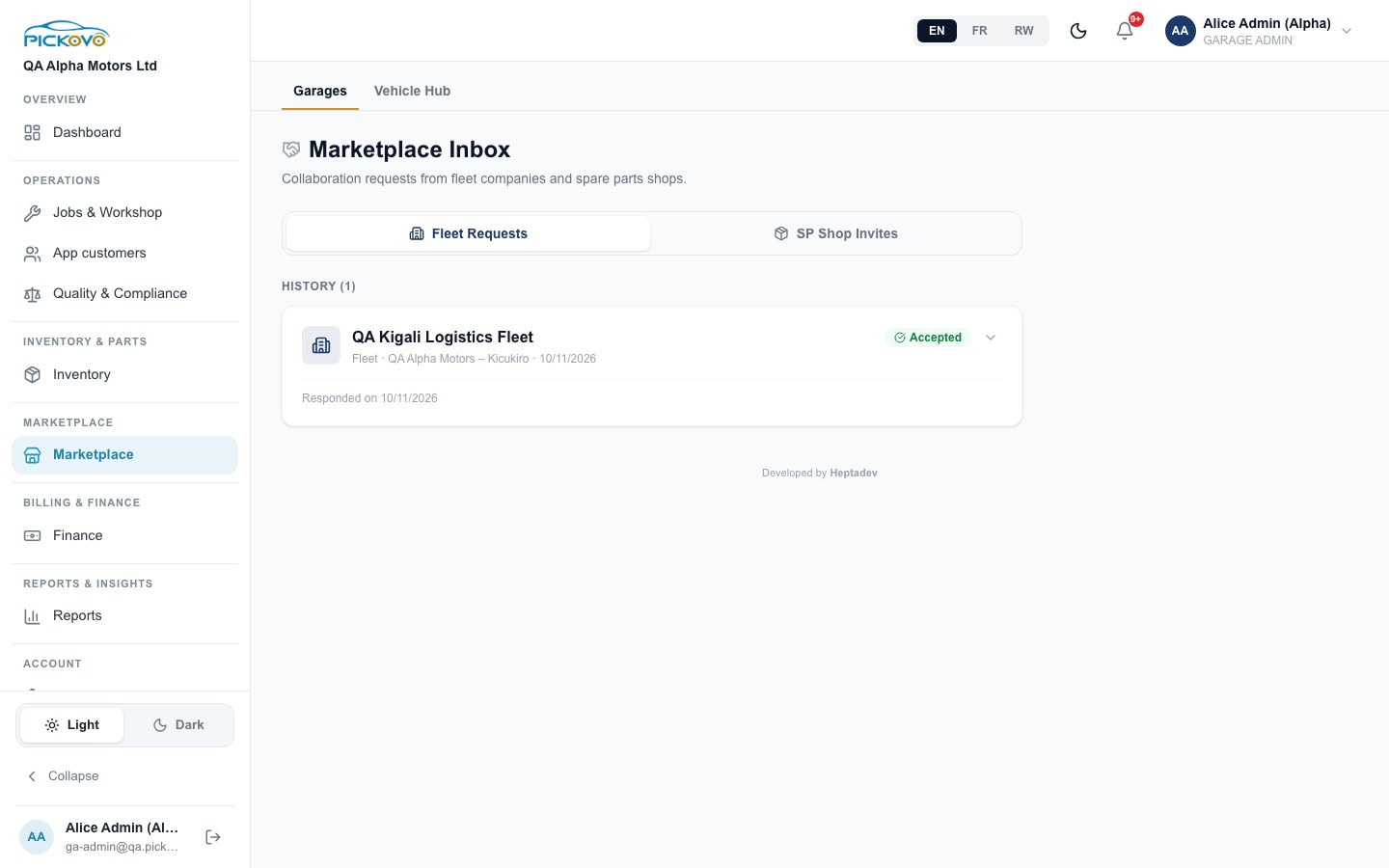
Marketplace → Garages lists collaboration requests from fleet companies (Fleet Requests) and spare-parts shops (SP Shop Invites). Use Accept or Reject. Answered requests move to History. Accepting a fleet lets that company send jobs to you.
C13. Invoices and payments
Purpose: bill the customer and record what they paid.
Creating an invoice. On a completed job, select Generate Invoice. It is built from the job's labour and parts. You can also use New Invoice on the Invoices page. While an invoice is unpaid you can Edit it (lines, VAT, due date, notes).
The invoice list can be searched by number, plate or job title, and filtered by Draft, Sent, Paid, Overdue, Disputed.
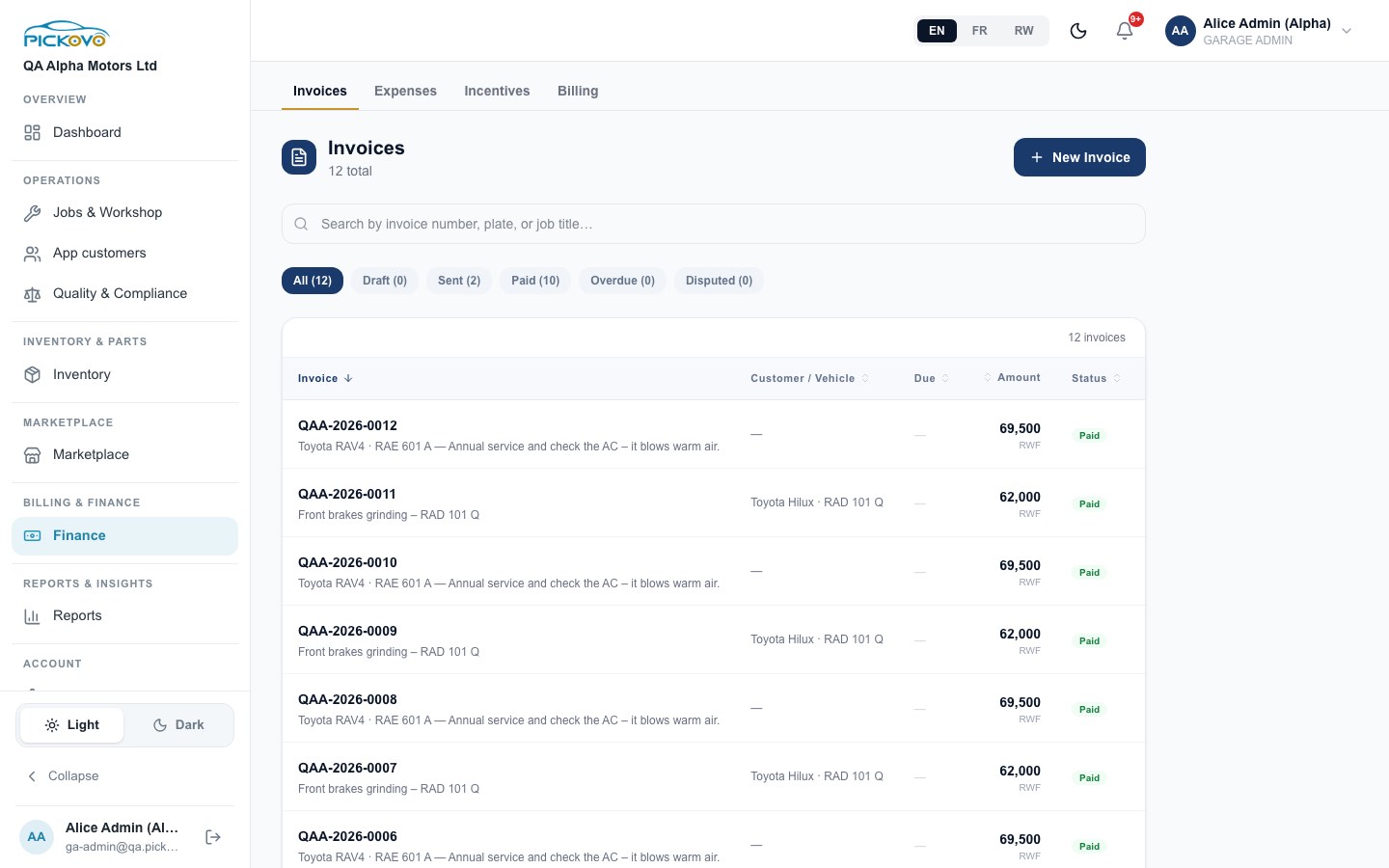
On an invoice:
- Send, sends a draft to the customer.
- Get payment link (walk-in customers), creates a link you can copy or Send via WhatsApp.
- Record Payment (once the invoice is Sent or Overdue), choose the method (Cash, MTN Mobile Money, Airtel Money, Bank Transfer, Company Credit), the amount and a reference. Part payments are allowed, and the balance due updates.
- Confirm Payment Received, appears when an invoice was marked paid outside Pickovo, so you can confirm the money arrived.
- Download PDF, PDF File and Sign (add an authorised signature).
When fully paid, the invoice shows Paid with its payment history.
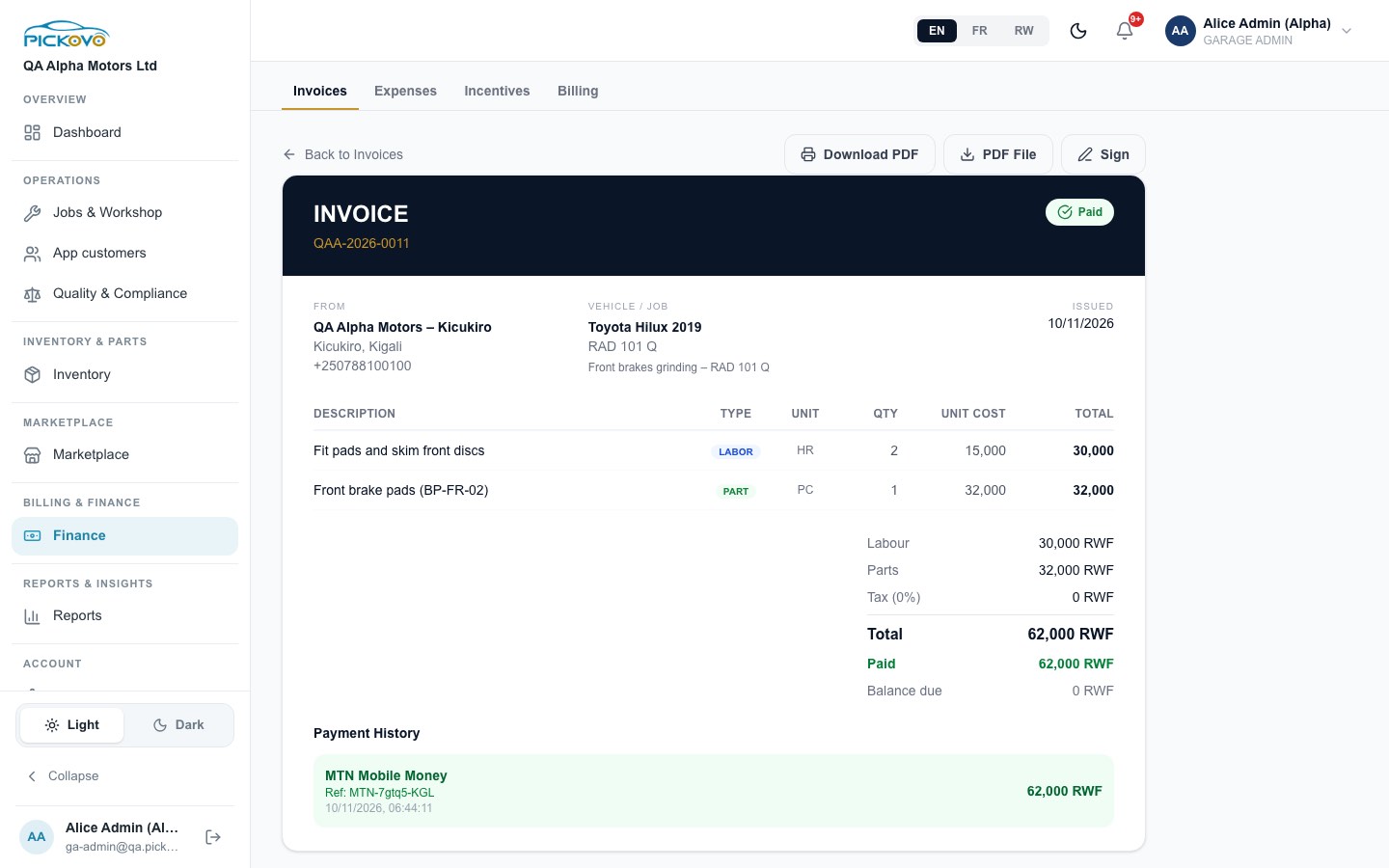
Car owners can pay through the app by mobile money or card only when Pickovo's payment provider is set up. If it is not, take payment at the counter and record it here.
C14. Expenses
Record your operating costs: rent, utilities, fuel, salaries, equipment, tools, supplies, maintenance, insurance, marketing and other. + Add Expense takes an amount, description, category, date and notes. Filter by All Time, This Month, This Week, Today, see totals by category, and Export Excel.
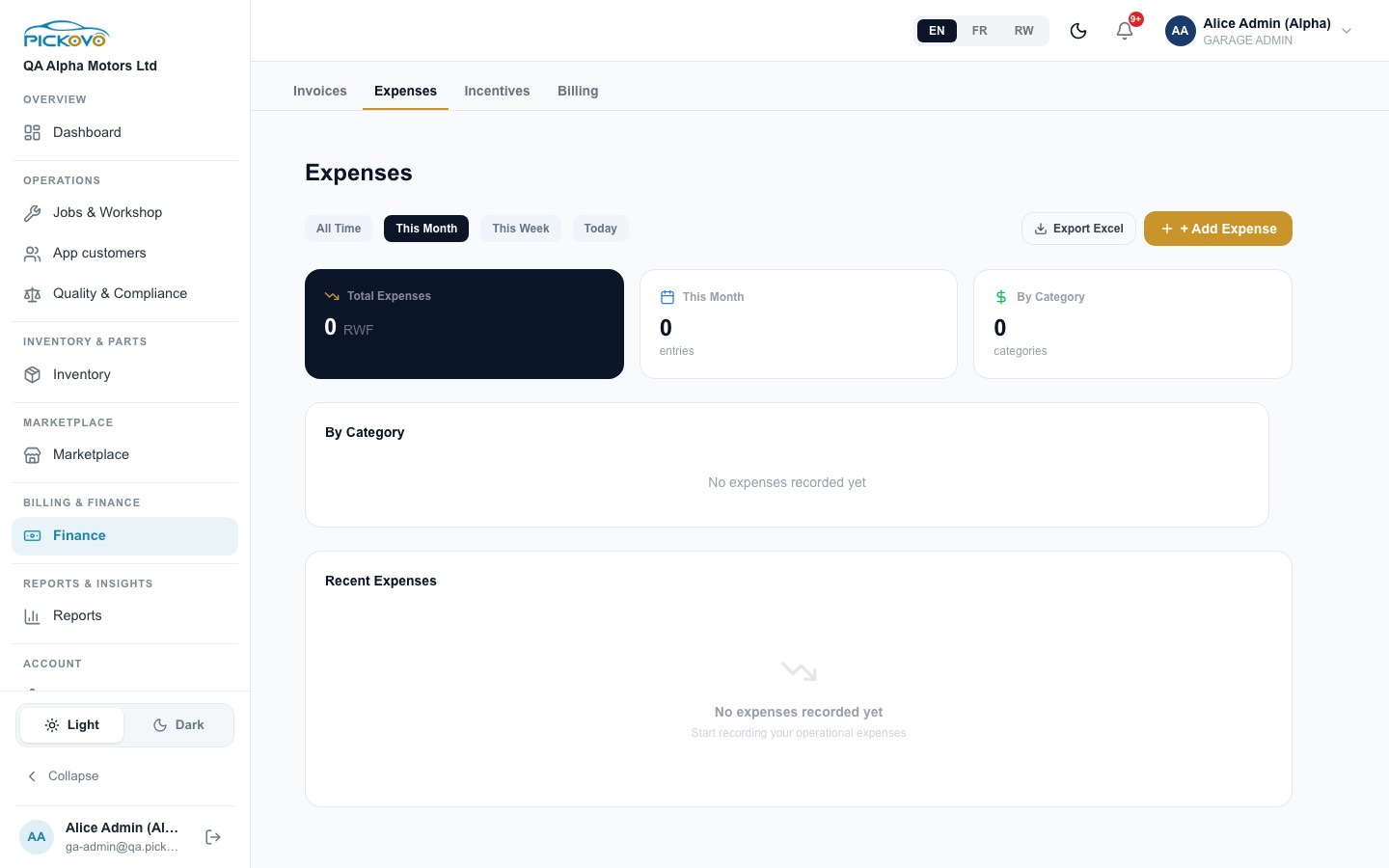
C15. Incentives and commissions
This page shows what Pickovo charges you on jobs it sends your way (Commission rate, Owed to Pickovo) and what you have earned back (Incentives earned). It lists commissions and incentives as they happen. It is for reading: Pickovo sets the rate.
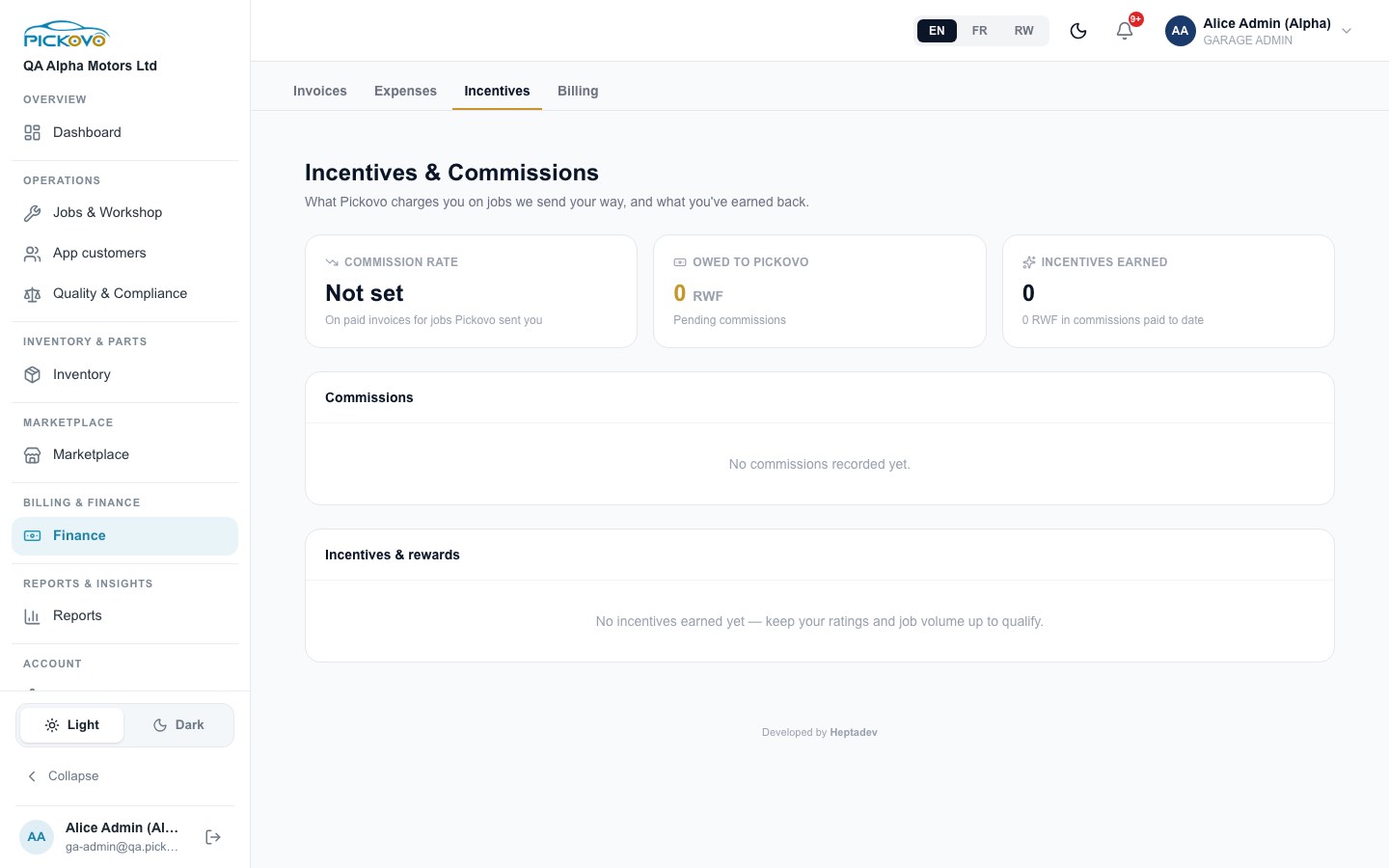
C16. Billing (your Pickovo subscription)
Finance → Billing shows your usage (users, invoices this month), your trial or subscription status, and the plans: Starter, Business, Professional and Enterprise (custom). Plans are billed quarterly or yearly (yearly saves two months). Prices are per month, plus 18% VAT at checkout. Choose a plan, then pay by mobile money (MTN or Airtel), bank transfer or card. Your payment history and subscription invoices are listed on the same page.
If your trial or subscription has ended, a banner asks you to subscribe to restore full access.
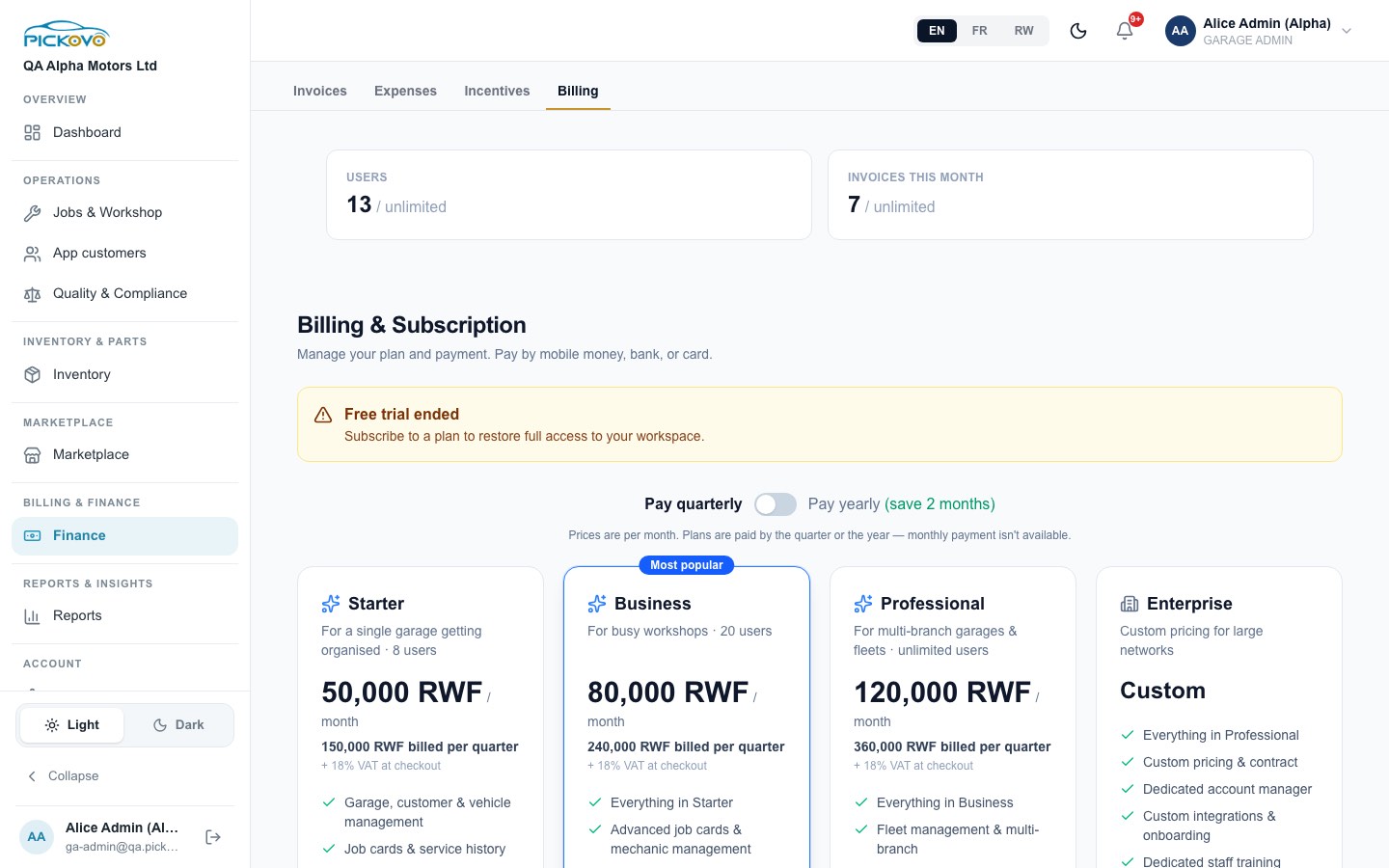
C17. Quality & compliance
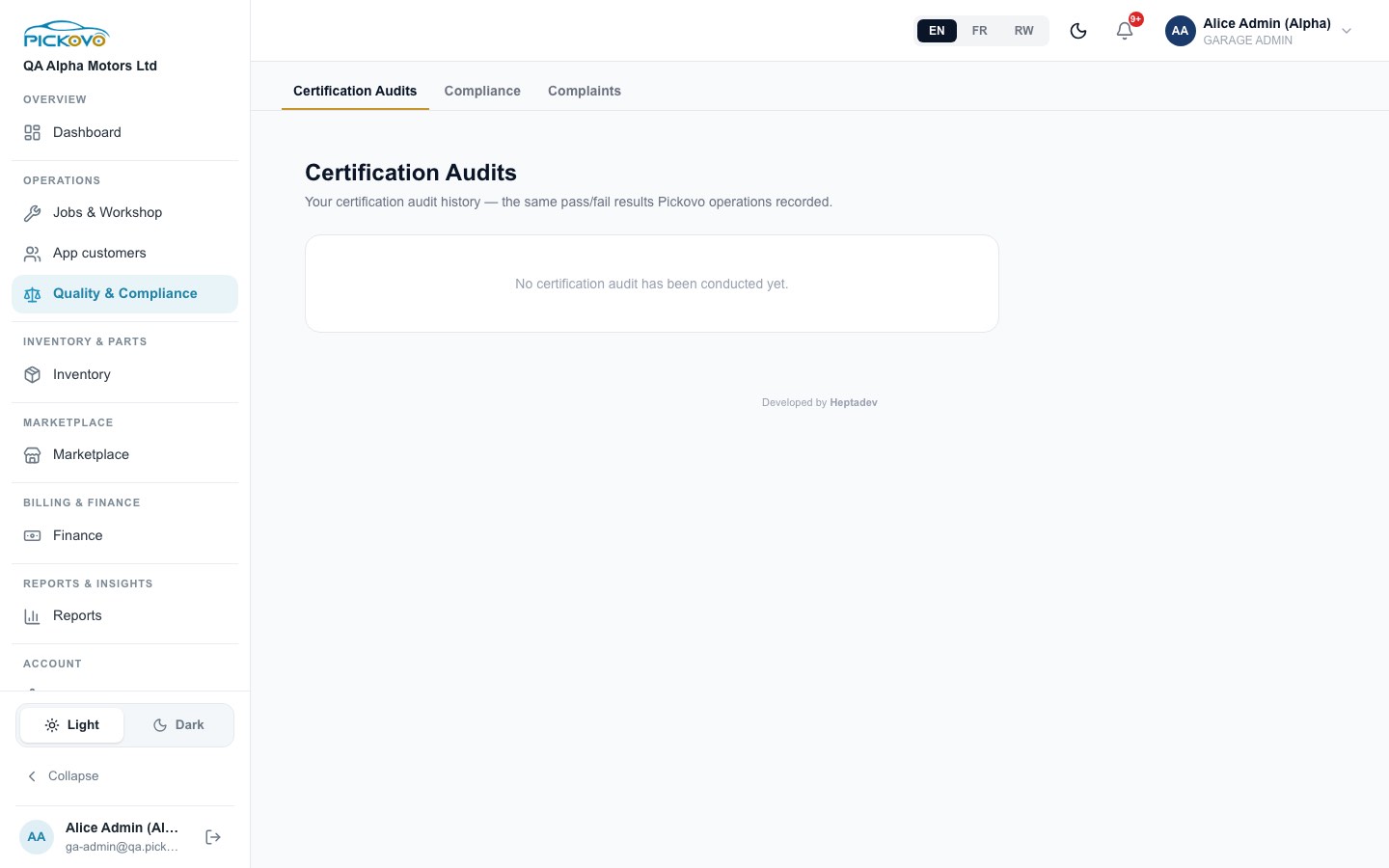
Certification Audits shows the pass/fail results of audits recorded by Pickovo operations. It is read-only.
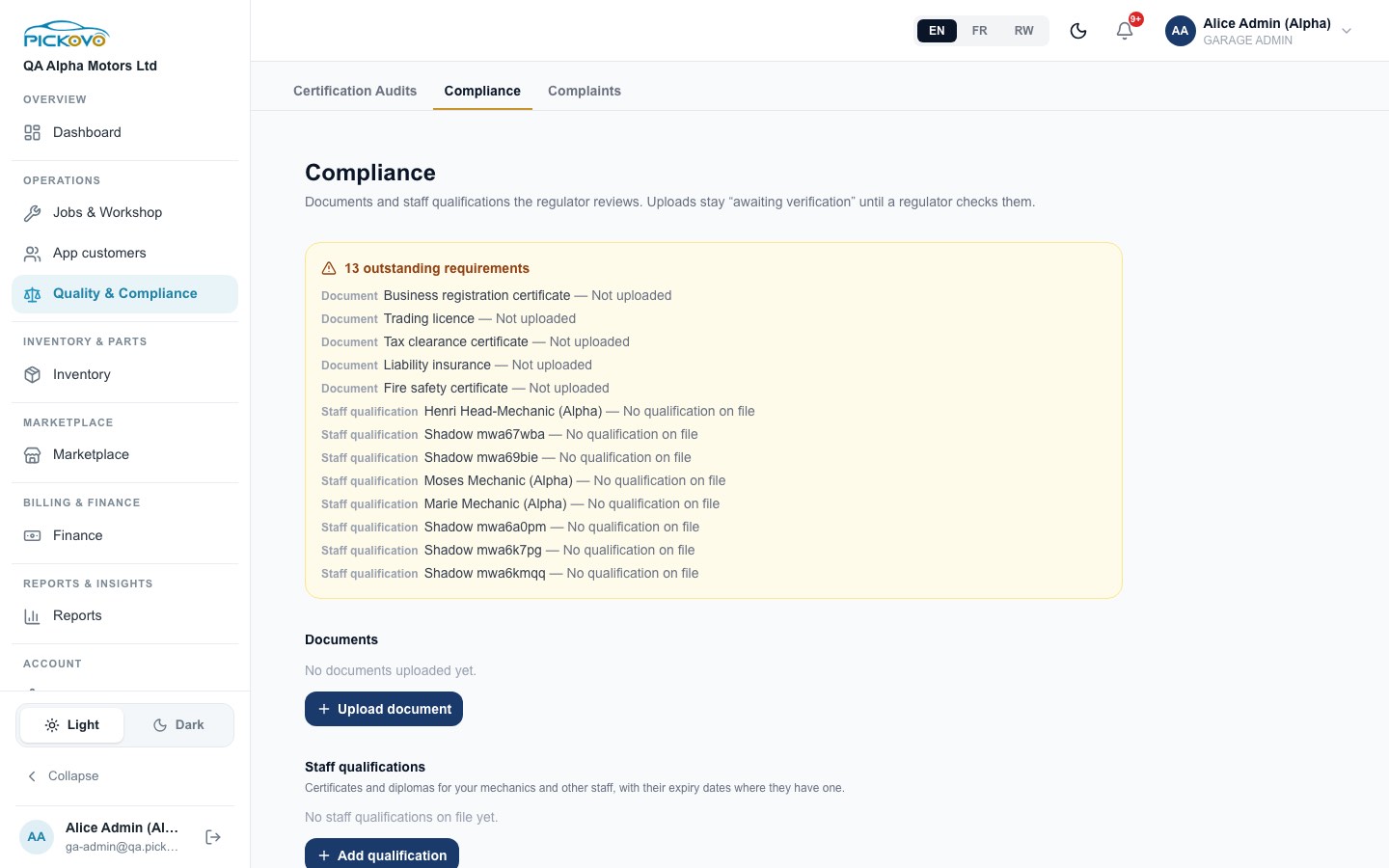
Compliance lists the documents and staff qualifications the regulator reviews. A yellow box shows what is outstanding.
- Upload document, choose the type (business registration certificate, trading licence, tax clearance, liability insurance, fire safety, health & safety inspection, environmental permit or other), attach the file and set any expiry date.
- Add qualification, certificates and diplomas for your mechanics and other staff, with expiry dates.
Uploads stay Awaiting verification until a regulator checks them. They then become Verified or Rejected, and you are warned when one is expiring or has expired.
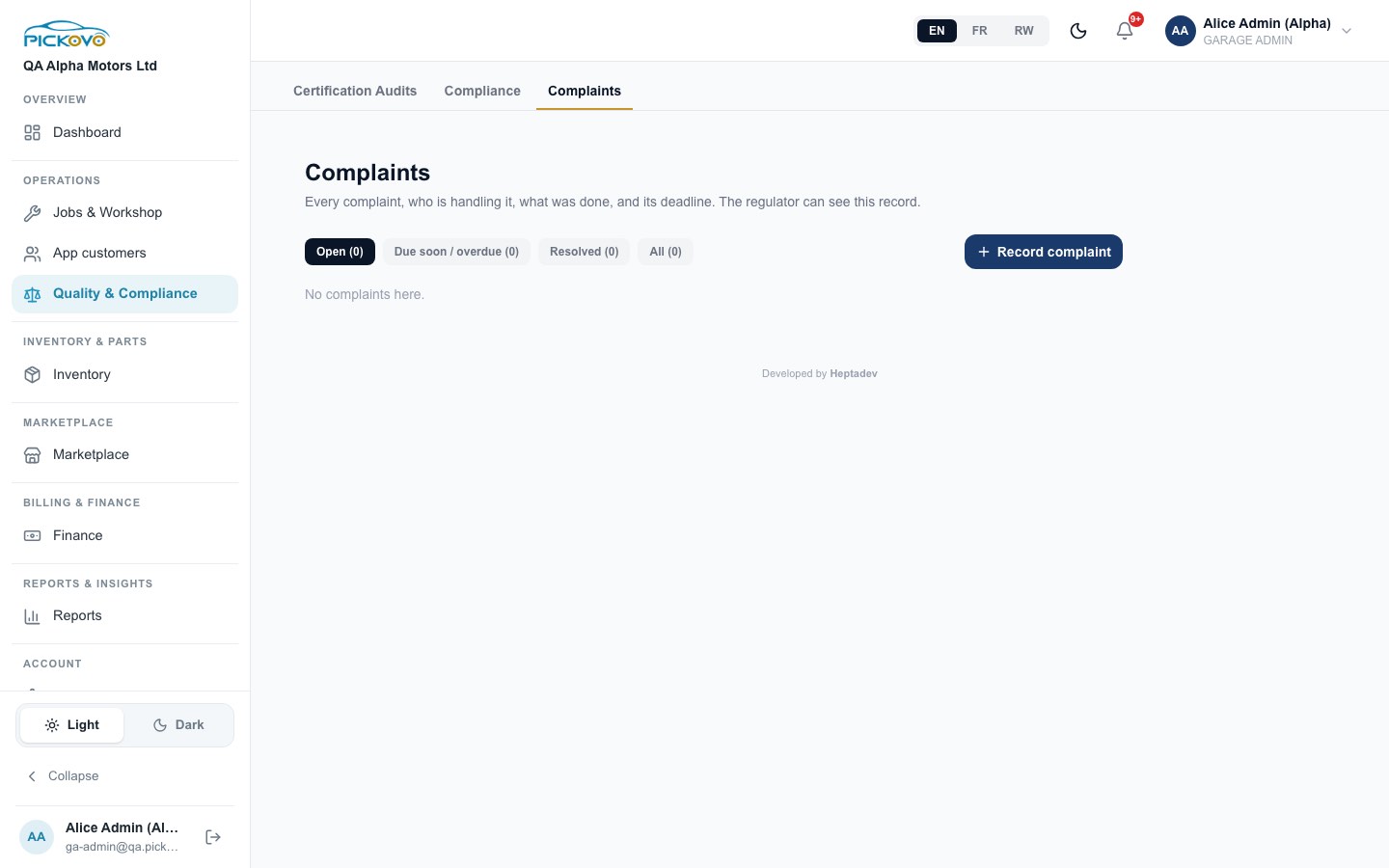
Complaints records every complaint, who is handling it, what was done and its deadline. The regulator can see this record. Record complaint takes a category (delay, poor repair quality, staff conduct, unexpected charge, warranty not honoured, other), a handler and a deadline, and each complaint keeps a follow-up log. Filter Open, Due soon / overdue, Resolved, All.
C18. Reports
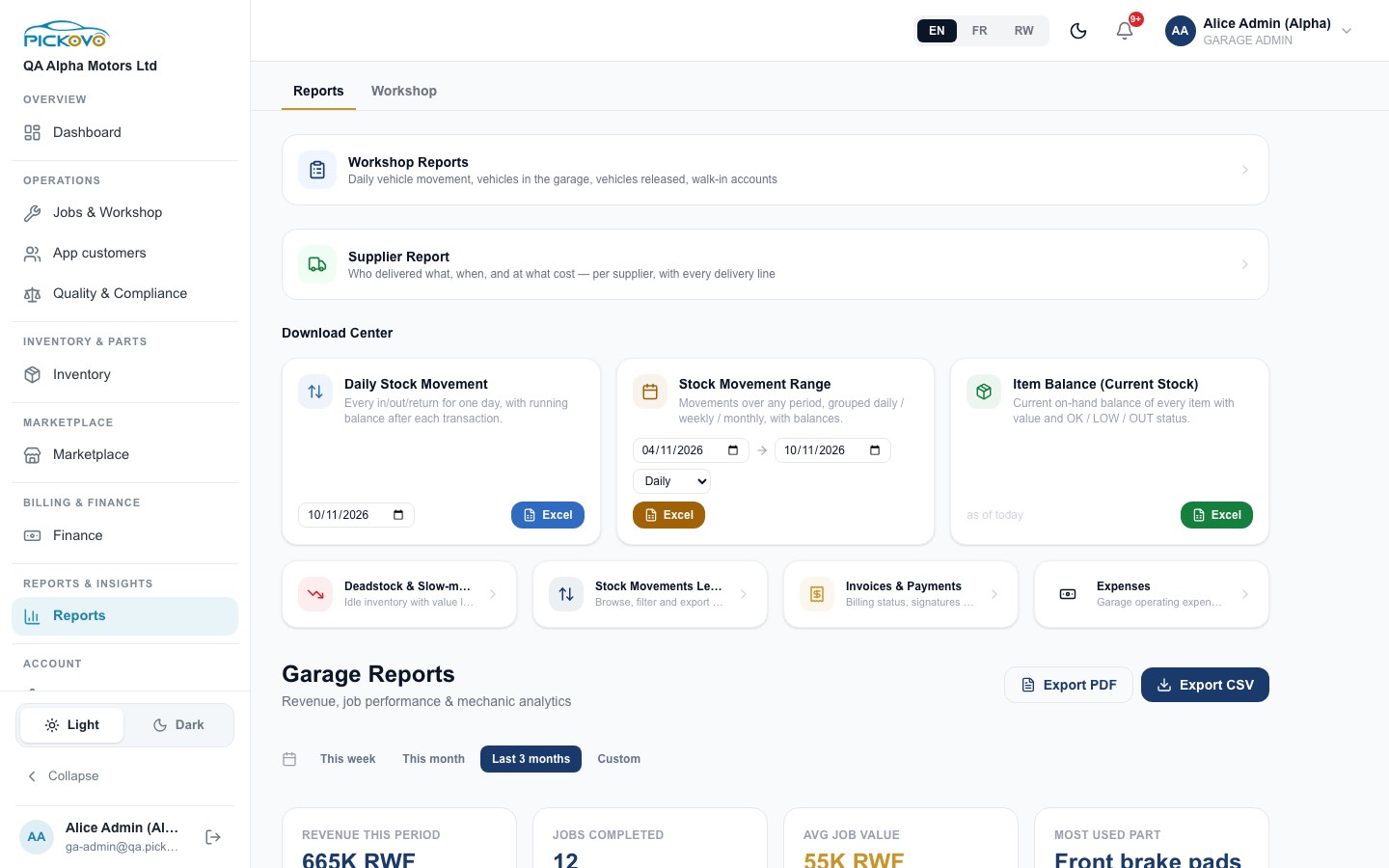
Reports links to the Workshop and Supplier reports. It also has a Download Center with Excel downloads: daily stock movement, stock movement over a date range (daily, weekly or monthly), current item balance, plus deadstock, stock movements, invoices & payments and expenses. Below that, Garage Reports shows revenue, jobs completed, average job value and most-used part for a period you choose, with Export PDF and Export CSV.
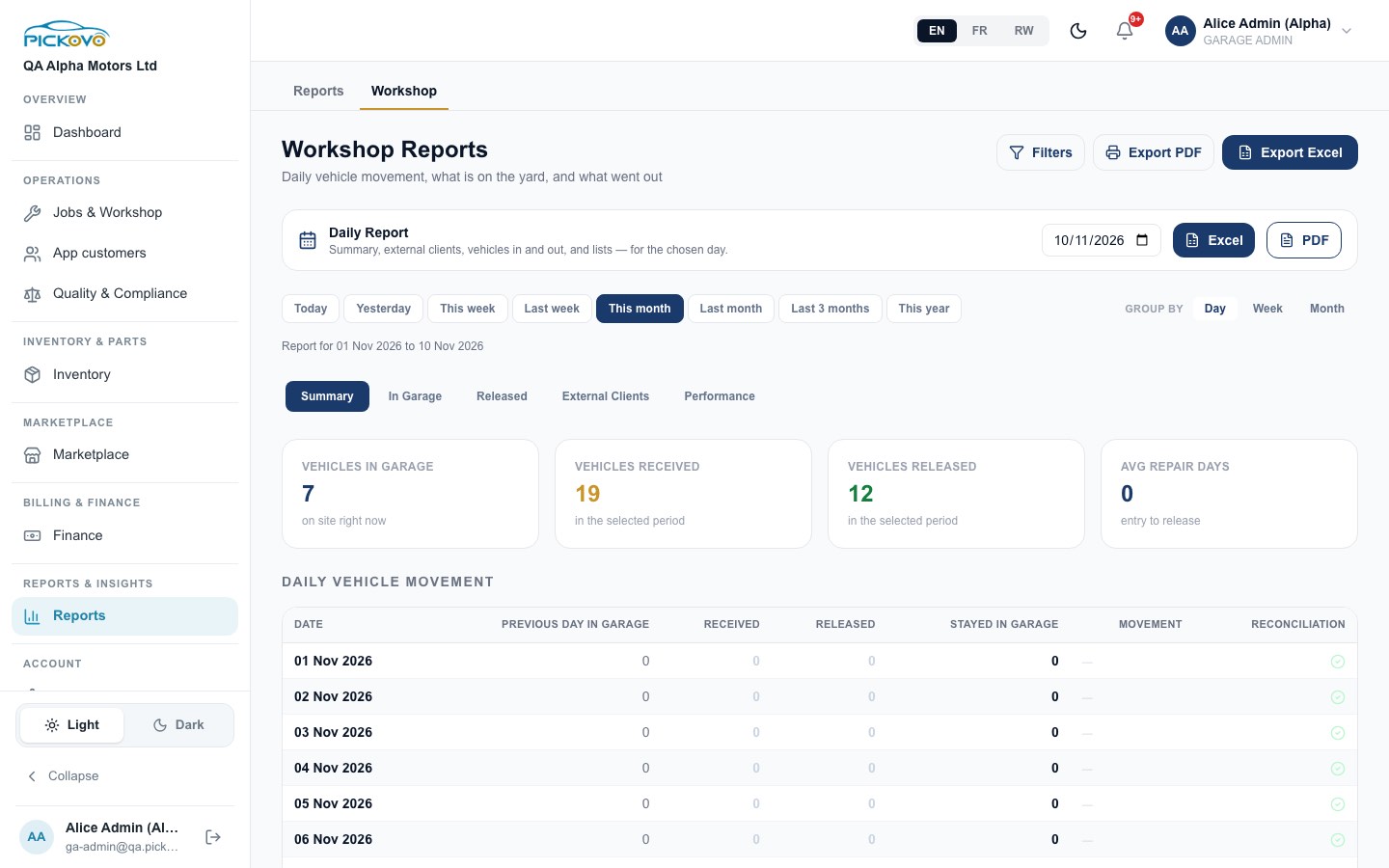
Workshop Reports covers daily vehicle movement, vehicles in the garage, vehicles released, external clients and performance. Pick a period, group by day, week or month, and export to Excel or PDF. The Daily Report gives a one-day summary.
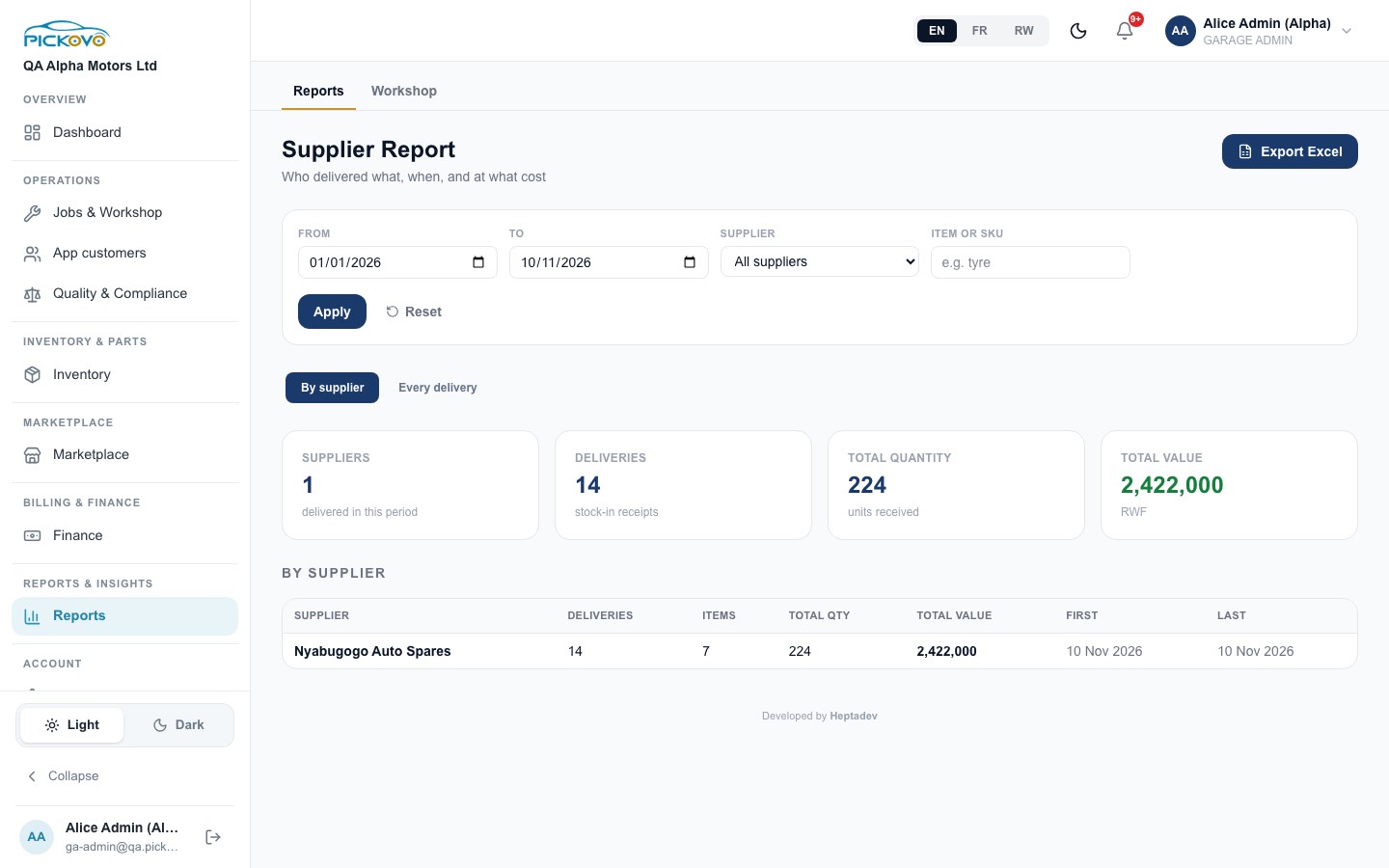
Supplier Report shows who delivered what, when and at what cost. View it by supplier or as every delivery, filter by date, supplier and item, then Export Excel.
C19. Garage settings and team members
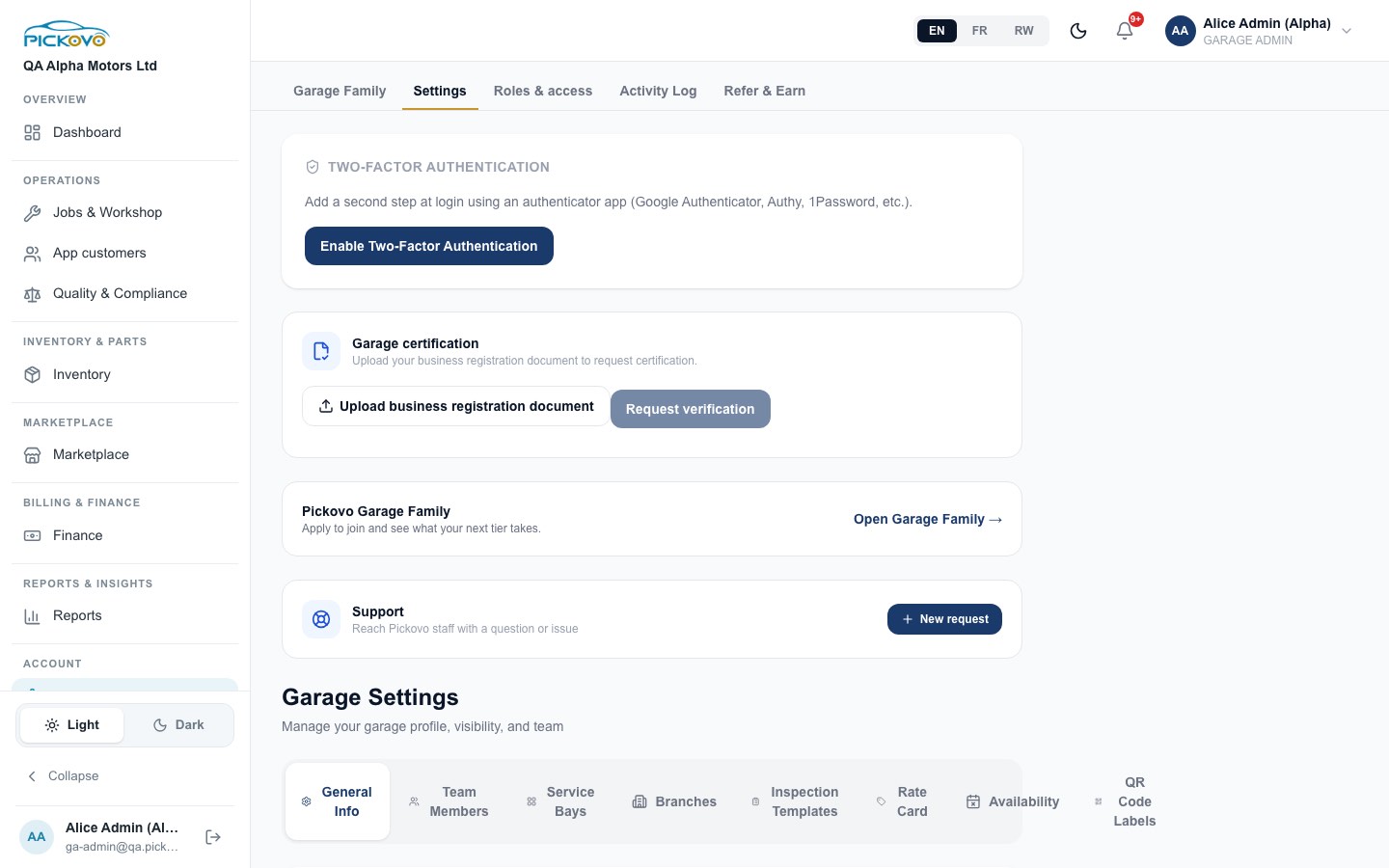
Account → Settings opens with:
- Two-factor authentication, Enable Two-Factor Authentication with an authenticator app. Strongly recommended for admins.
- Garage certification, Upload business registration document, then Request verification. Verification by Pickovo is needed to join the Garage Family.
- Pickovo Garage Family, a shortcut to C21.
- Support, New request sends a question or issue to Pickovo staff.
Below these, Garage Settings has these tabs:
| Tab | What you set |
|---|---|
| General Info | Logo, name, phone, email, location, city/district/address, invoice number prefix, default invoice signatory, description, opening hours, specialisations, Public Listing (show in the fleet marketplace), booking page slug (/book/your-slug) |
| Team Members | Your staff (see below) |
| Service Bays | The bays you assign jobs to |
| Branches | Your branches |
| Inspection Templates | Checklists for digital inspections |
| Rate Card | Your services and prices |
| Availability | Blocked times for bookings |
| QR Code Labels | Printable QR labels |
Managing staff (Team Members):
- Select Add Member. Enter full name, phone, email, branch (or all branches), role (Mechanic, Head of Mechanics, Stock Manager, Cashier, Receptionist) and a starting password (at least 6 characters). Each login uses a seat on your plan.
- Change someone's role or branch from the drop-downs on their row.
- View activity shows what that person has done.
- Deactivate account stops access. Their open sessions stop working within about 10 seconds. Activate restores access.
- Remove deletes them from the team (you must be online).
C20. Roles & access
Purpose: decide what each staff role can do at your garage.
- Go to Account → Roles & access.
- Pick a role: Head mechanic, Mechanic, Stock manager, Receptionist, Cashier or Garage member.
- Switch permissions on or off in each group: Workshop, Inventory, Money, Reports, Quality. Changes are saved straight away, apply at once to everyone with that role, and are recorded in the activity log.
- Reset to defaults puts a role back to Pickovo's defaults.
Things to know:
- Permissions marked Money / audit (for example approving stock corrections, viewing invoices, recording payments, financial reports) are sensitive. Grant them carefully.
- Admin only permissions (staff, settings and this page) can never be given to staff.
- Some permissions are not available for a role. For example, a mechanic cannot be given the garage-wide jobs board, because mechanics work from their own job list.
- Some rules never change, whatever you switch on: a mechanic cannot pass their own quality check, nobody approves their own stock correction, and job steps follow the workshop flow.
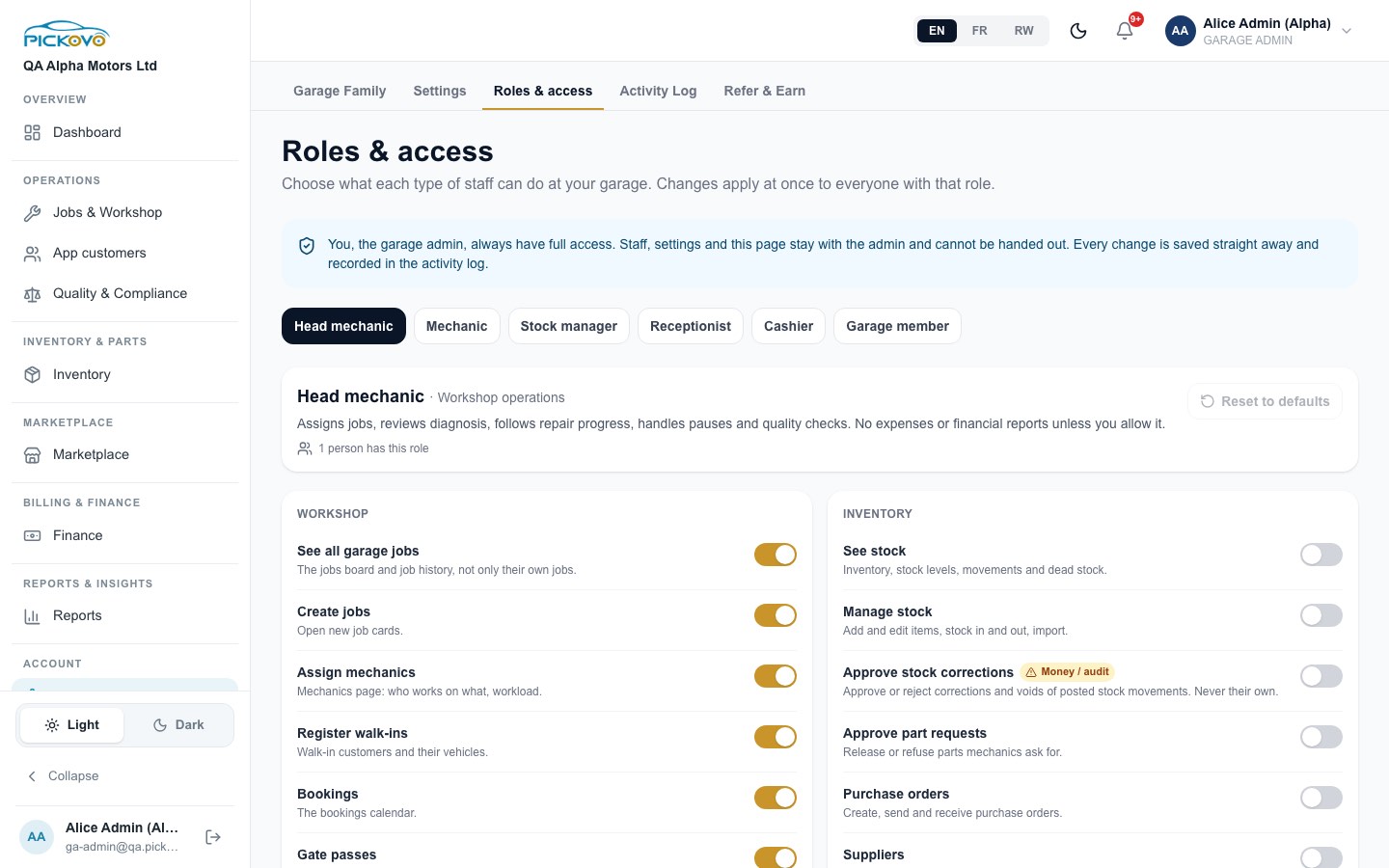
Default access for each role:
| Role | Default access |
|---|---|
| Head mechanic | All jobs, create jobs, assign mechanics, walk-ins, bookings, gate passes, operational reports, complaints, create invoices |
| Mechanic | Own assigned jobs, bookings, gate passes |
| Stock manager | All jobs, create jobs, bookings, gate passes, inventory (view and manage), part requests, purchase orders, suppliers, buy spare parts, operational and supplier reports |
| Receptionist | All jobs, create jobs, walk-ins, bookings, gate passes, buy spare parts, operational and daily reports, complaints |
| Cashier | All jobs, bookings, view and create invoices, record payments, operational and financial reports, complaints |
| Garage member | Read-only: all jobs, bookings, stock levels, complaints |
By default, no staff role can approve stock corrections, adjust invoices, manage expenses or incentives, or manage compliance. Only you can, unless you grant it.
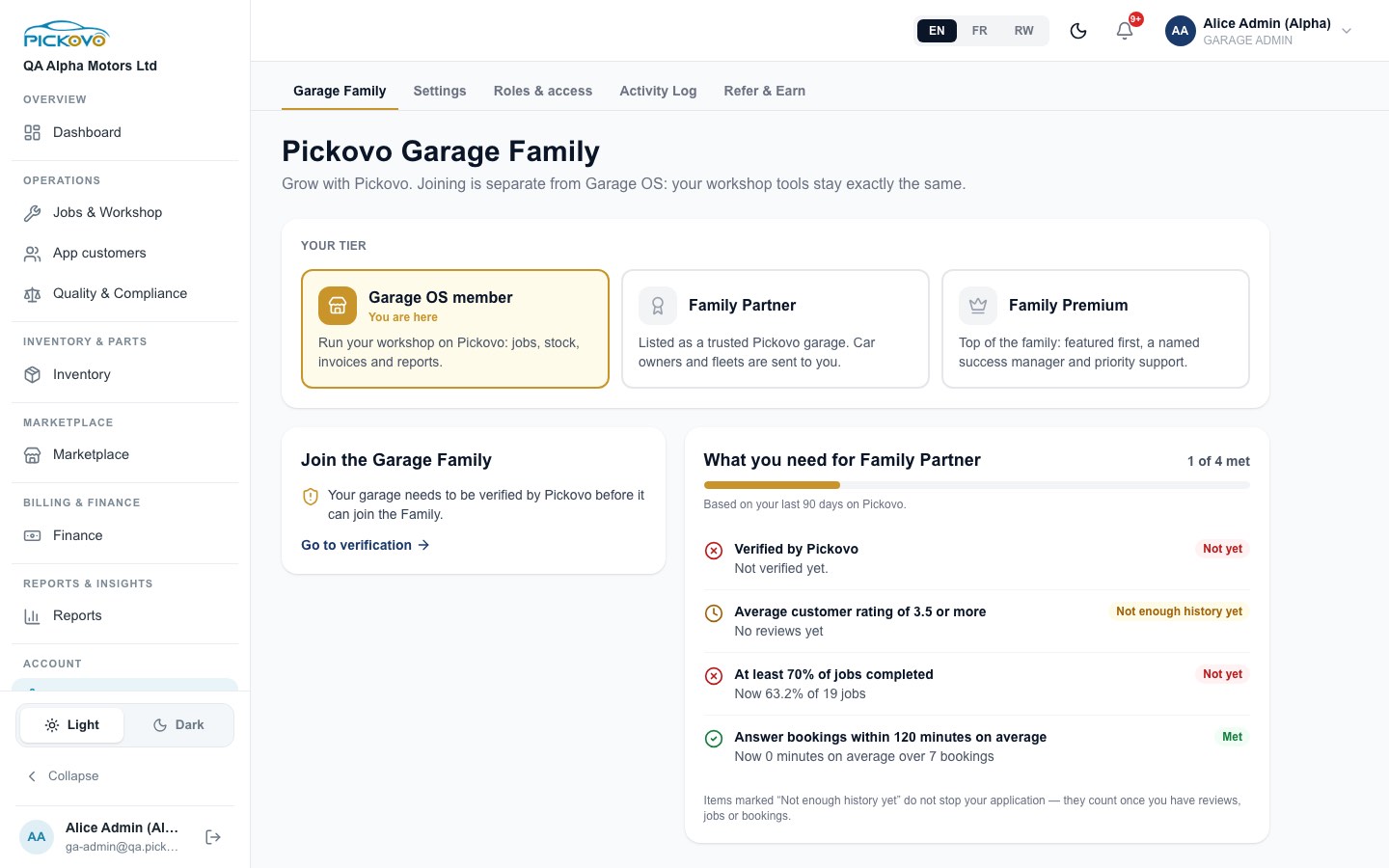
C21. Garage Family
Purpose: apply to become a trusted Pickovo garage that car owners and fleets are sent to.
The tier ladder shows Garage OS member (where every garage starts), Family Partner and Family Premium. The checklist shows what you still need for the next tier, based on your last 90 days: verified by Pickovo, average rating of 3.5 or more, at least 70% of jobs completed, and answering bookings within 120 minutes on average. Items marked Not enough history yet do not block your application. When eligible, select Apply to join. Pickovo operations reviews the application, and this page updates when they decide. Joining changes nothing in your workshop tools.
C22. Activity log
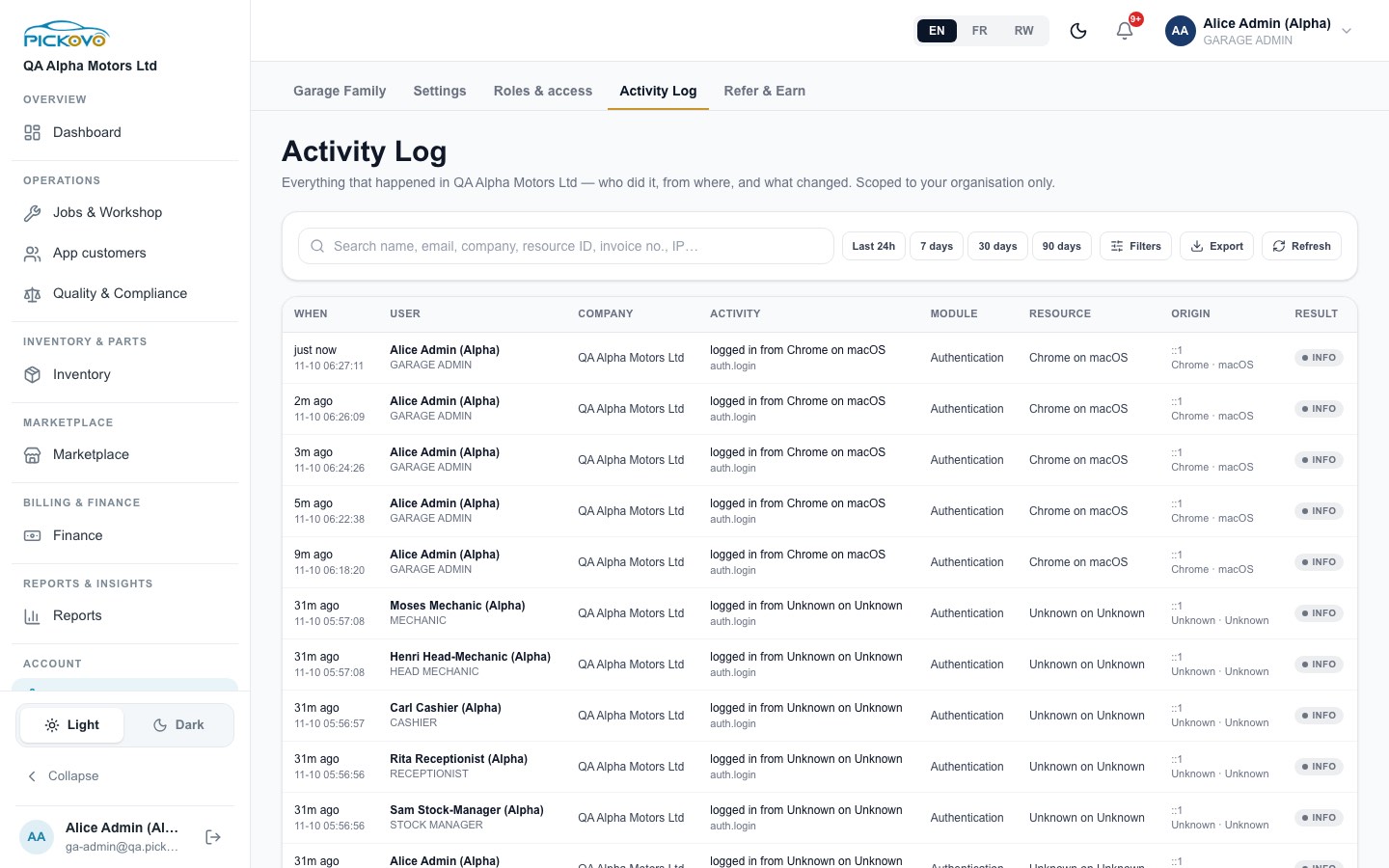
Purpose: a record of everything that happened in your company: who did it, from where, and what changed.
Search by name, email, resource ID, invoice number or IP address. Choose a period (Last 24h, 7, 30 or 90 days), use Filters, Export or Refresh. It covers only your own organisation.
C23. Refer & Earn
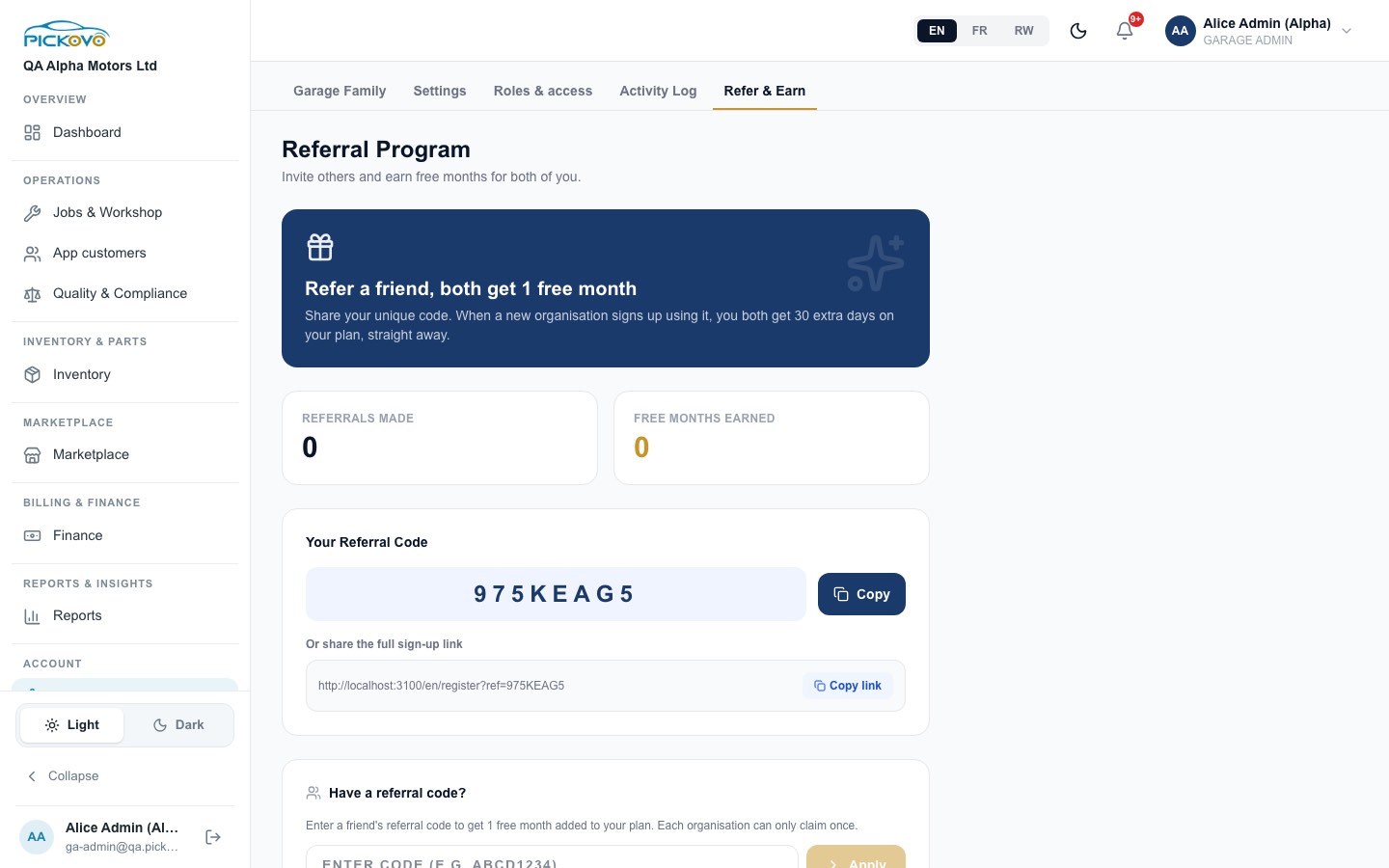
Share your referral code or sign-up link. When a new organisation signs up with it, you both get 30 extra days on your plan. If someone referred you, enter their code under Have a referral code? Each organisation can claim once. (On the test server the link shows a test address. In production it uses the Pickovo web address.)
C24. Your profile and notification preferences
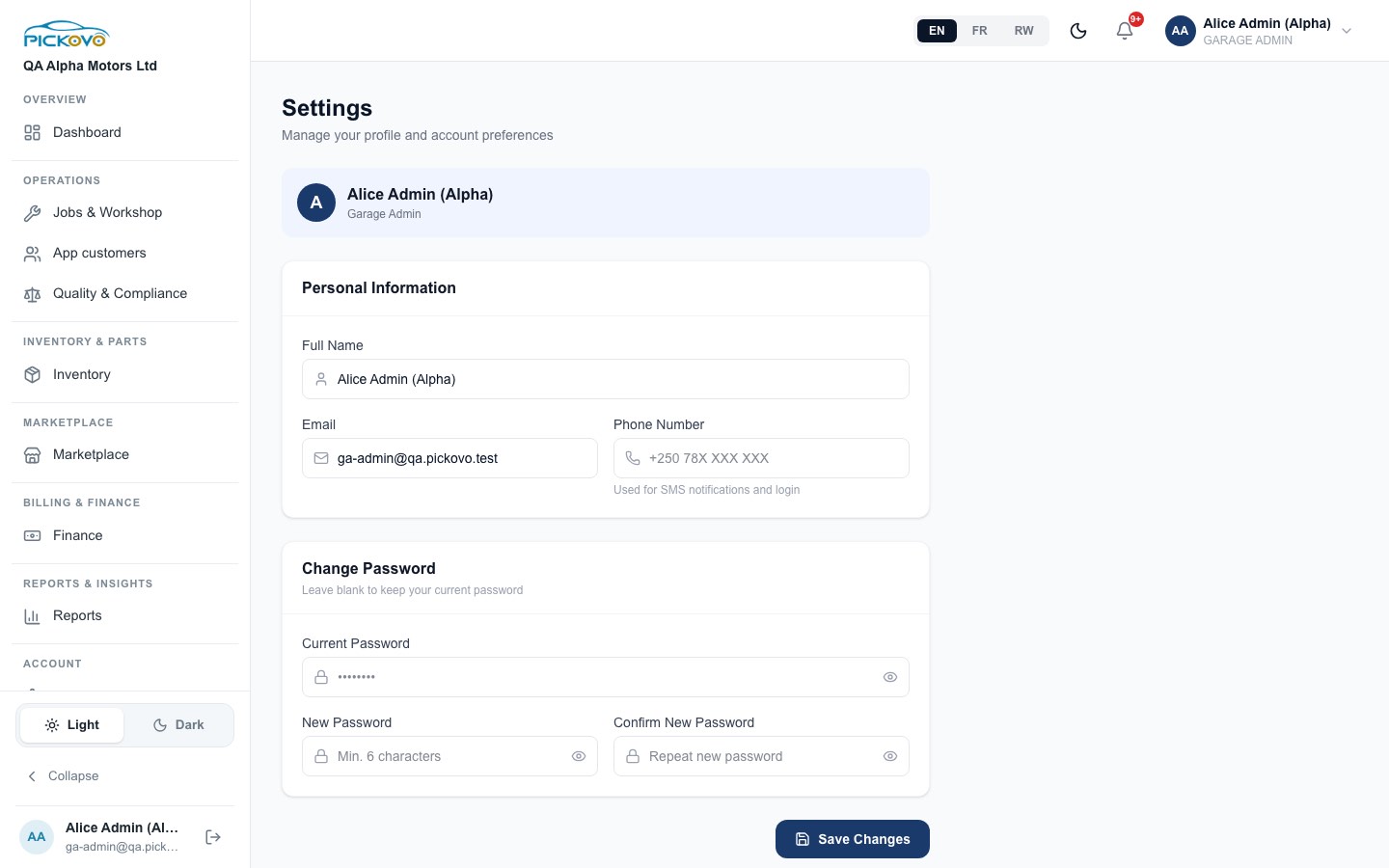
From your name menu, Settings lets you change your full name, email and phone number (the phone is used for SMS notifications and phone sign-in), and your password (current password, then the new one twice, at least 6 characters). Select Save Changes.
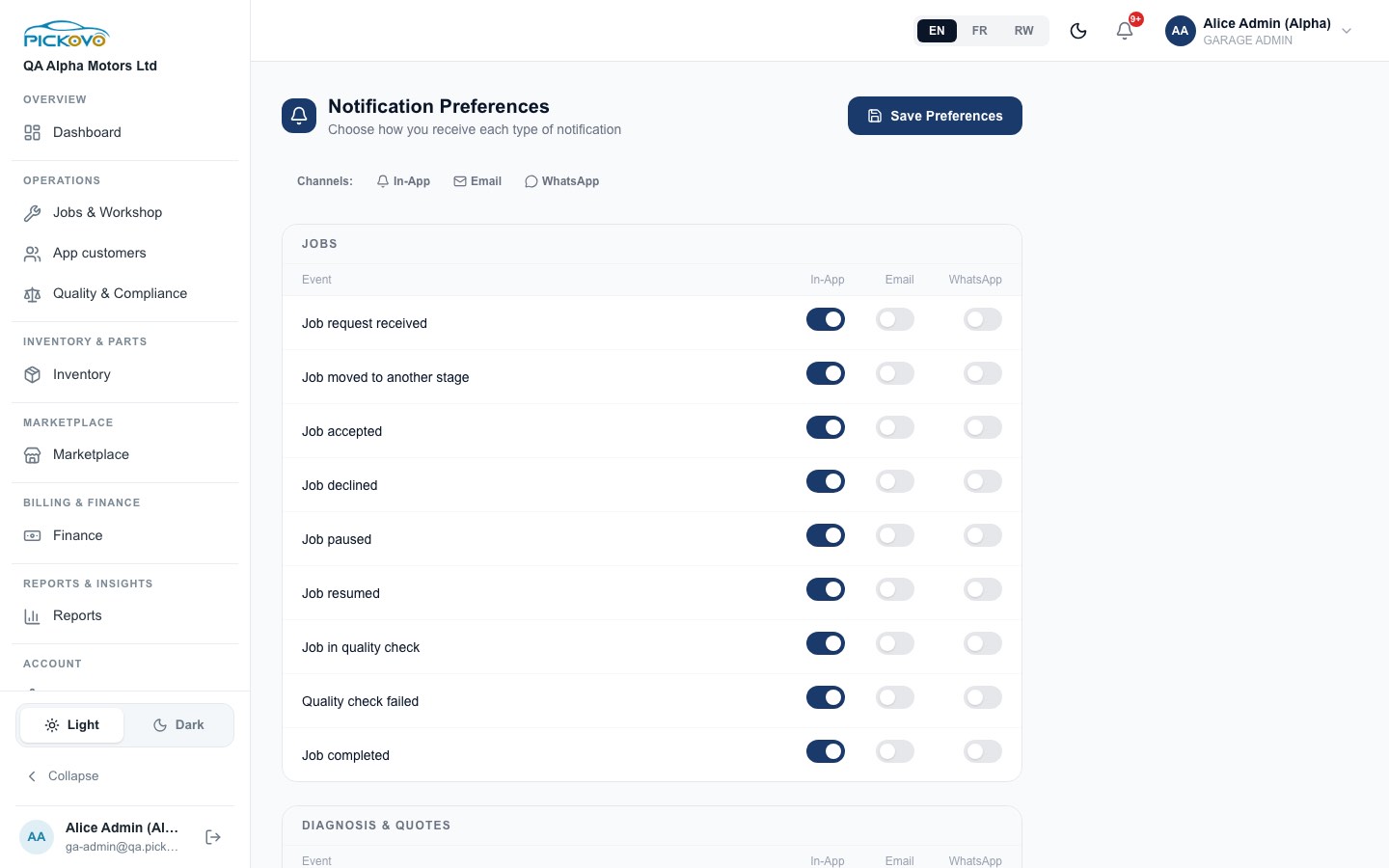
Notification preferences lets you choose, for each event (jobs, diagnosis and quotes, and more), whether you are told In-App, by Email or by WhatsApp. Select Save Preferences.
D. What you can and cannot do
Based on the measured page-access matrix (the Garage Admin opened all 35 garage pages) and the permission catalogue.
| Area | View | Create | Edit | Delete / void | Approve | Notes |
|---|---|---|---|---|---|---|
| Jobs | Yes | Yes | Yes | Archive | Yes QC sign-off, close | Status moves follow the workshop flow |
| Quotations | Yes | Yes | Yes until approved | - | , (customer approves) | Locked once approved |
| Invoices & payments | Yes | Yes | Yes until paid | - | - | Record and confirm payments |
| Bookings, walk-ins, mechanics | Yes | Yes | Yes | Cancel booking | Confirm booking | |
| Gate passes | Yes | Yes | Yes | - | Yes approve and close | Only the admin approves |
| Inventory, POs, suppliers | Yes | Yes | Yes | - | Yes part requests, stock corrections | Never your own correction |
| Expenses | Yes | Yes | Yes | Yes | - | |
| Compliance, complaints | Yes | Yes | Yes | - | - | Regulator verifies documents |
| Staff, roles, garage settings | Yes | Yes | Yes | Yes remove staff | - | Admin-only |
| Reports, activity log | Yes | Export | - | - | - | |
| Billing | Yes | Subscribe and pay | - | - | - | |
| App-customer features | Yes when switched on | Pickovo switches them on | ||||
| Cannot access | - | - | - | - | - | AI settings (/settings/ai); fleet, spare-parts-shop, regulatory and superadmin workspaces; another garage's records; turning app-customer features on yourself |
E. Common workflows
E1. Fleet repair: from the fleet's request to payment (workflow W1)
Before you: a fleet driver reports a problem in the app, and the fleet manager approves it and sends the job to your garage.
- The job appears in New on your board, and you are notified.
- Accept Job (you, a head mechanic or the receptionist can do this). Assign a mechanic on the job card.
- The mechanic selects Start Diagnosis and files the diagnosis. The job moves to Awaiting approval.
- Open Create / Edit Quotation, add labour and parts, and send it to the fleet company.
- The fleet manager approves the quotation. The job moves to In progress.
- The mechanic issues parts from stock and selects Send to Quality Check.
- You or the head mechanic select Pass Quality Check. The job is Completed. (The mechanic cannot pass their own check.)
- Generate Invoice, then Send it to the fleet company.
- When the fleet company pays, Record Payment (for example MTN Mobile Money with its reference). The invoice turns Paid.
- Close Job. The fleet manager sees the paid invoice in the vehicle's service history.
E2. Part request and purchase order (workflow W2)
- A mechanic requests parts on their job. The stock manager (or you) approves it on Parts Requests. The stock is issued to the job and stock goes down.
- If the shelf is short, Send to procurement or create a New order on Purchase Orders, then mark it sent.
- When the goods arrive, mark the order received. The stock goes up, and the movement appears in Stock Movements. (An order cannot be received twice.)
- If someone needs to correct a movement, they raise a Change Request. You approve it, unless you raised it yourself, in which case another administrator must.
E3. Car-owner booking (workflow W3)
Before you: a car owner books a slot in the Pickovo app.
- The booking appears under Appointments. The receptionist (or you) confirms it. A job card is created.
- When the car arrives, check it in (odometer, fuel, condition). The job is Accepted, and the owner sees Received in the app.
- The workshop repairs the car, and you pass quality check. The owner sees Ready.
- Generate and send the invoice. Take payment at the counter (Record Payment, Cash), or let the owner pay in the app if mobile money or card payment is set up.
- Close Job. The owner can now leave a review (if Reviews is switched on). Reply to it under App customers → Reviews.
E4. Bringing on a new cashier
- Settings → Team Members → Add Member, role Cashier, with a starting password.
- Check Roles & access → Cashier. By default a cashier can view and create invoices, record payments and see financial reports. They cannot adjust invoices.
- If the cashier leaves, select Deactivate account. They are locked out within about 10 seconds.
F. Troubleshooting
| Problem | Likely cause and fix |
|---|---|
| A page sends you back to the dashboard | You (or a staff member) lack the permission for that page. Check Roles & access for staff. As admin you have every garage page. A garage member opening Change Requests is sent to the sign-in page instead of the dashboard. This is a known issue and does not mean they were signed out for a security reason. |
| "This feature is not enabled for your garage" | Pickups, Messages, Reviews, Roadside and Accident reports are off until Pickovo switches them on. Contact Pickovo support (Settings → Support → New request). |
| A job will not move to the next column | Only the moves in C2 are allowed. Work cannot start without a mechanic. A closed or archived job is read-only. |
| A mechanic cannot finish their own job | By design: someone else (you or a head mechanic) must pass the quality check. |
| You cannot approve a stock correction | You raised it yourself. Another administrator must review it. |
| Record Payment is missing | The invoice is still a draft. Send it first. |
| You cannot add a staff login | Your plan's user seats are used up, or no email was given. Check Finance → Billing. |
| "Free trial ended" banner | Subscribe to a plan on Finance → Billing to restore full access. |
| Sign-in is paused | 10 wrong passwords in 15 minutes. Wait, or use Forgot password? |
| A deactivated staff member still appears signed in | Their session stops working within about 10 seconds of deactivation. They are refused on their next action. |
| A car owner's in-app invoice shows a code such as "Invoice #cmwa7h5m" | Known mobile app issue. Give them the invoice number from your invoice (for example QAA-2026-0012). |
G. Security and best practices
- Switch on two-factor authentication (Settings). Your account controls staff, money and permissions.
- Never share your login. Give each person their own account with the right role, so the activity log shows who did what.
- Grant sensitive permissions sparingly. Anything marked Money / audit (invoice adjustments, payments, stock-correction approval, financial reports) should go only to people who need it.
- Deactivate leavers immediately. Deactivation takes effect within seconds. Remove the account later if you no longer need its history.
- Review the Activity Log regularly, especially payments, invoice edits and stock adjustments.
- Approve gate passes and stock corrections yourself. That is the control: check the plate, items and reason before you approve.
- Keep compliance documents current. Watch for Expiring soon and upload renewals early.
- Use the official address only (https://fleet.heptadev.com). Pickovo staff will never ask for your password.
- Sign out on shared computers using the log-out button next to your name at the bottom of the sidebar.