
Fleet company · TENANT_ADMIN
Fleet Organisation Admin
For the person who runs a fleet company's Pickovo account.
The screenshots in this guide come from a test system. Every company, vehicle, person, phone number and amount in them (for example "QA Kigali Logistics Fleet", "Tina Tenant-Admin (Fleet)", plate "RAD 101 Q") is fictional test data.
A. Introduction
What the role is for
The Fleet Organisation Admin (shown in the app as Tenant Admin) is the top account of a fleet company on Pickovo. A company normally has one. You can do everything a Fleet Manager can do. You also control the company account:
- People. You add Fleet Managers, Fleet Members and Drivers. Only you can add a Fleet Manager.
- Spending. You set how much a Fleet Manager may approve on a single garage quotation, for the whole company or per manager. Only you can approve quotations above a manager's limit.
- The subscription. You choose the plan, pay for it and download the company's data.
- Oversight. You can read the company's activity log, see AI usage and change the company logo.
What you can accomplish
- Keep the vehicle register and driver list up to date, and assign drivers to vehicles.
- Review problems that drivers report, and send vehicles to partner garages.
- Approve, decline or ask for changes to garage quotations.
- Follow every repair on a job board, and read the garages' invoices.
- Find garages and spare-parts shops, and set up partnerships with them.
- See what maintenance costs and how long vehicles are off the road.
- Pay for and manage the subscription.
B. Getting started
Signing in
- Go to https://fleet.heptadev.com/en/login. For French use
/fr/login, and for Kinyarwanda use/rw/login. You can also switch language with EN / FR / RW at the top right of the page. - In Email or Phone, enter your email address or your phone number.
- Enter your Password. The eye icon shows what you typed.
- Select Log in.
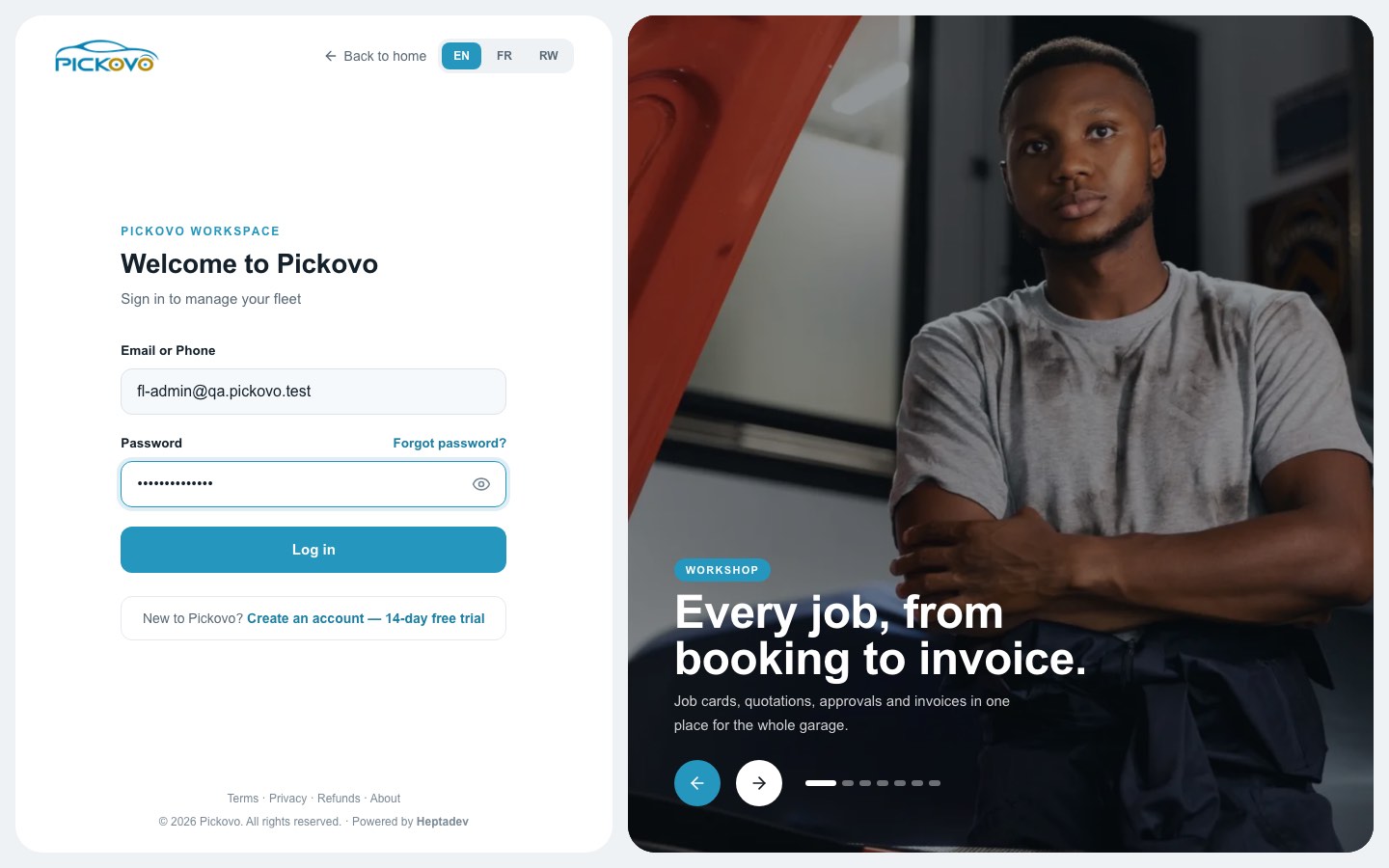
Figure 1: The Pickovo sign-in page
- Forgot password? is above the password box and lets you reset your password.
- If two-factor authentication is turned on for your account, a second screen asks for the 6-digit code from your authenticator app.
- After 10 wrong passwords in 15 minutes, sign-in is paused for that account. Wait, then try again, or reset your password.
- If Pickovo suspends your company, nobody in it can sign in until the company is reactivated.
- Create an account, 14-day free trial registers a new organisation. Do not use it to add colleagues. Add them from Users instead (see C2).
First look: the Fleet Dashboard
After you sign in, you land on the Fleet Dashboard at /fleet.
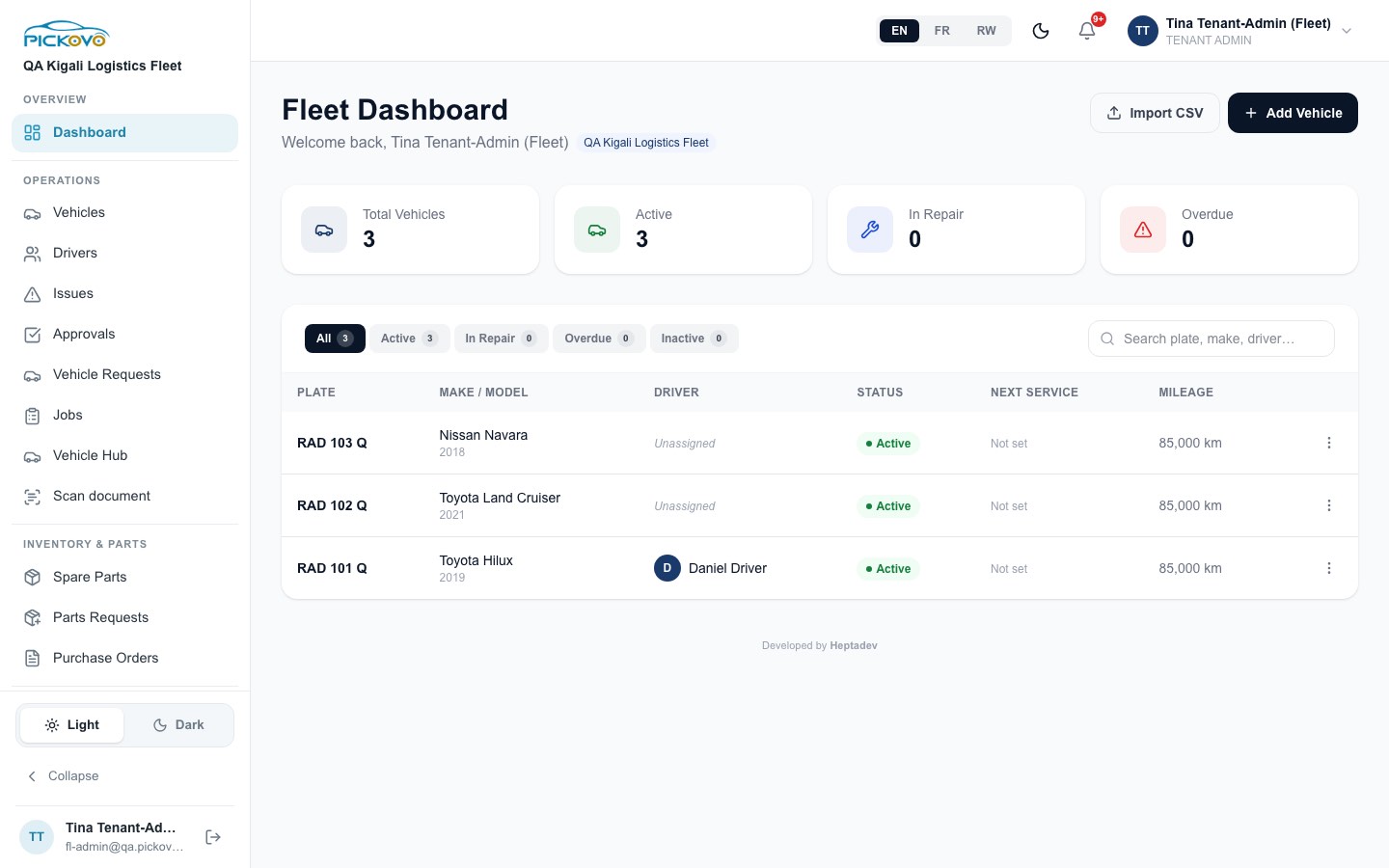
Figure 2: The Fleet Dashboard after sign-in
Navigation overview
Top bar, left to right:
- EN / FR / RW, changes the language.
- Moon icon, switches between dark and light mode.
- Bell, your notifications. From here you can mark all as read or view them all.
- Your name and role, opens a menu with Logout.
Sidebar. Links are grouped under headings:
| Heading | Links |
|---|---|
| Overview | Dashboard |
| Operations | Vehicles, Drivers, Issues, Approvals, Vehicle Requests, Jobs, Vehicle Hub, Scan document |
| Inventory & Parts | Spare Parts, Parts Requests, Purchase Orders |
| Marketplace | Garages |
| Billing & Finance | Invoices, Billing |
| Reports & Insights | Reports, Cost Intelligence |
| Administration | Activity Log, Users |
| Account | Settings, AI Settings, Refer & Earn |
The bottom of the sidebar has the Light / Dark switch, Collapse (shrinks the sidebar to icons; point at an icon to see its name), and your name and email with the log-out button. Vehicle Hub and Scan document are shared tools that other company roles also have. This guide does not cover them.
C. Features
C1. Dashboard
Purpose: see your fleet's state at a glance.
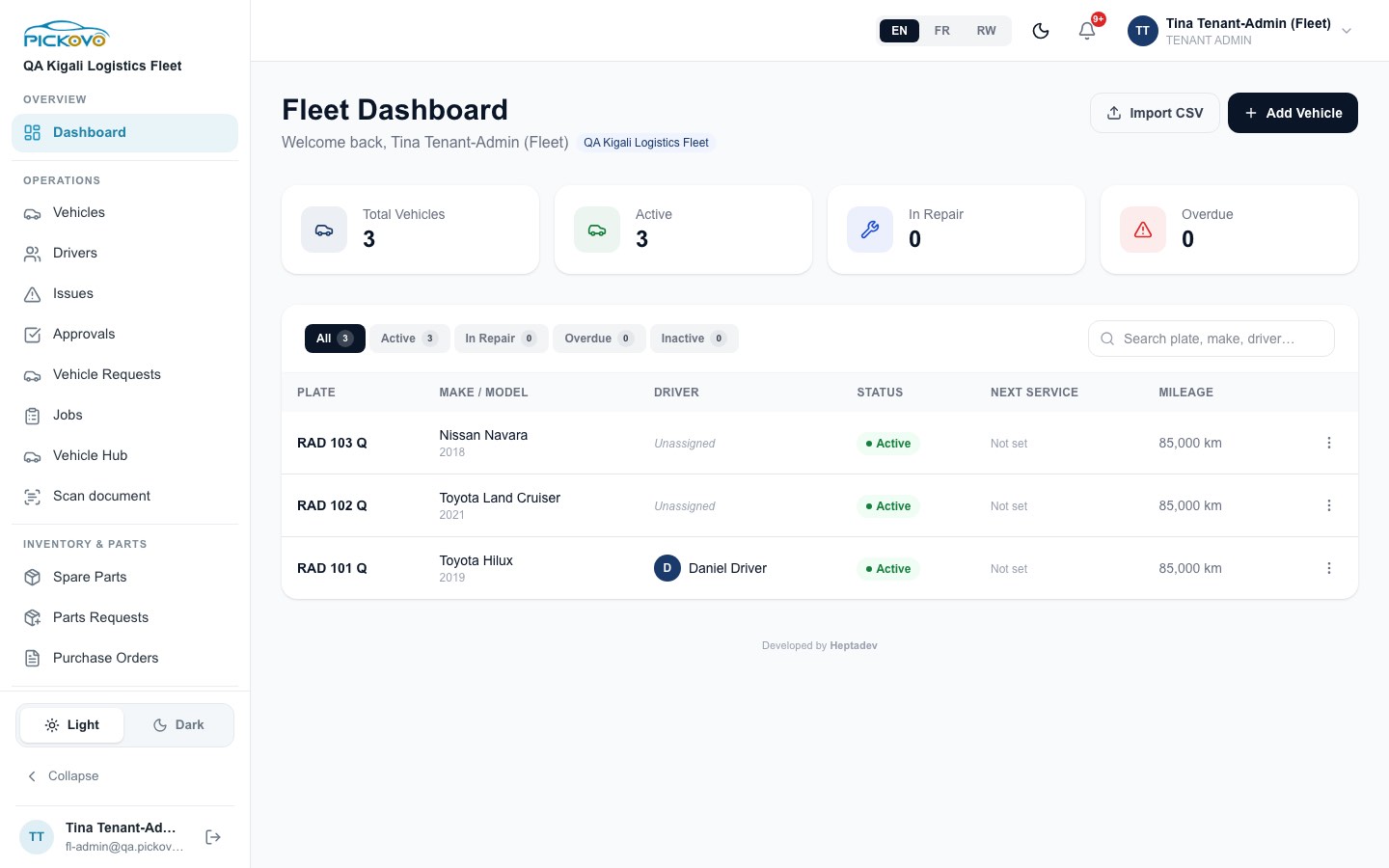
Figure 3: Fleet Dashboard showing the three test vehicles
What you see:
- Count cards: Total Vehicles, Active, In Repair and Overdue. Overdue counts vehicles whose service schedule has passed its due date.
- Vehicle table:
- Filter tabs: All / Active / In Repair / Overdue / Inactive.
- A search box: Search plate, make, driver….
- Columns: Plate, Make / Model, Driver, Status, Next Service, Mileage.
- ⋮ menu on each row: View details, Edit and Delete. Delete asks you to confirm first.
- Vehicles in Service board. It appears below the table whenever vehicles are at a garage.
- Add Vehicle and Import CSV buttons. Both work the same way as on the Vehicles page (see C4).
C2. Users and roles (Team)
Purpose: add the people in your company and control what managers may approve.
Open it from Administration → Users. The page is titled Team and lists every active member with a coloured role badge and the date they were added.
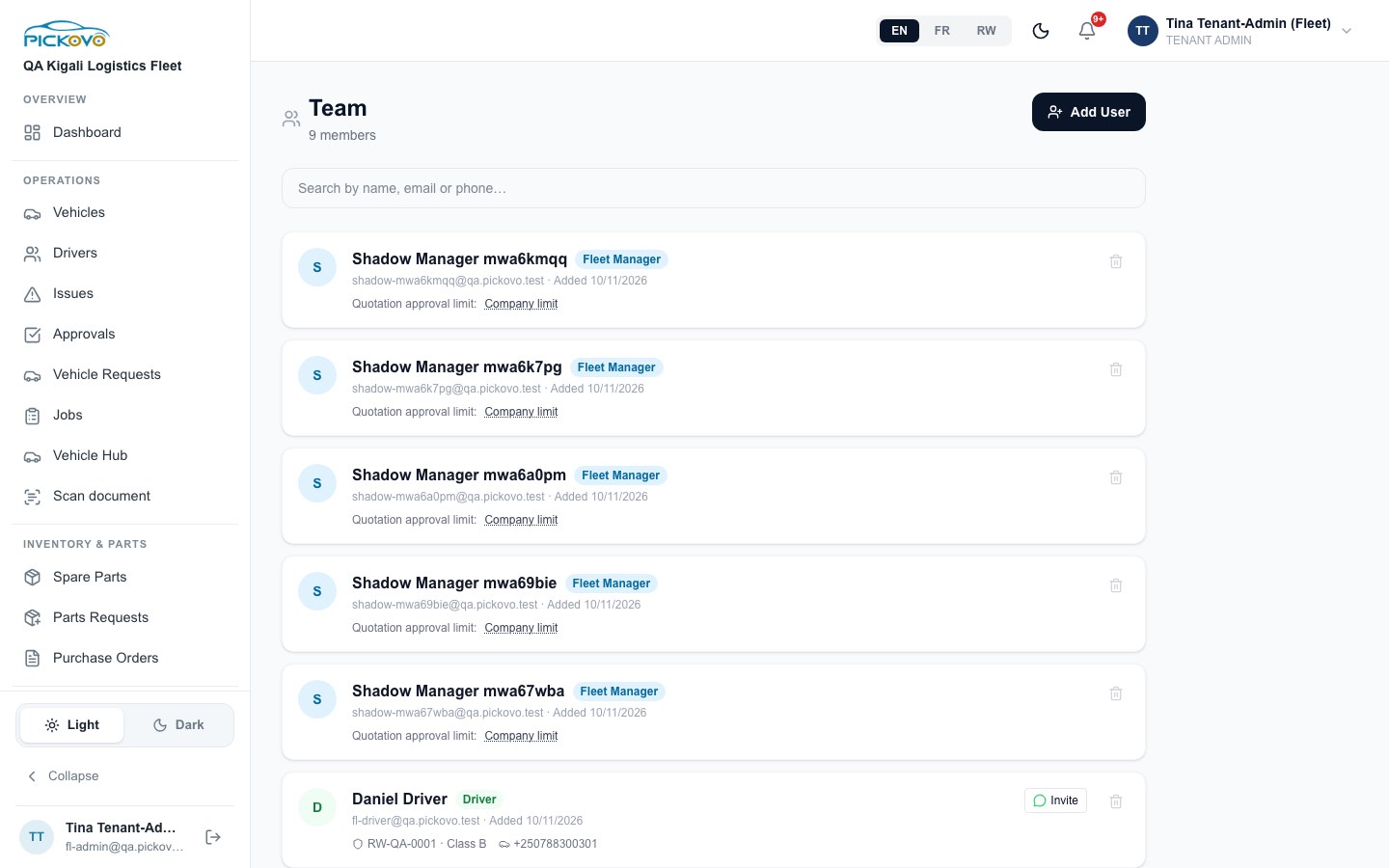
Figure 4: The Team page with fleet managers and their quotation approval limits
Roles you can create:
| Role | What the form says it is for |
|---|---|
| Driver | Assigned to vehicles, submits trip logs and reports issues |
| Fleet Member | Read-only access to fleet data; cannot manage vehicles or users |
| Fleet Manager | Manages vehicles, drivers, work orders and approvals |
You cannot create another Tenant Admin here. Only the company admin can create a Fleet Manager: when a Fleet Manager tries, it is refused.
To add a team member:
- Select Add User. A New Team Member form opens.
- Fill in:
- Full Name (required)
- Role (required)
- Email and/or Phone. You must give at least one, and each must not already be in use.
- For a Driver, you can also fill in:
- Licence Number
- Licence Category (Class A–F)
- Driver Phone (if different)
- Choose how the person gets their password:
- Driver, invited on WhatsApp. Leave Invite on WhatsApp: the driver sets their own password ticked. This needs a phone number. Select Create & invite. Pickovo shows a one-time link with its expiry date. Send it with the WhatsApp button, or copy it. The driver opens the link, sets a password, then signs in to the Pickovo app with their phone number.
- Everyone else (or a driver without the invite). Pickovo generates a Temporary Password. You can change it, select Regenerate, or copy it. Select Create. A green banner shows the login and password so you can pass them on. Ask the person to change the password after their first sign-in.
Driver rows:
- Invite pending means the driver has not set a password yet.
- Invite or Resend invite creates a new WhatsApp set-password link.
Setting a manager's quotation approval limit
Every Fleet Manager row has a line Quotation approval limit:. It shows either Company limit or an amount in RWF.
- Click the underlined value.
- Type an amount in RWF, or leave the box empty to use the company limit.
- Select Save, or Cancel to leave it unchanged.
How the limits work:
- A manager's own limit replaces the company limit for that manager only.
- When a manager tries to approve a quotation above their limit, they get this message: "…is above your approval limit… A company admin must approve it."
- You have no limit.
- Only you can set these limits. Fleet Managers do not see the editor, and the server refuses the change if they try.
- The company-wide limit is set on Cost Intelligence (see C13).
Known limitation: each row other than the Tenant Admin's has a bin icon with a Yes/No confirmation. On the current build, removing someone this way does not work for a company admin: the request is refused and the person stays on the list. To remove someone's access, contact Pickovo support.
C3. Drivers
Purpose: keep driver records and licences up to date.
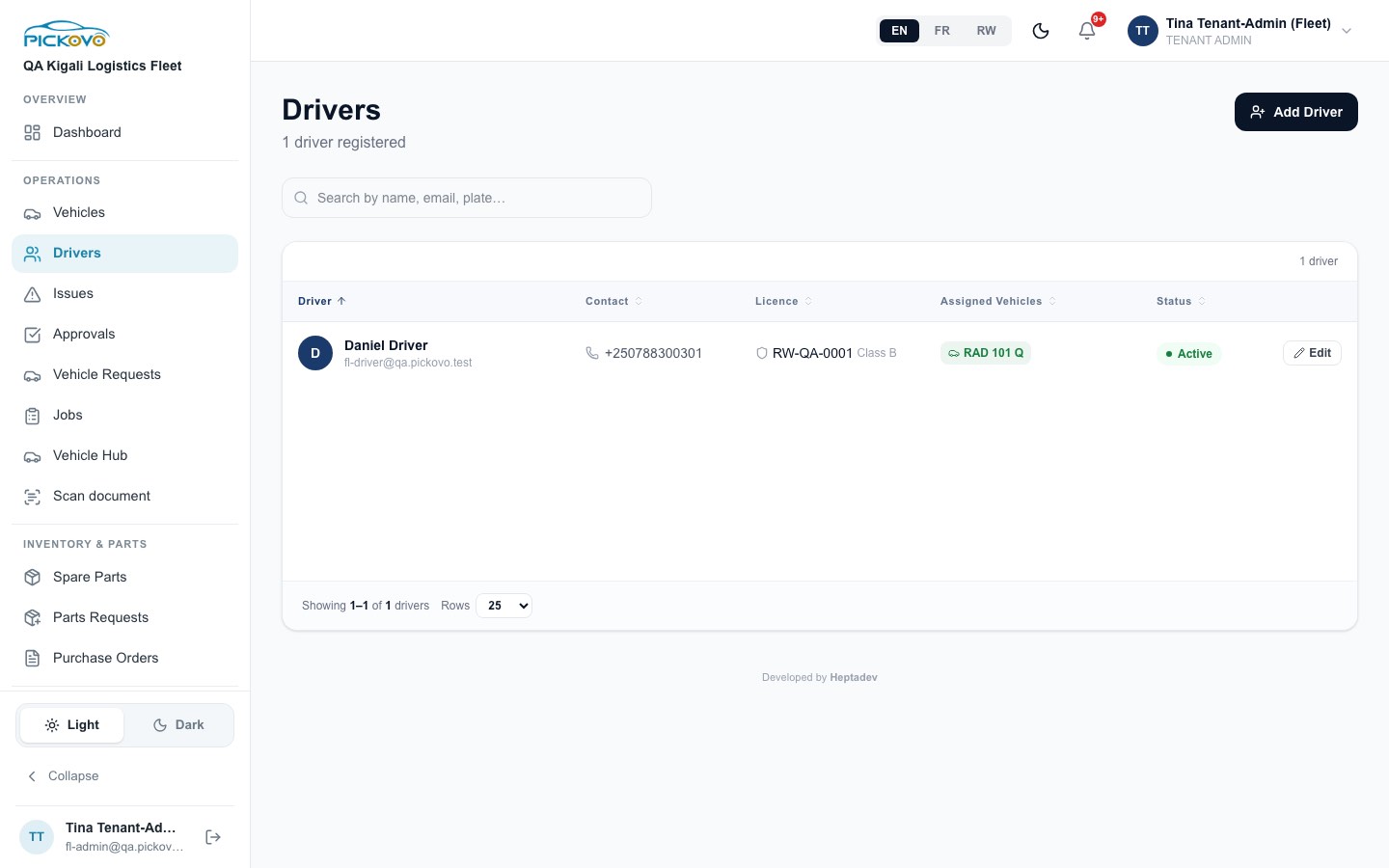
Figure 5: The Drivers list
The list:
- Search by name, email or plate.
- Sortable columns: Driver, Contact, Licence, Assigned Vehicles, Status.
- Rows sets how many drivers show per page.
Add Driver opens a short form:
- Full Name (required)
- WhatsApp / Phone (required)
- Licence Number
- Licence Category
- Temporary Password, with Regenerate and copy buttons
Select Create Driver. The login details appear in a banner so you can pass them on. This form has no WhatsApp-invite option; use Users if you want to invite a driver on WhatsApp.
Edit on a row lets you change the name, email, phone, licence number and licence category. Select Save Changes when you are done.
C4. Vehicles
Purpose: keep the vehicle register. Each vehicle has its own page with its issues, service jobs, schedule and history.
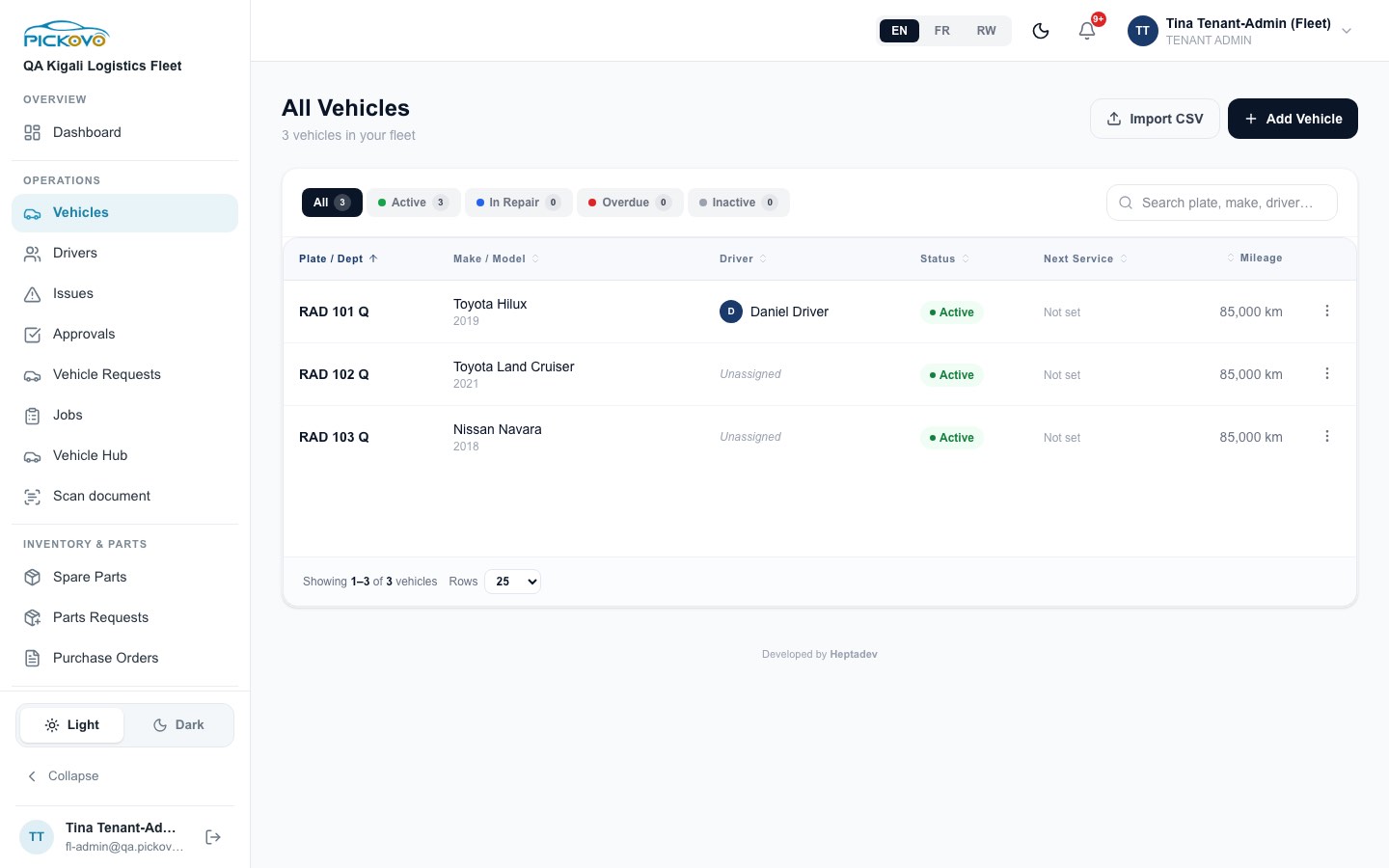
Figure 6: All Vehicles, with status filters and the actions menu
The list:
- Filter tabs, search and sortable columns, as on the dashboard.
- Hover over a driver cell to see Assign or Change. Pick a driver from the list, or choose Unassign.
- The ⋮ menu on each row has View details, Edit and Delete.
To add a vehicle:
- Select Add Vehicle.
- Step 1, Vehicle Info. Fill in:
- Plate Number, Make, Model and Year (all required)
- Optional: Department, Mileage (km), Colour, Vehicle Type, Fuel Type, Insurance Expiry
- Step 2, Driver & Schedule. Choose a driver if you want one. Under Maintenance schedule, pick None, By Time, By Mileage or Both. Then enter Repeat every (days) and/or Repeat every (km), and the Last service date.
- Select Save Vehicle.
To import many vehicles at once:
- Select Import CSV and choose a file.
- The file needs a header row. Recognised columns:
plateNumber(or "Plate Number" / "Plate")make,model,yearmileageKm(or "Mileage")fuelType(PETROL if left empty)department
- Check the preview, then select Import N vehicles.
Each row goes through the same checks as the form. Rows that are refused, such as a plate that already exists, are listed with their line number.
The vehicle page (open a plate or select View details):
- Header buttons:
- Send for Service. This appears only when you have at least one accepted partner garage. Choose a Partner Garage, enter a Service Title and an optional Description.
- Edit. The edit form also lets you change the vehicle Status (Active, Inactive, In Repair, Overdue) and the Assigned Driver.
- Tabs:
- Overview: details and driver assignment.
- Issues: report an issue; approve or decline pending ones; select Send to Service for approved ones.
- Service: active jobs, each with View details. Jobs that are Pending, Accepted or waiting for quote approval also have Cancel Job, which asks you to confirm.
- Schedule: the maintenance schedule.
- History: past jobs.
C5. Issues
Purpose: review problems that drivers report, and turn approved problems into garage jobs.
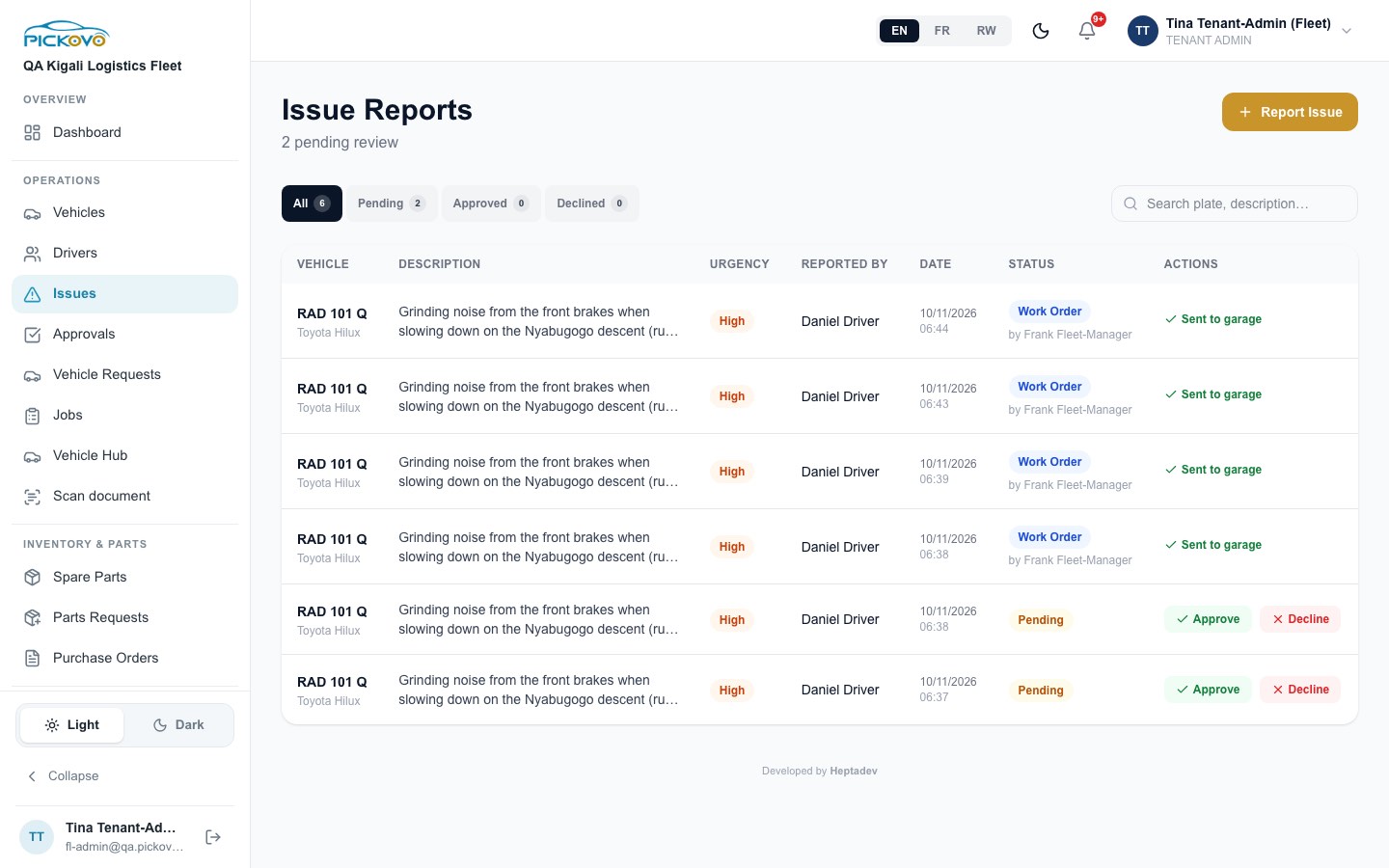
Figure 7: Issue Reports, with pending issues awaiting Approve or Decline
The list:
- Tabs: All / Pending / Approved / Declined, plus a search box.
- Columns: Vehicle, Description, Urgency, Reported By, Date, Status, Actions.
What you can do with an issue:
- Pending issue.
- Select Approve, or
- Select Decline. You can add a reason, which the driver sees.
- Approved issue. Select Send to Garage. In Send Vehicle for Service:
- Choose the Partner Garage.
- Check the job title and Description.
- Select Send to Garage.
The button is greyed out until you have an accepted garage partnership. 3. Issue already sent. The status shows Work Order and the Actions column shows Sent to garage.
Report Issue lets you log a problem yourself:
- Choose the vehicle.
- Choose the urgency: Low, Medium or High.
- Describe the problem and, if you like, add a photo.
- Select Submit Issue Report.
C6. Approvals
Purpose: everything waiting for your decision, in one place.
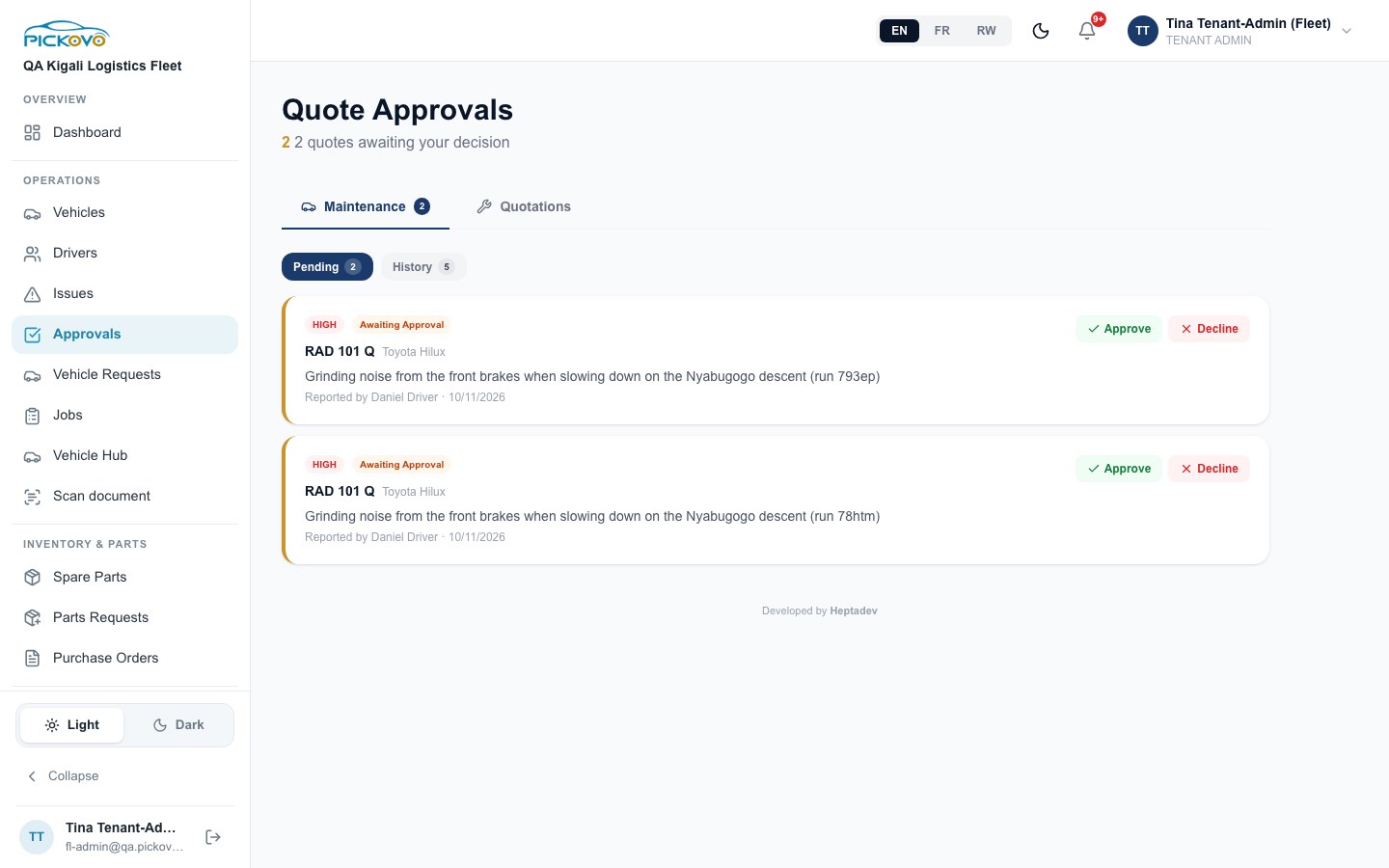
Figure 8: Quote Approvals, Maintenance tab, with two pending issues
The number under the title counts all waiting items:
- pending issues
- quotations awaiting a decision
- jobs not yet accepted by the garage
Maintenance tab:
- Pending shows:
- Pending issues, with Approve and Decline.
- Approved issues, with Send to Garage.
- Jobs Awaiting Garage Acceptance, with View.
- History shows recent garage jobs with their status.
Quotations tab:
- Sub-tabs: All / Awaiting Decision / Approved / Revision Requested / Rejected.
- Each card shows the version, the garage, and an expiry badge when the quote is close to expiring.
- Open a card to review the quotation.
To decide on a quotation:
- Check the Grand Total, the Labour and Parts split, the Est. Days and the Line Items.
- Read the Garage Notes, Version History and Activity. You can also write to the garage in the Discussion box.
- Under Your Decision, choose one:
- Approve, then confirm. The job moves to In Progress.
- Request Changes. Say what should change, then select Send Revision Request to Garage.
- Decline. Give a reason, then confirm. The job request is closed.
Restrictions:
- You can only approve a quotation that is still awaiting a decision and has not expired. For an expired quote, ask the garage to re-quote.
- Quotations above a manager's limit wait for you. You have no cap.
C7. Vehicle Requests
Purpose: answer drivers who ask for a vehicle from the driver app.
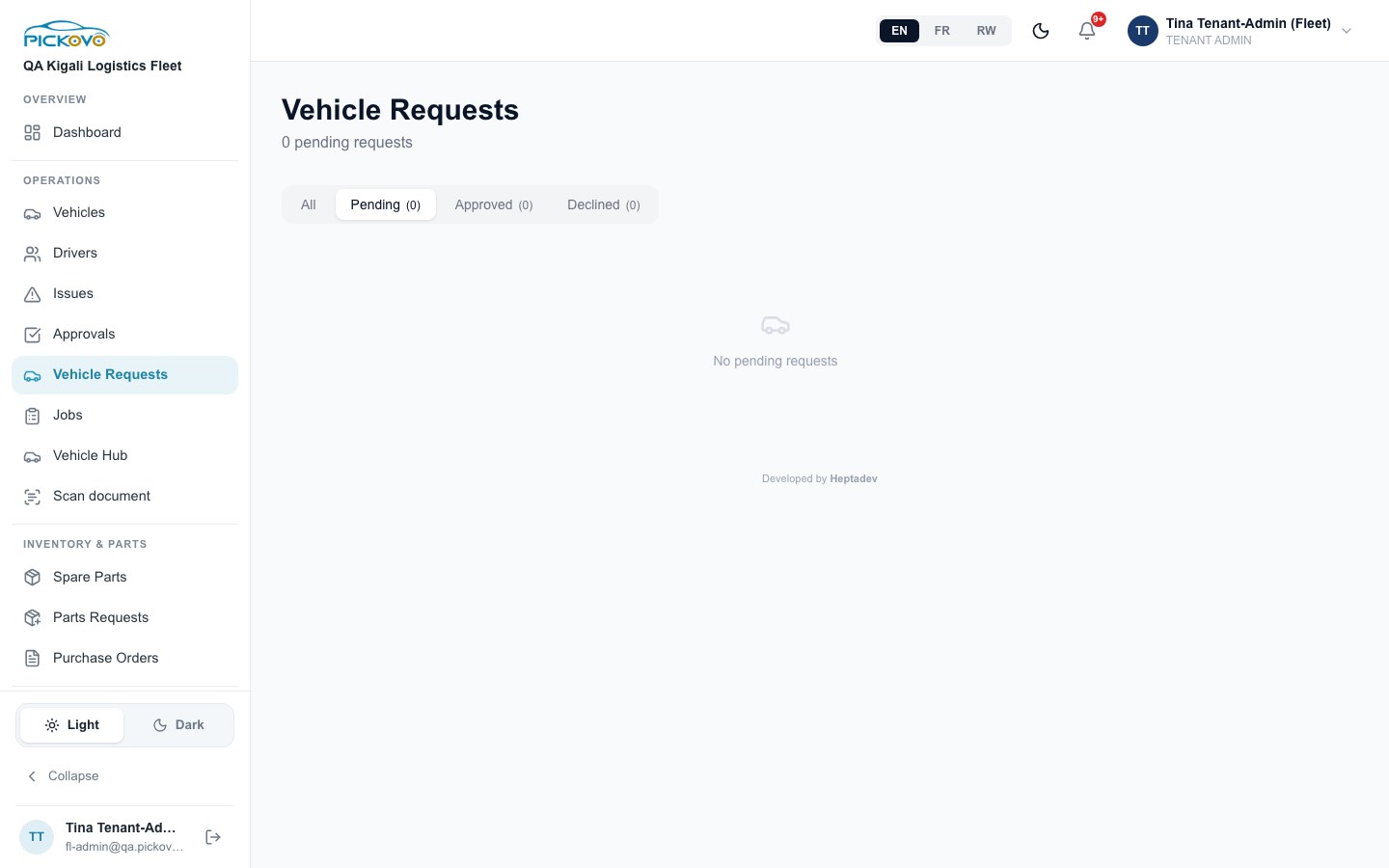
Figure 9: Vehicle Requests, Pending tab, empty
The list:
- Tabs: All / Pending / Approved / Declined.
- Each request shows the driver, the vehicle asked for (or "Any available vehicle"), the driver's message and when it was sent.
To answer a request:
- On a pending request, select Approve or Decline.
- When approving, you can choose a vehicle under Assign Vehicle (optional). The list offers the requested vehicle plus active vehicles that have no driver. Add a Note if you want.
- Confirm.
Approving with a vehicle assigns that vehicle to the driver. A request that was already answered cannot be answered again.
C8. Jobs
Purpose: follow every garage job on a board.
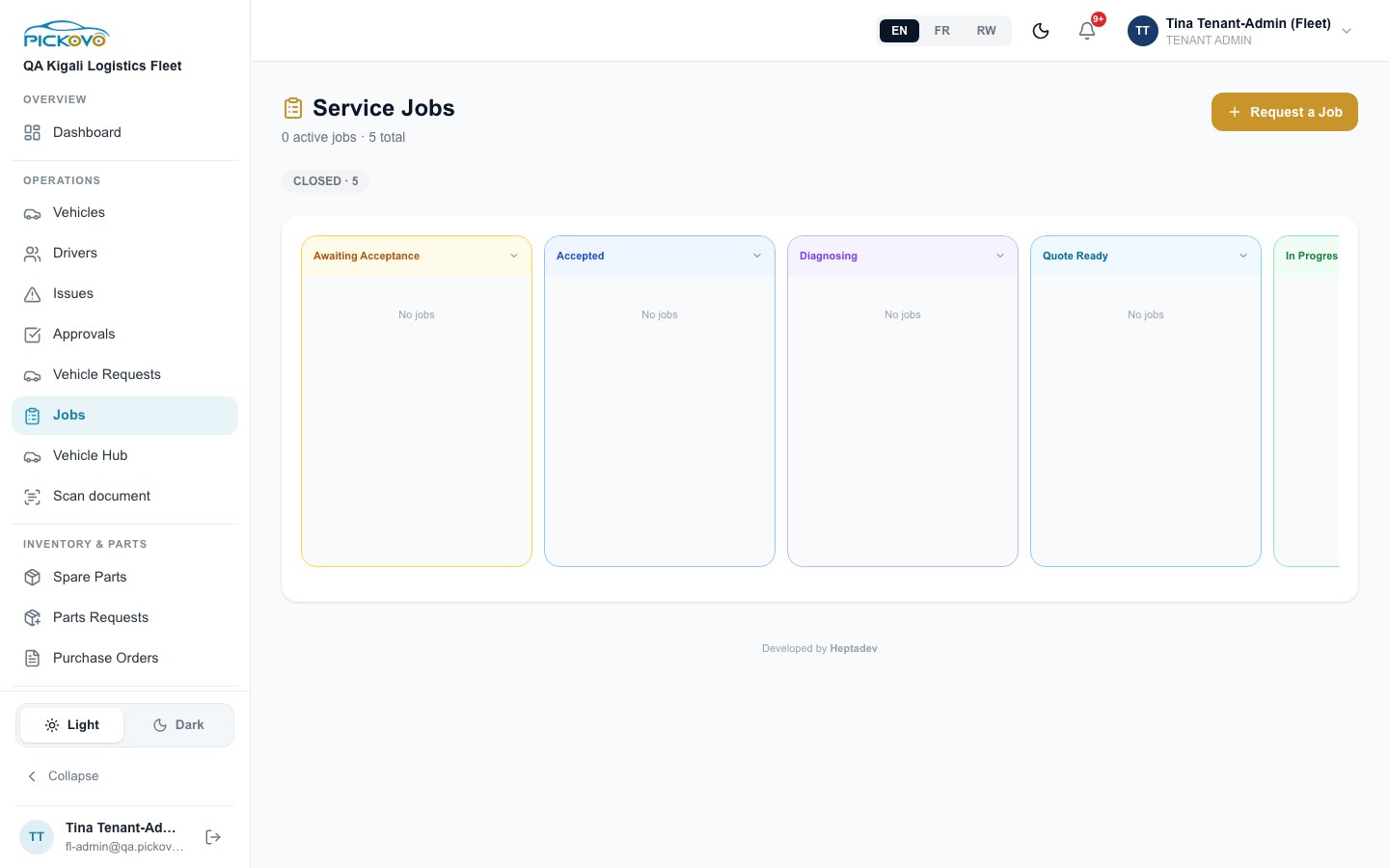
Figure 10: Service Jobs board, all five jobs closed
The board:
- The header shows the number of active and total jobs.
- Count pills show every status, including CLOSED.
- Columns run in this order: Awaiting Acceptance → Accepted → Diagnosing → Quote Ready → In Progress → Completed. Scroll sideways to see them all. Each column can be collapsed.
- Closed jobs appear in the count pills, not on the board.
To request a job:
- Select Request a Job.
- Choose the Vehicle.
- Optionally, enter a City and use Find Best Garage to rank garages. You can choose a specialisation, then select Match.
- Choose the Garage.
- Enter a Job Title and Description.
- Set the Priority (Normal or Urgent) and a Deadline if needed.
- Select Request Job.
The garage list shows all garages, but the job is only accepted for a garage your company has an accepted partnership with.
The job page:
- A progress bar, plus the vehicle, garage, assigned mechanic, issue report, diagnosis reports, quotation and parts used.
- A Repair record of everything recorded on the job.
- When a quotation is awaiting decision, a Review Quotation link appears.
- Cancel Job is available while the job is Awaiting Acceptance, Accepted or Quote Ready.
- An Approve Job button appears while the job is Awaiting Acceptance. It marks the job Accepted.
C9. Garages and collaborations
Purpose: find garages and set up partnerships. You need a partnership before you can send them vehicles.
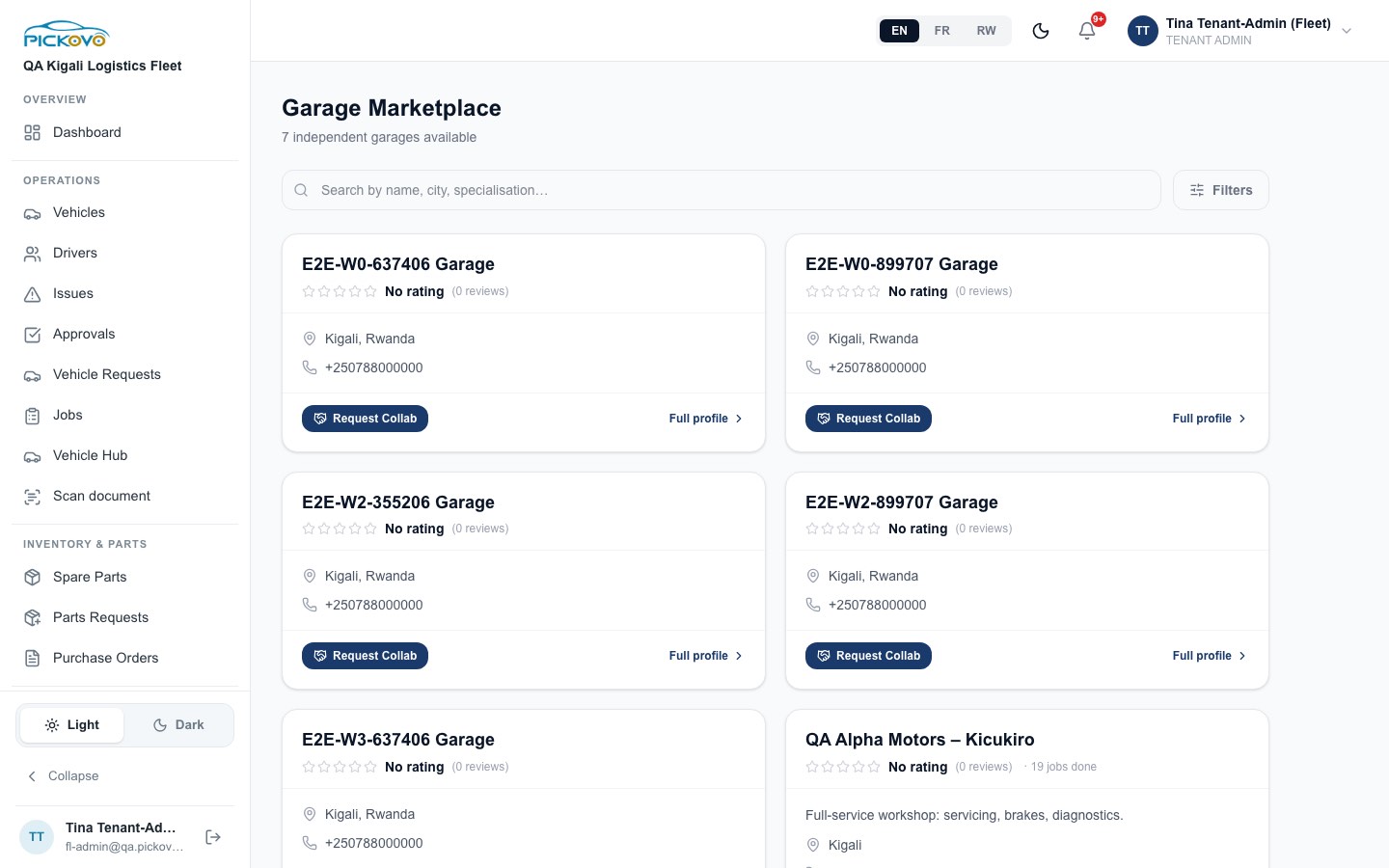
Figure 11: Garage Marketplace, with Request Collab on each card
Finding a garage:
- Search by name, city or specialisation.
- Filters lets you narrow the list by:
- Specialisations: Passenger, Heavy Duty, Motorcycle, Electrical, Bodywork, Tyres
- Certified only
- Min rating
Each garage card has one of these:
- Request Collab when there is no request yet.
- Pending while the garage decides.
- Partner once the garage has accepted.
- Re-request if the garage declined.
Full profile opens the garage page. From there you can:
- Send a collaboration request with an optional message.
- Once you are partners, select Send Vehicle for Service and fill in Vehicle, Service Title and Description.
- Exchange messages with the garage.
- See History with this Garage.
- Leave a rating on closed jobs.
Who does what: the garage's admin accepts or rejects your request. Pickovo notifies you when they do.
C10. Spare Parts
Purpose: find spare-parts shops and ask them for parts.
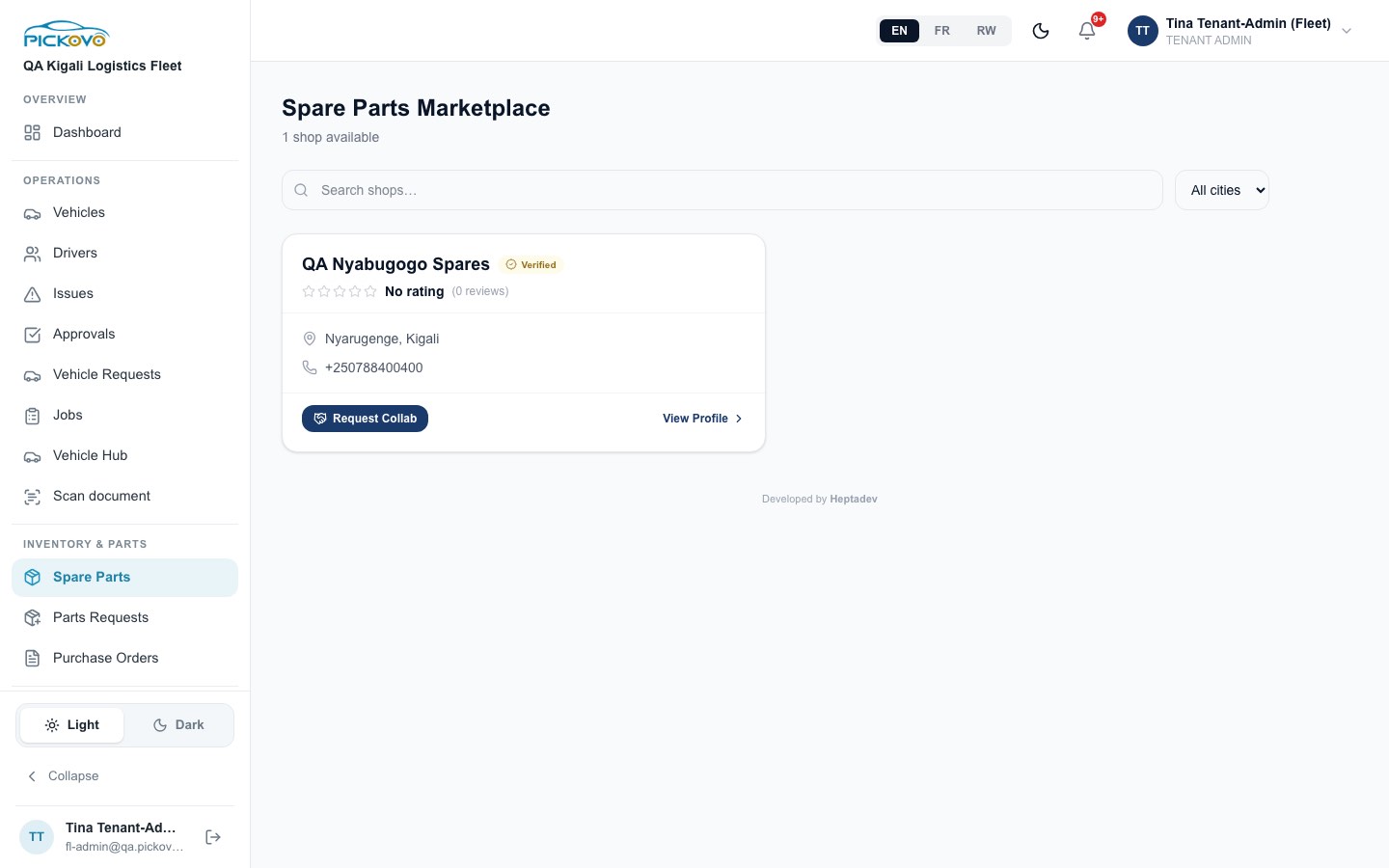
Figure 12: Spare Parts Marketplace with one verified shop
Finding a shop:
- Search shops, or filter by city.
- Request Collab works the same way as for garages.
On a shop's page (View Profile):
- You see its catalogue with prices and its reviews.
- Once your partnership is accepted, a Request Parts form appears:
- List each part and quantity, or pick from the catalogue. Custom item… lets you type a part that is not listed.
- Add Needed By and Notes.
- Select Send Request.
The shop replies with a quotation. Until the partnership is accepted, the page says you need one.
C11. Invoices
Purpose: read the invoices that garages send your company.
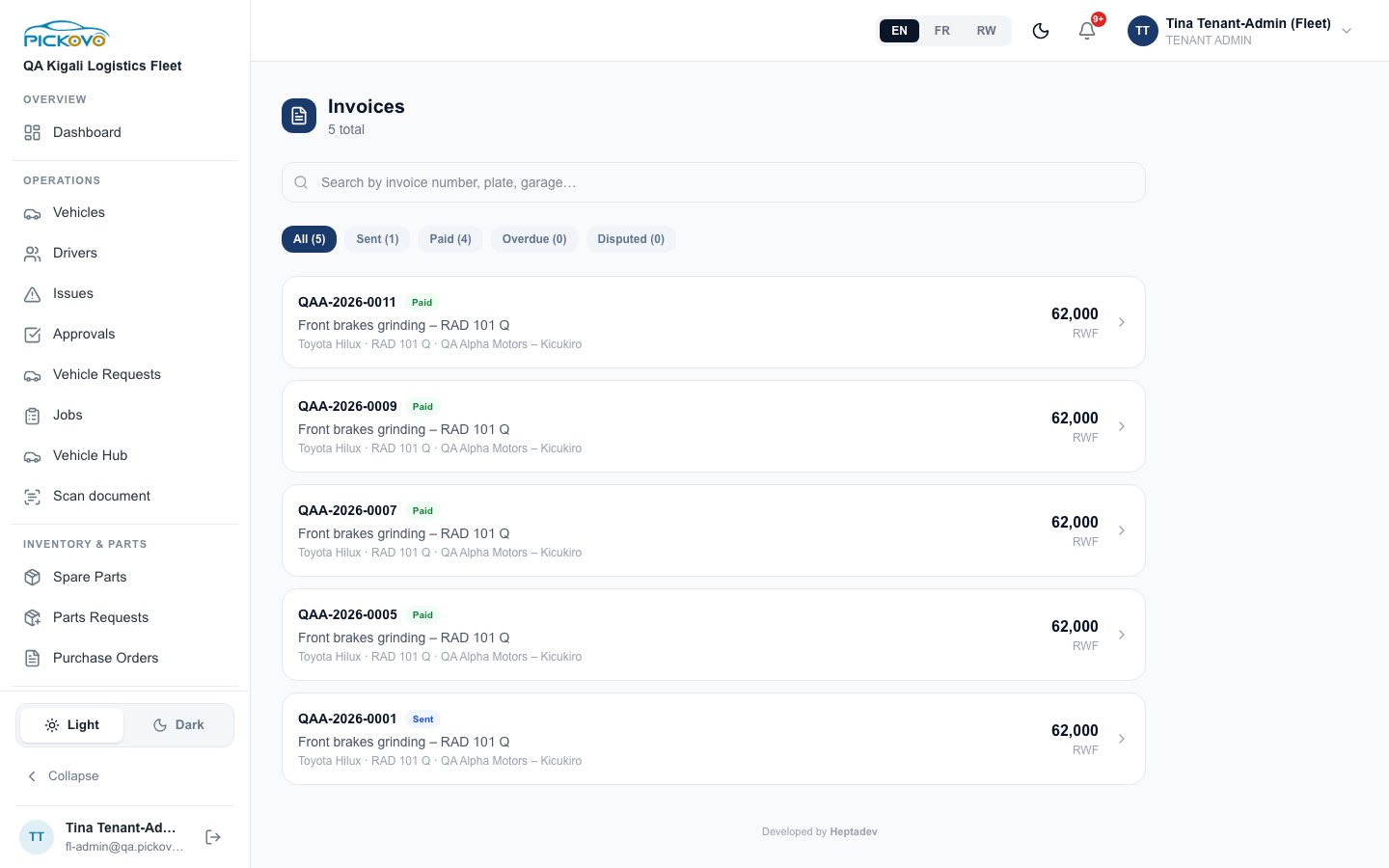
Figure 13: Invoices from the partner garage, four paid and one sent
The list:
- Search by invoice number, plate or garage.
- Tabs: All / Sent / Paid / Overdue / Disputed.
On an invoice:
- Print / PDF prints the invoice or saves it as a PDF.
- Dispute appears only on Sent or Overdue invoices. Describe the problem and submit. The invoice is marked Disputed so the garage can follow up.
You do not record payments here. The garage's cashier records payment when your company pays.
C12. Reports
Purpose: maintenance cost and vehicle performance over a period.
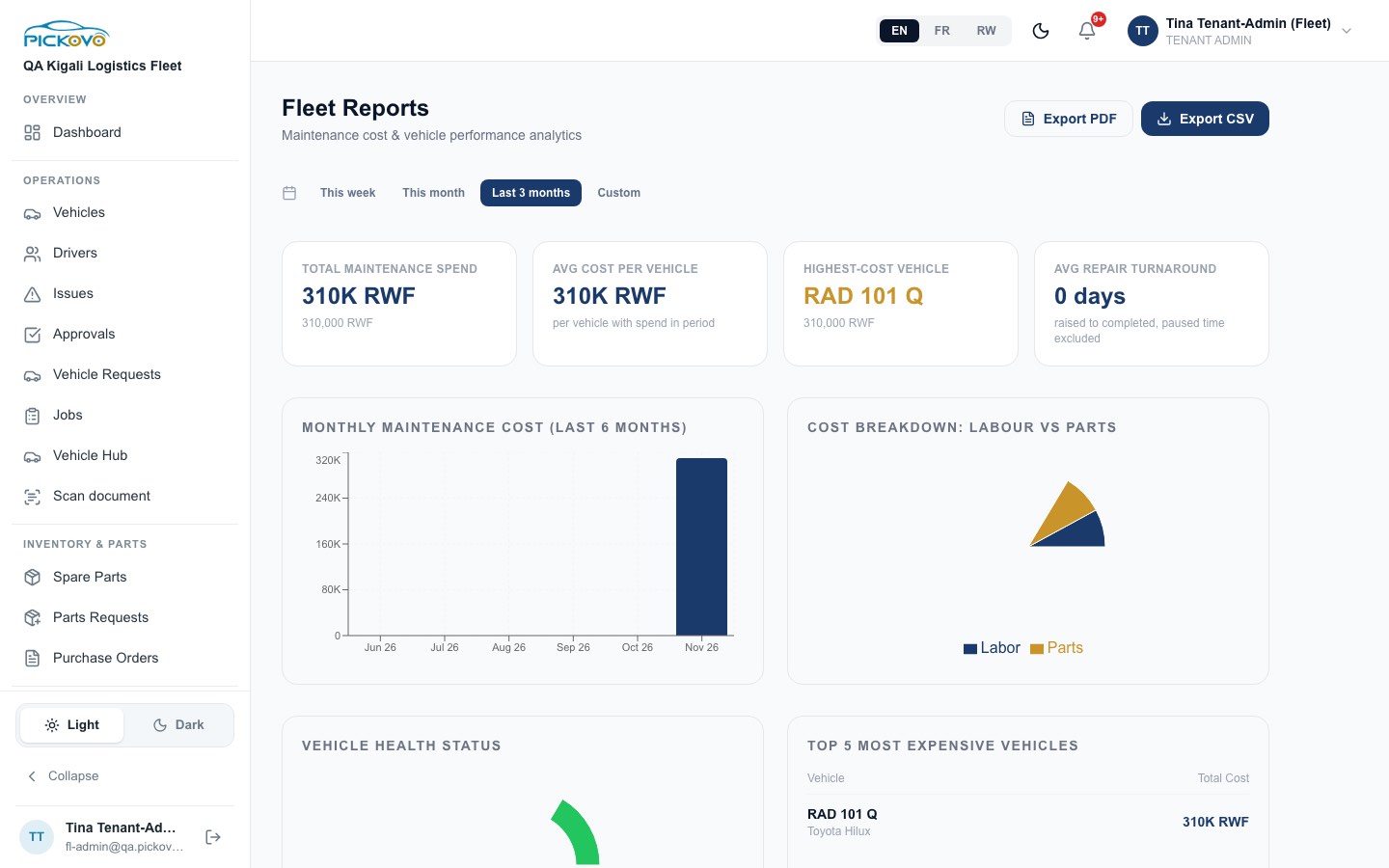
Figure 14: Fleet Reports for the last 3 months
Choosing a period: This week, This month, Last 3 months, or Custom with From and To dates.
What the page shows:
- Key figures: total spend, average cost per vehicle, highest-cost vehicle and average repair turnaround.
- Monthly Maintenance Cost (Last 6 Months)
- Cost breakdown: labour vs parts
- Vehicle Health Status
- Top 5 Most Expensive Vehicles
- Service due
- At a garage now
- Cost, repairs and downtime per vehicle
- Repeat repairs (last 90 days)
- Invoices in this period
- Service quality
- About these figures
Plates, jobs and invoices in the report are links.
Exporting: Export PDF opens your browser's print window. Export CSV downloads the data.
C13. Cost Intelligence (and the company approval limit)
Purpose: spot expensive vehicles and decide where to cut costs. This is also where you set company-wide approval rules.
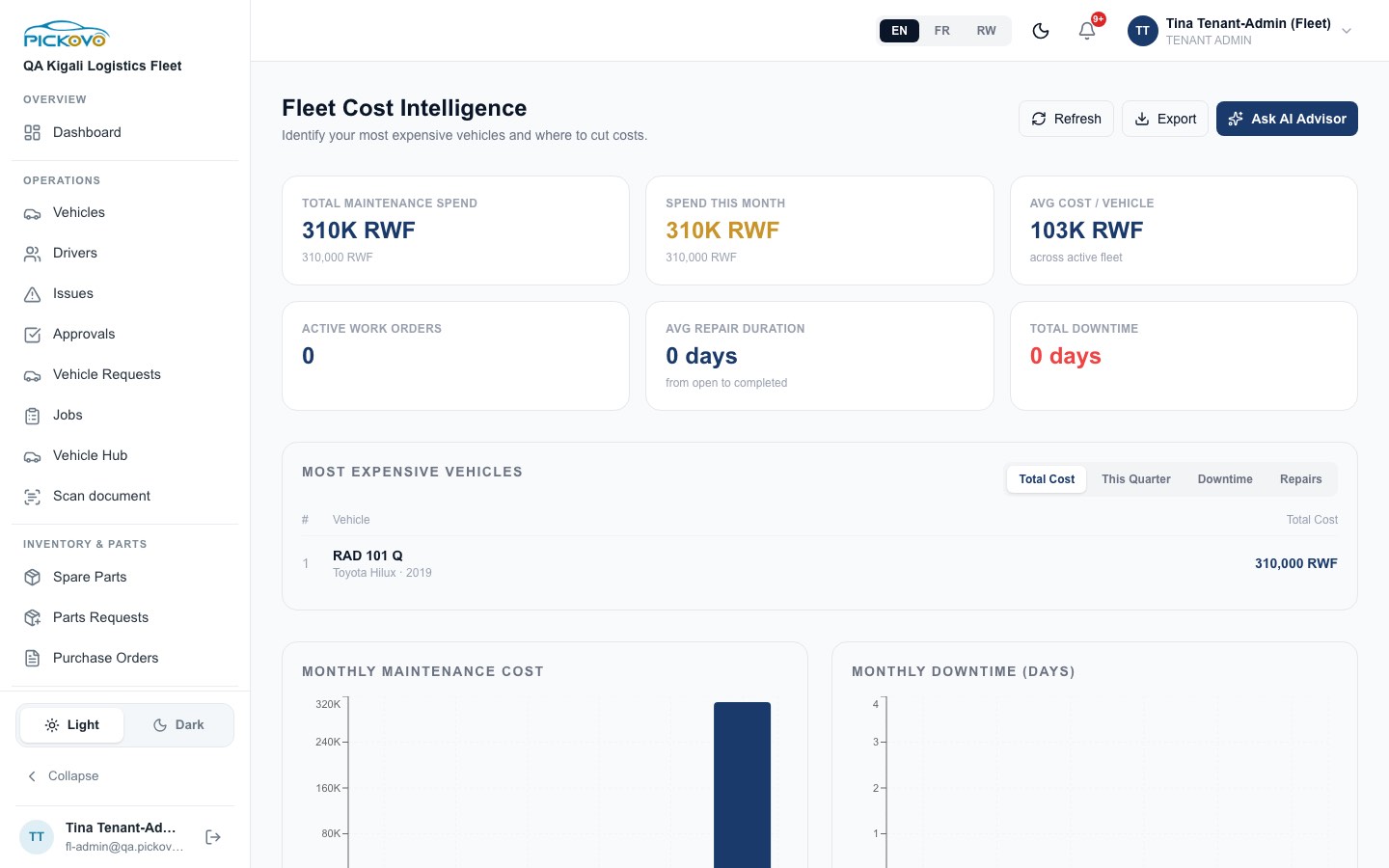
Figure 15: Fleet Cost Intelligence
What the page shows:
- Six figures: total maintenance spend, spend this month, average cost per vehicle, active work orders, average repair duration and total downtime.
- Most Expensive Vehicles, which you can rank by Total Cost / This Quarter / Downtime / Repairs.
- Charts: monthly cost, monthly downtime, repairs by category, and parts against labour.
- Cost Anomalies, Repeat Failures and Replacement Candidates.
- Vehicle Health Scores.
Buttons:
- Refresh reloads the figures.
- Export downloads the data.
- Ask AI Advisor gives written recommendations.
Replacement & Anomaly Thresholds: select Configure to set:
- When to flag a vehicle: max cost per vehicle, max repairs per quarter, max downtime, and cost-to-value %.
- Asset value and depreciation.
- Anomaly percentages.
- Quotation approval limit (RWF). Fleet Managers approve garage quotations up to this amount; above it, you must approve. Leave it empty for no limit.
- Who pays roadside helpers: The company pays, The driver pays, or The driver chooses each time.
Select Save thresholds when you are done. Fleet Managers see the last two fields but cannot change them.
C14. Billing
Purpose: manage the company's Pickovo subscription.
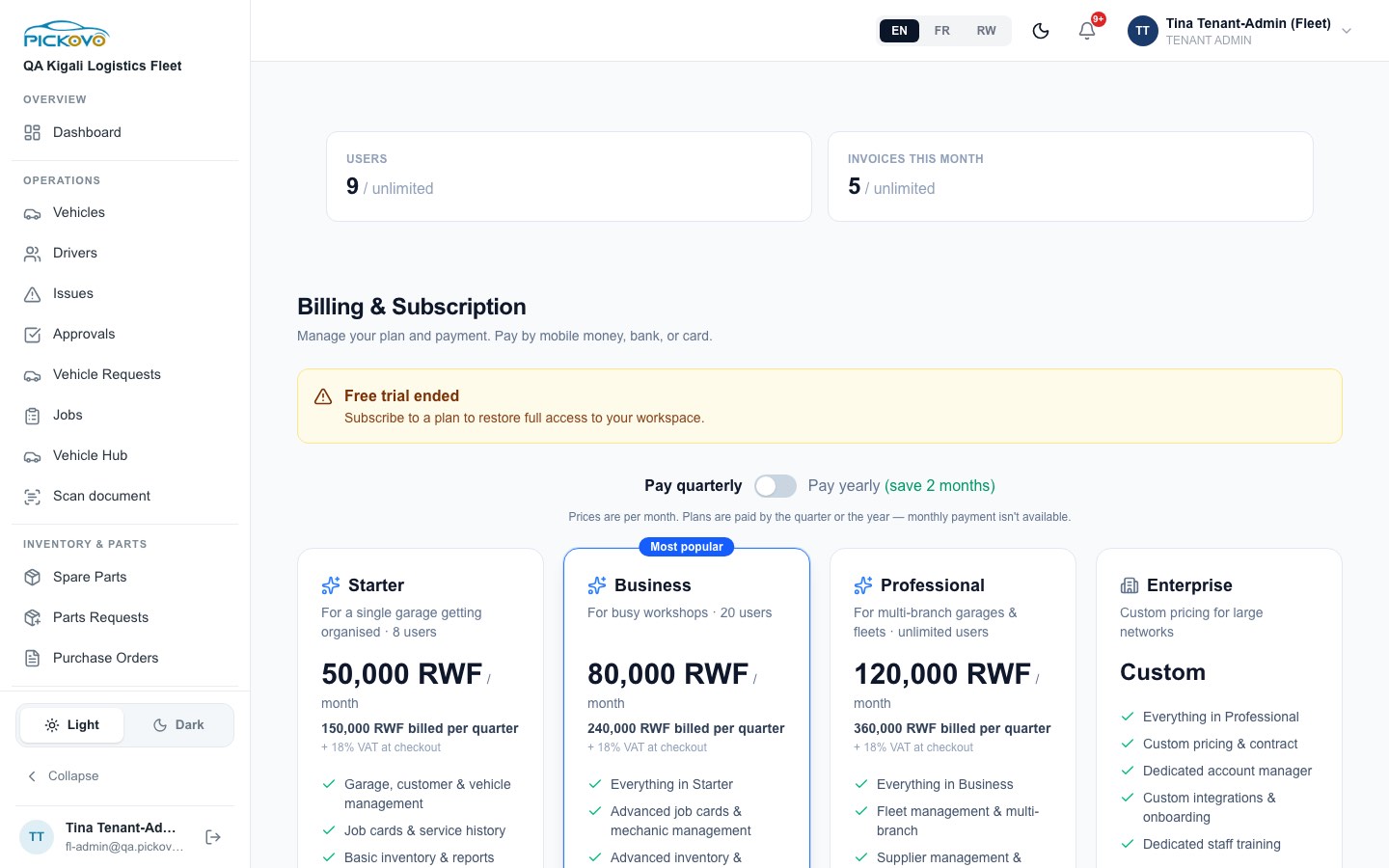
Figure 16: Billing & Subscription after the free trial ended
What the page shows:
- Trial status. While you are on the trial, a countdown shows. When it ends, a Free trial ended banner appears.
- Usage cards: Users and Invoices this month, each against your plan's limit.
- Plan cards. Use the Pay quarterly / Pay yearly switch to compare prices. Yearly saves two months. Monthly payment is not offered. Prices exclude 18% VAT, which is added at checkout.
To subscribe or change plan:
- Select Choose plan (or Switch to this plan) on a plan card. Enterprise is priced on request.
- Pick a payment method:
- Mobile: MTN Mobile Money or Airtel Money.
- Card.
- Bank: GTBank transfer. Enter your bank reference.
The checkout shows the plan price, the VAT and the Total to pay.
Also on this page:
- Compare plans
- Subscription timeline
- Payment history, with a link to each invoice
- Export My Data, which downloads your company's records as one Excel workbook
Restrictions:
- Mobile and card payment depend on the payment provider being set up. When it is not, those tabs are greyed out. Bank transfer is always available.
- After the trial ends or a subscription lapses, actions that save changes are refused until a plan is paid.
C15. Activity Log
Purpose: see who did what in your company, when and from where. It covers your organisation only.
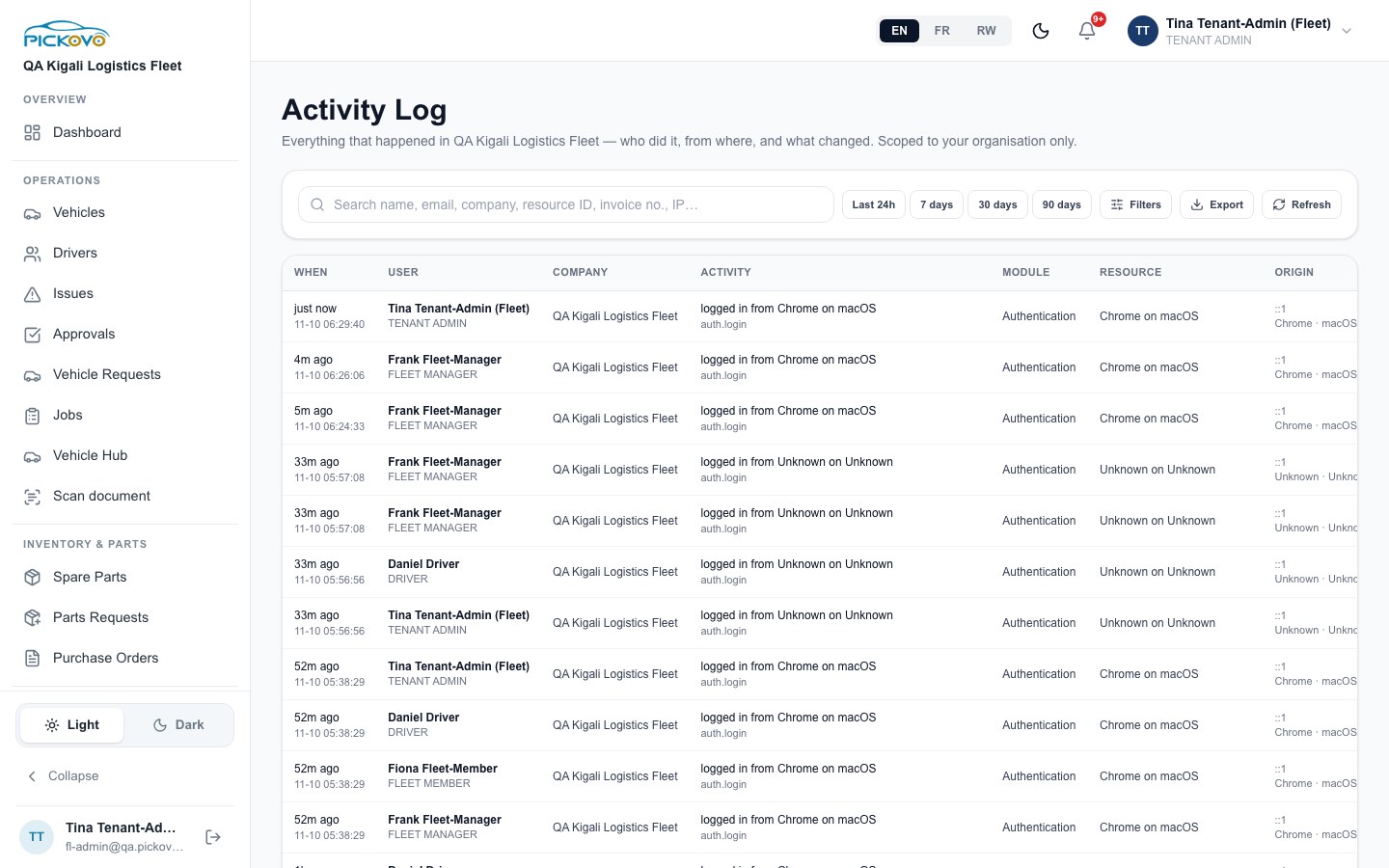
Figure 17: Activity Log for the company
Finding entries:
- Search by name, email, resource ID, invoice number or IP address.
- Quick ranges: Last 24h, 7 days, 30 days, 90 days.
- Filters: From and To dates, Module, Action, Severity, Result, Role, Country, Browser, Device, IP address, API endpoint, User ID and Resource ID.
Other controls:
- Export downloads the results as CSV, Excel, PDF or JSON.
- Refresh reloads the list.
- Click a row to see the full entry.
Use this page to check sign-ins, for example a sign-in from an unfamiliar device, and approvals such as "approved a quotation".
C16. Settings (profile, company logo, password)
Purpose: your own details and the company logo.
Settings in the sidebar opens /fleet/settings. It is the same page as /settings.
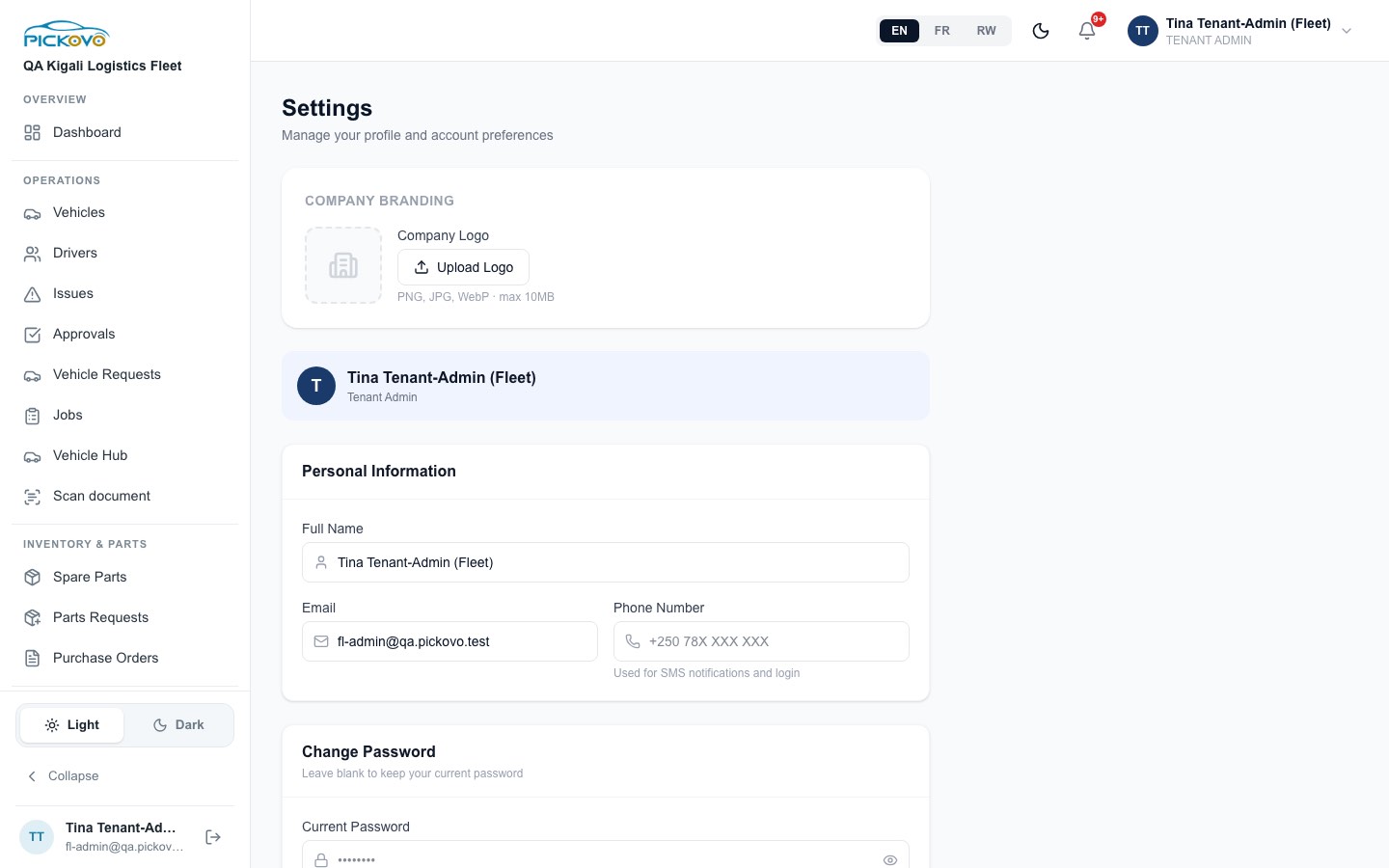
Figure 18: Settings opened from the sidebar
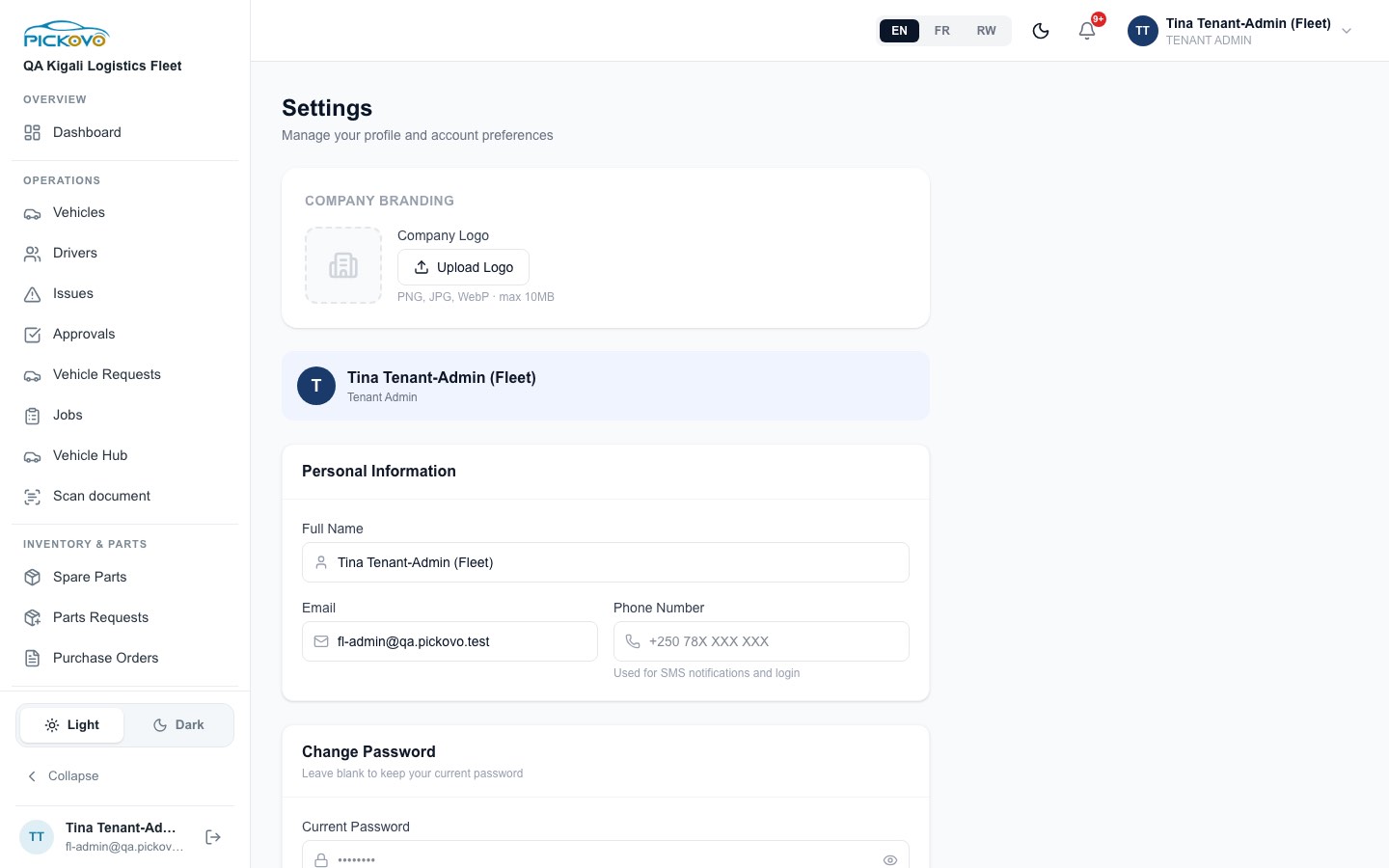
Figure 19: The same Settings page at /settings
Sections:
- Company Branding. Upload Logo accepts PNG, JPG or WebP files up to 10 MB. Only the company admin sees this section.
- Personal Information:
- Full Name
- Phone Number, used for SMS notifications and sign-in
- Change Password. Enter your Current Password, then the New Password twice. Leave the fields blank to keep your current password.
- Save Changes saves the page.
- Delete account → Request account deletion asks Pickovo to delete your account. Pickovo confirms by email first.
C17. AI Settings
Purpose: see how much the company uses AI features and what that costs this month.
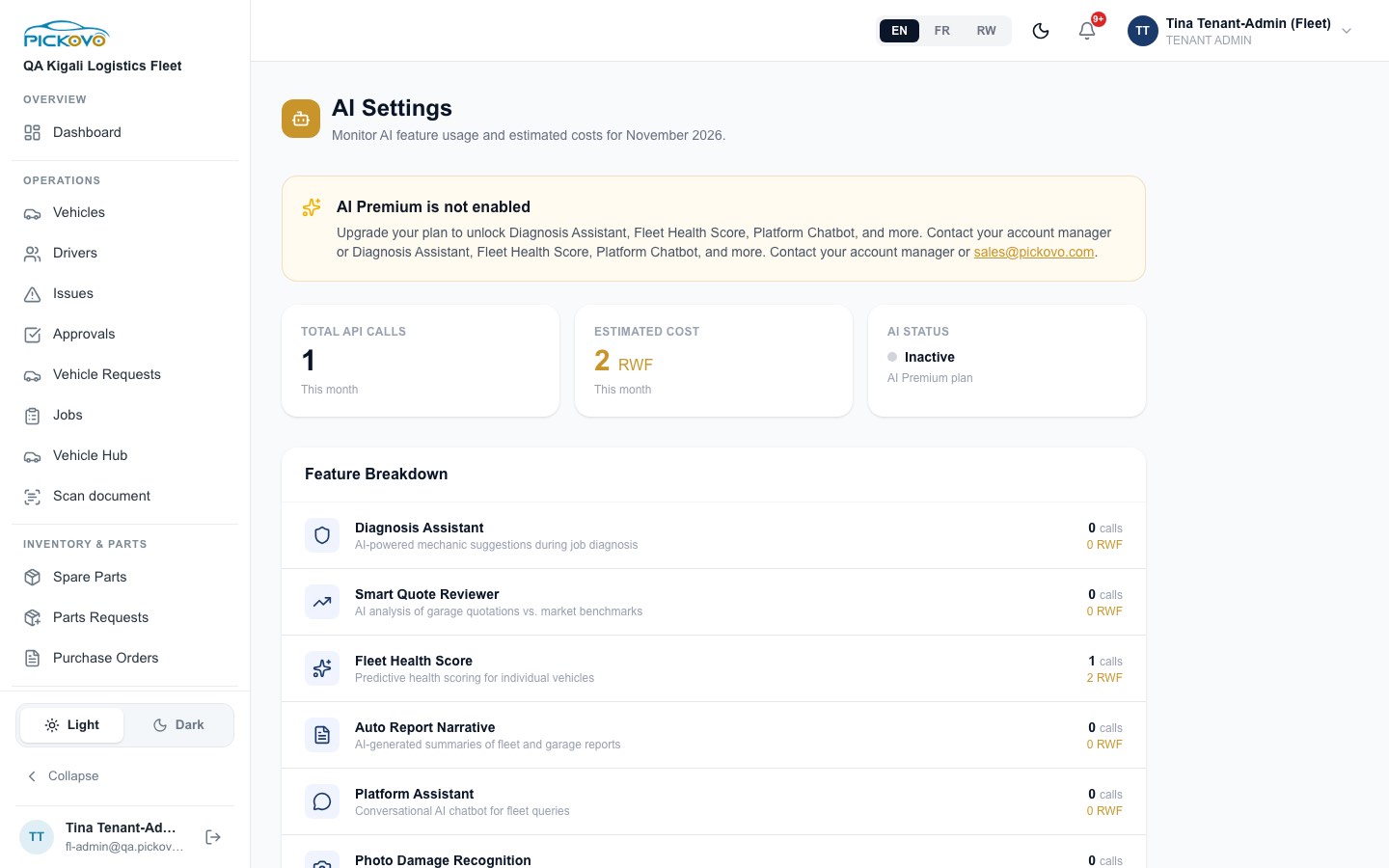
Figure 20: AI Settings with AI Premium not enabled
What the page shows:
- Total API Calls and Estimated Cost in RWF for this month.
- AI Status: Active or Inactive.
- Feature Breakdown, with calls and cost for each feature:
- Diagnosis Assistant
- Smart Quote Reviewer
- Fleet Health Score
- Auto Report Narrative
- Platform Assistant
- Photo Damage Recognition
- Document Scanner
When AI Premium is off, a banner tells you to contact your account manager or sales@pickovo.com. This page only shows usage; it has no switches.
C18. Notification preferences
Purpose: choose which events reach you, and on which channel.
There is no menu link to this page. Open it directly at /en/settings/notifications.
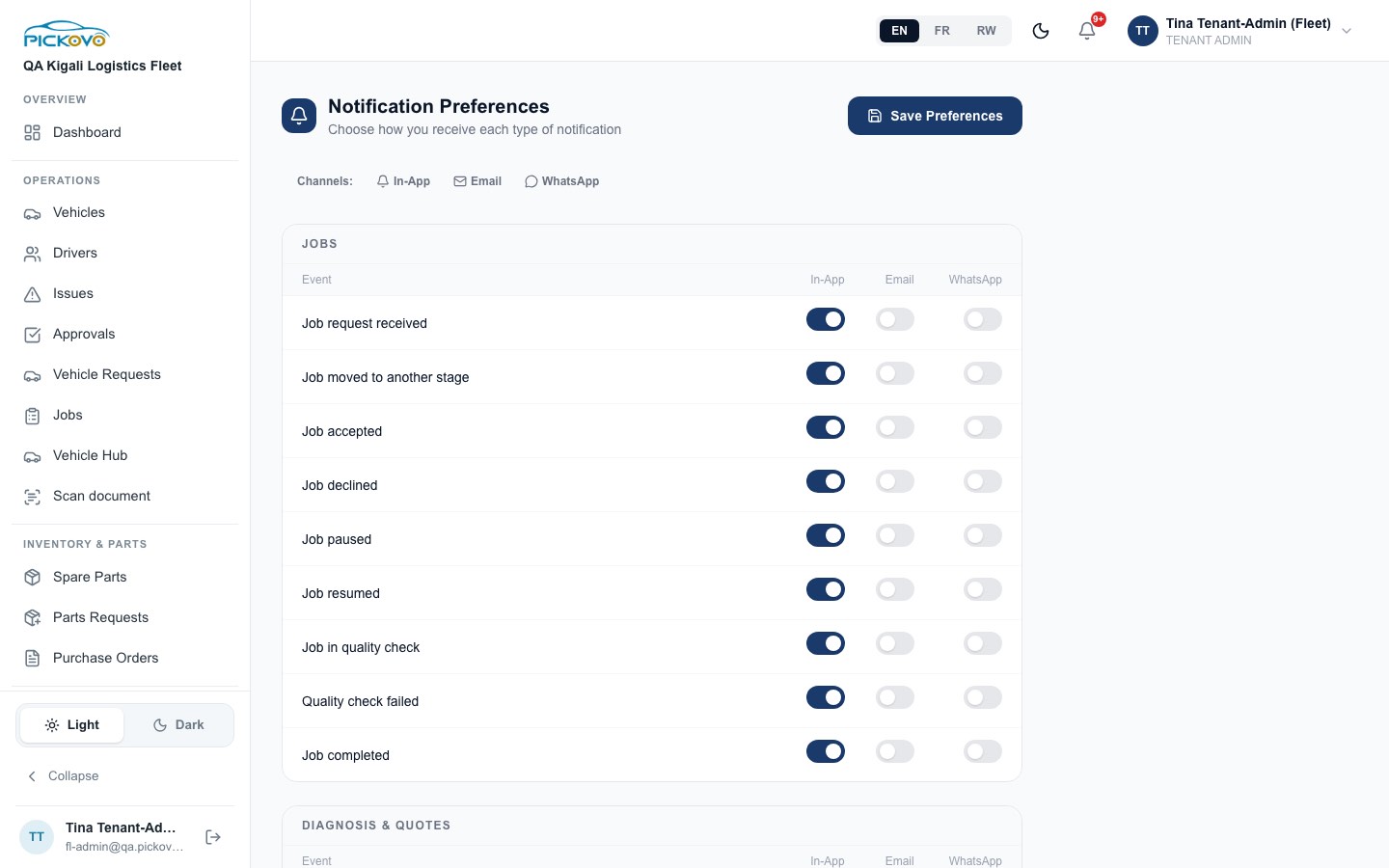
Figure 21: Notification Preferences, Jobs section
Each event has three switches: In-App, Email and WhatsApp. Events are grouped as:
- Jobs
- Diagnosis & Quotes
- Invoices
- Maintenance & Issues
- Inventory & Compliance
- Marketplace
Select Save Preferences when you are done.
C19. Refer & Earn
Purpose: earn free time on your plan by referring other organisations.
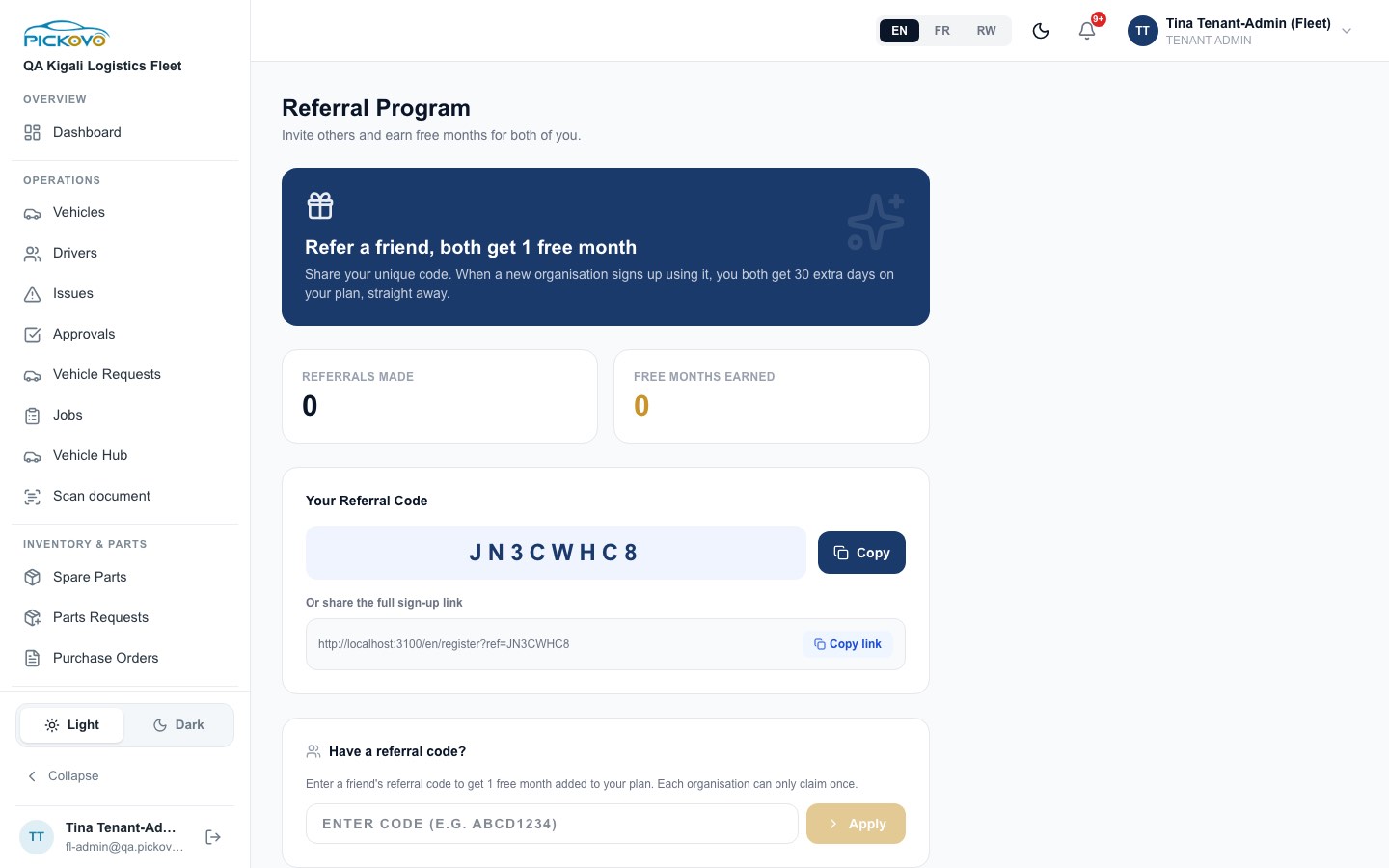
Figure 22: Referral Program with the company's code
What the page shows:
- Referrals Made and Free Months Earned.
- Your Referral Code, with Copy.
- The full sign-up link, with Copy link.
When a new organisation signs up with your code, both organisations get 30 extra days.
Have a referral code? Enter a friend's code and select Apply. Each organisation can claim a code once.
C20. Garage inventory pages (companies with their own workshop)
If your company runs its own workshop on Pickovo, you can open five garage inventory pages. Parts Requests and Purchase Orders are in the sidebar; open the other three by address. These pages show only your own company's data, and their actions work only on your own company's records. There are no screenshots for this role.
| Page | Address | What you can do |
|---|---|---|
| Parts Requests | /garage/inventory/part-requests |
See what your workshop has asked the stock room for. Approve or reject requests from your own workshop. Approving issues the stock to the job. |
| Purchase Orders | /garage/inventory/purchase-orders |
See purchase orders and procurement requests from the stock room. View only: raising or receiving orders is the stock room's job. |
| Stock Change Requests | /garage/inventory/change-requests |
Review corrections and voids raised against stock movements. You can approve or reject other people's requests, but not your own. |
| Deadstock Analysis | /garage/deadstock |
See slow-moving and dead stock. If your plan does not include it, you are sent to Billing to upgrade. |
| Supplier report | /garage/reports/suppliers |
A report on your suppliers. |
D. What you can and cannot do
Based on the measured page-access matrix and the server rules.
| Area | View | Create | Edit | Delete | Approve / decide |
|---|---|---|---|---|---|
| Vehicles | Yes | Yes (form or CSV) | Yes incl. status and driver | Yes | - |
| Drivers | Yes | Yes | Yes | - | - |
| Team (Users) | Yes | Yes Driver, Fleet Member, Fleet Manager | Yes approval limits | , (removal is refused; see C2) | - |
| Issues | Yes | Yes | - | - | Yes approve / decline |
| Quotations | Yes | - | - | - | Yes approve (no cap) / request changes / decline |
| Vehicle requests | Yes | - | - | - | Yes approve / decline |
| Jobs | Yes | Yes (partner garages only) | - | - | Yes cancel early-stage jobs |
| Garages, spare-parts shops | Yes | Yes collaboration requests, parts requests | - | - | - |
| Invoices | Yes | - | - | - | Yes dispute Sent or Overdue |
| Reports, Cost Intelligence | Yes | - | Yes thresholds, company limit, roadside payment | - | - |
| Billing | Yes | Yes subscribe / pay | - | - | - |
| Activity Log, AI Settings | Yes (your company only) | - | - | - | - |
| Garage inventory (5 pages) | Yes | - | - | - | Yes part requests and stock changes (own workshop) |
You cannot access:
- Other garage pages (job board, invoices, stock, staff).
- The driver, mechanic, spare-parts shop, regulator and transport-authority workspaces.
- The Pickovo superadmin console.
- Another company's records. These answer as "not found".
If you try to open one of these pages, you are sent back to your dashboard or to sign-in.
E. Common workflows
E1. Set up your team
- Go to Users → Add User. Choose Fleet Manager and enter their name and email. Select Create, then pass on the temporary password.
- On the new manager's row, click Company limit and type their own limit, for example 100,000. Select Save.
- Go to Cost Intelligence → Configure and set the company Quotation approval limit. Select Save thresholds.
- Add drivers from Users with Invite on WhatsApp, or from Drivers → Add Driver.
- On Vehicles, assign each driver to a vehicle.
E2. Partner with a garage
- Go to Garages, find the garage, and select Request Collab (or Full profile → Request Collaboration and add a message).
- The garage's admin accepts your request. The card changes to Partner and you are notified.
- You or a Fleet Manager can now send vehicles there: use Send for Service on a vehicle page, Send to Garage on an approved issue, or Request a Job.
E3. A repair from report to payment (above a manager's limit)
This follows the tested repair flow. The steps marked you are yours.
- The driver reports a problem from the app, for example "Grinding noise from the front brakes" on RAD 101 Q.
- A Fleet Manager, or you, approves the issue on Issues or Approvals, then uses Send to Garage.
- The garage accepts the job, assigns a mechanic, diagnoses the problem and sends a quotation. The job shows Quote Ready.
- If the quotation is above the manager's limit, the manager's approval is refused. You open Approvals → Quotations → Awaiting Decision, review the quotation and select Approve. The job moves to In Progress and the vehicle shows In Repair.
- The garage finishes the work, passes quality check, and sends an invoice.
- Your company pays the garage. The garage's cashier records the payment, and the invoice shows Paid on Invoices.
- The garage closes the job. You can rate the garage under History with this Garage on its profile, and the repair appears on the vehicle's History tab.
E4. Renew the subscription
- Go to Billing. Check the Users and Invoices this month cards against your plan's limits.
- Choose quarterly or yearly, then select Choose plan.
- Pay by mobile money, card or bank transfer. Bank transfer needs your bank reference.
- Check Payment history and Subscription timeline. Full access returns once the payment is confirmed.
F. Troubleshooting
| Problem | Likely cause and fix |
|---|---|
| Sign-in says the details are wrong | Check your email or phone number and password. Use Forgot password? if needed. |
| Sign-in keeps failing even with the right password | 10 wrong attempts in 15 minutes pauses sign-in. Wait 15 minutes. If your company is suspended, nobody can sign in; contact Pickovo. |
| A page sends you back to the dashboard or to sign-in | You do not have access to that page (see D). |
| "Only the company admin can add a fleet manager" | A Fleet Manager tried to add a manager. You have to do it. |
| A manager sees "…above your approval limit… A company admin must approve it" | Approve the quotation yourself, or raise their limit on Users or the company limit on Cost Intelligence. |
| "This quotation has expired. Ask the garage to re-quote." | Expired quotations cannot be approved. Ask the garage for a new version. |
| Send to Garage is greyed out, or Send for Service is missing | You have no accepted garage partnership. Request one on Garages. |
| "No accepted collaboration with this garage" when requesting a job | The garage you picked is not a partner yet. |
| A job will not move, or "Cannot transition from … to …" | Jobs follow a fixed order, and most steps belong to the garage. You can only cancel a job while it is awaiting acceptance, accepted, or waiting for quote approval. A paused job must be resumed by the garage first. |
| You cannot approve a stock change request | You cannot approve a change request you raised yourself. Another admin must review it. |
| Saving anything fails after the trial | The trial has ended or the subscription has lapsed. Pay on Billing. |
| Mobile money or card tab is greyed out on checkout | The payment provider is not available. Use Bank transfer. |
| A team member's bin icon does nothing | This is a known limitation (see C2). Ask Pickovo support to remove the person. |
| CSV import reports failed lines | Fix the lines listed (missing fields, bad year or fuel type, plate already in your fleet) and import again. |
| A driver's WhatsApp invite expired | On Users, select Resend invite. |
G. Security and best practices
- Be careful with admin power. You can add managers, approve any amount and change the subscription. Do not share your login. Create a Fleet Manager or Fleet Member account for each colleague instead.
- Use approval limits. Set a company limit, and give a lower limit to newer managers, so large repairs come to you.
- Pass on passwords safely. Temporary passwords appear on screen once. Send them privately and ask people to change them. For drivers, prefer the WhatsApp invite: they set their own password, and it verifies their phone.
- Use a strong, unique password and change it from Settings if you think someone has seen it. If your account has two-factor authentication, keep your authenticator app on a device you control.
- Check the Activity Log regularly for sign-ins you do not recognise, and for approvals or changes you did not expect. Export it when you need records for an audit.
- Ask for removal when people leave, and reassign their vehicles.
- Export My Data on Billing gives you a full copy of your company's records. Store it securely.
- Sign out with Logout when you use a shared computer.